navigation update VOLVO XC90 2015 User Guide
[x] Cancel search | Manufacturer: VOLVO, Model Year: 2015, Model line: XC90, Model: VOLVO XC90 2015Pages: 570, PDF Size: 12.44 MB
Page 459 of 570
NAVIGATION*
* Option/accessory, for more information, see Introduction.
457
QuestionAnswer
How big is an update?This varies from market to market. Consult a Volvoretailer.
Updating has not worked.What shouldI do?Try the Volvo Cars support site (support.volvocars.com) orcontact a Volvo retailer.
Related information
•Remote map updates (p. 457)
• Map updates from a computer with a USB flash drive (p. 458)
• Sensus Navigation troubleshooting (p. 462)
• Copyright (p. 462)
• Navigation license agreements (p. 460)
• System updates (p. 490)
• Internet connected vehicle (p. 401)
• Connecting to the Internet (p. 402)
• System settings (p. 456)
Remote map updates
Some preparation is necessary before a remote update can be made through the vehicle's cellphone Internet connection.
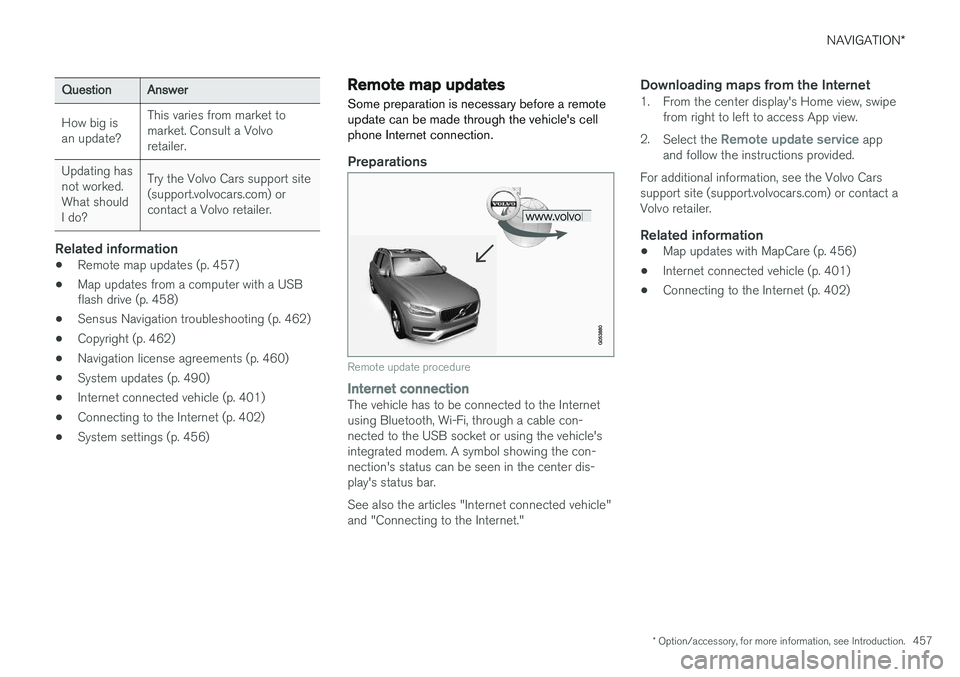
Preparations
Remote update procedure
Internet connectionThe vehicle has to be connected to the Internet using Bluetooth, Wi-Fi, through a cable con-nected to the USB socket or using the vehicle'sintegrated modem. A symbol showing the con-nection's status can be seen in the center dis-play's status bar. See also the articles "Internet connected vehicle" and "Connecting to the Internet."
Downloading maps from the Internet1. From the center display's Home view, swipe from right to left to access App view.
2. Select the
Remote update service app
and follow the instructions provided.
For additional information, see the Volvo Cars support site (support.volvocars.com) or contact aVolvo retailer.
Related information
• Map updates with MapCare (p. 456)
• Internet connected vehicle (p. 401)
• Connecting to the Internet (p. 402)
Page 460 of 570
NAVIGATION*
* Option/accessory, for more information, see Introduction.
458
Map updates from a computer with a USB flash drive
Some preparation is necessary before a USB map update can be carried out.
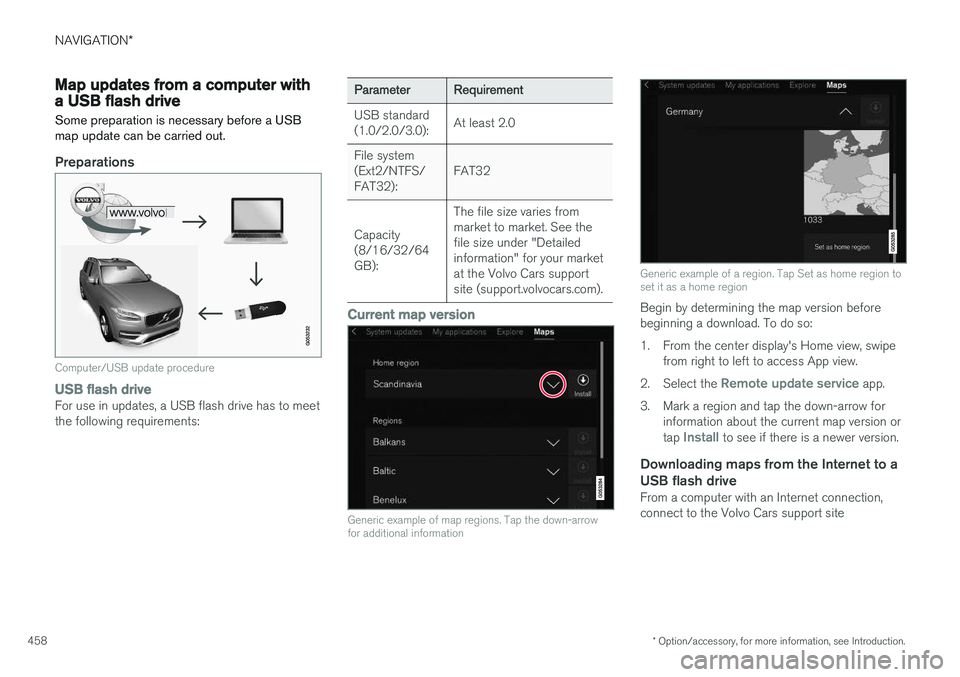
Preparations
Computer/USB update procedure
USB flash driveFor use in updates, a USB flash drive has to meet the following requirements:
ParameterRequirement
USB standard (1.0/2.0/3.0):At least 2.0
File system (Ext2/NTFS/FAT32):FAT32
Capacity (8/16/32/64GB):
The file size varies from market to market. See thefile size under "Detailedinformation" for your marketat the Volvo Cars supportsite (support.volvocars.com).
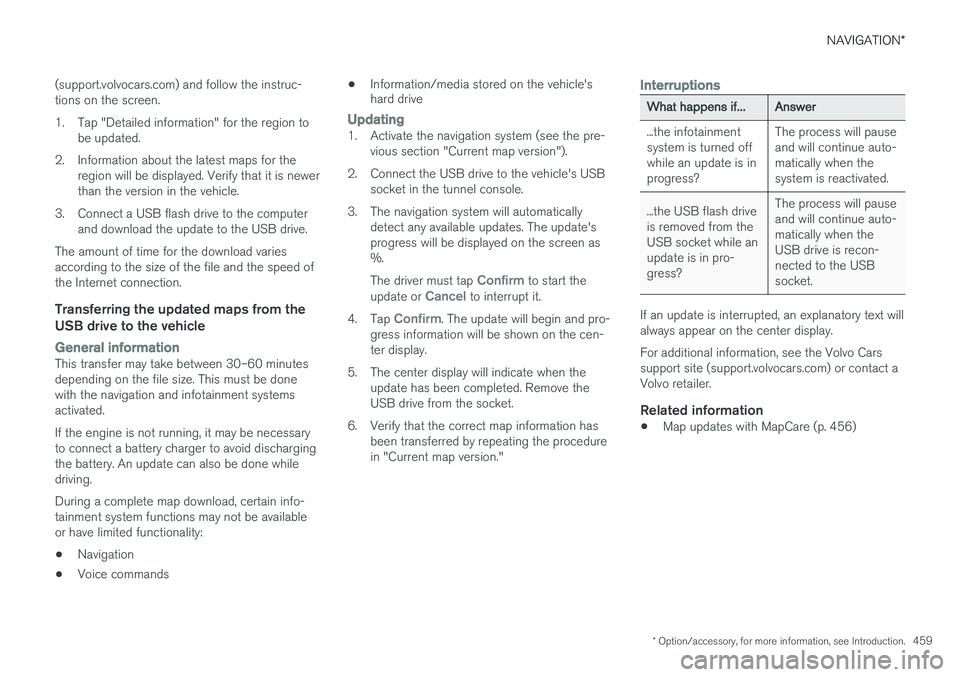
Current map version
Generic example of map regions. Tap the down-arrow for additional information
Generic example of a region. Tap Set as home region to set it as a home region
Begin by determining the map version before beginning a download. To do so:
1. From the center display's Home view, swipe from right to left to access App view.
2. Select the
Remote update service app.
3. Mark a region and tap the down-arrow for information about the current map version or tap
Install to see if there is a newer version.
Downloading maps from the Internet to a USB flash drive
From a computer with an Internet connection, connect to the Volvo Cars support site
Page 461 of 570
NAVIGATION*
* Option/accessory, for more information, see Introduction.
459
(support.volvocars.com) and follow the instruc- tions on the screen.
1. Tap "Detailed information" for the region to
be updated.
2. Information about the latest maps for the region will be displayed. Verify that it is newer than the version in the vehicle.
3. Connect a USB flash drive to the computer and download the update to the USB drive.
The amount of time for the download variesaccording to the size of the file and the speed ofthe Internet connection.
Transferring the updated maps from the USB drive to the vehicle
General informationThis transfer may take between 30–60 minutes depending on the file size. This must be donewith the navigation and infotainment systemsactivated. If the engine is not running, it may be necessary to connect a battery charger to avoid dischargingthe battery. An update can also be done whiledriving. During a complete map download, certain info- tainment system functions may not be availableor have limited functionality:
• Navigation
• Voice commands •
Information/media stored on the vehicle's hard drive
Updating1. Activate the navigation system (see the pre-
vious section "Current map version").
2. Connect the USB drive to the vehicle's USB socket in the tunnel console.
3. The navigation system will automatically detect any available updates. The update's progress will be displayed on the screen as%. The driver must tap
Confirm to start the
update or Cancel to interrupt it.
4. Tap
Confirm. The update will begin and pro-
gress information will be shown on the cen- ter display.
5. The center display will indicate when the update has been completed. Remove theUSB drive from the socket.
6. Verify that the correct map information has been transferred by repeating the procedurein "Current map version."
Interruptions
What happens if...Answer
...the infotainment system is turned offwhile an update is inprogress?The process will pause and will continue auto-matically when thesystem is reactivated.
...the USB flash drive is removed from theUSB socket while anupdate is in pro-gress?The process will pause and will continue auto-matically when theUSB drive is recon-nected to the USBsocket.
If an update is interrupted, an explanatory text will always appear on the center display. For additional information, see the Volvo Cars support site (support.volvocars.com) or contact aVolvo retailer.
Related information
• Map updates with MapCare (p. 456)
Page 465 of 570
NAVIGATION*
* Option/accessory, for more information, see Introduction.
463
The types of roads that you have chosen to avoid will not be used if there are viable alternatives.
After being transported, the vehicle's location on the map is not correct
If the vehicle has been transported (e.g., on a ferry or train) where GPS signals have beenblocked, it may take up to 5 minutes before itslocation will be shown correctly.
The car symbol moves erratically after
new tires have been installed
In addition to GPS signals, the navigation systemalso uses the speedometer and a gyroscopicsensor to calculate the vehicle's current locationand speed. If e.g., a spare tire or snow tires havebeen installed, the system has to "learn" the newtire dimensions. To do so, drive for a short periodon a road with unobstructed GPS reception.
The map does not correspond to actual road conditions
Due to road changes/additions/rerouting/newtraffic regulations, the map database may not beup-to-date. The database is continuously beingupdated. Consult your Volvo retailer.
The car symbol jumps forward or spinsBefore you begin to drive, the system may needseveral seconds to determine the vehicle's loca-tion. Switch off the navigation system and the ignition.Restart but remain at a standstill for a minute orso before driving.
The map information is not up-to-dateSee the next heading.
How can I check which map version I
have?
1. From the center display's Home view, swipe from right to left to display App view.
2. Select the
Remote update service app.
This contains information about the current map version. See also "Updating map data with Map-Care" for additional information or contact yourVolvo retailer.
Related information
• Getting started with Sensus Navigation (p. 432)
• Map updates with MapCare (p. 456)
Page 493 of 570
MAINTENANCE AND SERVICING
491
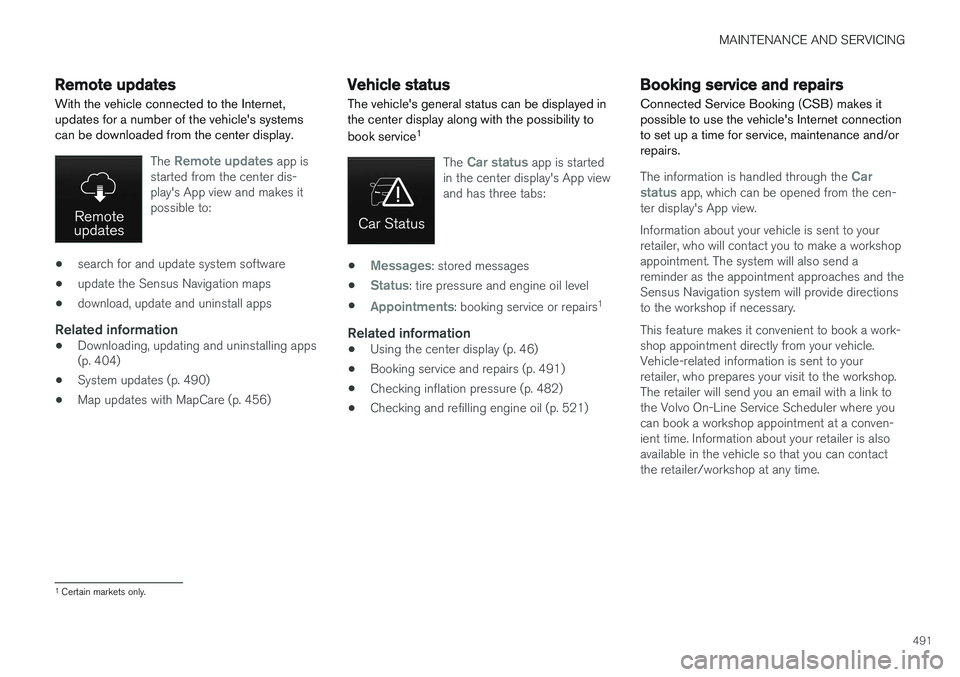
Remote updates With the vehicle connected to the Internet, updates for a number of the vehicle's systemscan be downloaded from the center display.
The Remote updates app is
started from the center dis- play's App view and makes itpossible to:
• search for and update system software
• update the Sensus Navigation maps
• download, update and uninstall apps
Related information
•Downloading, updating and uninstalling apps (p. 404)
• System updates (p. 490)
• Map updates with MapCare (p. 456)
Vehicle status
The vehicle's general status can be displayed in the center display along with the possibility to book service 1
The Car status app is started
in the center display's App view and has three tabs:
•Messages: stored messages
•
Status: tire pressure and engine oil level
•
Appointments: booking service or repairs 1
Related information
•
Using the center display (p. 46)
• Booking service and repairs (p. 491)
• Checking inflation pressure (p. 482)
• Checking and refilling engine oil (p. 521)
Booking service and repairs Connected Service Booking (CSB) makes it possible to use the vehicle's Internet connectionto set up a time for service, maintenance and/orrepairs.
The information is handled through the Car
status app, which can be opened from the cen-
ter display's App view. Information about your vehicle is sent to your retailer, who will contact you to make a workshopappointment. The system will also send areminder as the appointment approaches and theSensus Navigation system will provide directionsto the workshop if necessary. This feature makes it convenient to book a work- shop appointment directly from your vehicle.Vehicle-related information is sent to yourretailer, who prepares your visit to the workshop.The retailer will send you an email with a link tothe Volvo On-Line Service Scheduler where youcan book a workshop appointment at a conven-ient time. Information about your retailer is alsoavailable in the vehicle so that you can contactthe retailer/workshop at any time.
1 Certain markets only.
Page 562 of 570
560
L
Labelslist of 536
location of 535
Laminated panoramic roof 101, 102 Lane Departure Warning settings 325
Lane Departure Warning (LDW) 323, 327
Lane Keeping Aid 323, 325, 327 settings 325
LATCH anchors 72
Leather care 527Licence copyright 460
Lighting panel 138
Load anchoring eyelets 212
Loading the vehicle 200, 207, 471
Locking 231, 232
Locks and alarm 216
Low beam bulb, replacing 512
Low beams 139, 140
Low Speed Control 371
M
Maintenance 488 hoisting the vehicle 516
performed by the owner 488
Malfunction indicator light 126
Manual front seat adjustment 160Map buttons and information 428
Information cards 446
Map updates computer with USB flash drive 458
MapCare 456
Remote 457
Media player 393 compatible file formats 400
Media player (infotainment system) 395 Menus instrument panel 149, 151, 152, 153
Mirrors defroster 187
power door 100
retractable 100
Mirrors, rearview mirror 105
Modem 407Motor oil checking 520, 521
MP3 files 400
Multifunctional front seats 163, 164, 165
MY CAR 106
N
Navigationinstrument panel 448
Quick guidance 432
Sensus Navigation 432
Navigation displays controls 433
Navigation system features 429
voice commands 124, 433
Net cargo 209
O
Occupant safety 56
Occupant weight sensor 78
Octane recommendations 347
Odometer 92Oilchecking 520, 521
Page 564 of 570
562Recalls, child restraints 65
Recirculation (climate system) 186
Refrigerant (A/C system) 541
Refueling 346, 347
fuel filler door 348
Registering child restraints 65
Remote key 224, 226, 229 immobilizer 221
linking to a driver profile 110
range 224
replacing the battery 222
restricted (red) key 226
Remote updates 491
Replacing bulbs 510
Replacing fuses 500, 501, 505, 508
Reporting safety defects 57
Roadside Assistance 14
Road sign information (RSI) 290, 291
Rollover Protection System (ROPS) 89
Roll Stability Control (RSC) 89Rout Detour 447
S
Safety, occupant 56
Safety defects, reporting 57
Safety locks, child 218
Safety mode 81Seatadjusting the passenger's seat from the
driver's seat 162
Seat belt reminder 61
Seat belts Automatic locking retractor/Emergency
locking retractor 65
buckling 59
pretensioners 58, 59
reminder 61
securing child restraint systems 67, 69, 71
unbuckling 59
use during pregnancy 62
using 58
Seats rear 166
Sensus 17 navigation 428
Service connected service booking 491
Settingsguidance 455
Map 450
Route 452
Sensus Navigation 449
System 456
Traffic information 454
Settings view categories 107
resetting 111
system settings 109
Shiftlock override 369
Side door mirrors 100
Side impact airbags 88 SiriusXM ®
Satellite radio
traffic information 383, 384, 385
Snow chains 473
Snow tires 473Sound settings media 398
ringtones 392
Sound settings, audio system 376, 398 Specifications bulbs 515
Speed limiter 283, 285, 290 automatic 285, 287