display VOLVO XC90 2015 Owners Manual
[x] Cancel search | Manufacturer: VOLVO, Model Year: 2015, Model line: XC90, Model: VOLVO XC90 2015Pages: 570, PDF Size: 12.44 MB
Page 447 of 570
NAVIGATION*
* Option/accessory, for more information, see Introduction.
445
POIs along the route
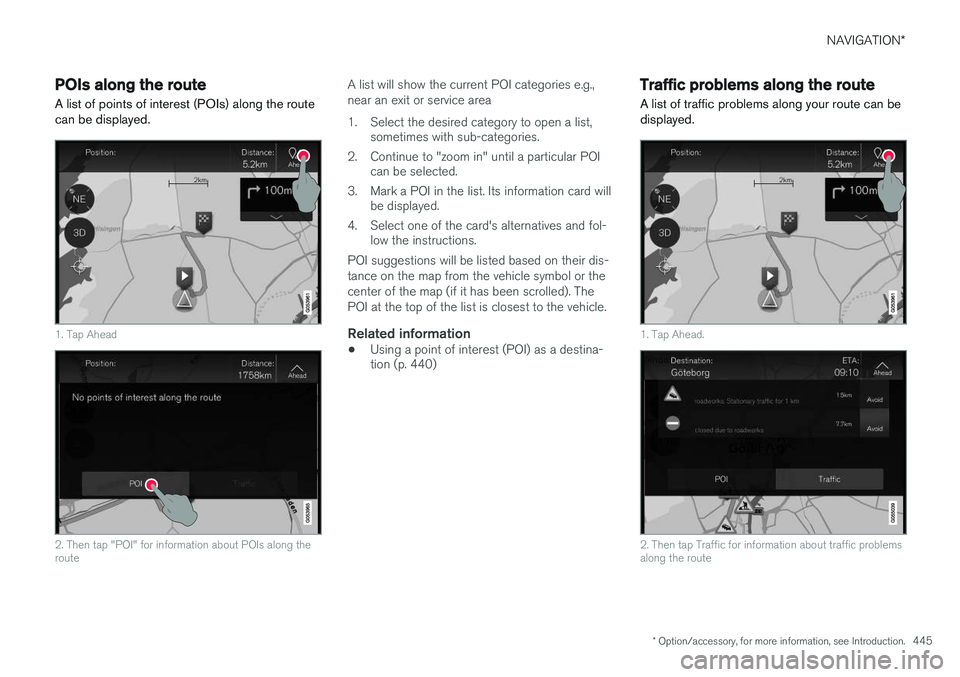
A list of points of interest (POIs) along the route can be displayed.
1. Tap Ahead
2. Then tap "POI" for information about POIs along the route
A list will show the current POI categories e.g., near an exit or service area
1. Select the desired category to open a list, sometimes with sub-categories.
2. Continue to "zoom in" until a particular POI can be selected.
3. Mark a POI in the list. Its information card will be displayed.
4. Select one of the card's alternatives and fol- low the instructions.
POI suggestions will be listed based on their dis- tance on the map from the vehicle symbol or thecenter of the map (if it has been scrolled). ThePOI at the top of the list is closest to the vehicle.
Related information
• Using a point of interest (POI) as a destina- tion (p. 440)
Traffic problems along the route A list of traffic problems along your route can be displayed.
1. Tap Ahead.
2. Then tap Traffic for information about traffic problems along the route
Page 449 of 570
NAVIGATION*
* Option/accessory, for more information, see Introduction.
447
Choosing a detour Select
Detour to avoid the next section of a
route if e.g., a road is closed.
Detours
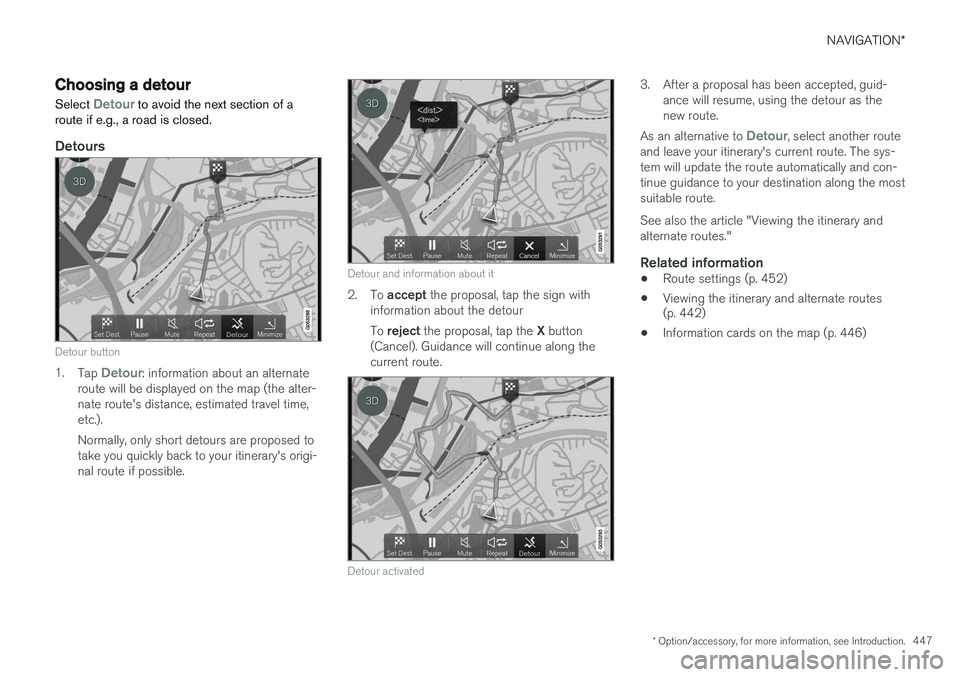
Detour button
1. Tap Detour: information about an alternate
route will be displayed on the map (the alter- nate route's distance, estimated travel time,etc.). Normally, only short detours are proposed to take you quickly back to your itinerary's origi-nal route if possible.
Detour and information about it
2. To accept the proposal, tap the sign with
information about the detour To reject the proposal, tap the X button
(Cancel). Guidance will continue along the current route.
Detour activated
3. After a proposal has been accepted, guid- ance will resume, using the detour as the new route.
As an alternative to
Detour, select another route
and leave your itinerary's current route. The sys- tem will update the route automatically and con-tinue guidance to your destination along the mostsuitable route. See also the article "Viewing the itinerary and alternate routes."
Related information
• Route settings (p. 452)
• Viewing the itinerary and alternate routes (p. 442)
• Information cards on the map (p. 446)
Page 450 of 570
NAVIGATION*
* Option/accessory, for more information, see Introduction.
448
Traffic information 4
The navigation system constantly receives traffic messages that are broadcast by local radio sta-tions.
See the article "Traffic settings" for the traffic- related settings available to the driver.
Directly on the map
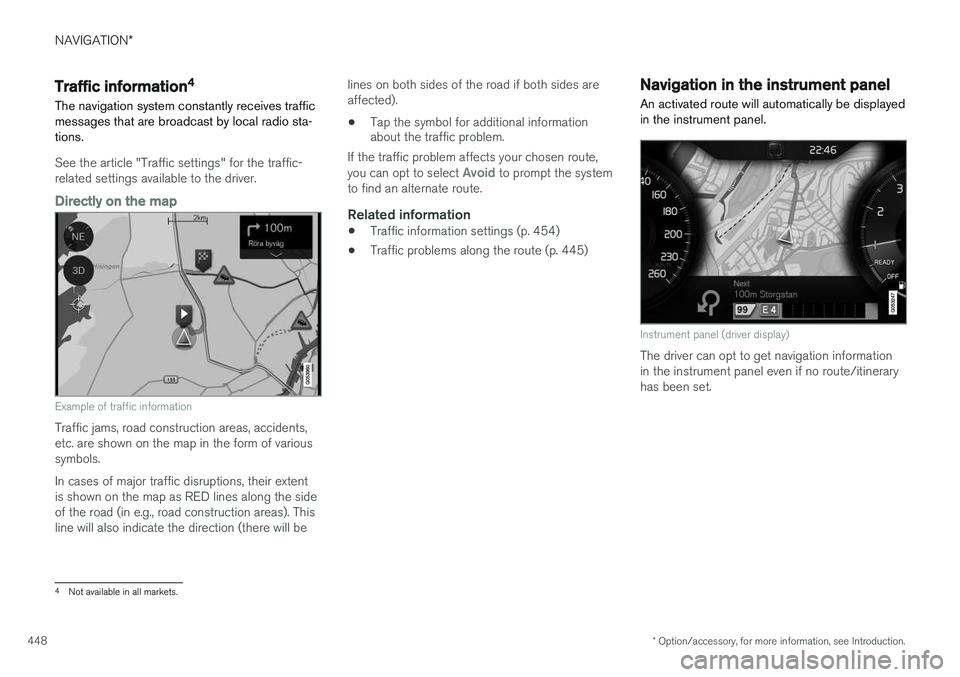
Example of traffic information
Traffic jams, road construction areas, accidents, etc. are shown on the map in the form of varioussymbols. In cases of major traffic disruptions, their extent is shown on the map as RED lines along the sideof the road (in e.g., road construction areas). Thisline will also indicate the direction (there will be lines on both sides of the road if both sides areaffected).
• Tap the symbol for additional information about the traffic problem.
If the traffic problem affects your chosen route, you can opt to select
Avoid to prompt the system
to find an alternate route.
Related information
• Traffic information settings (p. 454)
• Traffic problems along the route (p. 445)
Navigation in the instrument panel An activated route will automatically be displayed in the instrument panel.
Instrument panel (driver display)
The driver can opt to get navigation information in the instrument panel even if no route/itineraryhas been set.
4
Not available in all markets.
Page 451 of 570
NAVIGATION*
* Option/accessory, for more information, see Introduction.
449
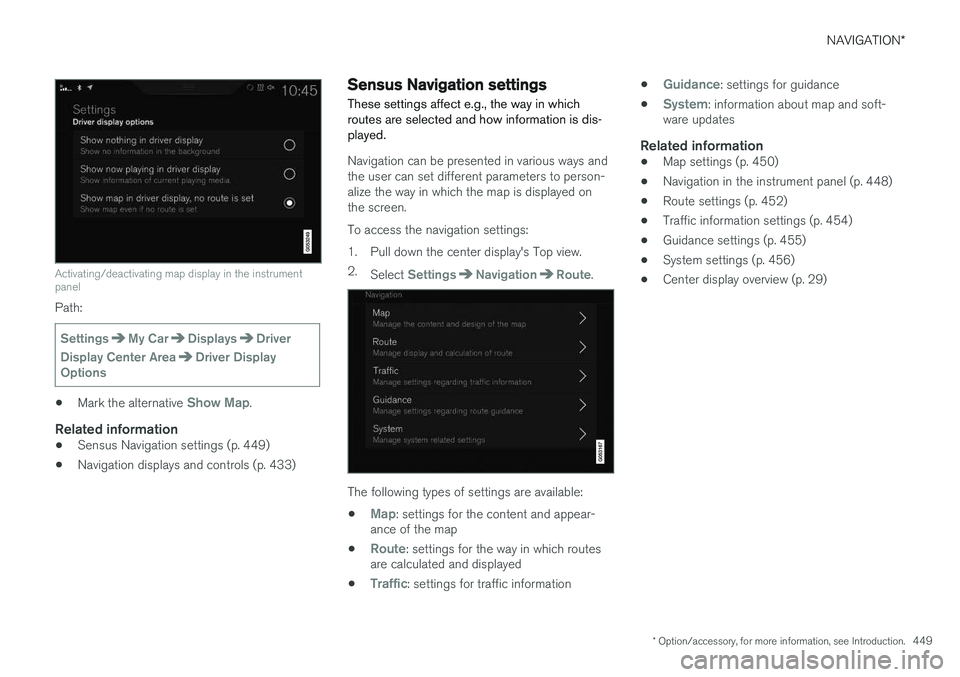
Activating/deactivating map display in the instrument panel
Path:
SettingsMy CarDisplaysDriver
Display Center Area
Driver Display
Options
• Mark the alternative Show Map.
Related information
•Sensus Navigation settings (p. 449)
• Navigation displays and controls (p. 433)
Sensus Navigation settings
These settings affect e.g., the way in which routes are selected and how information is dis-played.
Navigation can be presented in various ways and the user can set different parameters to person-alize the way in which the map is displayed onthe screen. To access the navigation settings:
1. Pull down the center display's Top view. 2. Select
SettingsNavigationRoute.
The following types of settings are available:
•
Map: settings for the content and appear-
ance of the map
•
Route: settings for the way in which routes
are calculated and displayed
•
Traffic: settings for traffic information •
Guidance: settings for guidance
•
System: information about map and soft-
ware updates
Related information
• Map settings (p. 450)
• Navigation in the instrument panel (p. 448)
• Route settings (p. 452)
• Traffic information settings (p. 454)
• Guidance settings (p. 455)
• System settings (p. 456)
• Center display overview (p. 29)
Page 452 of 570
NAVIGATION*
* Option/accessory, for more information, see Introduction.
450
Map settings
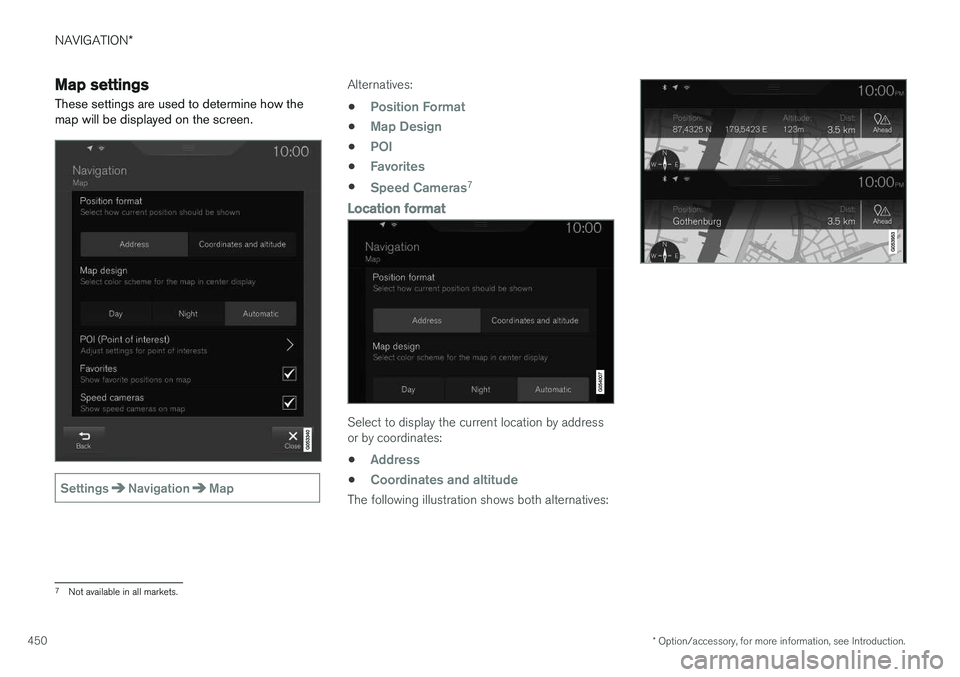
These settings are used to determine how the map will be displayed on the screen.
SettingsNavigationMap
Alternatives:
•
Position Format
•Map Design
•POI
•Favorites
•Speed Cameras7
Location format
Select to display the current location by address or by coordinates:•
Address
•Coordinates and altitude
The following illustration shows both alternatives:
7 Not available in all markets.
Page 453 of 570
NAVIGATION*
* Option/accessory, for more information, see Introduction.
451
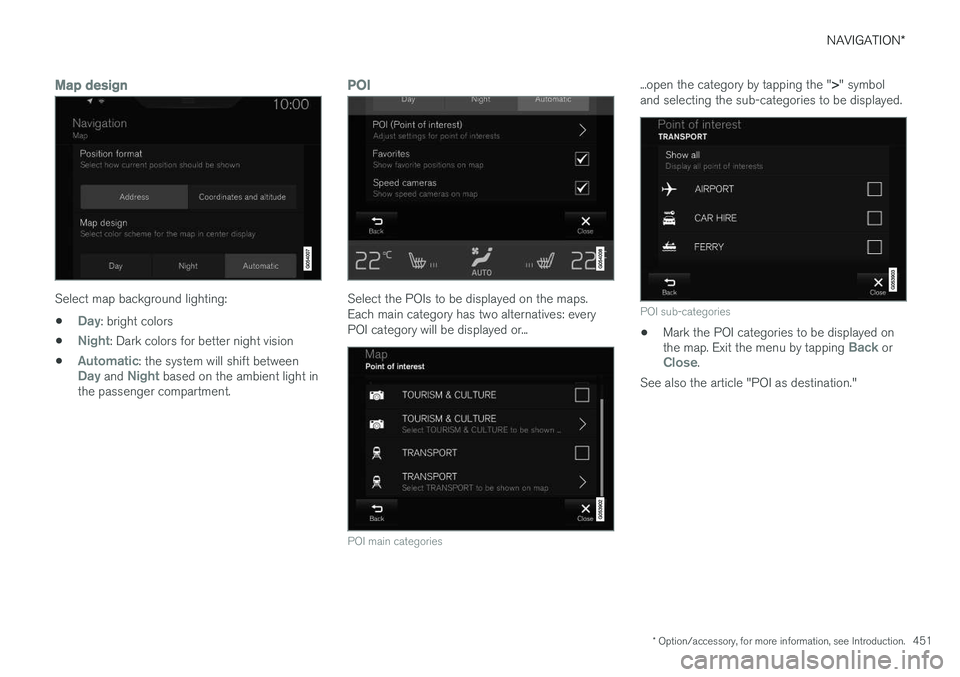
Map design
Select map background lighting:
•
Day: bright colors
•
Night: Dark colors for better night vision
•
Automatic: the system will shift betweenDay and Night based on the ambient light in
the passenger compartment.
POI
Select the POIs to be displayed on the maps. Each main category has two alternatives: everyPOI category will be displayed or...
POI main categories
...open the category by tapping the " >" symbol
and selecting the sub-categories to be displayed.
POI sub-categories
• Mark the POI categories to be displayed on the map. Exit the menu by tapping Back orClose.
See also the article "POI as destination."
Page 454 of 570
NAVIGATION*
* Option/accessory, for more information, see Introduction.
452
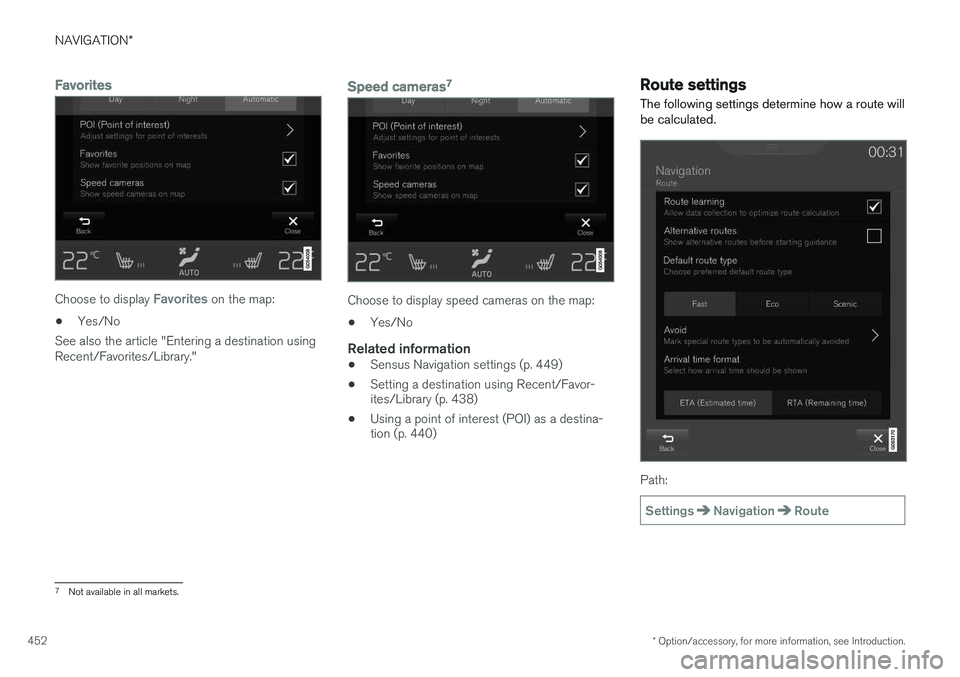
Favorites
Choose to display Favorites on the map:
• Yes/No
See also the article "Entering a destination using Recent/Favorites/Library."
Speed cameras 7
Choose to display speed cameras on the map:
• Yes/No
Related information
•Sensus Navigation settings (p. 449)
• Setting a destination using Recent/Favor- ites/Library (p. 438)
• Using a point of interest (POI) as a destina-tion (p. 440)
Route settings
The following settings determine how a route will be calculated.
Path:
SettingsNavigationRoute
7 Not available in all markets.
Page 456 of 570
NAVIGATION*
* Option/accessory, for more information, see Introduction.
454
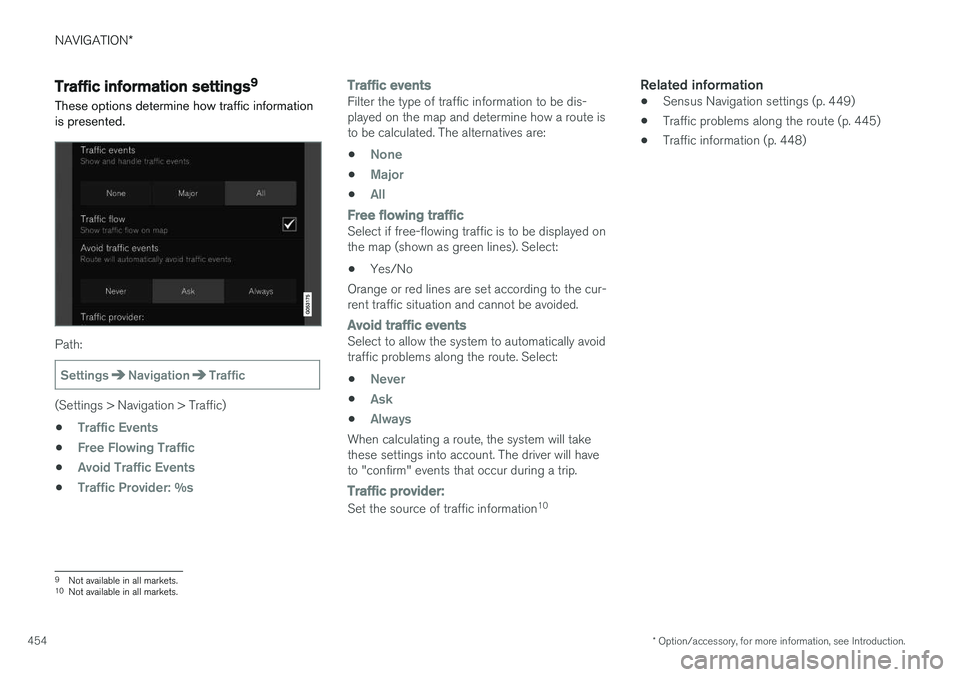
Traffic information settings 9
These options determine how traffic information is presented.
Path:
SettingsNavigationTraffic
(Settings > Navigation > Traffic) •
Traffic Events
•Free Flowing Traffic
•Avoid Traffic Events
•Traffic Provider: %s
Traffic eventsFilter the type of traffic information to be dis- played on the map and determine how a route isto be calculated. The alternatives are:
•
None
•Major
•All
Free flowing trafficSelect if free-flowing traffic is to be displayed on the map (shown as green lines). Select: • Yes/No
Orange or red lines are set according to the cur-rent traffic situation and cannot be avoided.
Avoid traffic eventsSelect to allow the system to automatically avoid traffic problems along the route. Select:
•
Never
•Ask
•Always
When calculating a route, the system will take these settings into account. The driver will haveto "confirm" events that occur during a trip.
Traffic provider:
Set the source of traffic information 10
Related information
•
Sensus Navigation settings (p. 449)
• Traffic problems along the route (p. 445)
• Traffic information (p. 448)
9
Not available in all markets.
10 Not available in all markets.
Page 457 of 570
NAVIGATION*
* Option/accessory, for more information, see Introduction.
455
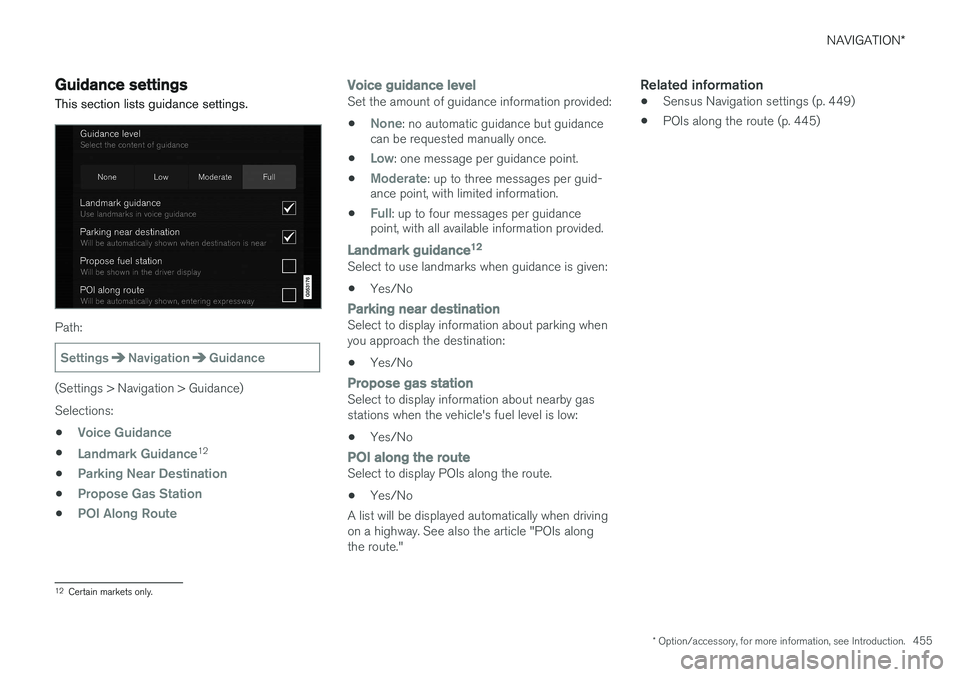
Guidance settings
This section lists guidance settings.
Path:
SettingsNavigationGuidance
(Settings > Navigation > Guidance) Selections: •
Voice Guidance
•Landmark Guidance12
•
Parking Near Destination
•Propose Gas Station
•POI Along Route
Voice guidance levelSet the amount of guidance information provided: •
None: no automatic guidance but guidance
can be requested manually once.
•
Low: one message per guidance point.
•
Moderate: up to three messages per guid-
ance point, with limited information.
•
Full: up to four messages per guidance
point, with all available information provided.
Landmark guidance 12Select to use landmarks when guidance is given:
• Yes/No
Parking near destinationSelect to display information about parking when you approach the destination: •
Yes/No
Propose gas stationSelect to display information about nearby gas stations when the vehicle's fuel level is low:
• Yes/No
POI
along the routeSelect to display POIs along the route.
• Yes/No
A list will be displayed automatically when driving on a highway. See also the article "POIs alongthe route."
Related information
• Sensus Navigation settings (p. 449)
• POIs along the route (p. 445)
12
Certain markets only.
Page 458 of 570
NAVIGATION*
* Option/accessory, for more information, see Introduction.
456
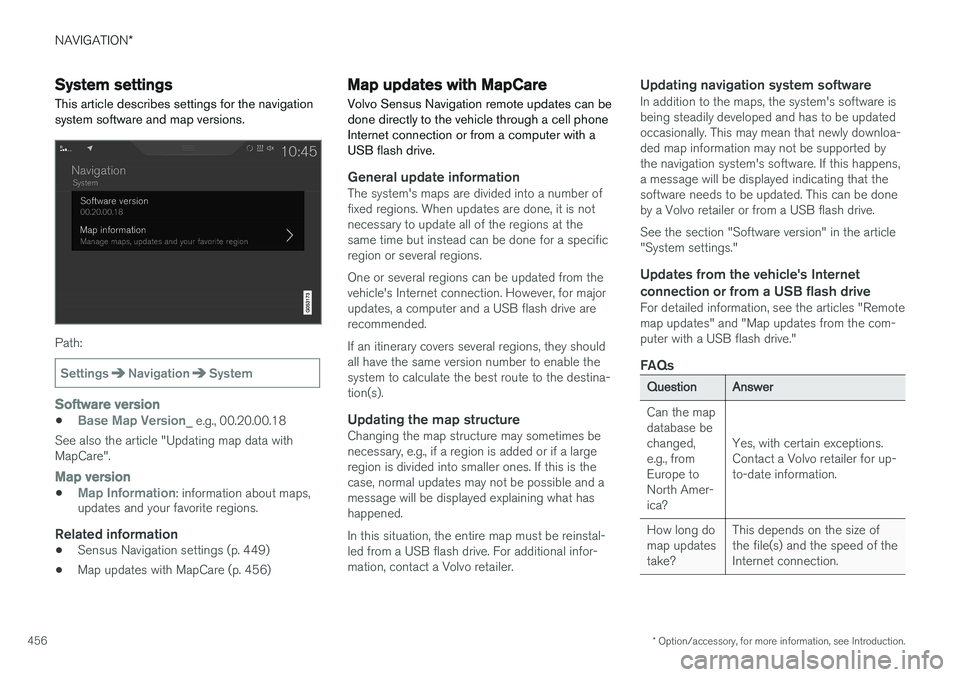
System settings
This article describes settings for the navigation system software and map versions.
Path:
SettingsNavigationSystem
Software version
•Base Map Version_ e.g., 00.20.00.18
See also the article "Updating map data with MapCare".
Map version
•Map Information: information about maps,
updates and your favorite regions.
Related information
• Sensus Navigation settings (p. 449)
• Map updates with MapCare (p. 456)
Map updates with MapCare
Volvo Sensus Navigation remote updates can be done directly to the vehicle through a cell phoneInternet connection or from a computer with aUSB flash drive.
General update informationThe system's maps are divided into a number of fixed regions. When updates are done, it is notnecessary to update all of the regions at thesame time but instead can be done for a specificregion or several regions. One or several regions can be updated from the vehicle's Internet connection. However, for majorupdates, a computer and a USB flash drive arerecommended. If an itinerary covers several regions, they should all have the same version number to enable thesystem to calculate the best route to the destina-tion(s).
Updating the map structureChanging the map structure may sometimes benecessary, e.g., if a region is added or if a largeregion is divided into smaller ones. If this is thecase, normal updates may not be possible and amessage will be displayed explaining what hashappened. In this situation, the entire map must be reinstal- led from a USB flash drive. For additional infor-mation, contact a Volvo retailer.
Updating navigation system softwareIn addition to the maps, the system's software isbeing steadily developed and has to be updatedoccasionally. This may mean that newly downloa-ded map information may not be supported bythe navigation system's software. If this happens,a message will be displayed indicating that thesoftware needs to be updated. This can be doneby a Volvo retailer or from a USB flash drive. See the section "Software version" in the article "System settings."
Updates from the vehicle's Internet
connection or from a USB flash drive
For detailed information, see the articles "Remotemap updates" and "Map updates from the com-puter with a USB flash drive."
FAQs
QuestionAnswer
Can the map database bechanged,e.g., fromEurope toNorth Amer-ica?
Yes, with certain exceptions. Contact a Volvo retailer for up-to-date information.
How long do map updatestake?This depends on the size of the file(s) and the speed of theInternet connection.