display VOLVO XC90 2015 Owners Manual
[x] Cancel search | Manufacturer: VOLVO, Model Year: 2015, Model line: XC90, Model: VOLVO XC90 2015Pages: 570, PDF Size: 12.44 MB
Page 408 of 570
INFOTAINMENT
406
Tethering (Wi-Fi sharing)When the vehicle is connected to the Internet, this connection can be shared (tethered) with other devices 5
.
The network service provider (the SIM card) must support tethering.
1. Open the center display's Top view.2. Tap
SettingsCommunicationVehicle Wi-Fi Hotspot.
3. Tap
Network name and assign a name to
the hotspot.
4. Tap
Password and create a password to be
used by devices trying to connect (tether) to the hotspot.
5. Tap
Frequency band and select a fre-
quency that the hotspot will use to transmit data. This may not be possible in all markets.
6. Activate/deactivate by tapping the
Vehicle
Wi-Fi Hotspot box.
7. If another connection has been used previ- ously, confirm the change of connections.
> It is now possible for external devices toconnect to the vehicle's Wi-Fi hotspot.
Connection status will be indicated in a symbol in the center display's status bar. Tap
Connected devices to see a list of con-
nected devices.
Related information
• Internet connected vehicle (p. 401)
• Wi-Fi technology and security (p. 407)
• Symbols in the center display status bar (p. 44)
• Internet connection troubleshooting (p. 405)
Deleting Wi-Fi networks
Networks that are not used can be deleted.
1. Tap Settings in the center display's Top
view.
2. Tap
Wi-FiSaved networks.
3. Tap
Forget to remove the network.
4. Confirm the selection. > The vehicle will no longer connect to thedeleted network.
Deleting all networksAll networks can be deleted at the same time by returning (resetting) to factory settings. If this is done, all user data and settings will be reset to their default settings.
Related information
• Internet connected vehicle (p. 401)
• Connecting to the Internet (p. 402)
5
Does not apply for a Wi-Fi connection.
Page 409 of 570
INFOTAINMENT
407
Wi-Fi technology and security
The following are types of networks can be con- nect to.
It is possible to connect to the following types of networks:
• Frequency: 2.4 or 5 GHz 6
.
• Standards: 802.11 a/b/g/n.
• Security type: WPA2-AES-CCMP.
The vehicle's Wi-Fi system is designed to man-age Wi-Fi devices in the vehicle. If several devices are using a frequency at the same time, this may result in poorer performance.
Related information
• Internet connected vehicle (p. 401)
• Connecting to the Internet (p. 402)
• Tethering (Wi-Fi sharing) (p. 406)
• Internet connection troubleshooting (p. 405)
Vehicle modem settings
The vehicle is equipped with a modem that can be used to connect the vehicle to the Internet. Itis also possible to share (tether) this connectionvia Wi-Fi.
1. Tap Settings in the center display's Top
view.
2. Tap
CommunicationVehicle Modem
Internet and choose among the following
settings:
•
Vehicle modem Internet: select to use the
vehicle's modem to connect to the Internet.
•
Data usage: %s: Tap Reset to restart
(reset) the counter for the amount of data sent/received.
•
Network Select carrier
: select a service provider automati-
cally or manually.
Data roaming: select to allow the vehicle to con-
nect to another network if the standard net- work is not available (e.g., if you are driving inanother country). This could entail additionalcharges, consult your service provider.
•
SIM card PIN Change PIN
: enter max. 4 digits.
Disable PIN: Allow access to the SIM card without
requiring a PIN code.
•
Send request code: this is used to down-
load the balance remaining on a SIM card. This is specific to your service provider.
Related information
• Internet connected vehicle (p. 401)
• Connecting to the Internet (p. 402)
6
Selecting a frequency is not possible in all markets.
Page 416 of 570
VOLVO ON CALL WITH SENSUS CONNECT *
* Option/accessory, for more information, see Introduction.
414
Volvo On Call (VOC) *
VOC is an integrated, subscription-based sys-
tem that provides emergency, roadside assis- tance and security services.
VOC is connected to the vehicle's airbag and alarm systems. The vehicle has an integratedGlobal System for Mobile Communications(GSM) module that handles communicationbetween the vehicle and the VOC customer serv-ice center.
AvailabilityVOC uses the Global Navigation Satellite System(GNSS) to locate the vehicle and its integratedGSM module to enable communication with theVOC customer service center and the VOCmobile app. From the time that the remote key has been removed from the vehicle, VOC's functionsremain available for 5 full days and subsequentlyonce an hour for the following 17 days. Afterthree weeks have elapsed, the system will remainswitched off until the engine is started.
WARNING
The system can only function in areas where there is adequate cellular network coverage. Just as in the case of cell phones, atmos- pheric disturbances or areas with relativelyfew GSM transmitters can make it impossiblefor VOC to make a connection, for example, inrural areas.
SubscriptionsA free, limited-time trial subscription is initiated when the vehicle is purchased and VOC is acti-vated. The subscription can be extended by con-tacting your Volvo retailer.
Information on the InternetFor additional information about Volvo On Call, goto: United States http://www.volvocars.com/us/support Canada English: http://support.volvocars.com/en-CA French: http://support.volvocars.com/fr-CA
Related information
• Volvo On Call convenience services (p. 416)
• Volvo On Call safety services (p. 424)
• Volvo On Call security services (p. 425)
• Using Volvo On Call (p. 414)
• Volvo ID (p. 27)
Using Volvo On Call
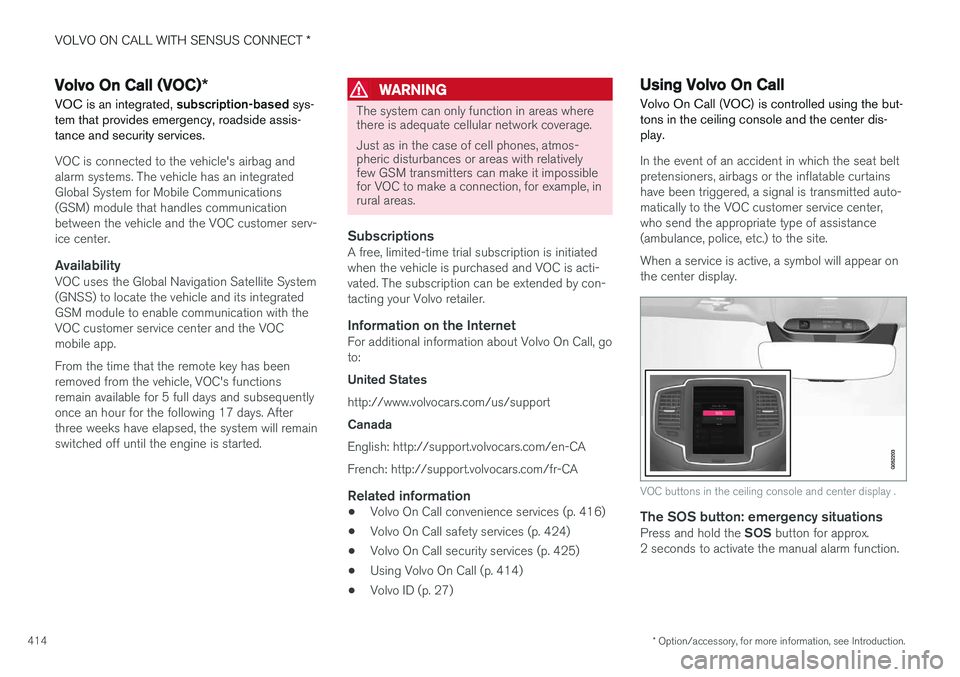
Volvo On Call (VOC) is controlled using the but- tons in the ceiling console and the center dis-play.
In the event of an accident in which the seat belt pretensioners, airbags or the inflatable curtainshave been triggered, a signal is transmitted auto-
matically to the VOC customer service center,who send the appropriate type of assistance(ambulance, police, etc.) to the site. When a service is active, a symbol will appear on the center display.
VOC buttons in the ceiling console and center display .
The SOS button: emergency situationsPress and hold the SOS button for approx.
2 seconds to activate the manual alarm function.
Page 417 of 570
VOLVO ON CALL WITH SENSUS CONNECT *
* Option/accessory, for more information, see Introduction.
415
The ON CALL button: roadside assistancePress the ON CALL button for approx. 2 seconds
to activate the roadside assistance functions.
Alternative to the ON CALL button
In the center display's Phone view, tap On Call.
Select Call in the pop-up window that opens.
NOTE
The SOS button should only be used in an
emergency situation such as an accident, ill- ness or in the event of a threat to the occu-pants of the vehicle. Misusing this buttoncould result in extra charges. The ON CALL button can be used for all of
the other VOC services, including roadside assistance.
Canceling a callA service call that has been initiated can be can- celled within 10 seconds by pressing the EXIT
button on the steering wheel keypad.
SettingsSettings and selections can be made in the cen- ter display by going to s
Settings
CommunicationVolvo On Call. These set-
tings include activating/deactivating a subscrip- tion, button lock, etc.
Related information
• Volvo On Call (VOC)
* (p. 414)
• Volvo On Call (VOC) functions (p. 415)
• Volvo On Call manual safety service (p. 424)
• Volvo On Call roadside assistance (p. 425)
Volvo On Call (VOC) functions
The following table provides an overview of the functions that are available from the VOC cus-tomer service center and the mobile app.
Please note that these functions are subject to change. For up-to-date information about therange of Volvo On Call functions and services,contact your Volvo retailer or go to: United States http://www.volvocars.com/us/support Canada English: http://support.volvocars.com/en-CA French: http://support.volvocars.com/fr-CA
FunctionCus-
tomer
service centerApp A
Automatic alarmX
Manual alarmX
Roadside assistanceXX
Theft notificationXX
Remote Door UnlockXX
Remote Vehicle Immobil- izerX
Page 430 of 570
NAVIGATION*
* Option/accessory, for more information, see Introduction.
428
Sensus Navigation
Sensus Navigation enables you to set itineraries, search for certain types of points of interestalong your route, store special destinations,obtain traffic information en route, etc.
Sensus Navigation shows the vehicle's exact location and if you deviate from the set route, thesystem can make the necessary adjustments toguide you to your destination. Being familiar with the contents of this manual will help you to fully utilize the features and func-tions offered by Sensus Navigation. By enabling you to reach your destination quickly and by the most direct route, Sensus Navigationalso helps contribute to improving the environ-ment.
Related information
• Getting started with Sensus Navigation (p. 432)
• Buttons and information on the map (p. 428)
Buttons and information on the map
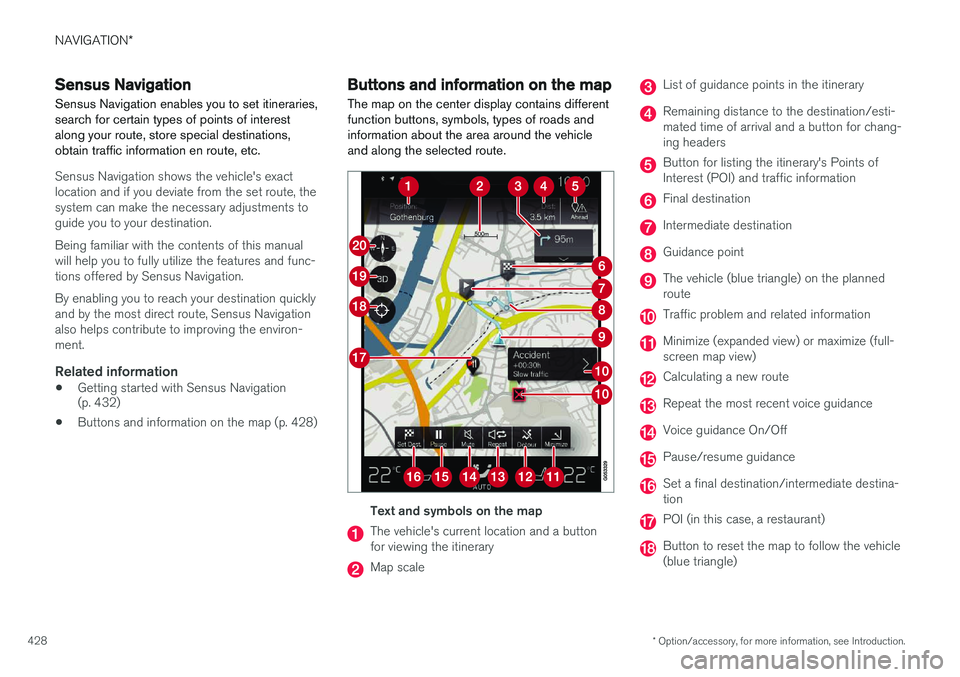
The map on the center display contains different function buttons, symbols, types of roads andinformation about the area around the vehicleand along the selected route.
Text and symbols on the map
The vehicle's current location and a button for viewing the itinerary
Map scale
List of guidance points in the itinerary
Remaining distance to the destination/esti- mated time of arrival and a button for chang-ing headers
Button for listing the itinerary's Points of Interest (POI) and traffic information
Final destination
Intermediate destination
Guidance point
The vehicle (blue triangle) on the planned route
Traffic problem and related information
Minimize (expanded view) or maximize (full- screen map view)
Calculating a new route
Repeat the most recent voice guidance
Voice guidance On/Off
Pause/resume guidance
Set a final destination/intermediate destina- tion
POI (in this case, a restaurant)
Button to reset the map to follow the vehicle (blue triangle)
Page 431 of 570
NAVIGATION*
* Option/accessory, for more information, see Introduction.
429
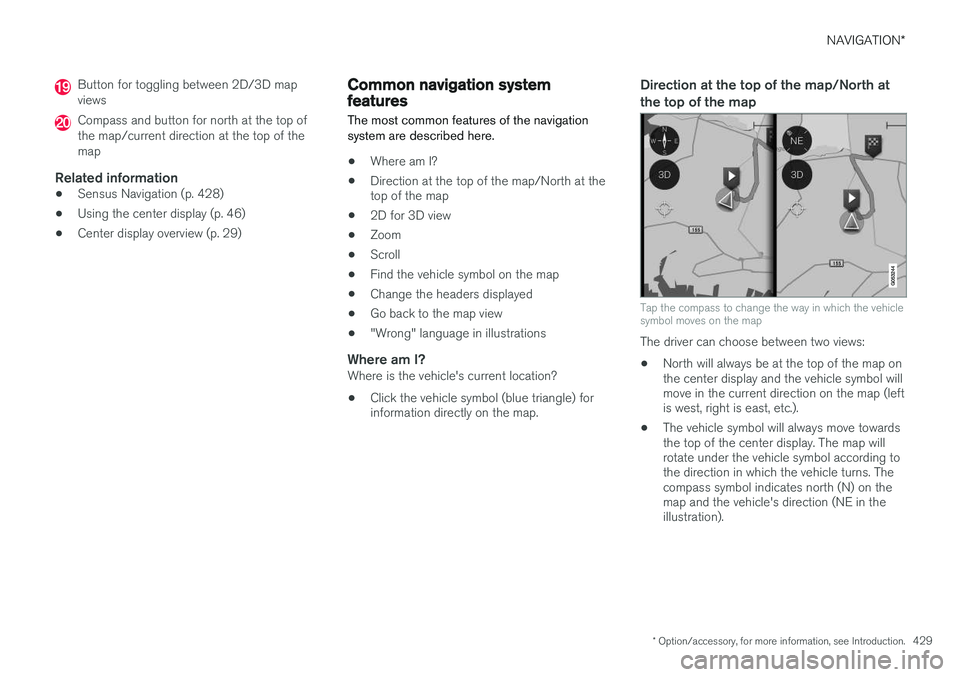
Button for toggling between 2D/3D map views
Compass and button for north at the top of the map/current direction at the top of themap
Related information
•Sensus Navigation (p. 428)
• Using the center display (p. 46)
• Center display overview (p. 29)
Common navigation system features
The most common features of the navigation system are described here.
• Where am I?
• Direction at the top of the map/North at the top of the map
• 2D for 3D view
• Zoom
• Scroll
• Find the vehicle symbol on the map
• Change the headers displayed
• Go back to the map view
• "Wrong" language in illustrations
Where am I?Where is the vehicle's current location?
• Click the vehicle symbol (blue triangle) forinformation directly on the map.
Direction at the top of the map/North at the top of the map
Tap the compass to change the way in which the vehicle symbol moves on the map
The driver can choose between two views: •
North will always be at the top of the map on the center display and the vehicle symbol willmove in the current direction on the map (leftis west, right is east, etc.).
• The vehicle symbol will always move towardsthe top of the center display. The map willrotate under the vehicle symbol according tothe direction in which the vehicle turns. Thecompass symbol indicates north (N) on themap and the vehicle's direction (NE in theillustration).
Page 432 of 570
NAVIGATION*
* Option/accessory, for more information, see Introduction.
430
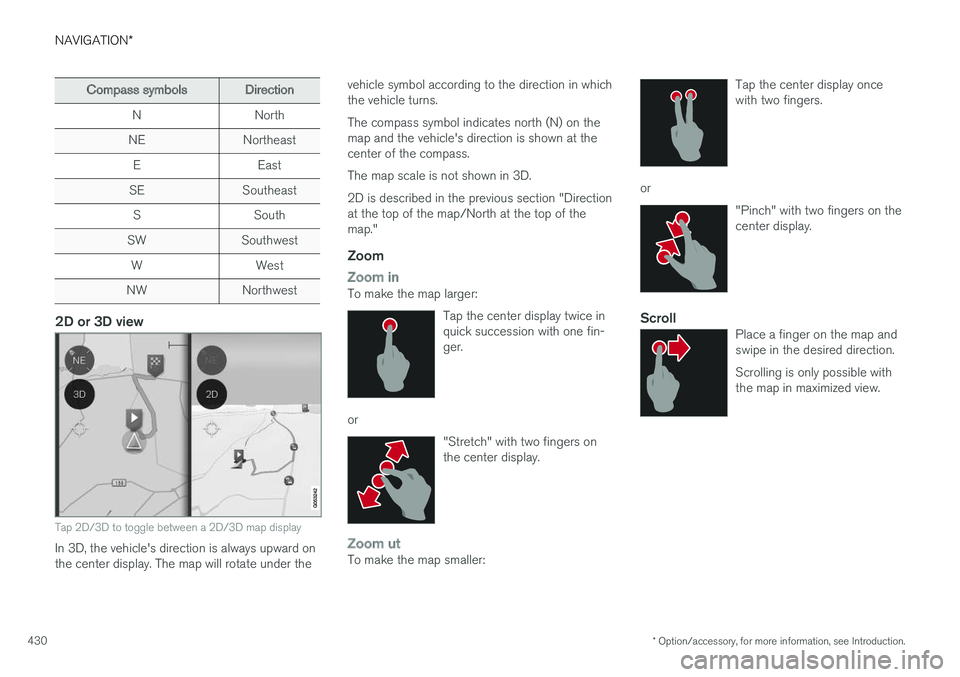
Compass symbolsDirection
NNorth
NENortheast
EEast
SESoutheast
SSouth
SWSouthwest
WWest
NWNorthwest
2D or 3D view
Tap 2D/3D to toggle between a 2D/3D map display
In 3D, the vehicle's direction is always upward on the center display. The map will rotate under the vehicle symbol according to the direction in whichthe vehicle turns. The compass symbol indicates north (N) on the map and the vehicle's direction is shown at thecenter of the compass. The map scale is not shown in 3D.2D is described in the previous section "Direction at the top of the map/North at the top of themap."
Zoom
Zoom inTo make the map larger:
Tap the center display twice in quick succession with one fin-ger.
or"Stretch" with two fingers on the center display.
Zoom utTo make the map smaller: Tap the center display once with two fingers.
or
"Pinch" with two fingers on the center display.
ScrollPlace a finger on the map and swipe in the desired direction. Scrolling is only possible with the map in maximized view.
Page 433 of 570
NAVIGATION*
* Option/accessory, for more information, see Introduction.
431
Find the vehicle symbol on the map
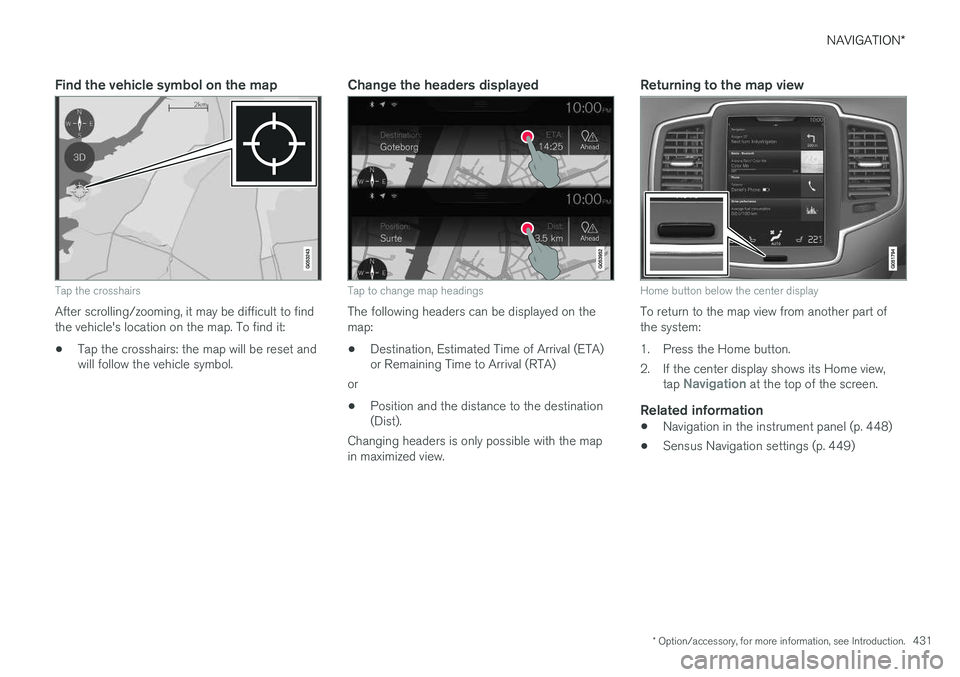
Tap the crosshairs
After scrolling/zooming, it may be difficult to find the vehicle's location on the map. To find it:
• Tap the crosshairs: the map will be reset and will follow the vehicle symbol.
Change the headers displayed
Tap to change map headings
The following headers can be displayed on the map:
• Destination, Estimated Time of Arrival (ETA) or Remaining Time to Arrival (RTA)
or
• Position and the distance to the destination(Dist).
Changing headers is only possible with the map in maximized view.
Returning to the map view
Home button below the center display
To return to the map view from another part of the system:
1. Press the Home button.
2. If the center display shows its Home view, tap
Navigation at the top of the screen.
Related information
•Navigation in the instrument panel (p. 448)
• Sensus Navigation settings (p. 449)
Page 434 of 570
NAVIGATION*
* Option/accessory, for more information, see Introduction.
432
Getting started with Sensus Navigation The vehicle's electrical system (including the navigation system) is activated automaticallywhen the driver's door is opened.
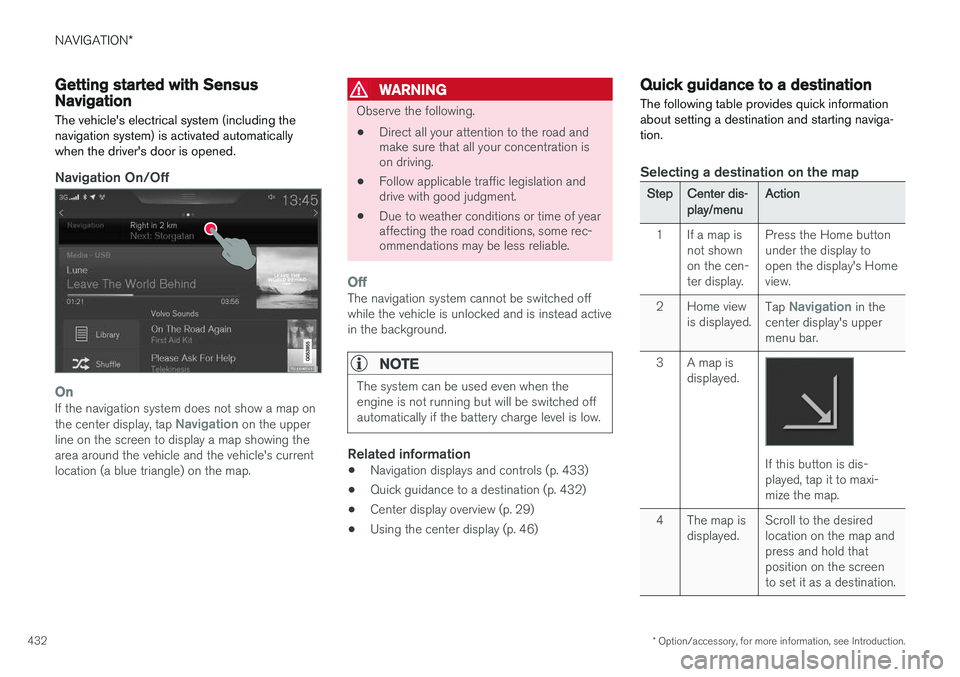
Navigation On/Off
OnIf the navigation system does not show a map on the center display, tap Navigation on the upper
line on the screen to display a map showing the area around the vehicle and the vehicle's currentlocation (a blue triangle) on the map.
WARNING
Observe the following.
• Direct all your attention to the road and make sure that all your concentration ison driving.
• Follow applicable traffic legislation anddrive with good judgment.
• Due to weather conditions or time of yearaffecting the road conditions, some rec-ommendations may be less reliable.
OffThe navigation system cannot be switched off while the vehicle is unlocked and is instead activein the background.
NOTE
The system can be used even when the engine is not running but will be switched offautomatically if the battery charge level is low.
Related information
• Navigation displays and controls (p. 433)
• Quick guidance to a destination (p. 432)
• Center display overview (p. 29)
• Using the center display (p. 46)
Quick guidance to a destination The following table provides quick information about setting a destination and starting naviga-tion.
Selecting a destination on the map
StepCenter dis- play/menuAction
1If a map is not shownon the cen-ter display.Press the Home button under the display toopen the display's Homeview.
2Home view is displayed.Tap Navigation in the
center display's upper menu bar.
3A map is displayed.
If this button is dis- played, tap it to maxi-mize the map.
4The map is displayed.Scroll to the desired location on the map andpress and hold thatposition on the screento set it as a destination.
Page 435 of 570
NAVIGATION*
* Option/accessory, for more information, see Introduction.
433
StepCenter dis- play/menuAction
5Start navi- gation is
displayed on thescreen.Tap Start navigation.
6A map showingthe route toyour desti-nation isdisplayed.Guidance will begin. Fol- low the directions on theinstrument panel.
Related information
• Using the center display (p. 46)
• Center display overview (p. 29)
Navigation displays and controls
Volvo Sensus Navigation is presented on the instrument panel and head-up display * and con-
trolled using center display on-screen buttons, the right-side steering wheel keypad and voicecommands.
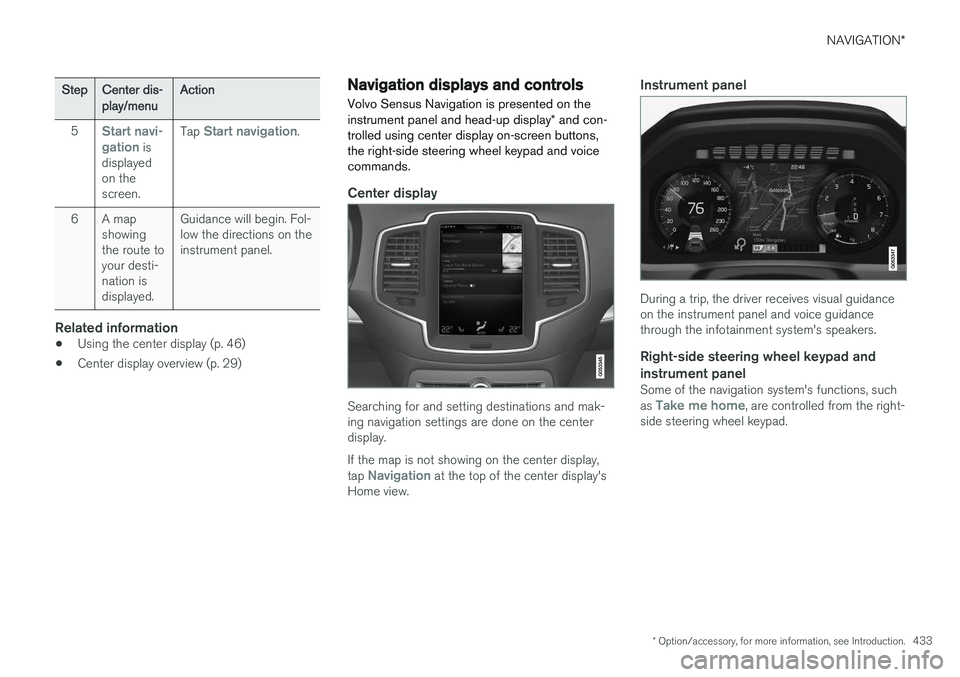
Center display
Searching for and setting destinations and mak- ing navigation settings are done on the centerdisplay. If the map is not showing on the center display, tap
Navigation at the top of the center display's
Home view.
Instrument panel
During a trip, the driver receives visual guidance on the instrument panel and voice guidancethrough the infotainment system's speakers.
Right-side steering wheel keypad and instrument panel
Some of the navigation system's functions, such as Take me home, are controlled from the right-
side steering wheel keypad.