USB VOLVO XC90 2015 Owner's Manual
[x] Cancel search | Manufacturer: VOLVO, Model Year: 2015, Model line: XC90, Model: VOLVO XC90 2015Pages: 570, PDF Size: 12.44 MB
Page 404 of 570
INFOTAINMENT
402
Connecting to the Internet
Connect the vehicle to the Internet using
Bluetooth, Wi-Fi, by connecting a phone through a cable to the USB socket or via the vehicle'sintegrated modem.
The cell phone and the network service provider must support Internet sharing (tethering) and thesubscription must included data transfer.
Connect using BluetoothSee the article "Pairing a cell phone."
Connect using Wi-Fi
1. Activate tethering/personal hotspot in the cell phone.
2. Tap
Settings in the center display's Top
view.
3. Tap
CommunicationWi-Fi.
4. Tap Wi-Fi to activate/deactivate.
5. Tap the name of the network to be used.
6. Enter the network password. 7. If a different connection was used previously,
confirm the connection change.
> The vehicle will connect to the network.
When a phone is connected to the vehicle, it is saved for future use. When a max. number of 50have been saved, the first one connected will bedeleted. To show the list of saved networks or to manually delete a network, tap
SettingsWi-Fi
Saved networks.
See the article "Wi-Fi technology and security" for network connection requirements.
Connect using a cable-connected to the
USB socket
1. Connect the phone via a cable to the USB socket in the tunnel console storage com-partment.
2. Activate USB tethering in the cell phone.
3. If a different connection was used previously, confirm the connection change.
> The vehicle will connect to the network.
Connect using the vehicle's integrated modem
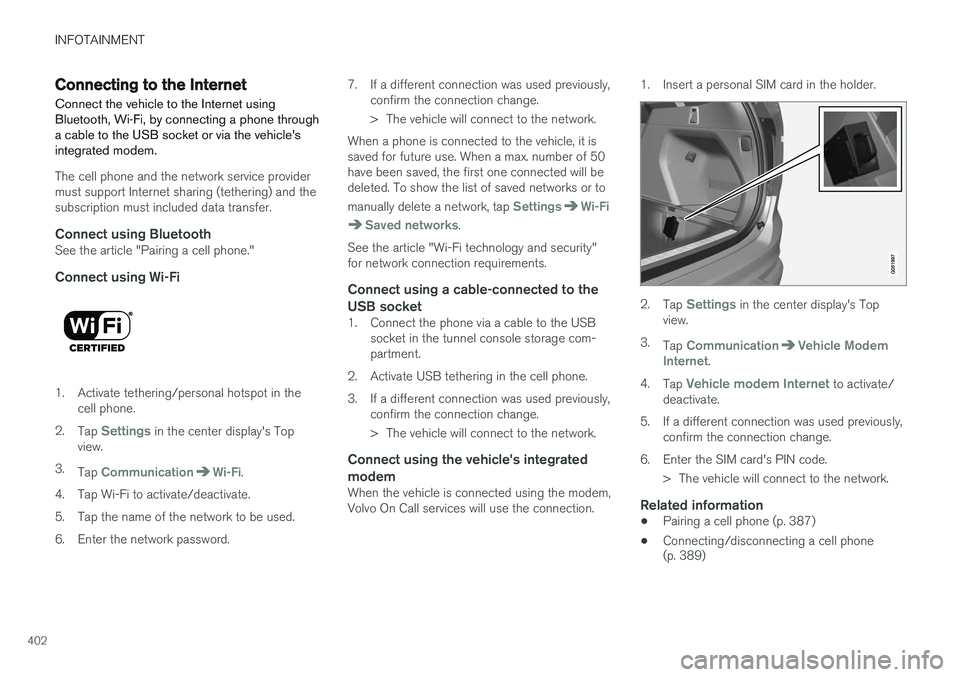
When the vehicle is connected using the modem, Volvo On Call services will use the connection. 1. Insert a personal SIM card in the holder.
2.
Tap Settings in the center display's Top
view.
3. Tap
CommunicationVehicle Modem
Internet.
4. Tap
Vehicle modem Internet to activate/
deactivate.
5. If a different connection was used previously, confirm the connection change.
6. Enter the SIM card's PIN code. > The vehicle will connect to the network.
Related information
• Pairing a cell phone (p. 387)
• Connecting/disconnecting a cell phone (p. 389)
Page 405 of 570
INFOTAINMENT
403
•
Connecting a device via the AUX/USB socket (p. 393)
• Wi-Fi technology and security (p. 407)
Apps (applications)
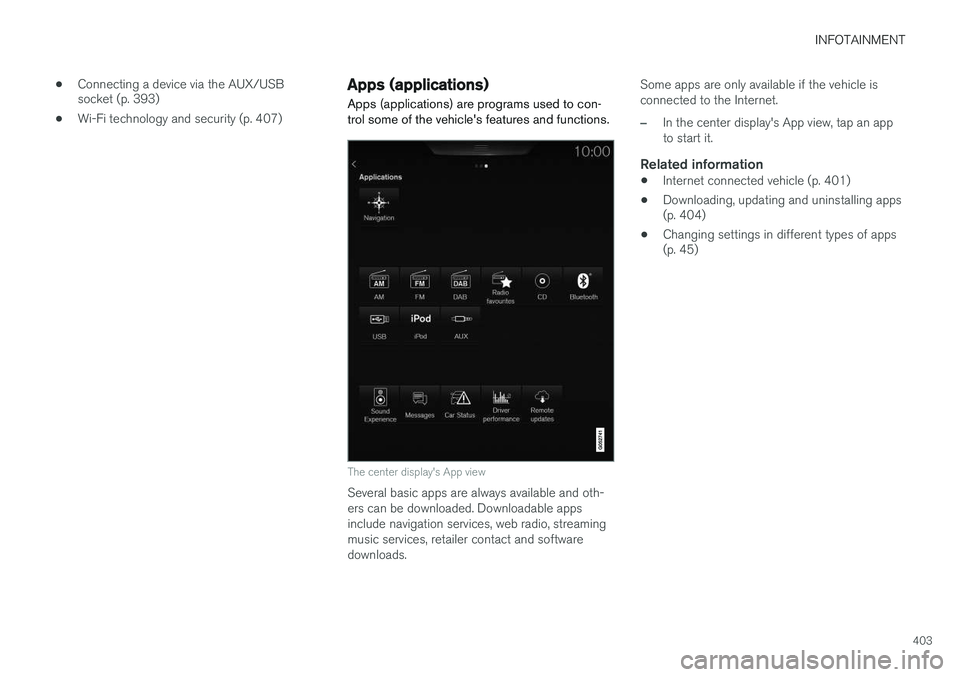
Apps (applications) are programs used to con- trol some of the vehicle's features and functions.
The center display's App view
Several basic apps are always available and oth- ers can be downloaded. Downloadable appsinclude navigation services, web radio, streamingmusic services, retailer contact and softwaredownloads. Some apps are only available if the vehicle isconnected to the Internet.
–In the center display's App view, tap an app to start it.
Related information
•
Internet connected vehicle (p. 401)
• Downloading, updating and uninstalling apps (p. 404)
• Changing settings in different types of apps(p. 45)
Page 458 of 570
NAVIGATION*
* Option/accessory, for more information, see Introduction.
456
System settings
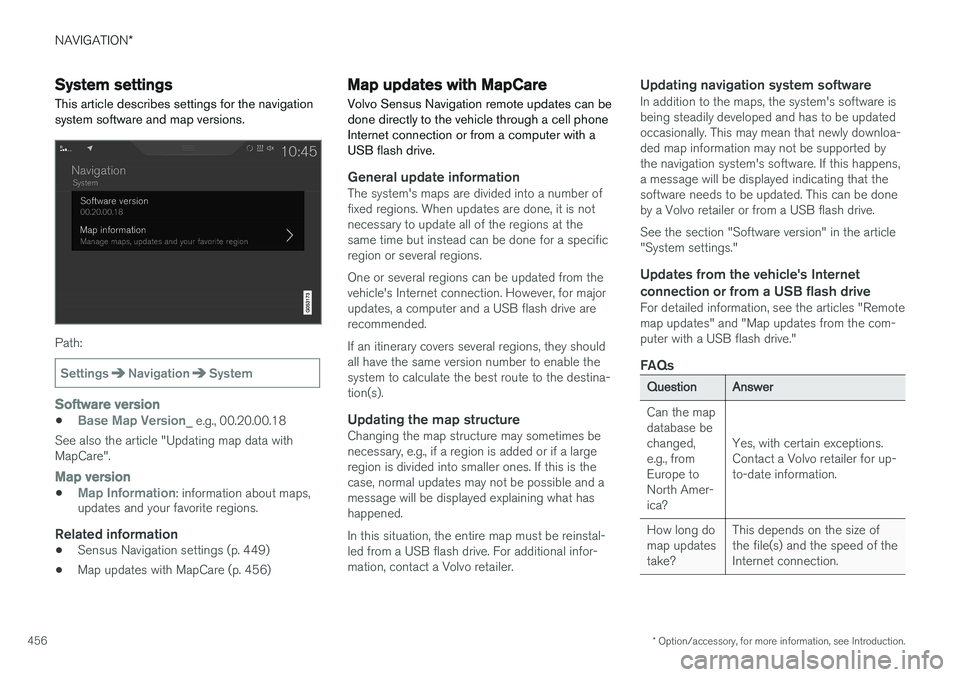
This article describes settings for the navigation system software and map versions.
Path:
SettingsNavigationSystem
Software version
•Base Map Version_ e.g., 00.20.00.18
See also the article "Updating map data with MapCare".
Map version
•Map Information: information about maps,
updates and your favorite regions.
Related information
• Sensus Navigation settings (p. 449)
• Map updates with MapCare (p. 456)
Map updates with MapCare
Volvo Sensus Navigation remote updates can be done directly to the vehicle through a cell phoneInternet connection or from a computer with aUSB flash drive.
General update informationThe system's maps are divided into a number of fixed regions. When updates are done, it is notnecessary to update all of the regions at thesame time but instead can be done for a specificregion or several regions. One or several regions can be updated from the vehicle's Internet connection. However, for majorupdates, a computer and a USB flash drive arerecommended. If an itinerary covers several regions, they should all have the same version number to enable thesystem to calculate the best route to the destina-tion(s).
Updating the map structureChanging the map structure may sometimes benecessary, e.g., if a region is added or if a largeregion is divided into smaller ones. If this is thecase, normal updates may not be possible and amessage will be displayed explaining what hashappened. In this situation, the entire map must be reinstal- led from a USB flash drive. For additional infor-mation, contact a Volvo retailer.
Updating navigation system softwareIn addition to the maps, the system's software isbeing steadily developed and has to be updatedoccasionally. This may mean that newly downloa-ded map information may not be supported bythe navigation system's software. If this happens,a message will be displayed indicating that thesoftware needs to be updated. This can be doneby a Volvo retailer or from a USB flash drive. See the section "Software version" in the article "System settings."
Updates from the vehicle's Internet
connection or from a USB flash drive
For detailed information, see the articles "Remotemap updates" and "Map updates from the com-puter with a USB flash drive."
FAQs
QuestionAnswer
Can the map database bechanged,e.g., fromEurope toNorth Amer-ica?
Yes, with certain exceptions. Contact a Volvo retailer for up-to-date information.
How long do map updatestake?This depends on the size of the file(s) and the speed of theInternet connection.
Page 459 of 570
NAVIGATION*
* Option/accessory, for more information, see Introduction.
457
QuestionAnswer
How big is an update?This varies from market to market. Consult a Volvoretailer.
Updating has not worked.What shouldI do?Try the Volvo Cars support site (support.volvocars.com) orcontact a Volvo retailer.
Related information
•Remote map updates (p. 457)
• Map updates from a computer with a USB flash drive (p. 458)
• Sensus Navigation troubleshooting (p. 462)
• Copyright (p. 462)
• Navigation license agreements (p. 460)
• System updates (p. 490)
• Internet connected vehicle (p. 401)
• Connecting to the Internet (p. 402)
• System settings (p. 456)
Remote map updates
Some preparation is necessary before a remote update can be made through the vehicle's cellphone Internet connection.
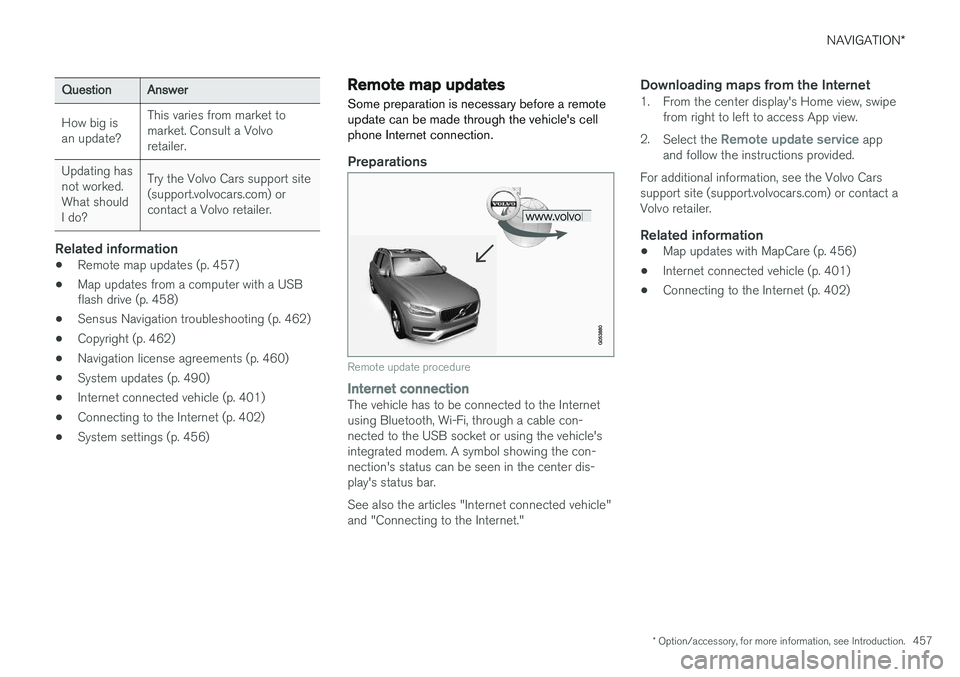
Preparations
Remote update procedure
Internet connectionThe vehicle has to be connected to the Internet using Bluetooth, Wi-Fi, through a cable con-nected to the USB socket or using the vehicle'sintegrated modem. A symbol showing the con-nection's status can be seen in the center dis-play's status bar. See also the articles "Internet connected vehicle" and "Connecting to the Internet."
Downloading maps from the Internet1. From the center display's Home view, swipe from right to left to access App view.
2. Select the
Remote update service app
and follow the instructions provided.
For additional information, see the Volvo Cars support site (support.volvocars.com) or contact aVolvo retailer.
Related information
• Map updates with MapCare (p. 456)
• Internet connected vehicle (p. 401)
• Connecting to the Internet (p. 402)
Page 460 of 570
NAVIGATION*
* Option/accessory, for more information, see Introduction.
458
Map updates from a computer with a USB flash drive
Some preparation is necessary before a USB map update can be carried out.
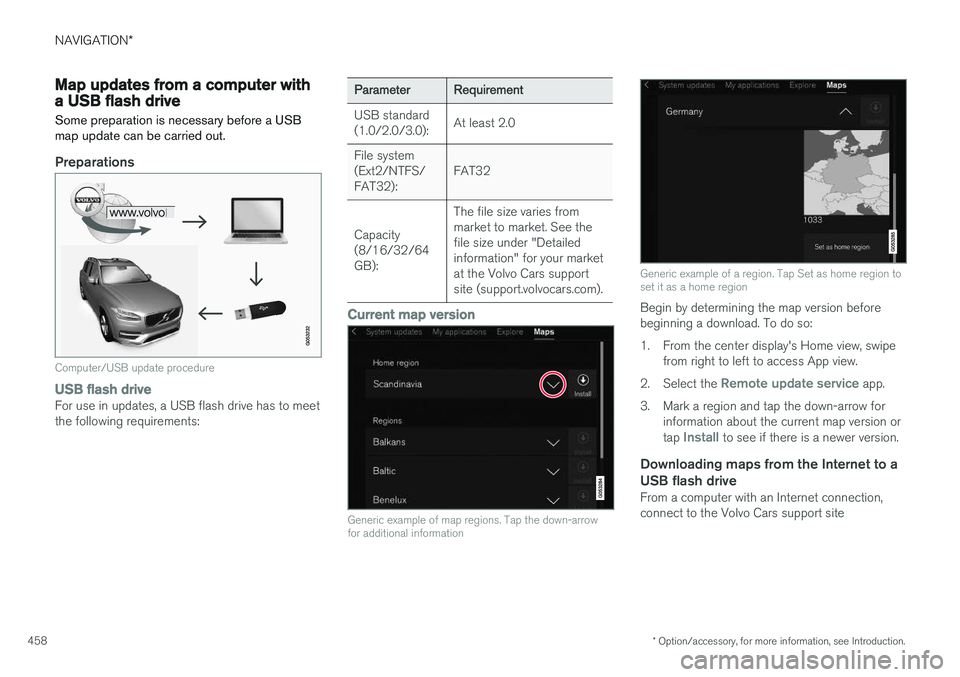
Preparations
Computer/USB update procedure
USB flash driveFor use in updates, a USB flash drive has to meet the following requirements:
ParameterRequirement
USB standard (1.0/2.0/3.0):At least 2.0
File system (Ext2/NTFS/FAT32):FAT32
Capacity (8/16/32/64GB):
The file size varies from market to market. See thefile size under "Detailedinformation" for your marketat the Volvo Cars supportsite (support.volvocars.com).
Current map version
Generic example of map regions. Tap the down-arrow for additional information
Generic example of a region. Tap Set as home region to set it as a home region
Begin by determining the map version before beginning a download. To do so:
1. From the center display's Home view, swipe from right to left to access App view.
2. Select the
Remote update service app.
3. Mark a region and tap the down-arrow for information about the current map version or tap
Install to see if there is a newer version.
Downloading maps from the Internet to a USB flash drive
From a computer with an Internet connection, connect to the Volvo Cars support site
Page 461 of 570
NAVIGATION*
* Option/accessory, for more information, see Introduction.
459
(support.volvocars.com) and follow the instruc- tions on the screen.
1. Tap "Detailed information" for the region to
be updated.
2. Information about the latest maps for the region will be displayed. Verify that it is newer than the version in the vehicle.
3. Connect a USB flash drive to the computer and download the update to the USB drive.
The amount of time for the download variesaccording to the size of the file and the speed ofthe Internet connection.
Transferring the updated maps from the USB drive to the vehicle
General informationThis transfer may take between 30–60 minutes depending on the file size. This must be donewith the navigation and infotainment systemsactivated. If the engine is not running, it may be necessary to connect a battery charger to avoid dischargingthe battery. An update can also be done whiledriving. During a complete map download, certain info- tainment system functions may not be availableor have limited functionality:
• Navigation
• Voice commands •
Information/media stored on the vehicle's hard drive
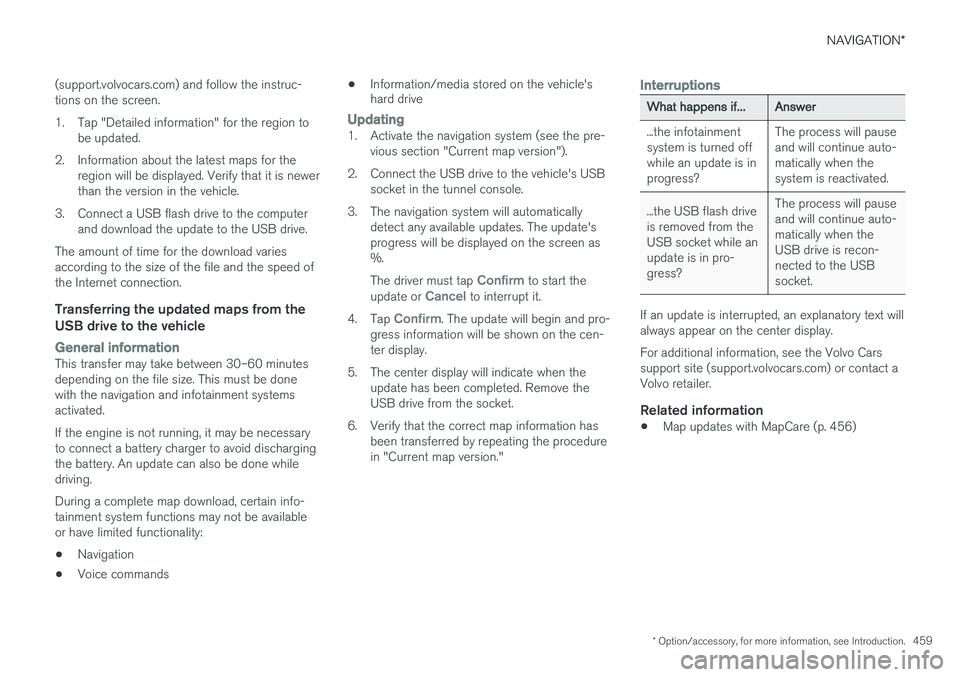
Updating1. Activate the navigation system (see the pre-
vious section "Current map version").
2. Connect the USB drive to the vehicle's USB socket in the tunnel console.
3. The navigation system will automatically detect any available updates. The update's progress will be displayed on the screen as%. The driver must tap
Confirm to start the
update or Cancel to interrupt it.
4. Tap
Confirm. The update will begin and pro-
gress information will be shown on the cen- ter display.
5. The center display will indicate when the update has been completed. Remove theUSB drive from the socket.
6. Verify that the correct map information has been transferred by repeating the procedurein "Current map version."
Interruptions
What happens if...Answer
...the infotainment system is turned offwhile an update is inprogress?The process will pause and will continue auto-matically when thesystem is reactivated.
...the USB flash drive is removed from theUSB socket while anupdate is in pro-gress?The process will pause and will continue auto-matically when theUSB drive is recon-nected to the USBsocket.
If an update is interrupted, an explanatory text will always appear on the center display. For additional information, see the Volvo Cars support site (support.volvocars.com) or contact aVolvo retailer.
Related information
• Map updates with MapCare (p. 456)
Page 504 of 570

MAINTENANCE AND SERVICING
* Option/accessory, for more information, see Introduction.
502
Fusebox, front section: fuses 55–78
There is a fuse removal tool on the inside of the fuse box cover.
PositionsThere is a decal on the inside of the cover with alist of fuses.
• Fuses 18–30, 35–37, 46–54 and 55–70 are called "Micro".
• Fuses 31–34, 38–45 and 71–78 are called"MCase" and should only be replaced by atrained and qualified Volvo service technician.
FunctionA
––
––
FunctionA
––
––
––
USB socket
*5
12-volt socket in the cargo com- partment15
12-volt socket on the rear side of the tunnel console15
12-volt socket in the front tun- nel console15
FunctionA
––
––
––
––
Heated windshield *, driver sideShunt
Heated windshield *, driver side40
Headlight washers *25
Windshield washer25
Page 558 of 570
556Brake assist system 333
Brake lights 143, 334Brakes
auto-hold 332
Brake system Brake pad inspection 331
fluid 541
general information 330, 332, 333
Bulbs 514 replacing 510
specifications 515
C
Cameradriver support systems 240
limitations 241
Camera, Park Assist 296, 298, 300
Capacity weight 471, 539
Cargo area, steel grid 211
Cargo area cover 213Cargo compartment fuses 508
raising/lowering the level 207
Cargo net 209
Cargo space 200
Car wash 525
Catalytic converter 349CD, USB, iPod, AUX, Bluetooth, Recents, Library, Shuffle, Similar, Change device, Pri-mary Audio Default Language, Subtitle, Pri-mary Subtitle Default Language, Video, DivX ® VOD 395
CD player 394 Cell phone hands-free 387
Pairing 387
Cell phone voice control 121 Center display changing settings 31
cleaning 529
keyboard 32
navigating in 39
overview 29
screen in the center console 46
symbols in the status bar 44
Chains 473
Changing a wheel 475Child restraints recalls and registration 65
Child restraint systems 65 booster cushions 71
convertible seats 69
infant seats 67ISOFIX/LATCH anchors 72
top tether anchors 74
Child safety 63 booster cushions 71
child restraint systems 65, 73
convertible seats 69
infant seats 67
Child safety locks 218 Child seats lower attachment points 73
City safety 273, 278City Safety crossing traffic 277
detecting objects 275
limitations 278
rear collision warning 277
symbols and messages 282
troubleshooting 280
City Safety, On/Off 275 Cleaning exterior 525
interior 527
Clean Zone Interior Package 178
Climate system 180 air distribution 194, 195, 196
air filter 179
air vents 194
auto mode 179
Page 562 of 570
560
L
Labelslist of 536
location of 535
Laminated panoramic roof 101, 102 Lane Departure Warning settings 325
Lane Departure Warning (LDW) 323, 327
Lane Keeping Aid 323, 325, 327 settings 325
LATCH anchors 72
Leather care 527Licence copyright 460
Lighting panel 138
Load anchoring eyelets 212
Loading the vehicle 200, 207, 471
Locking 231, 232
Locks and alarm 216
Low beam bulb, replacing 512
Low beams 139, 140
Low Speed Control 371
M
Maintenance 488 hoisting the vehicle 516
performed by the owner 488
Malfunction indicator light 126
Manual front seat adjustment 160Map buttons and information 428
Information cards 446
Map updates computer with USB flash drive 458
MapCare 456
Remote 457
Media player 393 compatible file formats 400
Media player (infotainment system) 395 Menus instrument panel 149, 151, 152, 153
Mirrors defroster 187
power door 100
retractable 100
Mirrors, rearview mirror 105
Modem 407Motor oil checking 520, 521
MP3 files 400
Multifunctional front seats 163, 164, 165
MY CAR 106
N
Navigationinstrument panel 448
Quick guidance 432
Sensus Navigation 432
Navigation displays controls 433
Navigation system features 429
voice commands 124, 433
Net cargo 209
O
Occupant safety 56
Occupant weight sensor 78
Octane recommendations 347
Odometer 92Oilchecking 520, 521
Page 566 of 570
564Trailer towing 351, 354
trailer hitch 353
Transmission gear shift indicator 370
general description 367
Hill Start Assist 335
oil 546
shifting with steering wheel paddles 370
shiftlock override 369
Tread wear indicator 471
Trip computer 92, 94 reset 92
Trip odometers 92
Trips, long distance 339
Trip statistics 94Troubleshooting Sensus Navigation 462
Turn signals 148 changing bulbs 514
U
Uniform Tire Quality Grading 472
Unlocking the tailgate 233
Unlocking the vehicle 231, 232
USB/AUX connection 393, 397
User profile 112
V
Vehicle Event Data 26
Vehicle information 14
Vehicle loading 207, 471
Vehicle maintenance 488
performed by the owner 488
Vehicle status 491
Vehicle weights 539Voice control cell phones 121
giving commands 121
introduction 120
multimedia devices 122
radio 122
settings 125
Volvo and the environment 15
Volvo ID 27
Volvo maintenance 488Volvo On Call areas of availability 422
convenience services 416
personal information 420
PIN code 418
remote door unlock 426
safety services 424, 425
security services 425
using 414
Volvo On Call Roadside Assistance 14
Volvo On Call with Sensus Connect 414, 415
Volvo programs 14
W
Warning flashers, hazard 144
Warning lights 134
Warning system, collision 274
Warranties 488
Washer fluid 524Washers headlight 156
windshield 154
Water, driving through 340
Waxing 531Weights trailer 351
Wheels changing 475, 478
storing 467
Whiplash Protection System 89
Wi-Fi 406, 407