radio VOLVO XC90 2015 Owner's Guide
[x] Cancel search | Manufacturer: VOLVO, Model Year: 2015, Model line: XC90, Model: VOLVO XC90 2015Pages: 570, PDF Size: 12.44 MB
Page 398 of 570

INFOTAINMENT
* Option/accessory, for more information, see Introduction.
396
Volume: use the buttons on the keypad or turn the control under the center display to raise orlower the volume. Play/pause: tap the track's image, press the
symbol on the keypad or press the button under the center display. Change tracks: tap the desired track on the cen- ter display, press the < > buttons under the cen-
ter display or use the keypad. Fast forward/reverse, move within a track: press the time axis on the center display and drag from side to side, press and hold the
< > buttons
under the center display or use the keypad. Change media source: Tap a media source under
Recents, tap the desired app in the center dis-
play's App view or use the keypad.
Library: tap to play a track from the library.
Shuffle: tap to play tracks in random order.
Similar: tap to use Gracenote to search for simi-
lar music on the USB device and create a playlist based on the results. The playlist can contain upto 50 tracks.
Change device: tap to toggle between USB
devices if more than one is connected.
Video settingsThe following can be adjusted with the video player in full screen or by opening the center dis- play's Top view and tapping
SettingsVideo:Primary Audio Default Language, Subtitleand Primary Subtitle Default Language.
Play DivX®This DivX device must be registered in order to play purchased DivX Video-on-Demand (VOD)movies.
1. Open the center display's Top view and tap
SettingsVideoDivX
® VOD to get a
registration code. 2. Go to vod.divx.com for additional information
and to complete the registration process.
Related information
• CD (media) player
* (p. 394)
• Media player technical data (p. 400)
• Media player (p. 393)
• Voice control for radio and media (p. 122)
• Apps (applications) (p. 403)
• Connecting a Bluetooth ®
device (p. 393)
• Connecting a device via the AUX/USB socket (p. 393)
• Gracenote (p. 399)
• Connecting to the Internet (p. 402)
• Media searches (p. 397)
• Video (p. 399)
Page 400 of 570

INFOTAINMENT
* Option/accessory, for more information, see Introduction.
398
Streaming media through a Bluetooth connection The media player is equipped with Bluetooth ®
for streaming audio files from external Bluetooth ®
-enabled devices.
Related information
• Connecting a Bluetooth ®
device (p. 393)
• Playing media (p. 395)
• Voice control for radio and media (p. 122)
• Media player (p. 393)
• Ignition modes (p. 355)
• Media player technical data (p. 400)
Media sound settings
Sound settings for the media player can be per- sonalized.
1. Tap Settings in the center display's Top
view.
2. Tap
Sound and select among the following:
•
Sound Experience* : this feature offers sev-
eral ways of adapting media sound settings to replicate e.g., a concert hall or a recordingstudio. These settings override any of theones below that may have been adjusted.
•
Tone: personal settings for bass, treble,
equalizer, etc.
•
Balance: adjust the front/rear and left/right
sound settings in the passenger compart- ment.
System volumes for mediaOpen the center display's Top view and tap
SettingsSoundSystem Volumes:
•
AUX: an external device (e.g., an mp3 player,
an iPod, etc.) connected to the AUX socket may have a different volume level than theone set for the infotainment system (e.g., forthe radio). This setting enables you to adjustthe AUX socket's volume. Please note that ifthis volume is set too high, sound quality maybe affected.
•
Speed/Volume Compensation: the info-
tainment system will compensate for disrupt- ing noises in the passenger compartment by increasing media volume in relation to thevehicle's speed. This can be set to one ofseveral different levels.
Related information
•
Playing media (p. 395)
• Sound settings (p. 376)
Page 403 of 570
INFOTAINMENT
* Option/accessory, for more information, see Introduction.401
Max. number
Tracks in a playlist1,000
SubfoldersNo limit
Related information
•CD (media) player
* (p. 394)
Internet connected vehicle
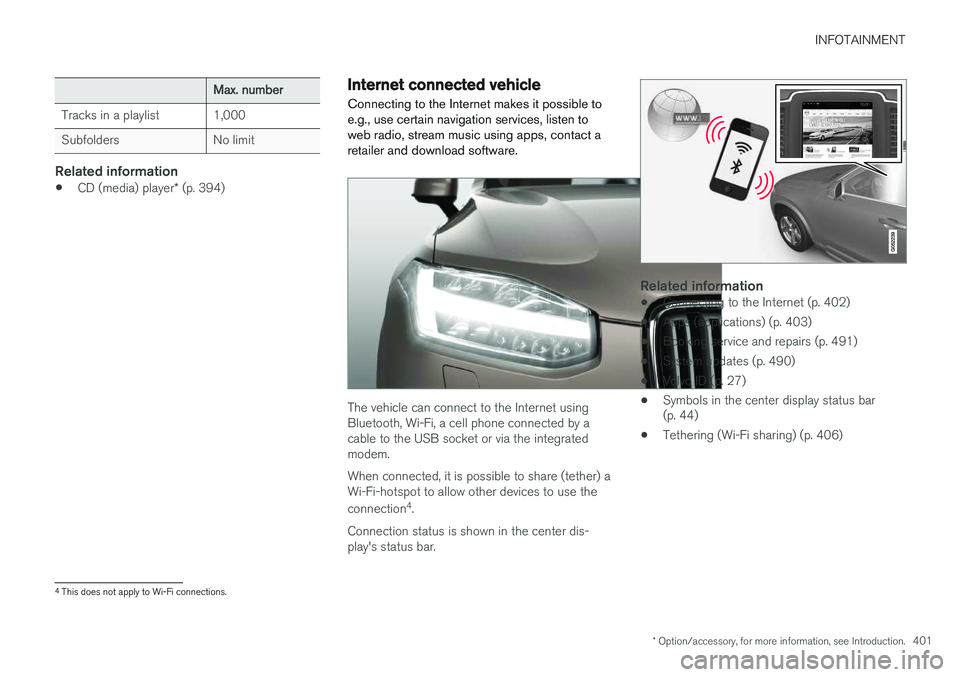
Connecting to the Internet makes it possible to e.g., use certain navigation services, listen toweb radio, stream music using apps, contact aretailer and download software.
The vehicle can connect to the Internet using Bluetooth, Wi-Fi, a cell phone connected by acable to the USB socket or via the integratedmodem. When connected, it is possible to share (tether) a Wi-Fi-hotspot to allow other devices to use the connection 4
.
Connection status is shown in the center dis- play's status bar.
Related information
• Connecting to the Internet (p. 402)
• Apps (applications) (p. 403)
• Booking service and repairs (p. 491)
• System updates (p. 490)
• Volvo ID (p. 27)
• Symbols in the center display status bar (p. 44)
• Tethering (Wi-Fi sharing) (p. 406)
4
This does not apply to Wi-Fi connections.
Page 405 of 570
INFOTAINMENT
403
•
Connecting a device via the AUX/USB socket (p. 393)
• Wi-Fi technology and security (p. 407)
Apps (applications)
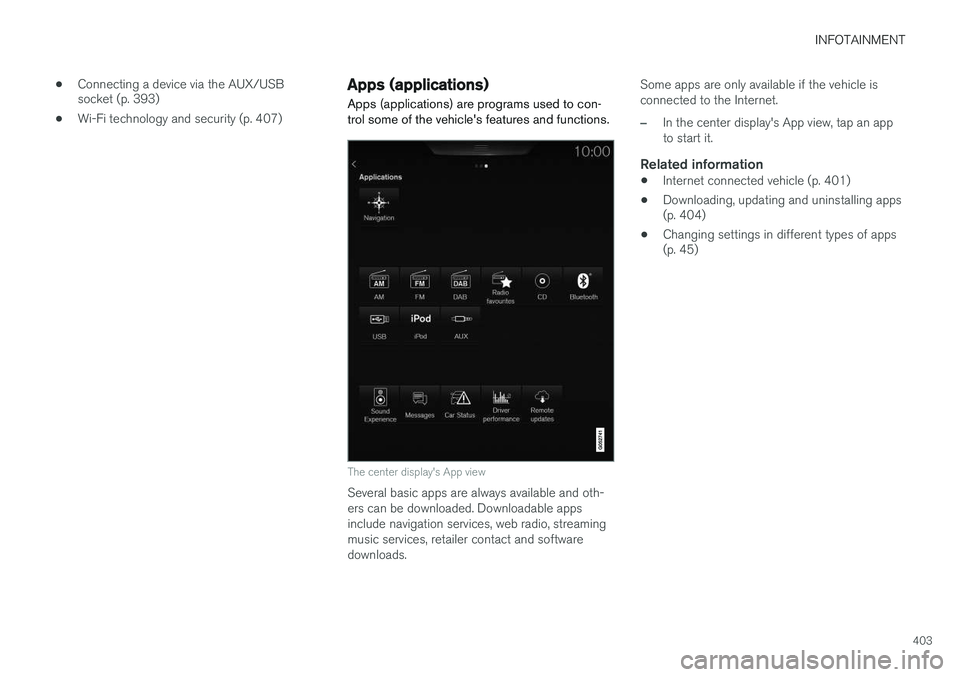
Apps (applications) are programs used to con- trol some of the vehicle's features and functions.
The center display's App view
Several basic apps are always available and oth- ers can be downloaded. Downloadable appsinclude navigation services, web radio, streamingmusic services, retailer contact and softwaredownloads. Some apps are only available if the vehicle isconnected to the Internet.
–In the center display's App view, tap an app to start it.
Related information
•
Internet connected vehicle (p. 401)
• Downloading, updating and uninstalling apps (p. 404)
• Changing settings in different types of apps(p. 45)
Page 406 of 570
INFOTAINMENT
404
Bluetooth settingsThe following settings apply to a Bluetooth-con- nected cell phone.
Bluetooth1. Tap Settings in the center display's Top
view.
2. Tap
CommunicationBluetooth and
select among the following settings:
•
Previously paired devices: lists the
devices that are paired and connected to the vehicle.
•
Internet connection: select to connect
to the Internet using the device's Bluetooth connection.
•
Add device: begin the procedure to pair
a new device.
•
Remove device: remove a paired device.
•
Allowed services for this device: select
the services that the device will be used for.
Bluetooth complianceUnited States FCC CAUTION Changes or modifications not expressly approved by the party responsible for compliance couldvoid the user's authority to operate the equip-ment. This transmitter must not be co-located or operated in conjunction with any other antennaor transmitter. Canada This device complies with Industry Canada licence-exempt RSS standard(s). Operation issubject to the following two conditions: (1) this device may not cause interference, and(2) this device must accept any interference, including interference that may cause undesiredoperation of the device.
Related information
•
Internet connected vehicle (p. 401)
• Pairing a cell phone (p. 387)
• Phone (p. 387)
• Media player (p. 393)
• Connecting/disconnecting a cell phone (p. 389)
Downloading, updating and uninstalling apps
Apps can be added (downloaded), kept up-to- date or deleted.
NOTE
Downloading data may affect other services that transfer data such as web radio, stream-ing music, etc. If this occurs, a download inprogress can be cancelled or the other serv-ice can be temporarily turned off.
Apps are managed via theRemote update service in
the center display's App view. To download, update or delete apps, the vehicle must be con-nected to the Internet.
Downloading an app
1. Open the Remote update service app.
2. Select
Explore to open a list of apps that
are available but which are not installed in the vehicle. Tap anywhere in a line for an appto expand the list for additional information.
Page 450 of 570
NAVIGATION*
* Option/accessory, for more information, see Introduction.
448
Traffic information 4
The navigation system constantly receives traffic messages that are broadcast by local radio sta-tions.
See the article "Traffic settings" for the traffic- related settings available to the driver.
Directly on the map
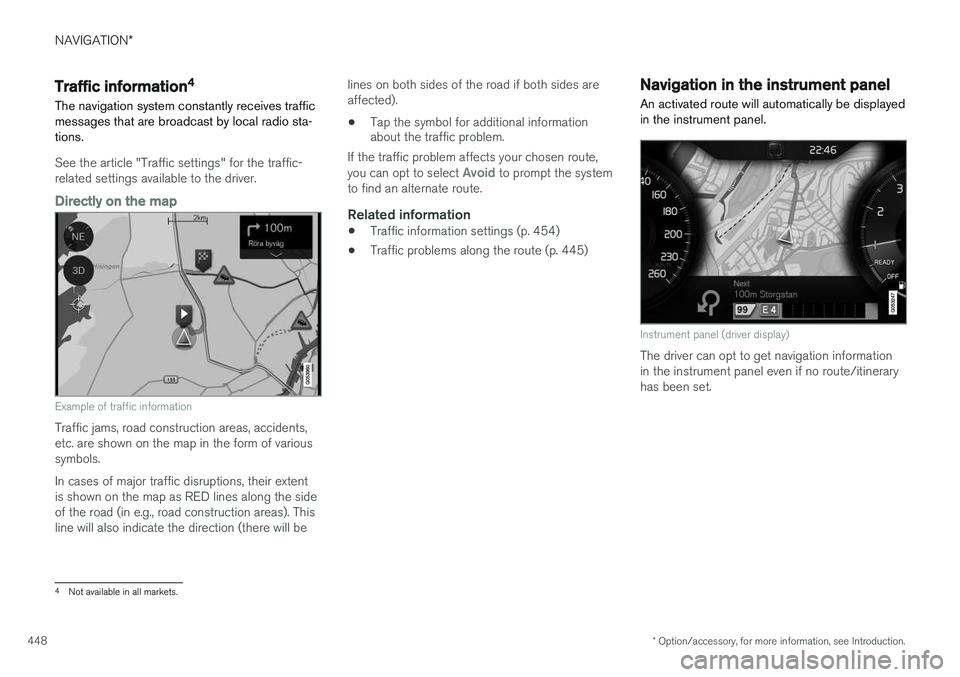
Example of traffic information
Traffic jams, road construction areas, accidents, etc. are shown on the map in the form of varioussymbols. In cases of major traffic disruptions, their extent is shown on the map as RED lines along the sideof the road (in e.g., road construction areas). Thisline will also indicate the direction (there will be lines on both sides of the road if both sides areaffected).
• Tap the symbol for additional information about the traffic problem.
If the traffic problem affects your chosen route, you can opt to select
Avoid to prompt the system
to find an alternate route.
Related information
• Traffic information settings (p. 454)
• Traffic problems along the route (p. 445)
Navigation in the instrument panel An activated route will automatically be displayed in the instrument panel.
Instrument panel (driver display)
The driver can opt to get navigation information in the instrument panel even if no route/itineraryhas been set.
4
Not available in all markets.
Page 561 of 570
559
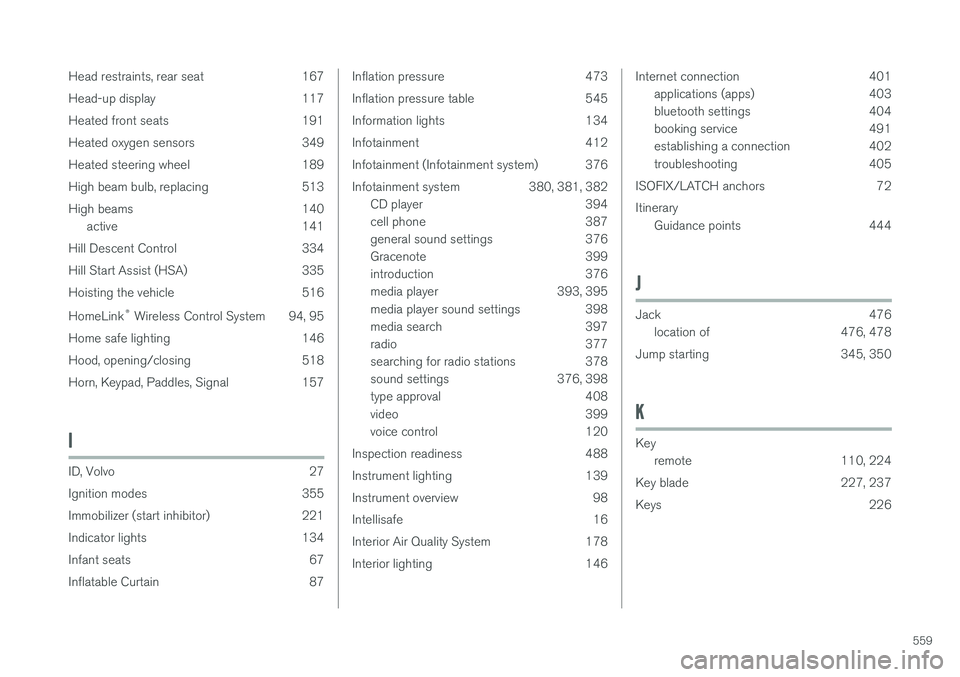
Head restraints, rear seat 167
Head-up display 117
Heated front seats 191
Heated oxygen sensors 349
Heated steering wheel 189
High beam bulb, replacing 513
High beams 140
active 141
Hill Descent Control 334
Hill Start Assist (HSA) 335
Hoisting the vehicle 516 HomeLink ®
Wireless Control System 94, 95
Home safe lighting 146
Hood, opening/closing 518
Horn, Keypad, Paddles, Signal 157
I
ID, Volvo 27
Ignition modes 355
Immobilizer (start inhibitor) 221
Indicator lights 134
Infant seats 67
Inflatable Curtain 87
Inflation pressure 473
Inflation pressure table 545
Information lights 134
Infotainment 412
Infotainment (Infotainment system) 376
Infotainment system 380, 381, 382 CD player 394
cell phone 387
general sound settings 376
Gracenote 399
introduction 376
media player 393, 395
media player sound settings 398
media search 397
radio 377
searching for radio stations 378
sound settings 376, 398
type approval 408
video 399
voice control 120
Inspection readiness 488
Instrument lighting 139
Instrument overview 98
Intellisafe 16
Interior Air Quality System 178
Interior lighting 146Internet connection 401 applications (apps) 403
bluetooth settings 404
booking service 491
establishing a connection 402
troubleshooting 405
ISOFIX/LATCH anchors 72 Itinerary Guidance points 444
J
Jack 476
location of 476, 478
Jump starting 345, 350
K
Key remote 110, 224
Key blade 227, 237
Keys 226
Page 563 of 570
561
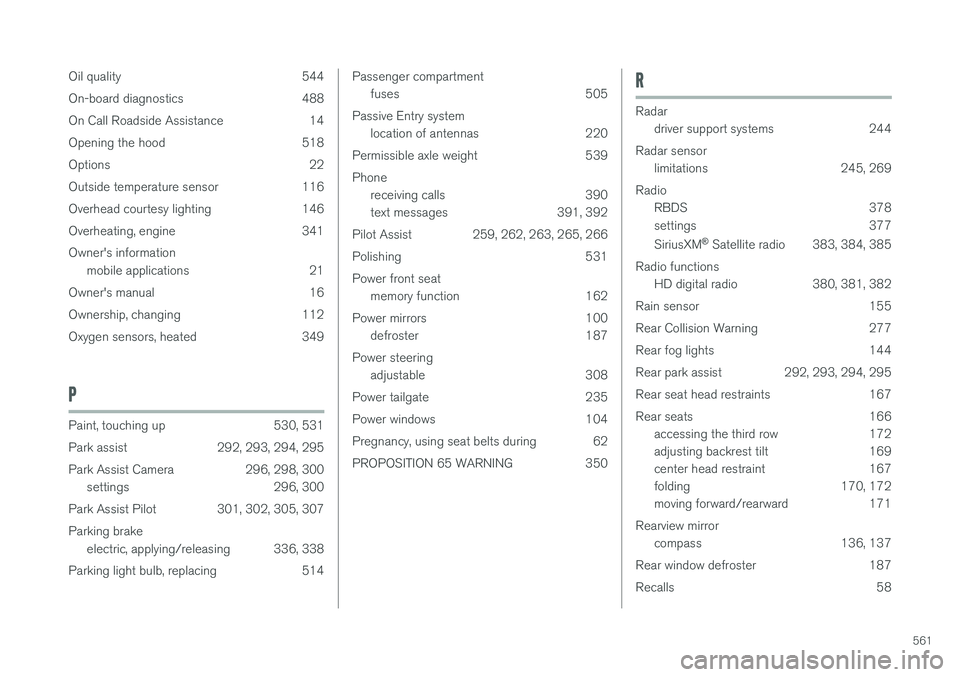
Oil quality 544
On-board diagnostics 488
On Call Roadside Assistance 14
Opening the hood 518
Options 22
Outside temperature sensor 116
Overhead courtesy lighting 146
Overheating, engine 341Owner's information
mobile applications 21
Owner's manual 16
Ownership, changing 112
Oxygen sensors, heated 349
P
Paint, touching up 530, 531
Park assist 292, 293, 294, 295
Park Assist Camera 296, 298, 300 settings 296, 300
Park Assist Pilot 301, 302, 305, 307Parking brake electric, applying/releasing 336, 338
Parking light bulb, replacing 514
Passenger compartment fuses 505
Passive Entry system location of antennas 220
Permissible axle weight 539 Phone receiving calls 390
text messages 391, 392
Pilot Assist 259, 262, 263, 265, 266
Polishing 531Power front seat memory function 162
Power mirrors 100 defroster 187
Power steering adjustable 308
Power tailgate 235
Power windows 104
Pregnancy, using seat belts during 62
PROPOSITION 65 WARNING 350R
Radar driver support systems 244
Radar sensor limitations 245, 269
Radio RBDS 378
settings 377 SiriusXM ®
Satellite radio 383, 384, 385
Radio functions HD digital radio 380, 381, 382
Rain sensor 155
Rear Collision Warning 277
Rear fog lights 144
Rear park assist 292, 293, 294, 295
Rear seat head restraints 167
Rear seats 166 accessing the third row 172
adjusting backrest tilt 169
center head restraint 167
folding 170, 172
moving forward/rearward 171
Rearview mirror compass 136, 137
Rear window defroster 187
Recalls 58
Page 564 of 570
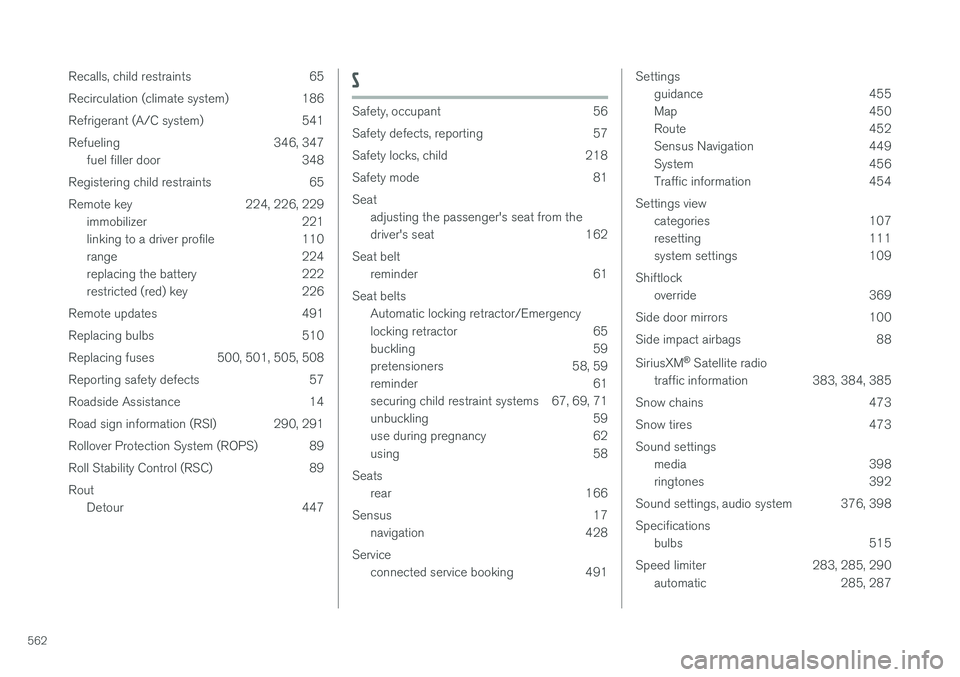
562Recalls, child restraints 65
Recirculation (climate system) 186
Refrigerant (A/C system) 541
Refueling 346, 347
fuel filler door 348
Registering child restraints 65
Remote key 224, 226, 229 immobilizer 221
linking to a driver profile 110
range 224
replacing the battery 222
restricted (red) key 226
Remote updates 491
Replacing bulbs 510
Replacing fuses 500, 501, 505, 508
Reporting safety defects 57
Roadside Assistance 14
Road sign information (RSI) 290, 291
Rollover Protection System (ROPS) 89
Roll Stability Control (RSC) 89Rout Detour 447
S
Safety, occupant 56
Safety defects, reporting 57
Safety locks, child 218
Safety mode 81Seatadjusting the passenger's seat from the
driver's seat 162
Seat belt reminder 61
Seat belts Automatic locking retractor/Emergency
locking retractor 65
buckling 59
pretensioners 58, 59
reminder 61
securing child restraint systems 67, 69, 71
unbuckling 59
use during pregnancy 62
using 58
Seats rear 166
Sensus 17 navigation 428
Service connected service booking 491
Settingsguidance 455
Map 450
Route 452
Sensus Navigation 449
System 456
Traffic information 454
Settings view categories 107
resetting 111
system settings 109
Shiftlock override 369
Side door mirrors 100
Side impact airbags 88 SiriusXM ®
Satellite radio
traffic information 383, 384, 385
Snow chains 473
Snow tires 473Sound settings media 398
ringtones 392
Sound settings, audio system 376, 398 Specifications bulbs 515
Speed limiter 283, 285, 290 automatic 285, 287
Page 566 of 570
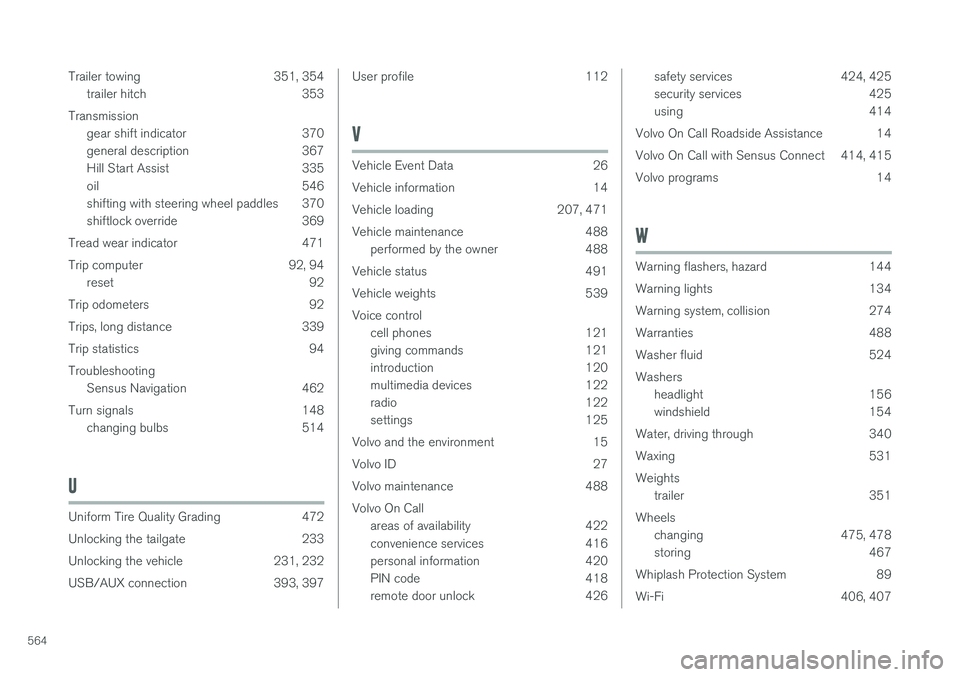
564Trailer towing 351, 354
trailer hitch 353
Transmission gear shift indicator 370
general description 367
Hill Start Assist 335
oil 546
shifting with steering wheel paddles 370
shiftlock override 369
Tread wear indicator 471
Trip computer 92, 94 reset 92
Trip odometers 92
Trips, long distance 339
Trip statistics 94Troubleshooting Sensus Navigation 462
Turn signals 148 changing bulbs 514
U
Uniform Tire Quality Grading 472
Unlocking the tailgate 233
Unlocking the vehicle 231, 232
USB/AUX connection 393, 397
User profile 112
V
Vehicle Event Data 26
Vehicle information 14
Vehicle loading 207, 471
Vehicle maintenance 488
performed by the owner 488
Vehicle status 491
Vehicle weights 539Voice control cell phones 121
giving commands 121
introduction 120
multimedia devices 122
radio 122
settings 125
Volvo and the environment 15
Volvo ID 27
Volvo maintenance 488Volvo On Call areas of availability 422
convenience services 416
personal information 420
PIN code 418
remote door unlock 426
safety services 424, 425
security services 425
using 414
Volvo On Call Roadside Assistance 14
Volvo On Call with Sensus Connect 414, 415
Volvo programs 14
W
Warning flashers, hazard 144
Warning lights 134
Warning system, collision 274
Warranties 488
Washer fluid 524Washers headlight 156
windshield 154
Water, driving through 340
Waxing 531Weights trailer 351
Wheels changing 475, 478
storing 467
Whiplash Protection System 89
Wi-Fi 406, 407