radio VOLVO XC90 2015 Owner's Manual
[x] Cancel search | Manufacturer: VOLVO, Model Year: 2015, Model line: XC90, Model: VOLVO XC90 2015Pages: 570, PDF Size: 12.44 MB
Page 382 of 570
INFOTAINMENT
* Option/accessory, for more information, see Introduction.
380
HD Radio ™reception
HD Radio is a brand name registered by the iBiquity digital corporation 3
. They are the devel-
oper of a broadcasting technology called IBOC or In Band On Channel, which refers to themethod of transmitting a digital radio broadcastsignal centered on the same frequency as theAM or FM station's present frequency.
Introduction
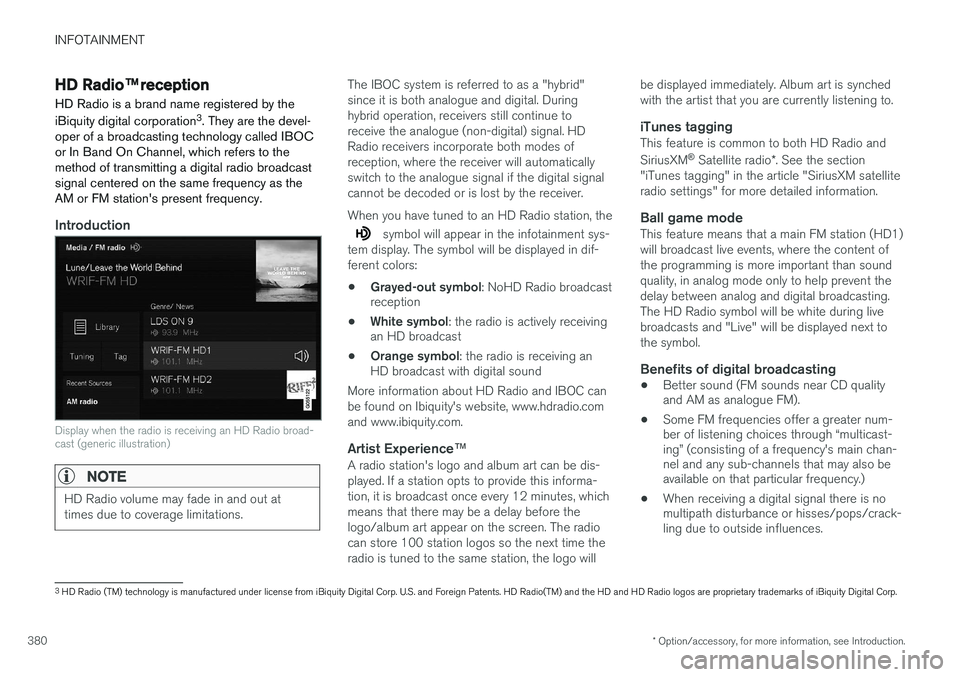
Display when the radio is receiving an HD Radio broad- cast (generic illustration)
NOTE
HD Radio volume may fade in and out at times due to coverage limitations.
The IBOC system is referred to as a "hybrid" since it is both analogue and digital. Duringhybrid operation, receivers still continue toreceive the analogue (non-digital) signal. HDRadio receivers incorporate both modes ofreception, where the receiver will automaticallyswitch to the analogue signal if the digital signalcannot be decoded or is lost by the receiver. When you have tuned to an HD Radio station, the
symbol will appear in the infotainment sys-
tem display. The symbol will be displayed in dif- ferent colors:
• Grayed-out symbol
: NoHD Radio broadcast
reception
• White symbol
: the radio is actively receiving
an HD broadcast
• Orange symbol
: the radio is receiving an
HD broadcast with digital sound
More information about HD Radio and IBOC canbe found on Ibiquity's website, www.hdradio.comand www.ibiquity.com.
Artist Experience ™A radio station's logo and album art can be dis-played. If a station opts to provide this informa-tion, it is broadcast once every 12 minutes, whichmeans that there may be a delay before thelogo/album art appear on the screen. The radiocan store 100 station logos so the next time theradio is tuned to the same station, the logo will be displayed immediately. Album art is synchedwith the artist that you are currently listening to.
iTunes taggingThis feature is common to both HD Radio and SiriusXM
®
Satellite radio *. See the section
"iTunes tagging" in the article "SiriusXM satellite radio settings" for more detailed information.
Ball game modeThis feature means that a main FM station (HD1)will broadcast live events, where the content ofthe programming is more important than soundquality, in analog mode only to help prevent thedelay between analog and digital broadcasting.The HD Radio symbol will be white during livebroadcasts and "Live" will be displayed next tothe symbol.
Benefits of digital broadcasting
• Better sound (FM sounds near CD quality and AM as analogue FM).
• Some FM frequencies offer a greater num-ber of listening choices through
Page 383 of 570
INFOTAINMENT
* Option/accessory, for more information, see Introduction.381
How HD Radio ™ Technology
broadcasting works
HD Radio works similarly to conventional radio and broadcasts of this type are available in manyareas of the United States. However, there are afew key differences:
• Instead of transmitting one analogue signal, stations send out a bundled signal – bothanalogue and digital.
• An HD Radio receiver can receive both digi-tal and analogue broadcasts. Depending onthe terrain and location of the vehicle (whichwill influence the signal strength), thereceiver will determine which signal toreceive.
Related information
•
Switching HD Radio on and off (p. 381)
• HD Radio sub-channels (p. 382)
• HD Radio limitations (p. 382)
• Radio (p. 377)
• Changing and searching for radio stations(p. 378)
Switching HD Radio on and off The factory setting for HD Radio is
off.
Switching HD on or offWhen listening to an HD Radio station and driv- ing through areas with weak HD signals (fringeareas), you may experience that the radio repeat-edly switches between analogue/digital and digi-tal/analogue reception. If this happens, it may bedesirable to switch HD off. To do so:
1. Be sure the infotainment system is switched
on and in AM or FM mode.
2. To access the settings menu from the center display's Home view, pull down Top view and tap
AM/FM radio.
Go to
Adjust settings for media.
3. Tap the
AM HD Radio or FM HD Radio box
to select/deselect this function.
This will disable the radio's capability to receive digital broadcasts but it will continue to functionas a conventional (analogue) AM/FM receiver.Please note that when HD is switched off, it willnot be possible to tune to sub-channels (see thearticle "HD Radio subchannels" for a moredetailed explanation of sub-channels). Please note that this will only switch HD Radio on or off (selecting or deselecting the function)only affects the selected waveband.
Related information
• HD Radio
™reception (p. 380)
• HD Radio sub-channels (p. 382)
• SiriusXM ®
Satellite radio * settings (p. 385)
Page 384 of 570
INFOTAINMENT
382
HD Radio sub-channels
In many cases, a main HD Radio station (FM wavebands only) will also have sub-channelsoffering additional types of programming ormusic.
Sub-channels
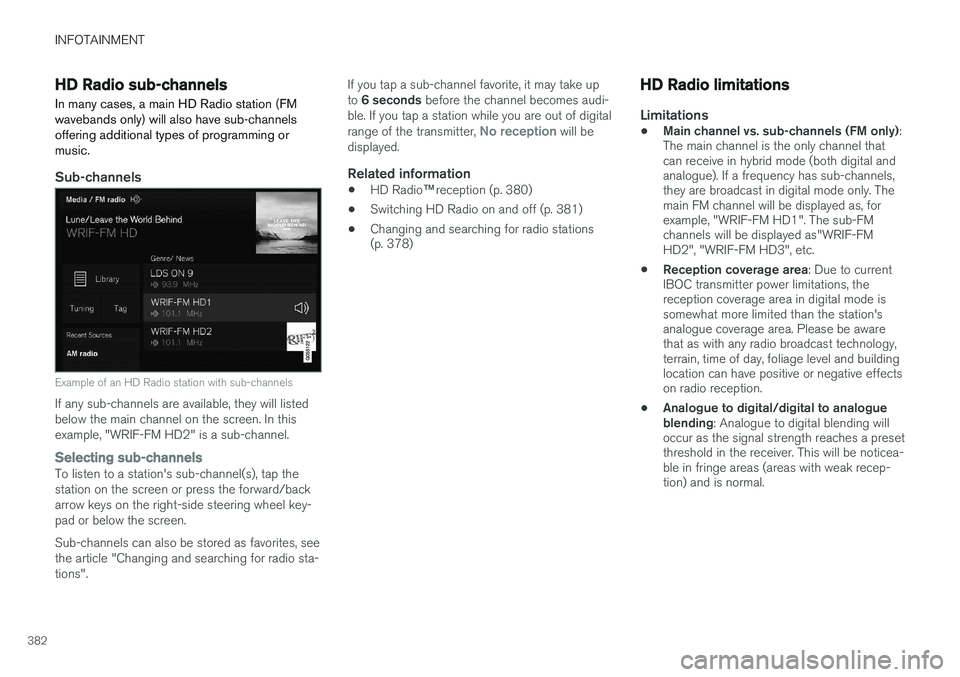
Example of an HD Radio station with sub-channels
If any sub-channels are available, they will listed below the main channel on the screen. In thisexample, "WRIF-FM HD2" is a sub-channel.
Selecting sub-channelsTo listen to a station's sub-channel(s), tap the station on the screen or press the forward/backarrow keys on the right-side steering wheel key-pad or below the screen. Sub-channels can also be stored as favorites, see the article "Changing and searching for radio sta-tions". If you tap a sub-channel favorite, it may take up to
6 seconds before the channel becomes audi-
ble. If you tap a station while you are out of digital range of the transmitter,
No reception will be
displayed.
Related information
• HD Radio
™reception (p. 380)
• Switching HD Radio on and off (p. 381)
• Changing and searching for radio stations (p. 378)
HD Radio limitations
Limitations
•
Main channel vs. sub-channels (FM only)
:
The main channel is the only channel that can receive in hybrid mode (both digital andanalogue). If a frequency has sub-channels,they are broadcast in digital mode only. Themain FM channel will be displayed as, forexample, "WRIF-FM HD1". The sub-FMchannels will be displayed as"WRIF-FMHD2", "WRIF-FM HD3", etc.
• Reception coverage area
: Due to current
IBOC transmitter power limitations, thereception coverage area in digital mode issomewhat more limited than the station'sanalogue coverage area. Please be awarethat as with any radio broadcast technology,terrain, time of day, foliage level and buildinglocation can have positive or negative effectson radio reception.
• Analogue to digital/digital to analogueblending
: Analogue to digital blending will
occur as the signal strength reaches a presetthreshold in the receiver. This will be noticea-ble in fringe areas (areas with weak recep-tion) and is normal.
Page 385 of 570
INFOTAINMENT
* Option/accessory, for more information, see Introduction.383
NOTE
There may be a noticeable difference in sound quality when a change from analogueto digital or digital to analogue occurs, suchas:
• Volume increase or decrease
• Equalizer settings, i.e., Bass/ Midrange/ Treble cut or boost
• Time alignment (Digital program materialin extreme cases can be as much as 8seconds behind the analogue). This willnoticeable as a "stuttering" effect.
The above items are dependant on the broadcaster's equipment settings and donot indicate a fault in the vehicle's radioreceiver or antenna systems .
Related information
•HD Radio sub-channels (p. 382)
• HD Radio
™reception (p. 380)
SiriusXM ®
Satellite radio *
The SiriusXM ®
Satellite system broadcasts from
of a number of high elevation satellites in geo- synchronous orbit.
Listening to satellite radioThe digital signals from the satellites are line-of- sight, which means that physical obstructionssuch as bridges, tunnels, etc, may temporarilyinterfere with signal reception. Avoid any obstructions, such as metallic objects transported on roof racks or in a ski box, or otherantennas that may impede signals from the SiriusXM ®
satellites.
Selecting SiriusXM ®
Satellite radio mode1. From the center display's Home view, swipe
from right to left to come to App view.
2.Tap the SiriusXM ®
Satellite radio icon.
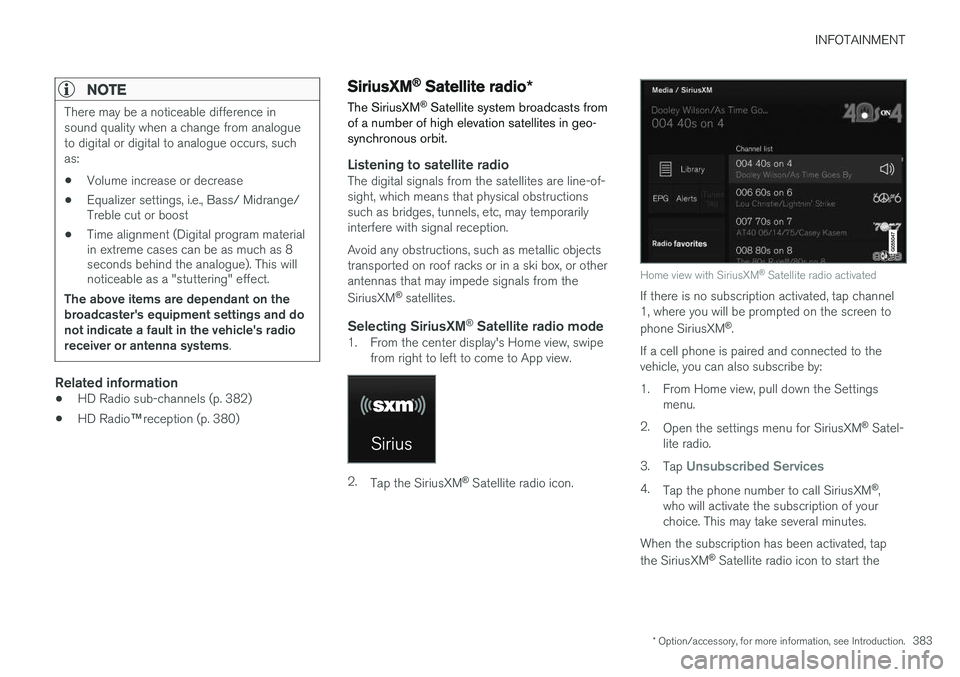
Home view with SiriusXM ®
Satellite radio activated
If there is no subscription activated, tap channel 1, where you will be prompted on the screen to phone SiriusXM ®
.
If a cell phone is paired and connected to the vehicle, you can also subscribe by:
1. From Home view, pull down the Settings menu.
2. Open the settings menu for SiriusXM ®
Satel-
lite radio.
3. Tap
Unsubscribed Services
4.
Tap the phone number to call SiriusXM ®
,
who will activate the subscription of your choice. This may take several minutes.
When the subscription has been activated, tap the SiriusXM ®
Satellite radio icon to start the
Page 386 of 570
INFOTAINMENT
* Option/accessory, for more information, see Introduction.
384 function and display the channel list included in your subscription.
Related information
•
Using SiriusXM ®
Satellite radio radio *
(p. 384)
Using SiriusXM ®
Satellite radio
radio *
SiriusXM ®
Satellite radio offers several features
for finding and listening to music, news, sporting events, etc. being broadcast on satellite radiostations.
SiriusXM ®
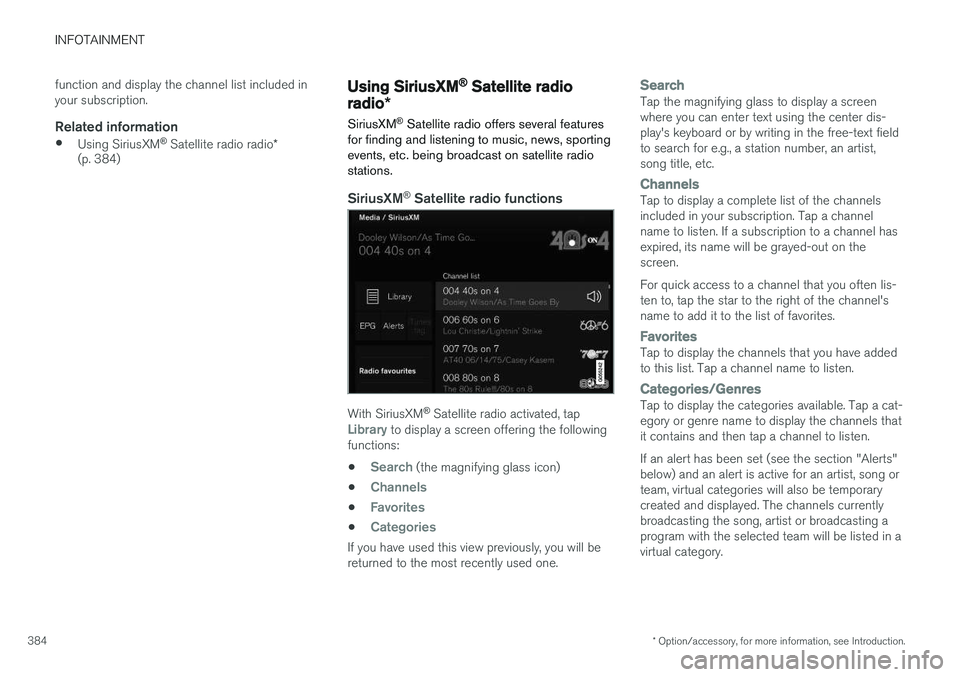
Satellite radio functions
With SiriusXM ®
Satellite radio activated, tapLibrary to display a screen offering the following
functions: •
Search (the magnifying glass icon)
•
Channels
•Favorites
•Categories
If you have used this view previously, you will be returned to the most recently used one.
SearchTap the magnifying glass to display a screen where you can enter text using the center dis-play's keyboard or by writing in the free-text fieldto search for e.g., a station number, an artist,song title, etc.
ChannelsTap to display a complete list of the channels included in your subscription. Tap a channelname to listen. If a subscription to a channel hasexpired, its name will be grayed-out on thescreen. For quick access to a channel that you often lis- ten to, tap the star to the right of the channel'sname to add it to the list of favorites.
FavoritesTap to display the channels that you have added to this list. Tap a channel name to listen.
Categories/GenresTap to display the categories available. Tap a cat- egory or genre name to display the channels thatit contains and then tap a channel to listen. If an alert has been set (see the section "Alerts" below) and an alert is active for an artist, song orteam, virtual categories will also be temporarycreated and displayed. The channels currentlybroadcasting the song, artist or broadcasting aprogram with the selected team will be listed in avirtual category.
Page 387 of 570
INFOTAINMENT
* Option/accessory, for more information, see Introduction.385
EPG (Electronic Program Guide)
On the center display's Home screen, tap EPGfor information about e.g., when a program is being broadcast and its name, description, artist, etc. If no information is currently available,
No
information will be displayed.
Alerts
If this feature has been selected under SiriusXM
Settings, the Alerts button will be displayed on
the Home screen. To add e.g., an artist's name, song title or a sports team to the list of alerts:
1. Tune to any channel that is broadcasting a song, game, etc., of your choice.
2. Press the
Alerts button.
3. A pop-up window will be displayed showing a list of alerts (nothing will be displayed if the selected channel does not support the alertfunction).
4. Select one of the alternatives in list (only one can be selected at a time).
5. The song/artist/team will now be added to the list of alerts. Favorite sports teams canalso be added to the list using the "GameAlert" setting as described in the article "Sir-iusXM satellite radio settings."
> When your choice is being broadcast on achannel, you will be informed by a pop-up.
iTunes tagging
From the center display's Top view, tapSiriusXM
Settings. Tap theiTunes Tagging menu. Tap
the iTunes Tagging box to activate/deactivate
this function and tap Close to return to Home
view. Tap List Of Tags to display a list of all tag-
ged songs. If the function is activated, the
iTunes tag button
will be displayed in Home view. If a song is played that you would like to buy in the iTunes store, tapthis button while the song is playing to tag it. If a song with
iTunes Tagging information is availa-
ble, the button will be selectable. Tap the button to tag the song. If you would like to buy a taggedsong via iTunes, Tap the iTunes tag button. To buy a song in iTunes, begin by connecting an iPhone/iPod/iPad to the USB socket in the tun-nel console. The iTunes tagging list will automati-cally be transferred to the device and removedfrom the list in the vehicle. If the device is con-nected when a song is tagged, the data will auto-matically be saved in the device. To purchase thesong, consult the iTunes support page.
Related information
• SiriusXM ®
Satellite radio * (p. 383)
• Using the center display keyboard (p. 32)
• SiriusXM ®
Satellite radio * settings (p. 385)
• Connecting a device via the AUX/USB socket (p. 393)
SiriusXM ®
Satellite radio * settings
There are numerous settings that can be made to enhance your SiriusXM ®
Satellite radio listen-
ing experience.
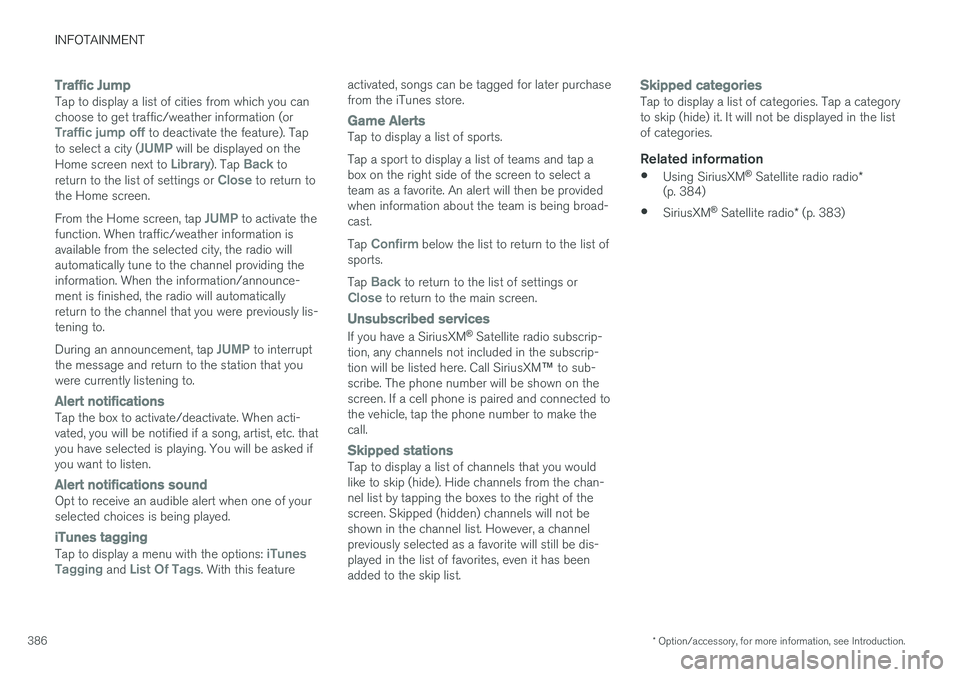
SettingsTo access the settings menu from the center dis- play's Home view, pull down Top view and tap
SiriusXM Settings. The following alternatives
will be displayed:
Page 388 of 570
INFOTAINMENT
* Option/accessory, for more information, see Introduction.
386
Traffic JumpTap to display a list of cities from which you can choose to get traffic/weather information (or
Traffic jump off to deactivate the feature). Tap
to select a city (JUMP will be displayed on the
Home screen next to Library). Tap Back to
return to the list of settings or Close to return to
the Home screen. From the Home screen, tap
JUMP to activate the
function. When traffic/weather information is available from the selected city, the radio willautomatically tune to the channel providing theinformation. When the information/announce-ment is finished, the radio will automaticallyreturn to the channel that you were previously lis-tening to. During an announcement, tap
JUMP to interrupt
the message and return to the station that you were currently listening to.
Alert notificationsTap the box to activate/deactivate. When acti- vated, you will be notified if a song, artist, etc. thatyou have selected is playing. You will be asked ifyou want to listen.
Alert notifications soundOpt to receive an audible alert when one of your selected choices is being played.
iTunes tagging
Tap to display a menu with the options: iTunes
Tagging and List Of Tags. With this feature activated, songs can be tagged for later purchase from the iTunes store.
Game AlertsTap to display a list of sports. Tap a sport to display a list of teams and tap a box on the right side of the screen to select ateam as a favorite. An alert will then be providedwhen information about the team is being broad-cast. Tap
Confirm below the list to return to the list of
sports. Tap
Back to return to the list of settings orClose to return to the main screen.
Unsubscribed services
If you have a SiriusXM ®
Satellite radio subscrip-
tion, any channels not included in the subscrip- tion will be listed here. Call SiriusXM ™ to sub-
scribe. The phone number will be shown on the screen. If a cell phone is paired and connected tothe vehicle, tap the phone number to make thecall.
Skipped stationsTap to display a list of channels that you would like to skip (hide). Hide channels from the chan-nel list by tapping the boxes to the right of thescreen. Skipped (hidden) channels will not beshown in the channel list. However, a channelpreviously selected as a favorite will still be dis-played in the list of favorites, even it has beenadded to the skip list.
Skipped categoriesTap to display a list of categories. Tap a category to skip (hide) it. It will not be displayed in the listof categories.
Related information
• Using SiriusXM ®
Satellite radio radio *
(p. 384)
• SiriusXM ®
Satellite radio * (p. 383)
Page 395 of 570
INFOTAINMENT
* Option/accessory, for more information, see Introduction.393
Connecting a Bluetooth®
device
Bluetooth ®
-enabled devices can be paired and
connected to the infotainment system to stream media and in some cases connect to the Inter-net.
Many cell phones and other devices currently on the market offer wireless Bluetooth ®
technology.
Consult your Volvo retailer or go to support.volvocars.com for any questions regar-ding a device's compatibility with the vehicle'sinfotainment system. The procedure for pairing and connecting a Bluetooth ®
-enabled device is the same as for a
cell phone. See the articles "Pairing a cell phone" and "Connecting/disconnecting a cell phone" fordetails.
Related information
• Pairing a cell phone (p. 387)
• Connecting/disconnecting a cell phone (p. 389)
Connecting a device via the AUX/USB socket
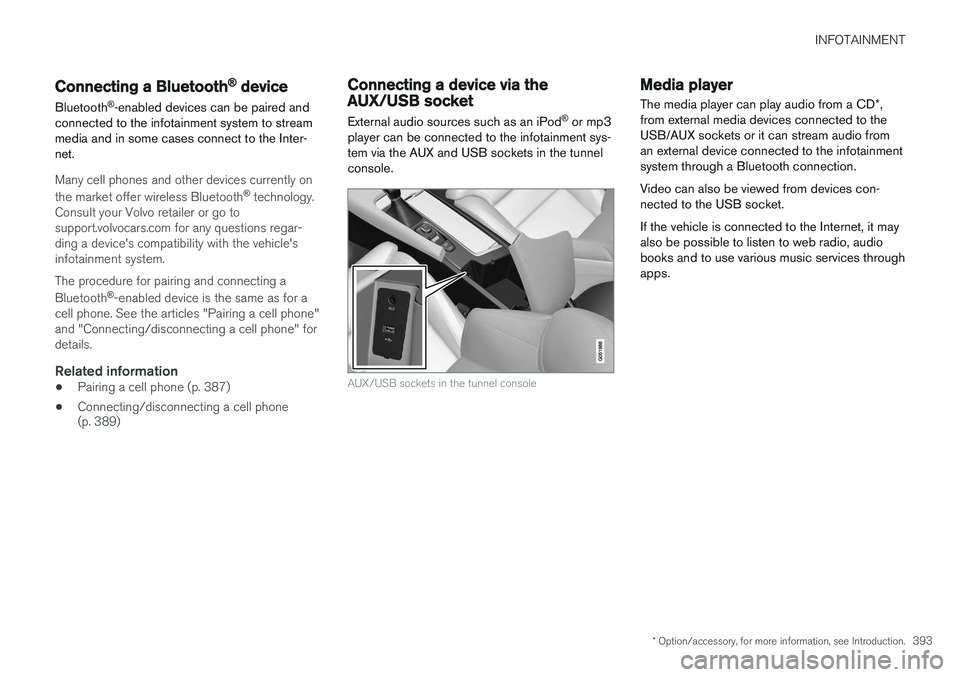
External audio sources such as an iPod ®
or mp3
player can be connected to the infotainment sys- tem via the AUX and USB sockets in the tunnelconsole.
AUX/USB sockets in the tunnel console
Media player
The media player can play audio from a CD *,
from external media devices connected to the USB/AUX sockets or it can stream audio froman external device connected to the infotainmentsystem through a Bluetooth connection. Video can also be viewed from devices con- nected to the USB socket. If the vehicle is connected to the Internet, it may also be possible to listen to web radio, audiobooks and to use various music services throughapps.
Page 396 of 570

INFOTAINMENT
* Option/accessory, for more information, see Introduction.
394
The media player is controlled from the center display but cer-tain functions can also be con-trolled from the right-sidesteering wheel keypad or byusing voice commands.
Related information
• Playing media (p. 395)
• Voice control for radio and media (p. 122)
• Radio (p. 377) •
Apps (applications) (p. 403)
• CD (media) player
* (p. 394)
• Playing media through the AUX/USB sock- ets (p. 397)
CD (media) player
*
The CD (media) player can play commercially purchased discs as well as ones that you haveburned yourself. See the article "Media playertechnical data" for information about compatiblefile formats.
Location of the CD player in the tunnel console
Disc slot
Eject button
Related information
• Media player technical data (p. 400)
Page 397 of 570
INFOTAINMENT
395
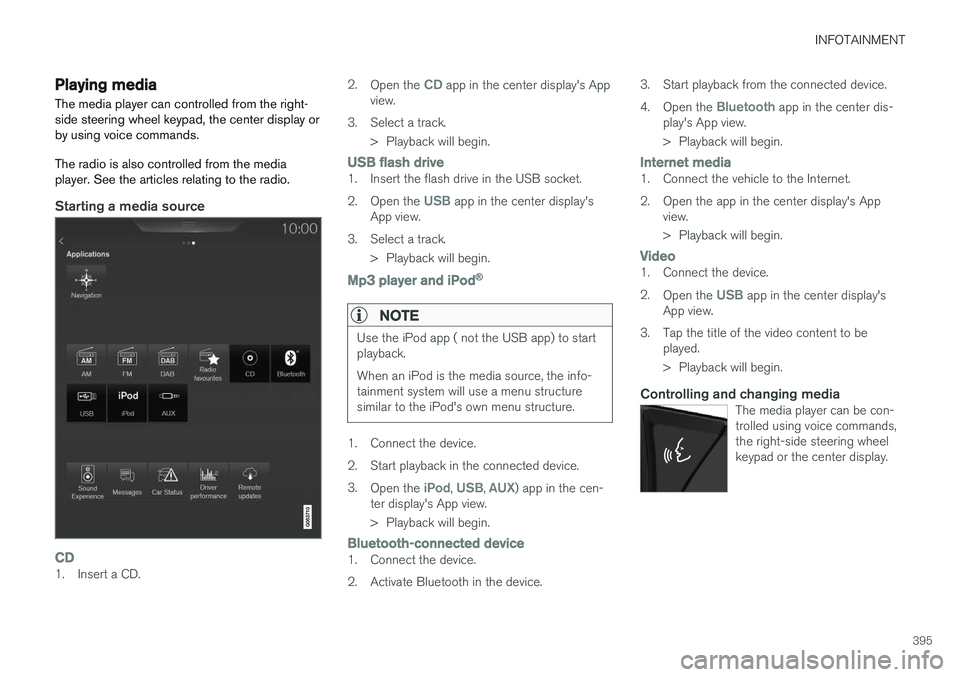
Playing media The media player can controlled from the right- side steering wheel keypad, the center display orby using voice commands. The radio is also controlled from the media player. See the articles relating to the radio.
Starting a media source
CD1. Insert a CD.2.
Open the
CD app in the center display's App
view.
3. Select a track. > Playback will begin.
USB flash drive1. Insert the flash drive in the USB socket. 2.Open the
USB app in the center display's
App view.
3. Select a track. > Playback will begin.
Mp3 player and iPod®
NOTE
Use the iPod app ( not the USB app) to start playback. When an iPod is the media source, the info- tainment system will use a menu structuresimilar to the iPod's own menu structure.
1. Connect the device.
2. Start playback in the connected device.3.
Open the
iPod, USB, AUX) app in the cen-
ter display's App view.
> Playback will begin.
Bluetooth-connected device1. Connect the device.
2. Activate Bluetooth in the device. 3. Start playback from the connected device.4.
Open the
Bluetooth app in the center dis-
play's App view.
> Playback will begin.
Internet media1. Connect the vehicle to the Internet.
2. Open the app in the center display's App view.
> Playback will begin.
Video1. Connect the device. 2.Open the
USB app in the center display's
App view.
3. Tap the title of the video content to be played.
> Playback will begin.
Controlling and changing mediaThe media player can be con- trolled using voice commands,the right-side steering wheelkeypad or the center display.