steering wheel VOLVO XC90 2015 Manual PDF
[x] Cancel search | Manufacturer: VOLVO, Model Year: 2015, Model line: XC90, Model: VOLVO XC90 2015Pages: 570, PDF Size: 12.44 MB
Page 365 of 570
STARTING AND DRIVING
* Option/accessory, for more information, see Introduction.363
a short distance
(in heavy traffic, etc.) or
when driving down hills .
To help keep fuel consumption as low as possi- ble, Eco Coast should not be used in traffic situa-tions where the brakes have to be used fre-quently.
Activating Eco CoastEco Coast is activated when the accelerator pedal is released completely if:
• Eco is activated
• The gear selector is in
D
• The vehicle's speed is between approxi- mately 25–85 mph (40–140 km/h). Alwaysobserve posted speed limits
• The gradient of a down-slope is less thanapproximately 6%
COASTING will appear in the instrument panel
when Eco Coast is being used.
LimitationsEco Coast is not available if:
• The engine and/or transmission have not reached their normal operating temperature
• Cruise control is activated
• The gear selector is moved from
D to " +/-"
for manual shifting
• The vehicle's speed is not within the25–85 mph (40–140 km/h) range
• The gradient of a down-slope is more thanapproximately 6% •
The steering wheel paddles
* are used for
manual shifting
Deactivating and turning off Eco CoastIn certain situations, it may be advisable to switch off the Eco Coast function, such as:
• When driving down steep hills, in order to uti- lize engine braking
• Prior to passing another vehicle, in order todo so as safely as possible
Deactivating Eco Coast (and reactivating engine braking) can be done in the following ways: • Move the gear selector to the manual "
+/
Page 366 of 570
STARTING AND DRIVING
364
Start/Stop
Start/Stop is a function that temporarily switches off the engine when the vehicle is not moving,for instance in heavy traffic or at a traffic light, tohelp reduce fuel consumption. The engine startsagain automatically when the brake pedal isreleased.
Start/Stop is one of several fuel-conserving fea- tures that also help reduce emissions. This feature helps make it possible to drive more economically by allowing the engine to auto-stopin certain situations.
Related information
• Conditions for Start/Stop (p. 365)
• Using the Start/Stop function (p. 364)
• ECO drive mode (p. 362)
Using the Start/Stop function Start/Stop is a function that temporarily switches off the engine when the vehicle is not moving,for instance in heavy traffic or at a traffic light, tohelp reduce fuel consumption. The engine startsagain automatically when the brake pedal isreleased.
Start/Stop is available when the engine has been started. The instrument panel will indicate if thefunction is available/unavailable/active. All of the vehicle's normal systems such as light- ing, infotainment, etc., function normally when theengine has auto-stopped. However, certain func-tions, such as climate system blower speed orvery high infotainment system volume, will betemporarily reduced.
Auto-stopThe following conditions must be met for theengine to auto-stop:
• Stop the vehicle by applying the brakes and keep the brake pedal depressed. The engine will auto-stop. If the COMFORT 8
or ECO driv-
ing modes are activated, the engine can auto-stop before the vehicle has come to astandstill.
If the
Adaptive cruise or Pilot Assist functions
are activated, the engine will auto-stop after approx. 3 seconds. See also the article "Condi-tions for Start/Stop."
Auto-startThe following conditions must be met for theengine to auto-start:
• Release the brake pedal; the engine will automatically restart. When starting on anuphill incline, the Hill Start Assist (HSA)function will be activated to help prevent thevehicle from rolling backward.
• When the brake system's Auto Hold functionis activated, the engine will not auto-startuntil the accelerator pedal is pressed.
• When
Adaptive cruise or Pilot Assist are
activated, the engine will auto-start when the accelerator pedal is pressed or if the
button is pressed on the left-side steering wheel keypad.
• Keep the brake pedal depressed but pressthe accelerator pedal. The engine will auto-start.
• On a downhill incline, release the brake pedalso that the vehicle begins to roll. The enginewill auto-start after a slight increase in speed.
8
The default driving mode.
Page 367 of 570
STARTING AND DRIVING
* Option/accessory, for more information, see Introduction.365
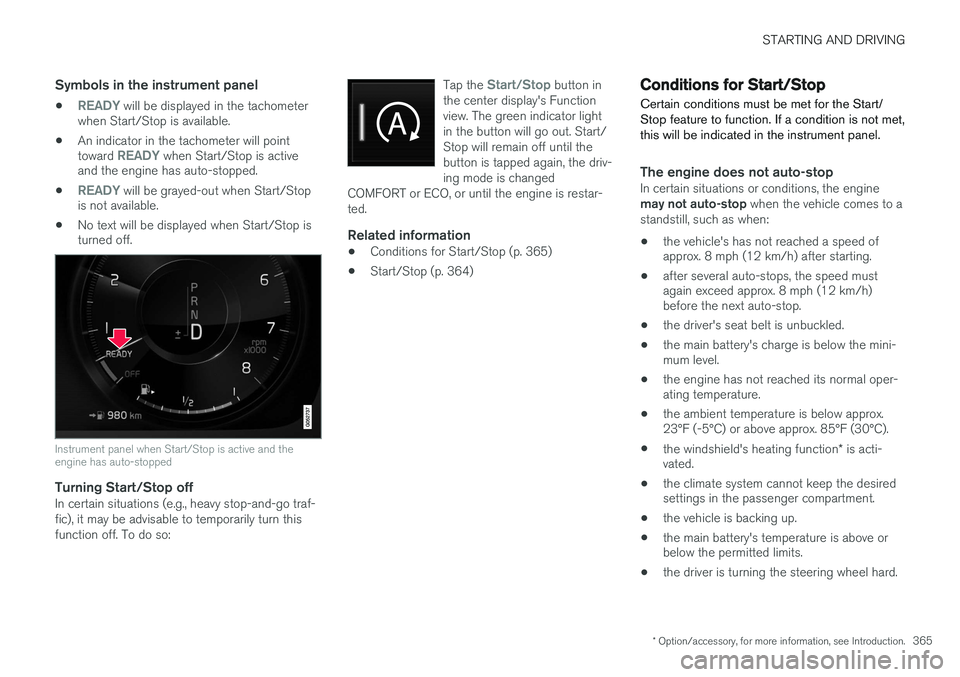
Symbols in the instrument panel
•READY will be displayed in the tachometer
when Start/Stop is available.
• An indicator in the tachometer will point toward
READY when Start/Stop is active
and the engine has auto-stopped.
•
READY will be grayed-out when Start/Stop
is not available.
• No text will be displayed when Start/Stop is turned off.
Instrument panel when Start/Stop is active and the engine has auto-stopped
Turning Start/Stop offIn certain situations (e.g., heavy stop-and-go traf- fic), it may be advisable to temporarily turn thisfunction off. To do so: Tap the
Start/Stop button in
the center display's Function view. The green indicator lightin the button will go out. Start/Stop will remain off until thebutton is tapped again, the driv-ing mode is changed
COMFORT or ECO, or until the engine is restar-ted.
Related information
• Conditions for Start/Stop (p. 365)
• Start/Stop (p. 364)
Conditions for Start/Stop
Certain conditions must be met for the Start/ Stop feature to function. If a condition is not met,this will be indicated in the instrument panel.
The engine does not auto-stopIn certain situations or conditions, the engine may not auto-stop when the vehicle comes to a
standstill, such as when:
• the vehicle's has not reached a speed of approx. 8 mph (12 km/h) after starting.
• after several auto-stops, the speed mustagain exceed approx. 8 mph (12 km/h)before the next auto-stop.
• the driver's seat belt is unbuckled.
• the main battery's charge is below the mini-mum level.
• the engine has not reached its normal oper-ating temperature.
• the ambient temperature is below approx.23°F (-5°C) or above approx. 85°F (30°C).
• the windshield's heating function
* is acti-
vated.
• the climate system cannot keep the desiredsettings in the passenger compartment.
• the vehicle is backing up.
• the main battery's temperature is above orbelow the permitted limits.
• the driver is turning the steering wheel hard.
Page 372 of 570
STARTING AND DRIVING
* Option/accessory, for more information, see Introduction.
370
Gear shift indicator
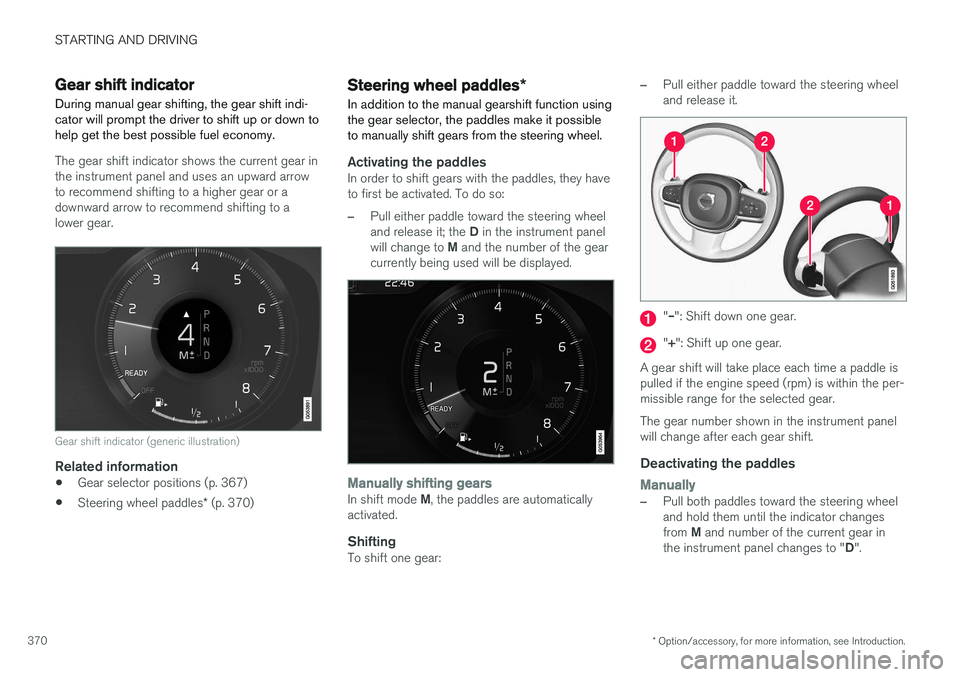
During manual gear shifting, the gear shift indi- cator will prompt the driver to shift up or down tohelp get the best possible fuel economy.
The gear shift indicator shows the current gear in the instrument panel and uses an upward arrowto recommend shifting to a higher gear or adownward arrow to recommend shifting to alower gear.
Gear shift indicator (generic illustration)
Related information
• Gear selector positions (p. 367)
• Steering wheel paddles
* (p. 370)
Steering wheel paddles *
In addition to the manual gearshift function using the gear selector, the paddles make it possibleto manually shift gears from the steering wheel.
Activating the paddlesIn order to shift gears with the paddles, they have to first be activated. To do so:
–Pull either paddle toward the steering wheel and release it; the D in the instrument panel
will change to M and the number of the gear
currently being used will be displayed.
Manually shifting gearsIn shift mode M, the paddles are automatically
activated.
ShiftingTo shift one gear:
–Pull either paddle toward the steering wheel and release it.
"
Page 378 of 570
INFOTAINMENT
376
The infotainment system
The infotainment system consists of a radio, media player and has the capacity to communi-cate with a Bluetooth-connected cell phone. It isalso possible to connect to the Internet to e.g.,stream audio content via apps. The system's functions can be controlled from the right-side steering wheel keypad, the centerdisplay or by using voice commands.
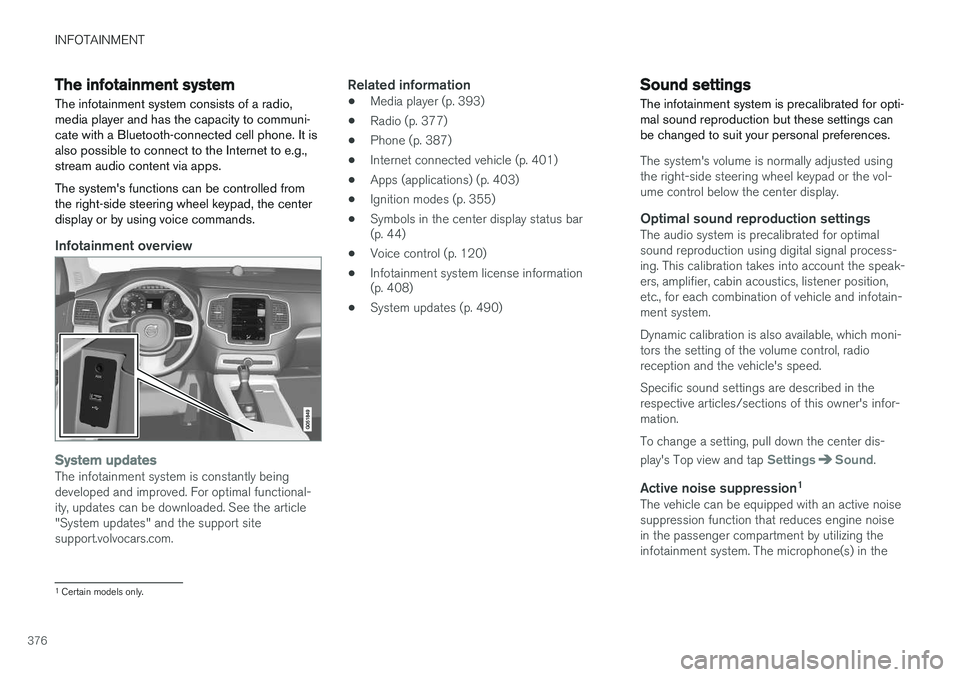
Infotainment overview
System updatesThe infotainment system is constantly being developed and improved. For optimal functional-ity, updates can be downloaded. See the article"System updates" and the support sitesupport.volvocars.com.
Related information
• Media player (p. 393)
• Radio (p. 377)
• Phone (p. 387)
• Internet connected vehicle (p. 401)
• Apps (applications) (p. 403)
• Ignition modes (p. 355)
• Symbols in the center display status bar (p. 44)
• Voice control (p. 120)
• Infotainment system license information(p. 408)
• System updates (p. 490)
Sound settings
The infotainment system is precalibrated for opti- mal sound reproduction but these settings canbe changed to suit your personal preferences.
The system's volume is normally adjusted using the right-side steering wheel keypad or the vol-ume control below the center display.
Optimal sound reproduction settingsThe audio system is precalibrated for optimalsound reproduction using digital signal process-ing. This calibration takes into account the speak-ers, amplifier, cabin acoustics, listener position,etc., for each combination of vehicle and infotain-ment system. Dynamic calibration is also available, which moni- tors the setting of the volume control, radioreception and the vehicle's speed. Specific sound settings are described in the respective articles/sections of this owner's infor-mation. To change a setting, pull down the center dis- play's Top view and tap
SettingsSound.
Active noise suppression 1The vehicle can be equipped with an active noise suppression function that reduces engine noisein the passenger compartment by utilizing theinfotainment system. The microphone(s) in the
1
Certain models only.
Page 379 of 570
INFOTAINMENT
* Option/accessory, for more information, see Introduction.377
ceiling liner react to engine noise and the info- tainment system produces signals (white noise)to counteract this.
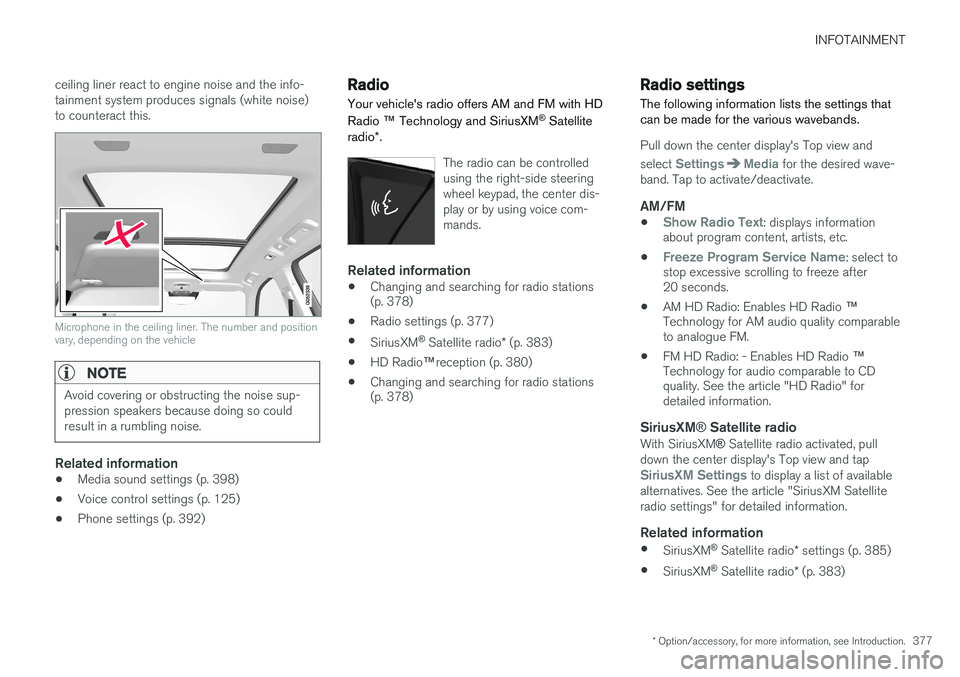
Microphone in the ceiling liner. The number and position vary, depending on the vehicle
NOTE
Avoid covering or obstructing the noise sup- pression speakers because doing so couldresult in a rumbling noise.
Related information
•
Media sound settings (p. 398)
• Voice control settings (p. 125)
• Phone settings (p. 392)
Radio Your vehicle's radio offers AM and FM with HD Radio
™ Technology and SiriusXM ®
Satellite
radio *.
The radio can be controlled using the right-side steeringwheel keypad, the center dis-play or by using voice com-mands.
Related information
• Changing and searching for radio stations (p. 378)
• Radio settings (p. 377)
• SiriusXM ®
Satellite radio * (p. 383)
• HD Radio
™reception (p. 380)
• Changing and searching for radio stations(p. 378)
Radio settings
The following information lists the settings that can be made for the various wavebands.
Pull down the center display's Top view and select
SettingsMedia for the desired wave-
band. Tap to activate/deactivate.
AM/FM
•Show Radio Text: displays information
about program content, artists, etc.
•
Freeze Program Service Name: select to
stop excessive scrolling to freeze after 20 seconds.
• AM HD Radio: Enables HD Radio
™
Technology for AM audio quality comparableto analogue FM.
• FM HD Radio: - Enables HD Radio
™
Technology for audio comparable to CDquality. See the article "HD Radio" fordetailed information.
SiriusXM ® Satellite radioWith SiriusXM ® Satellite radio activated, pull
down the center display's Top view and tap
SiriusXM Settings to display a list of available
alternatives. See the article "SiriusXM Satellite radio settings" for detailed information.
Related information
• SiriusXM ®
Satellite radio * settings (p. 385)
• SiriusXM ®
Satellite radio * (p. 383)
Page 380 of 570
INFOTAINMENT
378•
Radio (p. 377)
• HD Radio
™reception (p. 380)
RBDS radio
RBDS radio
RBDS (Radio Data Broadcast System) enables certain functionality 2
, such as:
• Searches for program types or new broad- casts
• Text information about currently broadcastprograms
For example, if news is broadcast, the currently playing sound source will be interrupted so thatthe news can be heard. The infotainment systemwill return to the previous sound source when thenews broadcast has been completed. To cancel the announcement, press the
but-
ton on the right-side steering wheel keypad or tap
Cancel on the center display. This function
can be activated/deactivated in the center dis- play's
Settings menu.
Related information
• Radio (p. 377)
• Radio settings (p. 377)
Changing and searching for radio stations The radio automatically compiles a list of the strongest stations that it is currently receiving.
Turning the radio on1. Open the app (e.g., FM, radio favorites) from
the center display's App view.
2. Select a station.
Changing a list in a waveband1. Tap Library.
2. Sect from
Stations, Favorites or Genres.
3. Tap the desired station in the list.
Favorites: only plays stations from the list of
favorites (see "Favorites" below).
Genres: only plays stations broadcasting the
selected genre or program type, e.g., pop, classi- cal, etc.
Changing stations in a selected list
–Tap < > under the center display or on the
right-side steering wheel keypad.
> Move step-by-step through the selected list.
The center display can also be used to change stations.
2 Certain stations only.
Page 381 of 570
INFOTAINMENT
* Option/accessory, for more information, see Introduction.379
FavoritesIf a favorite station from a list is currently availa- ble, the radio will automatically tune to that sta-tion. See "Changing a list in a waveband" above for information about selecting favorites on a wave-band. See "Radio favorites" below for informationabout selecting a station among all of your favor-ites.
–Tap to add or remove a station for the
waveband's list of favorites or Radio favorites.
Radio favoritesRadio favorites shows all of the favorite stations that have beensaved for e.g., AM, FM.
1. Open the Radio favorites app in App view.
2. Tap the desired station to listen. When a station is removed, it will also be removed from the respective waveband's list offavorites.
Changing wavebands
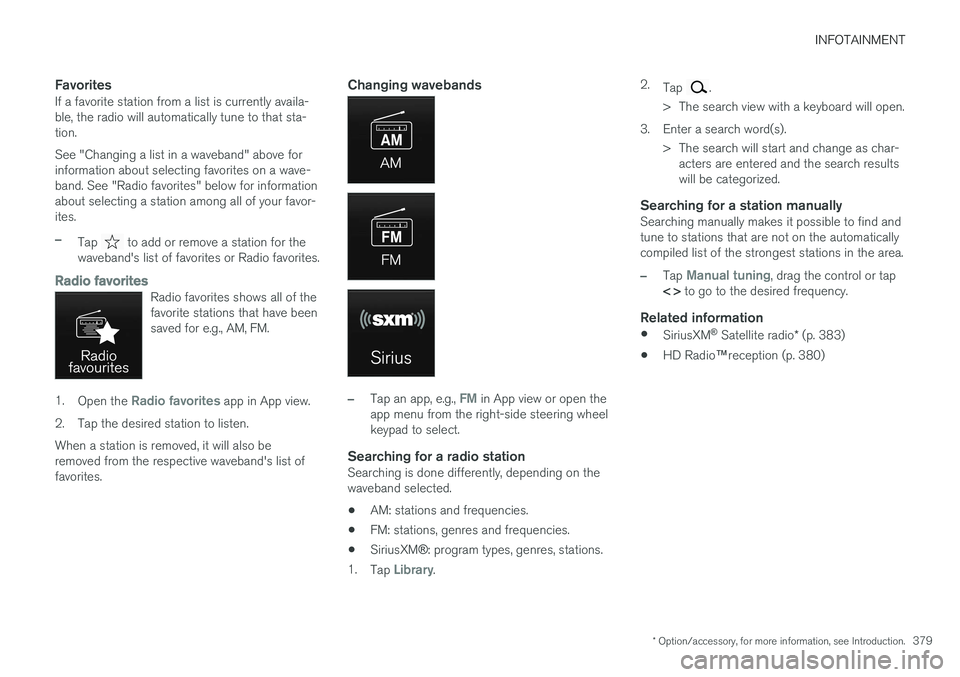
–Tap an app, e.g., FM in App view or open the
app menu from the right-side steering wheel keypad to select.
Searching for a radio stationSearching is done differently, depending on thewaveband selected.
• AM: stations and frequencies.
• FM: stations, genres and frequencies.
• SiriusXM
®: program types, genres, stations.
1. Tap
Library. 2.
Tap
.
> The search view with a keyboard will open.
3. Enter a search word(s). > The search will start and change as char-acters are entered and the search results will be categorized.
Searching for a station manuallySearching manually makes it possible to find andtune to stations that are not on the automaticallycompiled list of the strongest stations in the area.
–Tap Manual tuning, drag the control or tap
< > to go to the desired frequency.
Related information
•
SiriusXM ®
Satellite radio * (p. 383)
• HD Radio
™reception (p. 380)
Page 384 of 570
INFOTAINMENT
382
HD Radio sub-channels
In many cases, a main HD Radio station (FM wavebands only) will also have sub-channelsoffering additional types of programming ormusic.
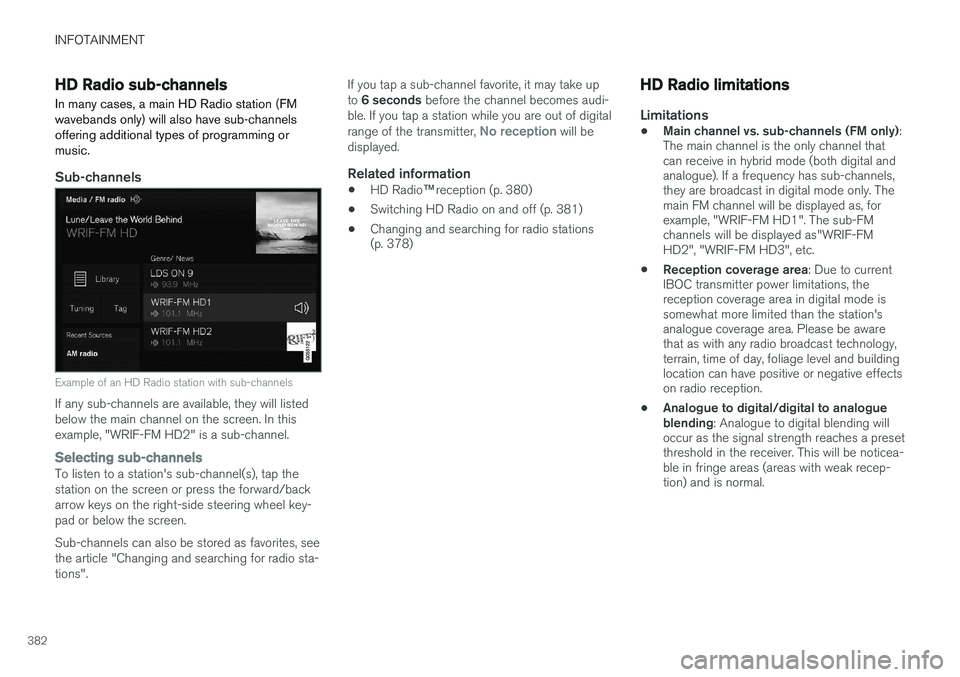
Sub-channels
Example of an HD Radio station with sub-channels
If any sub-channels are available, they will listed below the main channel on the screen. In thisexample, "WRIF-FM HD2" is a sub-channel.
Selecting sub-channelsTo listen to a station's sub-channel(s), tap the station on the screen or press the forward/backarrow keys on the right-side steering wheel key-pad or below the screen. Sub-channels can also be stored as favorites, see the article "Changing and searching for radio sta-tions". If you tap a sub-channel favorite, it may take up to
6 seconds before the channel becomes audi-
ble. If you tap a station while you are out of digital range of the transmitter,
No reception will be
displayed.
Related information
• HD Radio
™reception (p. 380)
• Switching HD Radio on and off (p. 381)
• Changing and searching for radio stations (p. 378)
HD Radio limitations
Limitations
•
Main channel vs. sub-channels (FM only)
:
The main channel is the only channel that can receive in hybrid mode (both digital andanalogue). If a frequency has sub-channels,they are broadcast in digital mode only. Themain FM channel will be displayed as, forexample, "WRIF-FM HD1". The sub-FMchannels will be displayed as"WRIF-FMHD2", "WRIF-FM HD3", etc.
• Reception coverage area
: Due to current
IBOC transmitter power limitations, thereception coverage area in digital mode issomewhat more limited than the station'sanalogue coverage area. Please be awarethat as with any radio broadcast technology,terrain, time of day, foliage level and buildinglocation can have positive or negative effectson radio reception.
• Analogue to digital/digital to analogueblending
: Analogue to digital blending will
occur as the signal strength reaches a presetthreshold in the receiver. This will be noticea-ble in fringe areas (areas with weak recep-tion) and is normal.
Page 389 of 570
INFOTAINMENT
387
Phone
A Bluetooth-enabled cell phone can be paired and connected to the vehicle's integrated hands-free system.
The infotainment system offers hands-free func- tionality for remote-controlling a number of a cellphone's features. The phone's integrated controlscan also be used, even when it is connected tothe vehicle. When the phone has been paired and connected to the infotainment system, it can be used tomake or receive calls, send or receive text mes-sages, to stream music, etc., or as an Internetconnection.
The phone is controlled fromthe center display but the Appmenu (accessed using theright-side steering wheel key-pad) and voice commands canalso be used to control certainfunctions.
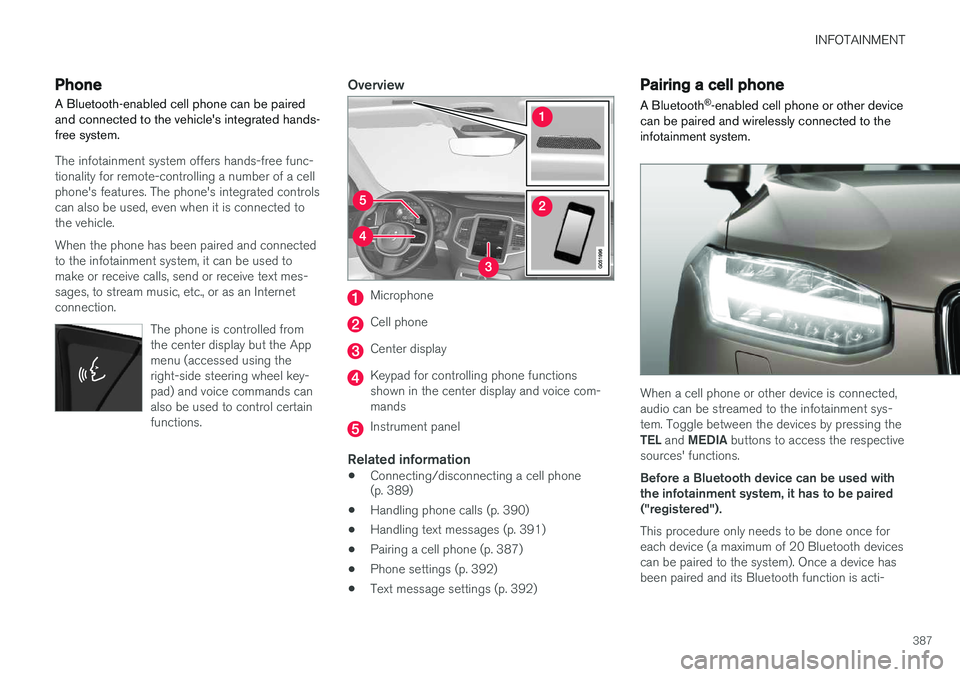
Overview
Microphone
Cell phone
Center display
Keypad for controlling phone functions shown in the center display and voice com-mands
Instrument panel
Related information
•Connecting/disconnecting a cell phone (p. 389)
• Handling phone calls (p. 390)
• Handling text messages (p. 391)
• Pairing a cell phone (p. 387)
• Phone settings (p. 392)
• Text message settings (p. 392)
Pairing a cell phone
A Bluetooth ®
-enabled cell phone or other device
can be paired and wirelessly connected to the infotainment system.
When a cell phone or other device is connected, audio can be streamed to the infotainment sys-tem. Toggle between the devices by pressing the TEL and MEDIA buttons to access the respective
sources' functions. Before a Bluetooth device can be used with the infotainment system, it has to be paired("registered"). This procedure only needs to be done once for each device (a maximum of 20 Bluetooth devicescan be paired to the system). Once a device hasbeen paired and its Bluetooth function is acti-