change time VOLVO XC90 2015 Owners Manual
[x] Cancel search | Manufacturer: VOLVO, Model Year: 2015, Model line: XC90, Model: VOLVO XC90 2015Pages: 570, PDF Size: 12.44 MB
Page 5 of 570

3
Starting or moving a vehicle in safety mode82
Safety systems 83
Airbag system 83
Driver/passenger side airbags 84
Inflatable curtains 87
Side impact airbags 88
Rollover protection system 89
Whiplash protection system 89
INSTRUMENTS AND CONTROLS
Trip computer92
Displaying trip computer information 92
Displaying trip statistics 94
HomeLink ®
Wireless Control System *94
Programming the HomeLink ®
Wire-
less Control System * 95
Instruments and controls 98
Adjusting the power door mirrors 100
Laminated panoramic roof *
101
Operating the laminated panoramic roof *
102
Power windows 104
Operating the power windows 104
Rearview mirror 105
Using sun shades 106
Settings view 106
Categories in Settings view 107
Changing system settings in Set- tings view 109
Linking a remote key to a driver profile 110
Changing settings in apps 111
Resetting the settings view 111
Resetting user data when the vehiclechanges owners 112
Driver profiles 112
Editing a driver profile 114
Importing/exporting a driver profile from/to a USB flash drive115
Ambient temperature sensor 116
Clock 116
Head-up display (HUD) *
117
Voice control 120
Using voice commands 121
Voice control for cell phones 121
Voice control for radio and media 122
Climate system voice commands 122
Navigation system voice commands 124
Voice control settings 125
Indicator symbols in the instrument panel 126
Instrument panel 128
Instrument panel App menu 129
Instrument panel licenses 130
Warning symbols in the instrument panel 134
Compass 136
Calibrating the compass 137
Lighting panel and controls 138
Low beam headlights 139
Daytime Running Lights (DRL) 140
High and low beam headlights 140
Active Bending Lights *
142
Page 24 of 570
INTRODUCTION
22
Options and accessories
We strongly recommend that Volvo owners install only genuine, Volvo-approved accesso-ries, and that accessory installations be per-formed only by a trained and qualified Volvoservice technician.
Optional or accessory equipment described in this manual is indicated by an asterisk. Optional or accessory equipment may not be available in all countries or markets. Please notethat some vehicles may be equipped differently,depending on special legal requirements. Contact your Volvo retailer for additional informa- tion.
NOTE
• Do not export your Volvo to another country before investigating that coun-try's applicable safety and exhaust emis-sion requirements. In some cases it maybe difficult or impossible to comply withthese requirements. Modifications to theemission control system(s) may renderyour Volvo not certifiable for legal opera-tion in the U.S., Canada and other coun-tries.
• All information, illustrations and specifica-tions contained in this manual are basedon the latest product information availa-ble at the time of publication. Please notethat some vehicles may be equipped dif-ferently, depending on special legalrequirements. Optional equipment descri-bed in this manual may not be available inall markets.
• Some of the illustrations shown aregeneric and may not depict the exactmodel for which this manual is intended.
• Volvo reserves the right to make modelchanges at any time, or to change speci-fications or design without notice andwithout incurring obligation.
WARNING
If your vehicle is involved in an accident, unseen damage may affect its drivability andsafety.
WARNING
CALIFORNIA proposition 65 Engine exhaust, some of its constituents, and certain vehicle components contain or emitchemicals known to the state of California tocause cancer, and birth defects or otherreproductive harm. In addition, certain fluidscontained in vehicles and certain products ofcomponent wear contain or emit chemicalsknown to the State of California to cause can-cer, and birth defects or other reproductiveharm.
WARNING
Certain components of this vehicle such as air bag modules, seat belt pretensioners, adap-tive steering columns, and button cell batter-ies may contain Perchlorate material. Specialhandling may apply for service or vehicle endof life disposal. See www.dtsc.ca.gov/hazardouswaste/ perchlorate.
• Genuine Volvo accessories are tested to ensure compatibility with the performance,safety, and emission systems in your vehicle.Additionally, a trained and qualified Volvo
Page 36 of 570
INTRODUCTION
34
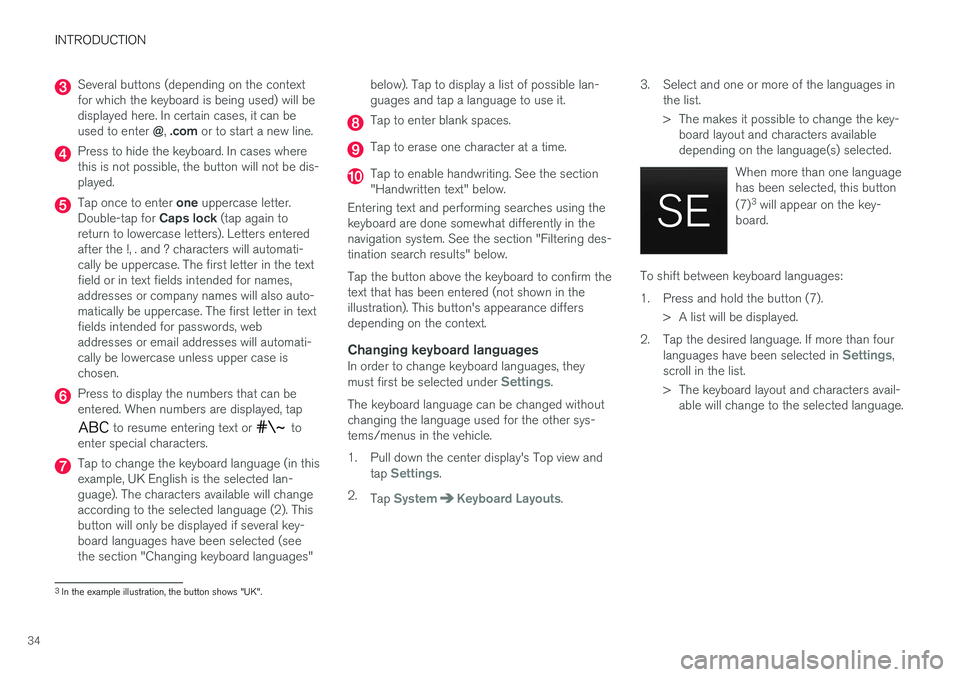
Several buttons (depending on the context for which the keyboard is being used) will bedisplayed here. In certain cases, it can be used to enter @, .com or to start a new line.
Press to hide the keyboard. In cases where this is not possible, the button will not be dis-played.
Tap once to enter one uppercase letter.
Double-tap for Caps lock (tap again to
return to lowercase letters). Letters entered after the !, . and ? characters will automati-cally be uppercase. The first letter in the textfield or in text fields intended for names,addresses or company names will also auto-matically be uppercase. The first letter in textfields intended for passwords, webaddresses or email addresses will automati-cally be lowercase unless upper case ischosen.
Press to display the numbers that can be entered. When numbers are displayed, tap
to resume entering text or to
enter special characters.
Tap to change the keyboard language (in this example, UK English is the selected lan-guage). The characters available will changeaccording to the selected language (2). Thisbutton will only be displayed if several key-board languages have been selected (seethe section "Changing keyboard languages" below). Tap to display a list of possible lan-guages and tap a language to use it.
Tap to enter blank spaces.
Tap to erase one character at a time.
Tap to enable handwriting. See the section "Handwritten text" below.
Entering text and performing searches using thekeyboard are done somewhat differently in thenavigation system. See the section "Filtering des-tination search results" below. Tap the button above the keyboard to confirm the text that has been entered (not shown in theillustration). This button's appearance differsdepending on the context.
Changing keyboard languagesIn order to change keyboard languages, they must first be selected under Settings.
The keyboard language can be changed without changing the language used for the other sys-tems/menus in the vehicle.
1. Pull down the center display's Top view and tap
Settings.
2. Tap
SystemKeyboard Layouts. 3. Select and one or more of the languages in
the list.
> The makes it possible to change the key-board layout and characters available depending on the language(s) selected.
When more than one languagehas been selected, this button (7)3
will appear on the key-
board.
To shift between keyboard languages:
1. Press and hold the button (7).
> A list will be displayed.
2. Tap the desired language. If more than four languages have been selected in
Settings,
scroll in the list.
> The keyboard layout and characters avail- able will change to the selected language.
3In the example illustration, the button shows "UK".
Page 37 of 570
INTRODUCTION
35
Special characters
To enter language-specific characters such as é
or è (if available):
1. Press and hold a character key. > A box with available characters will open.
2. Tap the desired character. If none of the spe- cial characters is selected, the key's initial character will be entered.
Handwritten textTap button (10), see the overview illustrationabove, to enter the handwriting mode.
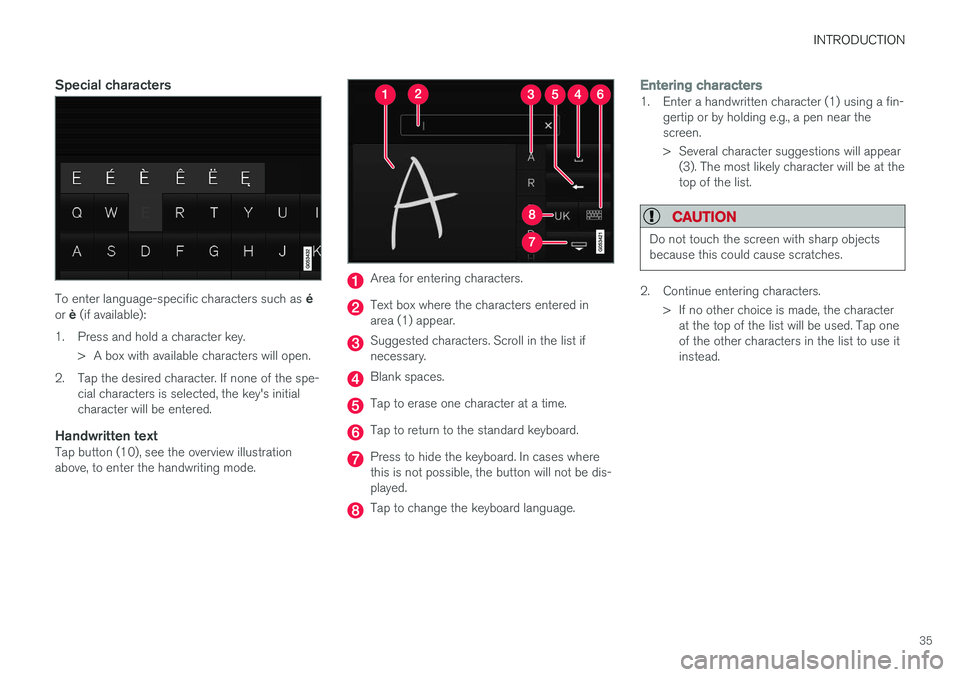
Area for entering characters.
Text box where the characters entered in area (1) appear.
Suggested characters. Scroll in the list if necessary.
Blank spaces.
Tap to erase one character at a time.
Tap to return to the standard keyboard.
Press to hide the keyboard. In cases where this is not possible, the button will not be dis-played.
Tap to change the keyboard language.
Entering characters1. Enter a handwritten character (1) using a fin-gertip or by holding e.g., a pen near the screen.
> Several character suggestions will appear(3). The most likely character will be at the top of the list.
CAUTION
Do not touch the screen with sharp objects because this could cause scratches.
2. Continue entering characters.
> If no other choice is made, the characterat the top of the list will be used. Tap one of the other characters in the list to use itinstead.
Page 38 of 570
INTRODUCTION
36
Erasing/changing handwritten characters
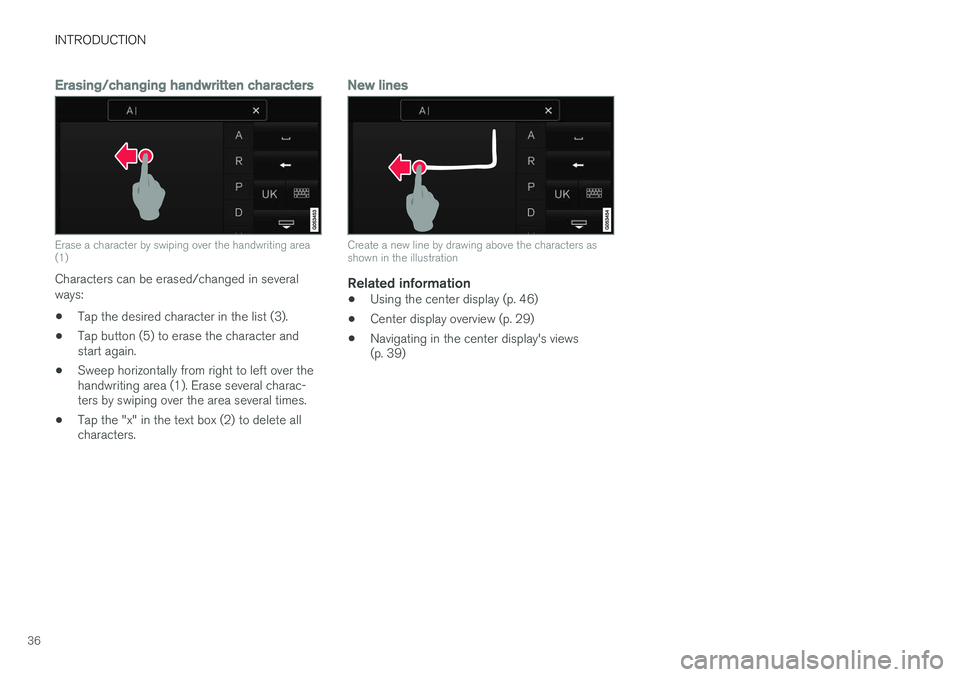
Erase a character by swiping over the handwriting area (1)
Characters can be erased/changed in several ways:
• Tap the desired character in the list (3).
• Tap button (5) to erase the character and start again.
• Sweep horizontally from right to left over thehandwriting area (1). Erase several charac-ters by swiping over the area several times.
• Tap the "x" in the text box (2) to delete allcharacters.
New lines
Create a new line by drawing above the characters as shown in the illustration
Related information
•
Using the center display (p. 46)
• Center display overview (p. 29)
• Navigating in the center display's views (p. 39)
Page 52 of 570
INTRODUCTION
50
Using the owner's manualReading your owner's manual is a good way of familiarizing yourself with the features and sys-tems in your vehicle.
On-board owner's manualReading the owner's manual is a good way to become familiar with your vehicle and to learn toutilize the features and functions that it offers.Pay particular attention to the warnings provided. Volvo reserves the right to make model changes at any time, or to change specifications or designwithout notice and without incurring obligation. © Volvo Car Corporation
IllustrationsSome of the illustrations used in your owner's information may be generic and will give a gen-eral view of a certain feature or function. Forexample, some illustrations describing climatesystem functions may display a temperature indegrees Celsius but the same information appliesto Fahrenheit.
Options and accessoriesOptional or accessory equipment described inthis manual is indicated by an asterisk. Optional or accessory equipment may not be available in all countries or markets. Please note that some vehicles may be equipped differently,depending on special legal requirements. Contact your Volvo retailer for additional informa- tion.
FootnotesThis owner's information contains supplementary information indicated by an information symbol:
5
.
Tap the symbol to open a window showing the information.
MessagesThere are several displays in the vehicle thatshow messages generated by various systemsand functions in the vehicle. The appearance ofthese texts differs slightly from normal texts (for example:
Phone, Accept).
DecalsThere are various types of decals in the vehicle whose purpose is to provide important informa-tion in a clear and concise way. The importanceof these decals is explained as follows, indescending order of importance.
Risk of injury
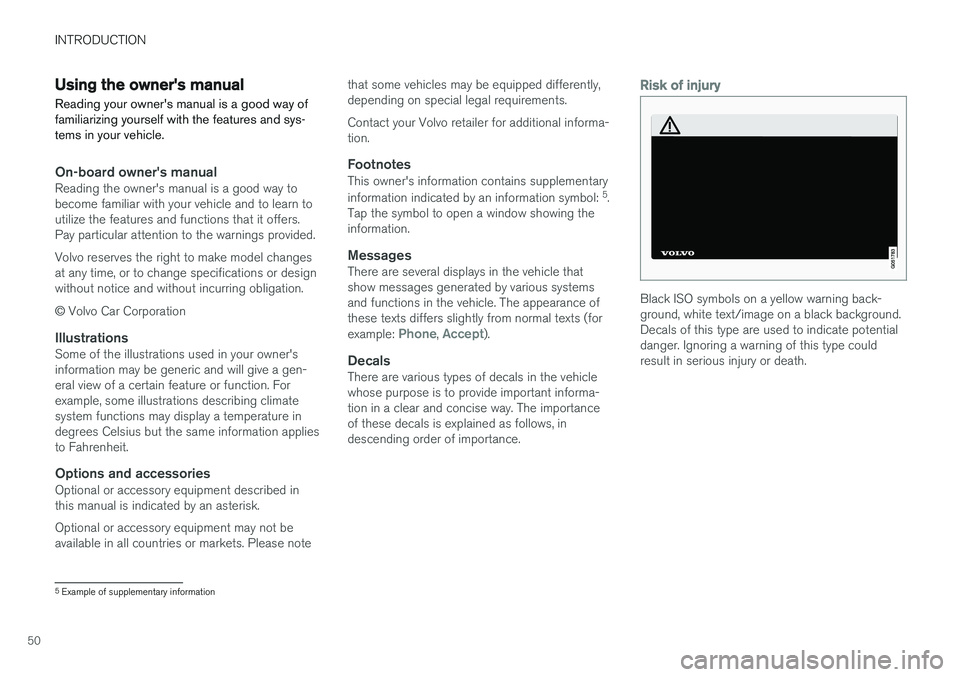
Black ISO symbols on a yellow warning back- ground, white text/image on a black background.Decals of this type are used to indicate potentialdanger. Ignoring a warning of this type couldresult in serious injury or death.
5 Example of supplementary information
Page 94 of 570
INSTRUMENTS AND CONTROLS
92
Trip computer The trip computer registers and calculates infor- mation such as distance driven, fuel consump-tion and average speed. This information is dis-played in the instrument panel.
To help promote fuel efficient driving, the trip computer provides readings for current and aver-age fuel consumption. The trip computer includes the following gauges:
• Trip odometers
• Odometer
• Current fuel consumption
• Distance to empty
• Tourist (alternative speedometer)
Trip odometerThere are two trip odometers: TM and TA. Duringa drive, the trip odometer registers:
• Mileage
• Driving time
• Average speed
• Average fuel consumption
The values displayed are those since the lasttime the trip odometer was reset.
OdometerThe odometer registers the vehicle's total mile-age and cannot be reset.
Current fuel consumptionThis gauge shows the current fuel consumption.This reading is updated once a second.
Distance to emptyThis function shows the approximate distancethat can be driven on the fuel remaining in thetank. The calculation is based on average fuel con- sumption during the last 20 miles (30 km) ofdriving and the amount of fuel remaining in thetank. When the gauge displays "----", there is very little useable fuel remaining in the tank; refuel as soonas possible. The accuracy of this figure may vary if your driv- ing style changes. An economical driving style willgenerally increase this distance.
Tourist (alternative speedometer)This is an alternative digital speedometer can beused when driving in areas in which the speedlimit is listed in a different unit of measure. If the speedometer is in mph, this gauge will show the
vehicle's speed in km/h and vice versa.
Related information
•Displaying trip computer information (p. 92)
• Displaying trip statistics (p. 94)
Displaying trip computer information
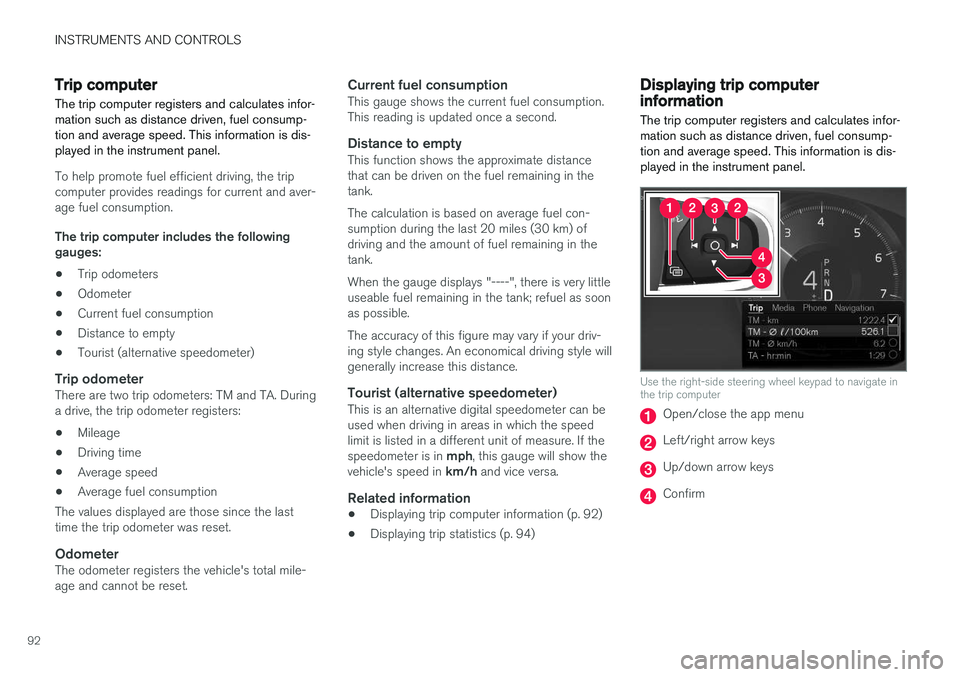
The trip computer registers and calculates infor- mation such as distance driven, fuel consump-tion and average speed. This information is dis-played in the instrument panel.
Use the right-side steering wheel keypad to navigate in the trip computer
Open/close the app menu
Left/right arrow keys
Up/down arrow keys
Confirm
Page 96 of 570
INSTRUMENTS AND CONTROLS
* Option/accessory, for more information, see Introduction.
94
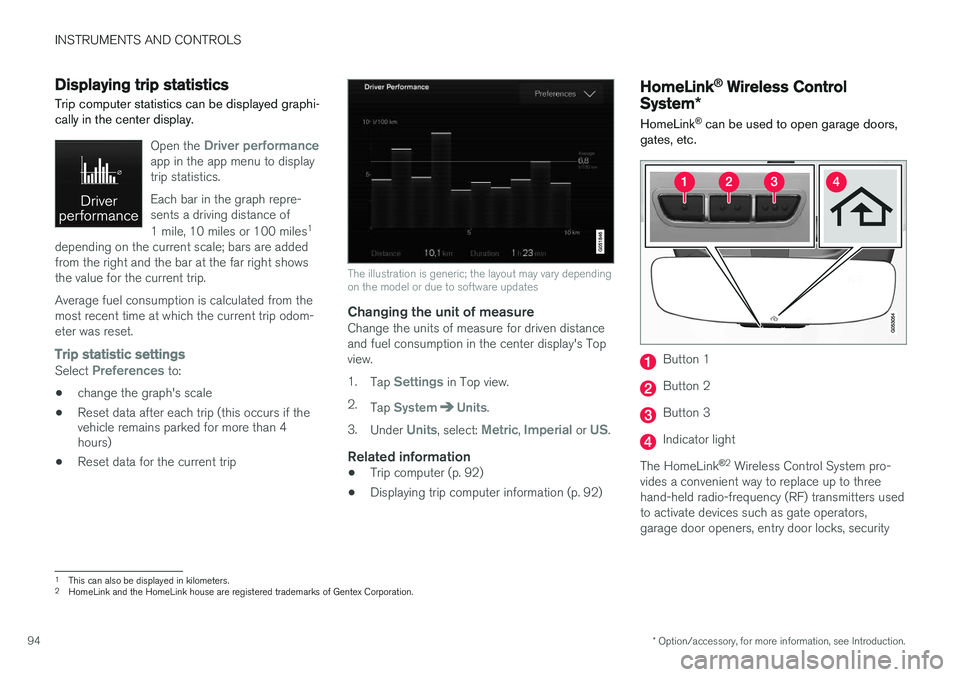
Displaying trip statistics Trip computer statistics can be displayed graphi- cally in the center display.
Open the Driver performanceapp in the app menu to display trip statistics. Each bar in the graph repre- sents a driving distance of 1 mile, 10 miles or 100 miles 1
depending on the current scale; bars are added from the right and the bar at the far right showsthe value for the current trip. Average fuel consumption is calculated from the most recent time at which the current trip odom-eter was reset.
Trip statistic settings
Select Preferences to:
• change the graph's scale
• Reset data after each trip (this occurs if the vehicle remains parked for more than 4hours)
• Reset data for the current trip
The illustration is generic; the layout may vary depending on the model or due to software updates
Changing the unit of measureChange the units of measure for driven distance and fuel consumption in the center display's Topview. 1.
Tap
Settings in Top view.
2. Tap
SystemUnits.
3. Under
Units, select: Metric, Imperial or US.
Related information
• Trip computer (p. 92)
• Displaying trip computer information (p. 92)
HomeLink ®
Wireless Control
System *
HomeLink ®
can be used to open garage doors,
gates, etc.
Button 1
Button 2
Button 3
Indicator light
The HomeLink ®
2
Wireless Control System pro-
vides a convenient way to replace up to three hand-held radio-frequency (RF) transmitters usedto activate devices such as gate operators,garage door openers, entry door locks, security
1 This can also be displayed in kilometers.
2 HomeLink and the HomeLink house are registered trademarks of Gentex Corporation.
Page 98 of 570
INSTRUMENTS AND CONTROLS
963. Press and hold the button on the original
remote control that is to be programmed on HomeLink ®
and observe the HomeLink ®
indicator light. Hold the button until the indi- cator light has changed from flashing yellowonce a second to either flashing green 10times a second or by glowing steadily green. When the HomeLink ®
indicator light flashes
or glows steadily green, the button on the original remote control can be released. Note : for certain remote controls, the
instructions listed under "Gate operators/ Canadian programming" at the end of thisarticle should be used instead of step 3. 4.
Press the programmed HomeLink ®
button
and check the indicator light. Indicator light glows steadily green: pro-
gramming has been completed. The garage door, gate, etc., should now be activatedwhen the programmed button is pressed. Indicator light flashes 10 times a second: press the HomeLink ®
button that is being
programmed. Hold it for 2 seconds and release it. Repeat the
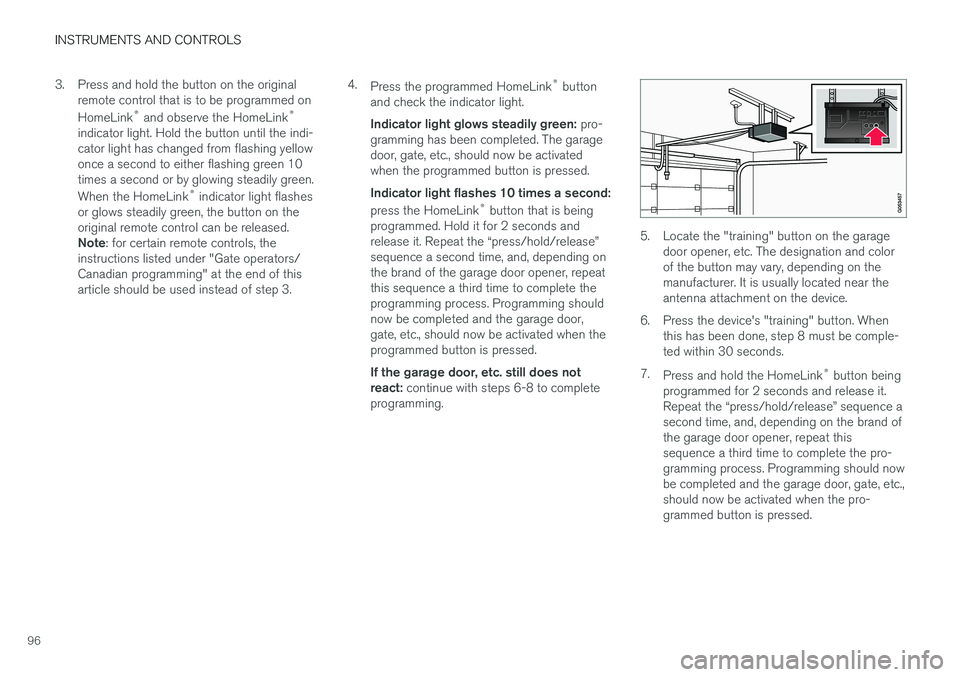
Page 111 of 570
INSTRUMENTS AND CONTROLS
* Option/accessory, for more information, see Introduction.109
Related information
•Driver profiles (p. 112)
• Settings view (p. 106)
• Changing system settings in Settings view (p. 109)
Changing system settings in Settings view
Settings view's main category
System contains
general settings and information, such as lan- guage, units of measure, etc.
The system settings under Driver Profile, Date
& Time, Keyboard Layouts, Voice Control,Software Updates, Global Reset andServices are described in their respective arti-
cles in the owner's manual.
Changing system languages1. Pull down the center display's Top view and
tap Settings.
2. Tap
SystemLanguage.
3. Select a new system language. Languages that can be used for voice commands are indicated by a voice control symbol.
> This change affects the language used inthe instrument panel, center display and the head-up display *.
Changing units of measure
Changing length and volume units1. Pull down the center display's Top view and
tap Settings.
2. Tap
SystemUnitsUnits. 3. Select one of the following measurement
standards:
•
Metric: kilometers, liters and degrees Cel-
sius.
•
Imperial: miles, gallons and degrees Cel-
sius.
•
US: miles, gallons and degrees Fahren-
heit.
> This change affects the units of measure used in the instrument panel, center dis- play and the head-up display *
Changing tire inflation pressure units1. Pull down the center display's Top view and
tap Settings.
2. Tap
SystemUnitsTire Pressure.
3. Select a unit of measure for tire pressure. > This changes the tire inflation pressureunits used in the
Car status app in the
center display.
Viewing storage information1. Pull down the center display's Top view and
tap Settings.
2. Tap
SystemStorage.
> Storage information for the vehicle's hard drive will be displayed, including total capacity, available capacity and theamount of storage space used by theapps that have been installed.