key VOLVO XC90 2017 Owner´s Manual
[x] Cancel search | Manufacturer: VOLVO, Model Year: 2017, Model line: XC90, Model: VOLVO XC90 2017Pages: 560, PDF Size: 9.97 MB
Page 411 of 560
INFOTAINMENT
409
Selecting sub-channels
To listen to a station's sub-channel(s), tap the station on the screen or press the forward/backarrow keys on the right-side steering wheel key-pad or below the screen. Sub-channels can also be stored as favorites, see the article "Changing and searching for radio sta-tions". If you tap a sub-channel favorite, it may take up to 6 seconds before the channel becomes audi-
ble. If you tap a station while you are out of digital range of the transmitter,
No reception will be
displayed.
Related information
• HD Radio
™reception (p. 406)
• Switching HD Radio on and off (p. 408)
• Changing and searching for radio stations (p. 405)
HD Radio limitations
Limitations
•
Main channel vs. sub-channels (FM only)
:
The main channel is the only channel that can receive in hybrid mode (both digital andanalogue). If a frequency has sub-channels,they are broadcast in digital mode only. Themain FM channel will be displayed as, forexample, "WRIF-FM HD1". The sub-FMchannels will be displayed as"WRIF-FMHD2", "WRIF-FM HD3", etc.
• Reception coverage area
: Due to current
IBOC transmitter power limitations, thereception coverage area in digital mode issomewhat more limited than the station'sanalogue coverage area. Please be awarethat as with any radio broadcast technology,terrain, time of day, foliage level and buildinglocation can have positive or negative effectson radio reception.
• Analogue to digital/digital to analogueblending
: Analogue to digital blending will
occur as the signal strength reaches a presetthreshold in the receiver. This will be noticea-ble in fringe areas (areas with weak recep-tion) and is normal.
NOTE
There may be a noticeable difference in sound quality when a change from analogueto digital or digital to analogue occurs, suchas:
• Volume increase or decrease
• Equalizer settings, i.e., Bass/ Midrange/Treble cut or boost
• Time alignment (Digital program materialin extreme cases can be as much as 8seconds behind the analogue). This willnoticeable as a "stuttering" effect.
The above items are dependant on thebroadcaster's equipment settings and donot indicate a fault in the vehicle's radioreceiver or antenna systems .
Related information
•HD Radio sub-channels (p. 408)
• HD Radio
™reception (p. 406)
Page 413 of 560
INFOTAINMENT
}}
* Option/accessory.411
Using SiriusXM ®
Satellite radio *
SiriusXM ®
Satellite radio offers several features
for finding and listening to music, news, sporting events, etc. being broadcast on satellite radiostations.
SiriusXM ®
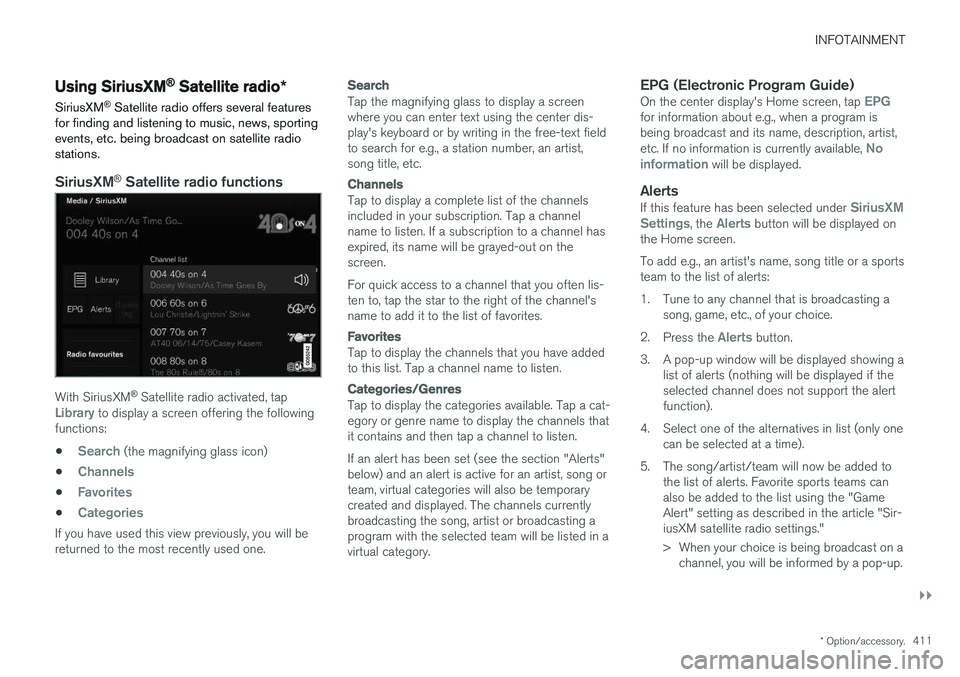
Satellite radio functions
With SiriusXM ®
Satellite radio activated, tapLibrary to display a screen offering the following
functions: •
Search (the magnifying glass icon)
•
Channels
•Favorites
•Categories
If you have used this view previously, you will be returned to the most recently used one.
Search
Tap the magnifying glass to display a screen where you can enter text using the center dis-play's keyboard or by writing in the free-text fieldto search for e.g., a station number, an artist,song title, etc.
Channels
Tap to display a complete list of the channels included in your subscription. Tap a channelname to listen. If a subscription to a channel hasexpired, its name will be grayed-out on thescreen. For quick access to a channel that you often lis- ten to, tap the star to the right of the channel'sname to add it to the list of favorites.
Favorites
Tap to display the channels that you have added to this list. Tap a channel name to listen.
Categories/Genres
Tap to display the categories available. Tap a cat- egory or genre name to display the channels thatit contains and then tap a channel to listen. If an alert has been set (see the section "Alerts" below) and an alert is active for an artist, song orteam, virtual categories will also be temporarycreated and displayed. The channels currentlybroadcasting the song, artist or broadcasting aprogram with the selected team will be listed in avirtual category.
EPG (Electronic Program Guide)On the center display's Home screen, tap EPGfor information about e.g., when a program is being broadcast and its name, description, artist, etc. If no information is currently available,
No
information will be displayed.
AlertsIf this feature has been selected under SiriusXM
Settings, the Alerts button will be displayed on
the Home screen. To add e.g., an artist's name, song title or a sports team to the list of alerts:
1. Tune to any channel that is broadcasting a song, game, etc., of your choice.
2. Press the
Alerts button.
3. A pop-up window will be displayed showing a list of alerts (nothing will be displayed if the selected channel does not support the alertfunction).
4. Select one of the alternatives in list (only one can be selected at a time).
5. The song/artist/team will now be added to the list of alerts. Favorite sports teams canalso be added to the list using the "GameAlert" setting as described in the article "Sir-iusXM satellite radio settings."
> When your choice is being broadcast on achannel, you will be informed by a pop-up.
Page 414 of 560
||
INFOTAINMENT
* Option/accessory.
412
iTunes taggingFrom the center display's Top view, tapSiriusXM
Settings. Tap theiTunes Tagging menu. Tap
the iTunes Tagging box to activate/deactivate
this function and tap Close to return to Home
view. Tap Tags List to display a list of all tagged
songs. If the function is activated, the
iTunes tag button
will be displayed in Home view. If a song is played that you would like to buy in the iTunes store, tapthis button while the song is playing to tag it. If a song with
iTunes Tagging information is availa-
ble, the button will be selectable. Tap the button to tag the song. If you would like to buy a taggedsong via iTunes, Tap the iTunes tag button. To buy a song in iTunes, begin by connecting an iPhone/iPod/iPad to the USB socket in the tun-nel console. The iTunes tagging list will automati-cally be transferred to the device and removedfrom the list in the vehicle. If the device is con-nected when a song is tagged, the data will auto-matically be saved in the device. To purchase thesong, consult the iTunes support page.
Related information
• SiriusXM ®
Satellite radio * (p. 410)
• Using the center display keyboard (p. 31)
• SiriusXM ®
Satellite radio * settings (p. 412)
• Connecting a device via the AUX/USBsocket (p. 426)
SiriusXM ®
Satellite radio * settings
There are numerous settings that can be made to enhance your SiriusXM ®
Satellite radio listen-
ing experience.
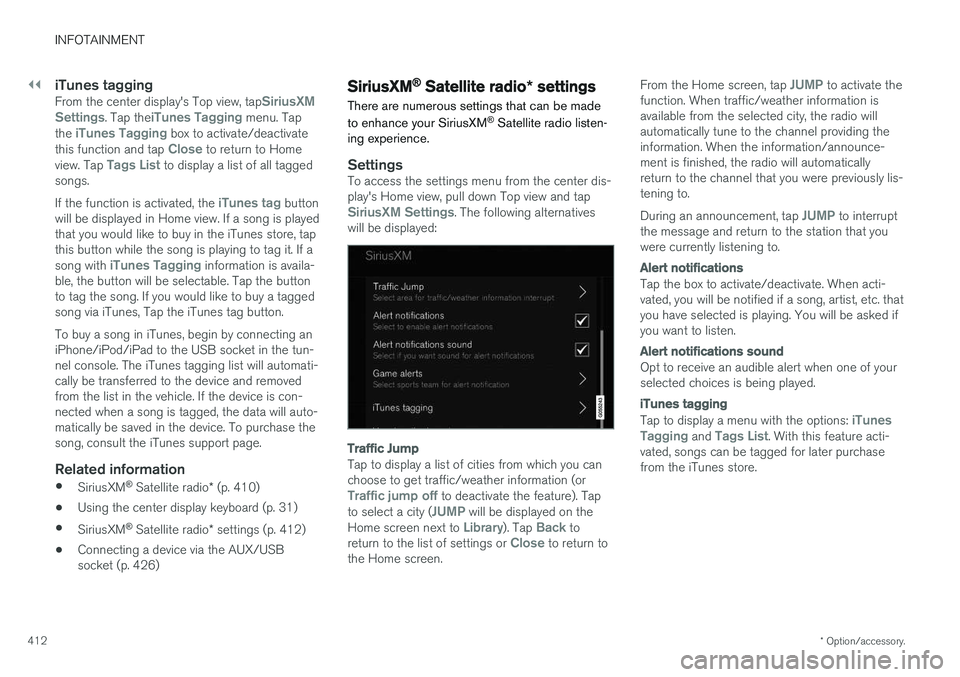
SettingsTo access the settings menu from the center dis- play's Home view, pull down Top view and tap
SiriusXM Settings. The following alternatives
will be displayed:
Traffic Jump
Tap to display a list of cities from which you can choose to get traffic/weather information (or
Traffic jump off to deactivate the feature). Tap
to select a city (JUMP will be displayed on the
Home screen next to Library). Tap Back to
return to the list of settings or Close to return to
the Home screen. From the Home screen, tap
JUMP to activate the
function. When traffic/weather information is available from the selected city, the radio willautomatically tune to the channel providing theinformation. When the information/announce-ment is finished, the radio will automaticallyreturn to the channel that you were previously lis-tening to. During an announcement, tap
JUMP to interrupt
the message and return to the station that you were currently listening to.
Alert notifications
Tap the box to activate/deactivate. When acti- vated, you will be notified if a song, artist, etc. thatyou have selected is playing. You will be asked ifyou want to listen.
Alert notifications sound
Opt to receive an audible alert when one of your selected choices is being played.
iTunes tagging
Tap to display a menu with the options: iTunes
Tagging and Tags List. With this feature acti-
vated, songs can be tagged for later purchase from the iTunes store.
Page 417 of 560
INFOTAINMENT
}}
415
SiriusXM Travel Link - Weather
This SiriusXM Travel Link service provides weather-related information near the vehicle, at alocal ski resort, etc.
From the SiriusXM Travel Link home screen, to display weather-related information:
–Tap the Weather button to display this
screen.
At the top of the screen, the following categories will be displayed:
• Search (the magnifying glass icon)
•
Local
•Ski condition
•Areas
•Favorites
Tap the category of your choice.
SearchTap the magnifying glass icon. If the function is supported in the current context, a keyboard willappear on the screen. Enter the text of your choice and tap
Search for detailed information
from the SiriusXM Travel Link database.
Local 5Information from the closest weather station will be displayed and the following alternatives areavailable:
• Map view
• Today
• 5 days
Map view
Tap the map to display it full-screen. Tap Back to
return to the original map view. Tap
Map options to display the following alter-
natives. •
Weather radar
•Storm attributes
•Surface features
•Tropical storm tracks
•Winds
Tap the respective boxes to the right of the alter- natives to select/deselect. Tap Done to confirm
and return to the previous screen or Cancel.
Today
Tap to see the current temperature, or the tem- perature in 3/6 hours. Tap
Back to return to the Local screen or Closeto return to the SiriusXM Travel Link home screen.
5 days
Tap to see weather information for the coming 5 days. Tap
Back to return to the Local screen or Closeto return to the SiriusXM Travel Link home screen.
Ski locationTap to display a list of ski areas in the vicinity ofthe vehicle. Tap a name in the list for informationsuch as if the ski area is open/closed, tempera-ture, wind conditions, snow conditions, the num-ber of lifts that are in operation, etc.
• Weather locations
• Ski locations
Tap Map view to display a map and a weatherlegend. Tap
Map options to display the following alter-
natives. •
Weather radar
•Storm attributes
•Surface features
•Tropical storm tracks
•Winds
Tap the respective boxes to the right of the alter- natives to select/deselect. Tap Done to confirm
and return to the previous screen or Cancel.
5 This is the weather default unless another alternative has been selected.
Page 419 of 560
INFOTAINMENT
}}
417
SiriusXM Travel Link - Fuel
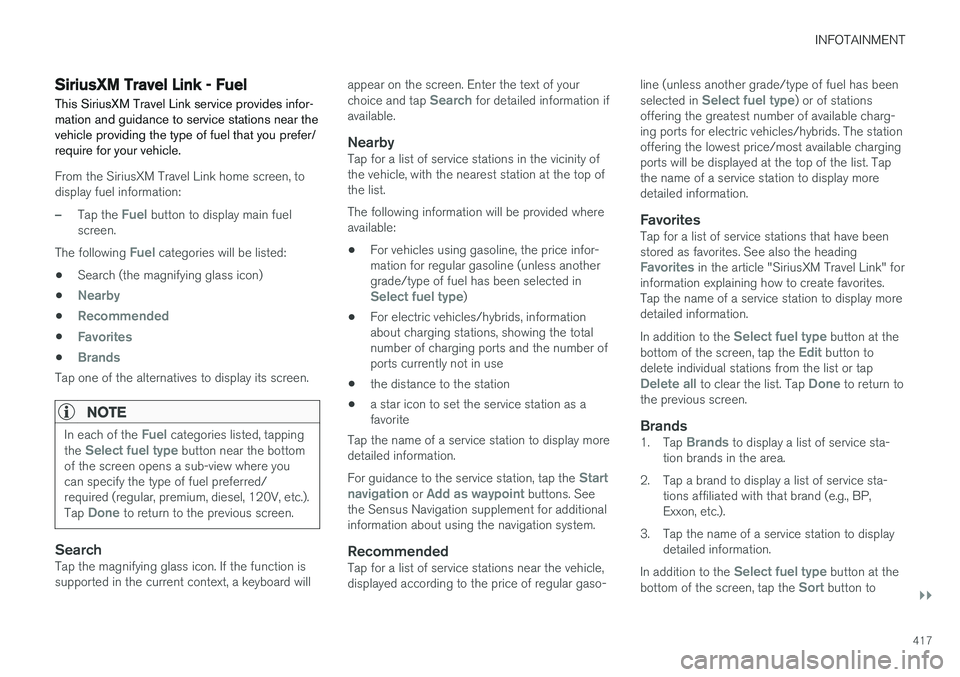
This SiriusXM Travel Link service provides infor- mation and guidance to service stations near thevehicle providing the type of fuel that you prefer/require for your vehicle.
From the SiriusXM Travel Link home screen, to display fuel information:
–Tap the Fuel button to display main fuel
screen.
The following
Fuel categories will be listed:
• Search (the magnifying glass icon)
•
Nearby
•Recommended
•Favorites
•Brands
Tap one of the alternatives to display its screen.
NOTE
In each of the Fuel categories listed, tapping
the Select fuel type button near the bottom
of the screen opens a sub-view where you can specify the type of fuel preferred/required (regular, premium, diesel, 120V, etc.). Tap
Done to return to the previous screen.
SearchTap the magnifying glass icon. If the function is supported in the current context, a keyboard will appear on the screen. Enter the text of your choice and tap
Search for detailed information if
available.
NearbyTap for a list of service stations in the vicinity of the vehicle, with the nearest station at the top ofthe list. The following information will be provided where available:
• For vehicles using gasoline, the price infor-mation for regular gasoline (unless anothergrade/type of fuel has been selected in
Select fuel type)
• For electric vehicles/hybrids, information about charging stations, showing the totalnumber of charging ports and the number ofports currently not in use
• the distance to the station
• a star icon to set the service station as afavorite
Tap the name of a service station to display moredetailed information. For guidance to the service station, tap the
Start
navigation or Add as waypoint buttons. See
the Sensus Navigation supplement for additional information about using the navigation system.
RecommendedTap for a list of service stations near the vehicle,displayed according to the price of regular gaso- line (unless another grade/type of fuel has been selected in
Select fuel type) or of stations
offering the greatest number of available charg- ing ports for electric vehicles/hybrids. The stationoffering the lowest price/most available chargingports will be displayed at the top of the list. Tapthe name of a service station to display moredetailed information.
FavoritesTap for a list of service stations that have beenstored as favorites. See also the heading
Favorites in the article "SiriusXM Travel Link" for
information explaining how to create favorites. Tap the name of a service station to display moredetailed information. In addition to the
Select fuel type button at the
bottom of the screen, tap the Edit button to
delete individual stations from the list or tap
Delete all to clear the list. Tap Done to return to
the previous screen.
Brands1. Tap Brands to display a list of service sta-
tion brands in the area.
2. Tap a brand to display a list of service sta- tions affiliated with that brand (e.g., BP, Exxon, etc.).
3. Tap the name of a service station to display detailed information.
In addition to the
Select fuel type button at the
bottom of the screen, tap the Sort button to
Page 421 of 560
INFOTAINMENT
419
Phone
A Bluetooth-enabled cell phone can be paired and connected to the vehicle's integrated hands-free system.
The infotainment system offers hands-free func- tionality for remote-controlling a number of a cellphone's features. The phone's integrated controlscan also be used, even when it is connected tothe vehicle. When the phone has been paired and connected to the infotainment system, it can be used tomake or receive calls, send or receive text mes-sages, to stream music, etc., or as an Internetconnection.
The phone is controlled fromthe center display but the Appmenu (accessed using theright-side steering wheel key-pad) and voice commands canalso be used to control certainfunctions.
Overview
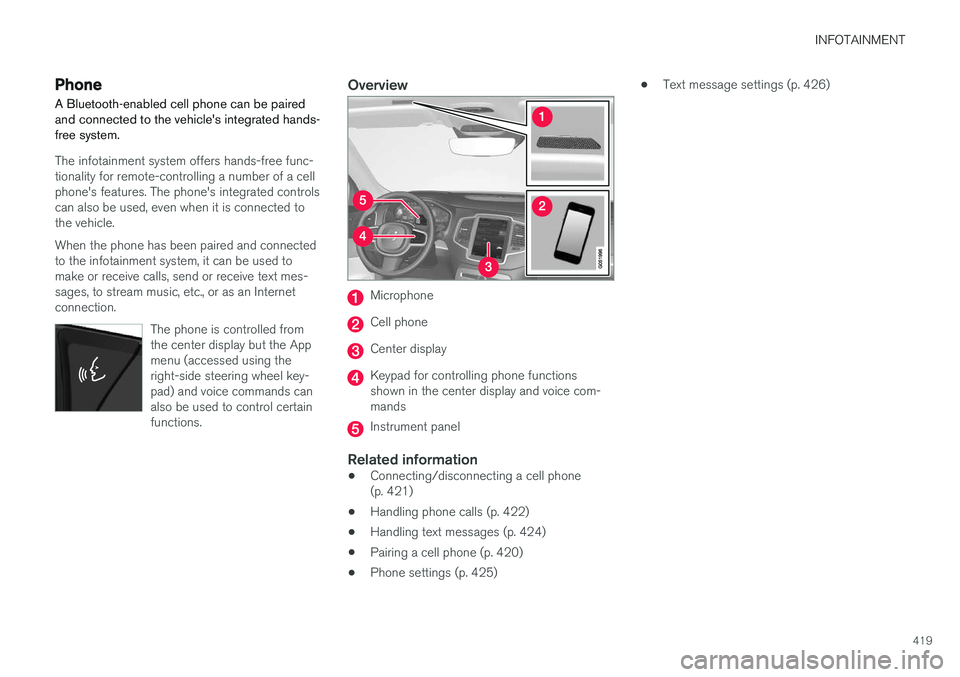
Microphone
Cell phone
Center display
Keypad for controlling phone functions shown in the center display and voice com-mands
Instrument panel
Related information
•Connecting/disconnecting a cell phone (p. 421)
• Handling phone calls (p. 422)
• Handling text messages (p. 424)
• Pairing a cell phone (p. 420)
• Phone settings (p. 425) •
Text message settings (p. 426)
Page 424 of 560
||
INFOTAINMENT
4223. Tap the name of the phone to be deleted
from the list.
4. Tap
Remove device and confirm.
> The phone or other device is no longer paired to the vehicle. Before this device can be used again, the pairing procedurewill have to be repeated.
Related information
• Pairing a cell phone (p. 420)
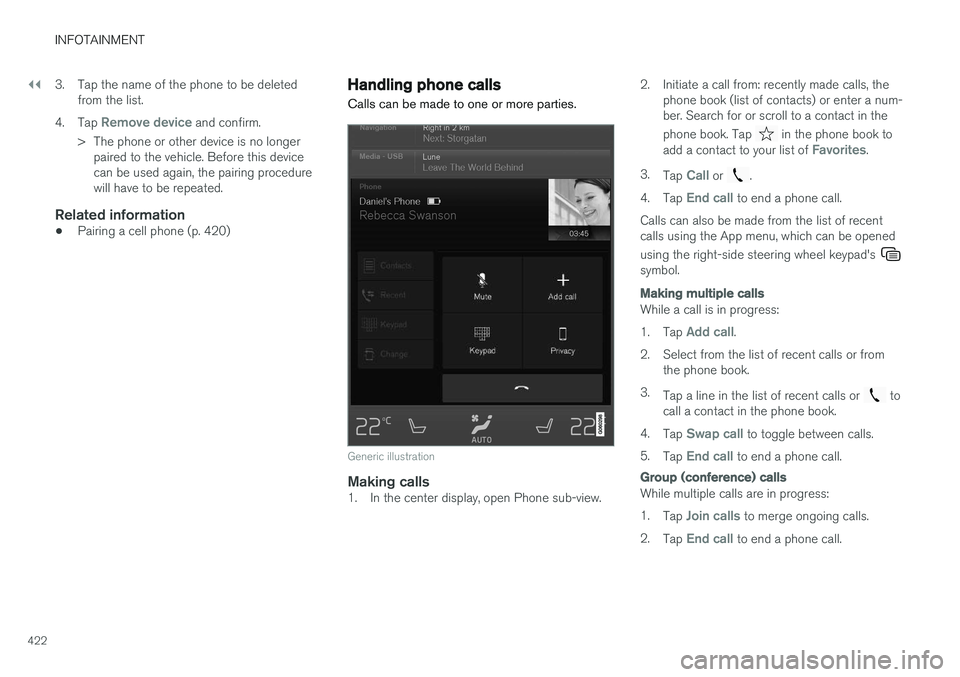
Handling phone calls Calls can be made to one or more parties.
Generic illustration
Making calls1. In the center display, open Phone sub-view. 2. Initiate a call from: recently made calls, the
phone book (list of contacts) or enter a num- ber. Search for or scroll to a contact in the phone book. Tap
in the phone book to
add a contact to your list of Favorites.
3. Tap
Call or .
4. Tap
End call to end a phone call.
Calls can also be made from the list of recent calls using the App menu, which can be opened using the right-side steering wheel keypad's
symbol.
Making multiple calls
While a call is in progress: 1. Tap
Add call.
2. Select from the list of recent calls or from the phone book.
3. Tap a line in the list of recent calls or
to
call a contact in the phone book.
4. Tap
Swap call to toggle between calls.
5. Tap
End call to end a phone call.
Group (conference) calls
While multiple calls are in progress: 1.
Tap
Join calls to merge ongoing calls.
2. Tap
End call to end a phone call.
Page 425 of 560
INFOTAINMENT
}}
423
Incoming callsInformation about incoming calls is displayed in the instrument panel and the center display. Han-dle the calls using the right-side steering wheelkeypad or the center display. 1.Tap
Answer/Reject.
2. Tap
End call to end a phone call.
Incoming calls while another call is in progress
1. Tap Answer/Reject.
2. Tap
End call to end a phone call.
PrivacyWhile a call is in progress:
–Tap Privacy.
> The vehicle's integrated microphone will be turned off.
•
Switch to mobile phone: the hands-free
function will be disconnected and the call will continue in the cell phone.
•
Driver focused: the microphone in the ceil-
ing liner on the passenger's side will be muted and the call will continue using vehi-cle's the hands-free function on the driver'sside.
Related information
• Phone (p. 419)
• Voice control for cell phones (p. 120) •
Using the center display (p. 44)
• Using the center display keyboard (p. 31)
• Phone settings (p. 425)
Managing the phone book
The following is information about keeping track of contacts in your Bluetooth-connected cellphone's phone book.
Page 426 of 560
||
INFOTAINMENT
424
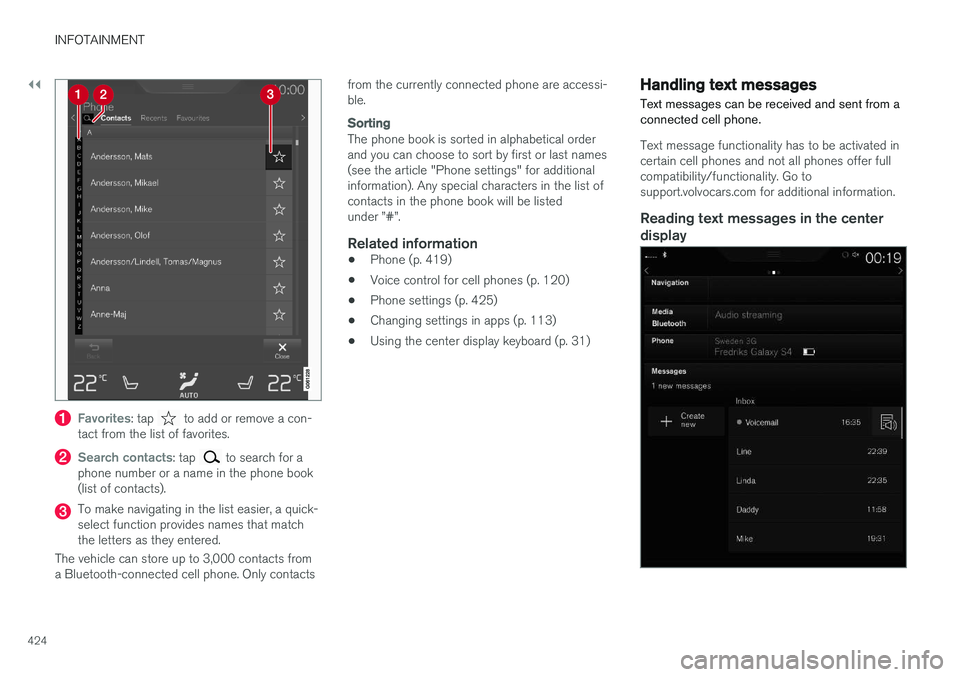
Favorites: tap to add or remove a con-
tact from the list of favorites.
Search contacts: tap to search for a
phone number or a name in the phone book (list of contacts).
To make navigating in the list easier, a quick- select function provides names that matchthe letters as they entered.
The vehicle can store up to 3,000 contacts froma Bluetooth-connected cell phone. Only contacts from the currently connected phone are accessi-ble.
Sorting
The phone book is sorted in alphabetical order and you can choose to sort by first or last names(see the article "Phone settings" for additionalinformation). Any special characters in the list ofcontacts in the phone book will be listedunder ”#”.
Related information
•
Phone (p. 419)
• Voice control for cell phones (p. 120)
• Phone settings (p. 425)
• Changing settings in apps (p. 113)
• Using the center display keyboard (p. 31)
Handling text messages
Text messages can be received and sent from a connected cell phone.
Text message functionality has to be activated in certain cell phones and not all phones offer fullcompatibility/functionality. Go tosupport.volvocars.com for additional information.
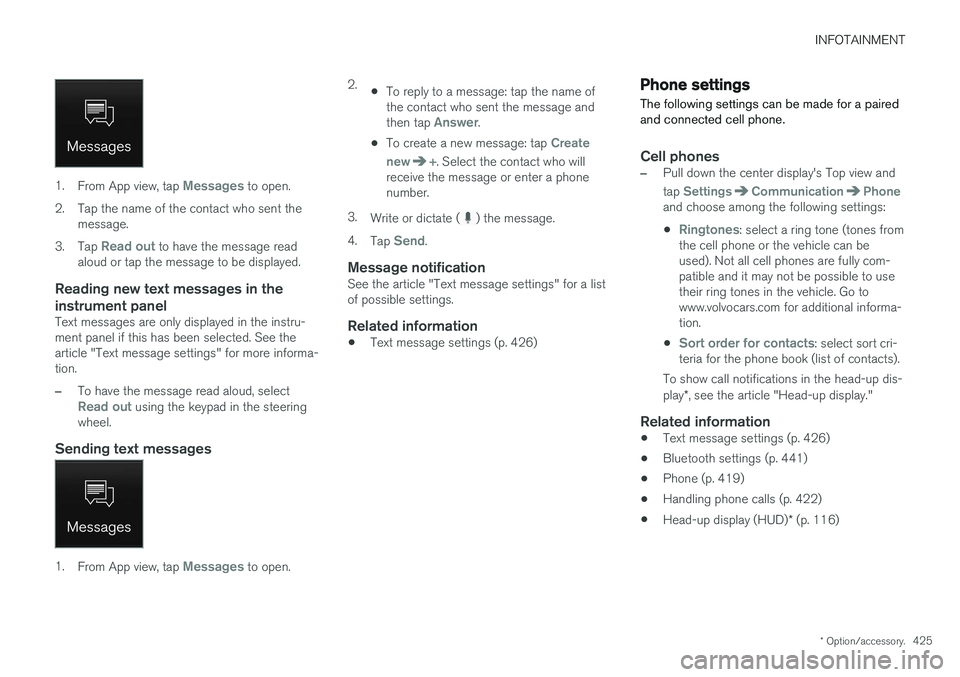
Reading text messages in the center display
Page 427 of 560
INFOTAINMENT
* Option/accessory.425
1.
From App view, tap Messages to open.
2. Tap the name of the contact who sent the message.
3. Tap
Read out to have the message read
aloud or tap the message to be displayed.
Reading new text messages in the instrument panel
Text messages are only displayed in the instru- ment panel if this has been selected. See thearticle "Text message settings" for more informa-tion.
–To have the message read aloud, selectRead out using the keypad in the steering
wheel.
Sending text messages
1. From App view, tap Messages to open. 2.
•To reply to a message: tap the name of the contact who sent the message and then tap
Answer.
• To create a new message: tap
Create
new
+. Select the contact who will
receive the message or enter a phone number.
3. Write or dictate (
) the message.
4. Tap
Send.
Message notificationSee the article "Text message settings" for a list of possible settings.
Related information
• Text message settings (p. 426)
Phone settings
The following settings can be made for a paired and connected cell phone.
Cell phones
–Pull down the center display's Top view and tap
SettingsCommunicationPhoneand choose among the following settings: •
Ringtones: select a ring tone (tones from
the cell phone or the vehicle can be used). Not all cell phones are fully com-patible and it may not be possible to usetheir ring tones in the vehicle. Go towww.volvocars.com for additional informa-tion.
•
Sort order for contacts: select sort cri-
teria for the phone book (list of contacts).
To show call notifications in the head-up dis- play *, see the article "Head-up display."
Related information
• Text message settings (p. 426)
• Bluetooth settings (p. 441)
• Phone (p. 419)
• Handling phone calls (p. 422)
• Head-up display (HUD)
* (p. 116)