display VOLVO XC90 2017 Owner´s Manual
[x] Cancel search | Manufacturer: VOLVO, Model Year: 2017, Model line: XC90, Model: VOLVO XC90 2017Pages: 560, PDF Size: 9.97 MB
Page 43 of 560
INTRODUCTION
}}
41
Going to Top view from an app
To pull down Top view when an app is running (e.g., FM radio):
• Tap
FM Radio Settings to display these
settings.
• Tap
Owner's manual to open an article
related to the specific app.
This applies only to your vehicle's factory- installed apps . This is not possible for third-
party apps that have been downloaded.
Climate viewThe climate bar, where the most common climatesystem settings can be made, is located at thebottom of the screen and is always visible.
Tap the symbol at the center of the cli-mate bar to open Climate view foraccess to additional climate systemsettings.
Tap the symbol to close Climate view and return to a previous view.
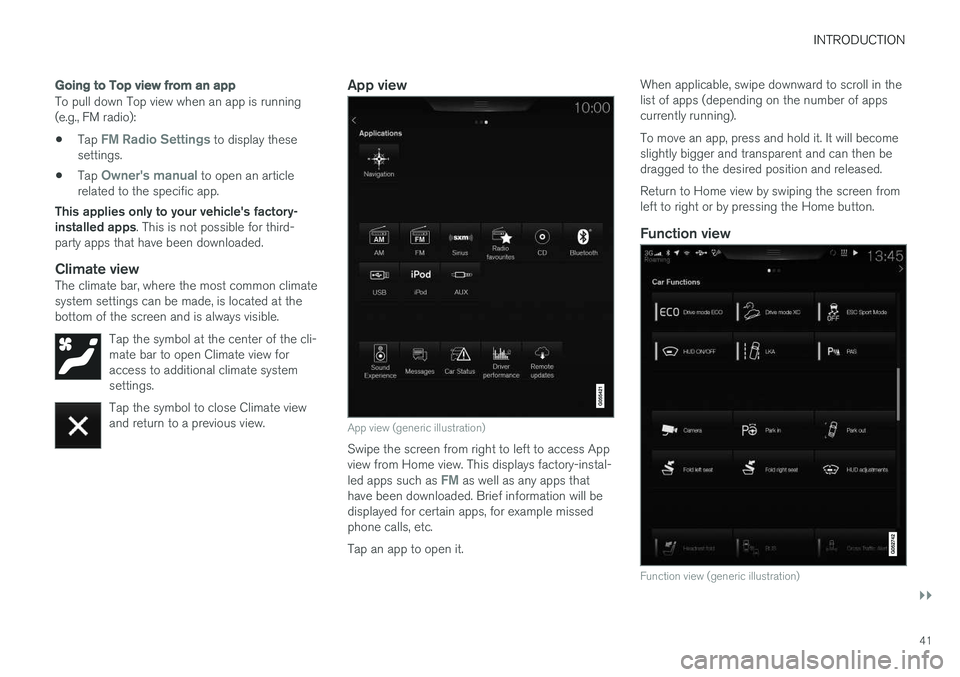
App view
App view (generic illustration)
Swipe the screen from right to left to access App view from Home view. This displays factory-instal- led apps such as
FM as well as any apps that
have been downloaded. Brief information will be displayed for certain apps, for example missedphone calls, etc. Tap an app to open it. When applicable, swipe downward to scroll in the list of apps (depending on the number of appscurrently running). To move an app, press and hold it. It will become slightly bigger and transparent and can then bedragged to the desired position and released. Return to Home view by swiping the screen from left to right or by pressing the Home button.
Function view
Function view (generic illustration)
Page 44 of 560
||
INTRODUCTION
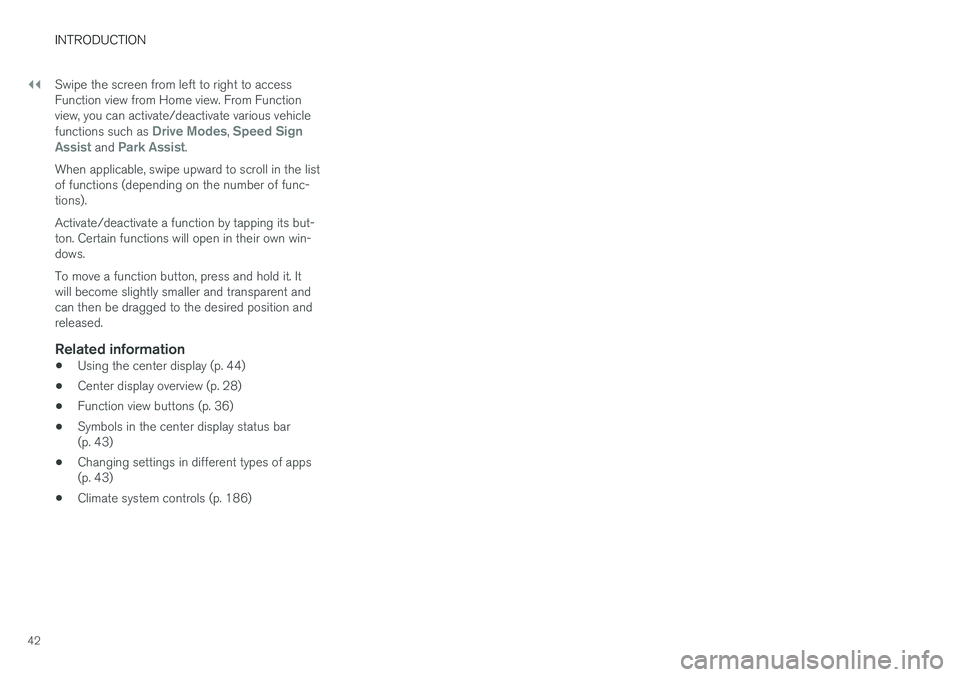
42Swipe the screen from left to right to access Function view from Home view. From Functionview, you can activate/deactivate various vehicle functions such as
Drive Modes, Speed Sign
Assist and Park Assist.
When applicable, swipe upward to scroll in the list of functions (depending on the number of func-tions). Activate/deactivate a function by tapping its but- ton. Certain functions will open in their own win-dows. To move a function button, press and hold it. It will become slightly smaller and transparent andcan then be dragged to the desired position andreleased.
Related information
• Using the center display (p. 44)
• Center display overview (p. 28)
• Function view buttons (p. 36)
• Symbols in the center display status bar(p. 43)
• Changing settings in different types of apps(p. 43)
• Climate system controls (p. 186)
Page 45 of 560
INTRODUCTION
43
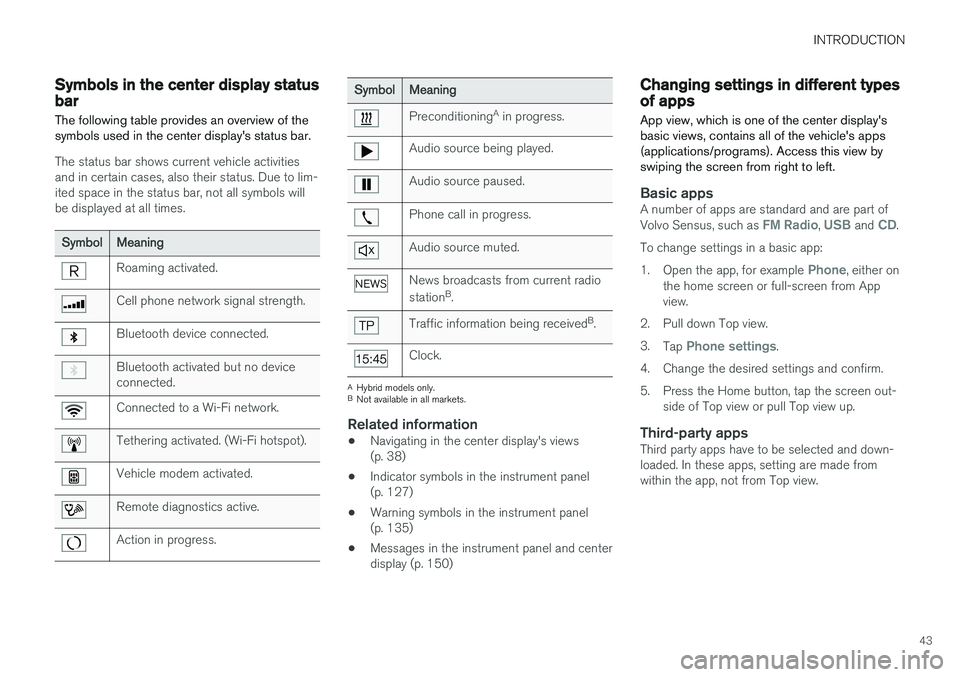
Symbols in the center display status bar
The following table provides an overview of the symbols used in the center display's status bar.
The status bar shows current vehicle activities and in certain cases, also their status. Due to lim-ited space in the status bar, not all symbols willbe displayed at all times.
Symbol Meaning
Roaming activated.
Cell phone network signal strength.
Bluetooth device connected.
Bluetooth activated but no device connected.
Connected to a Wi-Fi network.
Tethering activated. (Wi-Fi hotspot).
Vehicle modem activated.
Remote diagnostics active.
Action in progress.
SymbolMeaning
Preconditioning A
in progress.
Audio source being played.
Audio source paused.
Phone call in progress.
Audio source muted.
News broadcasts from current radio station B
.
Traffic information being received B
.
Clock.
A Hybrid models only.
B Not available in all markets.
Related information
• Navigating in the center display's views (p. 38)
• Indicator symbols in the instrument panel(p. 127)
• Warning symbols in the instrument panel(p. 135)
• Messages in the instrument panel and centerdisplay (p. 150)
Changing settings in different types of apps
App view, which is one of the center display's basic views, contains all of the vehicle's apps(applications/programs). Access this view byswiping the screen from right to left.
Basic appsA number of apps are standard and are part of Volvo Sensus, such as FM Radio, USB and CD.
To change settings in a basic app: 1. Open the app, for example
Phone, either on
the home screen or full-screen from App view.
2. Pull down Top view. 3. Tap
Phone settings.
4. Change the desired settings and confirm.
5. Press the Home button, tap the screen out- side of Top view or pull Top view up.
Third-party appsThird party apps have to be selected and down- loaded. In these apps, setting are made fromwithin the app, not from Top view.
Page 46 of 560
INTRODUCTION
44
Using the center display
Many of the vehicle's functions can be con- trolled and settings can be made from thescreen in the center console, referred to in thisowner's information as the center display, whichis a touchscreen.
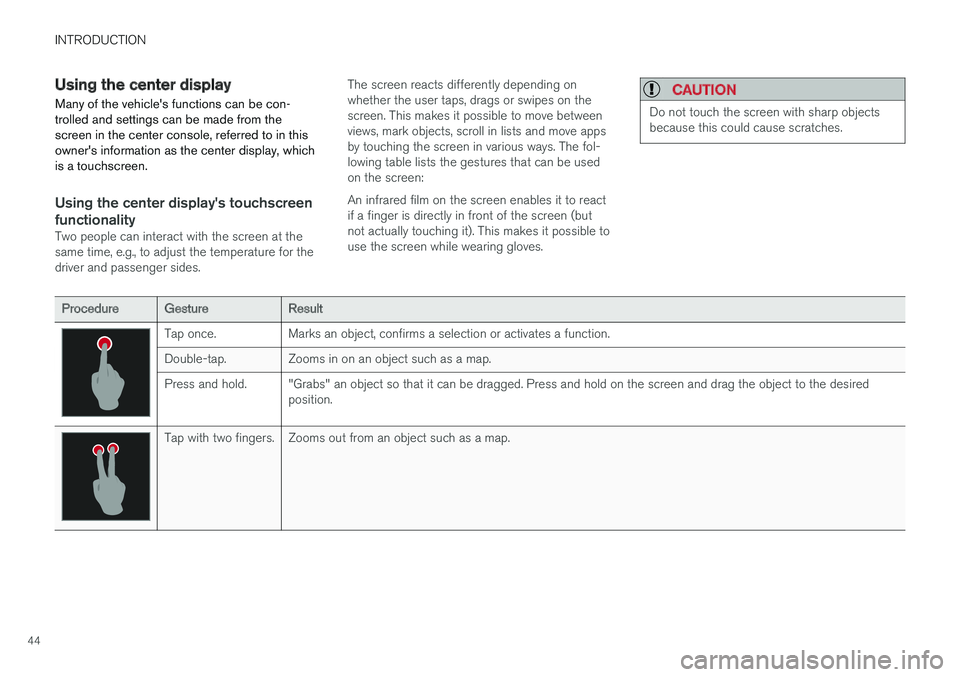
Using the center display's touchscreen functionality
Two people can interact with the screen at the same time, e.g., to adjust the temperature for thedriver and passenger sides. The screen reacts differently depending onwhether the user taps, drags or swipes on thescreen. This makes it possible to move betweenviews, mark objects, scroll in lists and move appsby touching the screen in various ways. The fol-lowing table lists the gestures that can be usedon the screen: An infrared film on the screen enables it to react if a finger is directly in front of the screen (butnot actually touching it). This makes it possible touse the screen while wearing gloves.
CAUTION
Do not touch the screen with sharp objects because this could cause scratches.
Procedure
Gesture Result
Tap once. Marks an object, confirms a selection or activates a function.
Double-tap. Zooms in on an object such as a map.
Press and hold. "Grabs" an object so that it can be dragged. Press and hold on the screen and drag the object to the desired
position.
Tap with two fingers. Zooms out from an object such as a map.
Page 48 of 560
||
INTRODUCTION
46
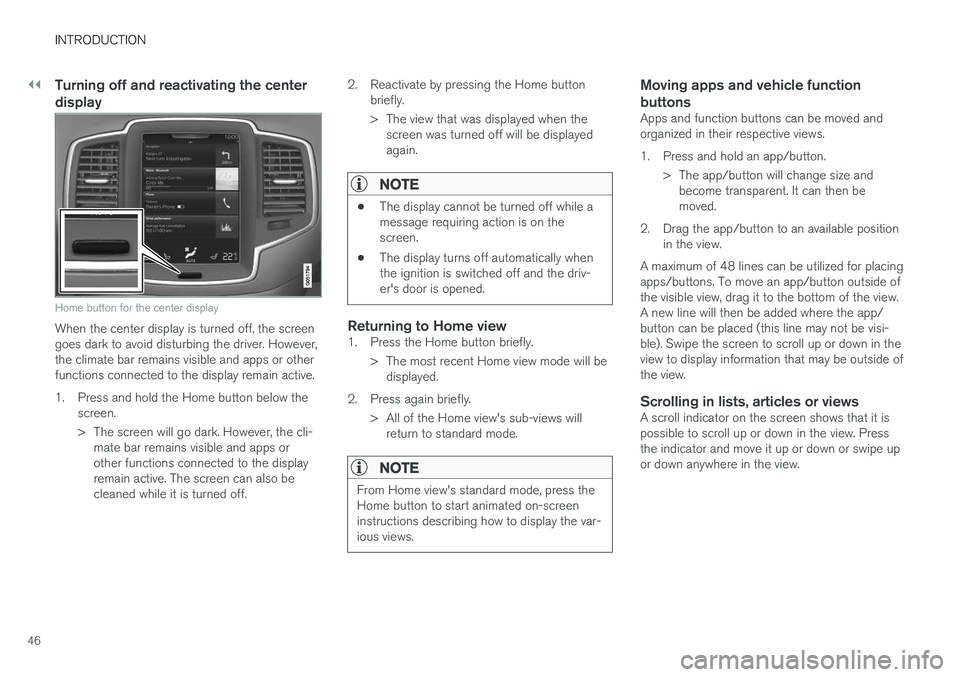
Turning off and reactivating the center display
Home button for the center display
When the center display is turned off, the screen goes dark to avoid disturbing the driver. However,the climate bar remains visible and apps or otherfunctions connected to the display remain active.
1. Press and hold the Home button below thescreen.
> The screen will go dark. However, the cli-mate bar remains visible and apps or other functions connected to the displayremain active. The screen can also becleaned while it is turned off. 2. Reactivate by pressing the Home button
briefly.
> The view that was displayed when thescreen was turned off will be displayed again.
NOTE
• The display cannot be turned off while a message requiring action is on thescreen.
• The display turns off automatically whenthe ignition is switched off and the driv-er's door is opened.
Returning to Home view1. Press the Home button briefly.
> The most recent Home view mode will bedisplayed.
2. Press again briefly. > All of the Home view's sub-views willreturn to standard mode.
NOTE
From Home view's standard mode, press the Home button to start animated on-screeninstructions describing how to display the var-ious views.
Moving apps and vehicle function buttons
Apps and function buttons can be moved and organized in their respective views.
1. Press and hold an app/button.
> The app/button will change size andbecome transparent. It can then be moved.
2. Drag the app/button to an available position in the view.
A maximum of 48 lines can be utilized for placingapps/buttons. To move an app/button outside ofthe visible view, drag it to the bottom of the view.A new line will then be added where the app/button can be placed (this line may not be visi-ble). Swipe the screen to scroll up or down in theview to display information that may be outside ofthe view.
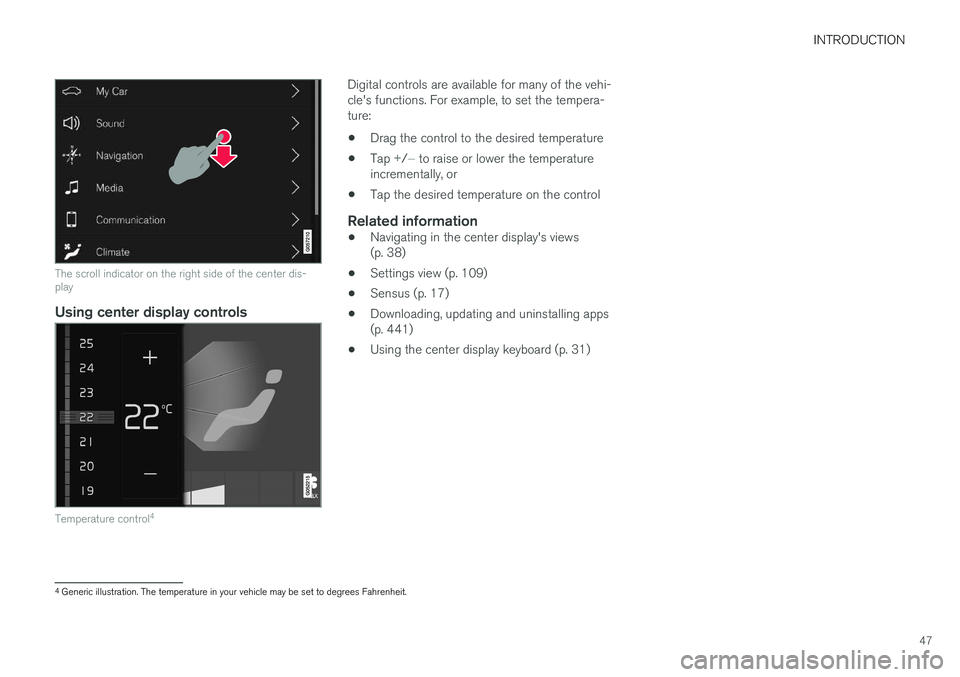
Scrolling in lists, articles or viewsA scroll indicator on the screen shows that it ispossible to scroll up or down in the view. Pressthe indicator and move it up or down or swipe upor down anywhere in the view.
Page 49 of 560
INTRODUCTION
47
The scroll indicator on the right side of the center dis- play
Using center display controls
Temperature control4
Digital controls are available for many of the vehi- cle's functions. For example, to set the tempera-ture:
• Drag the control to the desired temperature
• Tap
+/− to raise or lower the temperature
incrementally, or
• Tap the desired temperature on the control
Related information
• Navigating in the center display's views (p. 38)
• Settings view (p. 109)
• Sensus (p. 17)
• Downloading, updating and uninstalling apps(p. 441)
• Using the center display keyboard (p. 31)
4
Generic illustration. The temperature in your vehicle may be set to degrees Fahrenheit.
Page 50 of 560
INTRODUCTION
48
Using the owner's manualReading your owner's manual is a good way of familiarizing yourself with the features and sys-tems in your vehicle.
On-board owner's manualReading the owner's manual is a good way to become familiar with your vehicle and to learn toutilize the features and functions that it offers.Pay particular attention to the warnings provided. Volvo reserves the right to make model changes at any time, or to change specifications or designwithout notice and without incurring obligation. © Volvo Car Corporation
Printed owner's informationWe advise keeping printed owner's information in the vehicle for quick access to necessary infor-mation and how to contact Volvo if help isrequired.
IllustrationsSome of the illustrations used in your owner'sinformation may be generic and will give a gen-eral view of a certain feature or function. Forexample, some illustrations describing climatesystem functions may display a temperature indegrees Celsius but the same information appliesto Fahrenheit.
Options and accessoriesOptional or accessory equipment described inthis manual is indicated by an asterisk. Optional or accessory equipment may not be available in all countries or markets. Please notethat some vehicles may be equipped differently,depending on special legal requirements. Contact your Volvo retailer for additional informa- tion.
FootnotesCertain pages of this manual contain informationin the form of footnotes at the bottom of thepage. This information supplements the text thatthe footnote number refers to (a letter is used ifthe footnote refers to text in a table).
MessagesThere are several displays in the vehicle thatshow messages generated by various systemsand functions in the vehicle. The appearance ofthese texts differs slightly from normal texts (for example:
Phone, Accept).
DecalsThere are various types of decals in the vehicle whose purpose is to provide important informa-tion in a clear and concise way. The importanceof these decals is explained as follows, indescending order of importance.
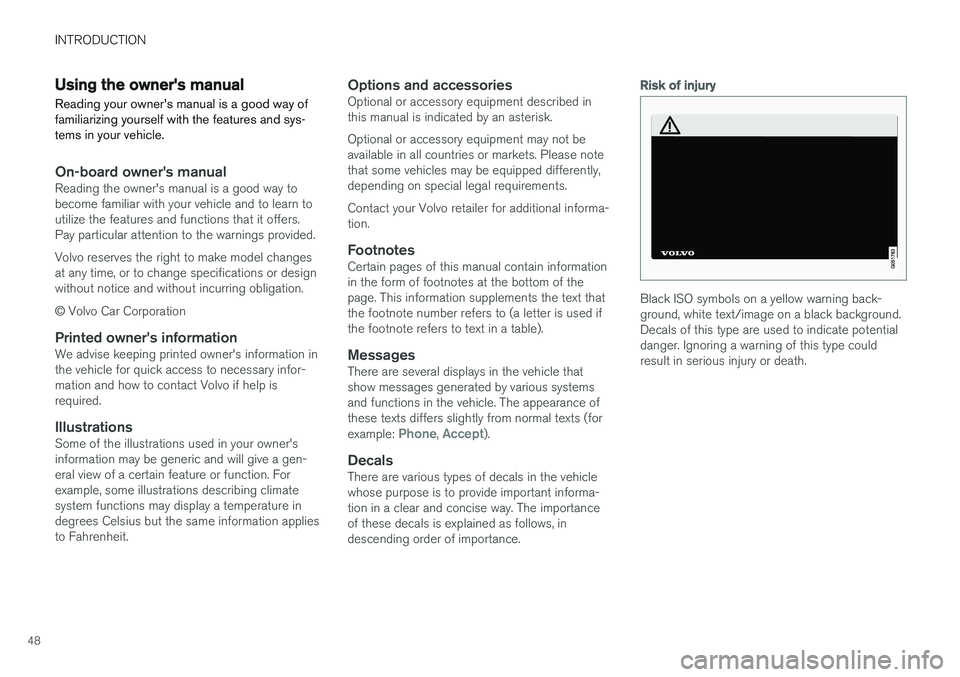
Risk of injury
Black ISO symbols on a yellow warning back- ground, white text/image on a black background.Decals of this type are used to indicate potentialdanger. Ignoring a warning of this type couldresult in serious injury or death.
Page 52 of 560
||
INTRODUCTION
50
Continues on next page
} }This symbol can be found at the lower right
corner to indicate that the current topic continues on the following page.
Continuation from previous page
|| This symbol can be found at the upper left
corner to indicate that the current topic is a con- tinuation from the previous page.
Related information
• On-board digital owner's manual (p. 50)
• Owner's manual in mobile devices (p. 20)
• Additional information about your vehicle(p. 14)
On-board digital owner's manual
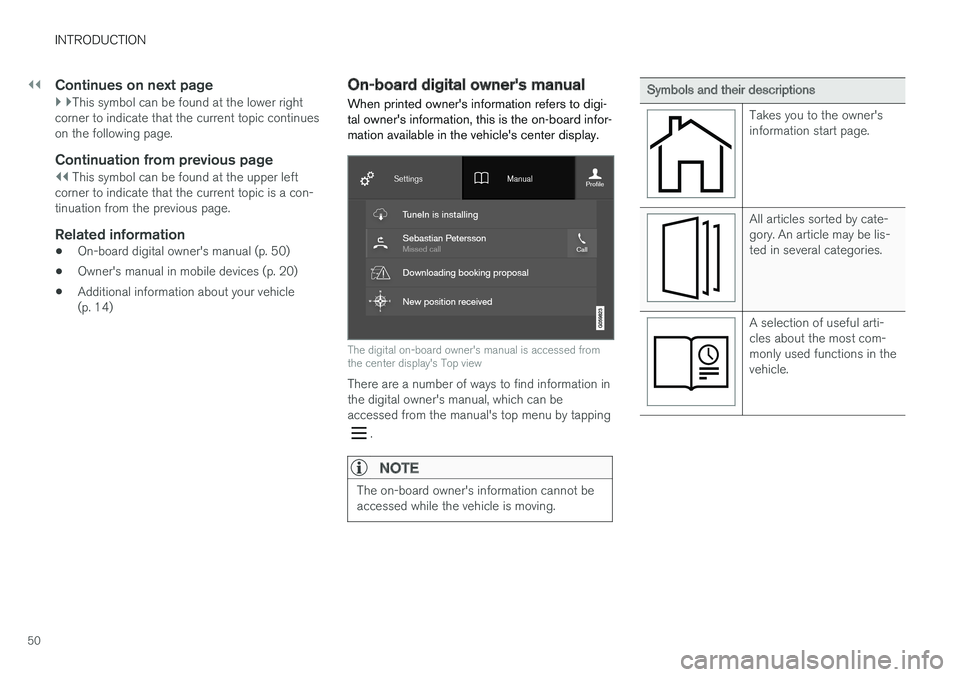
When printed owner's information refers to digi- tal owner's information, this is the on-board infor-mation available in the vehicle's center display.
The digital on-board owner's manual is accessed from the center display's Top view
There are a number of ways to find information in the digital owner's manual, which can beaccessed from the manual's top menu by tapping
.
NOTE
The on-board owner's information cannot be accessed while the vehicle is moving.
Symbols and their descriptions
Takes you to the owner's information start page.
All articles sorted by cate- gory. An article may be lis-ted in several categories.
A selection of useful arti- cles about the most com-monly used functions in thevehicle.
Page 53 of 560
INTRODUCTION
}}
51
Symbols and their descriptions
Exterior/interior views of the vehicle in which certainareas/components arehighlighted as hotspots.Tap a hotspot to come to arelevant article.
This offers access to a list of articles that have beensaved as favorites. Tap anarticle to read it in itsentirety.
Symbols and their descriptions
Leads to short instructional videos for various vehiclefunctions.
This offers information about the current version ofthe owner's information inyour vehicle and other use-ful information.
Related information
•Navigating in the digital owner's manual (p. 51)
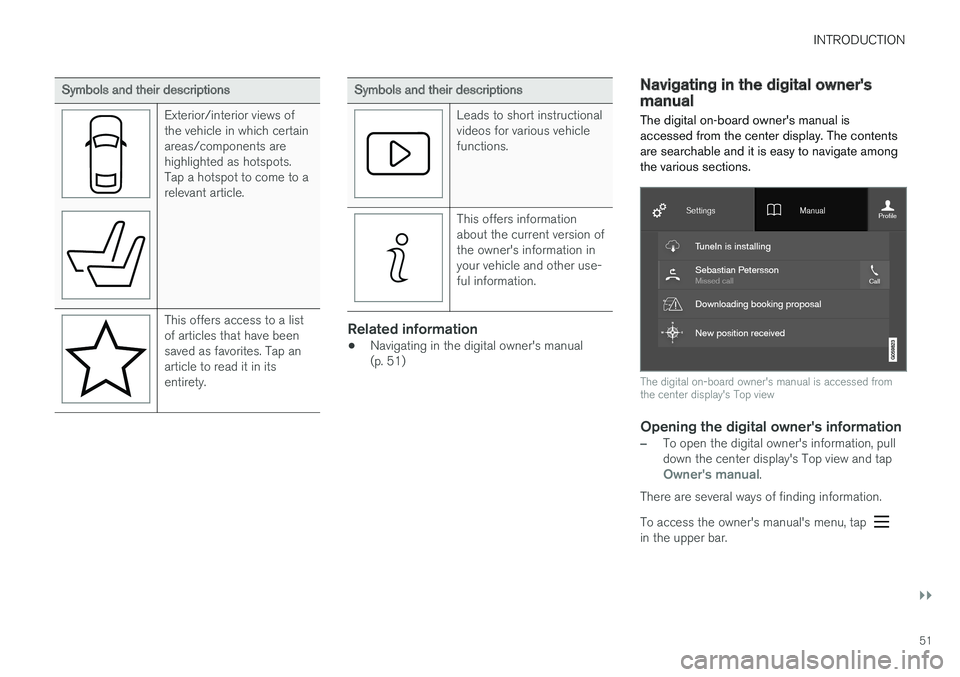
Navigating in the digital owner's manual The digital on-board owner's manual is accessed from the center display. The contentsare searchable and it is easy to navigate amongthe various sections.
The digital on-board owner's manual is accessed from the center display's Top view
Opening the digital owner's information
–To open the digital owner's information, pull down the center display's Top view and tap
Owner's manual.
There are several ways of finding information. To access the owner's manual's menu, tap
in the upper bar.
Page 54 of 560
||
INTRODUCTION
52
Searching using categoriesThe articles in the owner's manual are structured in mainand sub-categories. The samearticle may appear in severalpertinent categories in order tomake them easier to find.
1.Tap followed by Categories.
> The main categories will be listed.
2. Tap a main category (
).
> A list of sub-categories and (
) and arti-
cles (
) will be displayed.
3. Tap an article to open it. Tap the left arrow to go back or
to begin a new search.
Interior and exterior hotspotsExterior and interior views of the vehicle where certain com-ponents are pointed out arecalled hotspots.
1.Tap followed by Exterior/Interior.
> Exterior/interior views will be displayed with hotspots, which lead to relevant arti- cles. Swipe the screen horizontally toscroll among the views.
2. Tap a hotspot. > The title of a relevant article will be dis-played.
3. Tap the title to open the article. Tap the left arrow to go back or
to begin a new
search.
Quick Guide.The heading Quick Guide in
the owner's manual's menu leads to a selection of articlesthat may be helpful in familiariz-ing you with your vehicle's mostcommon features and func-tions. These articles can also
be found through categories but have been gath-ered here for quick access. Tap an article to readit in its entirety.
FavoritesThis is a list of articles that have been saved as favorites.Tap an article to read it in itsentirety.
Saving/deleting favorites
Save an article as a favorite by tapping the star (
) at the upper right when an article is open.
The star symbol will be filled in (
) when its arti-
cle has been saved as a favorite. To delete a favorite, tap its star again.
VideoTap for short instructional vid- eos for various vehicle func-tions.
InformationTap the symbol for information about the current version of theowner's information in yourvehicle and other useful infor-mation.
Start pageTap the symbol to come to the owner's information start page.