phone VOLVO XC90 2017 Owner´s Manual
[x] Cancel search | Manufacturer: VOLVO, Model Year: 2017, Model line: XC90, Model: VOLVO XC90 2017Pages: 560, PDF Size: 9.97 MB
Page 121 of 560
INSTRUMENTS AND CONTROLS
}}
* Option/accessory.119
Voice control
Voice commands make it possible for the driver to voice-control certain functions in the mediaplayer, a Bluetooth-connected cell phone, cli- mate system and the Volvo navigation system *.
Voice control offers convenience and enables the driver to keep his/her hands on the steeringwheel and concentrate on driving and the trafficsituation around the vehicle.
WARNING
As the driver, you have full responsibility for operating the vehicle safely and adhering toall applicable traffic regulations.
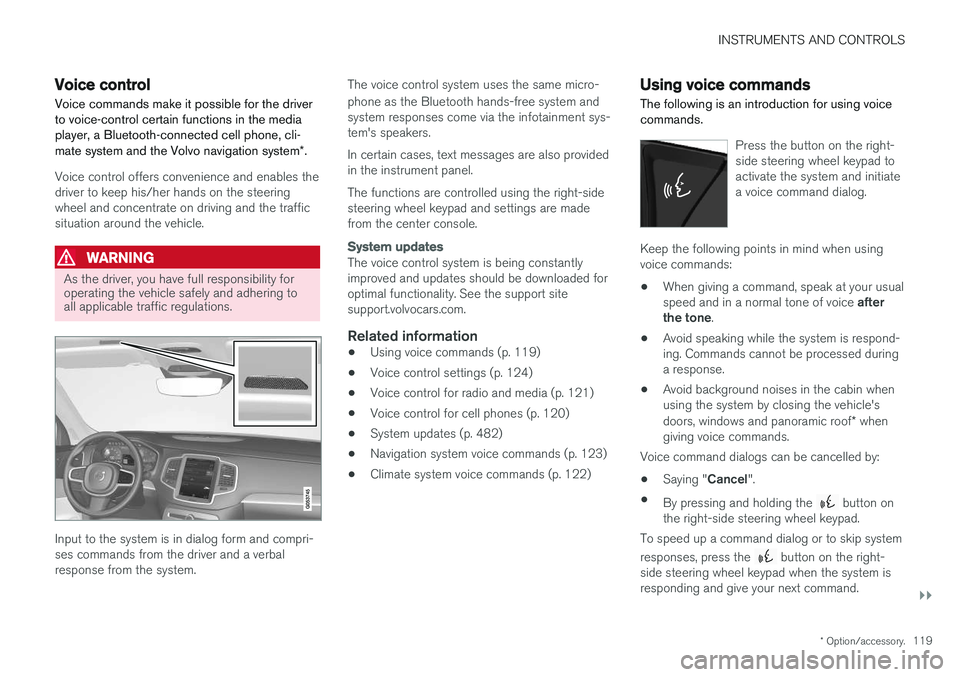
Input to the system is in dialog form and compri- ses commands from the driver and a verbalresponse from the system. The voice control system uses the same micro- phone as the Bluetooth hands-free system and system responses come via the infotainment sys-tem's speakers. In certain cases, text messages are also provided in the instrument panel. The functions are controlled using the right-side steering wheel keypad and settings are madefrom the center console.
System updates
The voice control system is being constantly improved and updates should be downloaded foroptimal functionality. See the support sitesupport.volvocars.com.
Related information
•
Using voice commands (p. 119)
• Voice control settings (p. 124)
• Voice control for radio and media (p. 121)
• Voice control for cell phones (p. 120)
• System updates (p. 482)
• Navigation system voice commands (p. 123)
• Climate system voice commands (p. 122)
Using voice commands
The following is an introduction for using voice commands.
Press the button on the right- side steering wheel keypad toactivate the system and initiatea voice command dialog.
Keep the following points in mind when using voice commands:
• When giving a command, speak at your usual speed and in a normal tone of voice
after
the tone .
• Avoid speaking while the system is respond- ing. Commands cannot be processed duringa response.
• Avoid background noises in the cabin whenusing the system by closing the vehicle's doors, windows and panoramic roof
* when
giving voice commands.
Voice command dialogs can be cancelled by:
• Saying "
Cancel".
• By pressing and holding the
button on
the right-side steering wheel keypad.
To speed up a command dialog or to skip system responses, press the
button on the right-
side steering wheel keypad when the system is responding and give your next command.
Page 122 of 560
![VOLVO XC90 2017 Owner´s Manual ||
INSTRUMENTS AND CONTROLS
120
Voice command examples
Press , say "Call"-"[First-name] "-"[Last-
name] "-"[number category] " to call a contact
in your phonebook if th](/img/45/36377/w960_36377-121.png "VOLVO XC90 2017 Owner´s Manual ||
INSTRUMENTS AND CONTROLS
120
Voice command examples
Press , say \"Call\"-\"[First-name] \"-\"[Last-
name] \"-\"[number category] \" to call a contact
in your phonebook if th")
||
INSTRUMENTS AND CONTROLS
120
Voice command examples
Press , say "Call"-"[First-name] "-"[Last-
name] "-"[number category] " to call a contact
in your phonebook if the person has more than one phone number listed (i.e., home, mobile, work,etc.). For example, press
and say
" Call "-"Robin "-"Smith "-"mobile ".
Commands/phrasesThe following commands can always be used: •
Repeat: the system will repeat the most
recent voice instruction.
•
Cancel: cancel the dialog.
•
Help: Initiates a help dialog. The system will
provide several alternative commands that can be used in a given situation.
The commands for specific situations are descri-bed in the respective articles such as "Cell phonecommands", etc.
Numbers
Numbers can be spoken in different ways depending on the context and function beingused:
• Phone numbers and zip codes
should be
spoken individually, number by number, e.g.,five five five one two three four (5551234).
• Addresses (house numbers)
can be spo-
ken individually or as a group, e.g., two two ortwenty-two (22). It is also possible to say a sequence of numbers, e.g., twenty-twotwenty-two (22 22) and "double" or "triple"can also be used, e.g., double zero (00) or tri-ple zero (000). Numbers in the range0-2300 can be used.
• Frequencies
can be spoken ninety-eight
point eight (98.8), one hundred four pointtwo (104.2) or hundred four point two(104.2).
Related information
• Voice control (p. 119)
Voice control for cell phones Voice commands can be used to control many of the most common functions in a Bluetooth ®
-
connected cell phone.
To specify a phone book contact, the voice com- mand has to include the contact's informationthat is in the phone book. For example, if a con- tact such as
John Smith has several phone
numbers, a number category such as home ormobile can be specified. To call, say: "Call John
Smith mobile".
To use the voice control system, press the
on the right-side steering wheel keypad and say one of the following commands after the tone:
• "
Call [contact]": call a contact from your
phone book.
• "
Call [phone number]": call a phone num-
ber.
• "
Recent calls": displays the list of recent
calls.
• "
Read message": reads a message aloud.
If there are several messages, select the one to be read.
• "
Message to [contact]": an empty mes-
sage to the selected contact will open and is ready for dictation to begin.
Page 127 of 560
INSTRUMENTS AND CONTROLS
}}
* Option/accessory.125
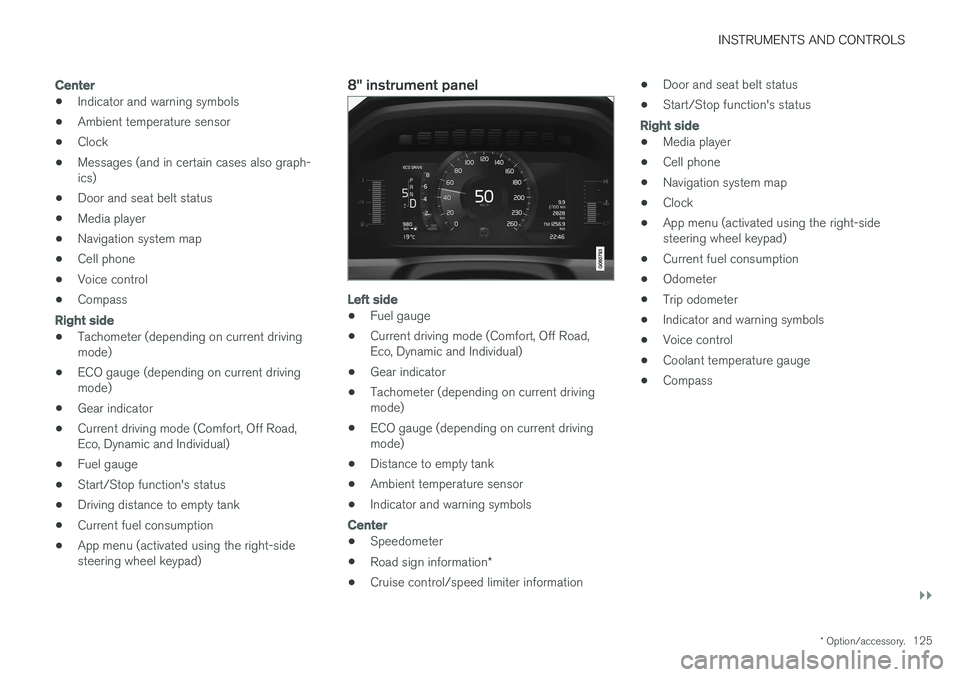
Center
•Indicator and warning symbols
• Ambient temperature sensor
• Clock
• Messages (and in certain cases also graph- ics)
• Door and seat belt status
• Media player
• Navigation system map
• Cell phone
• Voice control
• Compass
Right side
•
Tachometer (depending on current driving mode)
• ECO gauge (depending on current drivingmode)
• Gear indicator
• Current driving mode (Comfort, Off Road,Eco, Dynamic and Individual)
• Fuel gauge
• Start/Stop function's status
• Driving distance to empty tank
• Current fuel consumption
• App menu (activated using the right-sidesteering wheel keypad)
8" instrument panel
Left side
• Fuel gauge
• Current driving mode (Comfort, Off Road, Eco, Dynamic and Individual)
• Gear indicator
• Tachometer (depending on current drivingmode)
• ECO gauge (depending on current drivingmode)
• Distance to empty tank
• Ambient temperature sensor
• Indicator and warning symbols
Center
•
Speedometer
• Road sign information
*
• Cruise control/speed limiter information •
Door and seat belt status
• Start/Stop function's status
Right side
•Media player
• Cell phone
• Navigation system map
• Clock
• App menu (activated using the right-side steering wheel keypad)
• Current fuel consumption
• Odometer
• Trip odometer
• Indicator and warning symbols
• Voice control
• Coolant temperature gauge
• Compass
Page 128 of 560
||
INSTRUMENTS AND CONTROLS
126
Position for variable symbols
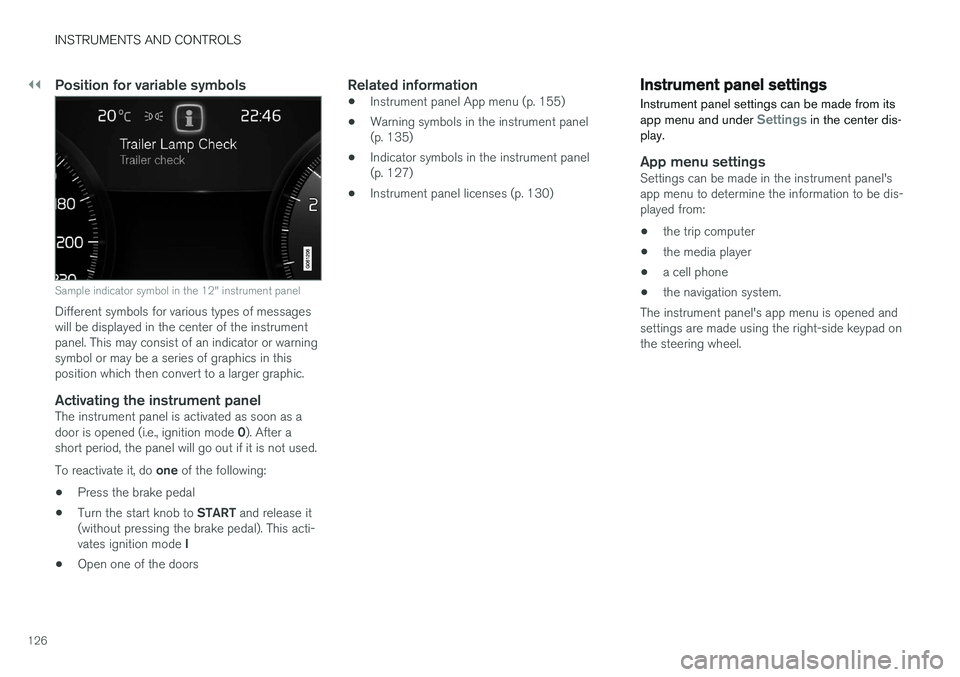
Sample indicator symbol in the 12" instrument panel
Different symbols for various types of messages will be displayed in the center of the instrumentpanel. This may consist of an indicator or warningsymbol or may be a series of graphics in thisposition which then convert to a larger graphic.
Activating the instrument panelThe instrument panel is activated as soon as a door is opened (i.e., ignition mode 0). After a
short period, the panel will go out if it is not used. To reactivate it, do one of the following:
• Press the brake pedal
• Turn the start knob to
START and release it
(without pressing the brake pedal). This acti- vates ignition mode I
• Open one of the doors
Related information
• Instrument panel App menu (p. 155)
• Warning symbols in the instrument panel (p. 135)
• Indicator symbols in the instrument panel(p. 127)
• Instrument panel licenses (p. 130)
Instrument panel settings
Instrument panel settings can be made from its app menu and under
Settings in the center dis-
play.
App menu settingsSettings can be made in the instrument panel's app menu to determine the information to be dis-played from:
• the trip computer
• the media player
• a cell phone
• the navigation system.
The instrument panel's app menu is opened andsettings are made using the right-side keypad onthe steering wheel.
Page 156 of 560
INSTRUMENTS AND CONTROLS
154
Handling messages stored from the instrument panel and center display
Messages saved from the instrumentpanel
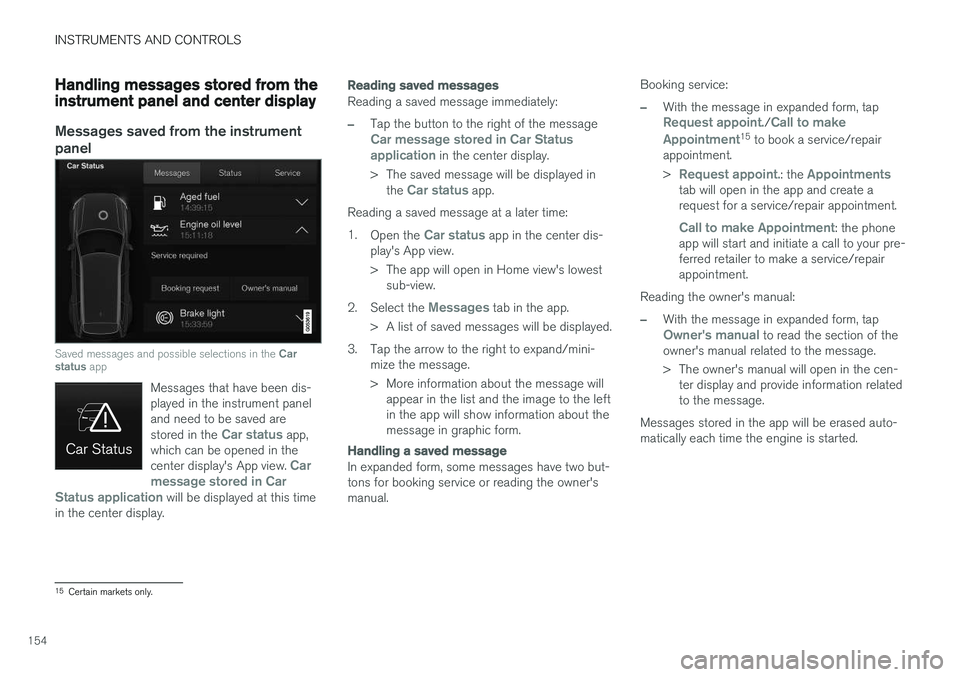
Saved messages and possible selections in the Car
status app
Messages that have been dis- played in the instrument paneland need to be saved are stored in the
Car status app,
which can be opened in the center display's App view.
Car
message stored in Car
Status application
will be displayed at this time
in the center display.
Reading saved messages
Reading a saved message immediately:
–Tap the button to the right of the messageCar message stored in Car Status application in the center display.
> The saved message will be displayed in the
Car status app.
Reading a saved message at a later time: 1. Open the
Car status app in the center dis-
play's App view.
> The app will open in Home view's lowest sub-view.
2. Select the
Messages tab in the app.
> A list of saved messages will be displayed.
3. Tap the arrow to the right to expand/mini- mize the message.
> More information about the message willappear in the list and the image to the left in the app will show information about themessage in graphic form.
Handling a saved message
In expanded form, some messages have two but- tons for booking service or reading the owner'smanual. Booking service:
–With the message in expanded form, tapRequest appoint./Call to make
Appointment15 to book a service/repair
appointment. >
Request appoint.: the Appointmentstab will open in the app and create a request for a service/repair appointment.
Call to make Appointment: the phone
app will start and initiate a call to your pre- ferred retailer to make a service/repairappointment.
Reading the owner's manual:
–With the message in expanded form, tapOwner's manual to read the section of the
owner's manual related to the message.
> The owner's manual will open in the cen- ter display and provide information related to the message.
Messages stored in the app will be erased auto-matically each time the engine is started.
15 Certain markets only.
Page 158 of 560
||
INSTRUMENTS AND CONTROLS
156
AppFunctions
Trip com- puter Select a trip odometer, makeinstrument panel display set-tings, etc.
Mediaplayer Select the active source for themedia player.
Phone Call a contact from the call list.
Navigation Pause guidance, start guidance to a recently set destination, etc.
Related information
•Instrument panel (p. 124)
• Center display overview (p. 28)
• Using the instrument panel App menu (p. 156)
Using the instrument panel App menu
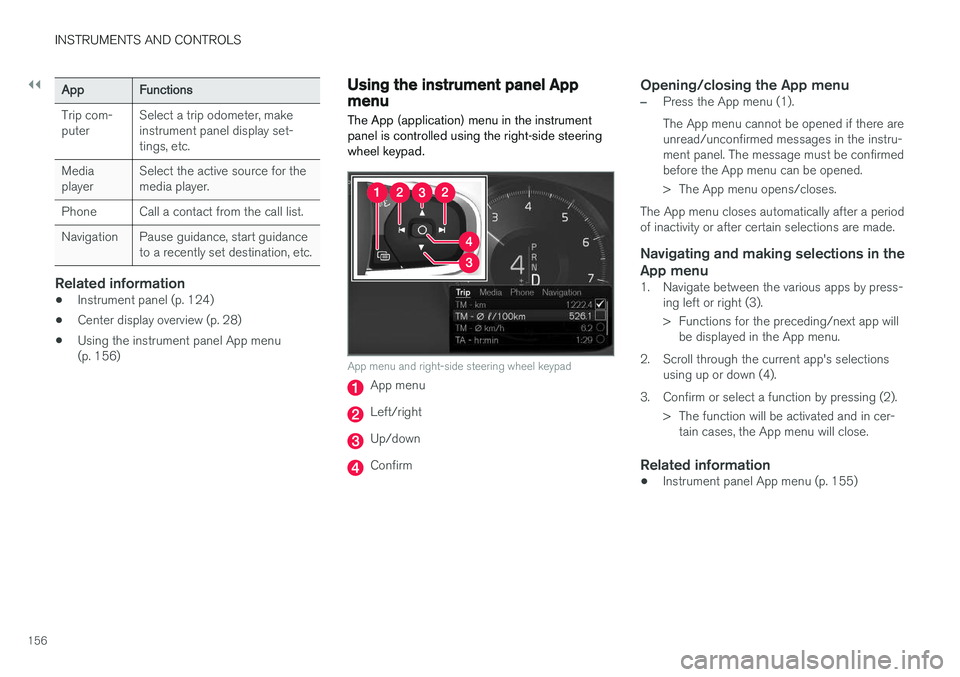
The App (application) menu in the instrument panel is controlled using the right-side steeringwheel keypad.
App menu and right-side steering wheel keypad
App menu
Left/right
Up/down
Confirm
Opening/closing the App menu
–Press the App menu (1). The App menu cannot be opened if there are unread/unconfirmed messages in the instru-ment panel. The message must be confirmedbefore the App menu can be opened.
> The App menu opens/closes.
The App menu closes automatically after a period of inactivity or after certain selections are made.
Navigating and making selections in the App menu
1. Navigate between the various apps by press- ing left or right (3).
> Functions for the preceding/next app willbe displayed in the App menu.
2. Scroll through the current app's selections using up or down (4).
3. Confirm or select a function by pressing (2). > The function will be activated and in cer-tain cases, the App menu will close.
Related information
• Instrument panel App menu (p. 155)
Page 162 of 560
||
INSTRUMENTS AND CONTROLS
* Option/accessory.
160
Tailgate wiper and reverse gear1.
In the center display, select SettingsMy
Car
Wipers.
2. Activate/deactivate by selecting/deselecting the
Auto Rear Wiper box.
If the windshield wipers are on and the transmis- sion is put into reverse gear, the tailgate wiperwill start. This function is deactivated when a dif-ferent gear is selected.
Related information
• Using the windshield wipers (p. 157)
• Windshield and headlight washers (p. 158)
• Refilling the windshield washer fluid reservoir(p. 521)
• Activating/deactivating the rain sensor(p. 157)
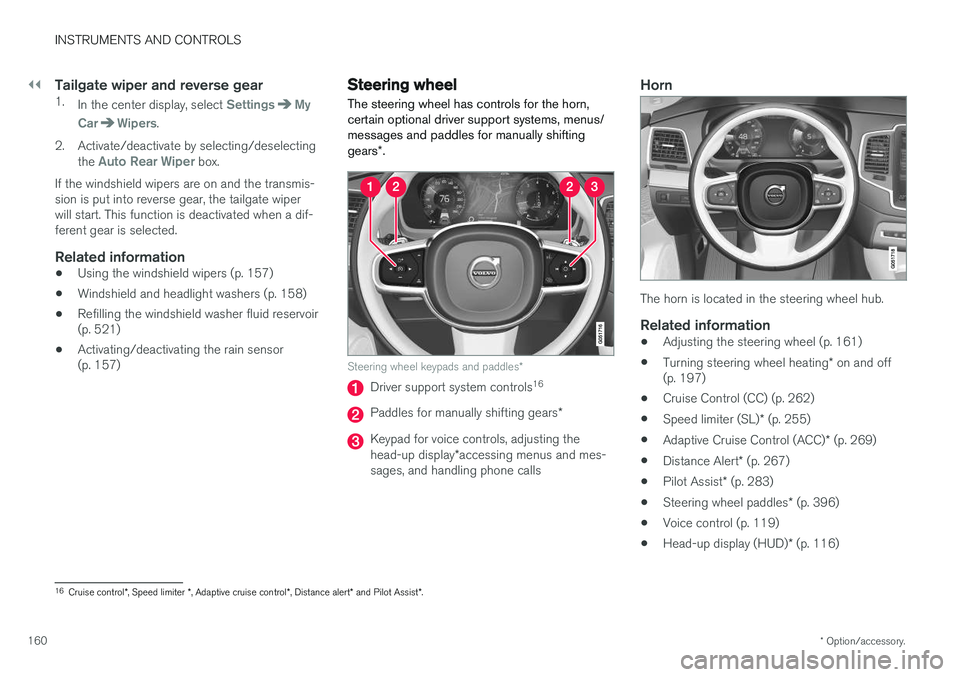
Steering wheel The steering wheel has controls for the horn, certain optional driver support systems, menus/messages and paddles for manually shifting gears
*.
Steering wheel keypads and paddles *
Driver support system controls16
Paddles for manually shifting gears
*
Keypad for voice controls, adjusting the head-up display*accessing menus and mes-
sages, and handling phone calls
Horn
The horn is located in the steering wheel hub.
Related information
• Adjusting the steering wheel (p. 161)
• Turning steering wheel heating
* on and off
(p. 197)
• Cruise Control (CC) (p. 262)
• Speed limiter (SL)
* (p. 255)
• Adaptive Cruise Control (ACC)
* (p. 269)
• Distance Alert
* (p. 267)
• Pilot Assist
* (p. 283)
• Steering wheel paddles
* (p. 396)
• Voice control (p. 119)
• Head-up display (HUD)
* (p. 116)
16
Cruise control *, Speed limiter *, Adaptive cruise control *, Distance alert * and Pilot Assist *.
Page 163 of 560
INSTRUMENTS AND CONTROLS
* Option/accessory.161
•
Using the instrument panel App menu (p. 156)
• Phone (p. 419)
Adjusting the steering wheel
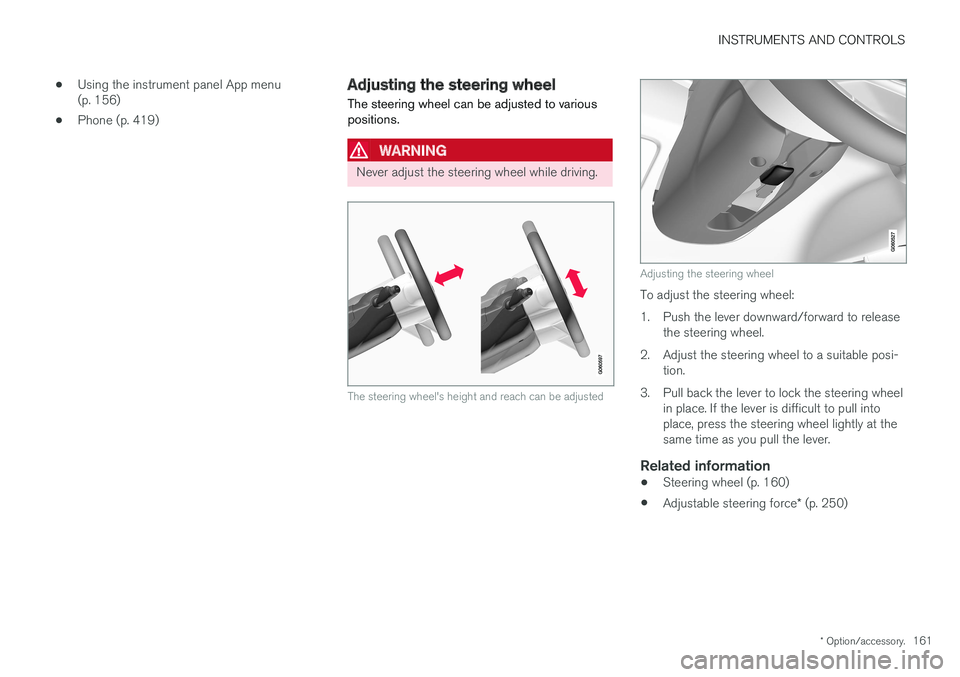
The steering wheel can be adjusted to various positions.
WARNING
Never adjust the steering wheel while driving.
The steering wheel's height and reach can be adjusted
Adjusting the steering wheel
To adjust the steering wheel:
1. Push the lever downward/forward to release the steering wheel.
2. Adjust the steering wheel to a suitable posi- tion.
3. Pull back the lever to lock the steering wheel in place. If the lever is difficult to pull into place, press the steering wheel lightly at thesame time as you pull the lever.
Related information
• Steering wheel (p. 160)
• Adjustable steering force
* (p. 250)
Page 213 of 560
LOADING AND STORAGE
}}
* Option/accessory.211
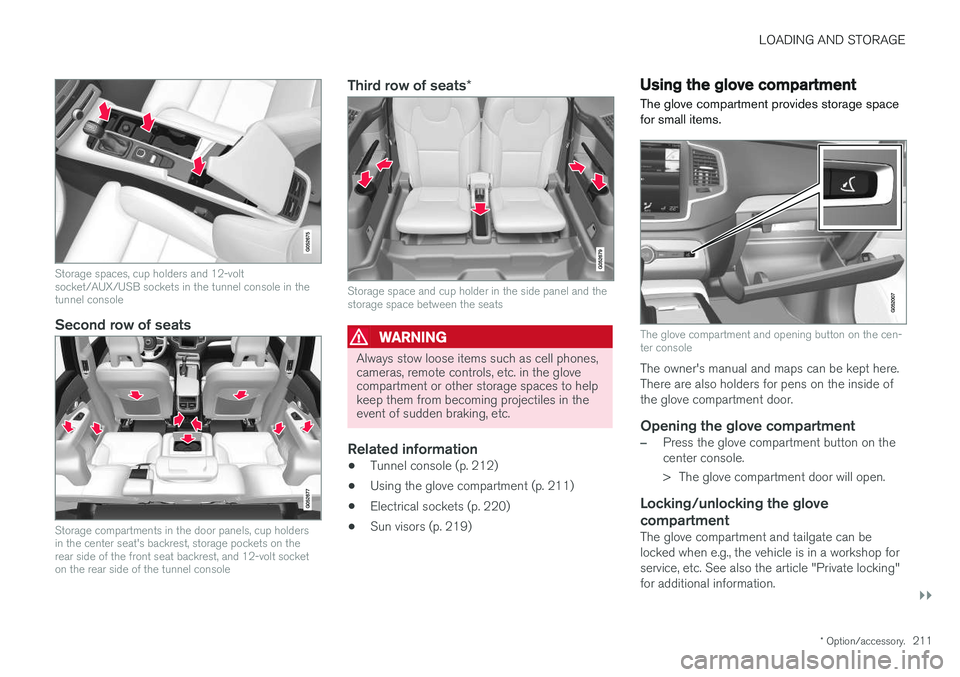
Storage spaces, cup holders and 12-volt socket/AUX/USB sockets in the tunnel console in thetunnel console
Second row of seats
Storage compartments in the door panels, cup holders in the center seat's backrest, storage pockets on therear side of the front seat backrest, and 12-volt socketon the rear side of the tunnel console
Third row of seats *
Storage space and cup holder in the side panel and the storage space between the seats
WARNING
Always stow loose items such as cell phones, cameras, remote controls, etc. in the glovecompartment or other storage spaces to helpkeep them from becoming projectiles in theevent of sudden braking, etc.
Related information
•Tunnel console (p. 212)
• Using the glove compartment (p. 211)
• Electrical sockets (p. 220)
• Sun visors (p. 219)
Using the glove compartment
The glove compartment provides storage space for small items.
The glove compartment and opening button on the cen- ter console
The owner's manual and maps can be kept here. There are also holders for pens on the inside ofthe glove compartment door.
Opening the glove compartment
–Press the glove compartment button on the center console.
> The glove compartment door will open.
Locking/unlocking the glove compartment
The glove compartment and tailgate can be locked when e.g., the vehicle is in a workshop forservice, etc. See also the article "Private locking"for additional information.
Page 224 of 560
||
LOADING AND STORAGE
222
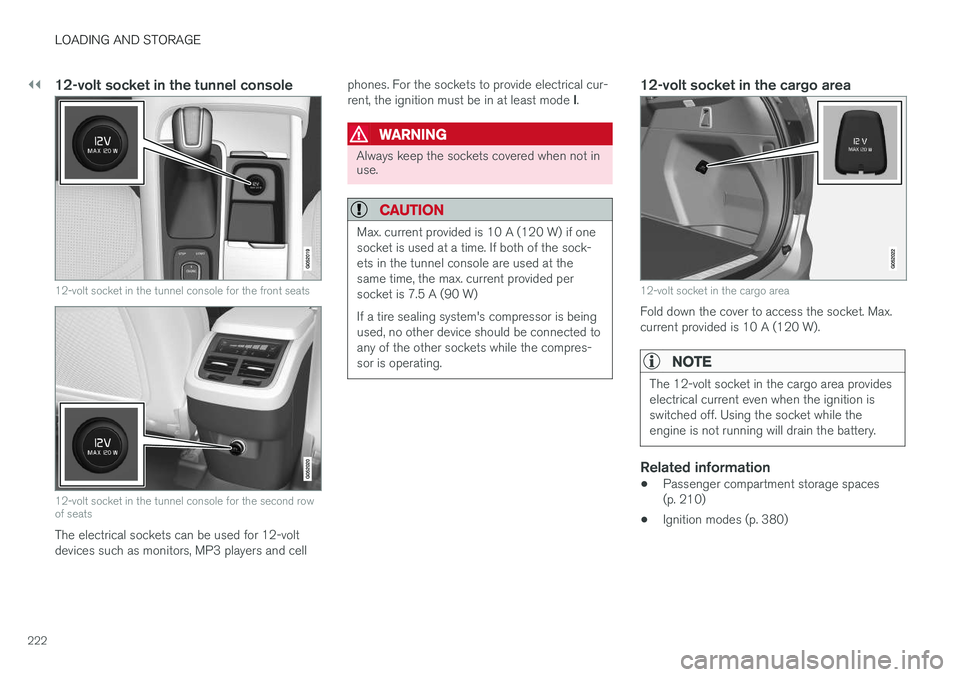
12-volt socket in the tunnel console
12-volt socket in the tunnel console for the front seats
12-volt socket in the tunnel console for the second row of seats
The electrical sockets can be used for 12-volt devices such as monitors, MP3 players and cellphones. For the sockets to provide electrical cur- rent, the ignition must be in at least mode
I.
WARNING
Always keep the sockets covered when not in use.
CAUTION
Max. current provided is 10 A (120 W) if one socket is used at a time. If both of the sock-ets in the tunnel console are used at thesame time, the max. current provided persocket is 7.5 A (90 W) If a tire sealing system's compressor is being used, no other device should be connected toany of the other sockets while the compres-sor is operating.
12-volt socket in the cargo area
12-volt socket in the cargo area
Fold down the cover to access the socket. Max. current provided is 10 A (120 W).
NOTE
The 12-volt socket in the cargo area provides electrical current even when the ignition isswitched off. Using the socket while theengine is not running will drain the battery.
Related information
• Passenger compartment storage spaces (p. 210)
• Ignition modes (p. 380)