phone VOLVO XC90 2017 Owner´s Manual
[x] Cancel search | Manufacturer: VOLVO, Model Year: 2017, Model line: XC90, Model: VOLVO XC90 2017Pages: 560, PDF Size: 9.97 MB
Page 230 of 560
||
LOCKS AND ALARM
* Option/accessory.
228 Each of the remote keys provided with the vehicle can be linked to a driver profile containing uniquepersonal settings that will be applied when thatparticular key is used. See also the article "Driverprofile" for additional information.
NOTE
Avoid placing the remote key closer than approx. (4-6 in.) (10-15 cm) to any metallicobjects or electronic devices such as cellphones, tablets, laptops or chargers.
If interference persists, unlock the vehicle with the detachable key blade and place the remotekey in the backup key reader in the tunnel con-sole cup holder to disarm the alarm.
WARNING
Always remove the remote key from the pas- senger compartment when leaving the vehicle and ensure that the ignition in mode
0, espe-
cially if there are children in the vehicle.
Key TagIn addition to the two remote keys provided, a smaller third key, called a Key Tag, is also provi-ded for vehicles equipped with the optionalPassive Entry system. This key functions in the same way as a standardremote key but does not have a detachable keyblade and its battery cannot be replaced; a newKey Tag has to be ordered.
Ordering new keysTwo remote keys are provided with the vehicle (a Key Tag
2
is also included for vehicles equipped
with the optional Passive Entry system). Addi- tional keys (a total of 12) can be ordered andused with the vehicle.
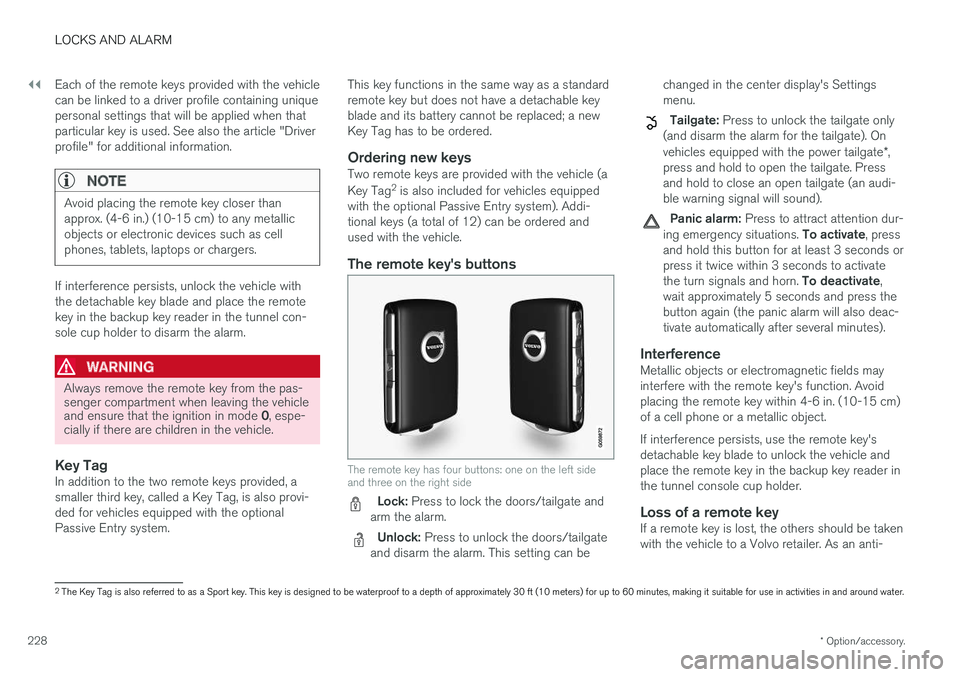
The remote key's buttons
The remote key has four buttons: one on the left side and three on the right side
Lock: Press to lock the doors/tailgate and
arm the alarm.
Unlock: Press to unlock the doors/tailgate
and disarm the alarm. This setting can be changed in the center display's Settings menu.
Tailgate: Press to unlock the tailgate only
(and disarm the alarm for the tailgate). On vehicles equipped with the power tailgate *,
press and hold to open the tailgate. Press and hold to close an open tailgate (an audi-ble warning signal will sound).
Panic alarm: Press to attract attention dur-
ing emergency situations. To activate, press
and hold this button for at least 3 seconds or press it twice within 3 seconds to activate the turn signals and horn. To deactivate,
wait approximately 5 seconds and press the button again (the panic alarm will also deac-tivate automatically after several minutes).
InterferenceMetallic objects or electromagnetic fields mayinterfere with the remote key's function. Avoidplacing the remote key within 4-6 in. (10-15 cm)of a cell phone or a metallic object. If interference persists, use the remote key's detachable key blade to unlock the vehicle andplace the remote key in the backup key reader inthe tunnel console cup holder.
Loss of a remote keyIf a remote key is lost, the others should be takenwith the vehicle to a Volvo retailer. As an anti-
2 The Key Tag is also referred to as a Sport key. This key is designed to be waterproof to a depth of approximately 30 ft (10 meters) for up to 60 minutes, making it suitable for use in activities in and around water.
Page 385 of 560
STARTING AND DRIVING
}}
383
WARNING
•Never use more than one floor mat at a time on the driver's floor. Before driving,remove the original mat from the driver'sseat floor before using any other type offloor mat. Any mat used in this positionshould be securely and properly anchoredin the attaching pins. An extra mat on thedriver's floor can cause the acceleratorand/or brake pedal to catch. Check thatthe movement of these pedals is notimpeded.
• Volvo's floor mats are specially manufac-tured for your car. They must be firmlysecured in the clips on the floor so thatthey cannot slide and become trappedunder the pedals on the driver's side.
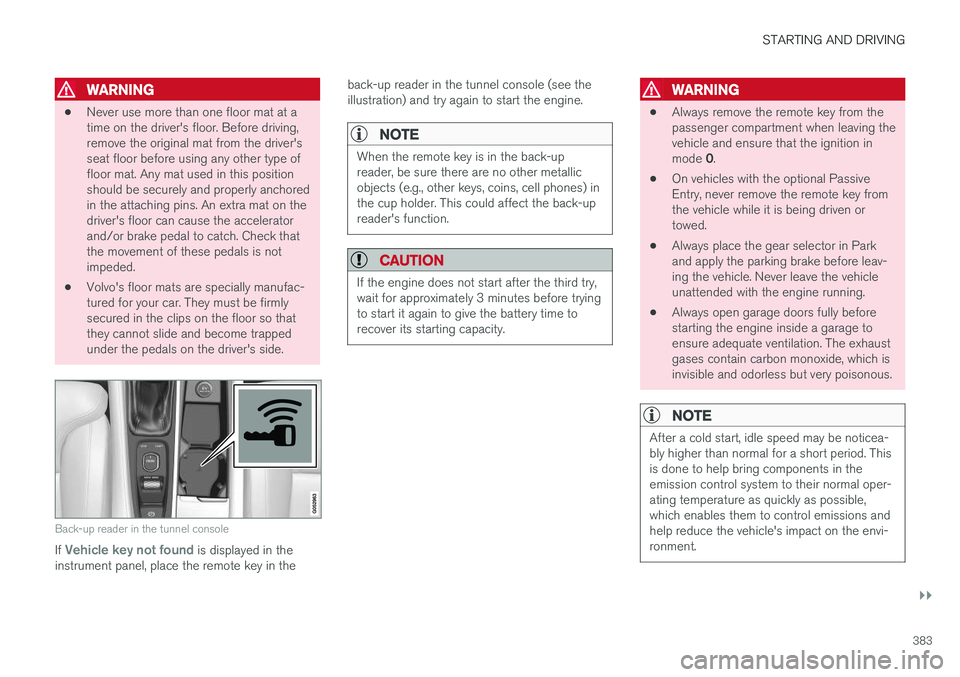
Back-up reader in the tunnel console
If Vehicle key not found is displayed in the
instrument panel, place the remote key in the back-up reader in the tunnel console (see the illustration) and try again to start the engine.
NOTE
When the remote key is in the back-up reader, be sure there are no other metallicobjects (e.g., other keys, coins, cell phones) inthe cup holder. This could affect the back-upreader's function.
CAUTION
If the engine does not start after the third try, wait for approximately 3 minutes before tryingto start it again to give the battery time torecover its starting capacity.
WARNING
•
Always remove the remote key from the passenger compartment when leaving thevehicle and ensure that the ignition in mode
0.
• On vehicles with the optional Passive Entry, never remove the remote key fromthe vehicle while it is being driven ortowed.
• Always place the gear selector in Parkand apply the parking brake before leav-ing the vehicle. Never leave the vehicleunattended with the engine running.
• Always open garage doors fully beforestarting the engine inside a garage toensure adequate ventilation. The exhaustgases contain carbon monoxide, which isinvisible and odorless but very poisonous.
NOTE
After a cold start, idle speed may be noticea- bly higher than normal for a short period. Thisis done to help bring components in theemission control system to their normal oper-ating temperature as quickly as possible,which enables them to control emissions andhelp reduce the vehicle's impact on the envi-ronment.
Page 404 of 560
INFOTAINMENT
402
The infotainment system
The infotainment system consists of a radio, media player and has the capacity to communi-cate with a Bluetooth-connected cell phone. It isalso possible to connect to the Internet to e.g.,stream audio content via apps. The system's functions can be controlled from the right-side steering wheel keypad, the centerdisplay or by using voice commands.
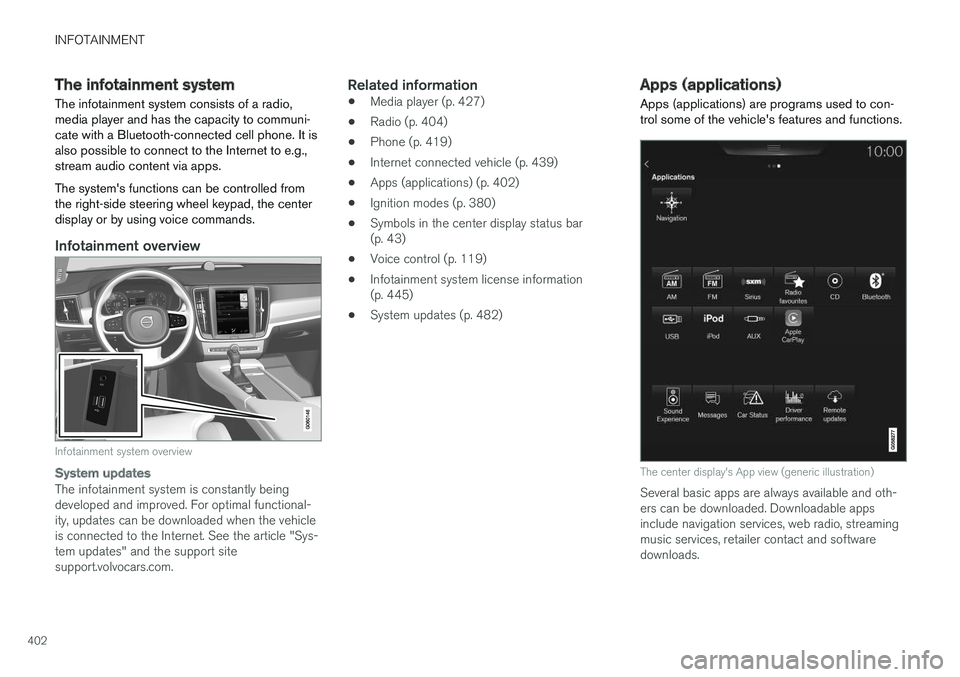
Infotainment overview
Infotainment system overview
System updates
The infotainment system is constantly being developed and improved. For optimal functional-ity, updates can be downloaded when the vehicleis connected to the Internet. See the article "Sys-tem updates" and the support sitesupport.volvocars.com.
Related information
• Media player (p. 427)
• Radio (p. 404)
• Phone (p. 419)
• Internet connected vehicle (p. 439)
• Apps (applications) (p. 402)
• Ignition modes (p. 380)
• Symbols in the center display status bar(p. 43)
• Voice control (p. 119)
• Infotainment system license information(p. 445)
• System updates (p. 482)
Apps (applications)
Apps (applications) are programs used to con- trol some of the vehicle's features and functions.
The center display's App view (generic illustration)
Several basic apps are always available and oth- ers can be downloaded. Downloadable appsinclude navigation services, web radio, streamingmusic services, retailer contact and softwaredownloads.
Page 405 of 560
INFOTAINMENT
403
Some apps are only available if the vehicle is connected to the Internet.
–In the center display's App view, tap an app to start it.
Related information
•
Internet connected vehicle (p. 439)
• Downloading, updating and uninstalling apps(p. 441)
• Changing settings in different types of apps(p. 43)
Sound settings
The infotainment system is precalibrated for opti- mal sound reproduction but these settings canbe changed to suit your personal preferences.
The system's volume is normally adjusted using the right-side steering wheel keypad or the vol-ume control below the center display.
Optimal sound reproduction settingsThe audio system is precalibrated for optimalsound reproduction using digital signal process-ing. This calibration takes into account the speak-ers, amplifier, cabin acoustics, listener position,etc., for each combination of vehicle and infotain-ment system. Dynamic calibration is also available, which moni- tors the setting of the volume control, radioreception and the vehicle's speed. Specific sound settings are described in the respective articles/sections of this owner's infor-mation. To change a setting, pull down the center dis- play's Top view and tap
SettingsSound.
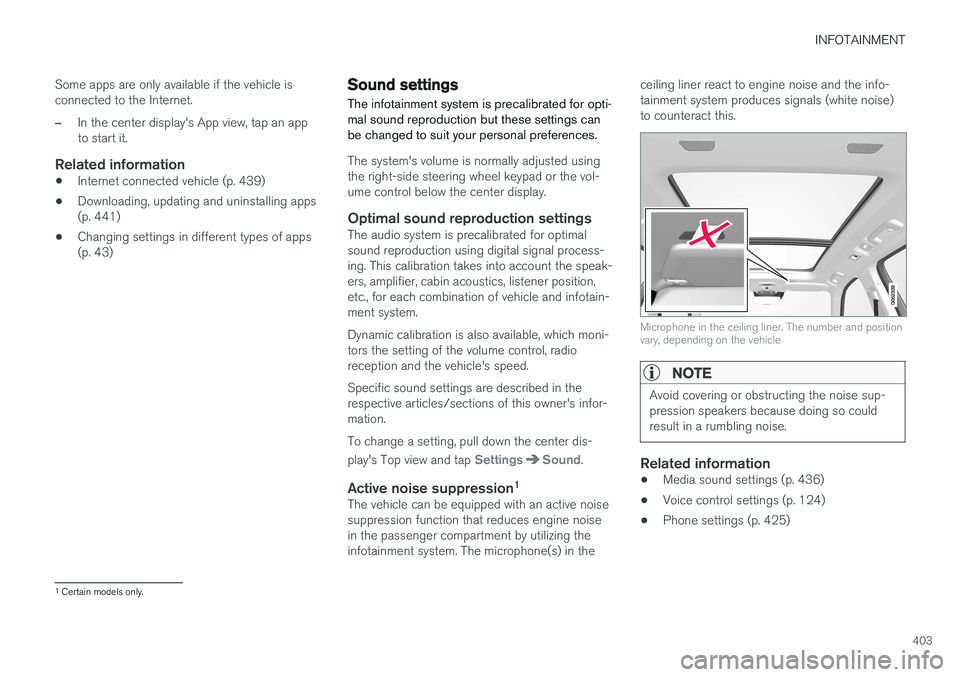
Active noise suppression 1The vehicle can be equipped with an active noise suppression function that reduces engine noisein the passenger compartment by utilizing theinfotainment system. The microphone(s) in the ceiling liner react to engine noise and the info-tainment system produces signals (white noise)to counteract this.
Microphone in the ceiling liner. The number and position vary, depending on the vehicle
NOTE
Avoid covering or obstructing the noise sup- pression speakers because doing so couldresult in a rumbling noise.
Related information
•
Media sound settings (p. 436)
• Voice control settings (p. 124)
• Phone settings (p. 425)
1
Certain models only.
Page 412 of 560
INFOTAINMENT
* Option/accessory.
410
SiriusXM ®
Satellite radio *
The SiriusXM ®
Satellite system broadcasts from
of a number of high elevation satellites in geo- synchronous orbit.
Listening to satellite radioThe digital signals from the satellites are line-of- sight, which means that physical obstructionssuch as bridges, tunnels, etc, may temporarilyinterfere with signal reception. Avoid any obstructions, such as metallic objects transported on roof racks or in a ski box, or otherantennas that may impede signals from the SiriusXM ®
satellites.
Selecting SiriusXM ®
Satellite radio
mode
1. From the center display's Home view, swipe from right to left to come to App view.
2.Tap the SiriusXM ®
Satellite radio icon.
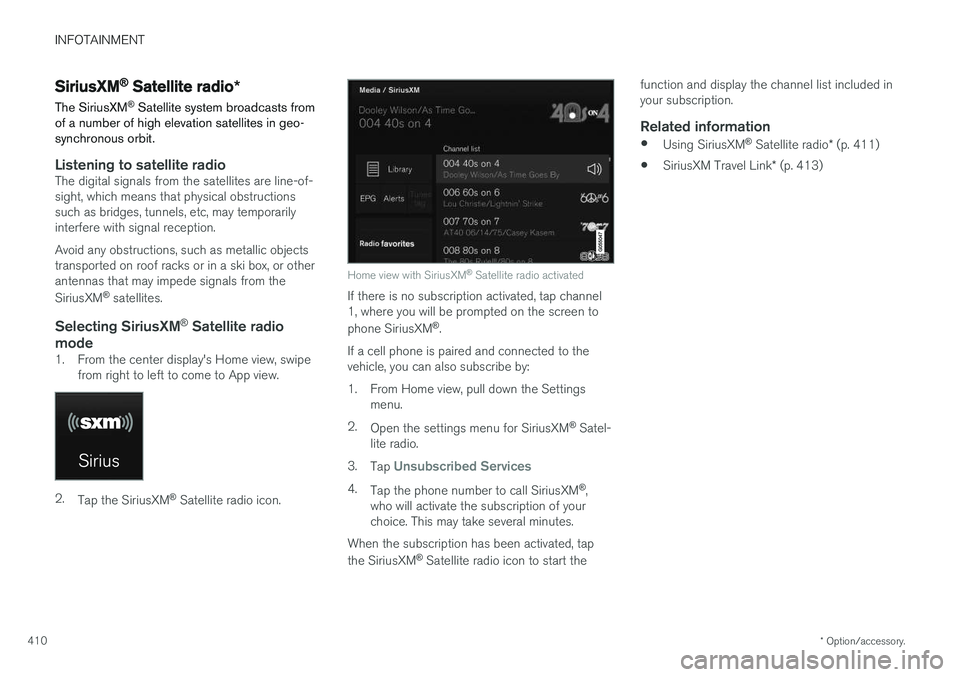
Home view with SiriusXM ®
Satellite radio activated
If there is no subscription activated, tap channel 1, where you will be prompted on the screen to phone SiriusXM ®
.
If a cell phone is paired and connected to the vehicle, you can also subscribe by:
1. From Home view, pull down the Settings menu.
2. Open the settings menu for SiriusXM ®
Satel-
lite radio.
3. Tap
Unsubscribed Services
4.
Tap the phone number to call SiriusXM ®
,
who will activate the subscription of your choice. This may take several minutes.
When the subscription has been activated, tap the SiriusXM ®
Satellite radio icon to start the function and display the channel list included in your subscription.
Related information
•
Using SiriusXM ®
Satellite radio * (p. 411)
• SiriusXM Travel Link
* (p. 413)
Page 414 of 560
||
INFOTAINMENT
* Option/accessory.
412
iTunes taggingFrom the center display's Top view, tapSiriusXM
Settings. Tap theiTunes Tagging menu. Tap
the iTunes Tagging box to activate/deactivate
this function and tap Close to return to Home
view. Tap Tags List to display a list of all tagged
songs. If the function is activated, the
iTunes tag button
will be displayed in Home view. If a song is played that you would like to buy in the iTunes store, tapthis button while the song is playing to tag it. If a song with
iTunes Tagging information is availa-
ble, the button will be selectable. Tap the button to tag the song. If you would like to buy a taggedsong via iTunes, Tap the iTunes tag button. To buy a song in iTunes, begin by connecting an iPhone/iPod/iPad to the USB socket in the tun-nel console. The iTunes tagging list will automati-cally be transferred to the device and removedfrom the list in the vehicle. If the device is con-nected when a song is tagged, the data will auto-matically be saved in the device. To purchase thesong, consult the iTunes support page.
Related information
• SiriusXM ®
Satellite radio * (p. 410)
• Using the center display keyboard (p. 31)
• SiriusXM ®
Satellite radio * settings (p. 412)
• Connecting a device via the AUX/USBsocket (p. 426)
SiriusXM ®
Satellite radio * settings
There are numerous settings that can be made to enhance your SiriusXM ®
Satellite radio listen-
ing experience.
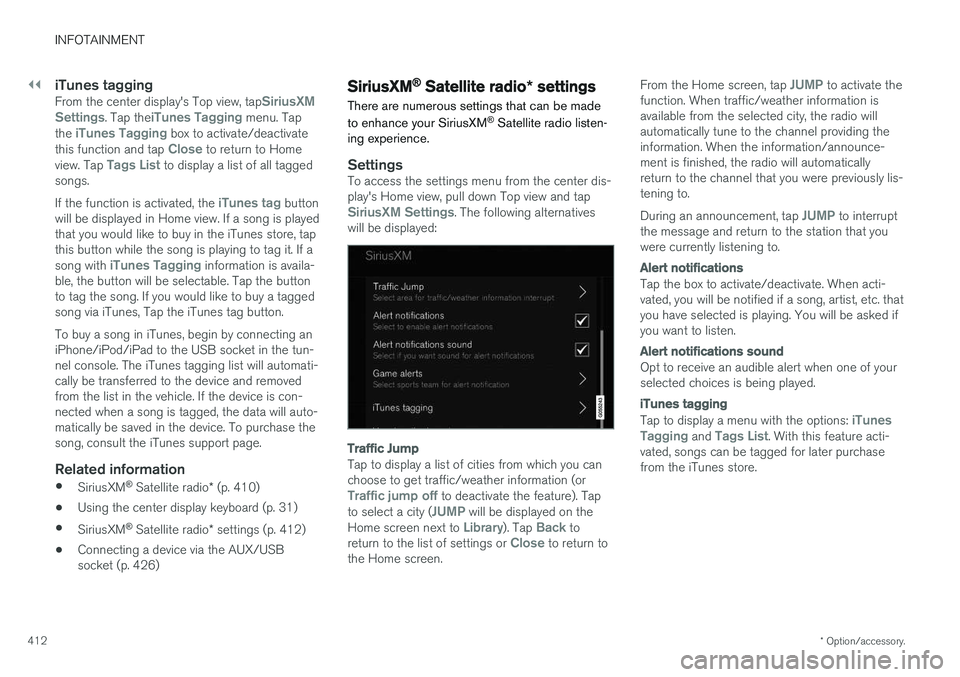
SettingsTo access the settings menu from the center dis- play's Home view, pull down Top view and tap
SiriusXM Settings. The following alternatives
will be displayed:
Traffic Jump
Tap to display a list of cities from which you can choose to get traffic/weather information (or
Traffic jump off to deactivate the feature). Tap
to select a city (JUMP will be displayed on the
Home screen next to Library). Tap Back to
return to the list of settings or Close to return to
the Home screen. From the Home screen, tap
JUMP to activate the
function. When traffic/weather information is available from the selected city, the radio willautomatically tune to the channel providing theinformation. When the information/announce-ment is finished, the radio will automaticallyreturn to the channel that you were previously lis-tening to. During an announcement, tap
JUMP to interrupt
the message and return to the station that you were currently listening to.
Alert notifications
Tap the box to activate/deactivate. When acti- vated, you will be notified if a song, artist, etc. thatyou have selected is playing. You will be asked ifyou want to listen.
Alert notifications sound
Opt to receive an audible alert when one of your selected choices is being played.
iTunes tagging
Tap to display a menu with the options: iTunes
Tagging and Tags List. With this feature acti-
vated, songs can be tagged for later purchase from the iTunes store.
Page 415 of 560
INFOTAINMENT
}}
* Option/accessory.413
Game Alerts
Tap to display a list of sports. Tap a sport to display a list of teams and tap a box on the right side of the screen to select ateam as a favorite. An alert will then be providedwhen information about the team is being broad-cast. Tap
Confirm below the list to return to the list of
sports. Tap
Back to return to the list of settings orClose to return to the main screen.
Unsubscribed services
If you have a SiriusXM ®
Satellite radio subscrip-
tion, any channels not included in the subscrip- tion will be listed here. Call SiriusXM ™ to sub-
scribe. The phone number will be shown on the screen. If a cell phone is paired and connected tothe vehicle, tap the phone number to make thecall.
Skipped stations
Tap to display a list of channels that you would like to skip (hide). Hide channels from the chan-nel list by tapping the boxes to the right of thescreen. Skipped (hidden) channels will not beshown in the channel list. However, a channelpreviously selected as a favorite will still be dis-played in the list of favorites, even it has beenadded to the skip list.
Skipped categories
Tap to display a list of categories. Tap a category to skip (hide) it. It will not be displayed in the listof categories.
Related information
• Using SiriusXM ®
Satellite radio * (p. 411)
• SiriusXM ®
Satellite radio * (p. 410)
SiriusXM Travel Link *
SiriusXM Travel Link is a feature offered by SiriusXM ®
Satellite radio * that can provide infor-
mation about e.g., weather forecasts, weather alerts, service stations, sports, etc. in the vicinityof the vehicle.
Starting SiriusXM Travel Link
NOTE
SiriusXM Travel Link services are only availa- ble in vehicles equipped with the SensusNavigation system.
From the center display
Page 416 of 560
||
INFOTAINMENT
* Option/accessory.
414 3.
Tap
Subscription Status.
> To subscribe, call the phone number listed on the screen.
Any services not subscribed will be grayed out and contain the text
Service not subscribed.
When the services have been activated (subscri- bed), tap the one of your choice to start it. The following applies for all of the SiriusXM Travel Link services:
• Pressing the
Back button will take you back
to the previous screen
• Pressing the
Close button will take you to
the SiriusXM Travel Link home screen.
NOTE
If the Close button is used to return to
SiriusXM Travel Link home screen, the follow- ing applies (the
Weather service is used here
as an example):
• If you have already used the
Weatherfunction, tapping Weather again in the
SiriusXM Travel Link home screen before using any other SiriusXM Travel Link service will return you to the
point where you left the
Weather service
• If another SiriusXM Travel Link service is used (e.g., Fuel, Sports, etc.) before you return to the
Weather service, you will be
returned to the default Weather view (in
this case, Local)
The same principle applies to all of the SiriusXM Travel Link services.
FavoritesMany SiriusXM Travel Link selections can be saved for easy access as favorites by tapping the"star" icon next to the selection where applicable. To display a list of your favorites, tap the
Favoriteapplication in the SiriusXM Travel Link home screen.
Related information
• SiriusXM ®
Satellite radio * (p. 410)
• Center display overview (p. 28) •
Navigating in the center display's views(p. 38)
• SiriusXM Travel Link - Weather (p. 415)
• SiriusXM Travel Link - Sports (p. 418)
• SiriusXM Travel Link - Alerts (p. 416)
• SiriusXM Travel Link - Fuel (p. 417)
Page 418 of 560
||
INFOTAINMENT
* Option/accessory.
416
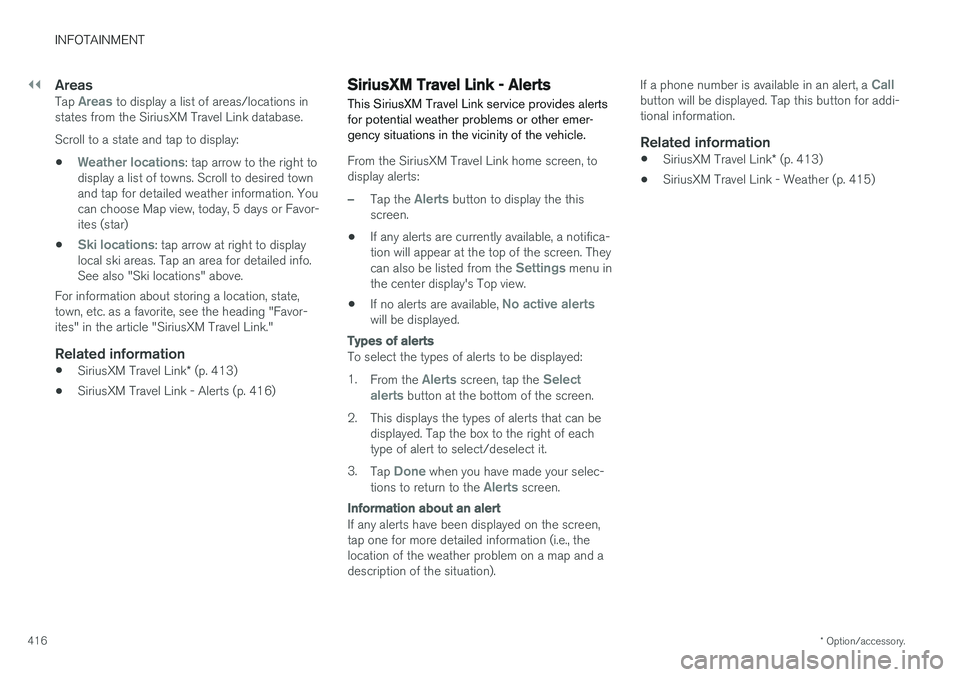
AreasTap Areas to display a list of areas/locations in
states from the SiriusXM Travel Link database. Scroll to a state and tap to display:
•
Weather locations: tap arrow to the right to
display a list of towns. Scroll to desired town and tap for detailed weather information. Youcan choose Map view, today, 5 days or Favor-ites (star)
•
Ski locations: tap arrow at right to display
local ski areas. Tap an area for detailed info. See also "Ski locations" above.
For information about storing a location, state,town, etc. as a favorite, see the heading "Favor-ites" in the article "SiriusXM Travel Link."
Related information
• SiriusXM Travel Link
* (p. 413)
• SiriusXM Travel Link - Alerts (p. 416)
SiriusXM Travel Link - Alerts This SiriusXM Travel Link service provides alerts for potential weather problems or other emer-gency situations in the vicinity of the vehicle.
From the SiriusXM Travel Link home screen, to display alerts:
–Tap the Alerts button to display the this
screen.
• If any alerts are currently available, a notifica- tion will appear at the top of the screen. They can also be listed from the
Settings menu in
the center display's Top view.
• If no alerts are available,
No active alertswill be displayed.
Types of alerts
To select the types of alerts to be displayed: 1.
From the
Alerts screen, tap the Select
alerts button at the bottom of the screen.
2. This displays the types of alerts that can be displayed. Tap the box to the right of each type of alert to select/deselect it.
3. Tap
Done when you have made your selec-
tions to return to the Alerts screen.
Information about an alert
If any alerts have been displayed on the screen, tap one for more detailed information (i.e., thelocation of the weather problem on a map and adescription of the situation). If a phone number is available in an alert, a
Callbutton will be displayed. Tap this button for addi- tional information.
Related information
•
SiriusXM Travel Link
* (p. 413)
• SiriusXM Travel Link - Weather (p. 415)
Page 421 of 560
INFOTAINMENT
419
Phone
A Bluetooth-enabled cell phone can be paired and connected to the vehicle's integrated hands-free system.
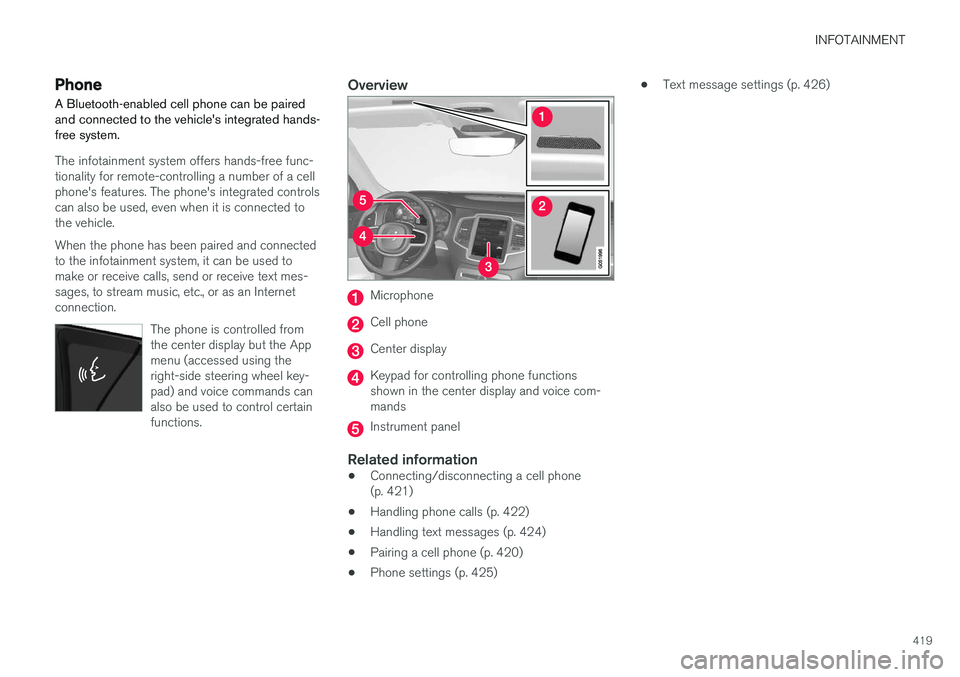
The infotainment system offers hands-free func- tionality for remote-controlling a number of a cellphone's features. The phone's integrated controlscan also be used, even when it is connected tothe vehicle. When the phone has been paired and connected to the infotainment system, it can be used tomake or receive calls, send or receive text mes-sages, to stream music, etc., or as an Internetconnection.
The phone is controlled fromthe center display but the Appmenu (accessed using theright-side steering wheel key-pad) and voice commands canalso be used to control certainfunctions.
Overview
Microphone
Cell phone
Center display
Keypad for controlling phone functions shown in the center display and voice com-mands
Instrument panel
Related information
•Connecting/disconnecting a cell phone (p. 421)
• Handling phone calls (p. 422)
• Handling text messages (p. 424)
• Pairing a cell phone (p. 420)
• Phone settings (p. 425) •
Text message settings (p. 426)