language VOLVO XC90 2018 Owner´s Manual
[x] Cancel search | Manufacturer: VOLVO, Model Year: 2018, Model line: XC90, Model: VOLVO XC90 2018Pages: 666, PDF Size: 11.32 MB
Page 139 of 666
DISPLAYS AND VOICE CONTROL
}}
137
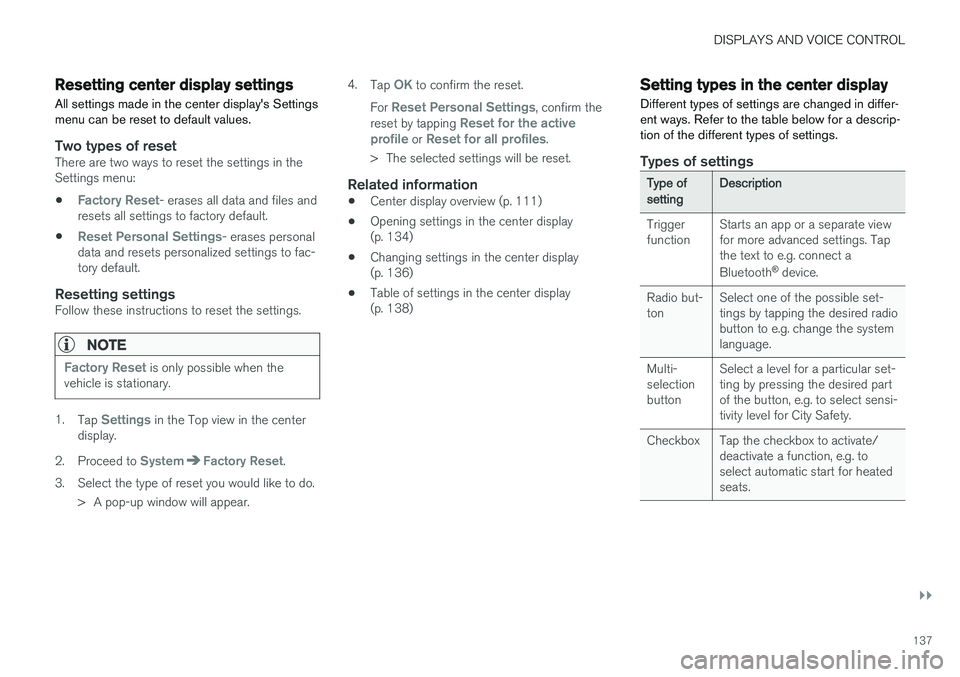
Resetting center display settingsAll settings made in the center display's Settings menu can be reset to default values.
Two types of resetThere are two ways to reset the settings in the Settings menu:
•
Factory Reset- erases all data and files and
resets all settings to factory default.
•
Reset Personal Settings- erases personal
data and resets personalized settings to fac- tory default.
Resetting settingsFollow these instructions to reset the settings.
NOTE
Factory Reset is only possible when the
vehicle is stationary.
1. Tap Settings in the Top view in the center
display.
2. Proceed to
SystemFactory Reset.
3. Select the type of reset you would like to do. > A pop-up window will appear. 4.
Tap
OK to confirm the reset.
For
Reset Personal Settings, confirm the
reset by tapping Reset for the active
profile or Reset for all profiles.
> The selected settings will be reset.
Related information
• Center display overview (p. 111)
• Opening settings in the center display (p. 134)
• Changing settings in the center display(p. 136)
• Table of settings in the center display(p. 138)
Setting types in the center display
Different types of settings are changed in differ- ent ways. Refer to the table below for a descrip-tion of the different types of settings.
Types of settings
Type ofsettingDescription
Trigger function Starts an app or a separate viewfor more advanced settings. Tapthe text to e.g. connect a Bluetooth
®
device.
Radio but- ton Select one of the possible set-tings by tapping the desired radiobutton to e.g. change the systemlanguage.
Multi-selectionbutton Select a level for a particular set-ting by pressing the desired partof the button, e.g. to select sensi-tivity level for City Safety.
Checkbox Tap the checkbox to activate/ deactivate a function, e.g. toselect automatic start for heatedseats.
Page 141 of 666
DISPLAYS AND VOICE CONTROL
}}
* Option/accessory.139
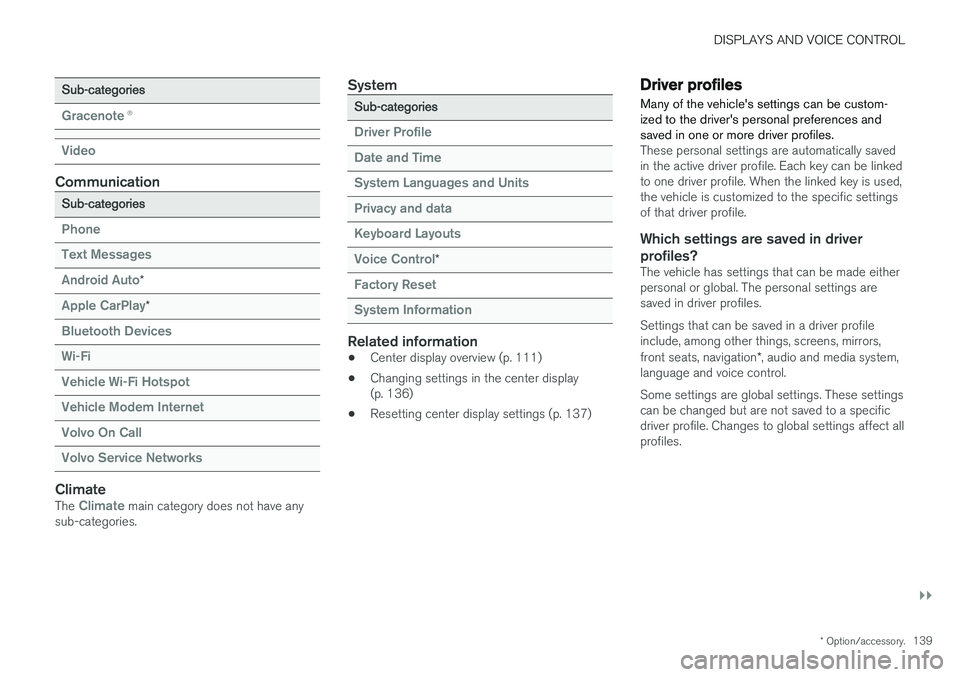
Sub-categories
Gracenote®
Video
Communication
Sub-categories
Phone Text Messages Android Auto
*
Apple CarPlay*
Bluetooth Devices Wi-FiVehicle Wi-Fi HotspotVehicle Modem Internet Volvo On Call Volvo Service Networks
ClimateThe Climate main category does not have any
sub-categories.
System
Sub-categories
Driver Profile Date and TimeSystem Languages and UnitsPrivacy and dataKeyboard Layouts Voice Control
*
Factory Reset System Information
Related information
• Center display overview (p. 111)
• Changing settings in the center display (p. 136)
• Resetting center display settings (p. 137)
Driver profiles
Many of the vehicle's settings can be custom- ized to the driver's personal preferences andsaved in one or more driver profiles.
These personal settings are automatically saved in the active driver profile. Each key can be linkedto one driver profile. When the linked key is used,the vehicle is customized to the specific settingsof that driver profile.
Which settings are saved in driver profiles?
The vehicle has settings that can be made eitherpersonal or global. The personal settings aresaved in driver profiles. Settings that can be saved in a driver profile include, among other things, screens, mirrors, front seats, navigation *, audio and media system,
language and voice control. Some settings are global settings. These settings can be changed but are not saved to a specificdriver profile. Changes to global settings affect allprofiles.
Page 142 of 666
||
DISPLAYS AND VOICE CONTROL
140
Global settings
Global settings and parameters do not change when driver profiles are changed. They remainthe same regardless of which driver profile is cur-rently active. Keyboard layout is an example of a global setting. If driver profile X is used to add additional key-board languages, these languages will also beavailable for driver profile Y. The settings for key-board layout are not saved to a specific driverprofile - the settings are global.
Personal settings
If driver profile X has been used to e.g., set the brightness for the center display, driver profile Ywill not be affected by this setting. It will only besaved to driver profile X because brightness set-ting is a personal setting.
Related information
•Selecting a driver profile (p. 140)
• Changing a driver profile's name (p. 141)
• Resetting driver profile settings (p. 141)
• Linking a remote key to a driver profile(p. 141)
• Table of settings in the center display(p. 138)
Selecting a driver profile When the center display starts up, the selected driver profile will be shown at the top of thescreen. The most recently used driver profile willbe active the next time the vehicle is unlocked. Adifferent driver profile can be selected once thevehicle has been unlocked. However, if theremote key has been linked to a driver profile,this profile will be used instead.
There are two options for switching between driver profiles. Option 1:
1. Tap the name of the driver profile shown at
the top of the center display when the dis- play starts up.
> A list will appear, showing driver profilesthat can be selected.
2. Select desired driver profile. 3. Tap
Confirm.
> The driver profile has now been selected and the system will load the settings stored in that profile.
Option 2:
1. Pull down Top view in the center display.2. Tap
Profile.
> The same list as in option 1 will be dis- played.
3. Select desired driver profile. 4.
Tap
Confirm.
> The driver profile has now been selected and the system will load the settings stored in that profile.
Related information
• Driver profiles (p. 139)
• Navigating in the center display's views(p. 117)
• Changing a driver profile's name (p. 141)
• Linking a remote key to a driver profile(p. 141)
Page 151 of 666
DISPLAYS AND VOICE CONTROL
* Option/accessory.149
Numbers
Number commands can be given in different ways depending on the function to be controlled: •Phone numbers and zip codes
should be
given by stating each number individually, e.g. zero three one two two four four three(03122443).
• Addresses
can be given by stating each
number individually or in a group, e.g. two twoor twenty-two (22). For English and Dutchlanguage settings, groups of numbers canalso be said in sequence, e.g. twenty-twotwenty-two (22 22). For English, double ortriple digits can also be used, e.g. doublezero (00). Numbers in the range 0-2300 canbe used.
• Frequencies
can be given as ninety-eight
point eight (98.8), one hundred four pointtwo, or hundred four point two (104.2).
Related information
• Voice control (p. 147)
• Voice control for cellular phones (p. 149)
• Voice control for radio and media (p. 150)
• Climate control system voice commands(p. 208)
• Voice control settings (p. 150)
Voice control for cellular phones21
Call a contact in the phone book, have a text message read aloud or dictate short messagesusing voice commands to a Bluetooth-con-nected phone.
To access a contact in the phone book, the voice command must contain the contact informationentered in the phone book. If a contact, e.g.
Robyn Smith, has several phone numbers listed
in the phone book, a number category such as
home or cellular can also be specified, i.e. "Call
Robyn Smith cellular".
Tap
and say one of the following commands:
• "
Call [contact]" - call the selected contact
from the phone book.
• "
Call [phone number]" - call a phone num-
ber.
• "
Recent calls" - display the list of recent
calls.
• "
Read message" - read a text message
aloud. If there are several messages, select the message to read aloud.
• "
Message to [contact]" - the user is
prompted to dictate a short message. The message will then be read aloud and the user can choose to send 22
or re-dictate the
message. The vehicle must be connected to the Internet to access this function.
Related information
• Voice control (p. 147)
• Using voice commands (p. 148)
• Voice control for radio and media (p. 150)
• Climate control system voice commands(p. 208)
• Voice control settings (p. 150)
• Internet-connected vehicle
* (p. 507)
21
Certain markets only.
22 Only certain phones can send messages via the vehicle. For additional information on compatibility, see support.volvocars.com.
Page 152 of 666
DISPLAYS AND VOICE CONTROL
* Option/accessory.
150
Voice control for radio and media23
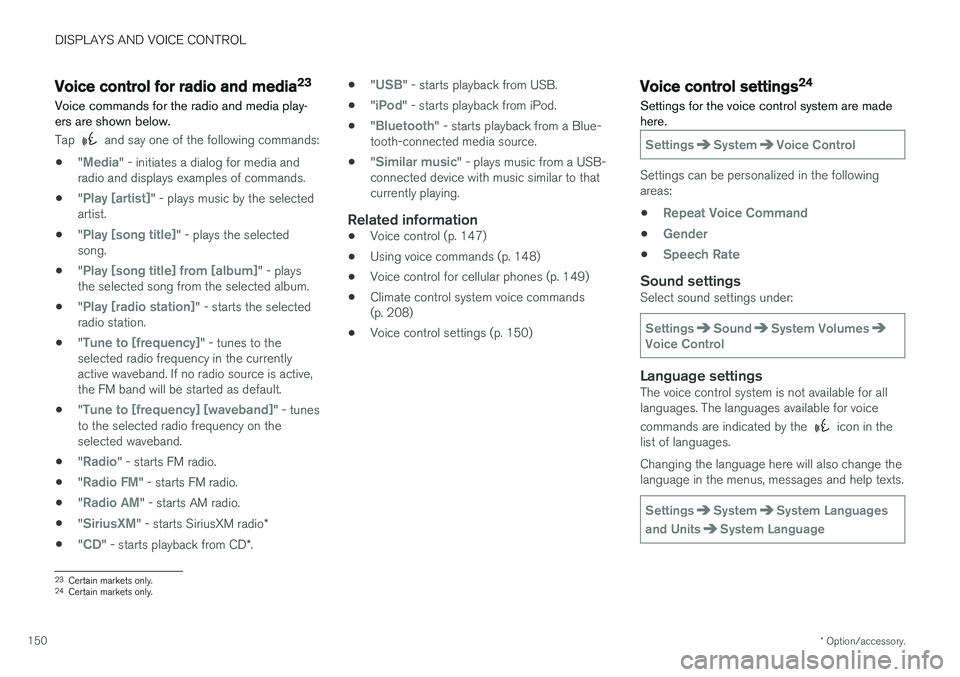
Voice commands for the radio and media play- ers are shown below.
Tap and say one of the following commands:
• "
Media" - initiates a dialog for media and
radio and displays examples of commands.
• "
Play [artist]" - plays music by the selected
artist.
• "
Play [song title]" - plays the selected
song.
• "
Play [song title] from [album]" - plays
the selected song from the selected album.
• "
Play [radio station]" - starts the selected
radio station.
• "
Tune to [frequency]" - tunes to the
selected radio frequency in the currently active waveband. If no radio source is active,the FM band will be started as default.
• "
Tune to [frequency] [waveband]" - tunes
to the selected radio frequency on the selected waveband.
• "
Radio" - starts FM radio.
• "
Radio FM" - starts FM radio.
• "
Radio AM" - starts AM radio.
• "
SiriusXM" - starts SiriusXM radio
*
• "
CD" - starts playback from CD
*. •
"
USB" - starts playback from USB.
• "
iPod" - starts playback from iPod.
• "
Bluetooth" - starts playback from a Blue-
tooth-connected media source.
• "
Similar music" - plays music from a USB-
connected device with music similar to that currently playing.
Related information
• Voice control (p. 147)
• Using voice commands (p. 148)
• Voice control for cellular phones (p. 149)
• Climate control system voice commands(p. 208)
• Voice control settings (p. 150)
Voice control settings24
Settings for the voice control system are made here.
SettingsSystemVoice Control
Settings can be personalized in the following areas:
•
Repeat Voice Command
•Gender
•Speech Rate
Sound settingsSelect sound settings under:
SettingsSoundSystem VolumesVoice Control
Language settingsThe voice control system is not available for all languages. The languages available for voice commands are indicated by the
icon in the
list of languages. Changing the language here will also change the language in the menus, messages and help texts.
SettingsSystemSystem Languages
and Units
System Language
23 Certain markets only.
24 Certain markets only.
Page 153 of 666
DISPLAYS AND VOICE CONTROL
151
Related information
•Voice control (p. 147)
• Using voice commands (p. 148)
• Voice control for cellular phones (p. 149)
• Climate control system voice commands (p. 208)
• Voice control for radio and media (p. 150)
• Sound settings (p. 464)
• Changing system language (p. 134)
Page 493 of 666
AUDIO, MEDIA AND INTERNET
491
Video settingsSome video playback settings can be adjusted, e.g. language.
The following can be adjusted by opening Top view and tapping
SettingsVideo or with the
video player in full-screen mode: Audio
Language, Off and Subtitle Language.
Related information
• Video (p. 490)
Streaming media via Bluetooth®
The vehicle's media player is equipped with Bluetooth and can play audio files fromBluetooth-enabled external devices such as cel-lular phones and tablets.
In order for the media player to be able to wire- lessly play audio files from an external device, thedevice must be connected to the vehicle viaBluetooth.
Related information
• Connecting a device via Bluetooth ®
(p. 491)
• Connecting a phone to the car via Bluetoothfor the first time (p. 499)
• Playing media (p. 486)
• Compatible file formats for media (p. 514)
Connecting a device via Bluetooth®
Connect a Bluetooth ®
device to the vehicle to
wirelessly play media and give the vehicle an Internet connection if it is available.
Many cellular phones on the market currently offer wireless Bluetooth ®
technology, but not all
phones are fully compatible with the vehicle. For additional information on compatibility, seesupport.volvocars.com. The procedure for connecting a media device is the same as for connecting a cellular phone to the vehicle via Bluetooth ®
.
Related information
• Streaming media via Bluetooth ®
(p. 491)
• Connecting a phone to the car via Bluetooth for the first time (p. 499)
• Playing media (p. 486)
Page 657 of 666
INDEX
655
IntelliSafe
driver support 28
Interior Air Quality System 210
Intermittent wiping 180
Internet, see Internet-connected vehicle 507
Internet-connected vehicle 507 book service and repair 580
No connection or poor connection 512
send car data 582
system updates 579
iPod ®, connecting 492
ISOFIX/LATCH anchors 74
J
Jack 543
Jump-start 447
K
Key 237
Keyboard 128, 131 change language 131
Keylesslocking/unlocking 252
settings 254
touch-sensitive surfaces 251
Key tag 237
L
Labels location of 636
Laminated glass 170 Lamps changing 591
location 594
specifications 597
Trailer 452
Lane Keeping Aid operation 365
Lane Keeping Aid (LKA) 362, 364, 365, 367, 369
Language 134
Leather upholstery, cleaning instructions 618
Leveling control 432 settings 435
License agreement 98, 517
Lifting tools 543
Light bulbs, specifications 597
Light control 154, 167Lighting Active Bending Lights 161
approach lighting 164
automatic high beam 159automatic lighting controls, passenger
compartment 165
brake lights 163
controls 154, 165, 167
cornering illumination 162
daytime running lights 156
display lighting 167
emergency brake lights 163
front fog lights 161
Hazard warning flashers 164
high beams 158, 159
home safe lighting 164
in passenger compartment 165, 167
instrument illumination 167
instrument lighting 167
light bulbs, specifications 597
light locations 594
low beams 157
position lights 156
rear fog light 162
settings 155
Turn signals 160