bluetooth VOLVO XC90 2018 Owner´s Manual
[x] Cancel search | Manufacturer: VOLVO, Model Year: 2018, Model line: XC90, Model: VOLVO XC90 2018Pages: 666, PDF Size: 11.32 MB
Page 505 of 666
AUDIO, MEDIA AND INTERNET
}}
503
Removing a Bluetooth-connectedphone
Phones in the list of registered Bluetooth devi- ces can be removed.
1. Tap Settings in the Top view.
2. Tap
CommunicationBluetooth
Devices.
> A list of registered Bluetooth devices is displayed.
3. Tap the name of the phone you would like to remove.
4. Tap
Remove device and confirm.
> The phone is no longer registered in the vehicle.
Related information
• Phone (p. 498)
• Connecting a phone to the car via Bluetooth for the first time (p. 499)
• Disconnecting a Bluetooth-connected phone(p. 502)
• Switch between phones connected via Blue-tooth (p. 502)
• Settings for Bluetooth devices (p. 507)
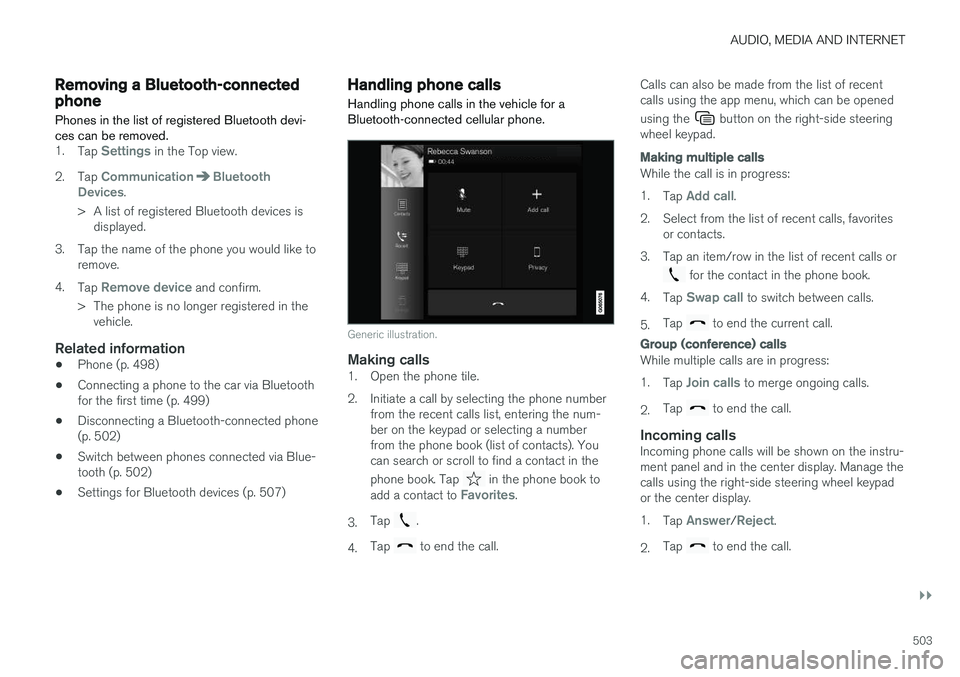
Handling phone calls Handling phone calls in the vehicle for a Bluetooth-connected cellular phone.
Generic illustration.
Making calls1. Open the phone tile.
2. Initiate a call by selecting the phone number
from the recent calls list, entering the num- ber on the keypad or selecting a numberfrom the phone book (list of contacts). Youcan search or scroll to find a contact in the phone book. Tap
in the phone book to
add a contact to Favorites.
3. Tap
.
4. Tap
to end the call. Calls can also be made from the list of recent calls using the app menu, which can be opened using the
button on the right-side steering
wheel keypad.
Making multiple calls
While the call is in progress: 1. Tap
Add call.
2. Select from the list of recent calls, favorites or contacts.
3. Tap an item/row in the list of recent calls or
for the contact in the phone book.
4. Tap
Swap call to switch between calls.
5. Tap
to end the current call.
Group (conference) calls
While multiple calls are in progress: 1.
Tap
Join calls to merge ongoing calls.
2. Tap
to end the call.
Incoming callsIncoming phone calls will be shown on the instru- ment panel and in the center display. Manage thecalls using the right-side steering wheel keypador the center display. 1.
Tap
Answer/Reject.
2. Tap
to end the call.
Page 506 of 666
||
AUDIO, MEDIA AND INTERNET
504
Incoming calls while another call is in
progress
1.Tap Answer/Reject.
2. Tap
to end the call.
Privacy
–While a call is in progress, tap Privacy and
select setting:
•
Switch to mobile phone - the hands-
free function will be disabled and the call will proceed on the cellular phone.
•
Driver focused - the microphone in the
ceiling liner on the passenger side will be muted and the call will proceed using thevehicle's hands-free function.
Related information
• Phone (p. 498)
• Connecting a phone to the car via Bluetoothfor the first time (p. 499)
• Voice control for cellular phones (p. 149)
• Handling the App menu in the instrumentpanel (p. 105)
• Entering characters, letters and words byhand in the center display (p. 131)
• Managing the phone book (p. 505)
• Handling text messages (p. 504)
• Sound settings (p. 464)
Handling text messages
A Bluetooth-connected cellular phone's text messages can be handled in the vehicle.
Text message functionality needs to be activated in certain phones. Not all phones are fully com-patible and therefore cannot display contacts andmessages in the vehicle. For additional informa-tion on compatibility, see support.volvocars.com.
Handling text messages in the center
display
Text messages are only shown in the center dis-play if the relevant setting is made.
Tap
Messages in App view to
handle text messages in the center display.
NOTE
When the vehicle is moving:
• Only one row of the message will be dis- played. Tap
Read out to have the entire
message read aloud.
• The center display's keyboard cannot be used.
Reading text messages in the center display
Tap the icon to have the message read aloud.
Sending text messages in the center
display10
1. It is possible to reply to text messages or
create a new message.
• To reply to a text message - tap the name of the contact who sent the message and then tap
Answer.
• To create a new message - tap
Create
new. Select a contact or enter a phone
number.
2. Write the message. 3. Tap
Send.
Handling test messages in the instrument panel
Text messages are only shown in the instrument panel if the relevant setting is made.
Reading new text messages in the
instrument panel
–To have the message read aloud, selectRead out using the steering wheel keypad.
10
Only certain phones can send messages via the vehicle. For additional information on compatibility, see support.volvocars.com.
Page 507 of 666
AUDIO, MEDIA AND INTERNET
}}
* Option/accessory.505
Dictating replies in the instrument panel
After the test message has been read aloud, it is possible to answer briefly with dictation if thevehicle has an Internet connection.
–Tap Answer using the steering wheel key-
pad. A dictation dialog will start.
Message notificationNotifications can be activated and deactivated in the text message settings.
Related information
• Phone (p. 498)
• Text message settings (p. 505)
• Phone settings (p. 506)
• Internet-connected vehicle
* (p. 507)
• Voice control for cellular phones (p. 149)
• Entering characters, letters and words byhand in the center display (p. 131)
• Connecting a phone to the car via Bluetoothfor the first time (p. 499)
Text message settings
Settings for handling text messages received through a connected phone can be personal-ized.
1. Tap Settings in the Top view.
2. Tap
CommunicationText Messagesand select settings: •
Notification in center display - display
text message notifications in the center display's status bar.
•
Notification in driver display - displays
notifications in the driver's display and incoming messages can be managedusing the steering wheel's right-hand key-pad.
•
Text message tone - select tone for
incoming text messages.
Related information
• Phone (p. 498)
• Connecting a phone to the car via Bluetooth for the first time (p. 499)
• Handling text messages (p. 504)
• Phone settings (p. 506)
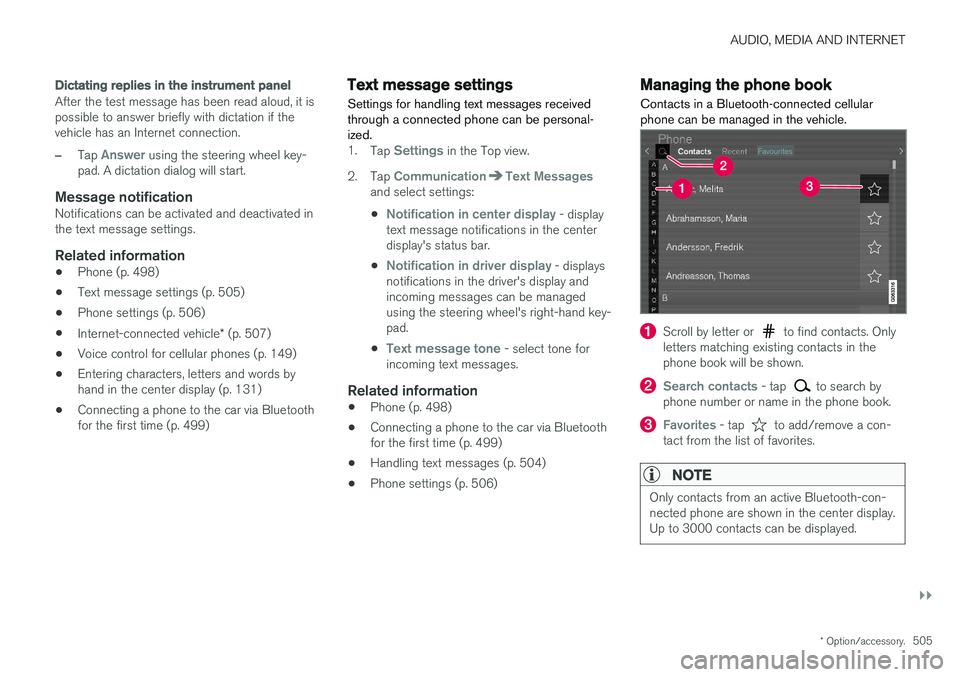
Managing the phone book
Contacts in a Bluetooth-connected cellular phone can be managed in the vehicle.
Scroll by letter or to find contacts. Only
letters matching existing contacts in the phone book will be shown.
Search contacts - tap to search by
phone number or name in the phone book.
Favorites - tap to add/remove a con-
tact from the list of favorites.
NOTE
Only contacts from an active Bluetooth-con- nected phone are shown in the center display.Up to 3000 contacts can be displayed.
Page 508 of 666
||
AUDIO, MEDIA AND INTERNET
* Option/accessory.
506
Sorting
The phone book is sorted in alphabetical order and special characters and numbers are sorted under
. The list can be sorted by either first
name or last name. This is adjusted in your cellu- lar phone settings.
Related information
• Phone (p. 498)
• Phone settings (p. 506)
• Voice control for cellular phones (p. 149)
• Entering characters, letters and words byhand in the center display (p. 131)
• Connecting a phone to the car via Bluetoothfor the first time (p. 499)
Phone settings
When the phone is connected to the car, the fol- lowing settings can be made:
1. Tap Settings in the Top view.
2. Tap
CommunicationPhone and select
settings:
•
Ringtones - select a ring tone. Ring
tones from the cellular phone or the vehi- cle can be used. Some phones are notfully compatible and it may not be possi-ble to use the phone's ring tones in thevehicle. For additional information oncompatibility, see support.volvocars.com.
•
Sort order - select sort order in the con-
tact list.
Call notifications in head up display *1.
Tap Settings in the center display's Top
view.
2. Tap
My CarDisplaysHead-Up
Display Options.
3. Select
Show Phone.
Related information
• Phone (p. 498)
• Text message settings (p. 505)
• Settings for Bluetooth devices (p. 507) •
Connecting a phone to the car via Bluetooth for the first time (p. 499)
• Head-up display
* (p. 144)
• Sound settings (p. 464)
Page 509 of 666
AUDIO, MEDIA AND INTERNET
}}
* Option/accessory.507
Settings for Bluetooth devices
Settings for Bluetooth-connected devices.
1. Tap Settings in the Top view.
2. Tap
CommunicationBluetooth
Devices and select settings:
•
Add device - start the procedure for pairing
a new device.
•
Previously paired devices - list con-
nected/paired devices.
•
Remove device - remove a connected
device.
•
Allowed services for this device - select
what the device will be used for: making calls, sending/receiving messages, stream-ing media, Internet connection.
•
Internet connection connect the vehicle to
the Internet using the device's Bluetooth connection.
Bluetooth ®
declaration of conformityUSA FCC CAUTION Changes or modifications not expressly approved by the party responsible for compliance couldvoid the user's authority to operate the equip-ment. This transmitter must not be co-located oroperated in conjunction with any other antennaor transmitter. Canada This device complies with Industry Canada license-exempt RSS standard(s). Operation issubject to the following two conditions: (1) this device may not cause interference, and(2) this device must accept any interference, including interference that may cause undesiredoperation of the device.
Related information
•
Phone (p. 498)
• Phone settings (p. 506)
• Internet-connected vehicle
* (p. 507)
• Connecting a phone to the car via Bluetoothfor the first time (p. 499)
Internet-connected vehicle
*
When the vehicle is connected to the Internet, it is possible to use web radio and music servicesvia apps, download software and contact retail-ers from the vehicle.
The vehicle can be connected to the Internet using Bluetooth, Wi-Fi or the vehicle's integratedmodem.
Page 510 of 666
||
AUDIO, MEDIA AND INTERNET
508When the vehicle is connected to the Internet, other devices may share the vehicle's Internet connection (Wi-Fi hotspot)
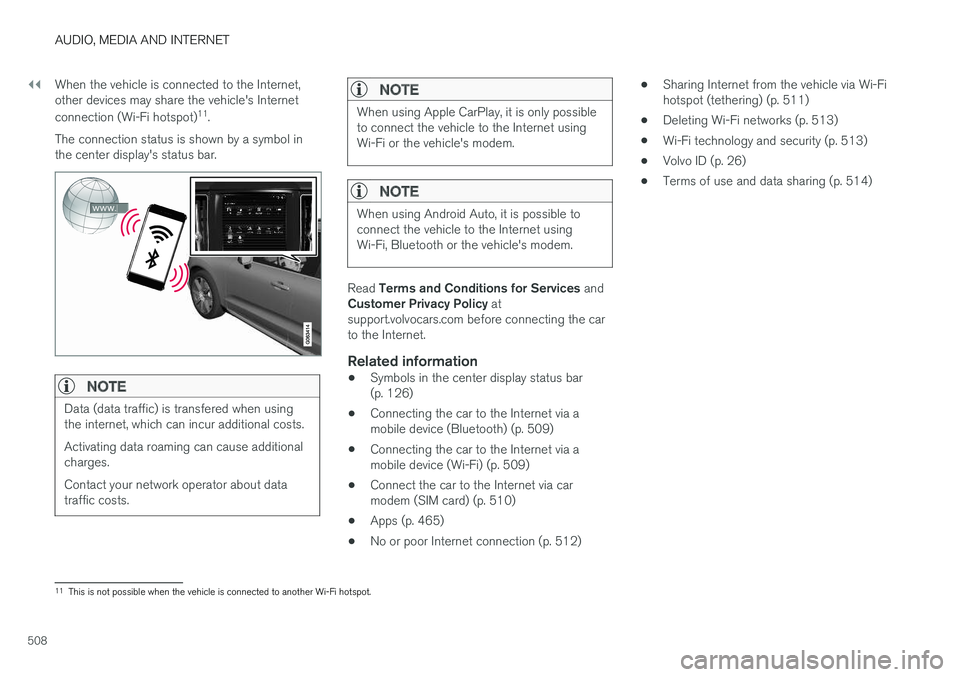
11
.
The connection status is shown by a symbol in the center display's status bar.
NOTE
Data (data traffic) is transfered when using the internet, which can incur additional costs. Activating data roaming can cause additional charges. Contact your network operator about data traffic costs.
NOTE
When using Apple CarPlay, it is only possible to connect the vehicle to the Internet usingWi-Fi or the vehicle's modem.
NOTE
When using Android Auto, it is possible to connect the vehicle to the Internet usingWi-Fi, Bluetooth or the vehicle's modem.
Read Terms and Conditions for Services and
Customer Privacy Policy at
support.volvocars.com before connecting the car to the Internet.
Related information
• Symbols in the center display status bar(p. 126)
• Connecting the car to the Internet via amobile device (Bluetooth) (p. 509)
• Connecting the car to the Internet via amobile device (Wi-Fi) (p. 509)
• Connect the car to the Internet via carmodem (SIM card) (p. 510)
• Apps (p. 465)
• No or poor Internet connection (p. 512) •
Sharing Internet from the vehicle via Wi-Fihotspot (tethering) (p. 511)
• Deleting Wi-Fi networks (p. 513)
• Wi-Fi technology and security (p. 513)
• Volvo ID (p. 26)
• Terms of use and data sharing (p. 514)
11
This is not possible when the vehicle is connected to another Wi-Fi hotspot.
Page 511 of 666
AUDIO, MEDIA AND INTERNET
}}
* Option/accessory.509
Connecting the car to the Internetvia a mobile device (Bluetooth)
Establish an Internet connection using Bluetooth and tethering from a phone and get access tomultiple connected services in your vehicle.
The phone and the network service provider must support Internet sharing (tethering) and the sub-scription must include data transfer.
1. To connect the vehicle to the Internet via a Bluetooth-connected phone, the phone must first be paired with the vehicle via Bluetooth.Ensure that the personal hotspot (portable/personal hotspot) is activated in your phone.
2. If the phone has been connected via Blue- tooth previously, tap
Settings in the center
display's Top view.
3. In the center display: Tap
Communication
Bluetooth Devices.
4. Mark the window for
Bluetooth Internet
connection under the heading Internet
connection.
> Your vehicle is now connected to the Internet via your Bluetooth-connected phone.
NOTE
When using Apple CarPlay, it is only possible to connect the vehicle to the Internet usingWi-Fi or the vehicle's modem.
Related information
• Internet-connected vehicle
* (p. 507)
• Connect the car to the Internet via car modem (SIM card) (p. 510)
• Connecting a phone to the car via Bluetoothfor the first time (p. 499)
• Connecting the car to the Internet via amobile device (Wi-Fi) (p. 509)
• Apple ®
CarPlay ®
* (p. 493)
• No or poor Internet connection (p. 512)
• Settings for Bluetooth devices (p. 507)
Connecting the car to the Internetvia a mobile device (Wi-Fi)
Establish an Internet connection via Wi-Fi tether- ing from a phone and get access to multipleconnected services in your vehicle.
The phone and the network service provider must support Internet sharing (tethering) and the sub-scription must include data transfer.
1. Activate Internet sharing (personal hotspot) in the phone.
2. Tap
Settings in the Top view.
3. Proceed to
CommunicationWi-Fi.
4. Activate/deactivate by tapping to check/ uncheck the Wi-Fi box.
5. Tap the name of the network you would like to connect.
6. Enter the network password.
7. If a different connection was used previously, confirm the connection change.
> The vehicle will connect to the network.
Please note that certain cellular phones will disa- ble Internet sharing (tethering) when the connec-
Page 652 of 666
INDEX
650
B
Backrestfront seat, adjusting 188, 189, 192, 193 , 194
rear seat, adjusting 200, 201
rear seat, folding 196, 201, 202
Battery jump-start 447
Maintenance 598
start 598
support 601
symbols on the battery 602
warning symbols 602
BLIS 346, 347, 348, 349 Blower adjusting 228, 229
air distribution 212
air vents 213
Bluetooth connect 491
connecting vehicle to Internet 509
phone 498
settings 507
Book service and repair 580
Booster cushions 71 Brake assist after collision 417
Brake fluid
grade 645
Brake functions 408
Brake light 163
Brakes 409 anti-lock brakes, ABS 409
automatic when stationary 415
Brake Assist System, BAS 410
brake lights 163
brake system 408
emergency brake lights 163
handbrake 411
Maintenance 411
on salted roads 411
on wet roads 410
brake system fluid 645
C
Camera sensor 342
Camera unit 329
Capacity weight 556, 641
Cargo compartment 564
attachment points 567
cargo net 571
electrical outlet 560, 562
Lighting 166
Cargo compartment cover 567, 568
cargo net 571
Car wash 620, 621, 623, 624, 625, 626
Catalytic converter 445 recovery 453
CD player 489
Cell phone, see Phone 499
Center console 559Center display change appearance 133
cleaning 615
climate controls 217
Function view 124
keyboard 128
messages 142, 143, 144
operation 114, 117, 121, 126
overview 111
settings 134, 135, 136
switch off and change volume 133
symbols in status bar 126
views 117
Central locking 255
Change of owner 136
Changing a wheel 542
Checking engine oil level 589
Page 653 of 666
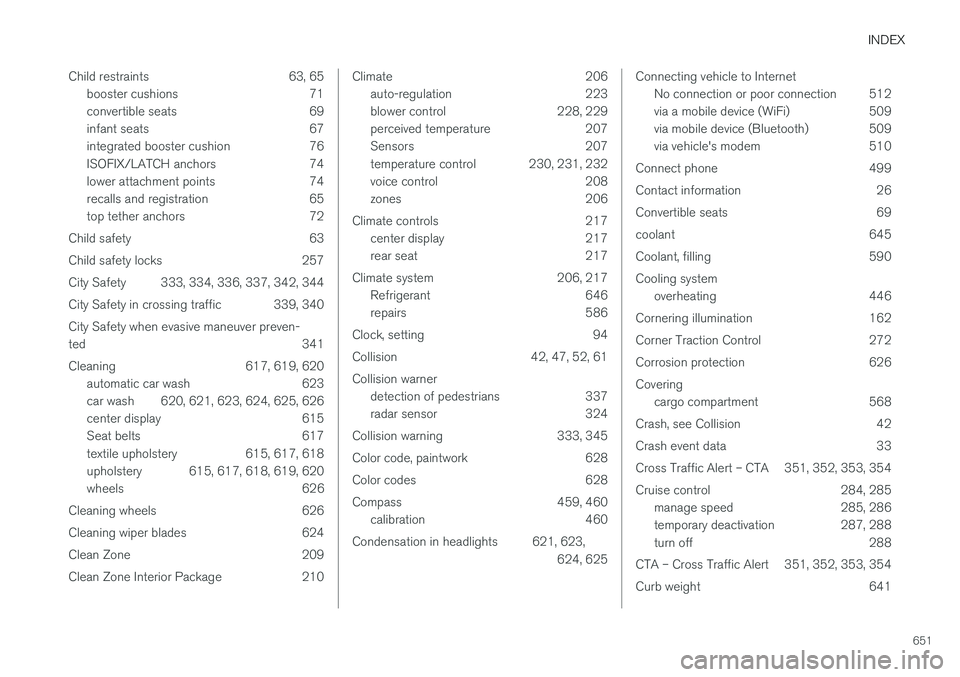
INDEX
651
Child restraints 63, 65
booster cushions 71
convertible seats 69
infant seats 67
integrated booster cushion 76
ISOFIX/LATCH anchors 74
lower attachment points 74
recalls and registration 65
top tether anchors 72
Child safety 63
Child safety locks 257
City Safety 333, 334, 336, 337, 342, 344
City Safety in crossing traffic 339, 340 City Safety when evasive maneuver preven- ted 341
Cleaning 617, 619, 620 automatic car wash 623
car wash 620, 621, 623, 624, 625, 626
center display 615
Seat belts 617
textile upholstery 615, 617, 618
upholstery 615, 617, 618, 619, 620
wheels 626
Cleaning wheels 626
Cleaning wiper blades 624
Clean Zone 209
Clean Zone Interior Package 210
Climate 206 auto-regulation 223
blower control 228, 229
perceived temperature 207
Sensors 207
temperature control 230, 231, 232
voice control 208
zones 206
Climate controls 217 center display 217
rear seat 217
Climate system 206, 217 Refrigerant 646
repairs 586
Clock, setting 94
Collision 42, 47, 52, 61 Collision warner detection of pedestrians 337
radar sensor 324
Collision warning 333, 345
Color code, paintwork 628
Color codes 628
Compass 459, 460 calibration 460
Condensation in headlights 621, 623, 624, 625Connecting vehicle to InternetNo connection or poor connection 512
via a mobile device (WiFi) 509
via mobile device (Bluetooth) 509
via vehicle's modem 510
Connect phone 499
Contact information 26
Convertible seats 69
coolant 645
Coolant, filling 590 Cooling system overheating 446
Cornering illumination 162
Corner Traction Control 272
Corrosion protection 626Covering cargo compartment 568
Crash, see Collision 42
Crash event data 33
Cross Traffic Alert – CTA 351, 352, 353, 354
Cruise control 284, 285 manage speed 285, 286
temporary deactivation 287, 288
turn off 288
CTA – Cross Traffic Alert 351, 352, 353, 354
Curb weight 641