light VOLVO XC90 T8 2016 Owner´s Manual
[x] Cancel search | Manufacturer: VOLVO, Model Year: 2016, Model line: XC90 T8, Model: VOLVO XC90 T8 2016Pages: 546, PDF Size: 10.26 MB
Page 249 of 546
LOCKS AND ALARM
}}
* Option/accessory, for more information, see Introduction.247
–Press the button14
on the lower edge of
the tailgate.
> The tailgate will close automatically but will not be locked .
–Press the button14
on the lower edge of
the tailgate.
> The tailgate will close automatically. The tailgate and doors will also be locked and
the alarm will be armed.
If the remote key is not close enough to the tail- gate, automatic locking/unlocking/opening/clos-ing will not be possible. Three short audible sig-nals will sound.
Interrupting opening/closing
–This can be done in five ways: • Press the button on the lighting panel
• Press the button on the remote key
• Press either of the buttons on the lower edge of the tailgate
• Press lightly on the rubber-covered buttonunder the tailgate's outside handle
• Move your foot under a sensor beneath the rear bumper
*
> The tailgate will stop moving
Programming the tailgate's maximum opening angle
The tailgate's maximum opening angle can be programmed, for example, if the tailgate has to beopened in a garage with a low ceiling. Programming the opening angle:
–Open the tailgate manually to the desired angle and press and hold the closing buttonon the tailgate's lower edge for at least 3seconds. Release the tailgate.
> Two audible signals will sound to indicate that the selected opening angle has been stored.
Erasing tailgate programming
–Open the tailgate manually to its highest position and press and hold the closing but-ton on the tailgate's lower edge for at least 3seconds. Release the tailgate.
> Two audible signals will sound to indicate that the programmed opening angle has been erased.
NOTE
If the tailgate has been opened and closed continuously too long, the automatic functionwill be deactivated to avoid overloading theelectrical system. The automatic function canbe used again after approximately 2 minutes. If the vehicle's battery has been discharged or disconnected, or if the tailgate has been openfor more than 24 hours, the tailgate must beopened and closed once manually to resetthe system.
Pinch protectionIf the tailgate is obstructed when being opened/ closed, a pinch protection mechanism is acti-vated.
• While opening: the tailgate will stop moving and an audible signal will sound.
• While closing: the tailgate will stop andreturn to the maximum programmable open-ing position. An audible signal will sound.
WARNING
Be sure that no one is near the tailgate when it is opened or closed automatically. The tail-gate should never be obstructed in any waywhen it is operated.
14
Models equipped with the optional Passive Entry system have a button to close the tailgate and a button to close and lock the tailgate.
Page 254 of 546
DRIVER SUPPORT
* Option/accessory, for more information, see Introduction.
252
Driver support systems
The vehicle is equipped with a number of driver support systems that help provide the driver withactive/passive support.
Some of these systems are standard while others are optional and they are designed to e.g., helpthe driver maintain a set speed or a set distanceto a vehicle ahead, or warn the driver of a poten-tial collision situation and in certain cases applythe brakes if necessary. Certain optional systemscan also assist in various parking situations.
Related information
• Adjustable steering force
* (p. 323)
• Electronic Stability Control (ESC) (p. 323)
• Speed limiter (SL)
* (p. 298)
• Cruise Control (CC) (p. 261)
• Adaptive Cruise Control (ACC)
* (p. 266)
• Pilot Assist
* (p. 273)
• Distance Alert
* (p. 329)
• City Safety
™ (p. 287)
• Blind Spot Information (BLIS)
* (p. 330)
• Cross Traffic Alert (CTA)
* (p. 333)
• Driver Alert Control (DAC) (p. 327)
• Driving lane assistance (p. 338)
• Road Sign Information (RSI)
* (p. 304)
• Park Assist
* (p. 306)
• Park Assist Pilot (PAP)
* (p. 316) •
Park Assist Camera (PAC)
* (p. 311)
Driver support system camera
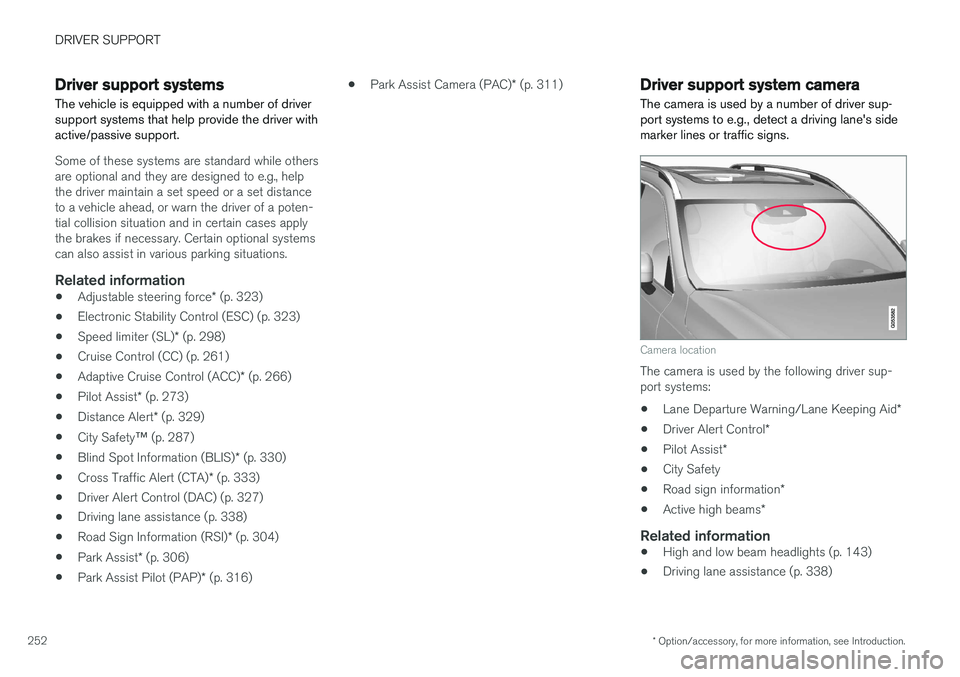
The camera is used by a number of driver sup- port systems to e.g., detect a driving lane's sidemarker lines or traffic signs.
Camera location
The camera is used by the following driver sup- port systems:
• Lane Departure Warning/Lane Keeping Aid
*
• Driver Alert Control
*
• Pilot Assist
*
• City Safety
• Road sign information
*
• Active high beams
*
Related information
•High and low beam headlights (p. 143)
• Driving lane assistance (p. 338)
Page 256 of 546
DRIVER SUPPORT
254
Camera limitations
The camera used by several of the driver support systems has certain limitations, which also affectthe systems using it.
Reduced visibility
WARNING
• The camera has the same limitations as the human eye. In other words, its “visionis impaired” by adverse weather condi-tions such as heavy snowfall, dense fog,etc. These conditions may reduce thefunction of systems that depend on thecamera or cause these systems to tem-porarily stop functioning.
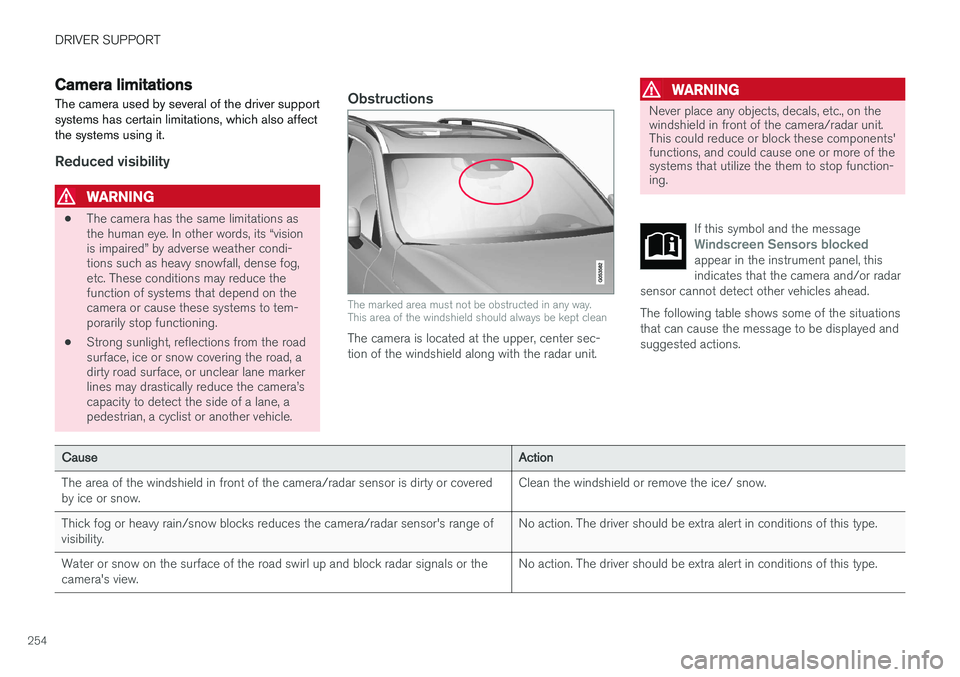
• Strong sunlight, reflections from the roadsurface, ice or snow covering the road, adirty road surface, or unclear lane markerlines may drastically reduce the camera
Page 257 of 546
DRIVER SUPPORT
}}
255
CauseAction
There is dirt between the inside of the windshield and the camera/radar sensor.Have the area of the windshield cleaned by a trained and qualified Volvo service technician.
Strong backlightingNo action required. The came will reset automatically when lighting conditions improve.
High temperaturesIf the temperature in the passenger compartment is very high, the camera and radar sensor may betemporarily turned off for approx. 15 minutesafter the engine has been started to protect theirelectronic components. When the temperaturehas cooled sufficiently, the camera and radarsensor will restart automatically.Damaged windshield
CAUTION
•Service and maintenance on City Safety may only be carried out by a trained andqualified Volvo service technician.
• If a crack, scratch or stone chip shouldoccur in the section of the windshield infront the camera/radar sensor, contact atrained and qualified Volvo service techni-cian to repair or replace the windshield.Failing to do so may result in reducedCity Safety functionality.
To help prevent limited or reduced functional- ity, please also observe the following:
• Volvo recommends that cracks, scratches or stone chips on the windshield in front of the camera/radar sensor should
not
be repaired; in such cases, the entire windshield should be replaced.
• Before the windshield is replaced, con-tact a Volvo retailer to ensure that thecorrect windshield is ordered and instal-led. If the wrong type of windshield is
used, this may cause City Safety to func- tion improperly or not at all.
• Volvo recommends the use of only Genu-ine Volvo Replacement Windshields.
• When replacing windshield wipers, usethe same type or ones approved by Volvo.
After the windshield has been replaced, the camera/radar sensor will have to be recalibra-ted by a trained and qualified Volvo servicetechnician to help ensure proper function ofall of the vehicle's camera-/radar-based sys-tems.
MaintenanceIn order for camera and radar sensor to function properly, the area of the windshield must be keptfree of dirt, ice, snow, etc. and should be washedregularly with a suitable car washing detergent.
Related information
• City Safety
™ (p. 287)
• Radar sensor limitations (p. 258)
• Driver support systems (p. 252)
Page 264 of 546
||
DRIVER SUPPORT
* Option/accessory, for more information, see Introduction.
262
NOTE
Before CC can be activated, the vehicle's speed must be at least 20 mph (30 km/h).This is also the lowest speed that can be set.
Activating CC (putting it in active mode and setting a speed)
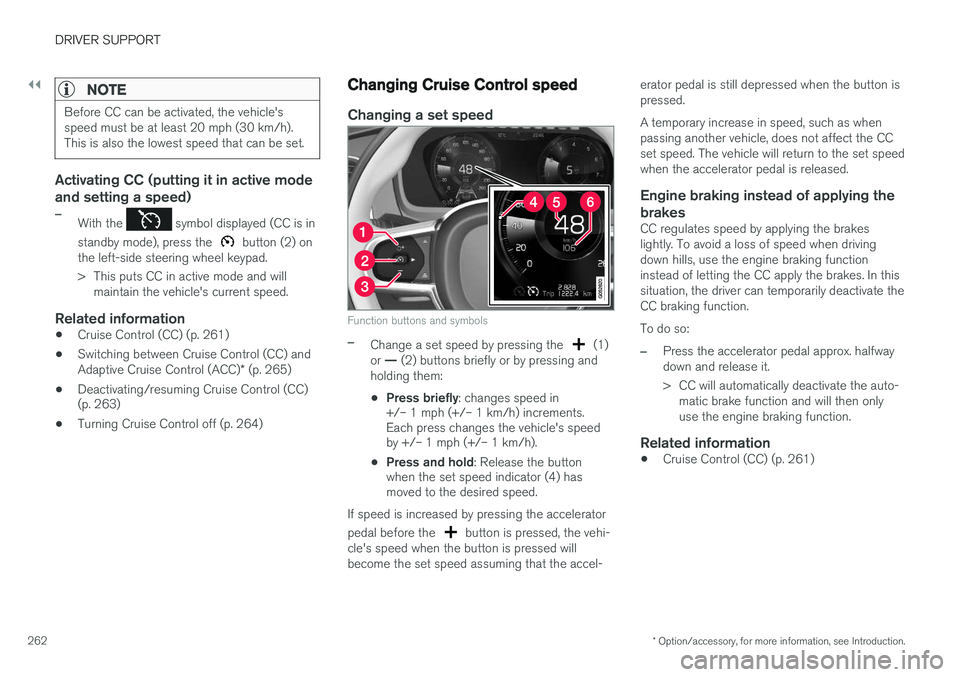
–With the symbol displayed (CC is in
standby mode), press the
button (2) on
the left-side steering wheel keypad.
> This puts CC in active mode and will maintain the vehicle's current speed.
Related information
• Cruise Control (CC) (p. 261)
• Switching between Cruise Control (CC) and Adaptive Cruise Control (ACC)
* (p. 265)
• Deactivating/resuming Cruise Control (CC) (p. 263)
• Turning Cruise Control off (p. 264)
Changing Cruise Control speed
Changing a set speed
Function buttons and symbols
–Change a set speed by pressing the (1)
or — (2) buttons briefly or by pressing and
holding them:
• Press briefly
: changes speed in
+/– 1 mph (+/– 1 km/h) increments. Each press changes the vehicle's speedby +/– 1 mph (+/– 1 km/h).
• Press and hold
: Release the button
when the set speed indicator (4) hasmoved to the desired speed.
If speed is increased by pressing the accelerator pedal before the
button is pressed, the vehi-
cle's speed when the button is pressed will become the set speed assuming that the accel- erator pedal is still depressed when the button ispressed. A temporary increase in speed, such as when passing another vehicle, does not affect the CCset speed. The vehicle will return to the set speedwhen the accelerator pedal is released.
Engine braking instead of applying the
brakes
CC regulates speed by applying the brakeslightly. To avoid a loss of speed when drivingdown hills, use the engine braking functioninstead of letting the CC apply the brakes. In thissituation, the driver can temporarily deactivate theCC braking function. To do so:
–Press the accelerator pedal approx. halfway down and release it.
> CC will automatically deactivate the auto- matic brake function and will then only use the engine braking function.
Related information
• Cruise Control (CC) (p. 261)
Page 269 of 546
DRIVER SUPPORT
}}
267
Controls
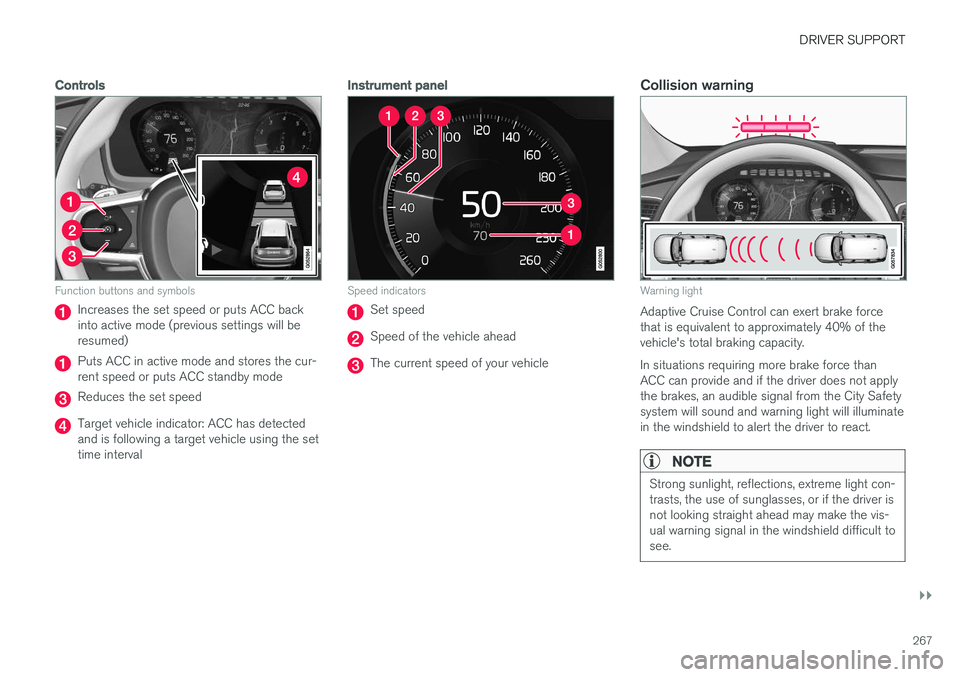
Function buttons and symbols
Increases the set speed or puts ACC back into active mode (previous settings will beresumed)
Puts ACC in active mode and stores the cur- rent speed or puts ACC standby mode
Reduces the set speed
Target vehicle indicator: ACC has detected and is following a target vehicle using the settime interval
Instrument panel
Speed indicators
Set speed
Speed of the vehicle ahead
The current speed of your vehicle
Collision warning
Warning light
Adaptive Cruise Control can exert brake force that is equivalent to approximately 40% of thevehicle's total braking capacity. In situations requiring more brake force than ACC can provide and if the driver does not applythe brakes, an audible signal from the City Safetysystem will sound and warning light will illuminatein the windshield to alert the driver to react.
NOTE
Strong sunlight, reflections, extreme light con- trasts, the use of sunglasses, or if the driver isnot looking straight ahead may make the vis-ual warning signal in the windshield difficult tosee.
Page 270 of 546
||
DRIVER SUPPORT
* Option/accessory, for more information, see Introduction.
268
Head-up-display *
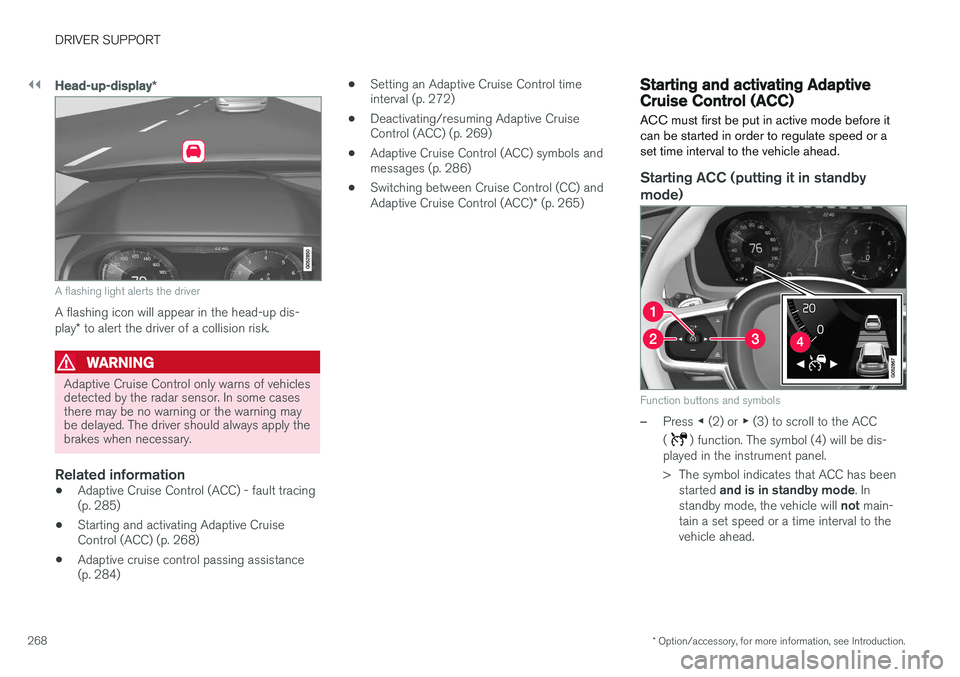
A flashing light alerts the driver
A flashing icon will appear in the head-up dis- play* to alert the driver of a collision risk.
WARNING
Adaptive Cruise Control only warns of vehicles detected by the radar sensor. In some casesthere may be no warning or the warning maybe delayed. The driver should always apply thebrakes when necessary.
Related information
• Adaptive Cruise Control (ACC) - fault tracing (p. 285)
• Starting and activating Adaptive CruiseControl (ACC) (p. 268)
• Adaptive cruise control passing assistance(p. 284) •
Setting an Adaptive Cruise Control timeinterval (p. 272)
• Deactivating/resuming Adaptive CruiseControl (ACC) (p. 269)
• Adaptive Cruise Control (ACC) symbols andmessages (p. 286)
• Switching between Cruise Control (CC) and Adaptive Cruise Control (ACC)
* (p. 265)
Starting and activating Adaptive Cruise Control (ACC)
ACC must first be put in active mode before it can be started in order to regulate speed or aset time interval to the vehicle ahead.
Starting ACC (putting it in standby
mode)
Function buttons and symbols
–Press ◀ (2) or ▶ (3) to scroll to the ACC
(
) function. The symbol (4) will be dis-
played in the instrument panel.
> The symbol indicates that ACC has been
started and is in standby mode . In
standby mode, the vehicle will not main-
tain a set speed or a time interval to the vehicle ahead.
Page 274 of 546
||
DRIVER SUPPORT
* Option/accessory, for more information, see Introduction.
272
Related information
• Adaptive Cruise Control (ACC)
* (p. 266)
• Starting and activating Pilot Assist (p. 276)
• Setting an Adaptive Cruise Control time interval (p. 272)
Setting an Adaptive Cruise Control time interval
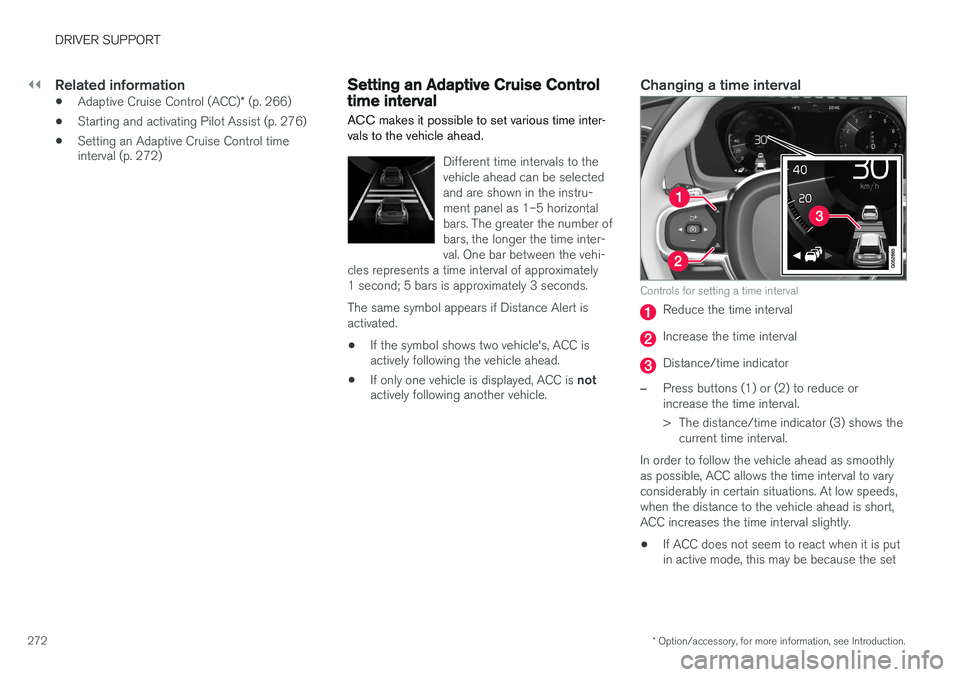
ACC makes it possible to set various time inter- vals to the vehicle ahead.
Different time intervals to the vehicle ahead can be selectedand are shown in the instru-ment panel as 1–5 horizontalbars. The greater the number ofbars, the longer the time inter-val. One bar between the vehi-
cles represents a time interval of approximately1 second; 5 bars is approximately 3 seconds. The same symbol appears if Distance Alert is activated.
• If the symbol shows two vehicle's, ACC is actively following the vehicle ahead.
• If only one vehicle is displayed, ACC is
not
actively following another vehicle.
Changing a time interval
Controls for setting a time interval
Reduce the time interval
Increase the time interval
Distance/time indicator
–Press buttons (1) or (2) to reduce or increase the time interval.
> The distance/time indicator (3) shows the
current time interval.
In order to follow the vehicle ahead as smoothly as possible, ACC allows the time interval to varyconsiderably in certain situations. At low speeds,when the distance to the vehicle ahead is short,ACC increases the time interval slightly. • If ACC does not seem to react when it is put in active mode, this may be because the set
Page 277 of 546
DRIVER SUPPORT
}}
* Option/accessory, for more information, see Introduction.275
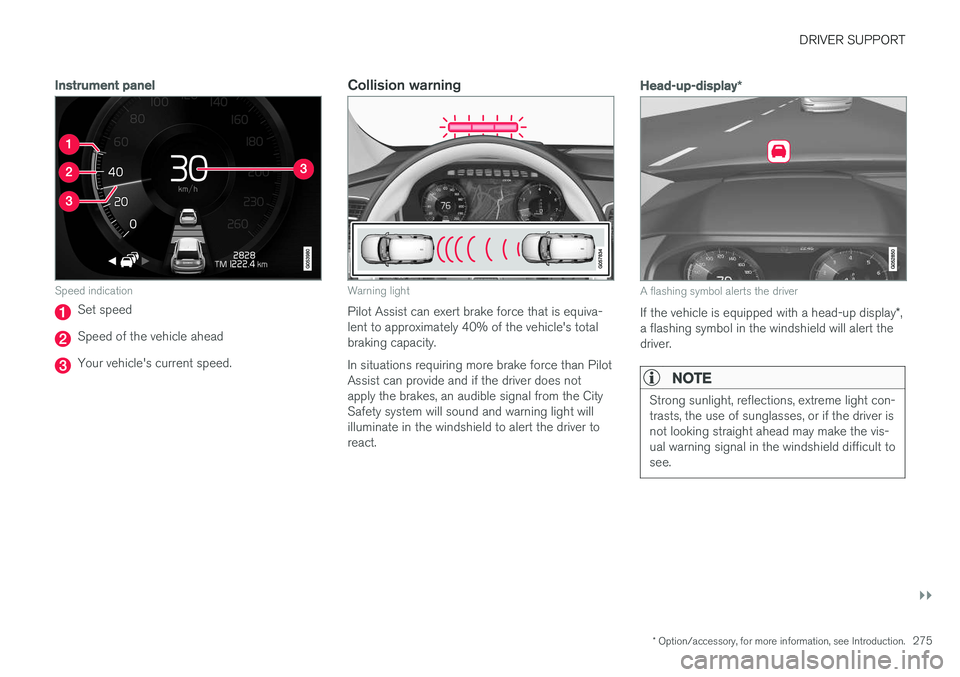
Instrument panel
Speed indication
Set speed
Speed of the vehicle ahead
Your vehicle's current speed.
Collision warning
Warning light
Pilot Assist can exert brake force that is equiva- lent to approximately 40% of the vehicle's totalbraking capacity. In situations requiring more brake force than Pilot Assist can provide and if the driver does notapply the brakes, an audible signal from the CitySafety system will sound and warning light willilluminate in the windshield to alert the driver toreact.
Head-up-display*
A flashing symbol alerts the driver
If the vehicle is equipped with a head-up display *,
a flashing symbol in the windshield will alert the driver.
NOTE
Strong sunlight, reflections, extreme light con- trasts, the use of sunglasses, or if the driver isnot looking straight ahead may make the vis-ual warning signal in the windshield difficult tosee.
Page 279 of 546
DRIVER SUPPORT
}}
* Option/accessory, for more information, see Introduction.277
•the lane's side market lines are missing, badly faded or cross each other.
• the division of lanes is not clear, e.g.,when a line divides or merges withanother, at exits or if there are many roadsigns/markers.
• if there are edges or other lines on ornear the lane, e.g., curbs, cracks, repairedareas, sharp shadows, etc.
• the lane is narrow or winding.
• the weather conditions (rain, snow, fog,slush, poor visibility, backlighting, etc).
The driver should also be aware that Pilot Assist has the following limitations: • High curbs, barriers and temporary obsta- cles (cones, barriers etc) may not bedetected or could be detected incorrectlyas side marker lines, which may create arisk of collision. The driver must ensure asafe distance to these obstacles.
• The camera or radar sensor may not beable to detect objects if there are pot-holes or if there are stationary objectspartially or completely blocking the road.
• Pilot Assist does not "see" pedestrians,animals, etc.
• Pilot Assist's steering capacity is limitedand may not always be able to help thedriver keep the vehicle in the lane.Hands on the steering wheel
Pilot Assist only functions when the driver's hands are on the steering wheel
, which is con-
tinuously monitored by the system. If this is notthe case, the driver will be alerted by a text mes-sage in the instrument panel. If the driver's handsare not returned to the steering wheel, an audiblesignal will sound. If the driver does not return his/her hands to the steering wheel after the audible signal, PilotAssist will go into standby mode and must be reactivated by pressing
.
Related information
• Pilot Assist
* (p. 273)
Deactivating/resuming Pilot Assist
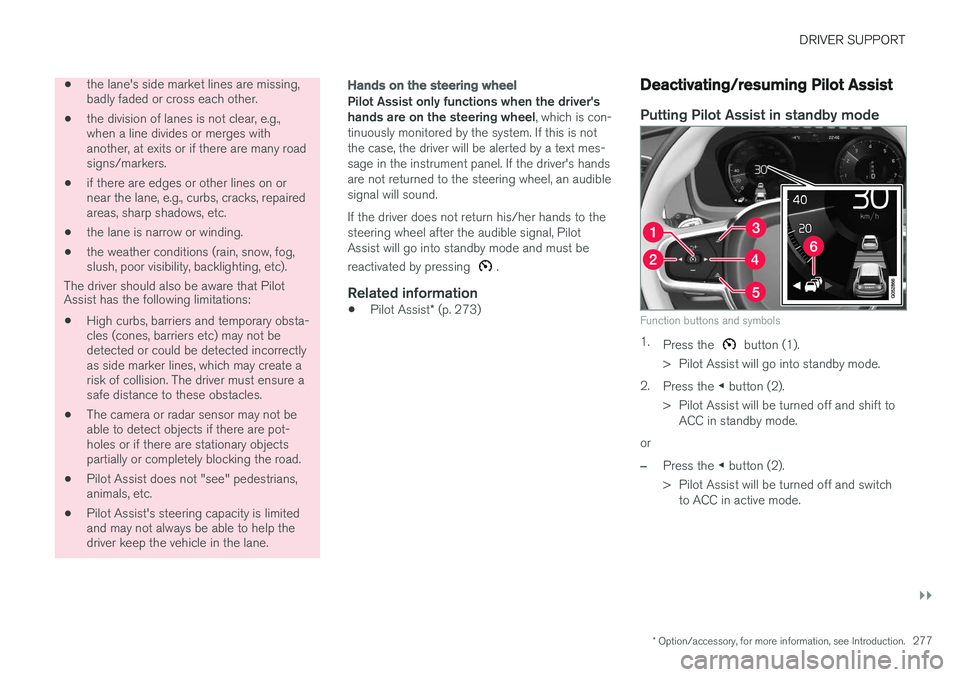
Putting Pilot Assist in standby mode
Function buttons and symbols
1.
Press the button (1).
> Pilot Assist will go into standby mode.
2. Press the ◀ button (2).
> Pilot Assist will be turned off and shift to ACC in standby mode.
or
–Press the ◀ button (2).
> Pilot Assist will be turned off and switch to ACC in active mode.