display VOLVO XC90 T8 2016 Owner´s Manual
[x] Cancel search | Manufacturer: VOLVO, Model Year: 2016, Model line: XC90 T8, Model: VOLVO XC90 T8 2016Pages: 546, PDF Size: 10.26 MB
Page 303 of 546
DRIVER SUPPORT
* Option/accessory, for more information, see Introduction.301
•
Deactivating/reactivating the Speed Limiter
*
(p. 303)
• Road Sign Information (RSI)
* (p. 304)
Activating/deactivating the Automatic Speed Limiter (ASL) *
ASL is activated/deactivated in the center display's Functionview.
Activating
1.
If SL is not activated, tap the Speed Sign
Assist
button 1
in the center display's Func-
tion view.
> ASL will go into standby mode and a green indicator light in the button will illu- minate. A road sign symbol will be dis-played in center of the speedometer.
2. Press the
button on the left-side steer-
ing wheel keypad.
> ASL will be activated with the vehicle's current speed.
Deactivating
1. Tap the Speed Sign Assist button in the
center display's Function view.
> ASL will be deactivated and the Speed limiter (SL) will be activated. 2.
Press the
button on the left-side steer-
ing wheel keypad.
> SL will go into standby mode.
WARNING
After switching from ASL to SL, the vehicle will no longer adapt speed to posted speedlimits. It will only limit the vehicle's maximumspeed.
Related information
• Speed limiter (SL)
* (p. 298)
• Automatic Speed Limiter (ASL)
* (p. 300)
1
If this button is tapped while SL is activated, ASL will immediately begin reading road signs.
Page 306 of 546
DRIVER SUPPORT
* Option/accessory, for more information, see Introduction.
304
Turning the Speed Limiter * off
The Speed Limiter (SL) can be turned off.
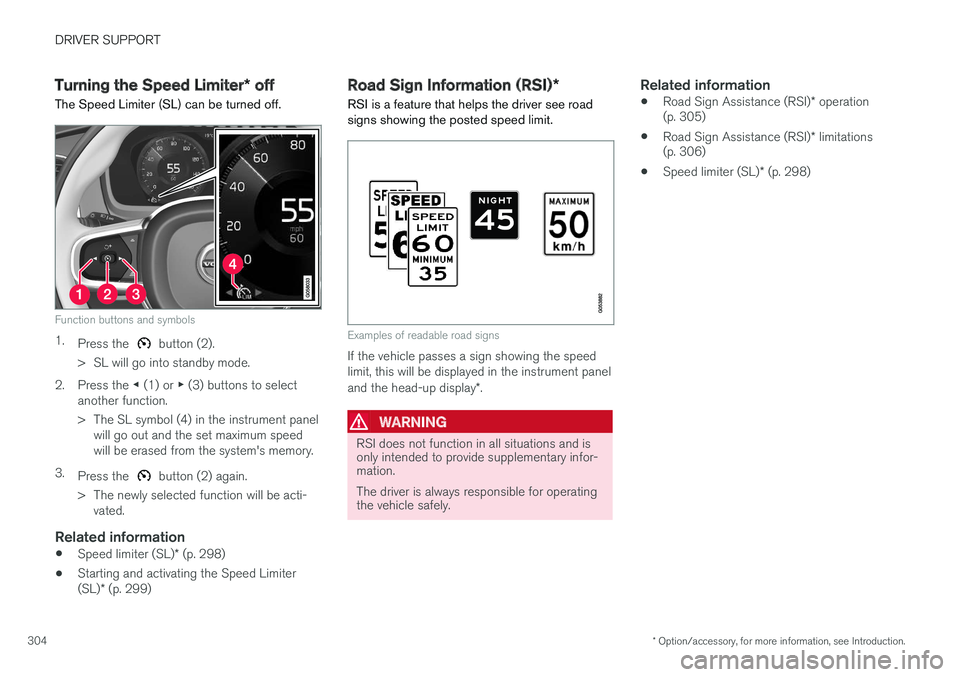
Function buttons and symbols
1. Press the button (2).
> SL will go into standby mode.
2. Press the ◀ (1) or ▶ (3) buttons to select
another function.
> The SL symbol (4) in the instrument panel will go out and the set maximum speed will be erased from the system's memory.
3. Press the
button (2) again.
> The newly selected function will be acti- vated.
Related information
• Speed limiter (SL)
* (p. 298)
• Starting and activating the Speed Limiter (SL)
* (p. 299)
Road Sign Information (RSI) *
RSI is a feature that helps the driver see road signs showing the posted speed limit.
Examples of readable road signs
If the vehicle passes a sign showing the speed limit, this will be displayed in the instrument panel and the head-up display *.
WARNING
RSI does not function in all situations and is only intended to provide supplementary infor-mation. The driver is always responsible for operating the vehicle safely.
Related information
• Road Sign Assistance (RSI)
* operation
(p. 305)
• Road Sign Assistance (RSI)
* limitations
(p. 306)
• Speed limiter (SL)
* (p. 298)
Page 307 of 546
DRIVER SUPPORT
}}
* Option/accessory, for more information, see Introduction.305
Road Sign Assistance (RSI)*
operation
Speed limit information
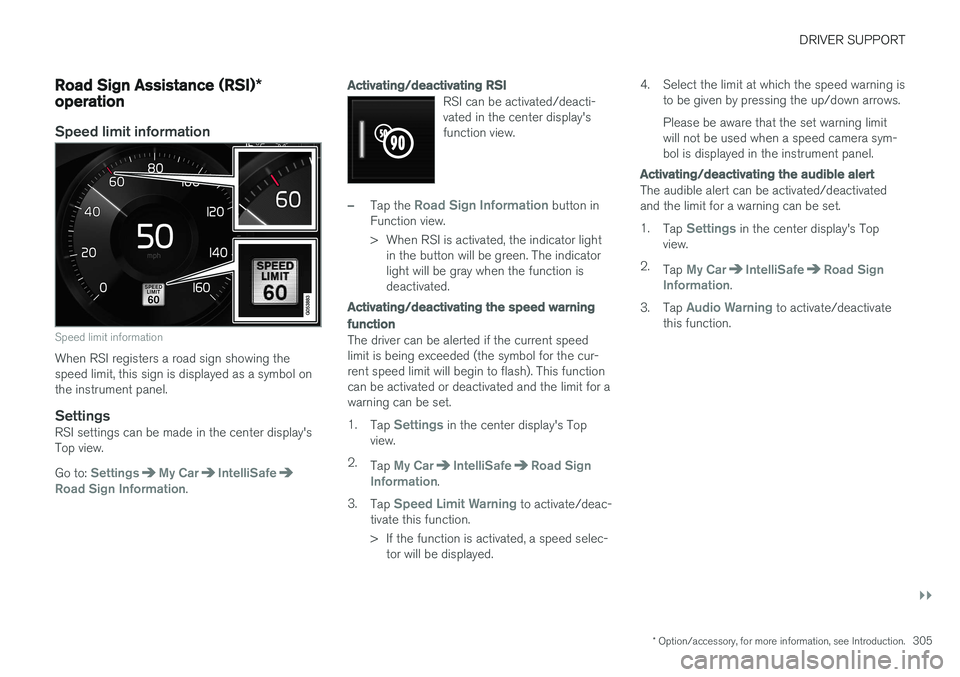
Speed limit information
When RSI registers a road sign showing the speed limit, this sign is displayed as a symbol onthe instrument panel.
SettingsRSI settings can be made in the center display'sTop view. Go to:
SettingsMy CarIntelliSafeRoad Sign Information.
Activating/deactivating RSI
RSI can be activated/deacti- vated in the center display'sfunction view.
–Tap the Road Sign Information button in
Function view.
> When RSI is activated, the indicator light in the button will be green. The indicator light will be gray when the function isdeactivated.
Activating/deactivating the speed warning function
The driver can be alerted if the current speed limit is being exceeded (the symbol for the cur-rent speed limit will begin to flash). This functioncan be activated or deactivated and the limit for awarning can be set. 1. Tap
Settings in the center display's Top
view.
2. Tap
My CarIntelliSafeRoad Sign
Information.
3. Tap
Speed Limit Warning to activate/deac-
tivate this function.
> If the function is activated, a speed selec- tor will be displayed. 4. Select the limit at which the speed warning is
to be given by pressing the up/down arrows. Please be aware that the set warning limit will not be used when a speed camera sym-bol is displayed in the instrument panel.
Activating/deactivating the audible alert
The audible alert can be activated/deactivated and the limit for a warning can be set. 1.Tap
Settings in the center display's Top
view.
2. Tap
My CarIntelliSafeRoad Sign
Information.
3. Tap
Audio Warning to activate/deactivate
this function.
Page 308 of 546
||
DRIVER SUPPORT
* Option/accessory, for more information, see Introduction.
306
Speed camera alert
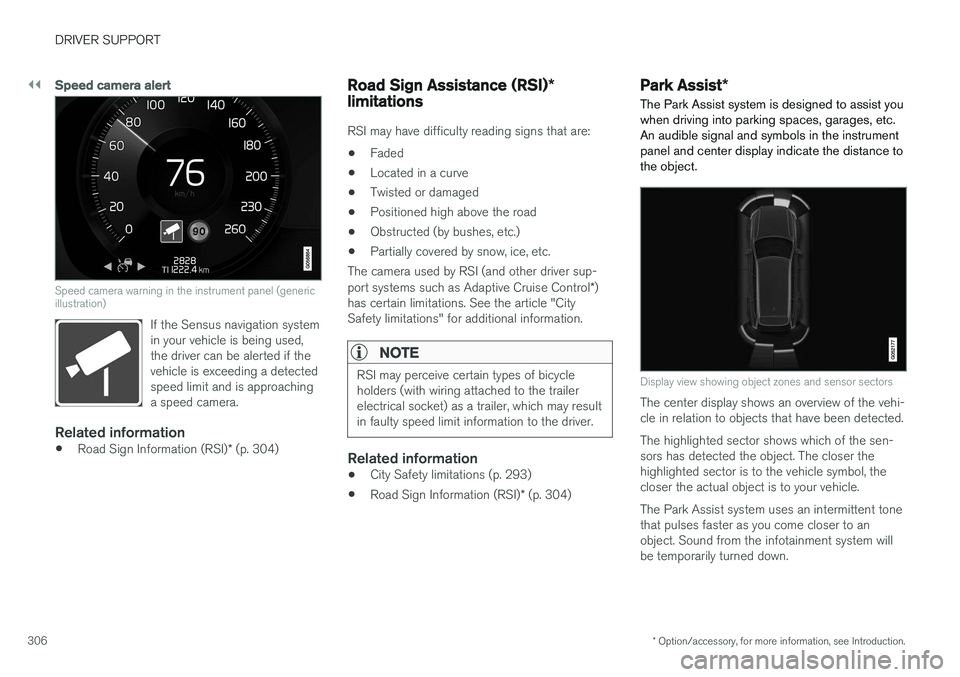
Speed camera warning in the instrument panel (generic illustration)
If the Sensus navigation system in your vehicle is being used,the driver can be alerted if thevehicle is exceeding a detectedspeed limit and is approachinga speed camera.
Related information
• Road Sign Information (RSI)
* (p. 304)
Road Sign Assistance (RSI) *
limitations
RSI may have difficulty reading signs that are:
• Faded
• Located in a curve
• Twisted or damaged
• Positioned high above the road
• Obstructed (by bushes, etc.)
• Partially covered by snow, ice, etc.
The camera used by RSI (and other driver sup- port systems such as Adaptive Cruise Control *)
has certain limitations. See the article "City Safety limitations" for additional information.
NOTE
RSI may perceive certain types of bicycle holders (with wiring attached to the trailerelectrical socket) as a trailer, which may resultin faulty speed limit information to the driver.
Related information
• City Safety limitations (p. 293)
• Road Sign Information (RSI)
* (p. 304)
Park Assist *
The Park Assist system is designed to assist you
when driving into parking spaces, garages, etc. An audible signal and symbols in the instrumentpanel and center display indicate the distance tothe object.
Display view showing object zones and sensor sectors
The center display shows an overview of the vehi- cle in relation to objects that have been detected. The highlighted sector shows which of the sen- sors has detected the object. The closer thehighlighted sector is to the vehicle symbol, thecloser the actual object is to your vehicle. The Park Assist system uses an intermittent tone that pulses faster as you come closer to anobject. Sound from the infotainment system willbe temporarily turned down.
Page 313 of 546
DRIVER SUPPORT
}}
* Option/accessory, for more information, see Introduction.311
Park Assist Camera (PAC)*
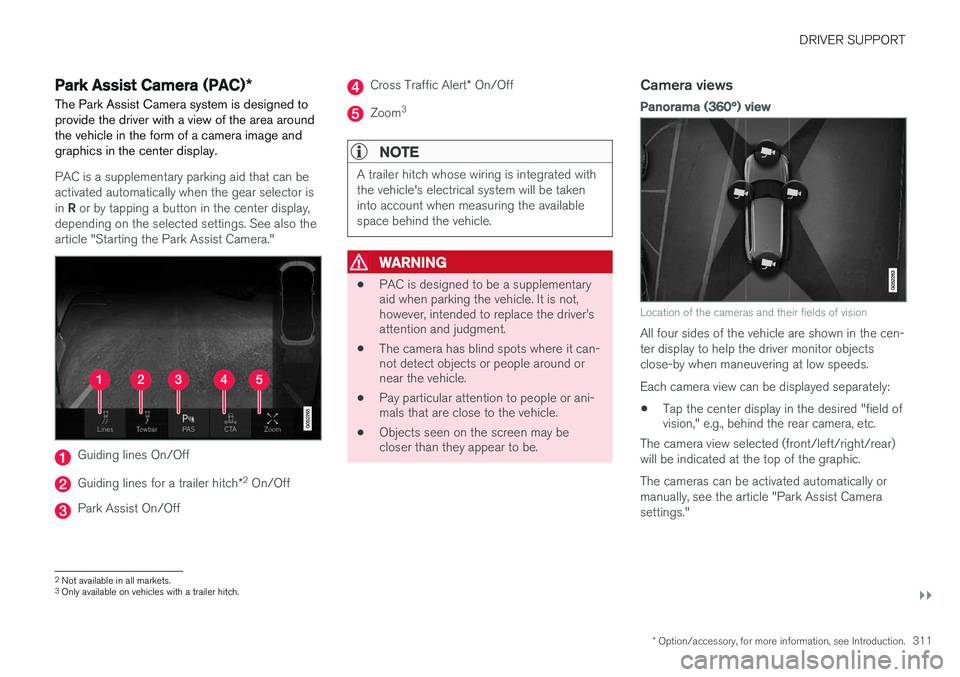
The Park Assist Camera system is designed to provide the driver with a view of the area aroundthe vehicle in the form of a camera image andgraphics in the center display.
PAC is a supplementary parking aid that can be activated automatically when the gear selector is in R or by tapping a button in the center display,
depending on the selected settings. See also the article "Starting the Park Assist Camera."
Guiding lines On/Off
Guiding lines for a trailer hitch *2
On/Off
Park Assist On/Off
Cross Traffic Alert * On/Off
Zoom 3
NOTE
A trailer hitch whose wiring is integrated with the vehicle's electrical system will be takeninto account when measuring the availablespace behind the vehicle.
WARNING
•
PAC is designed to be a supplementary aid when parking the vehicle. It is not,however, intended to replace the driver
Page 314 of 546
||
DRIVER SUPPORT
* Option/accessory, for more information, see Introduction.
312
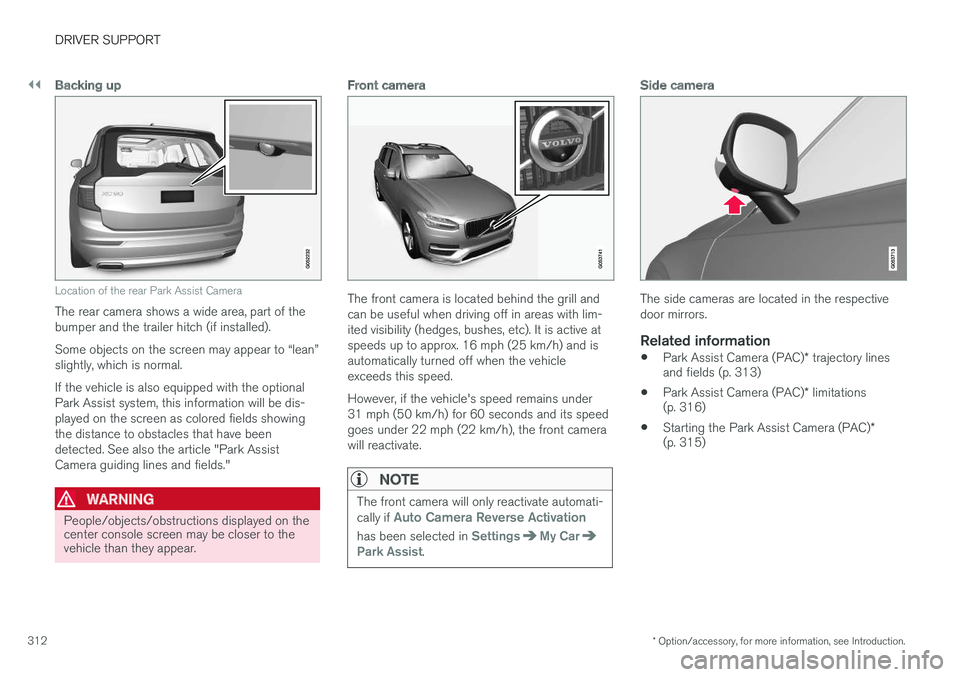
Backing up
Location of the rear Park Assist Camera
The rear camera shows a wide area, part of the bumper and the trailer hitch (if installed). Some objects on the screen may appear to “lean” slightly, which is normal. If the vehicle is also equipped with the optional Park Assist system, this information will be dis-played on the screen as colored fields showingthe distance to obstacles that have beendetected. See also the article "Park AssistCamera guiding lines and fields."
WARNING
People/objects/obstructions displayed on the center console screen may be closer to thevehicle than they appear.
Front camera
The front camera is located behind the grill and can be useful when driving off in areas with lim-ited visibility (hedges, bushes, etc). It is active atspeeds up to approx. 16 mph (25 km/h) and isautomatically turned off when the vehicleexceeds this speed. However, if the vehicle's speed remains under 31 mph (50 km/h) for 60 seconds and its speedgoes under 22 mph (22 km/h), the front camerawill reactivate.
NOTE
The front camera will only reactivate automati- cally if Auto Camera Reverse Activation
has been selected in SettingsMy CarPark Assist.
Side camera
The side cameras are located in the respective door mirrors.
Related information
• Park Assist Camera (PAC)
* trajectory lines
and fields (p. 313)
• Park Assist Camera (PAC)
* limitations
(p. 316)
• Starting the Park Assist Camera (PAC)
*
(p. 315)
Page 316 of 546
||
DRIVER SUPPORT
* Option/accessory, for more information, see Introduction.
314
Trajectory lines for a trailer hitch (towbar)
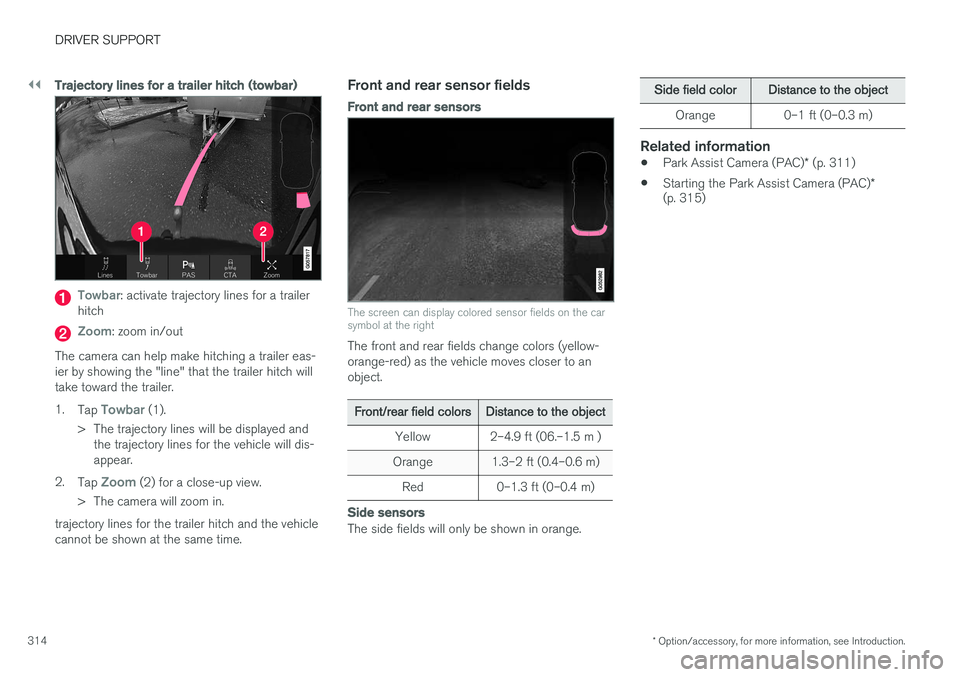
Towbar: activate trajectory lines for a trailer
hitch
Zoom: zoom in/out
The camera can help make hitching a trailer eas- ier by showing the "line" that the trailer hitch willtake toward the trailer. 1. Tap
Towbar (1).
> The trajectory lines will be displayed and the trajectory lines for the vehicle will dis- appear.
2. Tap
Zoom (2) for a close-up view.
> The camera will zoom in.
trajectory lines for the trailer hitch and the vehicle cannot be shown at the same time.
Front and rear sensor fields
Front and rear sensors
The screen can display colored sensor fields on the car symbol at the right
The front and rear fields change colors (yellow- orange-red) as the vehicle moves closer to anobject.
Front/rear field colorsDistance to the object
Yellow2–4.9 ft (06.–1.5 m )
Orange1.3–2 ft (0.4–0.6 m)
Red0–1.3 ft (0–0.4 m)
Side sensors
The side fields will only be shown in orange.
Side field colorDistance to the object
Orange0–1 ft (0–0.3 m)
Related information
• Park Assist Camera (PAC)
* (p. 311)
• Starting the Park Assist Camera (PAC)
*
(p. 315)
Page 317 of 546
DRIVER SUPPORT
* Option/accessory, for more information, see Introduction.315
Starting the Park Assist Camera (PAC)*
PAC starts automatically when the gear selector is moved to R or can be started manually from
the center display.
Starting the cameraPAC can be started manually in the center display's Functionview if it is turned off.
–Tap the Camera button.
> The camera will start.
Starting the camera in different situations
When the button is tapped, the vehicle's speed and direction determine if the camera starts intop view or front view:
• Top view: if the vehicle is stationary or is moving forward at speeds up to 9 mph(15 km/h)
• Top view: if the vehicle is stationary or isreversing, regardless of speed
• Front view: if the vehicle is moving forward atspeeds between 9–14 mph (15–22 km/h)
Activating/deactivating automatic start of PAC
PAC can be started automatically when reverse gear is selected. 1.
Tap
Settings in the center display's Top
view.
2. Tap
My CarPark Assist.
3. Select
Auto Camera Reverse Activationto activate/deactivate automatic start.
Automatically deactivating the cameraFront view switches off at a speed of approx. 16 mph (25 km/h) to help avoid distracting the driver. If the setting
Auto Camera Reverse
Activation has been selected, the camera's front
view will reactivate if the vehicle's speed drops below 14 mph (22 km/h) within 60 seconds. Ifthe vehicle's speed has exceeded 31 mph (50km/h), front view will not automatically reactivate. Other camera views switch off at 9 mph (15 km/h) and will not reactivate automatically.
Selecting the camera's basic view when
reversing
With Auto Camera Reverse Activationselected, the driver can also choose the camera view to be used when reversing: the rear view or 360° view *.
1. Tap
Settings in the center display's Top
view. 2.
Tap
My CarPark Assist.
3. Select
Rear View Instead of 360° to set
the rear view as default.
Related information
• Park Assist Camera (PAC)
* trajectory lines
and fields (p. 313)
• Park Assist Camera (PAC)
* limitations
(p. 316)
• Ignition modes (p. 370)
Page 318 of 546
DRIVER SUPPORT
* Option/accessory, for more information, see Introduction.
316
Park Assist Camera (PAC) *
limitations
The Park Assist Camera system has certain limi- tations that the driver should be aware of.
NOTE
Bicycle carriers or other accessories mounted on the tailgate may obstruct the camera'sfield of vision.
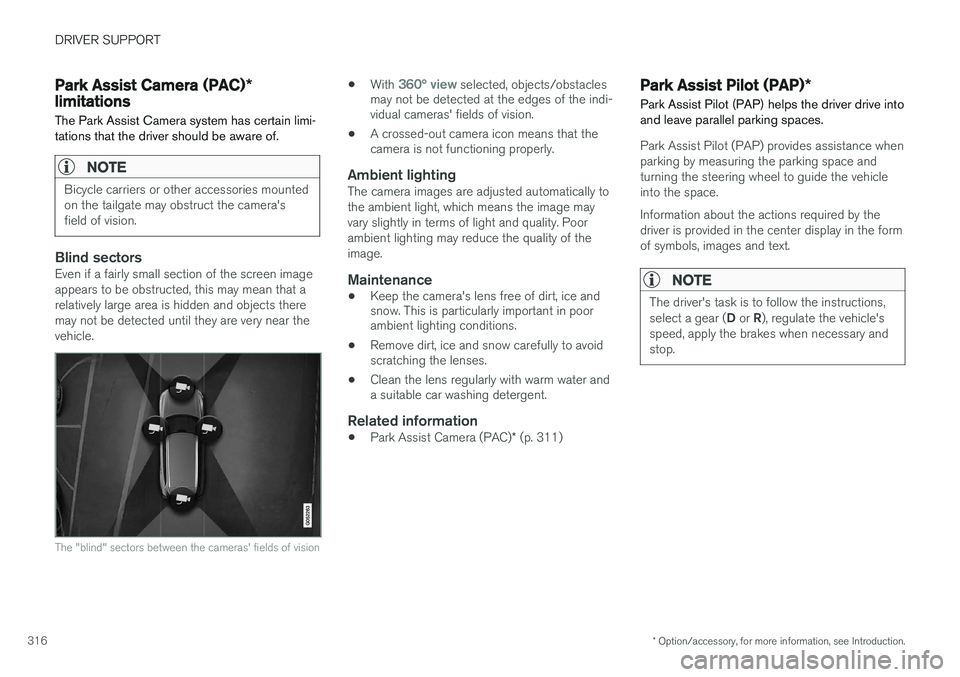
Blind sectorsEven if a fairly small section of the screen image appears to be obstructed, this may mean that arelatively large area is hidden and objects theremay not be detected until they are very near thevehicle.
The "blind" sectors between the cameras' fields of vision
• With 360° view selected, objects/obstacles
may not be detected at the edges of the indi- vidual cameras' fields of vision.
• A crossed-out camera icon means that thecamera is not functioning properly.
Ambient lightingThe camera images are adjusted automatically to the ambient light, which means the image mayvary slightly in terms of light and quality. Poorambient lighting may reduce the quality of theimage.
Maintenance
• Keep the camera's lens free of dirt, ice and snow. This is particularly important in poorambient lighting conditions.
• Remove dirt, ice and snow carefully to avoidscratching the lenses.
• Clean the lens regularly with warm water anda suitable car washing detergent.
Related information
•
Park Assist Camera (PAC)
* (p. 311)
Park Assist Pilot (PAP) *
Park Assist Pilot (PAP) helps the driver drive into and leave parallel parking spaces.
Park Assist Pilot (PAP) provides assistance when parking by measuring the parking space andturning the steering wheel to guide the vehicleinto the space. Information about the actions required by the driver is provided in the center display in the formof symbols, images and text.
NOTE
The driver's task is to follow the instructions, select a gear ( D or R), regulate the vehicle's
speed, apply the brakes when necessary and stop.
Page 320 of 546
DRIVER SUPPORT
* Option/accessory, for more information, see Introduction.
318
Using Park Assist Pilot (PAP) *
Park Assist Pilot (PAP) gives the driver instruc- tions during the parking procedure.
Symbols, images and text in the center display indicate when the various steps in the parkingprocedure will be carried out. PAP can be activated if the following conditions are met after the engine has started:
• The vehicle may not be towing a trailer.
• The vehicle's speed must be below approx. 30 mph (50 km/h).
NOTE
If a trailer hitch is configured in the vehicle's electrical system, PAP will take the trailerhitch into consideration when determining thenecessary size of a parking space.
ParkingProcedure for parking:
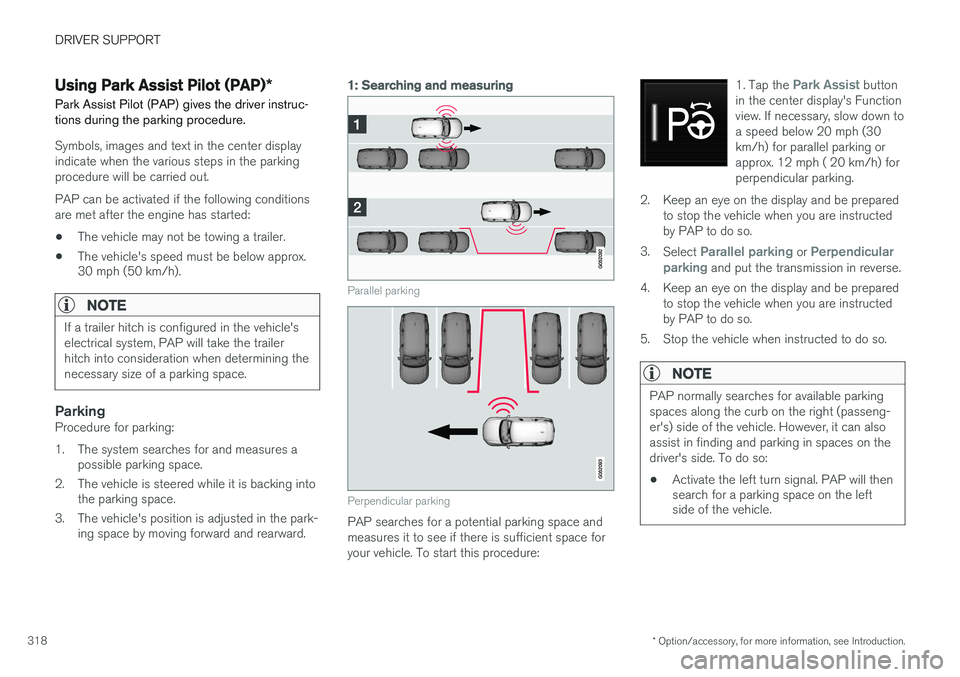
1. The system searches for and measures a
possible parking space.
2. The vehicle is steered while it is backing into the parking space.
3. The vehicle's position is adjusted in the park- ing space by moving forward and rearward.
1: Searching and measuring
Parallel parking
Perpendicular parking
PAP searches for a potential parking space and measures it to see if there is sufficient space foryour vehicle. To start this procedure: 1. Tap the
Park Assist button
in the center display's Function view. If necessary, slow down toa speed below 20 mph (30km/h) for parallel parking orapprox. 12 mph ( 20 km/h) forperpendicular parking.
2. Keep an eye on the display and be prepared to stop the vehicle when you are instructed by PAP to do so.
3. Select
Parallel parking or Perpendicular
parking and put the transmission in reverse.
4. Keep an eye on the display and be prepared to stop the vehicle when you are instructed by PAP to do so.
5. Stop the vehicle when instructed to do so.
NOTE
PAP normally searches for available parking spaces along the curb on the right (passeng-er's) side of the vehicle. However, it can alsoassist in finding and parking in spaces on thedriver's side. To do so:
• Activate the left turn signal. PAP will then search for a parking space on the leftside of the vehicle.