ad blue VOLVO XC90 T8 2016 Owner´s Manual
[x] Cancel search | Manufacturer: VOLVO, Model Year: 2016, Model line: XC90 T8, Model: VOLVO XC90 T8 2016Pages: 546, PDF Size: 10.26 MB
Page 373 of 546
STARTING AND DRIVING
* Option/accessory, for more information, see Introduction.371
ModeFunctions available
0•The odometer, clock and tem- perature gauge are illuminated
• Power seats
* can be adjusted
• The power windows can be oper-ated
• The 12-volt socket in the cargocompartment can be used
• The center display is activatedand can be used
• The infotainment system can beused for a limited time
In this mode, certain functions can only be used for a limited time to helpminimize battery drain
I• The laminated panoramic roof
*,
power seats */windows,12-volt
sockets in the passenger com- partment, Bluetooth, navigation system *, climate system blower,
windshield wipers can be oper- ated
• The infotainment system will start(if it was started when the ignitionwas switched off)
Using electrical current will drain the start battery in this mode.
ModeFunctions available
II• The headlights illuminate
• Warning/indicator lights illumi- nate for 5 seconds
• A number of other functions willalso be activated. However, the heated seats
* and heated rear
window functions can only be activated when the engine is run-ning.
This mode should only be used for very short periods to help avoiddraining the battery.
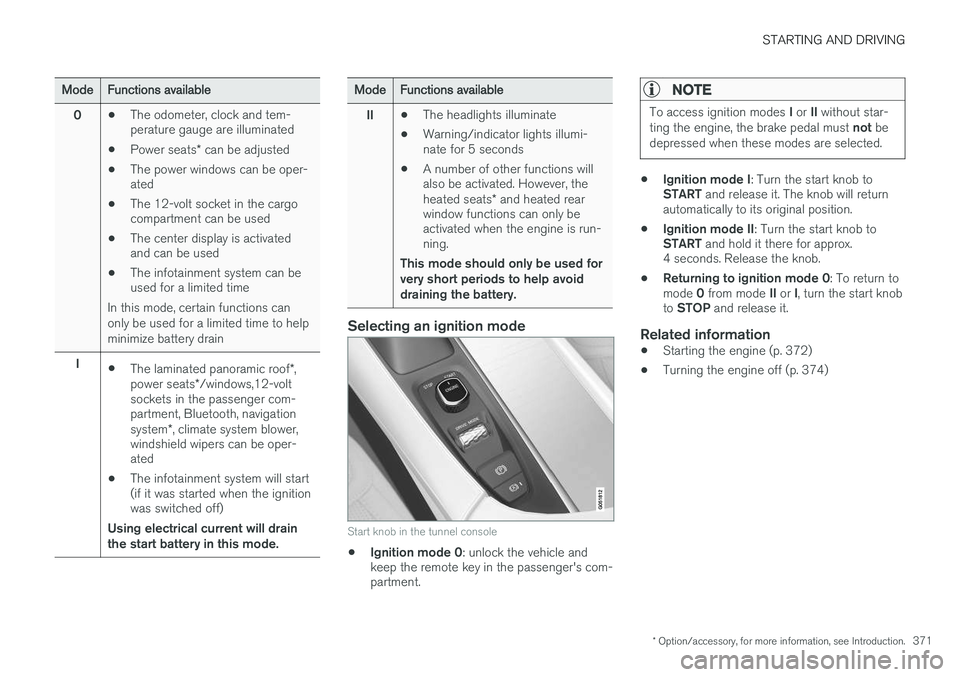
Selecting an ignition mode
Start knob in the tunnel console
• Ignition mode 0
: unlock the vehicle and
keep the remote key in the passenger's com- partment.
NOTE
To access ignition modes I or II without star-
ting the engine, the brake pedal must not be
depressed when these modes are selected.
• Ignition mode I
: Turn the start knob to
START and release it. The knob will return
automatically to its original position.
• Ignition mode II
: Turn the start knob to
START and hold it there for approx.
4 seconds. Release the knob.
• Returning to ignition mode 0
: To return to
mode 0 from mode II or I, turn the start knob
to STOP and release it.
Related information
•Starting the engine (p. 372)
• Turning the engine off (p. 374)
Page 379 of 546
STARTING AND DRIVING
377
Hybrid charging cable circuit breakerThe charging cable has a circuit breaker that helps protect against current overloads andelectrical shocks.
If the charging cable's residual current breaker is triggered, the blue indicator light in the chargecoupler will not illuminate when the cable is plug-ged into a 120-/240-volt socket or the red indi-cator light will glow steadily. Have the socketchecked by a licensed electrician or try usinganother 120-/240-volt wall socket.
WARNING
• Charging the hybrid battery may only be done from approved, grounded 120-/240-volt sockets. If the electrical circuitor electrical socket's capacity is notknown, let a licensed electrician inspectthe electrical circuit's capacity. Using acharge level that exceeds the electricalcircuit's or electrical outlet's capacity maystart a fire or damage the electrical cir-cuit.
• The charging cable's residual currentbreaker helps protect the vehicle's charg-ing system but cannot ensure that an cur-rent overload will never occur.
• Never use visibly worn or damaged elec-trical sockets. Doing so could lead to firesor serious injury.
• Never connect the charging cable to anextension cord.
• Maintenance or replacement of the hybridbattery may only be performed by atrained and qualified Volvo service techni-cian.
Page 386 of 546
||
STARTING AND DRIVING
384
NOTE
The capacity of the hybrid battery diminishes somewhat with age and use, which couldresult in increased use of the gasoline engineand consequently, slightly higher fuel con-sumption.
Charging is indicated in three ways: •Charge module (the unit that is plugged into the wall socket): The blue indicator light onthe cable's charge module will flash red sev-eral times when the unit is plugged into awall socket while a safety check is being per-formed and will then glow steadily blue toindicate that the charger is ready to use.
• A green indicator light in the vehicle's charg-ing socket will flash green while the batteryis charging and will glow steadily green whenthe hybrid battery is fully charged. The blueindicator light in the charge module will alsoflash while charging is underway and willglow steadily blue when charging is comple-ted.
• A gauge in the instrument panel will alsoindicate the battery's charge level.
The hybrid battery charging process also charges the vehicle's start battery. If the hybrid battery's temperature is below – 13 ºF (–10 ºC) or above +104 ºF (+40 ºC), some
of the vehicle's functions may be reduced or not be available at all (e.g., drive mode may not be available). The electric motor cannot be used if the hybrid battery's temperature is too low or too high. If thePURE drive mode is selected, the gasolineengine will be used.Temperature controlDuring charging, if the temperature in the charg-ing cable becomes too high and reaches a criticallimit, charging will be interrupted.
CAUTION
If charging is interrupted repeatedly, have the charging cable and the vehicle's chargingsystem inspected by a trained and qualifiedVolvo service technician.
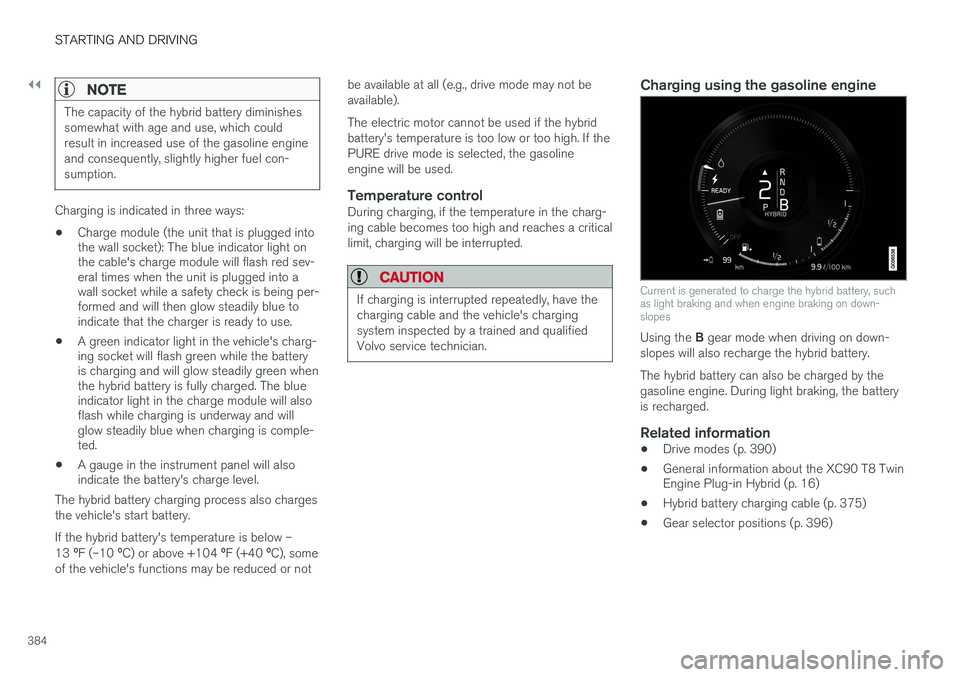
Charging using the gasoline engine
Current is generated to charge the hybrid battery, such as light braking and when engine braking on down-slopes
Using the
B gear mode when driving on down-
slopes will also recharge the hybrid battery. The hybrid battery can also be charged by the gasoline engine. During light braking, the batteryis recharged.
Related information
• Drive modes (p. 390)
• General information about the XC90 T8 Twin Engine Plug-in Hybrid (p. 16)
• Hybrid battery charging cable (p. 375)
• Gear selector positions (p. 396)
Page 388 of 546
![VOLVO XC90 T8 2016 Owner´s Manual ||
STARTING AND DRIVING
386
GraphicMessageExplanation
Fully chargedat:[Time]
is
displayed with ananimatedblue puls-ing lightthroughthechargingcable.
Charging is in pro- gress and the approx-imate tim](/img/45/36400/w960_36400-387.png "VOLVO XC90 T8 2016 Owner´s Manual ||
STARTING AND DRIVING
386
GraphicMessageExplanation
Fully chargedat:[Time]
is
displayed with ananimatedblue puls-ing lightthroughthechargingcable.
Charging is in pro- gress and the approx-imate tim")
||
STARTING AND DRIVING
386
GraphicMessageExplanation
Fully chargedat:[Time]
is
displayed with ananimatedblue puls-ing lightthroughthechargingcable.
Charging is in pro- gress and the approx-imate time when thebattery will be fullycharged will be dis-played.
GraphicMessageExplanation
Charg- ing com-plete
is
displayed. An imagewill besuperim-posedover thegraphic ofthe vehi-cle with agreenLEDindicatorlight inthechargingsocket.
The battery is fully charged.
Charg- ing error
will be displayedand theLED indi-cator lightin thechargingsocketwill bered.
A fault has occurred. Check that the charg-ing cable is correctlyconnected to thevehicle's chargingsocket and the120-/240-volt socket.
Related information
• Hybrid battery charging cable (p. 375)
• Charging the hybrid battery (p. 383)
• Preparations for charging the hybrid battery (p. 380)
• Stopping hybrid battery charging (p. 381)
Page 389 of 546
STARTING AND DRIVING
}}
387
Charger status indicators
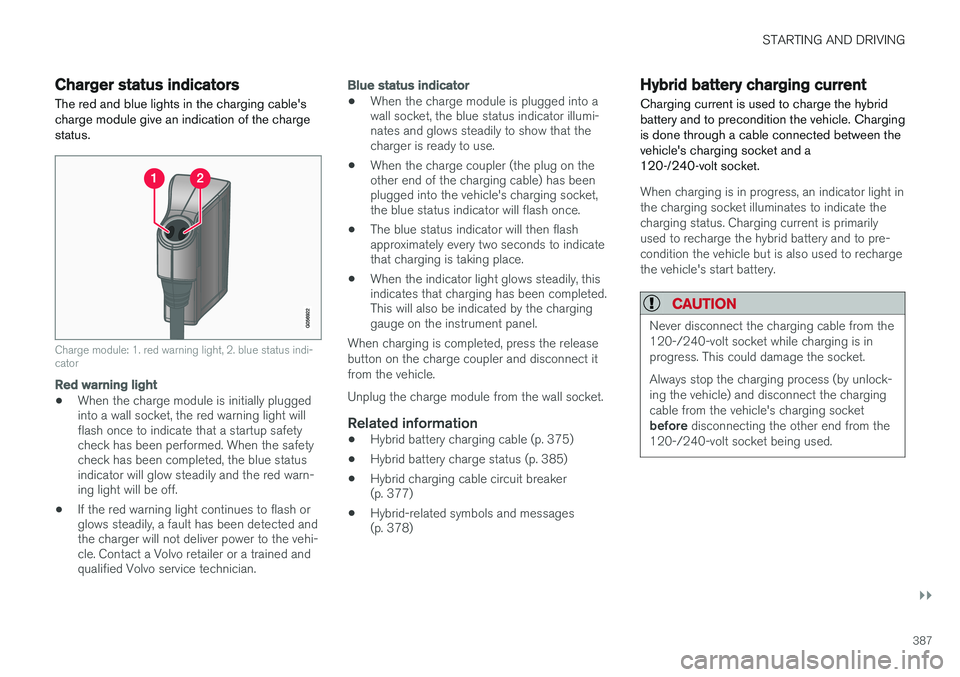
The red and blue lights in the charging cable's charge module give an indication of the chargestatus.
Charge module: 1. red warning light, 2. blue status indi- cator
Red warning light
• When the charge module is initially plugged into a wall socket, the red warning light willflash once to indicate that a startup safetycheck has been performed. When the safetycheck has been completed, the blue statusindicator will glow steadily and the red warn-ing light will be off.
• If the red warning light continues to flash orglows steadily, a fault has been detected andthe charger will not deliver power to the vehi-cle. Contact a Volvo retailer or a trained andqualified Volvo service technician.
Blue status indicator
• When the charge module is plugged into a wall socket, the blue status indicator illumi-nates and glows steadily to show that thecharger is ready to use.
• When the charge coupler (the plug on theother end of the charging cable) has beenplugged into the vehicle's charging socket,the blue status indicator will flash once.
• The blue status indicator will then flashapproximately every two seconds to indicatethat charging is taking place.
• When the indicator light glows steadily, thisindicates that charging has been completed.This will also be indicated by the charginggauge on the instrument panel.
When charging is completed, press the release button on the charge coupler and disconnect itfrom the vehicle. Unplug the charge module from the wall socket.
Related information
• Hybrid battery charging cable (p. 375)
• Hybrid battery charge status (p. 385)
• Hybrid charging cable circuit breaker (p. 377)
• Hybrid-related symbols and messages(p. 378)
Hybrid battery charging current
Charging current is used to charge the hybrid battery and to precondition the vehicle. Chargingis done through a cable connected between thevehicle's charging socket and a120-/240-volt socket.
When charging is in progress, an indicator light in the charging socket illuminates to indicate thecharging status. Charging current is primarilyused to recharge the hybrid battery and to pre-condition the vehicle but is also used to rechargethe vehicle's start battery.
CAUTION
Never disconnect the charging cable from the 120-/240-volt socket while charging is inprogress. This could damage the socket. Always stop the charging process (by unlock- ing the vehicle) and disconnect the chargingcable from the vehicle's charging socket before disconnecting the other end from the
120-/240-volt socket being used.
Page 406 of 546
INFOTAINMENT
404
The infotainment system
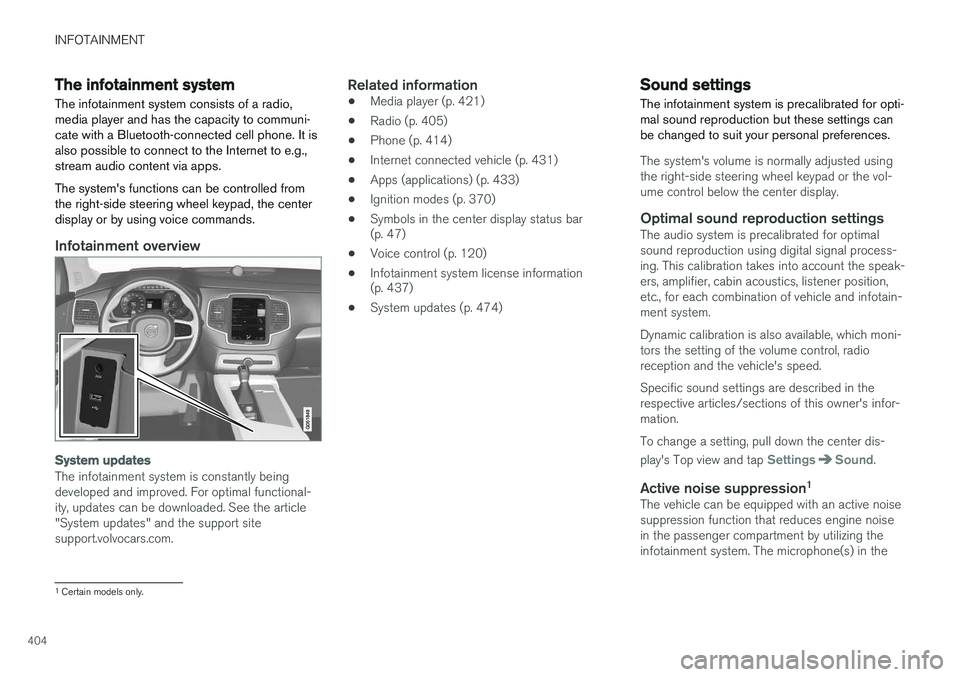
The infotainment system consists of a radio, media player and has the capacity to communi-cate with a Bluetooth-connected cell phone. It isalso possible to connect to the Internet to e.g.,stream audio content via apps. The system's functions can be controlled from the right-side steering wheel keypad, the centerdisplay or by using voice commands.
Infotainment overview
System updates
The infotainment system is constantly being developed and improved. For optimal functional-ity, updates can be downloaded. See the article"System updates" and the support sitesupport.volvocars.com.
Related information
• Media player (p. 421)
• Radio (p. 405)
• Phone (p. 414)
• Internet connected vehicle (p. 431)
• Apps (applications) (p. 433)
• Ignition modes (p. 370)
• Symbols in the center display status bar (p. 47)
• Voice control (p. 120)
• Infotainment system license information(p. 437)
• System updates (p. 474)
Sound settings
The infotainment system is precalibrated for opti- mal sound reproduction but these settings canbe changed to suit your personal preferences.
The system's volume is normally adjusted using the right-side steering wheel keypad or the vol-ume control below the center display.
Optimal sound reproduction settingsThe audio system is precalibrated for optimalsound reproduction using digital signal process-ing. This calibration takes into account the speak-ers, amplifier, cabin acoustics, listener position,etc., for each combination of vehicle and infotain-ment system. Dynamic calibration is also available, which moni- tors the setting of the volume control, radioreception and the vehicle's speed. Specific sound settings are described in the respective articles/sections of this owner's infor-mation. To change a setting, pull down the center dis- play's Top view and tap
SettingsSound.
Active noise suppression 1The vehicle can be equipped with an active noise suppression function that reduces engine noisein the passenger compartment by utilizing theinfotainment system. The microphone(s) in the
1
Certain models only.
Page 416 of 546
||
INFOTAINMENT
* Option/accessory, for more information, see Introduction.
414
Game Alerts
Tap to display a list of sports. Tap a sport to display a list of teams and tap a box on the right side of the screen to select ateam as a favorite. An alert will then be providedwhen information about the team is being broad-cast. Tap
Confirm below the list to return to the list of
sports. Tap
Back to return to the list of settings orClose to return to the main screen.
Unsubscribed services
If you have a SiriusXM ®
Satellite radio subscrip-
tion, any channels not included in the subscrip- tion will be listed here. Call SiriusXM ™ to sub-
scribe. The phone number will be shown on the screen. If a cell phone is paired and connected tothe vehicle, tap the phone number to make thecall.
Skipped stations
Tap to display a list of channels that you would like to skip (hide). Hide channels from the chan-nel list by tapping the boxes to the right of thescreen. Skipped (hidden) channels will not beshown in the channel list. However, a channelpreviously selected as a favorite will still be dis-played in the list of favorites, even it has beenadded to the skip list.
Skipped categories
Tap to display a list of categories. Tap a category to skip (hide) it. It will not be displayed in the listof categories.
Related information
• Using SiriusXM ®
Satellite radio radio *
(p. 412)
• SiriusXM ®
Satellite radio * (p. 411)
Phone
A Bluetooth-enabled cell phone can be paired and connected to the vehicle's integrated hands-free system.
The infotainment system offers hands-free func- tionality for remote-controlling a number of a cellphone's features. The phone's integrated controlscan also be used, even when it is connected tothe vehicle. When the phone has been paired and connected to the infotainment system, it can be used tomake or receive calls, send or receive text mes-sages, to stream music, etc., or as an Internetconnection.
The phone is controlled fromthe center display but the Appmenu (accessed using theright-side steering wheel key-pad) and voice commands canalso be used to control certainfunctions.
Page 417 of 546
INFOTAINMENT
}}
415
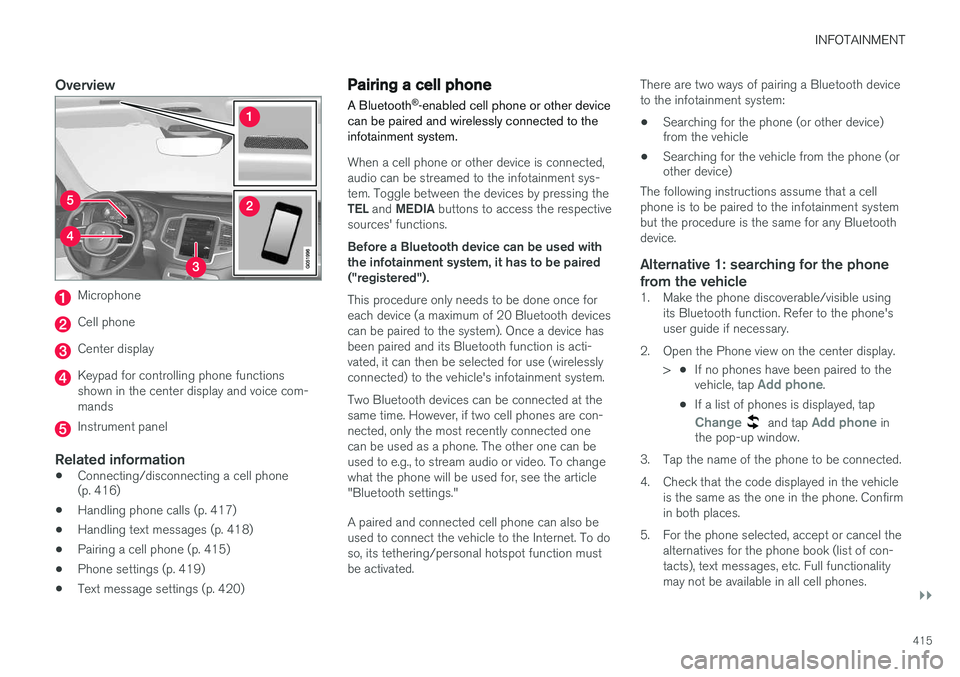
Overview
Microphone
Cell phone
Center display
Keypad for controlling phone functions shown in the center display and voice com-mands
Instrument panel
Related information
•Connecting/disconnecting a cell phone (p. 416)
• Handling phone calls (p. 417)
• Handling text messages (p. 418)
• Pairing a cell phone (p. 415)
• Phone settings (p. 419)
• Text message settings (p. 420)
Pairing a cell phone
A Bluetooth ®
-enabled cell phone or other device
can be paired and wirelessly connected to the infotainment system.
When a cell phone or other device is connected, audio can be streamed to the infotainment sys-tem. Toggle between the devices by pressing the TEL and MEDIA buttons to access the respective
sources' functions. Before a Bluetooth device can be used with the infotainment system, it has to be paired("registered"). This procedure only needs to be done once for each device (a maximum of 20 Bluetooth devicescan be paired to the system). Once a device hasbeen paired and its Bluetooth function is acti-vated, it can then be selected for use (wirelesslyconnected) to the vehicle's infotainment system. Two Bluetooth devices can be connected at the same time. However, if two cell phones are con-nected, only the most recently connected onecan be used as a phone. The other one can beused to e.g., to stream audio or video. To changewhat the phone will be used for, see the article"Bluetooth settings." A paired and connected cell phone can also be used to connect the vehicle to the Internet. To doso, its tethering/personal hotspot function mustbe activated. There are two ways of pairing a Bluetooth deviceto the infotainment system:
• Searching for the phone (or other device) from the vehicle
• Searching for the vehicle from the phone (orother device)
The following instructions assume that a cell phone is to be paired to the infotainment systembut the procedure is the same for any Bluetoothdevice.
Alternative 1: searching for the phone
from the vehicle
1. Make the phone discoverable/visible using its Bluetooth function. Refer to the phone'suser guide if necessary.
2. Open the Phone view on the center display. >•If no phones have been paired to the vehicle, tap
Add phone.
• If a list of phones is displayed, tap
Change and tap Add phone in
the pop-up window.
3. Tap the name of the phone to be connected.
4. Check that the code displayed in the vehicle is the same as the one in the phone. Confirm in both places.
5. For the phone selected, accept or cancel the alternatives for the phone book (list of con-tacts), text messages, etc. Full functionalitymay not be available in all cell phones.
Page 418 of 546
||
INFOTAINMENT
4166. To connect the vehicle to the Internet via the
phone's Bluetooth function, activate the phone's function for tethering/personal hot-spot, etc.
Alternative 2: searching for the vehicle from the phone
1. Open the center display's Phone view.
•If no phones have been paired to the vehi- cle, tap
Add phoneMake vehicle
discoverable.
• If a phone has previously been paired to the vehicle, tap
Change and tap Add
phone
Make vehicle discoverable in
the pop-up window.
2. Activate the phone's Bluetooth function.
3. Search in the phone for Bluetooth devices. > A list of Bluetooth devices will be dis-played.
4. Select the vehicle's name in the list.
5. Check that the code displayed in the phone is the same as the one in the vehicle. Con- firm in both places.
6. For the phone selected, accept or cancel the alternatives for the phone book (list of con-tacts), text messages, etc. Full functionalitymay not be available in all cell phones. 7. To connect the vehicle to the Internet via the
phone's Bluetooth function, activate thephone's function for tethering/personal hot-spot, etc.
NOTE
If your cell phone's operating system is upda- ted, this may break the connection betweenthe phone and the vehicle. If this happens,delete the phone from the list of pairedphones and repeat the pairing proceduredescribed in this article.
Compatible cell phonesMany of the cell phones available today have Bluetooth functionality but not all of them arefully compatible with the vehicle. Go towww.volvocars.com for a list of compatiblephones or contact your Volvo retailer.
Related information
• Connecting/disconnecting a cell phone (p. 416)
• Handling phone calls (p. 417)
• Handling text messages (p. 418)
• Phone settings (p. 419)
• Bluetooth settings (p. 433)
Connecting/disconnecting a cell phone
Once a cell phone or other Bluetooth device has been paired to the infotainment system, it can beconnected, disconnected or removed from thelist of available devices.
Connecting automatically1. Before switching on the vehicle's ignition, be sure that the phone's Bluetooth and personal hotspot (tethering) functions are activated.
2. Switch on the ignition. > The phone (or other device) will be con-nected to the system and can be usedwirelessly.
Connecting manually1. Be sure that the phone's Bluetooth and per- sonal hotspot (tethering) functions are acti-vated.
2. In the center display, open Phone view and tap
Change phone.
> A list of available Bluetooth devices (ones that have already been paired to the info- tainment system) will be displayed.
3. Tap the name of the phone or other device to be connected.
> The phone (or other device) will be con-nected.
Page 419 of 546
INFOTAINMENT
}}
417
Disconnecting a phone
–Deactivate the phone's Bluetooth function.
If a phone is carried out of range of the vehicle, it will automatically be disconnected. If a call in progress when this is done, the call will be transferred from the vehicle's speakers/micro-phone to the cell phone.
Changing phones1. In the center display, open Phone view. 2. Tap
Change.
> A list of available Bluetooth devices (ones that have already been paired to the info- tainment system) will be displayed.
3. Tap the name of the phone (or other device) to be connected.
Removing a phone (or other device) from the list
1. In the center display, open Phone view. 2.Tap
SettingsCommunicationBluetooth.
> A list of available Bluetooth devices (ones that have already been paired to the info- tainment system) will be displayed.
3. Tap the name of the phone to be deleted from the list. 4.
Tap
Remove device and confirm.
> The phone or other device is no longer paired to the vehicle. Before this device can be used again, the pairing procedurewill have to be repeated.
Related information
• Pairing a cell phone (p. 415)
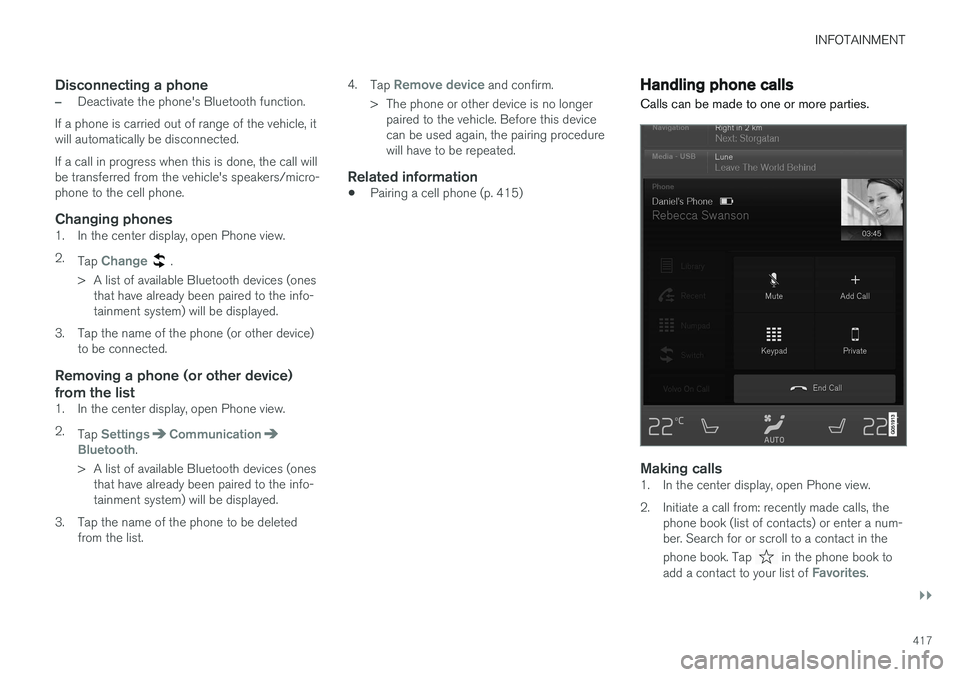
Handling phone calls Calls can be made to one or more parties.
Making calls1. In the center display, open Phone view.
2. Initiate a call from: recently made calls, the
phone book (list of contacts) or enter a num- ber. Search for or scroll to a contact in the phone book. Tap
in the phone book to
add a contact to your list of Favorites.