ad blue VOLVO XC90 T8 2016 Owner´s Manual
[x] Cancel search | Manufacturer: VOLVO, Model Year: 2016, Model line: XC90 T8, Model: VOLVO XC90 T8 2016Pages: 546, PDF Size: 10.26 MB
Page 10 of 546
8
Driving with a trailer367
Detachable trailer hitch 368
Trailer Stability Assist (TSA) 369
Ignition modes 370
Battery drain 372
Starting the engine 372
Turning the engine off 374
Driving systems 374
Hybrid battery charging cable 375
Hybrid charging cable circuit breaker 377
Hybrid-related symbols and messages 378
Preparations for charging the hybrid battery 380
Stopping hybrid battery charging 381
Initiating hybrid battery charging 382
Charging the hybrid battery 383
Hybrid battery charge status 385
Charger status indicators 387
Hybrid battery charging current 387
Long-term storage of a vehicle witha hybrid battery 388
Using the electric motor in city driving 389
Drive modes 390
ECO drive mode 394
Automatic transmission 395
Shiftlock396
Gear shift indicator 396
Gear selector positions 396
Steering wheel paddles *
398
Low Speed Control (LSC) 399
All Wheel Drive (AWD) 400
Suspension and leveling control *
400
INFOTAINMENT
The infotainment system
404
Sound settings 404
Radio 405
Radio settings 405
RBDS radio 406
Changing and searching for radio stations 406
HD Radio ™reception
407
Switching HD Radio on and off 409
HD Radio sub-channels 409
HD Radio limitations 410
SiriusXM ®
Satellite radio * 411
Using SiriusXM ®
Satellite radio radio *412
SiriusXM ®
Satellite radio * settings 413
Phone 414
Pairing a cell phone 415
Connecting/disconnecting a cell phone 416
Handling phone calls 417
Handling text messages 418
Phone settings 419
Text message settings 420
Connecting a Bluetooth ®
device 420
Connecting a device via theAUX/USB socket 420
Media player 421
Page 11 of 546
9
Apple CarPlay422
Apple CarPlay settings 423
CD (media) player *
424
Playing media 424
Media searches 426
Playing media through the AUX/USB sockets 427
Streaming media through a Blue-tooth connection 427
Media sound settings 428
Gracenote 428
Video 429
Media player technical data 429
Internet connected vehicle 431
Connecting to the Internet 431
Apps (applications) 433
Bluetooth settings 433
Downloading, updating and uninstal-ling apps 434
Internet connection troubleshooting 435
Tethering (Wi-Fi sharing) 435
Deleting Wi-Fi networks 436
Wi-Fi technology and security 436
Vehicle modem settings 437
Infotainment system license information 437
Terms, conditions and confidentiality441
WHEELS AND TIRES
Tires444
Tire sidewall designations 445
Wheel (rim) designations 447
Tire terminology 447
Tire direction of rotation 448
Tread wear indicator 449
Loading specifications 449
Uniform Tire Quality Grading 450
Snow tires and chains 451
Checking tire inflation pressure 451
Changing tires 453
Tools in the cargo compartment 453
Jack 453
Wheel bolts 454
Removing a wheel 454
Installing a wheel 456
Tire Pressure Monitoring System (TPMS) 457
Checking inflation pressure 458
Reinflating tires equipped with the Tire Pressure Monitoring System (TPMS) 459
Calibrating the Tire PressureMonitoring System (TPMS) 460
Tire Pressure Monitoring Systemtype approval 461
Tire sealing system 461
Page 49 of 546
INTRODUCTION
47
Symbols in the center display status bar
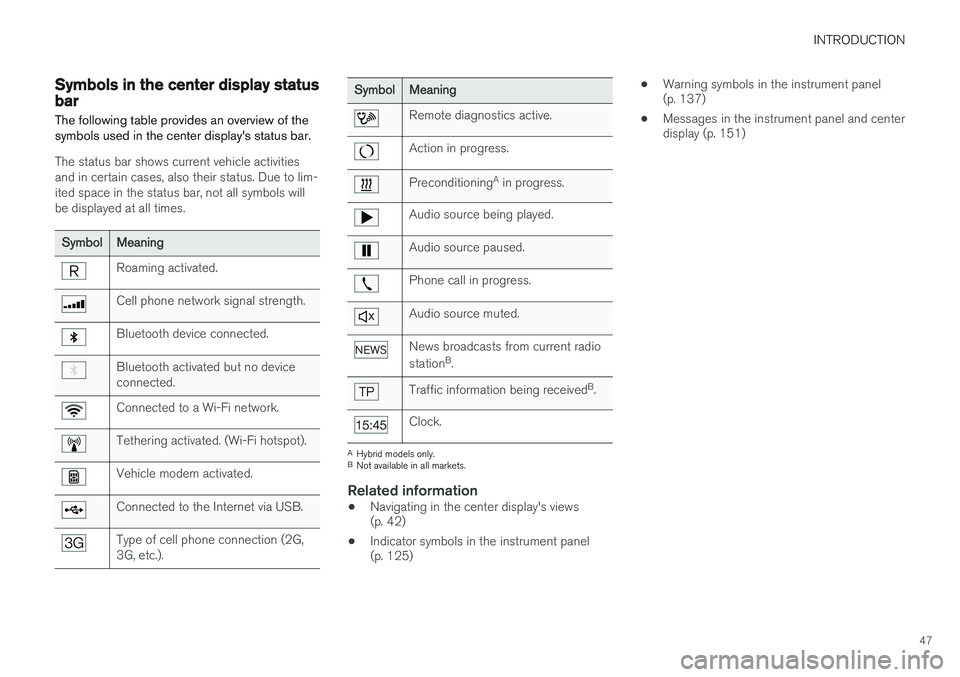
The following table provides an overview of the symbols used in the center display's status bar.
The status bar shows current vehicle activities and in certain cases, also their status. Due to lim-ited space in the status bar, not all symbols willbe displayed at all times.
SymbolMeaning
Roaming activated.
Cell phone network signal strength.
Bluetooth device connected.
Bluetooth activated but no device connected.
Connected to a Wi-Fi network.
Tethering activated. (Wi-Fi hotspot).
Vehicle modem activated.
Connected to the Internet via USB.
Type of cell phone connection (2G, 3G, etc.).
SymbolMeaning
Remote diagnostics active.
Action in progress.
Preconditioning A
in progress.
Audio source being played.
Audio source paused.
Phone call in progress.
Audio source muted.
News broadcasts from current radio station B
.
Traffic information being received B
.
Clock.
A Hybrid models only.
B Not available in all markets.
Related information
• Navigating in the center display's views (p. 42)
• Indicator symbols in the instrument panel(p. 125) •
Warning symbols in the instrument panel(p. 137)
• Messages in the instrument panel and centerdisplay (p. 151)
Page 56 of 546
||
INTRODUCTION
54
Risk of damage to the vehicle
White ISO symbols and white text/image on a black or blue warning background and space fora message. If the information on decals of thistype is ignored, damage to the vehicle couldresult.
Information
White ISO symbols and white text/image on a black background. These decals provide generalinformation.
NOTE
The decals shown in the Owner
Page 114 of 546
||
INSTRUMENTS AND CONTROLS
* Option/accessory, for more information, see Introduction.
112
Changing a setting
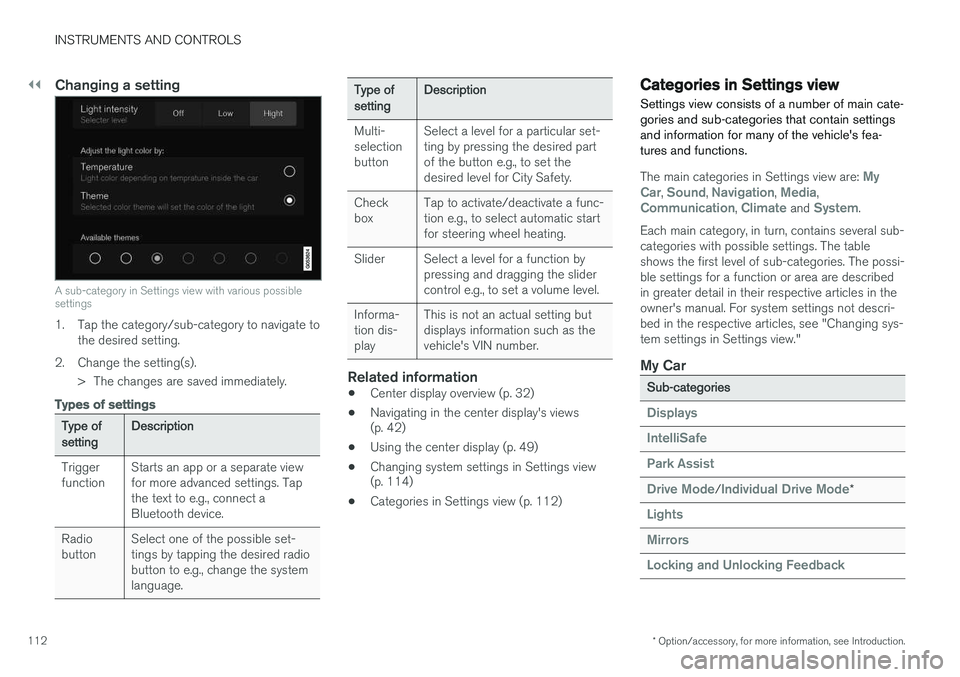
A sub-category in Settings view with various possible settings
1. Tap the category/sub-category to navigate to
the desired setting.
2. Change the setting(s). > The changes are saved immediately.
Types of settings
Type of settingDescription
Trigger functionStarts an app or a separate view for more advanced settings. Tapthe text to e.g., connect aBluetooth device.
Radio buttonSelect one of the possible set- tings by tapping the desired radiobutton to e.g., change the systemlanguage.
Type of settingDescription
Multi- selectionbuttonSelect a level for a particular set- ting by pressing the desired partof the button e.g., to set thedesired level for City Safety.
Check boxTap to activate/deactivate a func- tion e.g., to select automatic startfor steering wheel heating.
SliderSelect a level for a function by pressing and dragging the slidercontrol e.g., to set a volume level.
Informa- tion dis-playThis is not an actual setting but displays information such as thevehicle's VIN number.
Related information
• Center display overview (p. 32)
• Navigating in the center display's views (p. 42)
• Using the center display (p. 49)
• Changing system settings in Settings view(p. 114)
• Categories in Settings view (p. 112)
Categories in Settings view
Settings view consists of a number of main cate- gories and sub-categories that contain settingsand information for many of the vehicle's fea-tures and functions.
The main categories in Settings view are: My
Car, Sound, Navigation, Media,Communication, Climate and System.
Each main category, in turn, contains several sub- categories with possible settings. The tableshows the first level of sub-categories. The possi-ble settings for a function or area are describedin greater detail in their respective articles in theowner's manual. For system settings not descri-bed in the respective articles, see "Changing sys-tem settings in Settings view."
My Car
Sub-categories
Displays
IntelliSafe
Park Assist
Drive Mode/Individual Drive Mode*
Lights
Mirrors
Locking and Unlocking Feedback
Page 115 of 546
INSTRUMENTS AND CONTROLS
* Option/accessory, for more information, see Introduction.113
Sub-categories
Electric Parking Brake
Seats
Wipers
Suspension
Exterior SoundA
A
XC90 T8 Plug-in Hybrid, certain markets only.
Sound
Sub-categories
Sound Experience*
Tone
Balance
System Volumes
Navigation
Sub-categories
Map
Route
Traffic
Guidance
System
Media
Sub-categories
AM/FM RadioA
SiriusXM
Gracenote ®
Video
A
AM radio is not available in hybrid models.
Communication
Sub-categories
Phone
Text Messages
Bluetooth
Wi-Fi
Vehicle Wi-Fi Hotspot
Vehicle Modem Internet
Volvo On Call
Volvo Service Networks
ClimateThe main category Climate has no sub-catego-
ries.
System
Sub-categories
Date & Time
Language
Keyboard Layouts
Voice Control
Units
Storage
Software Updates
Factory reset
Services
Related information
• Settings view (p. 111)
• Changing system settings in Settings view (p. 114)
Page 122 of 546
||
INSTRUMENTS AND CONTROLS
* Option/accessory, for more information, see Introduction.
120
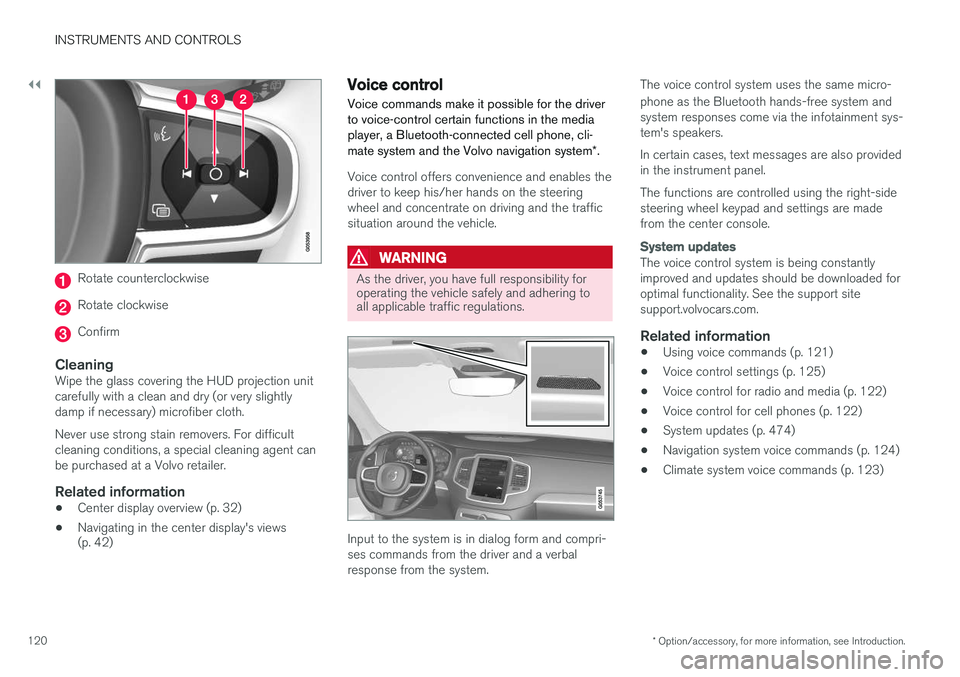
Rotate counterclockwise
Rotate clockwise
Confirm
CleaningWipe the glass covering the HUD projection unit carefully with a clean and dry (or very slightlydamp if necessary) microfiber cloth. Never use strong stain removers. For difficult cleaning conditions, a special cleaning agent canbe purchased at a Volvo retailer.
Related information
• Center display overview (p. 32)
• Navigating in the center display's views (p. 42)
Voice control
Voice commands make it possible for the driver to voice-control certain functions in the mediaplayer, a Bluetooth-connected cell phone, cli- mate system and the Volvo navigation system *.
Voice control offers convenience and enables the driver to keep his/her hands on the steeringwheel and concentrate on driving and the trafficsituation around the vehicle.
WARNING
As the driver, you have full responsibility for operating the vehicle safely and adhering toall applicable traffic regulations.
Input to the system is in dialog form and compri- ses commands from the driver and a verbalresponse from the system. The voice control system uses the same micro- phone as the Bluetooth hands-free system and system responses come via the infotainment sys-tem's speakers. In certain cases, text messages are also provided in the instrument panel. The functions are controlled using the right-side steering wheel keypad and settings are madefrom the center console.
System updates
The voice control system is being constantly improved and updates should be downloaded foroptimal functionality. See the support sitesupport.volvocars.com.
Related information
•
Using voice commands (p. 121)
• Voice control settings (p. 125)
• Voice control for radio and media (p. 122)
• Voice control for cell phones (p. 122)
• System updates (p. 474)
• Navigation system voice commands (p. 124)
• Climate system voice commands (p. 123)
Page 124 of 546
INSTRUMENTS AND CONTROLS
* Option/accessory, for more information, see Introduction.
122
Voice control for cell phones Voice commands can be used to control many of the most common functions in a Bluetooth ®
-
connected cell phone.
To specify a phone book contact, the voice com- mand has to include the contact's informationthat is in the phone book. For example, if a con- tact such as
John Smith has several phone
numbers, a number category such as home ormobile can be specified. To call, say: "Call John
Smith mobile".
To use the voice control system, press the
on the right-side steering wheel keypad and say one of the following commands after the tone:
• "
Call [contact]": call a contact from your
phone book.
• "
Call [phone number]": call a phone num-
ber.
• "
Recent calls": displays the list of recent
calls.
• "
Read message": reads a message aloud.
If there are several messages, select the one to be read.
Related information
• Voice control (p. 120)
• Using voice commands (p. 121)
• Voice control settings (p. 125)
Voice control for radio and media
The following voice commands can be used for the radio or an external media player.
To use the voice control system, press the on the right-side steering wheel keypad and say one of the following commands after the tone:
• "
Media": initiates a dialog and displays pos-
sible commands.
• "
Play [artist]": plays music by the selected
artist.
• "
Play [song title]": plays the selected song.
• "
Play [song title] from [album]": plays the
selected song from the selected album.
• "
Play [radio station]": starts the selected
radio station.
• "
Tune to [frequency]": tunes to the
selected frequency on the current waveband. If no waveband has been selected, FM is thedefault.
• "
Tune to [frequency] [waveband]": tunes
to the selected station on the selected wave- band.
• "
Radio": starts FM radio.
• "
Radio FM": starts FM radio.
• "
SiriusXM": starts SiriusXM radio
*
• "
CD": starts playback from a CD.
• "
USB": starts playback from a USB flash
drive. •
"
iPod": starts playback from an iPod.
• "
Bluetooth": starts playback from a Blue-
tooth-connected device.
• "
Similar music": starts playback from a
USB flash drive with music similar to the type currently playing.
Related information
• Voice control (p. 120)
• Using voice commands (p. 121)
• Voice control settings (p. 125)
Page 128 of 546
||
INSTRUMENTS AND CONTROLS
126
SymbolExplanation
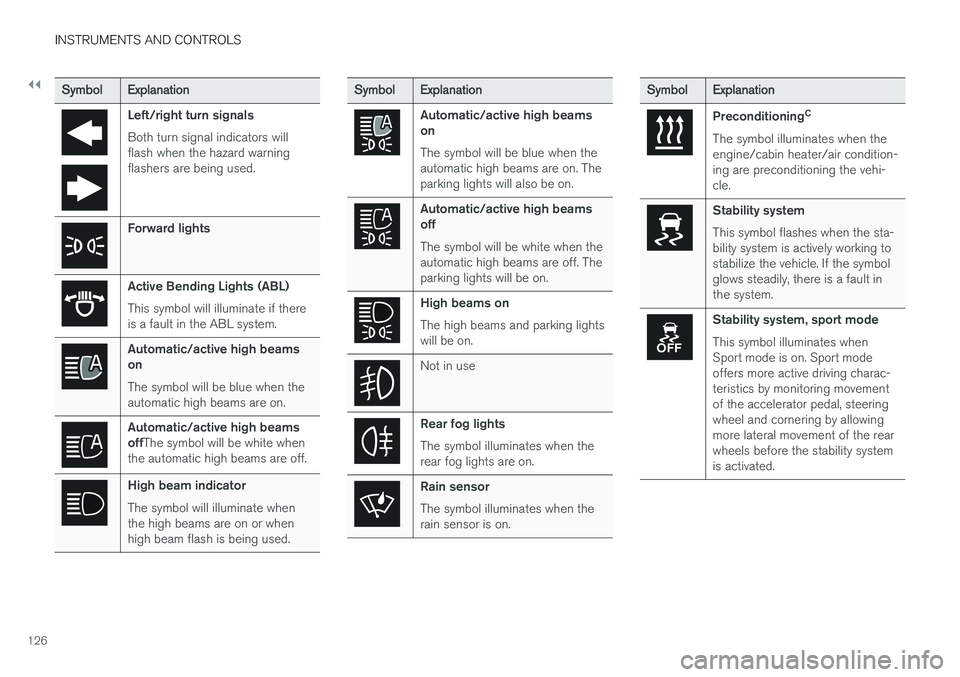
Left/right turn signals Both turn signal indicators will flash when the hazard warningflashers are being used.
Forward lights
Active Bending Lights (ABL) This symbol will illuminate if there is a fault in the ABL system.
Automatic/active high beams on The symbol will be blue when the automatic high beams are on.
Automatic/active high beams offThe symbol will be white when
the automatic high beams are off.
High beam indicator The symbol will illuminate when the high beams are on or whenhigh beam flash is being used.
SymbolExplanation
Automatic/active high beams on The symbol will be blue when the automatic high beams are on. Theparking lights will also be on.
Automatic/active high beams off The symbol will be white when the automatic high beams are off. Theparking lights will be on.
High beams on The high beams and parking lights will be on.
Not in use
Rear fog lights The symbol illuminates when the rear fog lights are on.
Rain sensor The symbol illuminates when the rain sensor is on.
SymbolExplanation
Preconditioning C
The symbol illuminates when the engine/cabin heater/air condition-ing are preconditioning the vehi-cle.
Stability system This symbol flashes when the sta- bility system is actively working tostabilize the vehicle. If the symbolglows steadily, there is a fault inthe system.
Stability system, sport mode This symbol illuminates when Sport mode is on. Sport modeoffers more active driving charac-teristics by monitoring movementof the accelerator pedal, steeringwheel and cornering by allowingmore lateral movement of the rearwheels before the stability systemis activated.
Page 146 of 546
||
INSTRUMENTS AND CONTROLS
* Option/accessory, for more information, see Introduction.
144
Operation
Activate/deactivate this function by turning the ring on the left-side steering wheel lever to
.
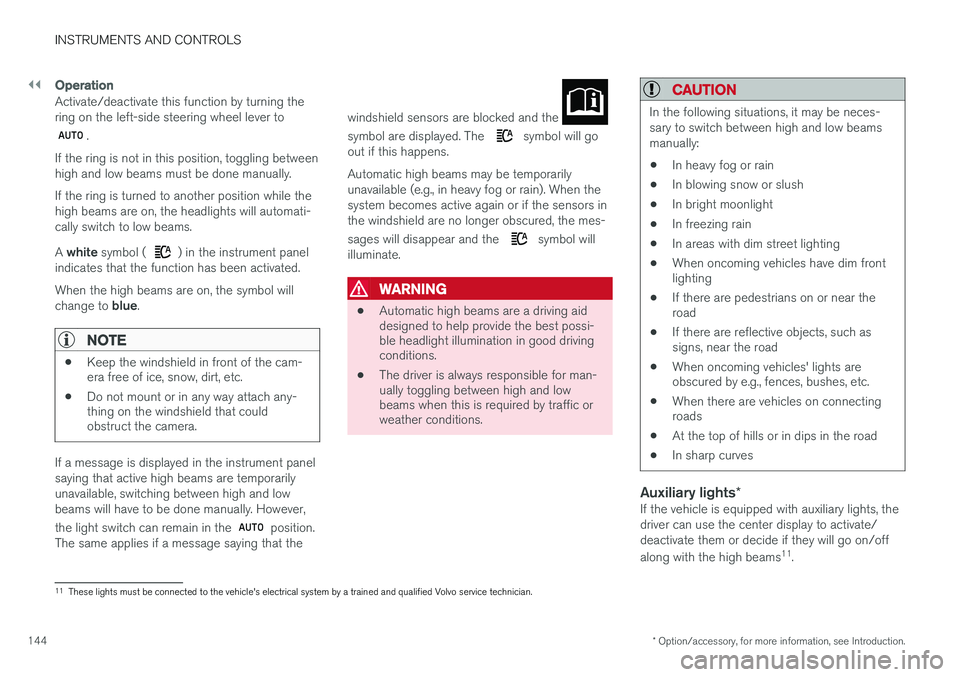
If the ring is not in this position, toggling between high and low beams must be done manually. If the ring is turned to another position while the high beams are on, the headlights will automati-cally switch to low beams. A white symbol (
) in the instrument panel
indicates that the function has been activated. When the high beams are on, the symbol will change to blue.
NOTE
•Keep the windshield in front of the cam- era free of ice, snow, dirt, etc.
• Do not mount or in any way attach any-thing on the windshield that couldobstruct the camera.
If a message is displayed in the instrument panel saying that active high beams are temporarilyunavailable, switching between high and lowbeams will have to be done manually. However, the light switch can remain in the
position.
The same applies if a message saying that the windshield sensors are blocked and the
symbol are displayed. The symbol will go
out if this happens. Automatic high beams may be temporarily unavailable (e.g., in heavy fog or rain). When thesystem becomes active again or if the sensors inthe windshield are no longer obscured, the mes- sages will disappear and the
symbol will
illuminate.
WARNING
• Automatic high beams are a driving aid designed to help provide the best possi-ble headlight illumination in good drivingconditions.
• The driver is always responsible for man-ually toggling between high and lowbeams when this is required by traffic orweather conditions.
CAUTION
In the following situations, it may be neces- sary to switch between high and low beamsmanually:
• In heavy fog or rain
• In blowing snow or slush
• In bright moonlight
• In freezing rain
• In areas with dim street lighting
• When oncoming vehicles have dim front lighting
• If there are pedestrians on or near theroad
• If there are reflective objects, such assigns, near the road
• When oncoming vehicles' lights areobscured by e.g., fences, bushes, etc.
• When there are vehicles on connectingroads
• At the top of hills or in dips in the road
• In sharp curves
Auxiliary lights
*If the vehicle is equipped with auxiliary lights, the driver can use the center display to activate/deactivate them or decide if they will go on/off along with the high beams 11
.
11 These lights must be connected to the vehicle's electrical system by a trained and qualified Volvo service technician.