buttons VOLVO XC90 T8 2016 Owner´s Manual
[x] Cancel search | Manufacturer: VOLVO, Model Year: 2016, Model line: XC90 T8, Model: VOLVO XC90 T8 2016Pages: 546, PDF Size: 10.26 MB
Page 102 of 546
||
INSTRUMENTS AND CONTROLS
* Option/accessory, for more information, see Introduction.
100 systems, even home lighting. Additional informa- tion can be found on the Internet at,www.homelink.com/www.youtube.com/HomeLinkGentex or by phoning the hotline at 1–800–355–3515.
WARNING
•
If you use HomeLink ®
to open a garage
door or gate, be sure no one is near the gate or door while it is in motion.
• When programming a garage dooropener, it is advised to park outside of thegarage.
• Do not use HomeLink ®
with any garage
door opener that lacks safety stop andreverse features as required by U.S. fed-eral safety standards (this includes anygarage door opener model manufacturedbefore April 1, 1982). A garage door thatcannot detect an object - signaling thedoor to stop and reverse - does not meetcurrent U.S. federal safety standards. Formore information, contact HomeLink at:www.homelink.com.
Retain the original transmitter of the RF device you are programming for use in other vehicles aswell as for future HomeLink programming. It isalso suggested that upon the sale of the vehicle,the programmed HomeLink buttons be erasedfor security purposes. See the article "Program-ming HomeLink."
Related information
• Programming the HomeLink ®
Wireless Con-
trol System * (p. 100)Programming the HomeLink ®
Wireless Control System *
NOTE
Some vehicles may require the ignition to be switched on or be in the “accessories” posi-tion for programming and/or operation ofHomeLink. It is also recommended that a newbattery be placed in the hand-held transmitterof the device being programmed to Home-Link for quicker training and accurate trans-mission of the radio-frequency signal. TheHomeLink buttons must be reset first. Whenthis has been completed, Homelink is inlearning mode so that you can perform pro-gramming.
To program HomeLink®
1. Press the HomeLink ®
button to be pro-
grammed. The HomeLink ®
indicator will
begin flashing yellow once a second. You do not need to continue holding the button.
2. Point the hand-held transmitter toward the HomeLink ®
button to be programmed and
hold it approx. 6–12 inches (15–30 cm) away from the HomeLink ®
button. Do not
obstruct the HomeLink ®
indicator light.
Page 104 of 546
||
INSTRUMENTS AND CONTROLS
102
Gate Operator/Canadian Programming
Canadian radio-frequency laws require transmit- ter signals to “time-out” (or quit) after severalseconds of transmission – which may not be longenough for HomeLink to pick up the signal dur-ing programming. Similar to this Canadian law,some U.S. gate operators are designed to “time-out” in the same manner. If you live in Canada or you are having difficulties programming a gate operator or garage dooropener by using the “Programming” procedures, replace “Programming HomeLink” step 3 with the following:
• Continue to press and hold the HomeLink button while you
press and release - every
two seconds (“cycle”) your hand-held trans-
mitter until the HomeLink indicator light changes from a slow to a rapidly blinkinglight. Now you may release both the Home-Link and hand-held transmitter buttons.
Proceed with “Programming” step 4 to complete.
Using HomeLink ®When programming has been completed, HomeLink
®
can be used instead of the original
remote controls. To operate, press and hold the programmed HomeLink ®
button until the trained device begins
to operate 3
(this may take several seconds). The indicator light will glow steadily or flash when the button has been pressed. Activation will nowoccur for the trained device (i.e., garage dooropener, gate operator, security system, entry doorlock, home/office lighting, etc.).
NOTE
If the ignition is switched off, HomeLink will function for 30 minutes after the driver's doorhas been opened.
For convenience, the hand-held transmitter of the device may also be used at any time. In the event that there are still programming diffi- culties or questions, contact HomeLink at:www.HomeLink.com, www.youtube.com/HomeLinkGentex or by phoning the hotline at 1–800–355–3515.
Resetting HomeLink
®
buttonsUse the following procedure to reset (erase pro- gramming) from the three HomeLink ®
buttons
(individual buttons cannot be reset but can be “reprogrammed” as outlined in the following sec-tion): 1. Press and hold HomeLink ®
buttons 1 and 3
for approx. 10 seconds until the indicator light begins to flash green. 2. Release both buttons.
>HomeLink ®
is now in the training (or
learning) mode and can be programmedat any time beginning with “To program HomeLink ®
" above.
Reprogramming a single HomeLink ®
button
To reprogram an individual HomeLink ®
button:
1. Press and hold the desired HomeLink ®
but-
ton. DO NOT release the button.
2. The yellow indicator light will begin to flash after 20 seconds. Without releasing the HomeLink button, proceed with “To program HomeLink ®
" step 1 above.
For questions or comments, contact HomeLink at: www.HomeLink.com, www.youtube.com/HomeLinkGentex or by phoning the hotline at 1–800–355–3515.
FCC (USA) and IC (Canada)This device complies with FCC rules part 15 andIndustry Canada RSS-210. Operation is subjectto the following two conditions: (1) This devicemay not cause harmful interference, and (2) Thisdevice must accept any interference that may bereceived including interference that may causeundesired operation. WARNING: The transmitterhas been tested and complies with FCC and IC
3 Do not hold the button for more than 20 seconds as this will clear the programming of the button.
Page 107 of 546
INSTRUMENTS AND CONTROLS
}}
* Option/accessory, for more information, see Introduction.105
Adjusting the power door mirrors
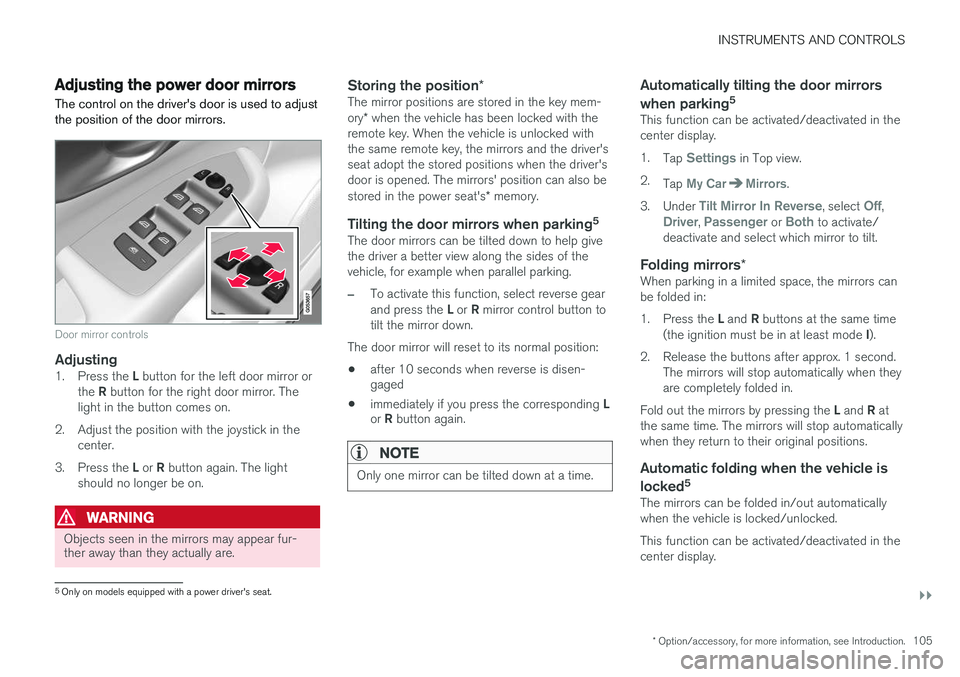
The control on the driver's door is used to adjust the position of the door mirrors.
Door mirror controls
Adjusting1. Press the L button for the left door mirror or
the R button for the right door mirror. The
light in the button comes on.
2. Adjust the position with the joystick in the center.
3. Press the L or R button again. The light
should no longer be on.
WARNING
Objects seen in the mirrors may appear fur- ther away than they actually are.
Storing the position *The mirror positions are stored in the key mem- ory* when the vehicle has been locked with the
remote key. When the vehicle is unlocked with the same remote key, the mirrors and the driver'sseat adopt the stored positions when the driver'sdoor is opened. The mirrors' position can also be stored in the power seat's * memory.
Tilting the door mirrors when parking 5The door mirrors can be tilted down to help give the driver a better view along the sides of thevehicle, for example when parallel parking.
–To activate this function, select reverse gear and press the
L or R mirror control button to
tilt the mirror down.
The door mirror will reset to its normal position:
• after 10 seconds when reverse is disen- gaged
• immediately if you press the corresponding
L
or R button again.
NOTE
Only one mirror can be tilted down at a time.
Automatically tilting the door mirrors when parking 5
This function can be activated/deactivated in the center display. 1.
Tap
Settings in Top view.
2. Tap
My CarMirrors.
3. Under
Tilt Mirror In Reverse, select Off,Driver, Passenger or Both to activate/
deactivate and select which mirror to tilt.
Folding mirrors *When parking in a limited space, the mirrors can be folded in: 1.
Press the L and R buttons at the same time
(the ignition must be in at least mode I).
2. Release the buttons after approx. 1 second. The mirrors will stop automatically when they are completely folded in.
Fold out the mirrors by pressing the L and R at
the same time. The mirrors will stop automaticallywhen they return to their original positions.
Automatic folding when the vehicle is
locked 5
The mirrors can be folded in/out automaticallywhen the vehicle is locked/unlocked. This function can be activated/deactivated in the center display.
5
Only on models equipped with a power driver's seat.
Page 108 of 546
||
INSTRUMENTS AND CONTROLS
* Option/accessory, for more information, see Introduction.
106 1.
Tap
Settings in Top view.
2. Tap
My CarMirrors.
3. Select
Fold Mirrors When Locking to acti-
vate/deactivate.
Resetting the mirrors' positionA mirror that has been moved manually (e.g., bumped into in a parking lot, etc.) has to bereturned to its normal position electrically beforeautomatic folding will function correctly. 1. Fold in the mirrors with the L and R buttons.
2. Fold out the mirrors with the L and R buttons.
The mirrors have now been reset to their original positions.
Auto-dim *Settings can be made for the auto-dim functionin the rearview and door mirrors. The auto-dim function is always active while the vehicle is being driven except when the reversegear has been selected. The level of sensitivityfor this function can be set to three levels, whichaffect the rearview mirror and door mirrors.
NOTE
When the level of sensitivity is changed, this change will not be noticeable immediately butwill take effect after a short period of time.
The level of sensitivity is set from the center dis- play: 1.
Tap
Settings in Top view.
2. Tap
My CarMirrors.
3. Under
Auto Dim Mirrors, select Normal,Dark or Light.
Related information
• Using the power seat memory function
*
(p. 164)
• Rearview mirror (p. 110)
Laminated panoramic roof
*
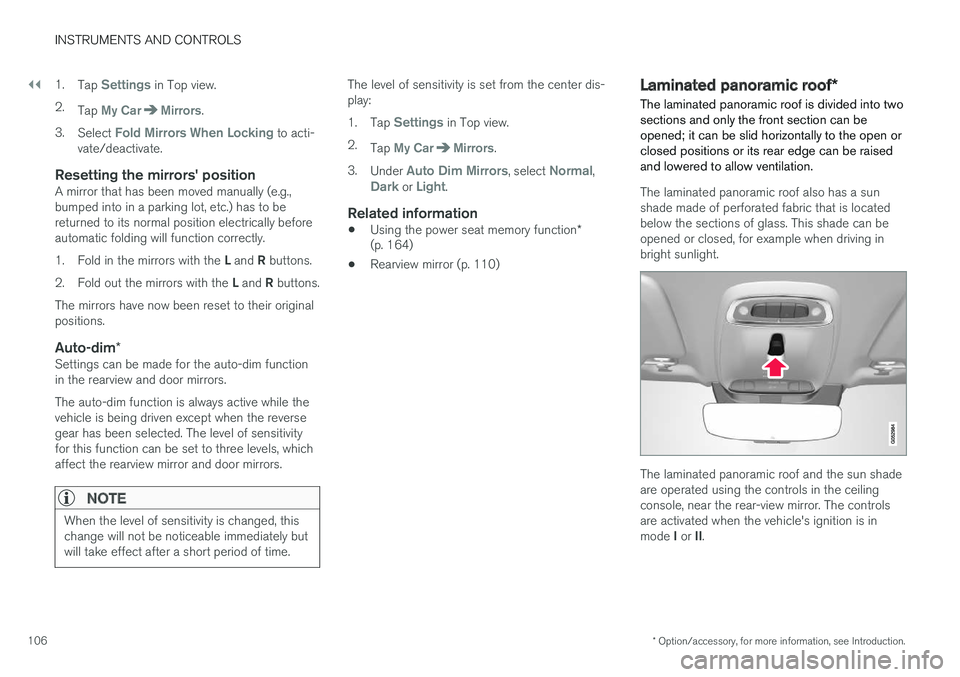
The laminated panoramic roof is divided into two sections and only the front section can beopened; it can be slid horizontally to the open orclosed positions or its rear edge can be raisedand lowered to allow ventilation.
The laminated panoramic roof also has a sun shade made of perforated fabric that is locatedbelow the sections of glass. This shade can beopened or closed, for example when driving inbright sunlight.
The laminated panoramic roof and the sun shade are operated using the controls in the ceilingconsole, near the rear-view mirror. The controlsare activated when the vehicle's ignition is in mode I or II.
Page 111 of 546
INSTRUMENTS AND CONTROLS
}}
* Option/accessory, for more information, see Introduction.109
point at which it was blocked (or will open fully to the tilt position). The auto-stop feature also functions when the laminated panoramic roof or sun shade is beingopened. The auto-stop feature can be overridden if the closing procedure has been interrupted (e.g., dueto ice around the laminated panoramic roof) bypressing and holding the control forward/downuntil the roof is closed.
Power windows
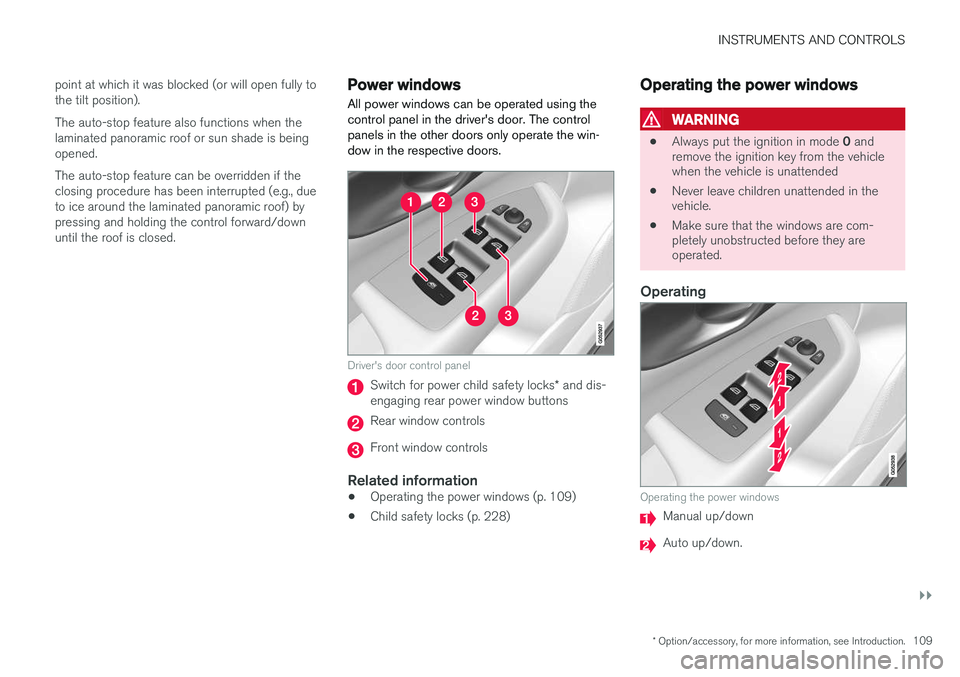
All power windows can be operated using the control panel in the driver's door. The controlpanels in the other doors only operate the win-dow in the respective doors.
Driver's door control panel
Switch for power child safety locks * and dis-
engaging rear power window buttons
Rear window controls
Front window controls
Related information
• Operating the power windows (p. 109)
• Child safety locks (p. 228)
Operating the power windows
WARNING
•
Always put the ignition in mode
0 and
remove the ignition key from the vehicle when the vehicle is unattended
• Never leave children unattended in thevehicle.
• Make sure that the windows are com-pletely unobstructed before they areoperated.
Operating
Operating the power windows
Manual up/down
Auto up/down.
Page 114 of 546
||
INSTRUMENTS AND CONTROLS
* Option/accessory, for more information, see Introduction.
112
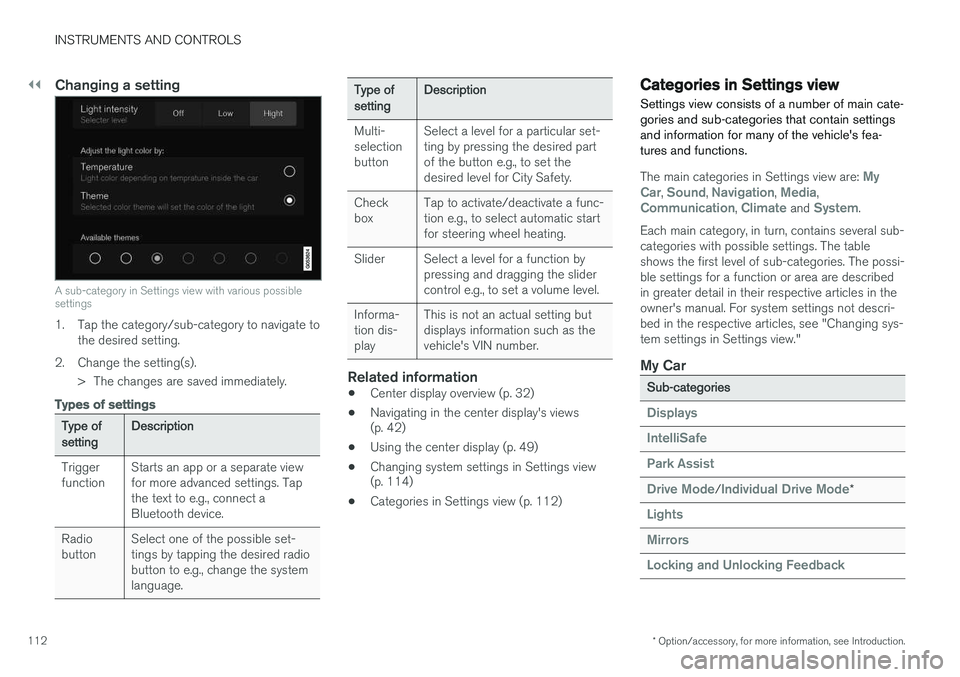
Changing a setting
A sub-category in Settings view with various possible settings
1. Tap the category/sub-category to navigate to
the desired setting.
2. Change the setting(s). > The changes are saved immediately.
Types of settings
Type of settingDescription
Trigger functionStarts an app or a separate view for more advanced settings. Tapthe text to e.g., connect aBluetooth device.
Radio buttonSelect one of the possible set- tings by tapping the desired radiobutton to e.g., change the systemlanguage.
Type of settingDescription
Multi- selectionbuttonSelect a level for a particular set- ting by pressing the desired partof the button e.g., to set thedesired level for City Safety.
Check boxTap to activate/deactivate a func- tion e.g., to select automatic startfor steering wheel heating.
SliderSelect a level for a function by pressing and dragging the slidercontrol e.g., to set a volume level.
Informa- tion dis-playThis is not an actual setting but displays information such as thevehicle's VIN number.
Related information
• Center display overview (p. 32)
• Navigating in the center display's views (p. 42)
• Using the center display (p. 49)
• Changing system settings in Settings view(p. 114)
• Categories in Settings view (p. 112)
Categories in Settings view
Settings view consists of a number of main cate- gories and sub-categories that contain settingsand information for many of the vehicle's fea-tures and functions.
The main categories in Settings view are: My
Car, Sound, Navigation, Media,Communication, Climate and System.
Each main category, in turn, contains several sub- categories with possible settings. The tableshows the first level of sub-categories. The possi-ble settings for a function or area are describedin greater detail in their respective articles in theowner's manual. For system settings not descri-bed in the respective articles, see "Changing sys-tem settings in Settings view."
My Car
Sub-categories
Displays
IntelliSafe
Park Assist
Drive Mode/Individual Drive Mode*
Lights
Mirrors
Locking and Unlocking Feedback
Page 121 of 546
INSTRUMENTS AND CONTROLS
}}
* Option/accessory, for more information, see Introduction.119
Via settings
1.
Tap Settings in Top view.
2. Tap
My CarDisplays.
3. Select/deselect
Head-Up Display.
Selecting display alternatives1.Tap Settings in Top view.
2. Tap
My CarDisplaysHead-Up
Display Options.
Tap Go to the center display's Settings view and select
Driver Display & Head-up
Display.
3. Select :
Show Navigation In Head-Up
Display, Road Sign Information In Head-
Up Display, Show Driver Support In
Head-Up Display or Show Phone In
Head-Up Display.
Adjusting HUD brightness and height position
1. Tap Head-up display adjustments in the
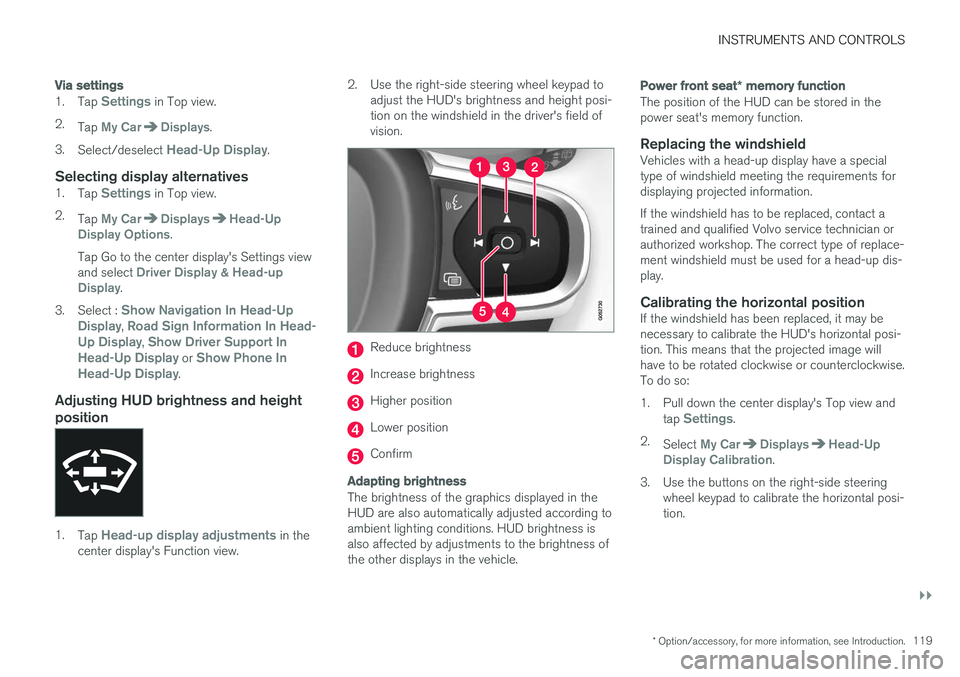
center display's Function view. 2. Use the right-side steering wheel keypad to
adjust the HUD's brightness and height posi- tion on the windshield in the driver's field ofvision.
Reduce brightness
Increase brightness
Higher position
Lower position
Confirm
Adapting brightness
The brightness of the graphics displayed in the HUD are also automatically adjusted according toambient lighting conditions. HUD brightness isalso affected by adjustments to the brightness ofthe other displays in the vehicle.
Power front seat * memory function
The position of the HUD can be stored in the power seat's memory function.
Replacing the windshieldVehicles with a head-up display have a specialtype of windshield meeting the requirements fordisplaying projected information. If the windshield has to be replaced, contact a trained and qualified Volvo service technician orauthorized workshop. The correct type of replace-ment windshield must be used for a head-up dis-play.
Calibrating the horizontal positionIf the windshield has been replaced, it may benecessary to calibrate the HUD's horizontal posi-tion. This means that the projected image willhave to be rotated clockwise or counterclockwise.To do so:
1. Pull down the center display's Top view and
tap
Settings.
2. Select
My CarDisplaysHead-Up
Display Calibration.
3. Use the buttons on the right-side steering wheel keypad to calibrate the horizontal posi- tion.
Page 150 of 546
INSTRUMENTS AND CONTROLS
* Option/accessory, for more information, see Introduction.
148
Approach lighting
Approach lighting activates the parking lights, outer door handle lights *, license plate lighting,
courtesy lighting and footwell lighting when you approach the vehicle.
This function is activated by unlocking the car. The time interval for this lighting can be set on the center display. The function can be deactivated/activated in the center display: 1. Tap
Settings in Top view.
2. Tap
My CarLightsExterior Lights.
3. Deselect/select
Welcome Light.
Related information
• Settings view (p. 111)
• Home safe lighting (p. 148)
• Remote key (p. 235)
Home safe lighting
The home safe lighting function illuminates the area in front of the vehicle in dark conditions.
This function turns on the headlights, parking lights, outer door handle lights *, license plate
lights, front ceiling lighting and footwell lighting for a set amount of time. The length of time that these lights remain illumi- nated can be set in the center display: 1. Tap
Settings in Top view.
2. Tap
My CarLightsExterior LightsHome Safety Lights.
3. Select
Off, 30 sec, 60 sec or 90 sec.
To activate home safe lighting: 1. Switch off the ignition (mode 0).
2. Push the turn signal lever as far as possible towards the dashboard and release it.
3. Exit the vehicle and lock the doors.
Related information
• Using the center display (p. 49)
• Settings view (p. 111)
Passenger compartment lighting
The passenger compartment lighting is con- trolled using the buttons in the ceiling above thefront and rear seats.
All passenger compartment lighting can be turned on and off manually within 30 minutesafter:
• the vehicle is unlocked but the engine has not been started
• the engine is switched off and the ignition is in mode
0.
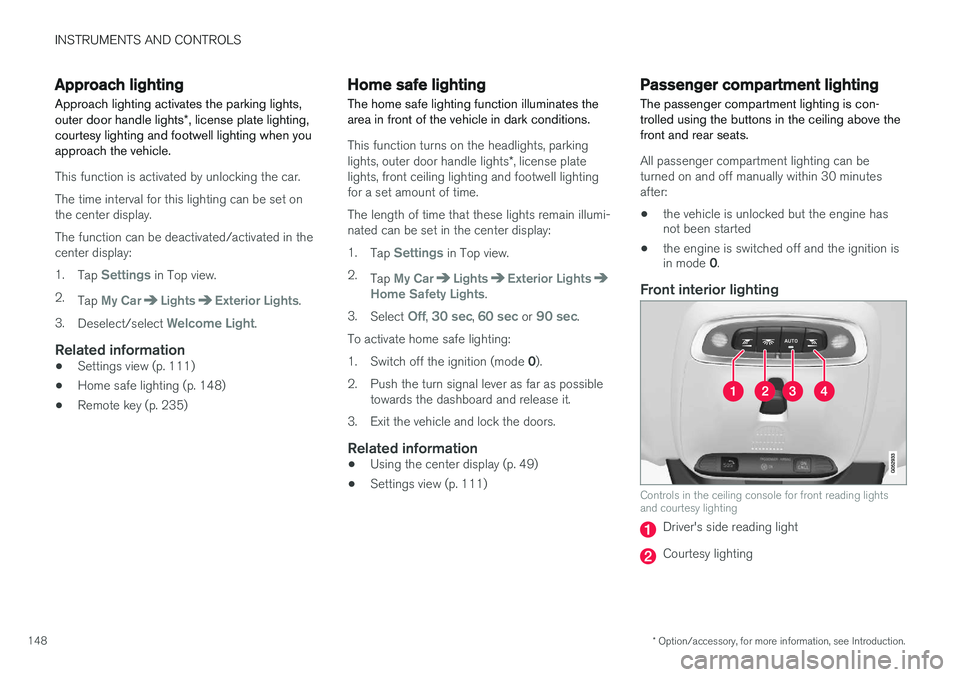
Front interior lighting
Controls in the ceiling console for front reading lights and courtesy lighting
Driver's side reading light
Courtesy lighting
Page 151 of 546
INSTRUMENTS AND CONTROLS
}}
* Option/accessory, for more information, see Introduction.149
Courtesy lighting (AUTO) switch
Passenger's side reading light
Front reading lights
Turn the reading lights on or off by pressing the respective buttons briefly. Adjust the brightnessby pressing and holding the button.
Courtesy lighting
Turn the footwell and overhead courtesy lighting on or off by pressing the button briefly.
Courtesy lighting switch
Activate the automatic function by briefly press- ing the AUTO button in the ceiling console. The
indicator light in the button will illuminate. WithAUTO activated, the courtesy lighting will switch
on and off as follows: The courtesy lighting: • comes on when the vehicle is unlocked and when the ignition is switched off
• goes off when the engine is started andwhen the vehicle is locked
• comes on or goes off when one of the sidedoors is opened or closed
• remains on for 2 minutes if a side door isopen
The courtesy lighting switches off when:
Rear interior lighting
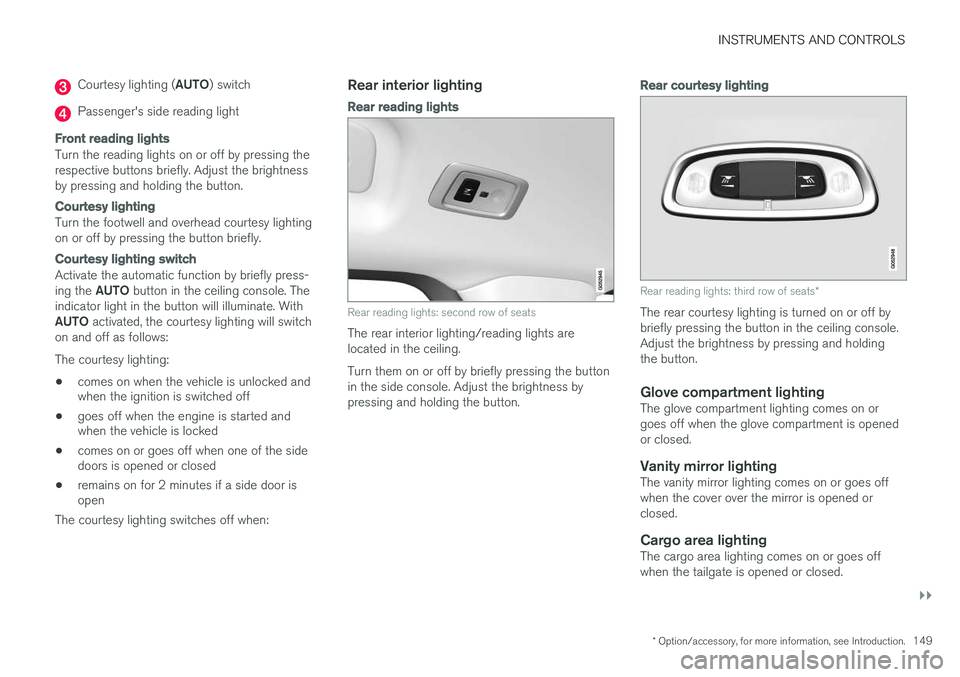
Rear reading lights
Rear reading lights: second row of seats
The rear interior lighting/reading lights are located in the ceiling. Turn them on or off by briefly pressing the button in the side console. Adjust the brightness bypressing and holding the button.
Rear courtesy lighting
Rear reading lights: third row of seats *
The rear courtesy lighting is turned on or off by briefly pressing the button in the ceiling console.Adjust the brightness by pressing and holdingthe button.
Glove compartment lightingThe glove compartment lighting comes on orgoes off when the glove compartment is openedor closed.
Vanity mirror lightingThe vanity mirror lighting comes on or goes offwhen the cover over the mirror is opened orclosed.
Cargo area lightingThe cargo area lighting comes on or goes offwhen the tailgate is opened or closed.
Page 154 of 546
||
INSTRUMENTS AND CONTROLS
152The message may be displayed along with graph- ics, symbols or buttons for e.g., confirming themessage or accepting a request.
Service messages
The following table lists a selection of important service messages and the action that should betaken.
MessageAction
Stop safelyAStop and switch off the engine. There is a risk ofserious damage to the vehi- cle
B
.
Turn off engineAStop and switch off the engine. There is a risk ofserious damage to the vehi- cle B
.
Service urgent Drive to workshop
A
Contact a workshop B
to have
the vehicle inspected imme- diately.
Service requiredAContact a workshop B
to have
the vehicle inspected as soon as possible.
Book time for maintenance Time for maintenanceTime for the next scheduled service. Contact a work- shop B
.
MessageAction
Maintenance overdueTime for the next scheduled service. Contact a work- shop B
. If the service sched-
ule is not followed, this may void all or part of the vehi-cle's warranty and result indamage to vehicle compo-nents.
Temporarily offAA function has been tempo- rarily deactivated and will bereactivated automaticallywhile driving or after theengine is restarted.
A Part of the message is context-dependent.
B Contact a Volvo retailer or a trained and qualified Volvo service technician.
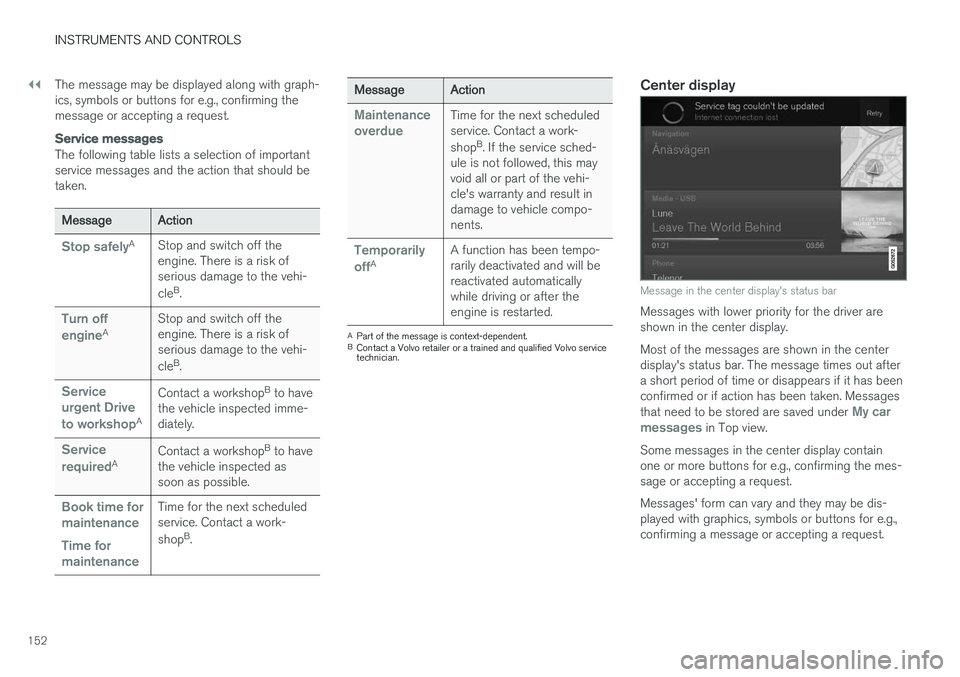
Center display
Message in the center display's status bar
Messages with lower priority for the driver are shown in the center display. Most of the messages are shown in the center display's status bar. The message times out aftera short period of time or disappears if it has beenconfirmed or if action has been taken. Messages that need to be stored are saved under
My car
messages in Top view.
Some messages in the center display contain one or more buttons for e.g., confirming the mes-sage or accepting a request. Messages' form can vary and they may be dis- played with graphics, symbols or buttons for e.g.,confirming a message or accepting a request.