buttons VOLVO XC90 T8 2016 Owner´s Manual
[x] Cancel search | Manufacturer: VOLVO, Model Year: 2016, Model line: XC90 T8, Model: VOLVO XC90 T8 2016Pages: 546, PDF Size: 10.26 MB
Page 403 of 546
STARTING AND DRIVING
401
Suspension leveling settings
Easy entry
The vehicle can be lowered to entering and exit- ing easier. Select
SettingsVehicleEasy Entry/Exit
Control via the center display's Top view to lower
the vehicle when getting in or out. When the vehicle is parked and the engine is turned off, the level is lowered (if a side door isopened, the level adjustment will stop). When theengine is started and the vehicle begins to move,the level will be raised to the height set by theselected drive mode.
Turning off suspension and leveling control
In certain situations, this function has to be turned off, for example when lifting the vehicle ona jack or garage hoist. 1. Tap
Settings in the center display's Top
view.
2. Tap
My CarSuspension .
3. Select
Deactivate Suspension & Leveling
Control.
Changing suspension control
Three different levels of suspension control can be selected from the center display: 1. Tap
Settings in the center display's Top
view. 2.
Tap
My CarDrive Mode.
3. Under
Suspension Control, select Eco,Comfort or Dynamic.
Loading mode
Use the buttons in the cargo compartment to raise or lower the vehicle to make loading orunloading easier or when attaching a trailer.
Parking the vehicleWhen parking, be sure that there is adequatespace above and below the vehicle since itsground clearance may vary, e.g., depending onthe ambient temperature, how the vehicle is loa-ded, if loading mode is being used or the drivemode selected after the engine is started. The level may also be adjusted for a certain time after the vehicle has been parked to compensatefor possible height adjustments due to tempera-ture changes in the pneumatic suspension whenthe vehicle has cooled.
TransportWhen transporting the vehicle on a ferry, train ora tow truck, it may only be secured (lashed)around the tires, not using any other chassiscomponents. Changes in the pneumatic suspen-sion may occur during transport that could nega-tively affect the lashing and result in damage.
Related information
• Drive modes (p. 390)
• Driving with a trailer (p. 367)
• Loading (p. 215)
8
Standard equipment on certain models.
Page 417 of 546
INFOTAINMENT
}}
415
Overview
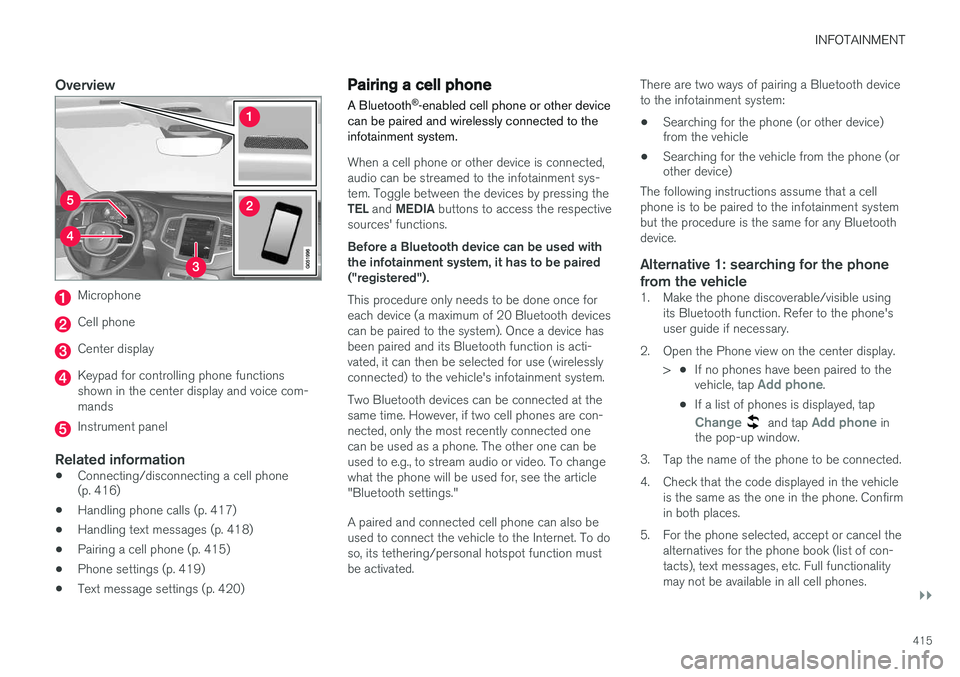
Microphone
Cell phone
Center display
Keypad for controlling phone functions shown in the center display and voice com-mands
Instrument panel
Related information
•Connecting/disconnecting a cell phone (p. 416)
• Handling phone calls (p. 417)
• Handling text messages (p. 418)
• Pairing a cell phone (p. 415)
• Phone settings (p. 419)
• Text message settings (p. 420)
Pairing a cell phone
A Bluetooth ®
-enabled cell phone or other device
can be paired and wirelessly connected to the infotainment system.
When a cell phone or other device is connected, audio can be streamed to the infotainment sys-tem. Toggle between the devices by pressing the TEL and MEDIA buttons to access the respective
sources' functions. Before a Bluetooth device can be used with the infotainment system, it has to be paired("registered"). This procedure only needs to be done once for each device (a maximum of 20 Bluetooth devicescan be paired to the system). Once a device hasbeen paired and its Bluetooth function is acti-vated, it can then be selected for use (wirelesslyconnected) to the vehicle's infotainment system. Two Bluetooth devices can be connected at the same time. However, if two cell phones are con-nected, only the most recently connected onecan be used as a phone. The other one can beused to e.g., to stream audio or video. To changewhat the phone will be used for, see the article"Bluetooth settings." A paired and connected cell phone can also be used to connect the vehicle to the Internet. To doso, its tethering/personal hotspot function mustbe activated. There are two ways of pairing a Bluetooth deviceto the infotainment system:
• Searching for the phone (or other device) from the vehicle
• Searching for the vehicle from the phone (orother device)
The following instructions assume that a cell phone is to be paired to the infotainment systembut the procedure is the same for any Bluetoothdevice.
Alternative 1: searching for the phone
from the vehicle
1. Make the phone discoverable/visible using its Bluetooth function. Refer to the phone'suser guide if necessary.
2. Open the Phone view on the center display. >•If no phones have been paired to the vehicle, tap
Add phone.
• If a list of phones is displayed, tap
Change and tap Add phone in
the pop-up window.
3. Tap the name of the phone to be connected.
4. Check that the code displayed in the vehicle is the same as the one in the phone. Confirm in both places.
5. For the phone selected, accept or cancel the alternatives for the phone book (list of con-tacts), text messages, etc. Full functionalitymay not be available in all cell phones.
Page 427 of 546
INFOTAINMENT
}}
425
CD
1. Insert a CD. 2.Open the
CD app in the center display's App
view.
3. Select a track. > Playback will begin.
USB flash drive
1. Insert the flash drive in the USB socket. 2. Open the
USB app in the center display's
App view.
3. Select a track. > Playback will begin.
Mp3 player and iPod®
NOTE
Use the iPod app ( not the USB app) to start playback. When an iPod is the media source, the info- tainment system will use a menu structuresimilar to the iPod's own menu structure.
1. Connect the device.
2. Start playback in the connected device.3.
Open the
iPod, USB, AUX) app in the cen-
ter display's App view.
> Playback will begin.
Bluetooth-connected device
1. Connect the device.
2. Activate Bluetooth in the device.
3. Start playback from the connected device.4. Open the
Bluetooth app in the center dis-
play's App view.
> Playback will begin.
Internet media
1. Connect the vehicle to the Internet.
2. Open the app in the center display's App view.
> Playback will begin.
Video
1. Connect the device. 2.Open the
USB app in the center display's
App view.
3. Tap the title of the video content to be played.
> Playback will begin.
Apple CarPlay
Apple CarPlay is described in a separate article.
Controlling and changing mediaThe media player can be con- trolled using voice commands,the right-side steering wheelkeypad or the center display.
Volume: use the buttons on the keypad or turn the control under the center display to raise orlower the volume.
Page 428 of 546
||
INFOTAINMENT
* Option/accessory, for more information, see Introduction.
426 Play/pause: tap the track's image, press the
symbol on the keypad or press the button under the center display. Change tracks: tap the desired track on the cen- ter display, press the
< > buttons under the cen-
ter display or use the keypad. Fast forward/reverse, move within a track: press the time axis on the center display and drag from side to side, press and hold the < > buttons
under the center display or use the keypad. Change media source: Tap a media source under
Recents, tap the desired app in the center dis-
play's App view or use the keypad.
Library: tap to play a track from the library.
Shuffle: tap to play tracks in random order.
Similar: tap to use Gracenote to search for simi-
lar music on the USB device and create a playlist based on the results. The playlist can contain upto 50 tracks.
Change device: tap to toggle between USB
devices if more than one is connected.
Video settings
The following can be adjusted with the video player in full screen or by opening the center dis- play's Top view and tapping
SettingsVideo:Primary Audio Default Language, Subtitleand Primary Subtitle Default Language.
Play DivX®
This DivX device must be registered in order to play purchased DivX Video-on-Demand (VOD)movies.
1. Open the center display's Top view and tap
SettingsVideoDivX
® VOD to get a
registration code.
2. Go to vod.divx.com for additional information and to complete the registration process.
Related information
• CD (media) player
* (p. 424)
• Media player (p. 421)
• Voice control for radio and media (p. 122)
• Apps (applications) (p. 433)
• Connecting a Bluetooth ®
device (p. 420)
• Connecting a device via the AUX/USB socket (p. 420)
• Gracenote (p. 428)
• Connecting to the Internet (p. 431)
• Media searches (p. 426)
• Video (p. 429)
• Apple CarPlay (p. 422)
Media searches
Searches can be made for information such as artists, composers, song titles, albums, video,audio books, playlists and podcasts (digitalmedia on the Internet).
1. Tap .
> The center display's Search view opens and the keyboard will be displayed.
2. Enter a search word/phrase.
Page 493 of 546
MAINTENANCE AND SERVICING
}}
* Option/accessory, for more information, see Introduction.491
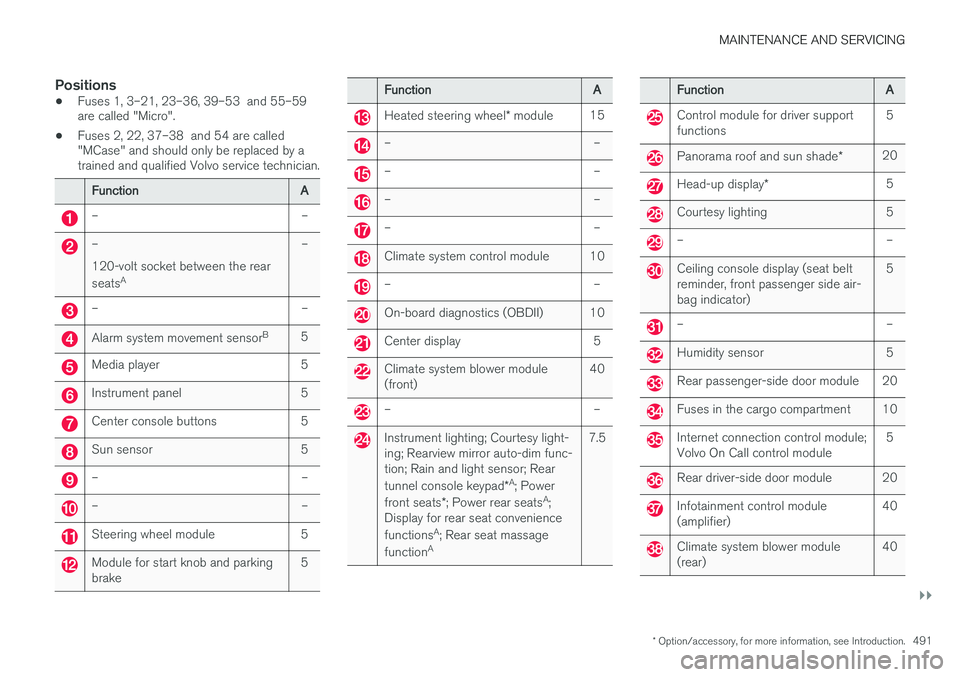
Positions
•Fuses 1, 3–21, 23–36, 39–53 and 55–59 are called "Micro".
• Fuses 2, 22, 37–38 and 54 are called"MCase" and should only be replaced by atrained and qualified Volvo service technician.
FunctionA
––
– 120-volt socket between the rear seats A–
––
Alarm system movement sensor B5
Media player5
Instrument panel5
Center console buttons5
Sun sensor5
––
––
Steering wheel module5
Module for start knob and parking brake5
FunctionA
Heated steering wheel
* module15
––
––
––
––
Climate system control module10
––
On-board diagnostics (OBDII)10
Center display5
Climate system blower module (front)40
––
Instrument lighting; Courtesy light- ing; Rearview mirror auto-dim func-tion; Rain and light sensor; Rear tunnel console keypad *A
; Power
front seats *; Power rear seats A
;
Display for rear seat conveniencefunctions A
; Rear seat massage
function A7.5
FunctionA
Control module for driver support functions5
Panorama roof and sun shade
*20
Head-up display*5
Courtesy lighting5
––
Ceiling console display (seat belt reminder, front passenger side air-bag indicator)5
––
Humidity sensor5
Rear passenger-side door module20
Fuses in the cargo compartment10
Internet connection control module; Volvo On Call control module5
Rear driver-side door module20
Infotainment control module (amplifier)40
Climate system blower module (rear)40
Page 517 of 546
MAINTENANCE AND SERVICING
}}
515
CAUTION
•Do not use cleaning agents with high alcohol content such as washer fluid toclean instrument panel glass.
• Never spray cleaning agents or waterdirectly onto components with electricalbuttons or controls. Clean components ofthis type by applying the cleaning agent/water sparingly to a cloth and wiping thecomponents so that no liquid penetratesinto these components.
Cleaning the seat beltsClean only with lukewarm water and a mild soap solution.
Cleaning floor matsThe floor mats should be vacuumed or brushedclean regularly, especially during winter whenthey should be taken out for drying. Spots on tex-tile mats can be removed with a mild detergent.For best protection in winter, Volvo recommendsthe use of Volvo rubber floor mats. Consult yourVolvo retailer.
WARNING
•
Never use more than one floor mat at a time on the driver's floor. Before driving,remove the original mat from the driver'sseat floor before using any other type offloor mat. Any mat used in this positionshould be securely and properly anchoredin the attaching pins. An extra mat on thedriver's floor can cause the acceleratorand/or brake pedal to catch. Check thatthe movement of these pedals is notimpeded.
• Volvo's floor mats are specially manufac-tured for your car. They must be firmlysecured in the clips on the floor so thatthey cannot slide and become trappedunder the pedals on the driver's side.
Related information
• Cleaning the center display (p. 515)
Cleaning the center display
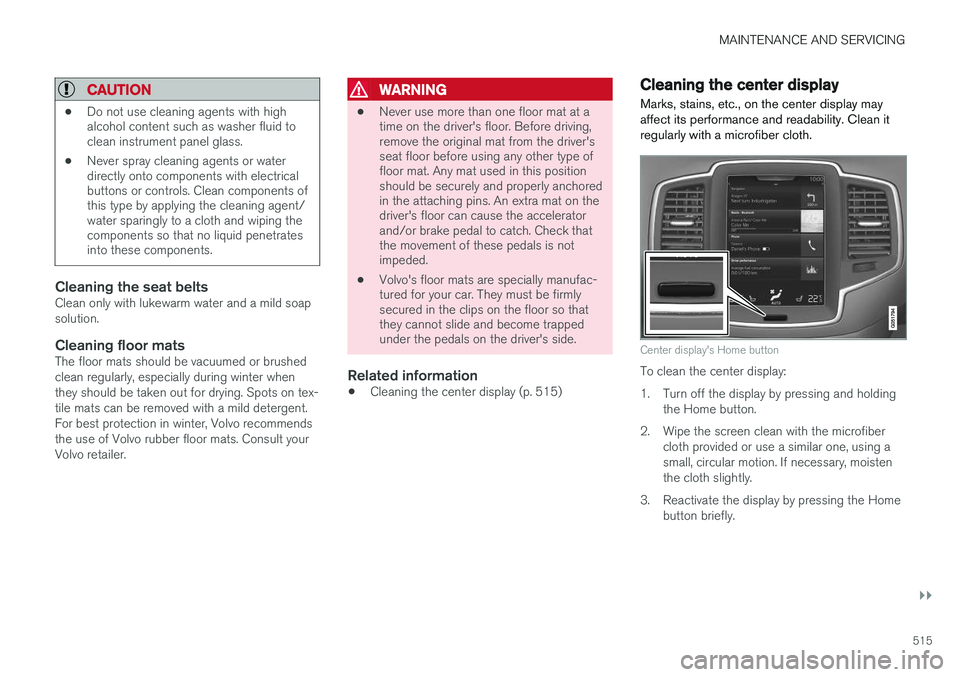
Marks, stains, etc., on the center display may affect its performance and readability. Clean itregularly with a microfiber cloth.
Center display's Home button
To clean the center display:
1. Turn off the display by pressing and holding the Home button.
2. Wipe the screen clean with the microfiber cloth provided or use a similar one, using a small, circular motion. If necessary, moistenthe cloth slightly.
3. Reactivate the display by pressing the Home button briefly.