display VOLVO XC90 T8 2016 Owner´s Manual
[x] Cancel search | Manufacturer: VOLVO, Model Year: 2016, Model line: XC90 T8, Model: VOLVO XC90 T8 2016Pages: 546, PDF Size: 10.26 MB
Page 433 of 546
INFOTAINMENT
}}
431
Internet connected vehicle
Connecting to the Internet makes it possible to e.g., use certain navigation services, listen toweb radio, stream music using apps, contact aretailer and download software.
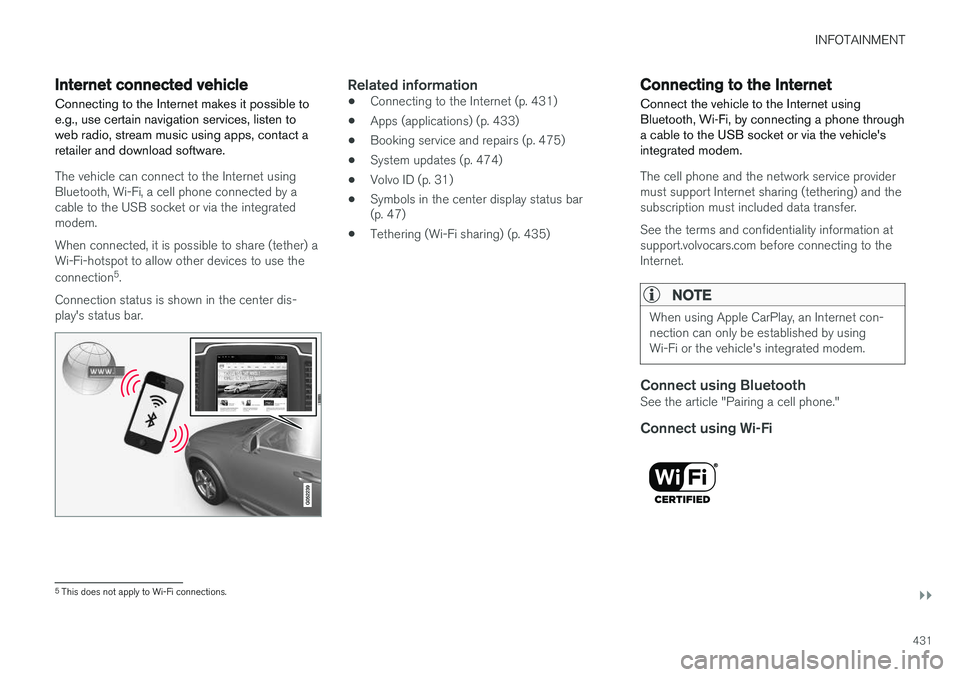
The vehicle can connect to the Internet using Bluetooth, Wi-Fi, a cell phone connected by acable to the USB socket or via the integratedmodem. When connected, it is possible to share (tether) a Wi-Fi-hotspot to allow other devices to use the connection 5
.
Connection status is shown in the center dis- play's status bar.
Related information
• Connecting to the Internet (p. 431)
• Apps (applications) (p. 433)
• Booking service and repairs (p. 475)
• System updates (p. 474)
• Volvo ID (p. 31)
• Symbols in the center display status bar (p. 47)
• Tethering (Wi-Fi sharing) (p. 435)
Connecting to the Internet
Connect the vehicle to the Internet using
Bluetooth, Wi-Fi, by connecting a phone through a cable to the USB socket or via the vehicle'sintegrated modem.
The cell phone and the network service provider must support Internet sharing (tethering) and thesubscription must included data transfer. See the terms and confidentiality information at support.volvocars.com before connecting to theInternet.
NOTE
When using Apple CarPlay, an Internet con- nection can only be established by usingWi-Fi or the vehicle's integrated modem.
Connect using BluetoothSee the article "Pairing a cell phone."
Connect using Wi-Fi
5 This does not apply to Wi-Fi connections.
Page 434 of 546
||
INFOTAINMENT
4321. Activate tethering/personal hotspot in the
cell phone.
2. Tap
Settings in the center display's Top
view.
3. Tap
CommunicationWi-Fi.
4. Tap Wi-Fi to activate/deactivate.
5. Tap the name of the network to be used.
6. Enter the network password.
7. If a different connection was used previously, confirm the connection change.
> The vehicle will connect to the network.
Please be aware that certain cell phones disable tethering when the connection to the vehicle hasbeen broken, e.g., when the phone has beenremoved from the vehicle. In such cases, thephone's tethering function will have to be reacti-vated the next time the phone is used to connectto the Internet. When a phone is connected to the vehicle, it is saved for future use. When a max. number of 50have been saved, the first one connected will bedeleted. To show the list of saved networks or to manually delete a network, tap
SettingsWi-Fi
Saved networks.
See the article "Wi-Fi technology and security" for network connection requirements.
Connect using a cable connected to the USB socket
1. Connect the phone via a cable to the USB socket in the tunnel console storage com- partment.
2. Activate USB tethering in the cell phone.
3. If a different connection was used previously, confirm the connection change.
> The vehicle will connect to the network.
Connect using the vehicle's integrated modem
When the vehicle is connected using the modem, Volvo On Call services will use the connection.
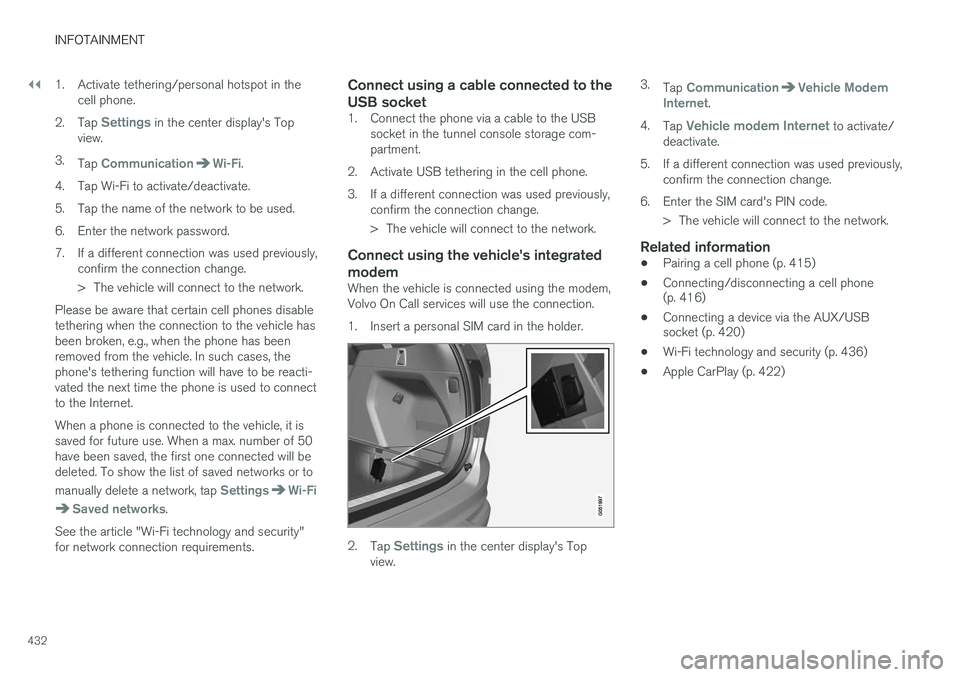
1. Insert a personal SIM card in the holder.
2.Tap Settings in the center display's Top
view. 3.
Tap
CommunicationVehicle Modem
Internet.
4. Tap
Vehicle modem Internet to activate/
deactivate.
5. If a different connection was used previously, confirm the connection change.
6. Enter the SIM card's PIN code. > The vehicle will connect to the network.
Related information
• Pairing a cell phone (p. 415)
• Connecting/disconnecting a cell phone (p. 416)
• Connecting a device via the AUX/USBsocket (p. 420)
• Wi-Fi technology and security (p. 436)
• Apple CarPlay (p. 422)
Page 435 of 546
INFOTAINMENT
}}
433
Apps (applications)
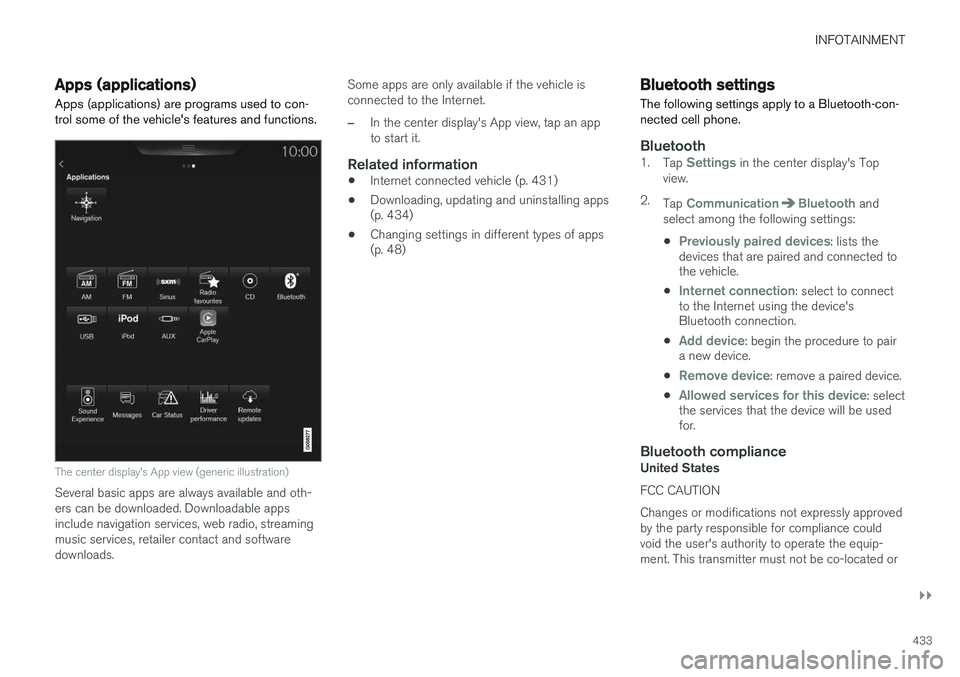
Apps (applications) are programs used to con- trol some of the vehicle's features and functions.
The center display's App view (generic illustration)
Several basic apps are always available and oth- ers can be downloaded. Downloadable appsinclude navigation services, web radio, streamingmusic services, retailer contact and softwaredownloads. Some apps are only available if the vehicle isconnected to the Internet.
–In the center display's App view, tap an app to start it.
Related information
•
Internet connected vehicle (p. 431)
• Downloading, updating and uninstalling apps (p. 434)
• Changing settings in different types of apps(p. 48)
Bluetooth settings
The following settings apply to a Bluetooth-con- nected cell phone.
Bluetooth1. Tap Settings in the center display's Top
view.
2. Tap
CommunicationBluetooth and
select among the following settings:
•
Previously paired devices: lists the
devices that are paired and connected to the vehicle.
•
Internet connection: select to connect
to the Internet using the device's Bluetooth connection.
•
Add device: begin the procedure to pair
a new device.
•
Remove device: remove a paired device.
•
Allowed services for this device: select
the services that the device will be used for.
Bluetooth complianceUnited States FCC CAUTION Changes or modifications not expressly approved by the party responsible for compliance couldvoid the user's authority to operate the equip-ment. This transmitter must not be co-located or
Page 436 of 546
||
INFOTAINMENT
434operated in conjunction with any other antenna or transmitter. Canada This device complies with Industry Canada licence-exempt RSS standard(s). Operation issubject to the following two conditions: (1) this device may not cause interference, and(2) this device must accept any interference, including interference that may cause undesiredoperation of the device.
Related information
•
Internet connected vehicle (p. 431)
• Pairing a cell phone (p. 415)
• Phone (p. 414)
• Media player (p. 421)
• Connecting/disconnecting a cell phone (p. 416)
Downloading, updating and uninstalling apps
Apps can be added (downloaded), kept up-to- date or deleted.
NOTE
Downloading data may affect other services that transfer data such as web radio, stream-ing music, etc. If this occurs, a download inprogress can be cancelled or the other serv-ice can be temporarily turned off.
Apps are managed via theRemote update service in
the center display's App view. To download, update or delete apps, the vehicle must be con-nected to the Internet.
Downloading an app
1. Open the Remote update service app.
2. Select
Explore to open a list of apps that
are available but which are not installed in the vehicle. Tap anywhere in a line for an appto expand the list for additional information. 3.
Select
Install to start downloading the app. It
will remain in the list and a new download can be initiated if necessary.
> Download status will be indicated while it is in progress. A message will be displayed if a download cannot be started immediately. The appwill remain in the list and a new downloadcan be initiated if necessary.
Cancelling (aborting) a download
–Tap Abort to cancel a download that is cur-
rently underway.
Only a download can be cancelled. If the installa-
tion phase has begun, it cannot be interrupted.
Updating appsIf an app is being used while an update is in pro- gress, it will be restarted to complete the update.
Update (install) all
1. Open the Remote update service app.
2. Select
Install all.
> The update will begin.
Updating certain apps
1. Open the Remote update service app.
2. Select
Application updates to open a list
of available updates.
3. Find the desired app and select
Install.
> The update will begin.
Page 437 of 546
INFOTAINMENT
}}
435
Uninstalling an appAn app being used must be closed before it can be uninstalled. 1.Open the
Remote update service app.
2. Select
Application updates to open a list
of apps that have been installed.
3. Find the desired app and select
Uninstall to
begin uninstalling the app.
> When the app has been uninstalled, it will be removed from the list.
Related information
• Internet connected vehicle (p. 431)
• Media player (p. 421)
• System updates (p. 474)
Internet connection troubleshooting The following are factors that may affect the vehicle's Internet connection.
The amount of data being transmitted depends on the services or apps that are currently in use.For example, streaming audio requires a greatdeal of data to be transmitted, which requires agood connection and a strong signal.
Cell phone to the vehicleConnection speed may vary depending on thelocation of the cell phone in the vehicle. Move thephone closer to the center display to increasesignal strength. Be sure that there are noobstructing/screening objects between thephone and the screen.
Cell phone to the network operatorThe speed of the mobile network may varydepending on coverage/reception in the vehicle'slocation. Reception is generally poorer in tunnels,in mountainous areas, in deep valleys or indoors.Connection speed may also depend on the typeof subscription that you have with the serviceprovider. Contact your service provider in the event of data transmission problems.
Related information
• Internet connected vehicle (p. 431)
• Connecting to the Internet (p. 431)
Tethering (Wi-Fi sharing)
When the vehicle is connected to the Internet, this connection can be shared (tethered) with other devices 6
.
The network service provider (the SIM card) must support tethering.
1. Open the center display's Top view.2. Tap
SettingsCommunicationVehicle Wi-Fi Hotspot.
3. Tap
Network name and assign a name to
the hotspot.
4. Tap
Password and create a password to be
used by devices trying to connect (tether) to the hotspot.
5. Tap
Frequency band and select a fre-
quency that the hotspot will use to transmit data. This may not be possible in all markets.
6. Activate/deactivate by tapping the
Vehicle
Wi-Fi Hotspot box.
7. If another connection has been used previ- ously, confirm the change of connections.
> It is now possible for external devices toconnect to the vehicle's Wi-Fi hotspot.
Connection status will be indicated in a symbol in the center display's status bar.
6 Does not apply for a Wi-Fi connection.
Page 438 of 546
||
INFOTAINMENT
436Tap
Connected devices to see a list of con-
nected devices.
Related information
• Internet connected vehicle (p. 431)
• Wi-Fi technology and security (p. 436)
• Symbols in the center display status bar (p. 47)
• Internet connection troubleshooting (p. 435)
Deleting Wi-Fi networks
Networks that are not used can be deleted.
1. Tap Settings in the center display's Top
view.
2. Tap
Wi-FiSaved networks.
3. Tap
Forget to remove the network.
4. Confirm the selection. > The vehicle will no longer connect to thedeleted network.
Deleting all networksAll networks can be deleted at the same time by returning (resetting) to factory settings. If this is done, all user data and settings will be reset to their default settings.
Related information
• Internet connected vehicle (p. 431)
• Connecting to the Internet (p. 431)
Wi-Fi technology and security
The following are types of networks can be con- nect to.
It is possible to connect to the following types of networks:
• Frequency: 2.4 or 5 GHz 7
.
• Standards: 802.11 a/b/g/n.
• Security type: WPA2-AES-CCMP.
The vehicle's Wi-Fi system is designed to man-age Wi-Fi devices in the vehicle. If several devices are using a frequency at the same time, this may result in poorer performance.
Related information
• Internet connected vehicle (p. 431)
• Connecting to the Internet (p. 431)
• Tethering (Wi-Fi sharing) (p. 435)
• Internet connection troubleshooting (p. 435)
7
Selecting a frequency is not possible in all markets.
Page 439 of 546
INFOTAINMENT
}}
437
Vehicle modem settings
The vehicle is equipped with a modem that can be used to connect the vehicle to the Internet. Itis also possible to share (tether) this connectionvia Wi-Fi.
1. Tap Settings in the center display's Top
view.
2. Tap
CommunicationVehicle Modem
Internet and choose among the following
settings:
•
Vehicle modem Internet: select to use the
vehicle's modem to connect to the Internet.
•
Data usage: %s: Tap Reset to restart
(reset) the counter for the amount of data sent/received.
•
Network Select carrier
: select a service provider automati-
cally or manually.
Data roaming: select to allow the vehicle to con-
nect to another network if the standard net- work is not available (e.g., if you are driving inanother country). This could entail additionalcharges, consult your service provider.
•
SIM card PIN Change PIN
: enter max. 4 digits.
Disable PIN: Allow access to the SIM card without
requiring a PIN code.
•
Send request code: this is used to down-
load the balance remaining on a SIM card. This is specific to your service provider.
Related information
• Internet connected vehicle (p. 431)
• Connecting to the Internet (p. 431)
Infotainment system license information
The following license information pertains to Vol- vo's agreements with certain manufacturers/developers.
Bowers & Wilkins
Bowers & Wilkins and B&W are trademarks of the B&W Group Ltd. Nautilus is a trademark ofB&W Group Ltd. Kevlar is a registered trademarkof DuPont.
Dirac Live
Page 459 of 546
WHEELS AND TIRES
}}
457
Tire Pressure Monitoring System (TPMS) TPMS provides a warning if inflation pressure in one or more tires is too low. It also uses a sym-bol (called a telltale) that will flash for60 seconds and then glow steadily if there is asystem malfunction.
TPMS uses sensors mounted in the tire valves to check inflation pressure levels. When the vehicleis moving at a speed of approximately 20 mph(30 km/h) or faster, these sensors transmit infla-tion pressure data to a receiver located in thevehicle. If inflation pressure is too low, an indica-tor symbol will illuminate in the instrument paneland a text message will be displayed.
SymbolExplanation
The symbol illuminates to indicate low tire inflation pressure. If a malfunction occurs in the sys- tem, the tire pressure warning sym-bol will flash for approximately1 minute and then remain illumi-nated.
Each tire, including the spare (if provided), should be checked monthly when cold and inflated tothe inflation pressure recommended by the vehi-cle manufacturer on the vehicle placard or tireinflation pressure label. (If your vehicle has tiresof a different size than the size indicated on thevehicle placard or tire inflation pressure label, youshould determine the proper tire inflation pres-sure for those tires.) As an added safety feature, your vehicle has been equipped with a tire pressure monitoringsystem (TPMS) that illuminates a low tire pres-sure telltale when one or more of your tires issignificantly under-inflated. Accordingly, when thelow tire pressure telltale illuminates, you shouldstop and check your tires as soon as possible,and inflate them to the proper pressure. Driving on a significantly under-inflated tire cau- ses the tire to overheat and can lead to tire fail-ure. Under-inflation also reduces fuel efficiencyand tire tread life, and may affect the vehicle'shandling and stopping ability. Please note thatthe TPMS is not a substitute for proper tire main-tenance, and it is the driver's responsibility tomaintain correct tire pressure, even if under-infla-tion has not reached the level to trigger illumina-tion of the TPMS low tire pressure telltale. Your vehicle has also been equipped with a TPMS malfunction indicator to indicate when thesystem is not operating properly. The TPMS mal-function indicator is combined with the low tirepressure telltale. When the system detects a malfunction, the tell- tale will flash for approximately one minute andthen remain continuously illuminated. Thissequence will continue upon subsequent vehiclestart-ups as long as the malfunction exists. Whenthe malfunction indicator is illuminated, the sys-tem may not be able to detect or signal low tirepressure as intended. TPMS malfunctions may occur for a variety of reasons, including the installation of replacementor alternate tires or wheels on the vehicle thatprevent the TPMS from functioning properly.Always check the TPMS malfunction telltale afterreplacing one or more tires or wheels on yourvehicle to ensure that the replacement or alter-nate tires and wheels allow the TPMS to con-tinue to function properly.
Messages in the instrument panel
When the TPMS symbol illuminates, the following text messages may also be displayed:
•
Tire pressure low: the tire(s) affected will
also be specified.
•
Tire needs air now: the tire(s) affected will
also be specified.
•
Tire pressure system Service required.
If TPMS cannot determine which tire(s) have low inflation pressure, general messages may be dis-played, such as:
•
Tire pressure low Check tires
•Tire needs air now Check tires
TPMS sensors can be installed on the valve hole area, on the factory-installed wheels as well as onoptional ones.
Page 460 of 546
||
WHEELS AND TIRES
458If a spare wheel or other wheel without a TPMS sensor is used, a fault message will appear in theinstrument panel after driving for a few minutes. After changing wheels, always check that the new wheels have TPMS sensors to avoid a sys-tem malfunction warning. TPMS does not replace the need for regular tire inspection and maintenance.
RecommendationsTPMS sensors should be mounted on all wheelsused with the vehicle, including winter wheels.
NOTE
•
If you change to tires with a different dimension than the factory-installed ones,the TPMS system must be reconfiguredfor these tires. This must be done by atrained and qualified Volvo service techni-cian.
• If a tire is changed, or if the TPMS sensoris moved to another wheel, the rubbervalve and valve core should be replaced.
• When installing TPMS sensors, the vehi-cle must be parked for at least15 minutes with the ignition off. If thevehicle is driven within 15 minutes, aTPMS error message will be displayed.
WARNING
Incorrect inflation pressure could lead to tire failure, resulting in a loss of control of thevehicle.
Turning TPMS off 4TPMS can be turned off in the center display's Top view.
1. Park the vehicle and turn off the engine.2.
Activate ignition mode I.
3. Select
SettingsMy CarIntelliSafe
Tire Pressure Monitor in the Top view
and deselect (tap) the button.
> The function will remain off until it is reac- tivated.
Related information
• Checking inflation pressure (p. 458)
• Reinflating tires equipped with the Tire Pressure Monitoring System (TPMS)(p. 459)
• Tire Pressure Monitoring System type appro-val (p. 461)
• Ignition modes (p. 370)
Checking inflation pressure The Tire Pressure Monitoring System makes it possible to view the current inflation pressure ofall four tires.
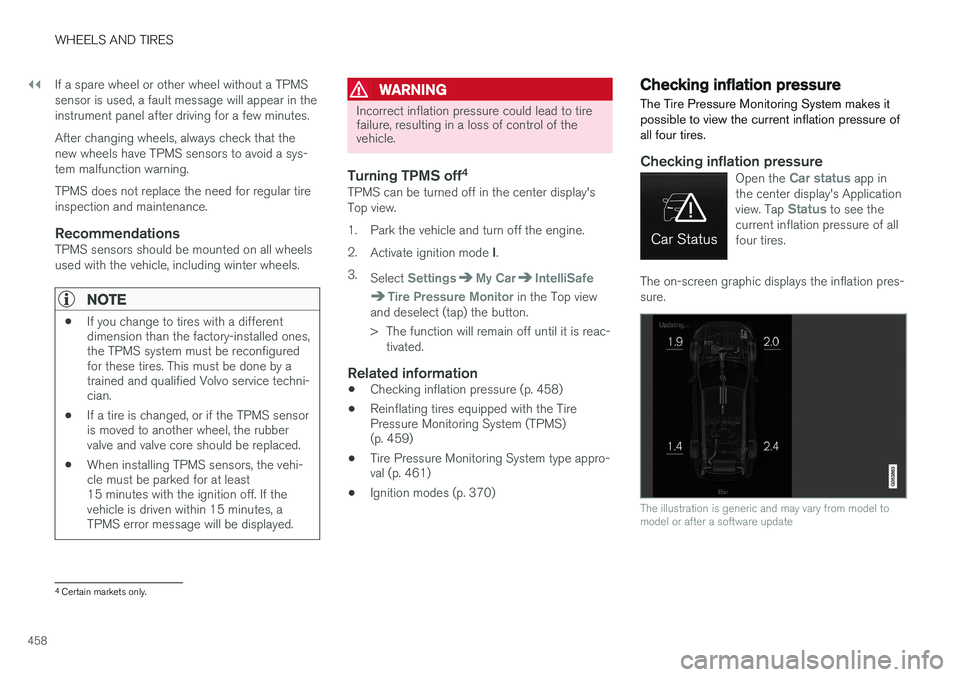
Checking inflation pressureOpen the Car status app in
the center display's Application view. Tap
Status to see the
current inflation pressure of all four tires.
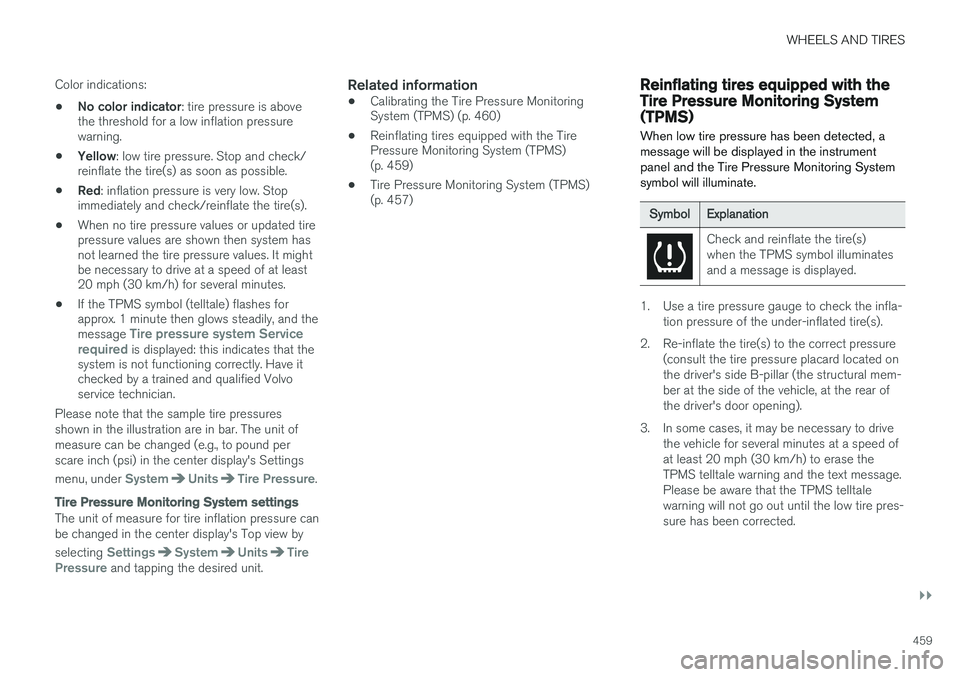
The on-screen graphic displays the inflation pres- sure.
The illustration is generic and may vary from model to model or after a software update
4 Certain markets only.
Page 461 of 546
WHEELS AND TIRES
}}
459
Color indications:
• No color indicator
: tire pressure is above
the threshold for a low inflation pressure warning.
• Yellow
: low tire pressure. Stop and check/
reinflate the tire(s) as soon as possible.
• Red
: inflation pressure is very low. Stop
immediately and check/reinflate the tire(s).
• When no tire pressure values or updated tirepressure values are shown then system hasnot learned the tire pressure values. It mightbe necessary to drive at a speed of at least20 mph (30 km/h) for several minutes.
• If the TPMS symbol (telltale) flashes forapprox. 1 minute then glows steadily, and the message
Tire pressure system Service
required is displayed: this indicates that the
system is not functioning correctly. Have it checked by a trained and qualified Volvoservice technician.
Please note that the sample tire pressures shown in the illustration are in bar. The unit ofmeasure can be changed (e.g., to pound perscare inch (psi) in the center display's Settings menu, under
SystemUnitsTire Pressure.
Tire Pressure Monitoring System settings
The unit of measure for tire inflation pressure can be changed in the center display's Top view by selecting
SettingsSystemUnitsTire
Pressure and tapping the desired unit.
Related information
• Calibrating the Tire Pressure Monitoring System (TPMS) (p. 460)
• Reinflating tires equipped with the TirePressure Monitoring System (TPMS)(p. 459)
• Tire Pressure Monitoring System (TPMS)(p. 457)
Reinflating tires equipped with the Tire Pressure Monitoring System(TPMS) When low tire pressure has been detected, a message will be displayed in the instrumentpanel and the Tire Pressure Monitoring Systemsymbol will illuminate.
SymbolExplanation
Check and reinflate the tire(s) when the TPMS symbol illuminatesand a message is displayed.
1. Use a tire pressure gauge to check the infla-
tion pressure of the under-inflated tire(s).
2. Re-inflate the tire(s) to the correct pressure (consult the tire pressure placard located on the driver's side B-pillar (the structural mem-ber at the side of the vehicle, at the rear ofthe driver's door opening).
3. In some cases, it may be necessary to drive the vehicle for several minutes at a speed ofat least 20 mph (30 km/h) to erase theTPMS telltale warning and the text message.Please be aware that the TPMS telltalewarning will not go out until the low tire pres-sure has been corrected.