center console VOLVO XC90 T8 2016 Owner´s Manual
[x] Cancel search | Manufacturer: VOLVO, Model Year: 2016, Model line: XC90 T8, Model: VOLVO XC90 T8 2016Pages: 546, PDF Size: 10.26 MB
Page 210 of 546
LOADING AND STORAGE
* Option/accessory, for more information, see Introduction.
208
Cargo space
The vehicle has flexible cargo capacity that makes it possible to load and secure largeobjects.
By folding down the backrests in the second and third rows * of seats, the cargo capacity of the
vehicle increases considerably. To make loading easier, the rear section of the vehicle can beraised and lowered using the pneumatic suspen- sion *. Use the load anchoring eyelets or the gro-
cery bag holder to secure objects and the cargo compartment cover helps conceal the load. The jack * and tools can be found under the cargo
compartment's floor.
Related information
• Loading (p. 215)
• Cargo compartment cover
* (p. 221)
• Cargo net (p. 217)
• Grocery bag holder (p. 217)
• Load anchoring eyelets (p. 220)
• Steel cargo grid
* (p. 219)
Passenger compartment storage spaces
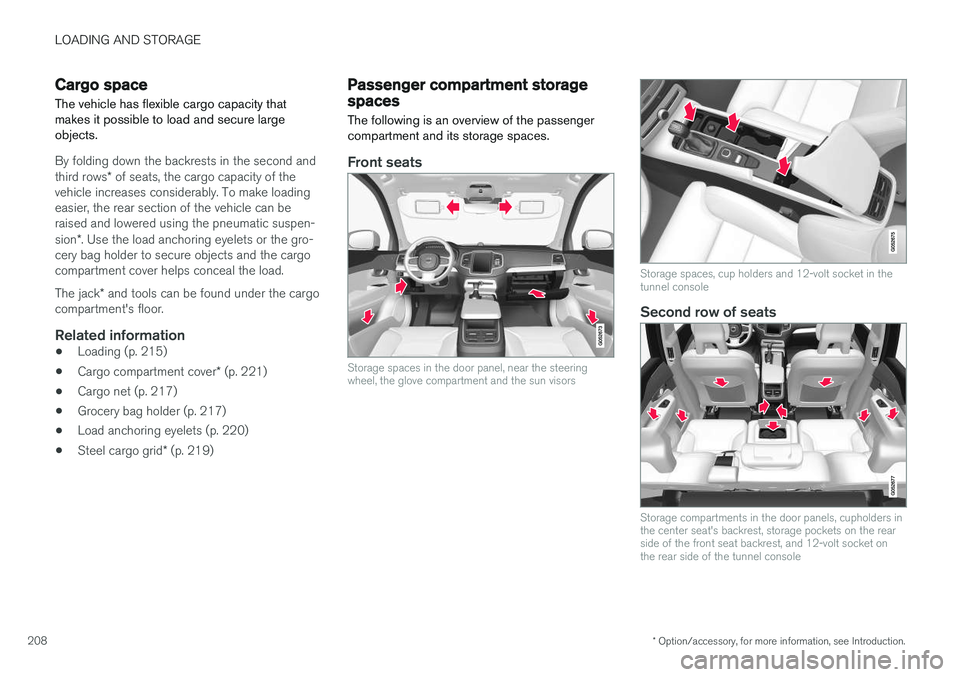
The following is an overview of the passenger compartment and its storage spaces.
Front seats
Storage spaces in the door panel, near the steering wheel, the glove compartment and the sun visors
Storage spaces, cup holders and 12-volt socket in the tunnel console
Second row of seats
Storage compartments in the door panels, cupholders in the center seat's backrest, storage pockets on the rearside of the front seat backrest, and 12-volt socket onthe rear side of the tunnel console
Page 211 of 546
LOADING AND STORAGE
}}
209
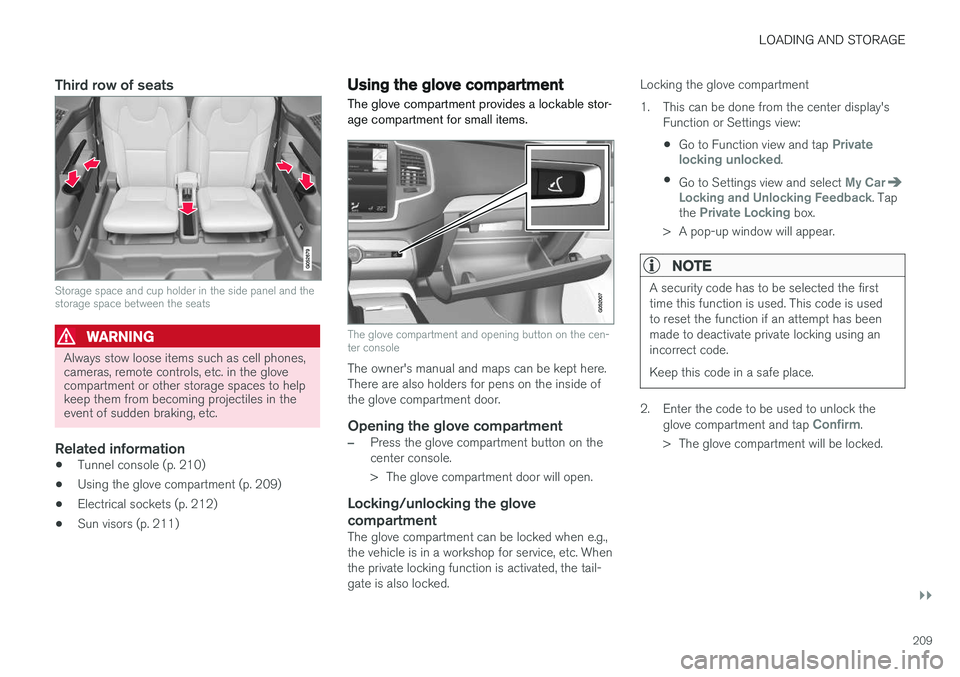
Third row of seats
Storage space and cup holder in the side panel and the storage space between the seats
WARNING
Always stow loose items such as cell phones, cameras, remote controls, etc. in the glovecompartment or other storage spaces to helpkeep them from becoming projectiles in theevent of sudden braking, etc.
Related information
•Tunnel console (p. 210)
• Using the glove compartment (p. 209)
• Electrical sockets (p. 212)
• Sun visors (p. 211)
Using the glove compartment
The glove compartment provides a lockable stor- age compartment for small items.
The glove compartment and opening button on the cen- ter console
The owner's manual and maps can be kept here. There are also holders for pens on the inside ofthe glove compartment door.
Opening the glove compartment
–Press the glove compartment button on the center console.
> The glove compartment door will open.
Locking/unlocking the glove compartment
The glove compartment can be locked when e.g., the vehicle is in a workshop for service, etc. Whenthe private locking function is activated, the tail-gate is also locked. Locking the glove compartment
1. This can be done from the center display's
Function or Settings view:
• Go to Function view and tap
Private
locking unlocked.
• Go to Settings view and select
My CarLocking and Unlocking Feedback. Tap
the Private Locking box.
> A pop-up window will appear.
NOTE
A security code has to be selected the first time this function is used. This code is usedto reset the function if an attempt has beenmade to deactivate private locking using anincorrect code. Keep this code in a safe place.
2. Enter the code to be used to unlock the glove compartment and tap Confirm.
> The glove compartment will be locked.
Page 212 of 546
||
LOADING AND STORAGE
* Option/accessory, for more information, see Introduction.
210 Unlocking the glove compartment
1. This function can be deactivated from the
center display's Function or Settings view:
• Go to Function view and tap
Private
locking locked.
• Go to settings and select
My CarLocking and Unlocking Feedback.
Deselect the Private Locking box.
> A pop-up window will appear.
2. Specify the code to be used to lock the glove compartment and tap
Confirm.
> The glove compartment will be unlocked.
Using the glove compartment as a cooler *
The glove compartment can be used to cool drinks or food and the cooling feature functionswhen the climate system is active (i.e., when the ignition is in mode II or when the engine is run-
ning).
Cooling activated
Cooling deactivated
–Activate/deactivate cooling by moving the control as far as possible toward the passen-ger compartment/glove compartment.
Related information
• Passenger compartment storage spaces (p. 208)
• Locking/unlocking the tailgate (p. 244)
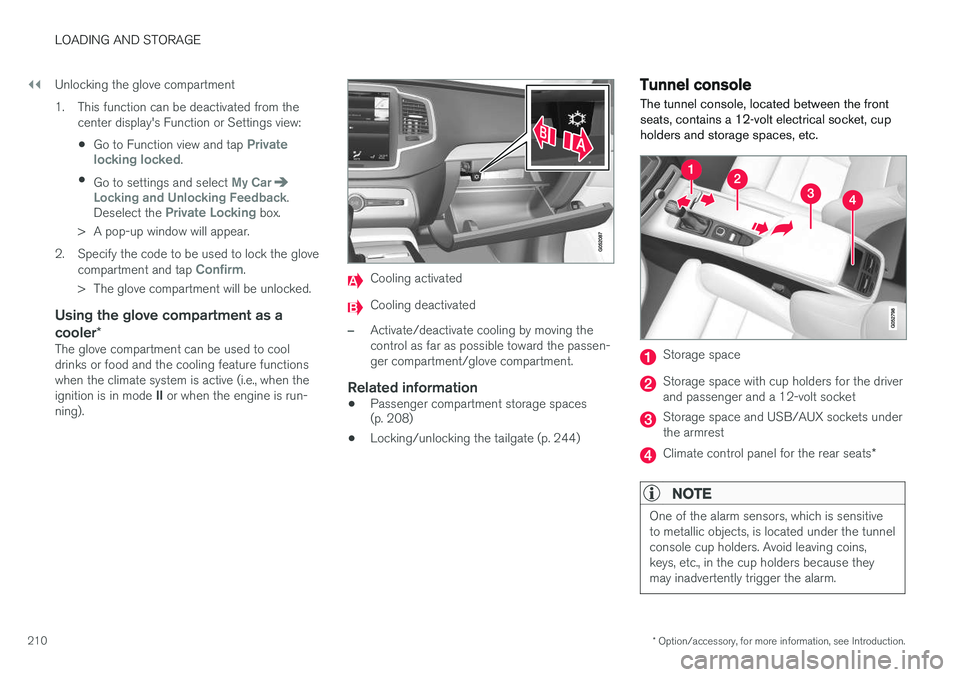
Tunnel console The tunnel console, located between the front seats, contains a 12-volt electrical socket, cupholders and storage spaces, etc.
Storage space
Storage space with cup holders for the driver and passenger and a 12-volt socket
Storage space and USB/AUX sockets under the armrest
Climate control panel for the rear seats
*
NOTE
One of the alarm sensors, which is sensitive to metallic objects, is located under the tunnelconsole cup holders. Avoid leaving coins,keys, etc., in the cup holders because theymay inadvertently trigger the alarm.
Page 232 of 546
LOCKS AND ALARM
* Option/accessory, for more information, see Introduction.
230
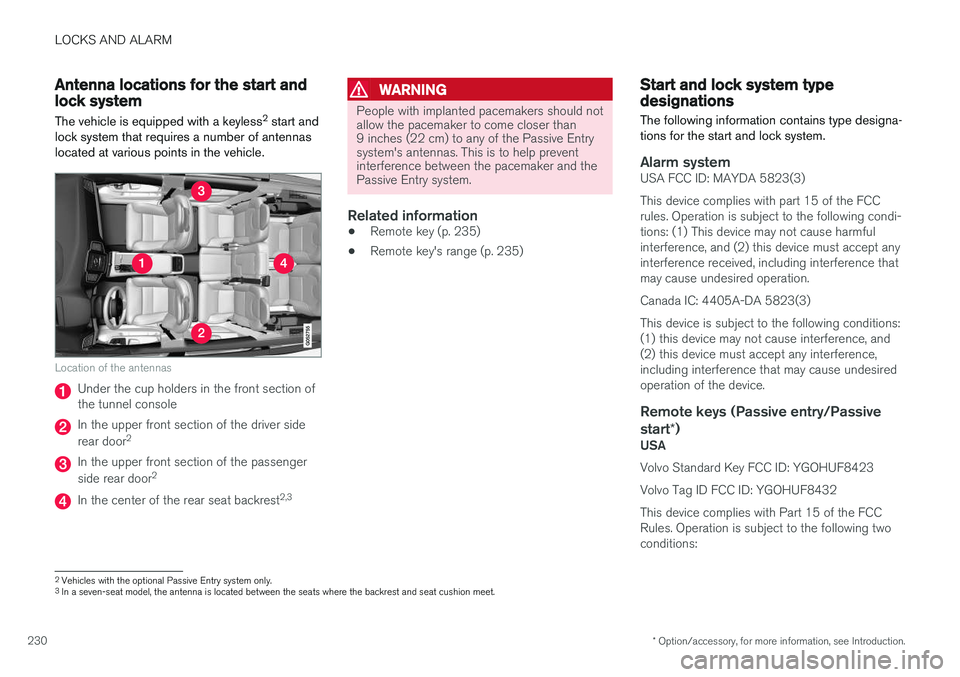
Antenna locations for the start and lock system
The vehicle is equipped with a keyless 2
start and
lock system that requires a number of antennas located at various points in the vehicle.
Location of the antennas
Under the cup holders in the front section of the tunnel console
In the upper front section of the driver side rear door 2
In the upper front section of the passenger side rear door 2
In the center of the rear seat backrest 2,3
WARNING
People with implanted pacemakers should not allow the pacemaker to come closer than9 inches (22 cm) to any of the Passive Entrysystem's antennas. This is to help preventinterference between the pacemaker and thePassive Entry system.
Related information
•
Remote key (p. 235)
• Remote key's range (p. 235)
Start and lock system type designations
The following information contains type designa- tions for the start and lock system.
Alarm systemUSA FCC ID: MAYDA 5823(3) This device complies with part 15 of the FCC rules. Operation is subject to the following condi-tions: (1) This device may not cause harmfulinterference, and (2) this device must accept anyinterference received, including interference thatmay cause undesired operation. Canada IC: 4405A-DA 5823(3)This device is subject to the following conditions: (1) this device may not cause interference, and(2) this device must accept any interference,including interference that may cause undesiredoperation of the device.
Remote keys (Passive entry/Passive start *)
USA Volvo Standard Key FCC ID: YGOHUF8423 Volvo Tag ID FCC ID: YGOHUF8432This device complies with Part 15 of the FCC Rules. Operation is subject to the following twoconditions:
2
Vehicles with the optional Passive Entry system only.
3 In a seven-seat model, the antenna is located between the seats where the backrest and seat cushion meet.
Page 239 of 546
LOCKS AND ALARM
}}
237
and hold to close an open tailgate (an audi- ble warning signal will sound).
Panic alarm: Press to attract attention dur-
ing emergency situations. To activate, press
and hold this button for at least 3 seconds or press it twice within 3 seconds to activate the turn signals and horn. To deactivate,
wait approximately 5 seconds and press the button again (the panic alarm will also deac-tivate automatically after several minutes).
InterferenceMetallic objects or electromagnetic fields mayinterfere with the remote key's function. Avoidplacing the remote key within 4-6 in. (10-15 cm)of a cell phone or a metallic object. If interference persists, use the remote key's detachable key blade to unlock the vehicle andplace the remote key in the backup key reader inthe tunnel console cup holder.
Loss of a remote keyIf a remote keys is lost, a new one can beordered. The other keys should be taken with thevehicle to a Volvo retailer or authorized independ-ent locksmith. As an anti-theft measure, the codeof the lost remote key must be erased from thesystem. The number of registered keys for thevehicle can be found in the center display's Topview.
Related information
• Remote key's range (p. 235)
• Detachable key blade (p. 237)
• Changing the remote key's battery (p. 232)
Detachable key blade Your vehicle's remote key contains a detachable key blade that can be used to unlock the driver'sdoor, etc. A Volvo retailer can provide you with the key blade's unique code.
Using the detachable key bladeThe remote key's detachable key blade can be used to:
• Unlock the driver's door if the central locking system cannot be activated using the remotekey
• Lock all doors
• Activate/deactivate the mechanical childsafety locks in the rear doors
The Key Tag 7
does not have a detachable key
blade.
7 Models with the optional Passive Entry system only.
Page 309 of 546
DRIVER SUPPORT
}}
307
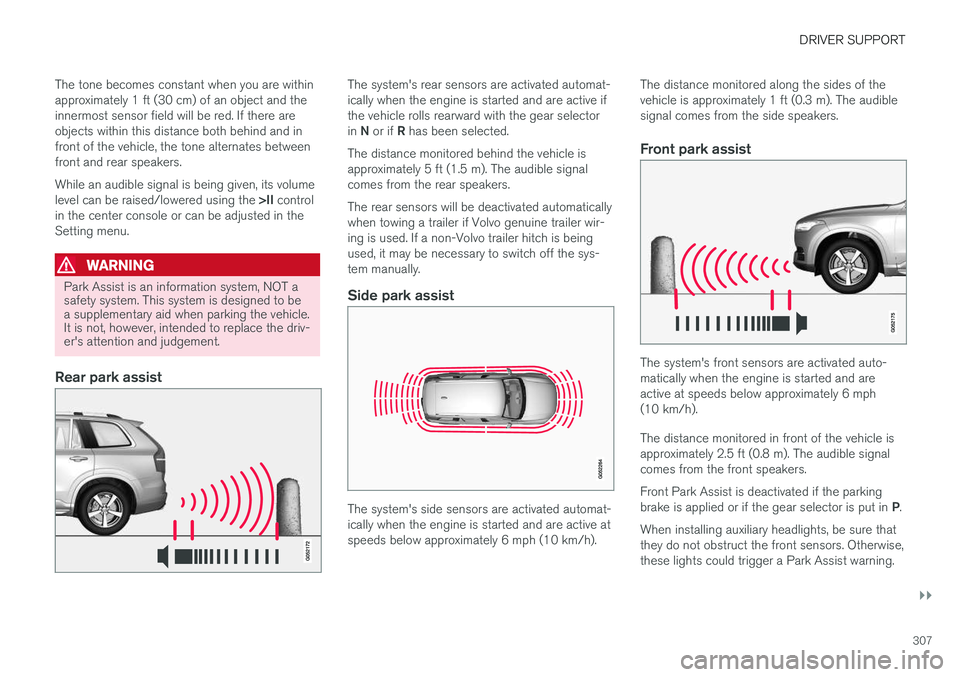
The tone becomes constant when you are within approximately 1 ft (30 cm) of an object and theinnermost sensor field will be red. If there areobjects within this distance both behind and infront of the vehicle, the tone alternates betweenfront and rear speakers. While an audible signal is being given, its volume level can be raised/lowered using the
>II control
in the center console or can be adjusted in the Setting menu.
WARNING
Park Assist is an information system, NOT a safety system. This system is designed to bea supplementary aid when parking the vehicle.It is not, however, intended to replace the driv-er's attention and judgement.
Rear park assist
The system's rear sensors are activated automat- ically when the engine is started and are active ifthe vehicle rolls rearward with the gear selector in N or if R has been selected.
The distance monitored behind the vehicle is approximately 5 ft (1.5 m). The audible signalcomes from the rear speakers. The rear sensors will be deactivated automatically when towing a trailer if Volvo genuine trailer wir-ing is used. If a non-Volvo trailer hitch is beingused, it may be necessary to switch off the sys-tem manually.
Side park assist
The system's side sensors are activated automat- ically when the engine is started and are active atspeeds below approximately 6 mph (10 km/h). The distance monitored along the sides of thevehicle is approximately 1 ft (0.3 m). The audiblesignal comes from the side speakers.
Front park assist
The system's front sensors are activated auto- matically when the engine is started and areactive at speeds below approximately 6 mph(10 km/h). The distance monitored in front of the vehicle is approximately 2.5 ft (0.8 m). The audible signalcomes from the front speakers. Front Park Assist is deactivated if the parking brake is applied or if the gear selector is put in
P.
When installing auxiliary headlights, be sure that they do not obstruct the front sensors. Otherwise,these lights could trigger a Park Assist warning.
Page 314 of 546
||
DRIVER SUPPORT
* Option/accessory, for more information, see Introduction.
312
Backing up
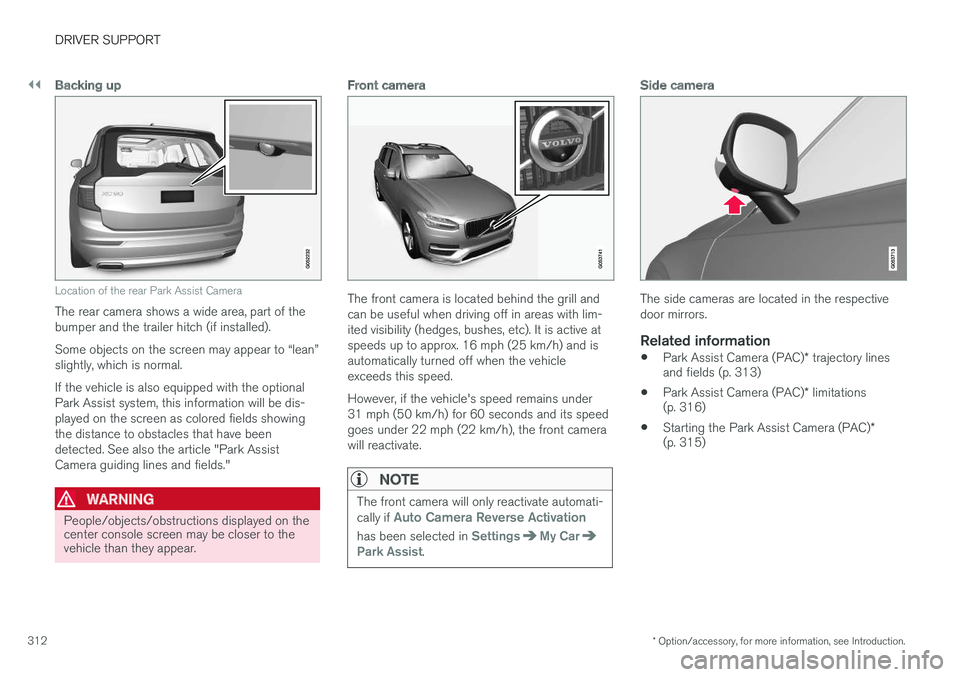
Location of the rear Park Assist Camera
The rear camera shows a wide area, part of the bumper and the trailer hitch (if installed). Some objects on the screen may appear to “lean” slightly, which is normal. If the vehicle is also equipped with the optional Park Assist system, this information will be dis-played on the screen as colored fields showingthe distance to obstacles that have beendetected. See also the article "Park AssistCamera guiding lines and fields."
WARNING
People/objects/obstructions displayed on the center console screen may be closer to thevehicle than they appear.
Front camera
The front camera is located behind the grill and can be useful when driving off in areas with lim-ited visibility (hedges, bushes, etc). It is active atspeeds up to approx. 16 mph (25 km/h) and isautomatically turned off when the vehicleexceeds this speed. However, if the vehicle's speed remains under 31 mph (50 km/h) for 60 seconds and its speedgoes under 22 mph (22 km/h), the front camerawill reactivate.
NOTE
The front camera will only reactivate automati- cally if Auto Camera Reverse Activation
has been selected in SettingsMy CarPark Assist.
Side camera
The side cameras are located in the respective door mirrors.
Related information
• Park Assist Camera (PAC)
* trajectory lines
and fields (p. 313)
• Park Assist Camera (PAC)
* limitations
(p. 316)
• Starting the Park Assist Camera (PAC)
*
(p. 315)
Page 373 of 546
STARTING AND DRIVING
* Option/accessory, for more information, see Introduction.371
ModeFunctions available
0•The odometer, clock and tem- perature gauge are illuminated
• Power seats
* can be adjusted
• The power windows can be oper-ated
• The 12-volt socket in the cargocompartment can be used
• The center display is activatedand can be used
• The infotainment system can beused for a limited time
In this mode, certain functions can only be used for a limited time to helpminimize battery drain
I• The laminated panoramic roof
*,
power seats */windows,12-volt
sockets in the passenger com- partment, Bluetooth, navigation system *, climate system blower,
windshield wipers can be oper- ated
• The infotainment system will start(if it was started when the ignitionwas switched off)
Using electrical current will drain the start battery in this mode.
ModeFunctions available
II• The headlights illuminate
• Warning/indicator lights illumi- nate for 5 seconds
• A number of other functions willalso be activated. However, the heated seats
* and heated rear
window functions can only be activated when the engine is run-ning.
This mode should only be used for very short periods to help avoiddraining the battery.
Selecting an ignition mode
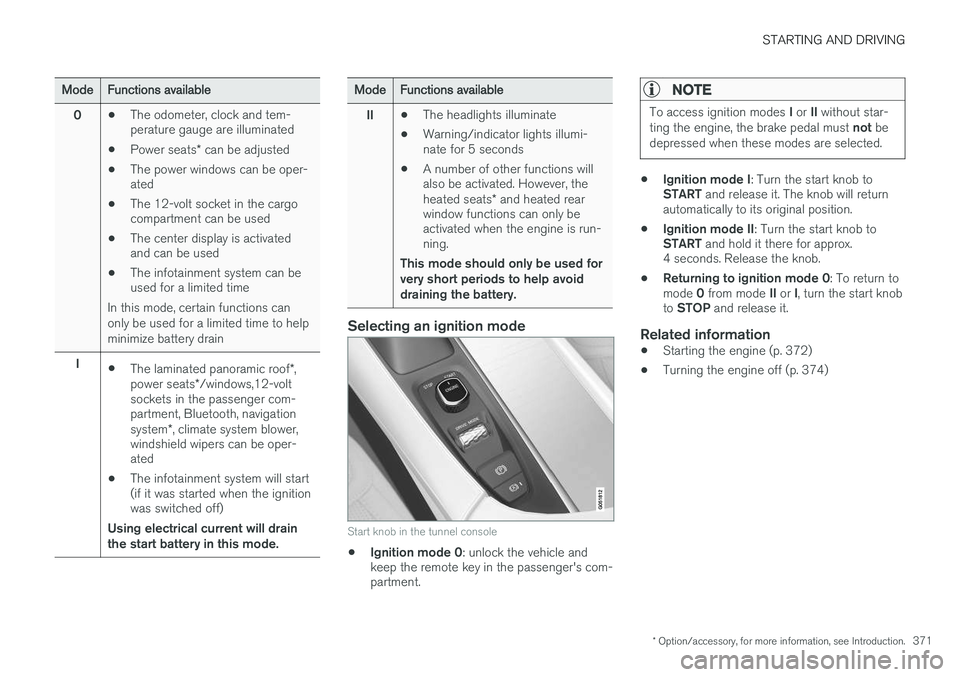
Start knob in the tunnel console
• Ignition mode 0
: unlock the vehicle and
keep the remote key in the passenger's com- partment.
NOTE
To access ignition modes I or II without star-
ting the engine, the brake pedal must not be
depressed when these modes are selected.
• Ignition mode I
: Turn the start knob to
START and release it. The knob will return
automatically to its original position.
• Ignition mode II
: Turn the start knob to
START and hold it there for approx.
4 seconds. Release the knob.
• Returning to ignition mode 0
: To return to
mode 0 from mode II or I, turn the start knob
to STOP and release it.
Related information
•Starting the engine (p. 372)
• Turning the engine off (p. 374)
Page 392 of 546
STARTING AND DRIVING
390
Drive modes
Selecting a drive mode affects the vehicle's driv- ing characteristics to help make driving moreenjoyable or easier in certain types of situations.
The following systems are adapted to help pro- vide the best vehicle performance in the respec-tive drive modes: • Steering
• Engine/transmission/All Wheel Drive
• Brakes
• Suspension control
• Instrument panel
• Climate system settings
Select the drive mode best suited to the current driving conditions. Please be aware that not all modes can be selected in all driving situations. The selectedmode will be displayed in the instrument panel.
Selecting a drive mode
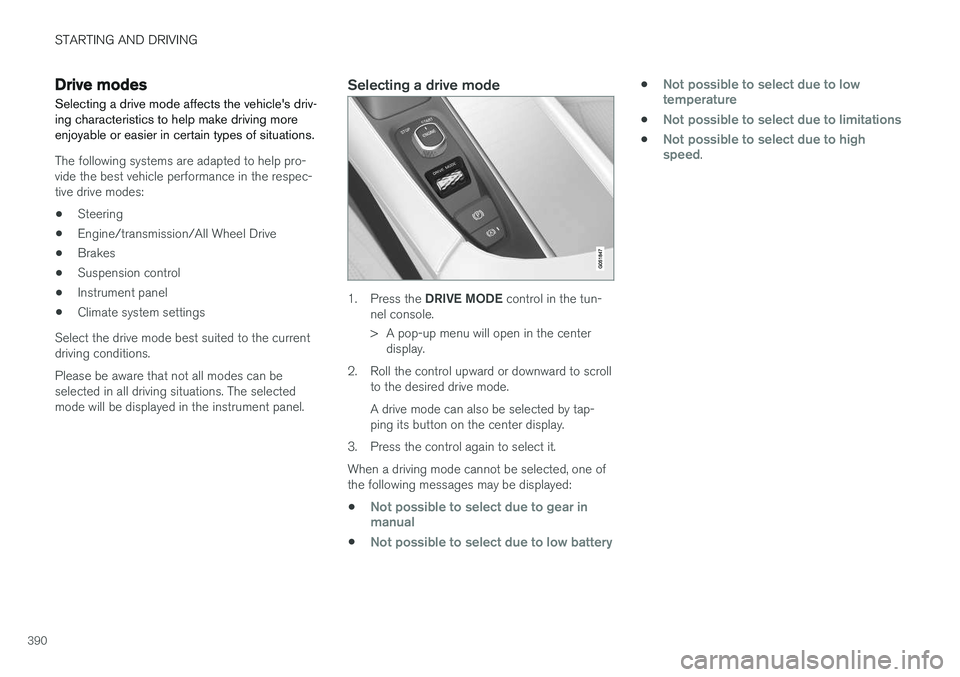
1. Press the DRIVE MODE control in the tun-
nel console.
> A pop-up menu will open in the center display.
2. Roll the control upward or downward to scroll to the desired drive mode. A drive mode can also be selected by tap- ping its button on the center display.
3. Press the control again to select it. When a driving mode cannot be selected, one of the following messages may be displayed:
•
Not possible to select due to gear in manual
•Not possible to select due to low battery
•Not possible to select due to low temperature
•Not possible to select due to limitations
•Not possible to select due to high speed.
Page 415 of 546
INFOTAINMENT
}}
* Option/accessory, for more information, see Introduction.413
iTunes taggingFrom the center display's Top view, tapSiriusXM
Settings. Tap theiTunes Tagging menu. Tap
the iTunes Tagging box to activate/deactivate
this function and tap Close to return to Home
view. Tap List Of Tags to display a list of all tag-
ged songs. If the function is activated, the
iTunes tag button
will be displayed in Home view. If a song is played that you would like to buy in the iTunes store, tapthis button while the song is playing to tag it. If a song with
iTunes Tagging information is availa-
ble, the button will be selectable. Tap the button to tag the song. If you would like to buy a taggedsong via iTunes, Tap the iTunes tag button. To buy a song in iTunes, begin by connecting an iPhone/iPod/iPad to the USB socket in the tun-nel console. The iTunes tagging list will automati-cally be transferred to the device and removedfrom the list in the vehicle. If the device is con-nected when a song is tagged, the data will auto-matically be saved in the device. To purchase thesong, consult the iTunes support page.
Related information
• SiriusXM ®
Satellite radio * (p. 411)
• Using the center display keyboard (p. 35)
• SiriusXM ®
Satellite radio * settings (p. 413)
• Connecting a device via the AUX/USB socket (p. 420)
SiriusXM ®
Satellite radio * settings
There are numerous settings that can be made to enhance your SiriusXM ®
Satellite radio listen-
ing experience.
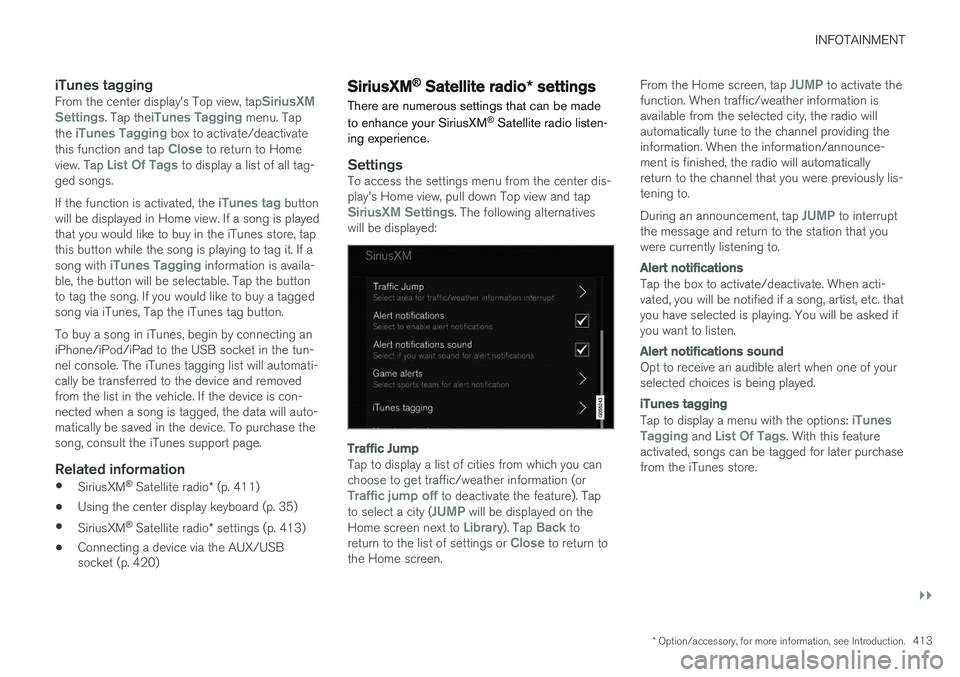
SettingsTo access the settings menu from the center dis- play's Home view, pull down Top view and tap
SiriusXM Settings. The following alternatives
will be displayed:
Traffic Jump
Tap to display a list of cities from which you can choose to get traffic/weather information (or
Traffic jump off to deactivate the feature). Tap
to select a city (JUMP will be displayed on the
Home screen next to Library). Tap Back to
return to the list of settings or Close to return to
the Home screen. From the Home screen, tap
JUMP to activate the
function. When traffic/weather information is available from the selected city, the radio willautomatically tune to the channel providing theinformation. When the information/announce-ment is finished, the radio will automaticallyreturn to the channel that you were previously lis-tening to. During an announcement, tap
JUMP to interrupt
the message and return to the station that you were currently listening to.
Alert notifications
Tap the box to activate/deactivate. When acti- vated, you will be notified if a song, artist, etc. thatyou have selected is playing. You will be asked ifyou want to listen.
Alert notifications sound
Opt to receive an audible alert when one of your selected choices is being played.
iTunes tagging
Tap to display a menu with the options: iTunes
Tagging and List Of Tags. With this feature
activated, songs can be tagged for later purchase from the iTunes store.