center console VOLVO XC90 T8 2016 Owner´s Manual
[x] Cancel search | Manufacturer: VOLVO, Model Year: 2016, Model line: XC90 T8, Model: VOLVO XC90 T8 2016Pages: 546, PDF Size: 10.26 MB
Page 422 of 546
INFOTAINMENT
420
Text message settings
The following settings can be made for text mes- sages received through a paired and connectedcell phone.
Text message settings
–Pull down the center display's Top view and tap
SettingsCommunicationText
Messages and choose among the following
settings:
•
Notification in center display: shows
text messages in the center display's sta- tus bar.
•
Notification in driver display: shows
text messages in the instrument panel. With this alternative active, incoming mes-sages can be handled from the right-sidesteering wheel keypad.
•
Text message tone: select an audible
signal for incoming text messages.
Related information
• Connecting/disconnecting a cell phone (p. 416)
• Pairing a cell phone (p. 415)
• Handling text messages (p. 418)
Connecting a Bluetooth ®
device
Bluetooth ®
-enabled devices can be paired and
connected to the infotainment system to stream media and in some cases connect to the Inter-net.
Many cell phones and other devices currently on the market offer wireless Bluetooth ®
technology.
Consult your Volvo retailer or go to support.volvocars.com for any questions regar-ding a device's compatibility with the vehicle'sinfotainment system. The procedure for pairing and connecting a Bluetooth ®
-enabled device is the same as for a
cell phone. See the articles "Pairing a cell phone" and "Connecting/disconnecting a cell phone" fordetails.
Related information
• Pairing a cell phone (p. 415)
• Connecting/disconnecting a cell phone (p. 416)
Connecting a device via the AUX/USB socket
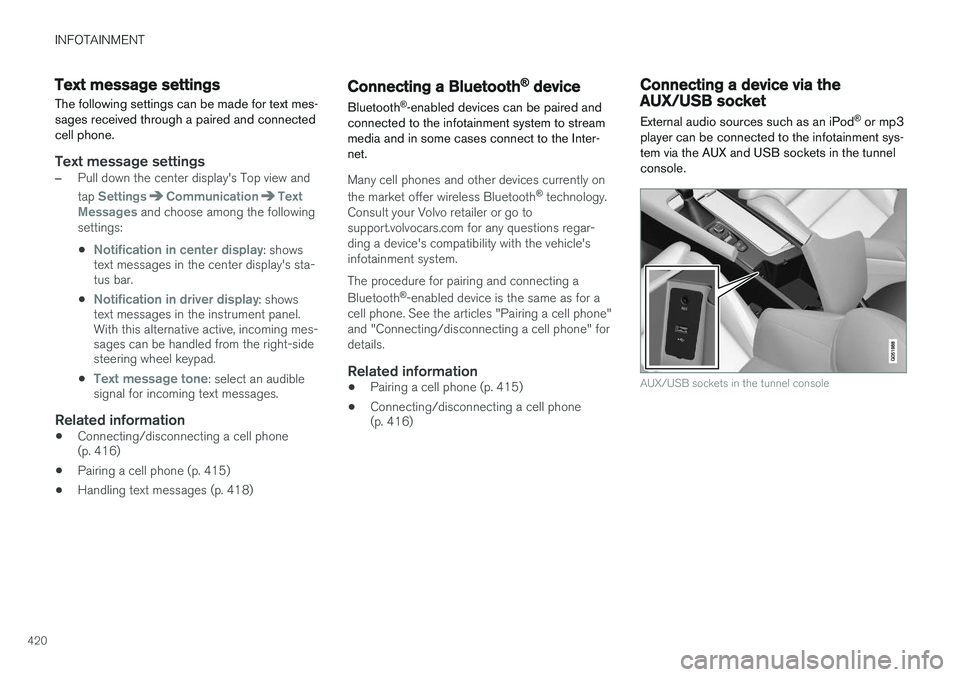
External audio sources such as an iPod ®
or mp3
player can be connected to the infotainment sys- tem via the AUX and USB sockets in the tunnelconsole.
AUX/USB sockets in the tunnel console
Page 425 of 546
INFOTAINMENT
}}
423
From a previously connected iPhone
1. Connect the phone to the USB socket in the
tunnel console. >If the automatic start setting has been
chosen, the Apple CarPlay sub-view will open and compatible apps will be dis-played.
2. If the automatic start setting has not been
chosen, open the
Apple CarPlay app from
the center display's App view.
> The Apple CarPlay sub-view will open and compatible apps will be displayed.
3. Tap the desired app. > The app will start.
Apple CarPlay will run in the background if another app is started in the same sub-view. Toreturn to Apple CarPlay, tap the Apple CarPlayicon in App view.
Toggling between Apple CarPlay and iPod
Apple CarPlay to iPod
1.
Tap Settings in the center display's Top
view.
2. Tap
CommunicationApple CarPlay.
3. Deselect the Apple device's box that will no longer start Apple CarPlay when it is con- nected. 4. Disconnect and reconnect the Apple device
to the USB socket.
5. Open the
iPod app from App view.
iPod to Apple CarPlay
1.
Tap Apple CarPlay in the center display's
App view.
2. Read the conditions in the pop-up window that appears and tap
OK.
3. Disconnect and reconnect the Apple device to the USB socket.
> The Apple CarPlay sub-view will open.
Related information
• Media player (p. 421)
• Playing media (p. 424)
• Connecting a device via the AUX/USB socket (p. 420)
• Apple CarPlay settings (p. 423)
Apple CarPlay settings This article explains settings for a cell phone connected through Apple CarPlay.
Automatic start1.
Tap Settings in the center display's Top
view.
2. Tap
CommunicationApple CarPlay and
select the following settings:
• Select the Apple CarPlay box for auto- matic start when the device's USB cableis connected.
• Deselect the Apple CarPlay box to
disa-
ble automatic start when the device's
USB cable is connected.
A maximum of 20 Apple devices can be stored in the list. When the list is full, the first (oldest)device stored will be deleted. To erase the entire list, a factory reset has to be performed. See the article "Resetting the set-tings view."
System volume levels1. Tap Settings in the center display's Top
view.
2. Tap
SoundSystem Volumes and select
the following settings: •
Voice Control
•Navigation
•Ringtone
Page 426 of 546
||
INFOTAINMENT
* Option/accessory, for more information, see Introduction.
424
Related information
• Apple CarPlay (p. 422)
• Resetting the settings view (p. 115)
CD (media) player
*
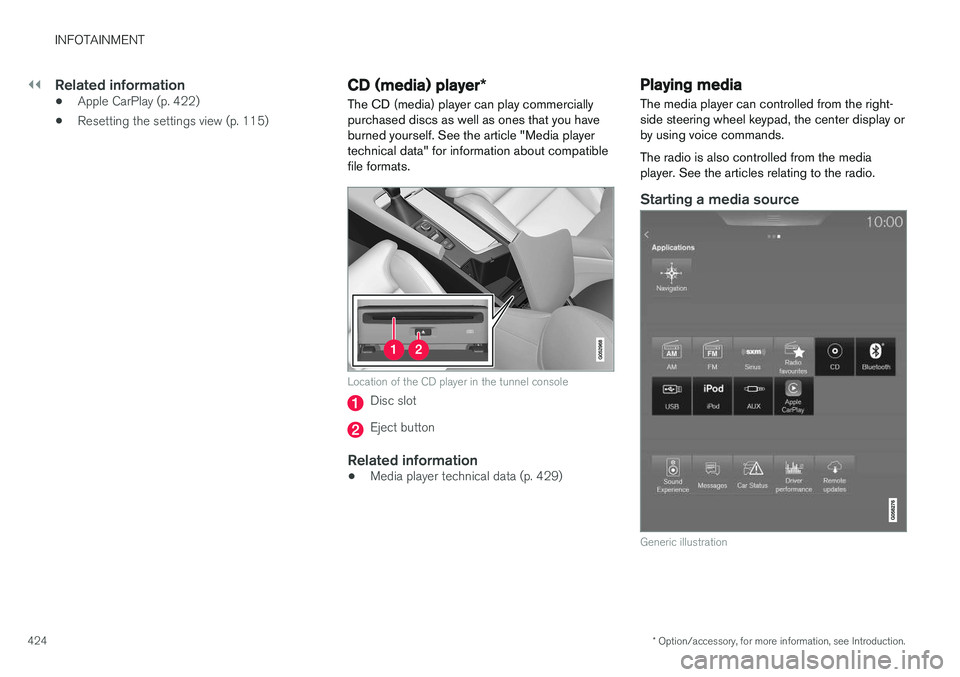
The CD (media) player can play commercially purchased discs as well as ones that you haveburned yourself. See the article "Media playertechnical data" for information about compatiblefile formats.
Location of the CD player in the tunnel console
Disc slot
Eject button
Related information
• Media player technical data (p. 429)
Playing media The media player can controlled from the right- side steering wheel keypad, the center display orby using voice commands. The radio is also controlled from the media player. See the articles relating to the radio.
Starting a media source
Generic illustration
Page 434 of 546
||
INFOTAINMENT
4321. Activate tethering/personal hotspot in the
cell phone.
2. Tap
Settings in the center display's Top
view.
3. Tap
CommunicationWi-Fi.
4. Tap Wi-Fi to activate/deactivate.
5. Tap the name of the network to be used.
6. Enter the network password.
7. If a different connection was used previously, confirm the connection change.
> The vehicle will connect to the network.
Please be aware that certain cell phones disable tethering when the connection to the vehicle hasbeen broken, e.g., when the phone has beenremoved from the vehicle. In such cases, thephone's tethering function will have to be reacti-vated the next time the phone is used to connectto the Internet. When a phone is connected to the vehicle, it is saved for future use. When a max. number of 50have been saved, the first one connected will bedeleted. To show the list of saved networks or to manually delete a network, tap
SettingsWi-Fi
Saved networks.
See the article "Wi-Fi technology and security" for network connection requirements.
Connect using a cable connected to the USB socket
1. Connect the phone via a cable to the USB socket in the tunnel console storage com- partment.
2. Activate USB tethering in the cell phone.
3. If a different connection was used previously, confirm the connection change.
> The vehicle will connect to the network.
Connect using the vehicle's integrated modem
When the vehicle is connected using the modem, Volvo On Call services will use the connection.
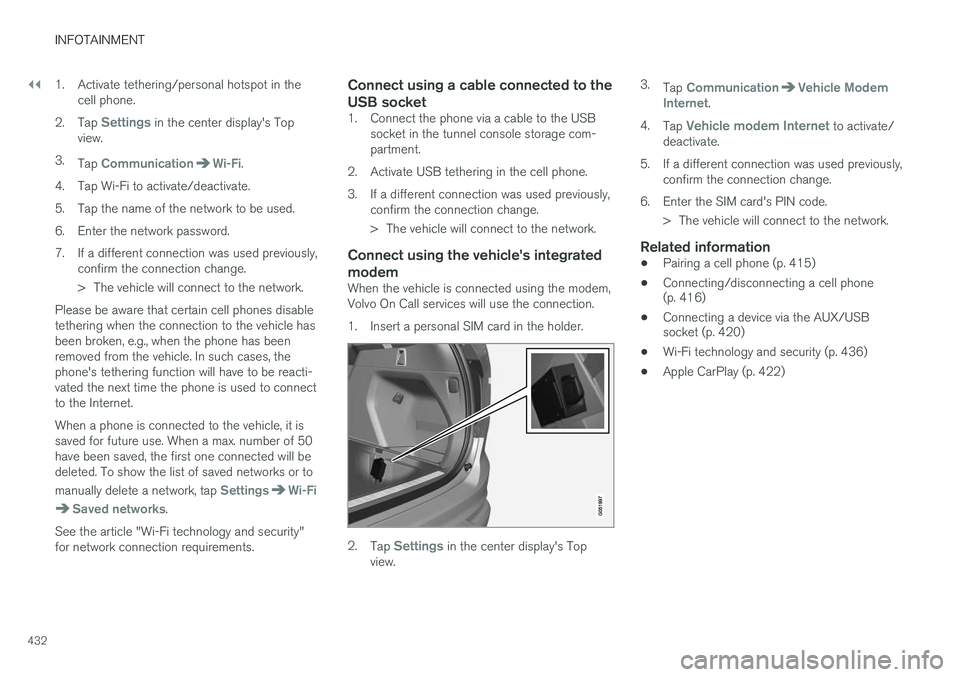
1. Insert a personal SIM card in the holder.
2.Tap Settings in the center display's Top
view. 3.
Tap
CommunicationVehicle Modem
Internet.
4. Tap
Vehicle modem Internet to activate/
deactivate.
5. If a different connection was used previously, confirm the connection change.
6. Enter the SIM card's PIN code. > The vehicle will connect to the network.
Related information
• Pairing a cell phone (p. 415)
• Connecting/disconnecting a cell phone (p. 416)
• Connecting a device via the AUX/USBsocket (p. 420)
• Wi-Fi technology and security (p. 436)
• Apple CarPlay (p. 422)
Page 464 of 546
||
WHEELS AND TIRES
* Option/accessory, for more information, see Introduction.
462 The 12-volt sockets are located in the front tun- nel console, on the rear side of the center con- sole in the rear seat and in the cargo area
*.
Accessing the tire sealing systemThe tire sealing system is stowed under the floor of the cargo area. To access it:
1. Lift the floor hatch in the cargo area.
2. Lift out the tire sealing system.
NOTE
• The tire sealing system is only intended to seal holes on the tire
Page 493 of 546
MAINTENANCE AND SERVICING
}}
* Option/accessory, for more information, see Introduction.491
Positions
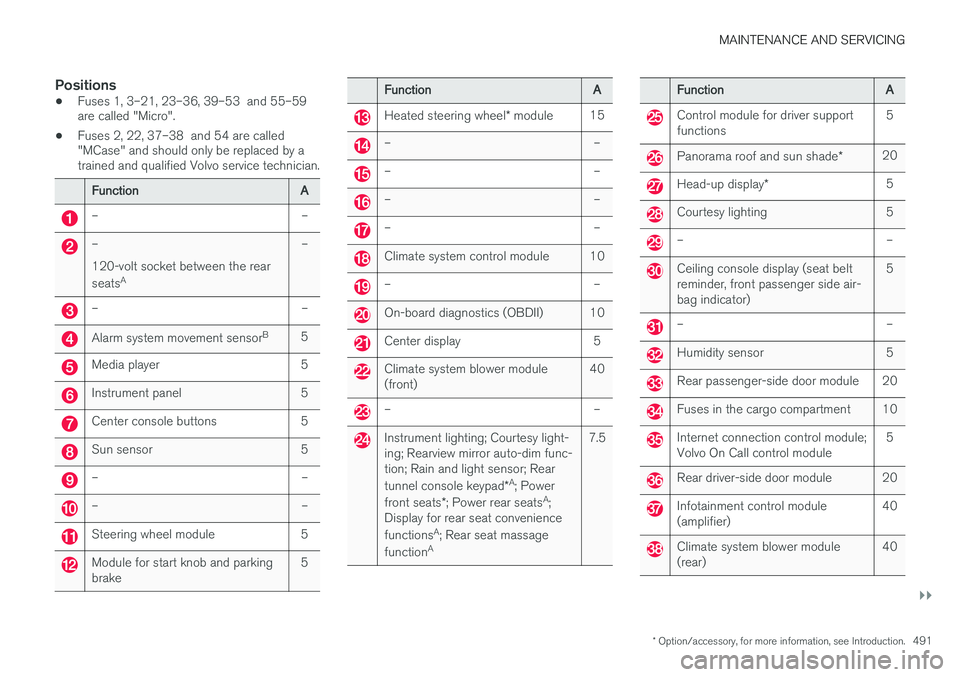
•Fuses 1, 3–21, 23–36, 39–53 and 55–59 are called "Micro".
• Fuses 2, 22, 37–38 and 54 are called"MCase" and should only be replaced by atrained and qualified Volvo service technician.
FunctionA
––
– 120-volt socket between the rear seats A–
––
Alarm system movement sensor B5
Media player5
Instrument panel5
Center console buttons5
Sun sensor5
––
––
Steering wheel module5
Module for start knob and parking brake5
FunctionA
Heated steering wheel
* module15
––
––
––
––
Climate system control module10
––
On-board diagnostics (OBDII)10
Center display5
Climate system blower module (front)40
––
Instrument lighting; Courtesy light- ing; Rearview mirror auto-dim func-tion; Rain and light sensor; Rear tunnel console keypad *A
; Power
front seats *; Power rear seats A
;
Display for rear seat conveniencefunctions A
; Rear seat massage
function A7.5
FunctionA
Control module for driver support functions5
Panorama roof and sun shade
*20
Head-up display*5
Courtesy lighting5
––
Ceiling console display (seat belt reminder, front passenger side air-bag indicator)5
––
Humidity sensor5
Rear passenger-side door module20
Fuses in the cargo compartment10
Internet connection control module; Volvo On Call control module5
Rear driver-side door module20
Infotainment control module (amplifier)40
Climate system blower module (rear)40
Page 514 of 546
||
MAINTENANCE AND SERVICING
512•
Wash off the dirt from the underside (wheel housings, fenders, etc).
• In areas of high industrial fallout, more fre-quent washing is recommended.
CAUTION
• During high pressure washing, the spray mouthpiece must never be closer to thevehicle than 13" (30 cm). Do not sprayinto the locks.
• Dirt, snow, etc., on the headlights canreduce lighting capacity considerably.Clean the headlights regularly, for exam-ple when refueling.
Special laminated panoramic roof cau-
tions:
• Always close the laminated panoramicroof and sun shade before washing yourvehicle.
• Never use abrasive cleaning agents onthe laminated panoramic roof.
• Never use wax on the rubber sealsaround the laminated panoramic roof.
NOTE
When washing the car, remember to remove dirt from the drain holes in the doors and sills.
Automatic car washes
•We do NOT recommend washing your car in an automatic wash during the first fewmonths (because the paint will not havehardened sufficiently).
• An automatic wash is a simple and quick wayto clean your car, but it is worth rememberingthat it may not be as thorough as when youyourself go over the car with sponge andwater. Keeping the underbody clean is mostimportant, especially in the winter. Someautomatic washers do not have facilities forwashing the underbody.
NOTE
Condensation may form temporarily on the inside of the lenses of exterior lights such asheadlights or taillights. This is normal and thelights are designed to withstand moisture.Normally, condensation will dissipate after thelights have been on for a short time.
CAUTION
When using an automatic car wash in which the vehicle has to be able to roll freely, theauto-hold brake function must be deactivated.If this is not done, the brakes will automati-cally be applied when the vehicle is stationary. To deactivate this function:
1. Drive the vehicle into the car wash
2. Turn off the auto-hold function using the
control on the center console
3. Turn off the parking brake's automatic function in the center display's Top view (tap
Settings, tap My CarElectric
Parking Brake and deselect Auto
Activate Parking Brake)
4. Put the gear selector in N
5. Switch off the ignition by turning the start knob to STOP and holding it in this posi-
tion for at least 4 seconds
The vehicle will then be able to roll freely.
Page 536 of 546
INDEX
534Brake system
Brake pad inspection 347
fluid 528
general information 346, 348, 350
Bulbs 500 replacing 496
specifications 501
C
Cameradriver support systems 252
limitations 254
Camera, Park Assist 311, 313, 315, 316
Capacity weight 449, 525
Cargo area, steel grid 219
Cargo area cover 221Cargo compartment fuses 493
raising/lowering the level 215
Cargo net 217
Cargo space 208
Car wash 511
Catalytic converter 364CD, USB, iPod, AUX, Bluetooth, Recents, Library, Shuffle, Similar, Change device, Pri-
mary Audio Default Language, Subtitle, Pri- mary Subtitle Default Language, Video, DivX ® VOD 424
CD player 424 Cell phone hands-free 414
Pairing 415
Cell phone voice control 122 Center display changing settings 34
cleaning 515
keyboard 35
navigating in 42
overview 32
screen in the center console 49
symbols in the status bar 47
Chains 451
Changing a wheel 453Charging cable hybrid battery 375
Child restraints recalls and registration 70
Child restraint systems 70 booster cushions 77
convertible seats 74
infant seats 72
ISOFIX/LATCH anchors 78
top tether anchors 80Child safety 68booster cushions 77
child restraint systems 70, 79
convertible seats 74
infant seats 72
Child safety locks 228 Child seats lower attachment points 79
City safety 287, 293City Safety crossing traffic 291
detecting objects 290
limitations 293
rear collision warning 292
symbols and messages 297
troubleshooting 295
City Safety, On/Off 289 Cleaning exterior 511
interior 513
Clean Zone Interior Package 186
Climate system 188 air distribution 201, 202, 204
air filter 187
air vents 202
auto mode 187
blower 191
center display controls 189