navigation VOLVO XC90 T8 2016 Owner´s Manual
[x] Cancel search | Manufacturer: VOLVO, Model Year: 2016, Model line: XC90 T8, Model: VOLVO XC90 T8 2016Pages: 546, PDF Size: 10.26 MB
Page 131 of 546
INSTRUMENTS AND CONTROLS
}}
129
Instrument panel settings
Some of the settings for the instrument panel can be made in the App menu (see also the arti-cle "Instrument panel app menu"). The following settings can be made in the center display's Top view under:
SettingsMy CarDisplays:
•
Driver Display Center Area: Select what is
displayed in the background (center) of the instrument panel. The options are: (
Show no
information in the background, Show
information for current playing media orShow navigation even if no route is set
) 8
. In the 12" instrument panel, the infor-
mation is shown in the center and in the 8" instrument panel, it is shown in the field atthe upper right.
•
Themes. Select a theme (appearance). The
options are: (Glass, Minimalistic,Performance or Chrome Rings).
The system language can be changed under
SettingsSystemChoose system
language. This change affects the language
used in all displays.
Related information
• Instrument panel App menu (p. 129)
• Warning symbols in the instrument panel (p. 137) •
Indicator symbols in the instrument panel(p. 125)
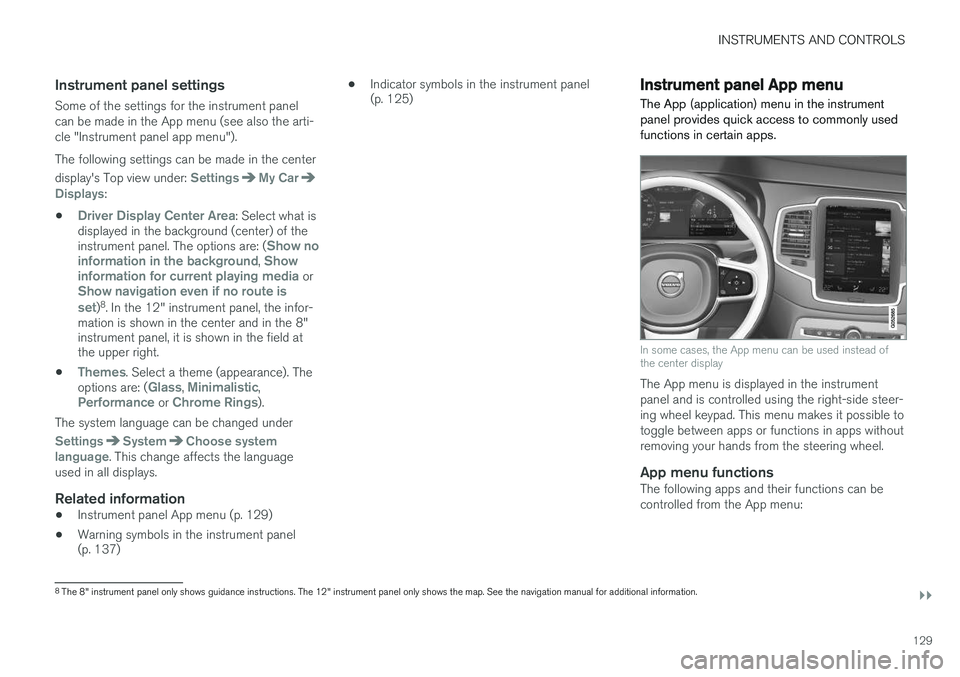
Instrument panel App menu The App (application) menu in the instrument panel provides quick access to commonly usedfunctions in certain apps.
In some cases, the App menu can be used instead of the center display
The App menu is displayed in the instrument panel and is controlled using the right-side steer-ing wheel keypad. This menu makes it possible totoggle between apps or functions in apps withoutremoving your hands from the steering wheel.
App menu functionsThe following apps and their functions can becontrolled from the App menu:
8
The 8" instrument panel only shows guidance instructions. The 12" instrument panel only shows the map. See the navigation manual for additional information.
Page 132 of 546
||
INSTRUMENTS AND CONTROLS
130
AppFunctions
Trip com- puterSelect a trip odometer, make instrument panel display set-tings, etc.
Media playerSelect the active source for the media player.
PhoneCall a contact from the call list.
NavigationPause guidance, start guidance to a recently set destination, etc.
Related information
•Instrument panel (p. 127)
• Center display overview (p. 32)
• Using the instrument panel App menu (p. 156)
Hybrid-related information in the instrument panel
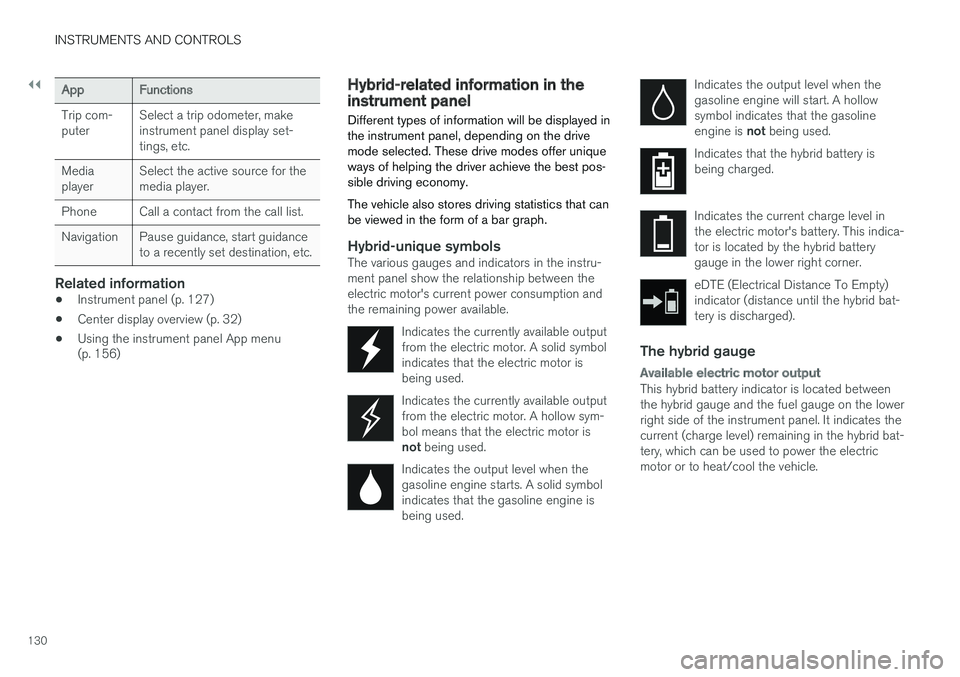
Different types of information will be displayed in the instrument panel, depending on the drivemode selected. These drive modes offer uniqueways of helping the driver achieve the best pos-sible driving economy. The vehicle also stores driving statistics that can be viewed in the form of a bar graph.
Hybrid-unique symbolsThe various gauges and indicators in the instru- ment panel show the relationship between theelectric motor's current power consumption andthe remaining power available.
Indicates the currently available outputfrom the electric motor. A solid symbolindicates that the electric motor isbeing used.
Indicates the currently available output from the electric motor. A hollow sym-bol means that the electric motor is not being used.
Indicates the output level when the gasoline engine starts. A solid symbolindicates that the gasoline engine isbeing used.
Indicates the output level when the gasoline engine will start. A hollowsymbol indicates that the gasoline engine is not being used.
Indicates that the hybrid battery is being charged.
Indicates the current charge level in the electric motor's battery. This indica-tor is located by the hybrid batterygauge in the lower right corner.
eDTE (Electrical Distance To Empty) indicator (distance until the hybrid bat-tery is discharged).
The hybrid gauge
Available electric motor output
This hybrid battery indicator is located between the hybrid gauge and the fuel gauge on the lowerright side of the instrument panel. It indicates thecurrent (charge level) remaining in the hybrid bat-tery, which can be used to power the electricmotor or to heat/cool the vehicle.
Page 308 of 546
||
DRIVER SUPPORT
* Option/accessory, for more information, see Introduction.
306
Speed camera alert
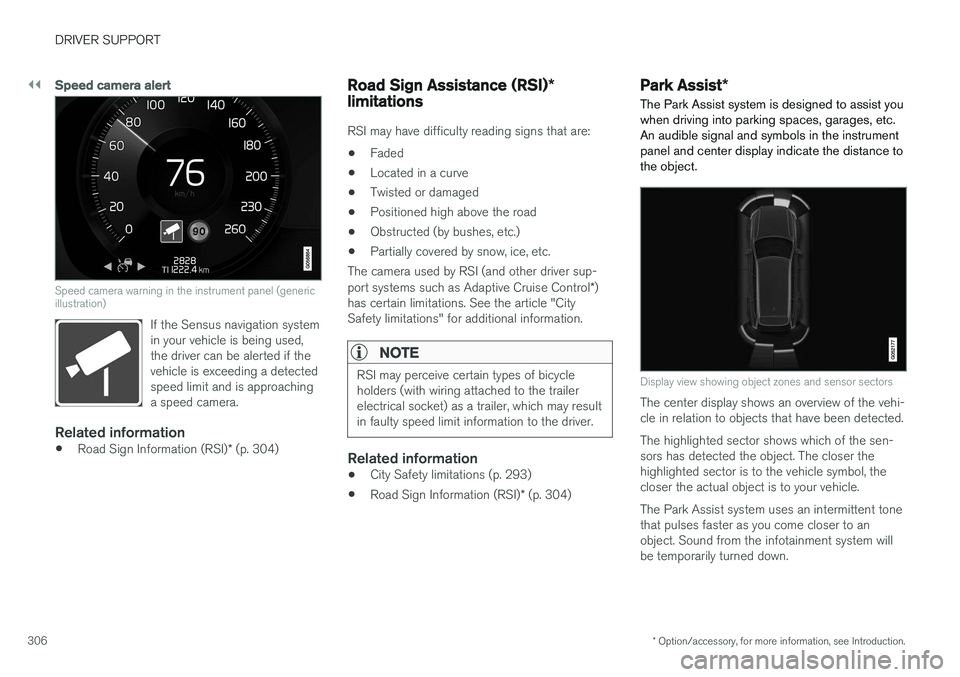
Speed camera warning in the instrument panel (generic illustration)
If the Sensus navigation system in your vehicle is being used,the driver can be alerted if thevehicle is exceeding a detectedspeed limit and is approachinga speed camera.
Related information
• Road Sign Information (RSI)
* (p. 304)
Road Sign Assistance (RSI) *
limitations
RSI may have difficulty reading signs that are:
• Faded
• Located in a curve
• Twisted or damaged
• Positioned high above the road
• Obstructed (by bushes, etc.)
• Partially covered by snow, ice, etc.
The camera used by RSI (and other driver sup- port systems such as Adaptive Cruise Control *)
has certain limitations. See the article "City Safety limitations" for additional information.
NOTE
RSI may perceive certain types of bicycle holders (with wiring attached to the trailerelectrical socket) as a trailer, which may resultin faulty speed limit information to the driver.
Related information
• City Safety limitations (p. 293)
• Road Sign Information (RSI)
* (p. 304)
Park Assist *
The Park Assist system is designed to assist you
when driving into parking spaces, garages, etc. An audible signal and symbols in the instrumentpanel and center display indicate the distance tothe object.
Display view showing object zones and sensor sectors
The center display shows an overview of the vehi- cle in relation to objects that have been detected. The highlighted sector shows which of the sen- sors has detected the object. The closer thehighlighted sector is to the vehicle symbol, thecloser the actual object is to your vehicle. The Park Assist system uses an intermittent tone that pulses faster as you come closer to anobject. Sound from the infotainment system willbe temporarily turned down.
Page 373 of 546
STARTING AND DRIVING
* Option/accessory, for more information, see Introduction.371
ModeFunctions available
0•The odometer, clock and tem- perature gauge are illuminated
• Power seats
* can be adjusted
• The power windows can be oper-ated
• The 12-volt socket in the cargocompartment can be used
• The center display is activatedand can be used
• The infotainment system can beused for a limited time
In this mode, certain functions can only be used for a limited time to helpminimize battery drain
I• The laminated panoramic roof
*,
power seats */windows,12-volt
sockets in the passenger com- partment, Bluetooth, navigation system *, climate system blower,
windshield wipers can be oper- ated
• The infotainment system will start(if it was started when the ignitionwas switched off)
Using electrical current will drain the start battery in this mode.
ModeFunctions available
II• The headlights illuminate
• Warning/indicator lights illumi- nate for 5 seconds
• A number of other functions willalso be activated. However, the heated seats
* and heated rear
window functions can only be activated when the engine is run-ning.
This mode should only be used for very short periods to help avoiddraining the battery.
Selecting an ignition mode
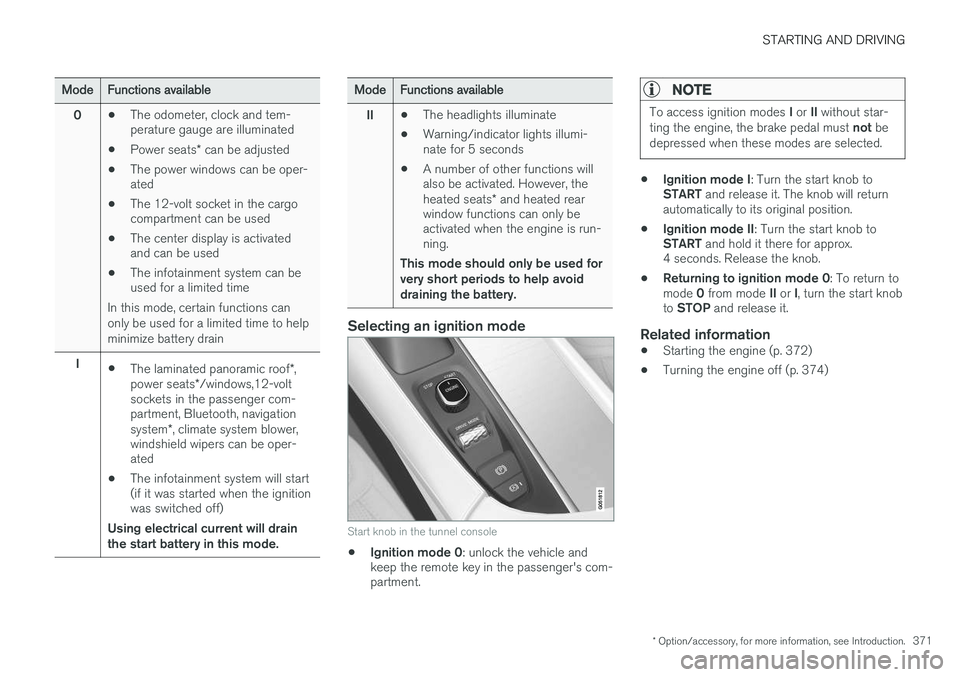
Start knob in the tunnel console
• Ignition mode 0
: unlock the vehicle and
keep the remote key in the passenger's com- partment.
NOTE
To access ignition modes I or II without star-
ting the engine, the brake pedal must not be
depressed when these modes are selected.
• Ignition mode I
: Turn the start knob to
START and release it. The knob will return
automatically to its original position.
• Ignition mode II
: Turn the start knob to
START and hold it there for approx.
4 seconds. Release the knob.
• Returning to ignition mode 0
: To return to
mode 0 from mode II or I, turn the start knob
to STOP and release it.
Related information
•Starting the engine (p. 372)
• Turning the engine off (p. 374)
Page 424 of 546
INFOTAINMENT
* Option/accessory, for more information, see Introduction.
422
Apple CarPlay
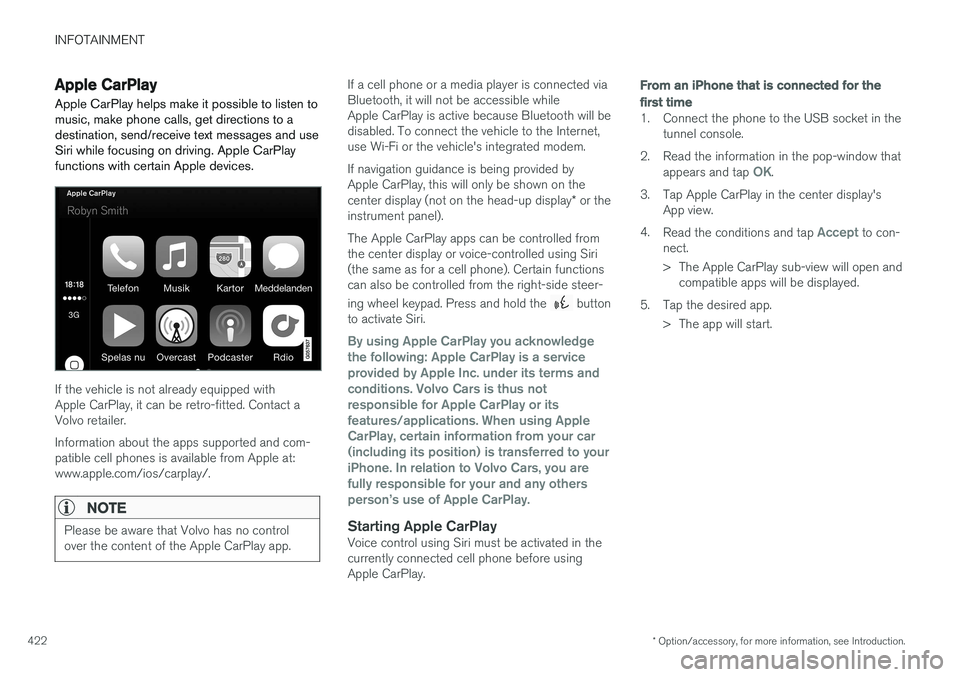
Apple CarPlay helps make it possible to listen to music, make phone calls, get directions to adestination, send/receive text messages and useSiri while focusing on driving. Apple CarPlayfunctions with certain Apple devices.
If the vehicle is not already equipped with Apple CarPlay, it can be retro-fitted. Contact aVolvo retailer. Information about the apps supported and com- patible cell phones is available from Apple at:www.apple.com/ios/carplay/.
NOTE
Please be aware that Volvo has no control over the content of the Apple CarPlay app.
If a cell phone or a media player is connected via Bluetooth, it will not be accessible whileApple CarPlay is active because Bluetooth will bedisabled. To connect the vehicle to the Internet,use Wi-Fi or the vehicle's integrated modem. If navigation guidance is being provided by Apple CarPlay, this will only be shown on the center display (not on the head-up display * or the
instrument panel). The Apple CarPlay apps can be controlled from the center display or voice-controlled using Siri(the same as for a cell phone). Certain functionscan also be controlled from the right-side steer- ing wheel keypad. Press and hold the
button
to activate Siri.
By using Apple CarPlay you acknowledge the following: Apple CarPlay is a serviceprovided by Apple Inc. under its terms andconditions. Volvo Cars is thus notresponsible for Apple CarPlay or itsfeatures/applications. When using AppleCarPlay, certain information from your car(including its position) is transferred to youriPhone. In relation to Volvo Cars, you arefully responsible for your and any othersperson
Page 425 of 546
INFOTAINMENT
}}
423
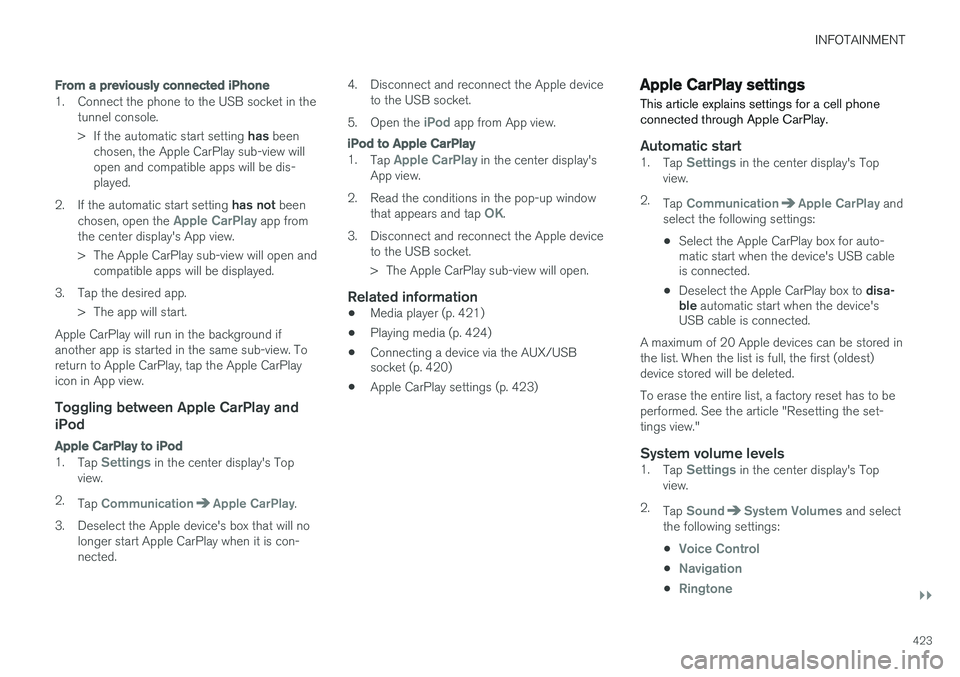
From a previously connected iPhone
1. Connect the phone to the USB socket in the
tunnel console. >If the automatic start setting has been
chosen, the Apple CarPlay sub-view will open and compatible apps will be dis-played.
2. If the automatic start setting has not been
chosen, open the
Apple CarPlay app from
the center display's App view.
> The Apple CarPlay sub-view will open and compatible apps will be displayed.
3. Tap the desired app. > The app will start.
Apple CarPlay will run in the background if another app is started in the same sub-view. Toreturn to Apple CarPlay, tap the Apple CarPlayicon in App view.
Toggling between Apple CarPlay and iPod
Apple CarPlay to iPod
1.
Tap Settings in the center display's Top
view.
2. Tap
CommunicationApple CarPlay.
3. Deselect the Apple device's box that will no longer start Apple CarPlay when it is con- nected. 4. Disconnect and reconnect the Apple device
to the USB socket.
5. Open the
iPod app from App view.
iPod to Apple CarPlay
1.
Tap Apple CarPlay in the center display's
App view.
2. Read the conditions in the pop-up window that appears and tap
OK.
3. Disconnect and reconnect the Apple device to the USB socket.
> The Apple CarPlay sub-view will open.
Related information
• Media player (p. 421)
• Playing media (p. 424)
• Connecting a device via the AUX/USB socket (p. 420)
• Apple CarPlay settings (p. 423)
Apple CarPlay settings This article explains settings for a cell phone connected through Apple CarPlay.
Automatic start1.
Tap Settings in the center display's Top
view.
2. Tap
CommunicationApple CarPlay and
select the following settings:
• Select the Apple CarPlay box for auto- matic start when the device's USB cableis connected.
• Deselect the Apple CarPlay box to
disa-
ble automatic start when the device's
USB cable is connected.
A maximum of 20 Apple devices can be stored in the list. When the list is full, the first (oldest)device stored will be deleted. To erase the entire list, a factory reset has to be performed. See the article "Resetting the set-tings view."
System volume levels1. Tap Settings in the center display's Top
view.
2. Tap
SoundSystem Volumes and select
the following settings: •
Voice Control
•Navigation
•Ringtone
Page 433 of 546
INFOTAINMENT
}}
431
Internet connected vehicle
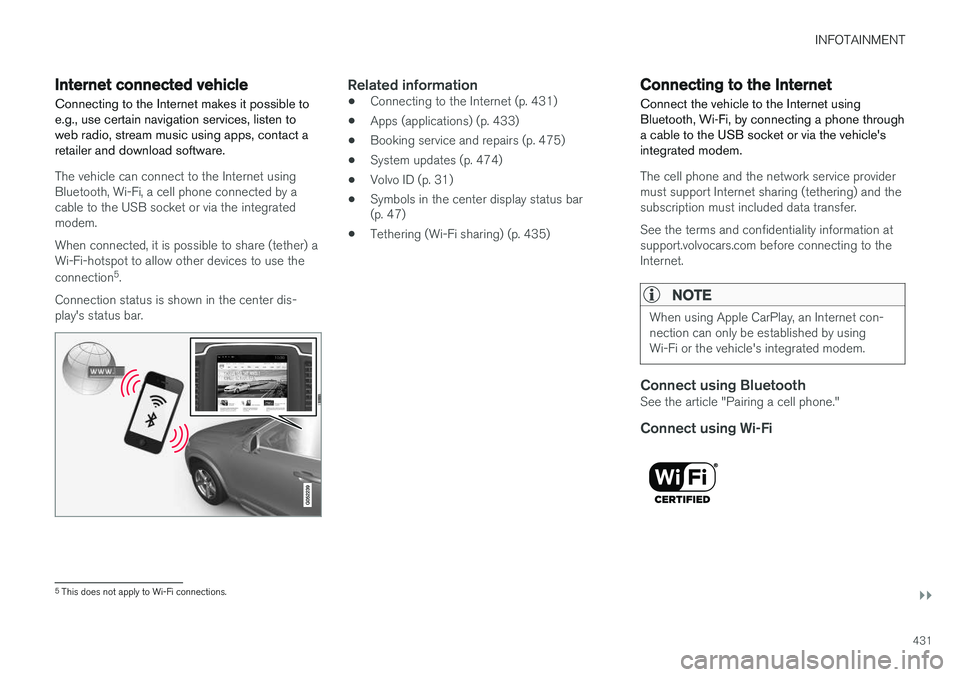
Connecting to the Internet makes it possible to e.g., use certain navigation services, listen toweb radio, stream music using apps, contact aretailer and download software.
The vehicle can connect to the Internet using Bluetooth, Wi-Fi, a cell phone connected by acable to the USB socket or via the integratedmodem. When connected, it is possible to share (tether) a Wi-Fi-hotspot to allow other devices to use the connection 5
.
Connection status is shown in the center dis- play's status bar.
Related information
• Connecting to the Internet (p. 431)
• Apps (applications) (p. 433)
• Booking service and repairs (p. 475)
• System updates (p. 474)
• Volvo ID (p. 31)
• Symbols in the center display status bar (p. 47)
• Tethering (Wi-Fi sharing) (p. 435)
Connecting to the Internet
Connect the vehicle to the Internet using
Bluetooth, Wi-Fi, by connecting a phone through a cable to the USB socket or via the vehicle'sintegrated modem.
The cell phone and the network service provider must support Internet sharing (tethering) and thesubscription must included data transfer. See the terms and confidentiality information at support.volvocars.com before connecting to theInternet.
NOTE
When using Apple CarPlay, an Internet con- nection can only be established by usingWi-Fi or the vehicle's integrated modem.
Connect using BluetoothSee the article "Pairing a cell phone."
Connect using Wi-Fi
5 This does not apply to Wi-Fi connections.
Page 435 of 546
INFOTAINMENT
}}
433
Apps (applications)
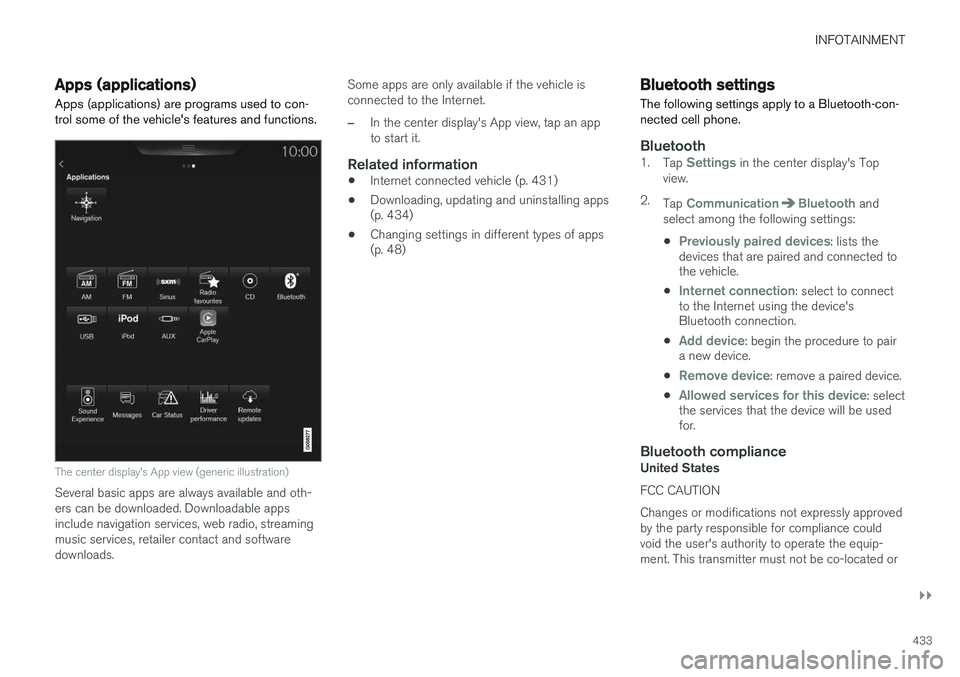
Apps (applications) are programs used to con- trol some of the vehicle's features and functions.
The center display's App view (generic illustration)
Several basic apps are always available and oth- ers can be downloaded. Downloadable appsinclude navigation services, web radio, streamingmusic services, retailer contact and softwaredownloads. Some apps are only available if the vehicle isconnected to the Internet.
–In the center display's App view, tap an app to start it.
Related information
•
Internet connected vehicle (p. 431)
• Downloading, updating and uninstalling apps (p. 434)
• Changing settings in different types of apps(p. 48)
Bluetooth settings
The following settings apply to a Bluetooth-con- nected cell phone.
Bluetooth1. Tap Settings in the center display's Top
view.
2. Tap
CommunicationBluetooth and
select among the following settings:
•
Previously paired devices: lists the
devices that are paired and connected to the vehicle.
•
Internet connection: select to connect
to the Internet using the device's Bluetooth connection.
•
Add device: begin the procedure to pair
a new device.
•
Remove device: remove a paired device.
•
Allowed services for this device: select
the services that the device will be used for.
Bluetooth complianceUnited States FCC CAUTION Changes or modifications not expressly approved by the party responsible for compliance couldvoid the user's authority to operate the equip-ment. This transmitter must not be co-located or
Page 443 of 546
INFOTAINMENT
441
"Data Files") or Unicode software and any associated documentation (the "Software") todeal in the Data Files or Software withoutrestriction, including without limitation the rightsto use, copy, modify, merge, publish, distribute,and/or sell copies of the Data Files or Software,and to permit persons to whom the Data Files orSoftware are furnished to do so, provided that (a)the above copyright notice(s) and this permissionnotice appear with all copies of the Data Files orSoftware, (b) both the above copyright notice(s)and this permission notice appear in associateddocumentation, and (c) there is clear notice ineach modified Data File or in the Software aswell as in the documentation associated with theData File(s) or Software that the data or softwarehas been modified. THE DATA FILES AND SOFTWARE ARE PROVIDED "AS IS", WITHOUT WARRANTY OFANY KIND, EXPRESS OR IMPLIED, INCLUDINGBUT NOT LIMITED TO THE WARRANTIES OFMERCHANTABILITY, FITNESS FOR APARTICULAR PURPOSE ANDNONINFRINGEMENT OF THIRD PARTYRIGHTS. IN NO EVENT SHALL THECOPYRIGHT HOLDER OR HOLDERSINCLUDED IN THIS NOTICE BE LIABLE FORANY CLAIM, OR ANY SPECIAL INDIRECT ORCONSEQUENTIAL DAMAGES, OR ANYDAMAGES WHATSOEVER RESULTING FROMLOSS OF USE, DATA OR PROFITS, WHETHERIN AN ACTION OF CONTRACT, NEGLIGENCE
OR OTHER TORTIOUS ACTION, ARISING OUTOF OR IN CONNECTION WITH THE USE ORPERFORMANCE OF THE DATA FILES ORSOFTWARE. Except as contained in this notice, the name of a copyright holder shall not be used in advertisingor otherwise to promote the sale, use or otherdealings in these Data Files or Software withoutprior written authorization of the copyright holder.
Bluetooth
®
declaration of conformityUnited States FCC CAUTION Changes or modifications not expressly approved by the party responsible for compliance couldvoid the user's authority to operate the equip-ment. This transmitter must not be co-located oroperated in conjunction with any other antennaor transmitter. CanadaThis device complies with Industry Canada licence-exempt RSS standard(s). Operation issubject to the following two conditions: (1) thisdevice may not cause interference, and (2) thisdevice must accept any interference, includinginterference that may cause undesired operationof the device.
Terms, conditions and confidentiality
See terms and conditions for services and cus- tomer privacy policy at support.volvocars.com.
Terms & Conditions for ServicesVolvo offers the best possible services to make owning and operating a Volvo safe, convenient,comfortable and enjoyable. Volvo offers a widearray of services, ranging from emergency assis-tance to navigation and infotainment.
Customer privacy policyThis policy applies to the way in which customer-related and personal information are handled. Itspurpose is to provide our present, previous andfuture customers a general understanding of: • The circumstances under which we gather and process your personal information.
• The types of personal information gathered.
• The reasons for gathering your personalinformation.
• How we deal with your personal information.
This policy can be read in its entirety at support.volvocars.com.
Page 477 of 546
MAINTENANCE AND SERVICING
}}
475
Remote updates With the vehicle connected to the Internet, updates for a number of the vehicle's systemscan be downloaded from the center display.
The Remote updates app is
started from the center dis- play's App view and makes itpossible to:
• search for and update system software
• update the Sensus Navigation maps
• download, update and uninstall apps
Related information
•Downloading, updating and uninstalling apps (p. 434)
• System updates (p. 474)
Vehicle status
The vehicle's general status can be displayed in the center display along with the possibility to book service 1
The Car status app is started
in the center display's App view and has three tabs:
•Messages: stored messages
•
Status: tire pressure and engine oil level
•
Appointments: booking service or repairs 1
Related information
•
Using the center display (p. 49)
• Booking service and repairs (p. 475)
• Checking inflation pressure (p. 458)
• Checking and refilling engine oil (p. 507)
Booking service and repairs Connected Service Booking (CSB) makes it possible to use the vehicle's Internet connectionto set up a time for service, maintenance and/orrepairs.
The information is handled through the Car
status app, which can be opened from the cen-
ter display's App view. Information about your vehicle is sent to your retailer and you can book your workshop appoint-ment directly in your retailer's workshop planningsystem using the Volvo On-Line Service Schedu-ler with your smart phone. The system will alsosend a reminder as the appointment approachesand the Sensus Navigation system will providedirections to the workshop if necessary. This feature makes it convenient to book a work- shop appointment directly from your vehicle.Vehicle-related information is sent to yourretailer, who prepares your visit to the workshop.The retailer will send an email to you're my Volvowebsite including a link enabling you to connectto the Volvo On-Line Service Scheduler whereyou can book a workshop appointment at a con-venient time. Information about your retailer isalso available in the vehicle so that you can con-tact the retailer/workshop at any time using the
Call my retailer menu option.
1 Certain markets only.