steering VOLVO XC90 T8 2016 Owner´s Manual
[x] Cancel search | Manufacturer: VOLVO, Model Year: 2016, Model line: XC90 T8, Model: VOLVO XC90 T8 2016Pages: 546, PDF Size: 10.26 MB
Page 202 of 546
||
CLIMATE
* Option/accessory, for more information, see Introduction.
200
Automatically activating/deactivating the seat heating function when theengine is started
The seat heating * can be set to start automati-
cally when the engine is started. The automatic function starts heating the seats when the ambient temperature is sufficiently cold. 1. Tap
Settings in the center display's Top
view.
2. Tap
Climate.
3. Under
Auto Driver Seat Heating Level andAuto Passenger Seat Heating Level,
select Off, Low, Middle or High to activate/
deactivate the automatic function and select a level for the driver's and passenger's seats.
Related information
• Climate system controls (p. 188)
• Climate system controls in the center display (p. 189)
• Rear climate system controls on the tunnelconsole (p. 190)
Turning front seat ventilation
* on
and off
Seat ventilation can be used e.g., to help remove dampness from the seat occupant's clothing.
The ventilation system consists of fans in the seats and backrests that draw air through theseat upholstery. The cooling effect increases asthe air in the passenger compartment becomescooler. This feature can be activated when theengine is running and it monitors the seat's tem-perature, sunlight in the passenger compartmentand the ambient temperature.
Activating/deactivating front seat ventilation
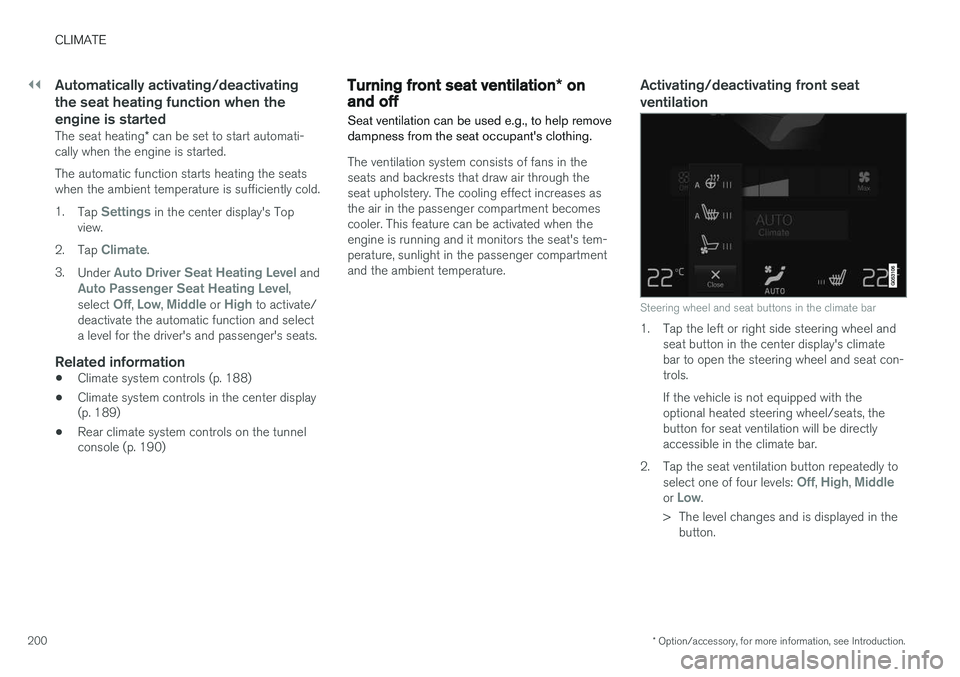
Steering wheel and seat buttons in the climate bar
1. Tap the left or right side steering wheel and seat button in the center display's climate bar to open the steering wheel and seat con-trols. If the vehicle is not equipped with the optional heated steering wheel/seats, thebutton for seat ventilation will be directlyaccessible in the climate bar.
2. Tap the seat ventilation button repeatedly to select one of four levels:
Off, High, Middleor Low.
> The level changes and is displayed in the button.
Page 210 of 546
LOADING AND STORAGE
* Option/accessory, for more information, see Introduction.
208
Cargo space
The vehicle has flexible cargo capacity that makes it possible to load and secure largeobjects.
By folding down the backrests in the second and third rows * of seats, the cargo capacity of the
vehicle increases considerably. To make loading easier, the rear section of the vehicle can beraised and lowered using the pneumatic suspen- sion *. Use the load anchoring eyelets or the gro-
cery bag holder to secure objects and the cargo compartment cover helps conceal the load. The jack * and tools can be found under the cargo
compartment's floor.
Related information
• Loading (p. 215)
• Cargo compartment cover
* (p. 221)
• Cargo net (p. 217)
• Grocery bag holder (p. 217)
• Load anchoring eyelets (p. 220)
• Steel cargo grid
* (p. 219)
Passenger compartment storage spaces
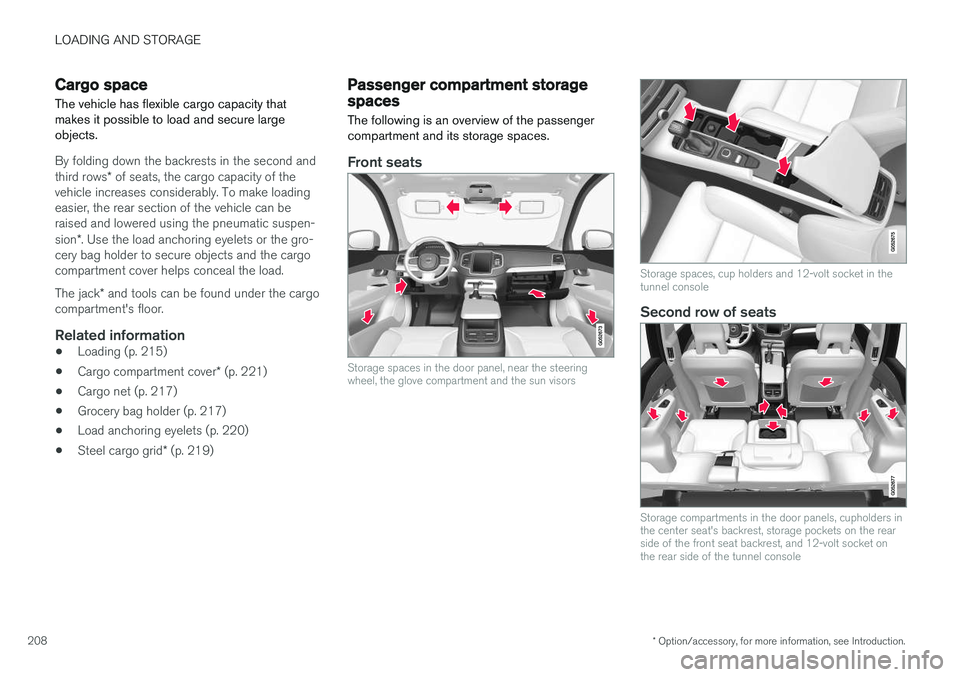
The following is an overview of the passenger compartment and its storage spaces.
Front seats
Storage spaces in the door panel, near the steering wheel, the glove compartment and the sun visors
Storage spaces, cup holders and 12-volt socket in the tunnel console
Second row of seats
Storage compartments in the door panels, cupholders in the center seat's backrest, storage pockets on the rearside of the front seat backrest, and 12-volt socket onthe rear side of the tunnel console
Page 237 of 546
LOCKS AND ALARM
}}
235
Remote key's range
In order to function correctly, the remote key must be within a certain distance of the vehicle.
Manual useThe remote key's functions, such as locking and unlocking the vehicle, which are activated by pressing the
or buttons, have a range
of approx. 65 feet (20 meters) from the vehicle. Buildings or other obstacles may interfere with the function of the remote key. The vehicle canalso be locked or unlocked with the key blade. If the vehicle's locks do not react, move closer and try again.
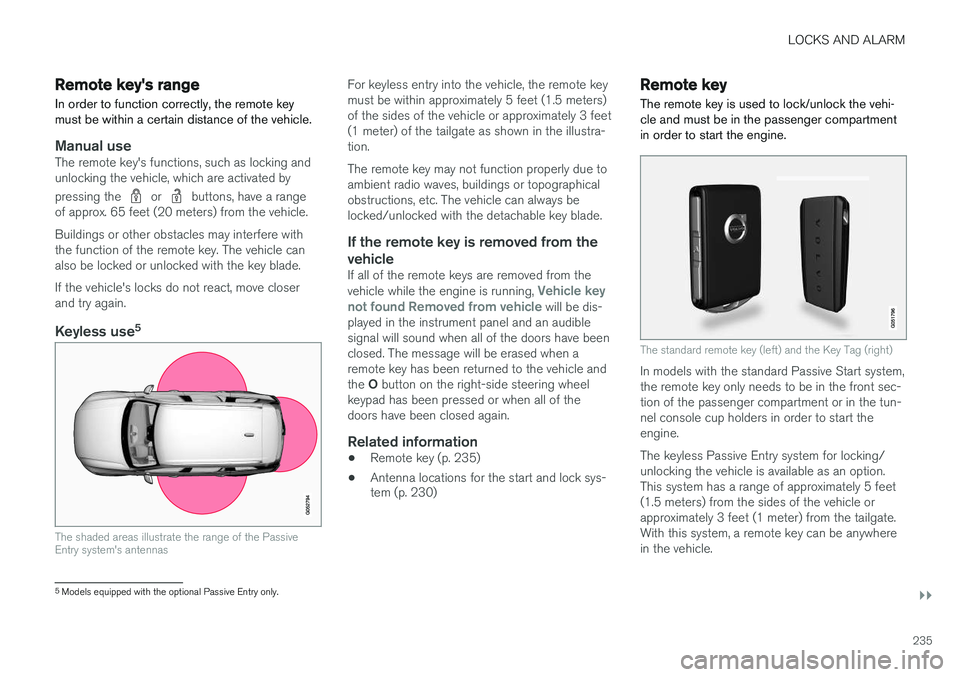
Keyless use 5
The shaded areas illustrate the range of the Passive Entry system's antennas
For keyless entry into the vehicle, the remote key must be within approximately 5 feet (1.5 meters)of the sides of the vehicle or approximately 3 feet(1 meter) of the tailgate as shown in the illustra-tion. The remote key may not function properly due to ambient radio waves, buildings or topographicalobstructions, etc. The vehicle can always belocked/unlocked with the detachable key blade.
If the remote key is removed from the vehicle
If all of the remote keys are removed from the vehicle while the engine is running, Vehicle key
not found Removed from vehicle will be dis-
played in the instrument panel and an audible signal will sound when all of the doors have beenclosed. The message will be erased when aremote key has been returned to the vehicle and the O button on the right-side steering wheel
keypad has been pressed or when all of the doors have been closed again.
Related information
• Remote key (p. 235)
• Antenna locations for the start and lock sys- tem (p. 230)
Remote key
The remote key is used to lock/unlock the vehi- cle and must be in the passenger compartmentin order to start the engine.
The standard remote key (left) and the Key Tag (right)
In models with the standard Passive Start system, the remote key only needs to be in the front sec-tion of the passenger compartment or in the tun-nel console cup holders in order to start theengine. The keyless Passive Entry system for locking/ unlocking the vehicle is available as an option.This system has a range of approximately 5 feet(1.5 meters) from the sides of the vehicle orapproximately 3 feet (1 meter) from the tailgate.With this system, a remote key can be anywherein the vehicle.
5 Models equipped with the optional Passive Entry only.
Page 254 of 546
DRIVER SUPPORT
* Option/accessory, for more information, see Introduction.
252
Driver support systems
The vehicle is equipped with a number of driver support systems that help provide the driver withactive/passive support.
Some of these systems are standard while others are optional and they are designed to e.g., helpthe driver maintain a set speed or a set distanceto a vehicle ahead, or warn the driver of a poten-tial collision situation and in certain cases applythe brakes if necessary. Certain optional systemscan also assist in various parking situations.
Related information
• Adjustable steering force
* (p. 323)
• Electronic Stability Control (ESC) (p. 323)
• Speed limiter (SL)
* (p. 298)
• Cruise Control (CC) (p. 261)
• Adaptive Cruise Control (ACC)
* (p. 266)
• Pilot Assist
* (p. 273)
• Distance Alert
* (p. 329)
• City Safety
™ (p. 287)
• Blind Spot Information (BLIS)
* (p. 330)
• Cross Traffic Alert (CTA)
* (p. 333)
• Driver Alert Control (DAC) (p. 327)
• Driving lane assistance (p. 338)
• Road Sign Information (RSI)
* (p. 304)
• Park Assist
* (p. 306)
• Park Assist Pilot (PAP)
* (p. 316) •
Park Assist Camera (PAC)
* (p. 311)
Driver support system camera
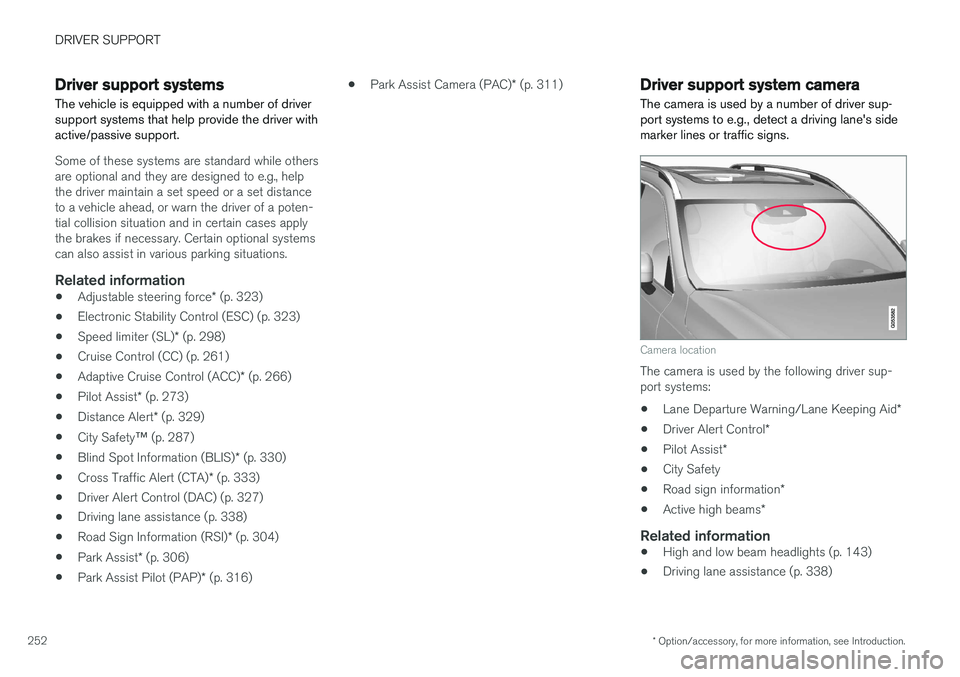
The camera is used by a number of driver sup- port systems to e.g., detect a driving lane's sidemarker lines or traffic signs.
Camera location
The camera is used by the following driver sup- port systems:
• Lane Departure Warning/Lane Keeping Aid
*
• Driver Alert Control
*
• Pilot Assist
*
• City Safety
• Road sign information
*
• Active high beams
*
Related information
•High and low beam headlights (p. 143)
• Driving lane assistance (p. 338)
Page 264 of 546
||
DRIVER SUPPORT
* Option/accessory, for more information, see Introduction.
262
NOTE
Before CC can be activated, the vehicle's speed must be at least 20 mph (30 km/h).This is also the lowest speed that can be set.
Activating CC (putting it in active mode and setting a speed)
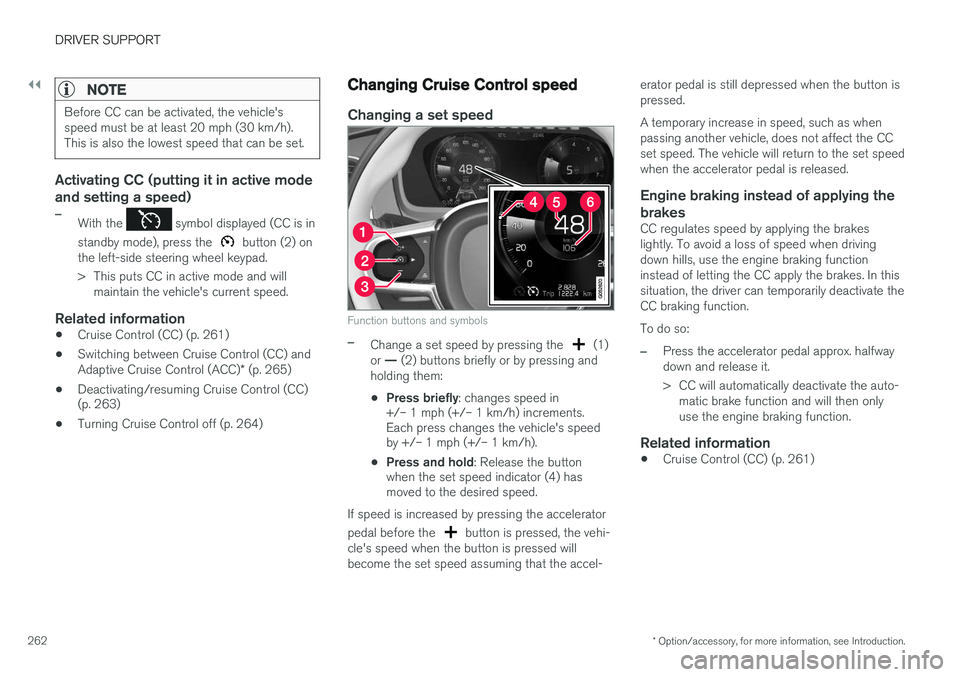
–With the symbol displayed (CC is in
standby mode), press the
button (2) on
the left-side steering wheel keypad.
> This puts CC in active mode and will maintain the vehicle's current speed.
Related information
• Cruise Control (CC) (p. 261)
• Switching between Cruise Control (CC) and Adaptive Cruise Control (ACC)
* (p. 265)
• Deactivating/resuming Cruise Control (CC) (p. 263)
• Turning Cruise Control off (p. 264)
Changing Cruise Control speed
Changing a set speed
Function buttons and symbols
–Change a set speed by pressing the (1)
or — (2) buttons briefly or by pressing and
holding them:
• Press briefly
: changes speed in
+/– 1 mph (+/– 1 km/h) increments. Each press changes the vehicle's speedby +/– 1 mph (+/– 1 km/h).
• Press and hold
: Release the button
when the set speed indicator (4) hasmoved to the desired speed.
If speed is increased by pressing the accelerator pedal before the
button is pressed, the vehi-
cle's speed when the button is pressed will become the set speed assuming that the accel- erator pedal is still depressed when the button ispressed. A temporary increase in speed, such as when passing another vehicle, does not affect the CCset speed. The vehicle will return to the set speedwhen the accelerator pedal is released.
Engine braking instead of applying the
brakes
CC regulates speed by applying the brakeslightly. To avoid a loss of speed when drivingdown hills, use the engine braking functioninstead of letting the CC apply the brakes. In thissituation, the driver can temporarily deactivate theCC braking function. To do so:
–Press the accelerator pedal approx. halfway down and release it.
> CC will automatically deactivate the auto- matic brake function and will then only use the engine braking function.
Related information
• Cruise Control (CC) (p. 261)
Page 266 of 546
||
DRIVER SUPPORT
264
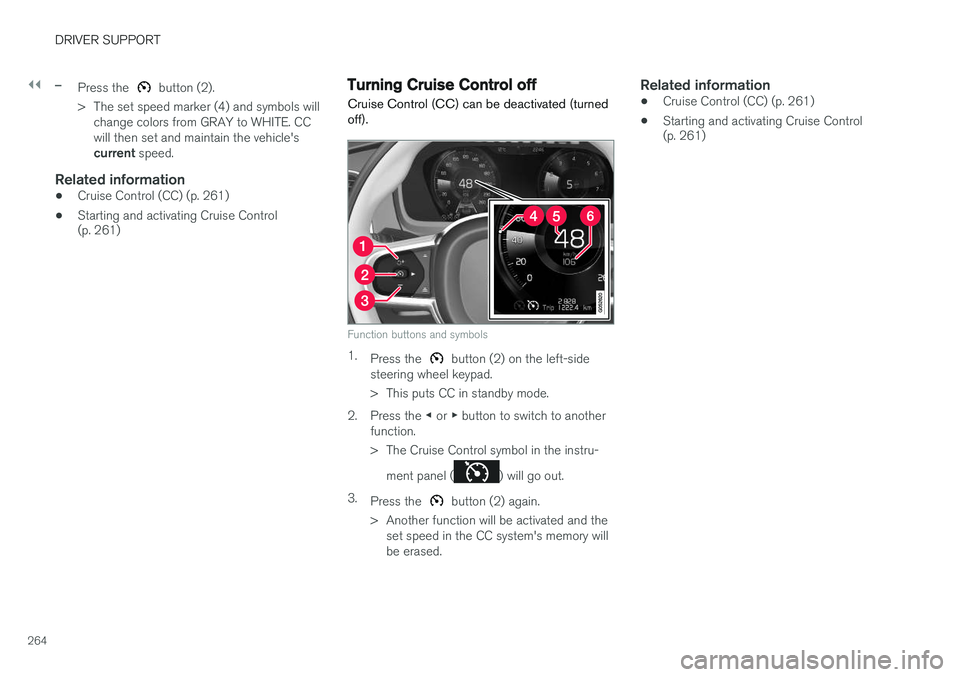
–Press the button (2).
> The set speed marker (4) and symbols will change colors from GRAY to WHITE. CC will then set and maintain the vehicle's current speed.
Related information
•Cruise Control (CC) (p. 261)
• Starting and activating Cruise Control (p. 261)
Turning Cruise Control off
Cruise Control (CC) can be deactivated (turned off).
Function buttons and symbols
1. Press the button (2) on the left-side
steering wheel keypad.
> This puts CC in standby mode.
2. Press the ◀ or ▶ button to switch to another
function.
> The Cruise Control symbol in the instru-
ment panel (
) will go out.
3. Press the
button (2) again.
> Another function will be activated and the set speed in the CC system's memory will be erased.
Related information
• Cruise Control (CC) (p. 261)
• Starting and activating Cruise Control (p. 261)
Page 271 of 546
DRIVER SUPPORT
}}
* Option/accessory, for more information, see Introduction.269
Activating ACC (putting it in active mode and setting a speed)
Before ACC can be put in active mode:
• The driver's seat belt must be buckled and the driver's door must be closed.
• There must be a vehicle ahead (a target vehi-cle) or your vehicle's current speed must beat least 10 mph (15 km/h).
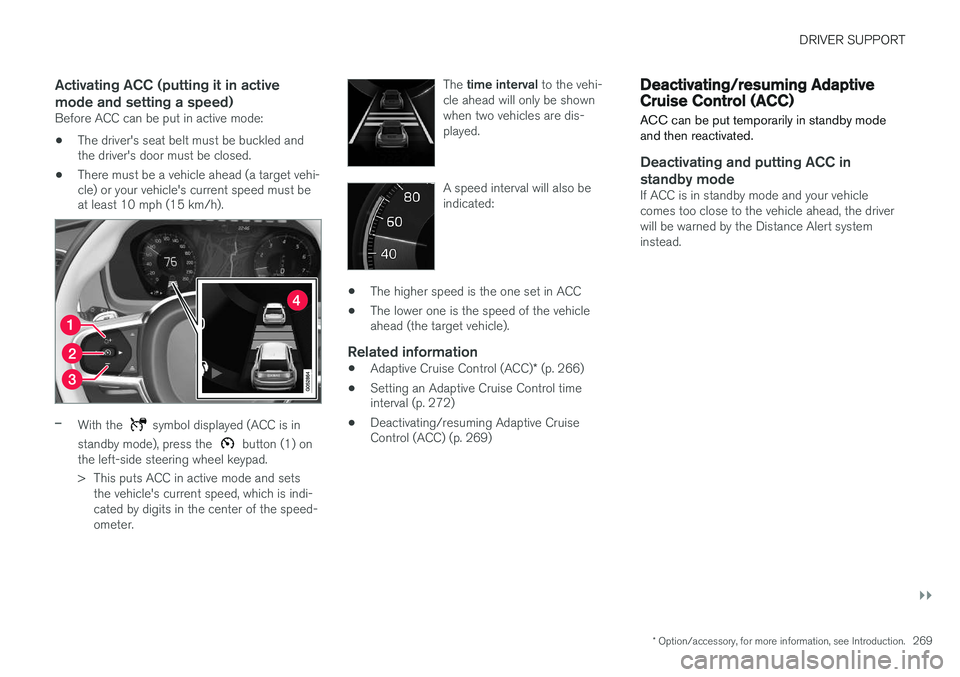
–With the symbol displayed (ACC is in
standby mode), press the
button (1) on
the left-side steering wheel keypad.
> This puts ACC in active mode and sets the vehicle's current speed, which is indi- cated by digits in the center of the speed-ometer. The
time interval to the vehi-
cle ahead will only be shownwhen two vehicles are dis-played.
A speed interval will also be indicated:
• The higher speed is the one set in ACC
• The lower one is the speed of the vehicle ahead (the target vehicle).
Related information
•
Adaptive Cruise Control (ACC)
* (p. 266)
• Setting an Adaptive Cruise Control timeinterval (p. 272)
• Deactivating/resuming Adaptive CruiseControl (ACC) (p. 269)
Deactivating/resuming Adaptive Cruise Control (ACC)
ACC can be put temporarily in standby mode and then reactivated.
Deactivating and putting ACC in standby mode
If ACC is in standby mode and your vehicle comes too close to the vehicle ahead, the driverwill be warned by the Distance Alert systeminstead.
Page 275 of 546
DRIVER SUPPORT
}}
* Option/accessory, for more information, see Introduction.273
time interval to the vehicle ahead does not allow an increase in speed.
• The higher the speed, the greater the dis-tance to the vehicle ahead for a given timeinterval.
• Only use time intervals permitted by localtraffic regulations.
WARNING
•
Only use a time interval that is suitable in current traffic conditions.
• A short time interval gives the driver lim-ited reaction time if an unexpected situa-tion occurs in traffic.
Related information
•
Adaptive Cruise Control (ACC)
* (p. 266)
• Starting and activating Adaptive CruiseControl (ACC) (p. 268)
• Deactivating/resuming Adaptive CruiseControl (ACC) (p. 269)
• Adaptive cruise control passing assistance(p. 284)
• Adaptive Cruise Control (ACC) symbols andmessages (p. 286)
Pilot Assist
*
The Pilot Assist feature helps keep the vehicle in its current traffic lane, at a set speed and a settime interval to the vehicle ahead.
FunctionThe vehicle's camera monitors the traffic lane's side marker lines and a distance monitor helpsmaintain the set time interval to the vehicleahead. Pilot Assist helps provide more relaxed driving in heavy, slow-moving traffic at speeds up to30 mph (50 km/h) on highways and major roads.
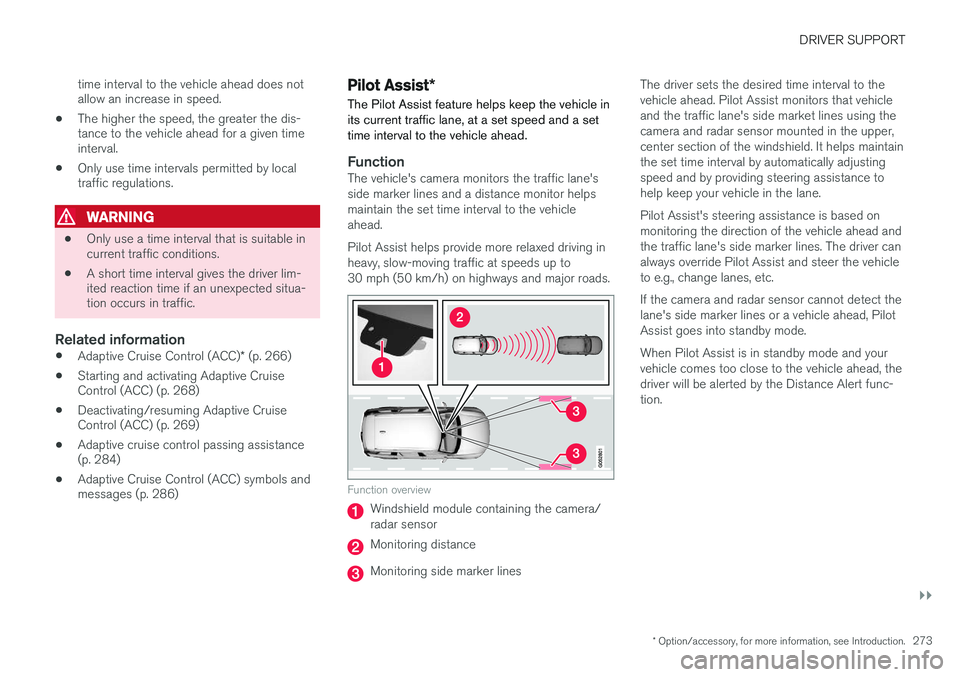
Function overview
Windshield module containing the camera/ radar sensor
Monitoring distance
Monitoring side marker lines The driver sets the desired time interval to the vehicle ahead. Pilot Assist monitors that vehicleand the traffic lane's side market lines using thecamera and radar sensor mounted in the upper,center section of the windshield. It helps maintainthe set time interval by automatically adjustingspeed and by providing steering assistance tohelp keep your vehicle in the lane. Pilot Assist's steering assistance is based on monitoring the direction of the vehicle ahead andthe traffic lane's side marker lines. The driver canalways override Pilot Assist and steer the vehicleto e.g., change lanes, etc. If the camera and radar sensor cannot detect the lane's side marker lines or a vehicle ahead, PilotAssist goes into standby mode. When Pilot Assist is in standby mode and your vehicle comes too close to the vehicle ahead, thedriver will be alerted by the Distance Alert func-tion.
Page 278 of 546
||
DRIVER SUPPORT
* Option/accessory, for more information, see Introduction.
276
WARNING
Pilot Assist only provides warnings for vehi- cles that its radar sensor and camera havedetected. For this reason, a warning may begiven later than expected or not at all. Thedriver should never wait for a warning beforeapplying the brakes.
Related information
• Pilot Assist limitations (p. 280)
• Pilot Assist auto-hold brake function (p. 279)
• Distance Alert
* (p. 329)
• Other Adaptive Cruise Control (ACC) func-tions (p. 282)
• Setting an Adaptive Cruise Control timeinterval (p. 272)
Starting and activating Pilot Assist
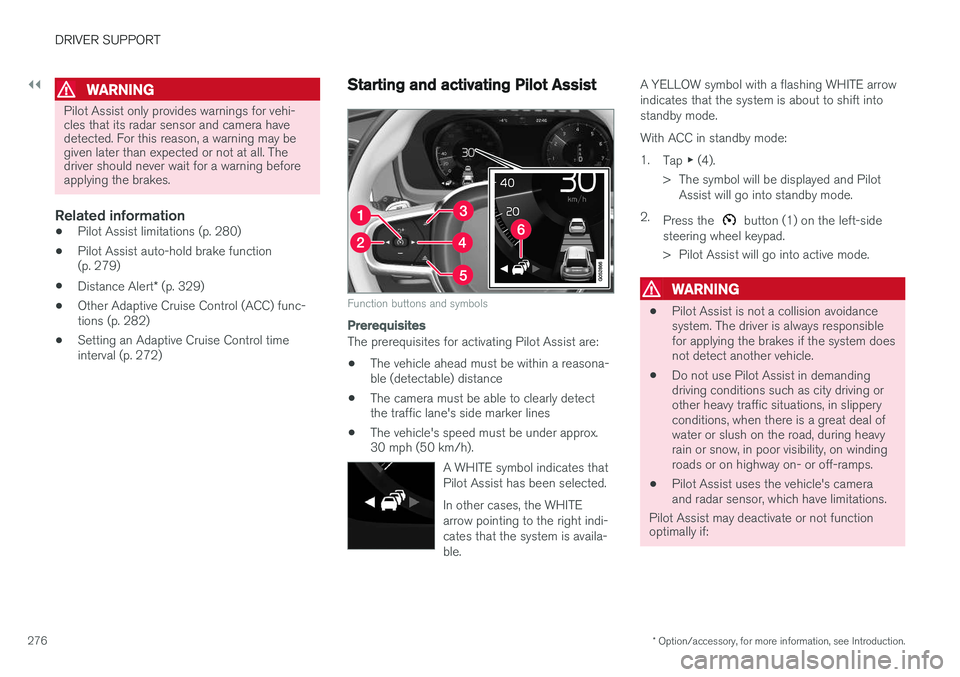
Function buttons and symbols
Prerequisites
The prerequisites for activating Pilot Assist are:
• The vehicle ahead must be within a reasona- ble (detectable) distance
• The camera must be able to clearly detectthe traffic lane's side marker lines
• The vehicle's speed must be under approx.30 mph (50 km/h).
A WHITE symbol indicates that Pilot Assist has been selected. In other cases, the WHITE arrow pointing to the right indi-cates that the system is availa-ble.
A YELLOW symbol with a flashing WHITE arrow indicates that the system is about to shift intostandby mode. With ACC in standby mode:1.Tap ▶ (4).
> The symbol will be displayed and Pilot Assist will go into standby mode.
2. Press the
button (1) on the left-side
steering wheel keypad.
> Pilot Assist will go into active mode.
WARNING
• Pilot Assist is not a collision avoidance system. The driver is always responsiblefor applying the brakes if the system doesnot detect another vehicle.
• Do not use Pilot Assist in demandingdriving conditions such as city driving orother heavy traffic situations, in slipperyconditions, when there is a great deal ofwater or slush on the road, during heavyrain or snow, in poor visibility, on windingroads or on highway on- or off-ramps.
• Pilot Assist uses the vehicle's cameraand radar sensor, which have limitations.
Pilot Assist may deactivate or not function optimally if:
Page 279 of 546
DRIVER SUPPORT
}}
* Option/accessory, for more information, see Introduction.277
•the lane's side market lines are missing, badly faded or cross each other.
• the division of lanes is not clear, e.g.,when a line divides or merges withanother, at exits or if there are many roadsigns/markers.
• if there are edges or other lines on ornear the lane, e.g., curbs, cracks, repairedareas, sharp shadows, etc.
• the lane is narrow or winding.
• the weather conditions (rain, snow, fog,slush, poor visibility, backlighting, etc).
The driver should also be aware that Pilot Assist has the following limitations: • High curbs, barriers and temporary obsta- cles (cones, barriers etc) may not bedetected or could be detected incorrectlyas side marker lines, which may create arisk of collision. The driver must ensure asafe distance to these obstacles.
• The camera or radar sensor may not beable to detect objects if there are pot-holes or if there are stationary objectspartially or completely blocking the road.
• Pilot Assist does not "see" pedestrians,animals, etc.
• Pilot Assist's steering capacity is limitedand may not always be able to help thedriver keep the vehicle in the lane.Hands on the steering wheel
Pilot Assist only functions when the driver's hands are on the steering wheel
, which is con-
tinuously monitored by the system. If this is notthe case, the driver will be alerted by a text mes-sage in the instrument panel. If the driver's handsare not returned to the steering wheel, an audiblesignal will sound. If the driver does not return his/her hands to the steering wheel after the audible signal, PilotAssist will go into standby mode and must be reactivated by pressing
.
Related information
• Pilot Assist
* (p. 273)
Deactivating/resuming Pilot Assist
Putting Pilot Assist in standby mode
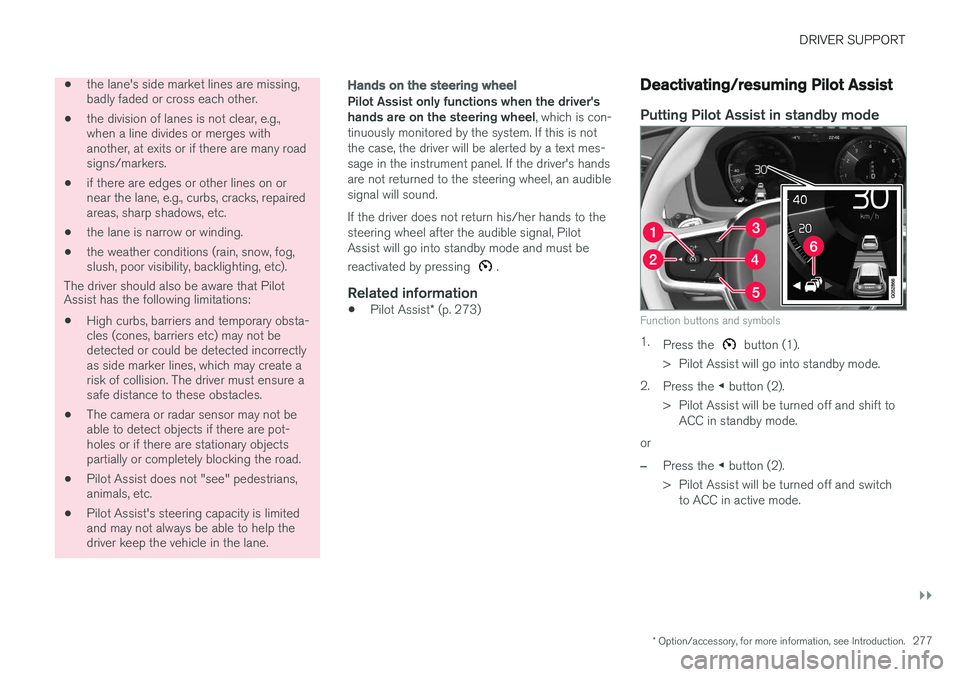
Function buttons and symbols
1.
Press the button (1).
> Pilot Assist will go into standby mode.
2. Press the ◀ button (2).
> Pilot Assist will be turned off and shift to ACC in standby mode.
or
–Press the ◀ button (2).
> Pilot Assist will be turned off and switch to ACC in active mode.