service VOLVO XC90 T8 2017 Owner´s Manual
[x] Cancel search | Manufacturer: VOLVO, Model Year: 2017, Model line: XC90 T8, Model: VOLVO XC90 T8 2017Pages: 580, PDF Size: 10.37 MB
Page 448 of 580
INFOTAINMENT
* Option/accessory.
446
Connecting a device via the AUX/USB socket
External audio sources such as an iPod ®
or mp3
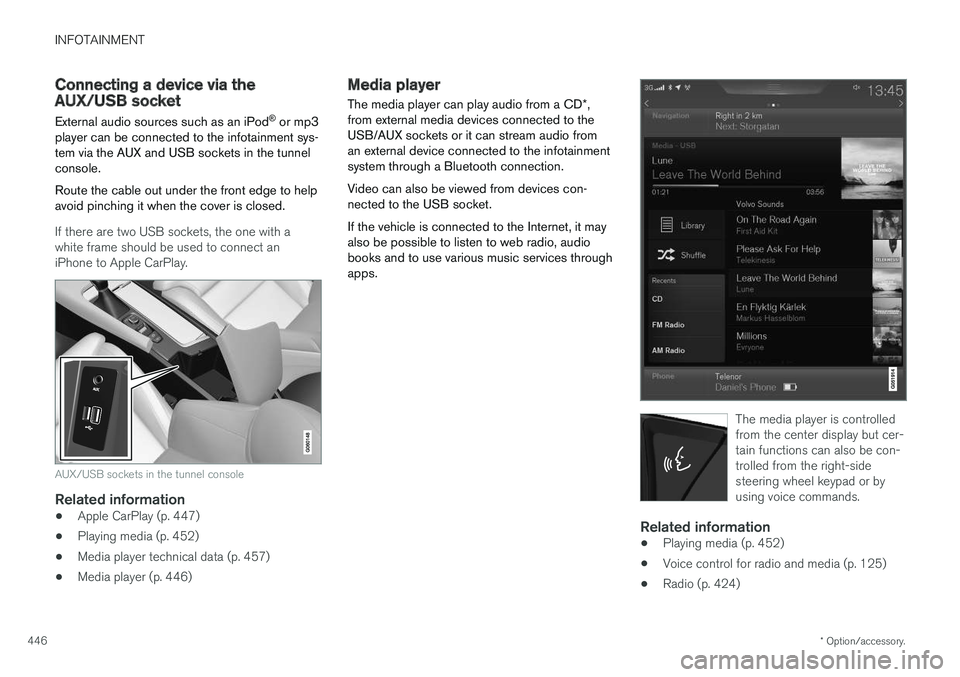
player can be connected to the infotainment sys- tem via the AUX and USB sockets in the tunnelconsole. Route the cable out under the front edge to help avoid pinching it when the cover is closed.
If there are two USB sockets, the one with a white frame should be used to connect aniPhone to Apple CarPlay.
AUX/USB sockets in the tunnel console
Related information
• Apple CarPlay (p. 447)
• Playing media (p. 452)
• Media player technical data (p. 457)
• Media player (p. 446)
Media player
The media player can play audio from a CD *,
from external media devices connected to the USB/AUX sockets or it can stream audio froman external device connected to the infotainmentsystem through a Bluetooth connection. Video can also be viewed from devices con- nected to the USB socket. If the vehicle is connected to the Internet, it may also be possible to listen to web radio, audiobooks and to use various music services throughapps.
The media player is controlled from the center display but cer-tain functions can also be con-trolled from the right-sidesteering wheel keypad or byusing voice commands.
Related information
• Playing media (p. 452)
• Voice control for radio and media (p. 125)
• Radio (p. 424)
Page 449 of 580
INFOTAINMENT
}}
* Option/accessory.447
•
Apps (applications) (p. 422)
• CD (media) player
* (p. 451)
• Playing media through the AUX/USB sock- ets (p. 454)
Apple CarPlay
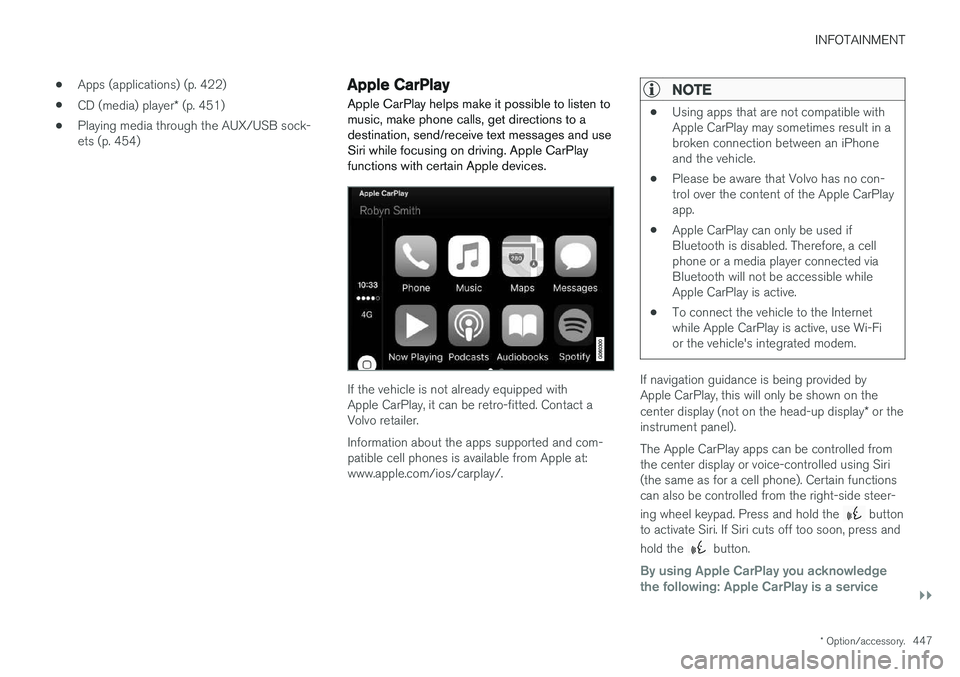
Apple CarPlay helps make it possible to listen to music, make phone calls, get directions to adestination, send/receive text messages and useSiri while focusing on driving. Apple CarPlayfunctions with certain Apple devices.
If the vehicle is not already equipped with Apple CarPlay, it can be retro-fitted. Contact aVolvo retailer. Information about the apps supported and com- patible cell phones is available from Apple at:www.apple.com/ios/carplay/.
NOTE
• Using apps that are not compatible with Apple CarPlay may sometimes result in abroken connection between an iPhoneand the vehicle.
• Please be aware that Volvo has no con-trol over the content of the Apple CarPlayapp.
• Apple CarPlay can only be used ifBluetooth is disabled. Therefore, a cellphone or a media player connected viaBluetooth will not be accessible whileApple CarPlay is active.
• To connect the vehicle to the Internetwhile Apple CarPlay is active, use Wi-Fior the vehicle's integrated modem.
If navigation guidance is being provided by Apple CarPlay, this will only be shown on the center display (not on the head-up display
* or the
instrument panel). The Apple CarPlay apps can be controlled from the center display or voice-controlled using Siri(the same as for a cell phone). Certain functionscan also be controlled from the right-side steer- ing wheel keypad. Press and hold the
button
to activate Siri. If Siri cuts off too soon, press and hold the
button.
By using Apple CarPlay you acknowledge the following: Apple CarPlay is a service
Page 452 of 580
||
INFOTAINMENT
* Option/accessory.
450
NOTE
• Please be aware that Volvo has no con- trol over the content of the Android Autoapp.
• If a cell phone or a media player is con-nected via Bluetooth, it will not be acces-sible while Android Auto is activebecause Bluetooth will be disabled. Toconnect the vehicle to the Internet, useWi-Fi or the vehicle's integrated modem.
If navigation guidance is being provided by Android Auto, this will only be shown on the cen- ter display (not on the head-up display
* or the
instrument panel). The Android Auto apps can be controlled from the center display or voice-controlled (the sameas for a cell phone). Certain functions can also becontrolled from the right-side steering wheel key- pad. Press and hold the
button to activate
voice control. Press briefly to deactivate.
By using Android Auto, you acknowledge the following: Android Auto is a serviceprovided by Google Inc. under its terms andconditions. Volvo Cars is not responsible forAndroid Auto or its features or applications.When you use Android Auto, your cartransfers certain information (including itslocation) to your connected Android phone. You are fully responsible for your and anyother person
Page 460 of 580
||
INFOTAINMENT
* Option/accessory.
458
Max. number
Tracks in a playlist 1,000
Subfolders No limit
USB socket
• Type A socket
• Version 2.0
• Voltage 5 V
• Max. current 2.1 A
Related information
•
CD (media) player
* (p. 451)
Internet connected vehicle
Connecting to the Internet makes it possible to e.g., use certain navigation services, listen toweb radio, stream music using apps, contact aretailer and download software.
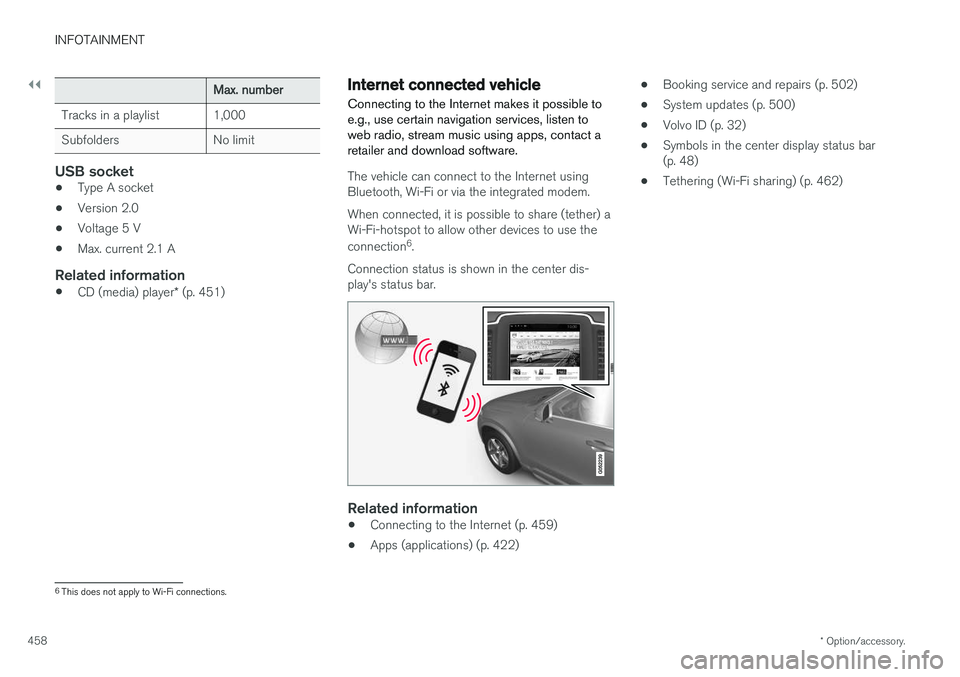
The vehicle can connect to the Internet using Bluetooth, Wi-Fi or via the integrated modem. When connected, it is possible to share (tether) a Wi-Fi-hotspot to allow other devices to use the connection 6
.
Connection status is shown in the center dis- play's status bar.
Related information
• Connecting to the Internet (p. 459)
• Apps (applications) (p. 422) •
Booking service and repairs (p. 502)
• System updates (p. 500)
• Volvo ID (p. 32)
• Symbols in the center display status bar (p. 48)
• Tethering (Wi-Fi sharing) (p. 462)
6
This does not apply to Wi-Fi connections.
Page 461 of 580
INFOTAINMENT
}}
459
Connecting to the Internet
Connect the vehicle to the Internet using
Bluetooth, Wi-Fi or via the vehicle's integratedmodem.
The cell phone and the network service provider must support Internet sharing (tethering) and thesubscription must included data transfer. See the terms and confidentiality information at support.volvocars.com before connecting to theInternet.
NOTE
When using Apple CarPlay or Android Auto, an Internet connection can only be estab-lished by using Wi-Fi or the vehicle's inte-grated modem.
Connect using BluetoothSee the article "Pairing a cell phone."
Connect using Wi-Fi
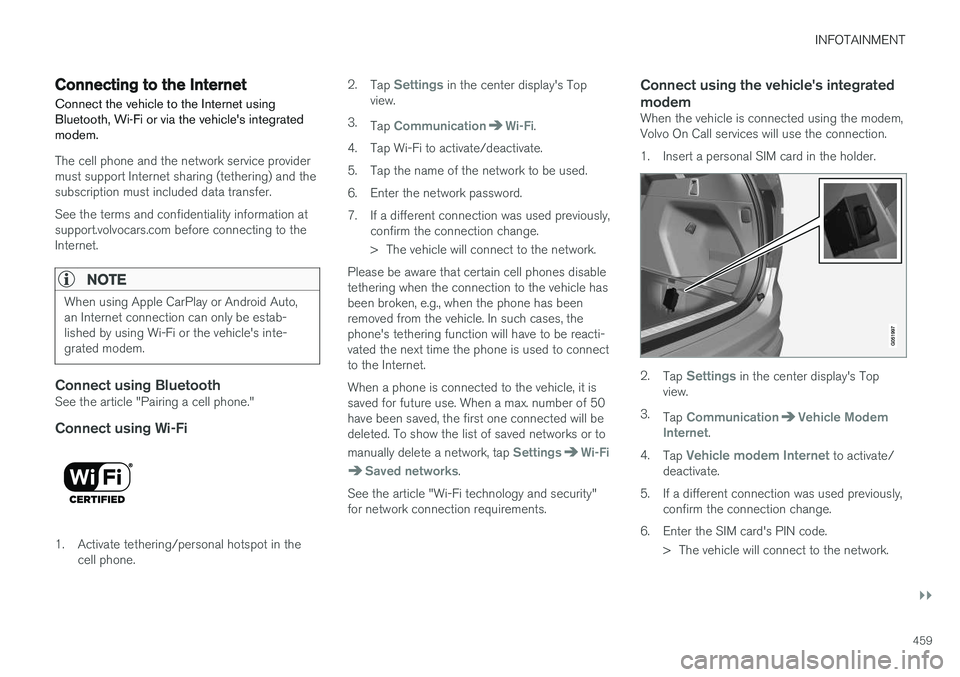
1. Activate tethering/personal hotspot in the cell phone. 2.
Tap
Settings in the center display's Top
view.
3. Tap
CommunicationWi-Fi.
4. Tap Wi-Fi to activate/deactivate.
5. Tap the name of the network to be used.
6. Enter the network password.
7. If a different connection was used previously, confirm the connection change.
> The vehicle will connect to the network.
Please be aware that certain cell phones disable tethering when the connection to the vehicle hasbeen broken, e.g., when the phone has beenremoved from the vehicle. In such cases, thephone's tethering function will have to be reacti-vated the next time the phone is used to connectto the Internet. When a phone is connected to the vehicle, it is saved for future use. When a max. number of 50have been saved, the first one connected will bedeleted. To show the list of saved networks or to manually delete a network, tap
SettingsWi-Fi
Saved networks.
See the article "Wi-Fi technology and security" for network connection requirements.
Connect using the vehicle's integrated modem
When the vehicle is connected using the modem, Volvo On Call services will use the connection.
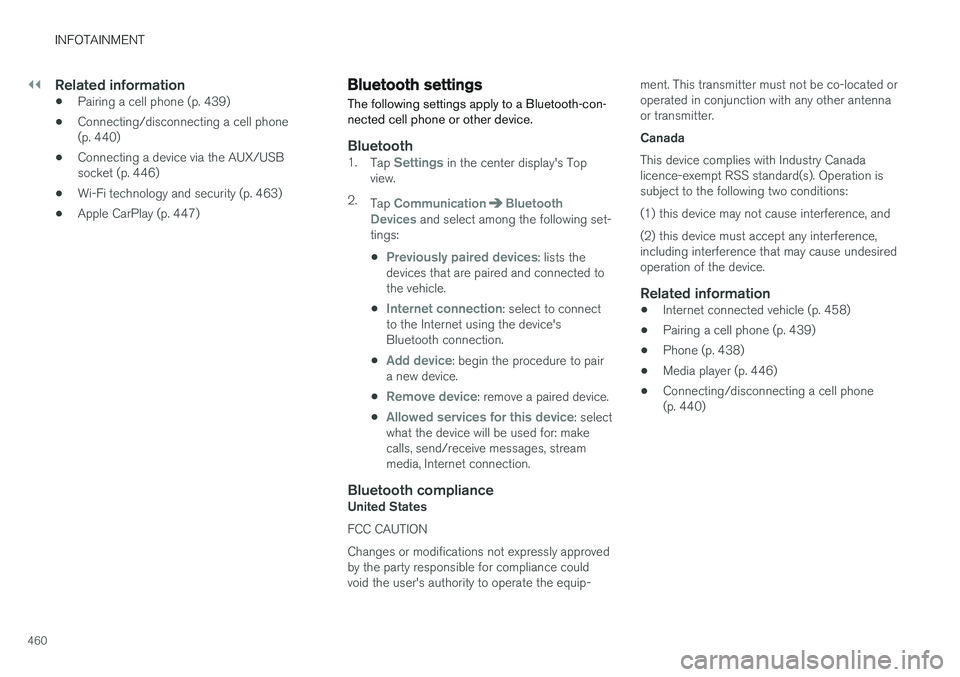
1. Insert a personal SIM card in the holder.
2. Tap Settings in the center display's Top
view.
3. Tap
CommunicationVehicle Modem
Internet.
4. Tap
Vehicle modem Internet to activate/
deactivate.
5. If a different connection was used previously, confirm the connection change.
6. Enter the SIM card's PIN code. > The vehicle will connect to the network.
Page 462 of 580
||
INFOTAINMENT
460
Related information
•Pairing a cell phone (p. 439)
• Connecting/disconnecting a cell phone (p. 440)
• Connecting a device via the AUX/USBsocket (p. 446)
• Wi-Fi technology and security (p. 463)
• Apple CarPlay (p. 447)
Bluetooth settings
The following settings apply to a Bluetooth-con- nected cell phone or other device.
Bluetooth1. Tap Settings in the center display's Top
view.
2. Tap
CommunicationBluetooth
Devices and select among the following set-
tings:
•
Previously paired devices: lists the
devices that are paired and connected to the vehicle.
•
Internet connection: select to connect
to the Internet using the device's Bluetooth connection.
•
Add device: begin the procedure to pair
a new device.
•
Remove device: remove a paired device.
•
Allowed services for this device: select
what the device will be used for: make calls, send/receive messages, streammedia, Internet connection.
Bluetooth complianceUnited States FCC CAUTION Changes or modifications not expressly approved by the party responsible for compliance couldvoid the user's authority to operate the equip- ment. This transmitter must not be co-located oroperated in conjunction with any other antennaor transmitter. Canada This device complies with Industry Canada licence-exempt RSS standard(s). Operation issubject to the following two conditions: (1) this device may not cause interference, and(2) this device must accept any interference, including interference that may cause undesiredoperation of the device.
Related information
•
Internet connected vehicle (p. 458)
• Pairing a cell phone (p. 439)
• Phone (p. 438)
• Media player (p. 446)
• Connecting/disconnecting a cell phone(p. 440)
Page 463 of 580
INFOTAINMENT
461
Downloading, updating and uninstalling apps
When the vehicle is connected to the Internet, apps can be added (downloaded), kept up-to-date or deleted.
NOTE
Downloading data may affect other services that transfer data such as web radio, stream-ing music, etc. If this occurs, a download inprogress can be cancelled or the other serv-ice can be temporarily turned off.
Apps are managed via theDownload Center in the cen-
ter display's App view. To download, update or delete apps, the vehicle must be con-nected to the Internet.
Downloading an app
1. Open the Download Center app.
2. Select
New apps to open a list of apps that
are available but which are not installed in the vehicle. Tap anywhere in a line for an appto expand the list for additional information. 3.
Select
Install to start downloading the app. It
will remain in the list and a new download can be initiated if necessary.
> Download status will be indicated while it is in progress. A message will be displayed if a download cannot be started immediately. The appwill remain in the list and a new downloadcan be initiated if necessary.
Cancelling (aborting) a download
–Tap Abort to cancel a download that is cur-
rently underway.
Only a download can be cancelled. If the installa-
tion phase has begun, it cannot be interrupted.
Updating appsIf an app is being used while an update is in pro- gress, it will be restarted to complete the update.
Update (install) all
1. Open the Download Center app.
2. Select
Install all.
> The update will begin.
Updating certain apps
1. Open the Download Center app.
2. Select
Application updates to open a list
of available updates.
3. Find the desired app and select
Install.
> The update will begin.
Uninstalling an appAn app being used must be closed before it can be uninstalled. 1. Open the
Download Center app.
2. Select
Application updates to open a list
of apps that have been installed.
3. Find the desired app and select
Uninstall to
begin uninstalling the app.
> When the app has been uninstalled, it will be removed from the list.
Related information
• Internet connected vehicle (p. 458)
• Media player (p. 446)
• System updates (p. 500)
Page 464 of 580
INFOTAINMENT
462
Internet connection troubleshooting The following are factors that may affect the vehicle's Internet connection.
The amount of data being transmitted depends on the services or apps that are currently in use.For example, streaming audio requires a greatdeal of data to be transmitted, which requires agood connection and a strong signal.
Cell phone to the vehicleConnection speed may vary depending on thelocation of the cell phone in the vehicle. Move thephone closer to the center display to increasesignal strength. Be sure that there are noobstructing/screening objects between thephone and the screen.
Cell phone to the network operatorThe speed of the mobile network may varydepending on coverage/reception in the vehicle'slocation. Reception is generally poorer in tunnels,in mountainous areas, in deep valleys or indoors.Connection speed may also depend on the typeof subscription that you have with the serviceprovider. Contact your service provider in the event of data transmission problems.
Restarting the phone
If you experience problems making a connection, it may to help to restart the phone.
Related information
•Internet connected vehicle (p. 458)
• Connecting to the Internet (p. 459)
Tethering (Wi-Fi sharing)
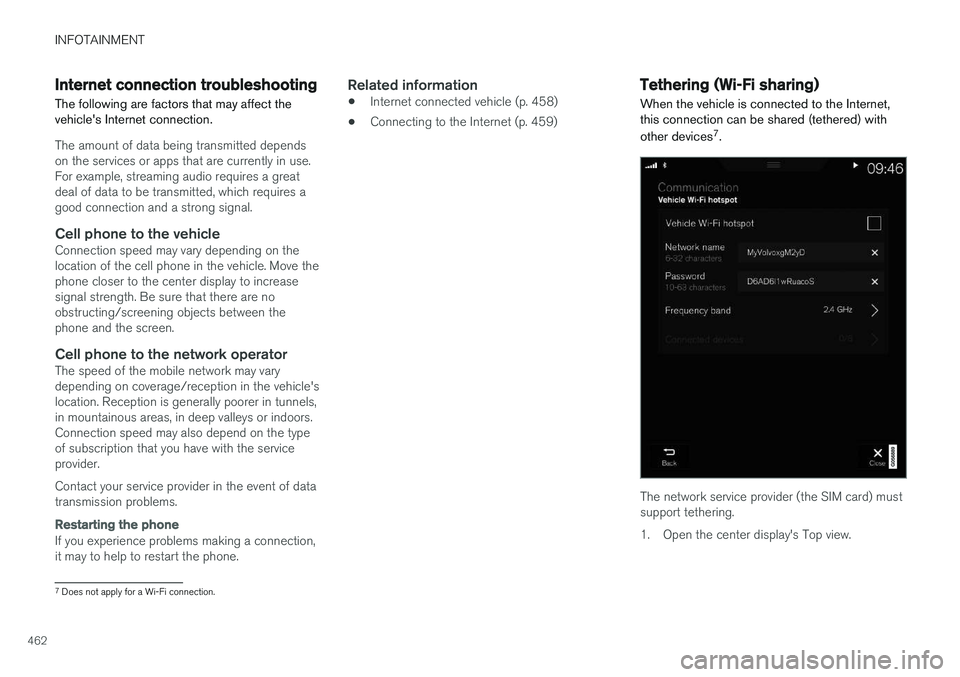
When the vehicle is connected to the Internet, this connection can be shared (tethered) with other devices 7
.
The network service provider (the SIM card) must support tethering.
1. Open the center display's Top view.
7 Does not apply for a Wi-Fi connection.
Page 466 of 580
INFOTAINMENT
464
Vehicle modem settings
The vehicle is equipped with a modem that can be used to connect the vehicle to the Internet. Itis also possible to share (tether) this connectionvia Wi-Fi.
1. Tap Settings in the center display's Top
view.
2. Tap
CommunicationVehicle Modem
Internet and choose among the following
settings:
•
Vehicle modem Internet: select to use the
vehicle's modem to connect to the Internet.
•
Data usage: %s: Tap Reset to restart
(reset) the counter for the amount of data sent/received.
•
Network Select carrier
: select a service provider
automatically or manually.
Data roaming: select to allow the vehicle to
connect to another network if the standard network is not available (e.g., if you are driv-ing in another country). This could entailadditional charges, consult your service pro-vider.
•
SIM card PIN Change PIN
: enter max. 4 digits.
Disable PIN: Allow access to the SIM card
without requiring a PIN code. •
Send request code: this is used to down-
load the balance remaining on a SIM card. This is specific to your service provider.
Related information
• Internet connected vehicle (p. 458)
• Connecting to the Internet (p. 459)
Infotainment system license information
The following license information pertains to Vol- vo's agreements with certain manufacturers/developers.
Bowers & Wilkins
Bowers & Wilkins and B&W are trademarks of the B&W Group Ltd. Nautilus is a trademark ofB&W Group Ltd. Kevlar is a registered trademarkof DuPont.
Dirac Live
Page 467 of 580
INFOTAINMENT
}}
465
Dirac Live technology has been used in the development and tuning of the sound in order toensure a world-class sound experience. DiracLive and the D-symbol are registered trademarksof Dirac Research AB.
DivX
®
DivX
®
, DivX Certified ®
and associated logos are
trademarks of DivX, LLC and are used under license. About DIVX VIDEO:This DivX Certified ®
device
can play DivX ®
Home Theater video files up to
576p (including .avi, .divx). Download free soft- ware at www.divx.com to create, play and streamdigital video. About DIVX VIDEO-ON-DEMAND: This DivX Certified ®
device must be registered in order to
play purchased DivX Video-on-Demand (VOD) movies. To obtain your registration code, locatethe DivX VOD section in your device setup menu. Go to vod.divx.com for more information on howto complete your registration.
Patent number
Covered by one or more of the following U.S. pat- ents: 7,295,673; 7,460,668; 7,515,710;8,656,183; 8,731,369; RE45,052."
Gracenote
®
Gracenote, Gracenote logo and logotype, "Powered by Gracenote" and Gracenote MusicIDare either registered trademarks or trademarks ofGracenote, Inc in the United States and/or othercountries.
Gracenote
®
End User License Agreement
This application or device contains software from Gracenote, Inc. of Emeryville, California (“Grace-note”). The software from Gracenote (the “Grace-note Software”) enables this application to per-form disc and/or file identification and obtainmusic-related information, including name, artist,track, and title information (“Gracenote Data”)from online servers or embedded databases (col- lectively, “Gracenote Servers”) and to performother functions. You may use Gracenote Dataonly by means of the intended End-User func-tions of this application or device. You agree that you will use Gracenote Data, the Gracenote Software, and Gracenote Servers foryour own personal non-commercial use only. Youagree not to assign, copy, transfer or transmit theGracenote Software or any Gracenote Data toany third party. YOU AGREE NOT TO USE OREXPLOIT GRACENOTE DATA, THE GRACE-NOTE SOFTWARE, OR GRACENOTE SERVERS,EXCEPT AS EXPRESSLY PERMITTED HEREIN. You agree that your non-exclusive license to use the Gracenote Data, the Gracenote Software, andGracenote Servers will terminate if you violatethese restrictions. If your license terminates, youagree to cease any and all use of the GracenoteData, the Gracenote Software, and GracenoteServers. Gracenote reserves all rights in Grace-note Data, the Gracenote Software, and theGracenote Servers, including all ownership rights.Under no circumstances will Gracenote becomeliable for any payment to you for any informationthat you provide. You agree that Gracenote, Inc.may enforce its rights under this Agreementagainst you directly in its own name. The Gracenote service uses a unique identifier to track queries for statistical purposes. The pur-pose of a randomly assigned numeric identifier isto allow the Gracenote service to count queries