service VOLVO XC90 T8 2017 Owner´s Manual
[x] Cancel search | Manufacturer: VOLVO, Model Year: 2017, Model line: XC90 T8, Model: VOLVO XC90 T8 2017Pages: 580, PDF Size: 10.37 MB
Page 406 of 580
||
STARTING AND DRIVING
404be available at all (e.g., drive mode may not be available). The electric motor cannot be used if the hybrid battery's temperature is too low or too high. If thePURE drive mode is selected, the gasolineengine will be used.
Temperature controlDuring charging, if the temperature in the charg-ing cable becomes too high and reaches a criticallimit, charging will be interrupted.
CAUTION
If charging is interrupted repeatedly, have the charging cable and the vehicle's chargingsystem inspected by a trained and qualifiedVolvo service technician.
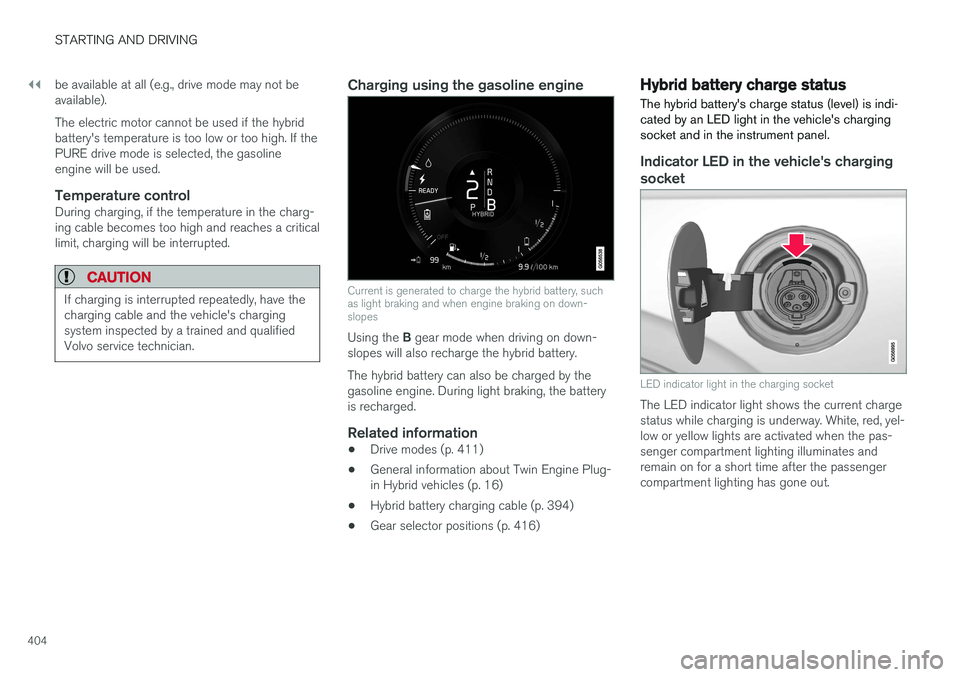
Charging using the gasoline engine
Current is generated to charge the hybrid battery, such as light braking and when engine braking on down-slopes
Using the
B gear mode when driving on down-
slopes will also recharge the hybrid battery. The hybrid battery can also be charged by the gasoline engine. During light braking, the batteryis recharged.
Related information
• Drive modes (p. 411)
• General information about Twin Engine Plug-in Hybrid vehicles (p. 16)
• Hybrid battery charging cable (p. 394)
• Gear selector positions (p. 416)
Hybrid battery charge status The hybrid battery's charge status (level) is indi- cated by an LED light in the vehicle's chargingsocket and in the instrument panel.
Indicator LED in the vehicle's charging socket
LED indicator light in the charging socket
The LED indicator light shows the current charge status while charging is underway. White, red, yel-low or yellow lights are activated when the pas-senger compartment lighting illuminates andremain on for a short time after the passengercompartment lighting has gone out.
Page 408 of 580
STARTING AND DRIVING
406
GraphicMessageExplanation
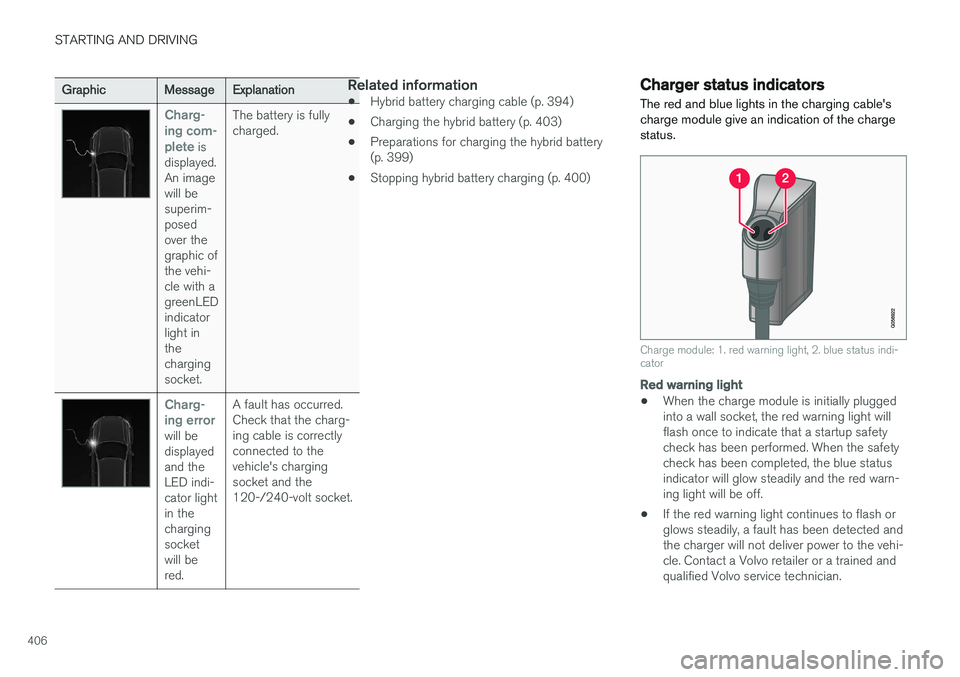
Charg- ing com-plete
is
displayed. An imagewill besuperim-posedover thegraphic ofthe vehi-cle with agreenLEDindicatorlight inthechargingsocket. The battery is fullycharged.
Charg- ing error
will be displayedand theLED indi-cator lightin thechargingsocketwill bered.
A fault has occurred.Check that the charg-ing cable is correctlyconnected to thevehicle's chargingsocket and the120-/240-volt socket.
Related information
•
Hybrid battery charging cable (p. 394)
• Charging the hybrid battery (p. 403)
• Preparations for charging the hybrid battery (p. 399)
• Stopping hybrid battery charging (p. 400)
Charger status indicators
The red and blue lights in the charging cable's charge module give an indication of the chargestatus.
Charge module: 1. red warning light, 2. blue status indi- cator
Red warning light
• When the charge module is initially plugged into a wall socket, the red warning light willflash once to indicate that a startup safetycheck has been performed. When the safetycheck has been completed, the blue statusindicator will glow steadily and the red warn-ing light will be off.
• If the red warning light continues to flash orglows steadily, a fault has been detected andthe charger will not deliver power to the vehi-cle. Contact a Volvo retailer or a trained andqualified Volvo service technician.
Page 424 of 580
INFOTAINMENT
422
The infotainment system
The infotainment system consists of a radio, media player and has the capacity to communi-cate with a Bluetooth-connected cell phone. It isalso possible to connect to the Internet to e.g.,stream audio content via apps. The system's functions can be controlled from the right-side steering wheel keypad, the centerdisplay or by using voice commands.
Infotainment overview
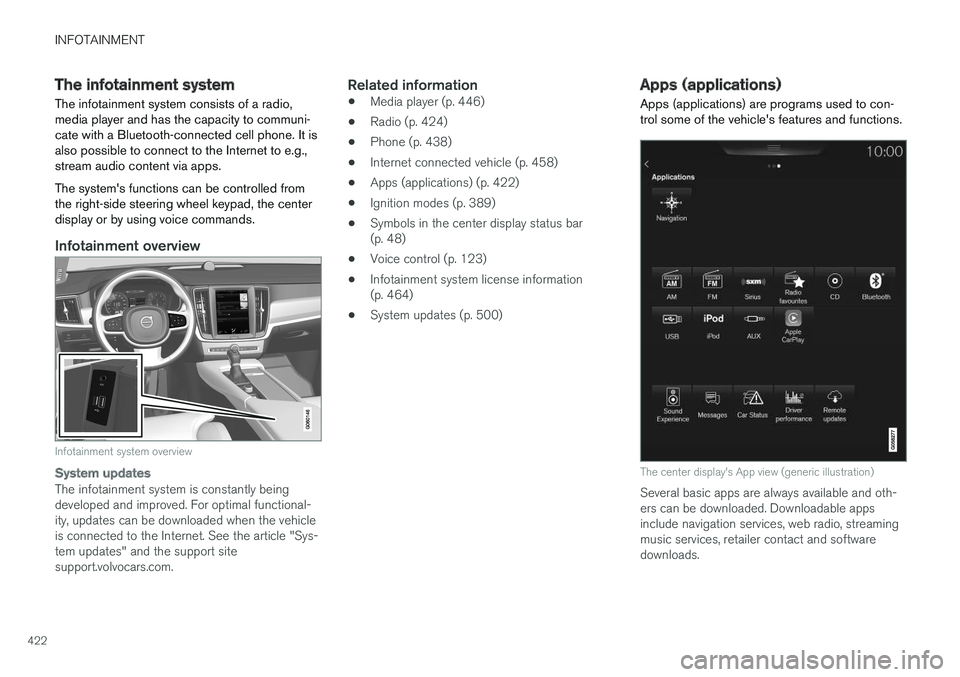
Infotainment system overview
System updates
The infotainment system is constantly being developed and improved. For optimal functional-ity, updates can be downloaded when the vehicleis connected to the Internet. See the article "Sys-tem updates" and the support sitesupport.volvocars.com.
Related information
• Media player (p. 446)
• Radio (p. 424)
• Phone (p. 438)
• Internet connected vehicle (p. 458)
• Apps (applications) (p. 422)
• Ignition modes (p. 389)
• Symbols in the center display status bar(p. 48)
• Voice control (p. 123)
• Infotainment system license information(p. 464)
• System updates (p. 500)
Apps (applications)
Apps (applications) are programs used to con- trol some of the vehicle's features and functions.
The center display's App view (generic illustration)
Several basic apps are always available and oth- ers can be downloaded. Downloadable appsinclude navigation services, web radio, streamingmusic services, retailer contact and softwaredownloads.
Page 432 of 580
||
INFOTAINMENT
* Option/accessory.
430
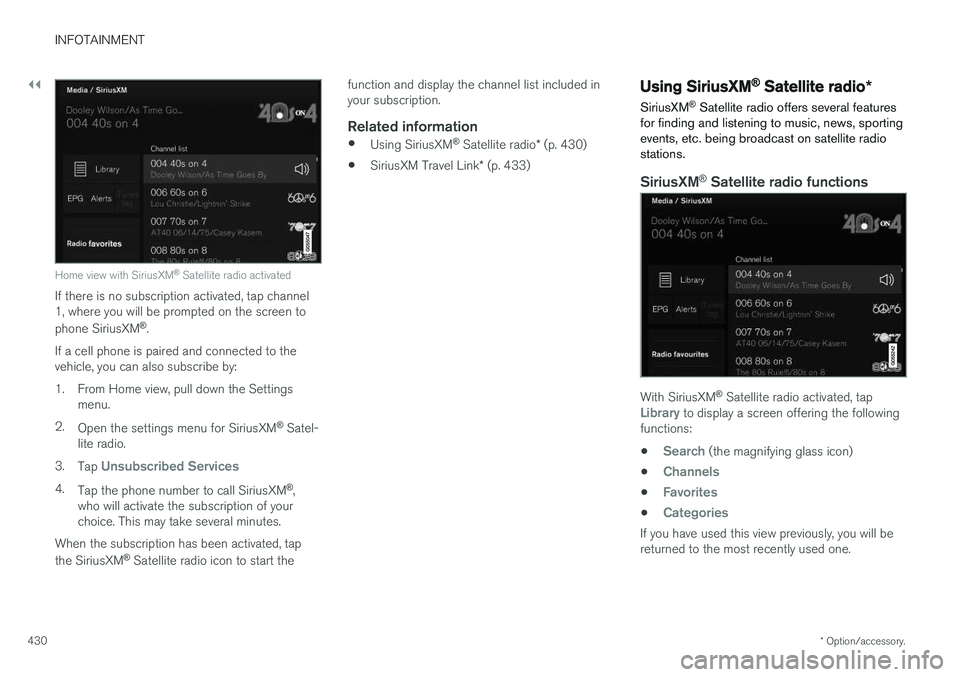
Home view with SiriusXM ®
Satellite radio activated
If there is no subscription activated, tap channel 1, where you will be prompted on the screen to phone SiriusXM ®
.
If a cell phone is paired and connected to the vehicle, you can also subscribe by:
1. From Home view, pull down the Settings menu.
2. Open the settings menu for SiriusXM ®
Satel-
lite radio.
3. Tap
Unsubscribed Services
4.
Tap the phone number to call SiriusXM ®
,
who will activate the subscription of your choice. This may take several minutes.
When the subscription has been activated, tap the SiriusXM ®
Satellite radio icon to start the function and display the channel list included in your subscription.
Related information
•
Using SiriusXM ®
Satellite radio * (p. 430)
• SiriusXM Travel Link
* (p. 433)
Using SiriusXM ®
Satellite radio *
SiriusXM ®
Satellite radio offers several features
for finding and listening to music, news, sporting events, etc. being broadcast on satellite radiostations.
SiriusXM ®
Satellite radio functions
With SiriusXM ®
Satellite radio activated, tapLibrary to display a screen offering the following
functions: •
Search (the magnifying glass icon)
•
Channels
•Favorites
•Categories
If you have used this view previously, you will be returned to the most recently used one.
Page 434 of 580
INFOTAINMENT
* Option/accessory.
432
SiriusXM ®
Satellite radio * settings
There are numerous settings that can be made to enhance your SiriusXM ®
Satellite radio listen-
ing experience.
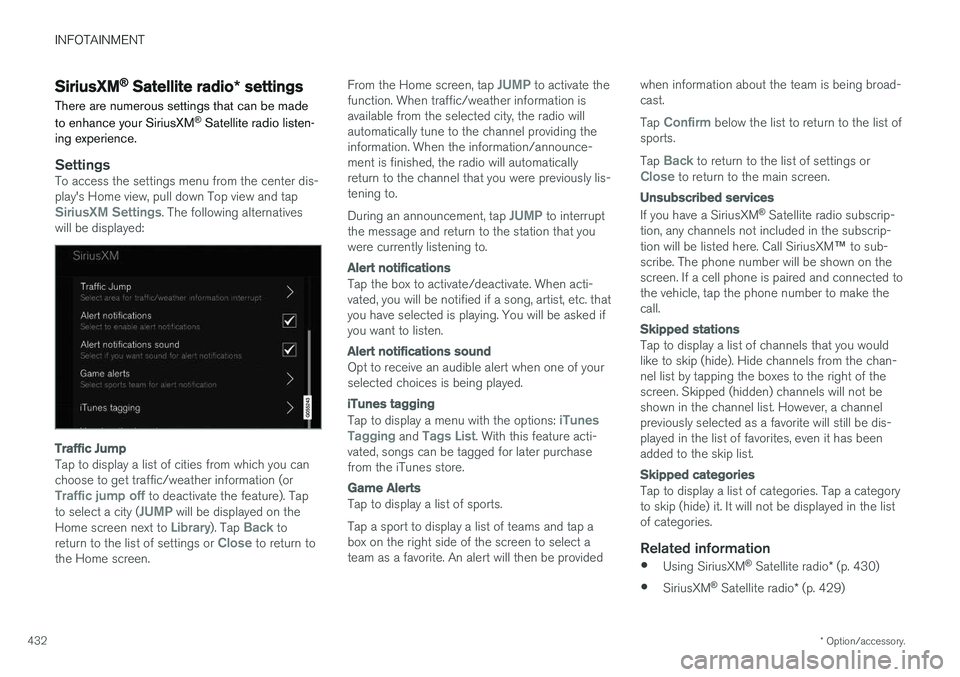
SettingsTo access the settings menu from the center dis- play's Home view, pull down Top view and tap
SiriusXM Settings. The following alternatives
will be displayed:
Traffic Jump
Tap to display a list of cities from which you can choose to get traffic/weather information (or
Traffic jump off to deactivate the feature). Tap
to select a city (JUMP will be displayed on the
Home screen next to Library). Tap Back to
return to the list of settings or Close to return to
the Home screen. From the Home screen, tap
JUMP to activate the
function. When traffic/weather information is available from the selected city, the radio willautomatically tune to the channel providing theinformation. When the information/announce-ment is finished, the radio will automaticallyreturn to the channel that you were previously lis-tening to. During an announcement, tap
JUMP to interrupt
the message and return to the station that you were currently listening to.
Alert notifications
Tap the box to activate/deactivate. When acti- vated, you will be notified if a song, artist, etc. thatyou have selected is playing. You will be asked ifyou want to listen.
Alert notifications sound
Opt to receive an audible alert when one of your selected choices is being played.
iTunes tagging
Tap to display a menu with the options: iTunes
Tagging and Tags List. With this feature acti-
vated, songs can be tagged for later purchase from the iTunes store.
Game Alerts
Tap to display a list of sports. Tap a sport to display a list of teams and tap a box on the right side of the screen to select ateam as a favorite. An alert will then be provided when information about the team is being broad-cast. Tap
Confirm below the list to return to the list of
sports. Tap
Back to return to the list of settings orClose to return to the main screen.
Unsubscribed services
If you have a SiriusXM ®
Satellite radio subscrip-
tion, any channels not included in the subscrip- tion will be listed here. Call SiriusXM ™ to sub-
scribe. The phone number will be shown on the screen. If a cell phone is paired and connected tothe vehicle, tap the phone number to make thecall.
Skipped stations
Tap to display a list of channels that you would like to skip (hide). Hide channels from the chan-nel list by tapping the boxes to the right of thescreen. Skipped (hidden) channels will not beshown in the channel list. However, a channelpreviously selected as a favorite will still be dis-played in the list of favorites, even it has beenadded to the skip list.
Skipped categories
Tap to display a list of categories. Tap a category to skip (hide) it. It will not be displayed in the listof categories.
Related information
• Using SiriusXM ®
Satellite radio * (p. 430)
• SiriusXM ®
Satellite radio * (p. 429)
Page 435 of 580
INFOTAINMENT
}}
* Option/accessory.433
SiriusXM Travel Link *
SiriusXM Travel Link is a feature offered by SiriusXM ®
Satellite radio * that can provide infor-
mation about e.g., weather forecasts, weather alerts, service stations, sports, etc. in the vicinityof the vehicle.
Starting SiriusXM Travel Link
NOTE
SiriusXM Travel Link services are only availa- ble in vehicles equipped with the SensusNavigation system.
From the center display
Page 436 of 580
INFOTAINMENT
434•
Navigating in the center display's views (p. 43)
• SiriusXM Travel Link - Weather (p. 434)
• SiriusXM Travel Link - Sports (p. 437)
• SiriusXM Travel Link - Alerts (p. 435)
• SiriusXM Travel Link - Fuel (p. 436)
SiriusXM Travel Link - Weather
This SiriusXM Travel Link service provides weather-related information near the vehicle, at alocal ski resort, etc.
From the SiriusXM Travel Link home screen, to display weather-related information:
–Tap the Weather button to display this
screen.
At the top of the screen, the following categories will be displayed:
• Search (the magnifying glass icon)
•
Local
•Ski condition
•Areas
•Favorites
Tap the category of your choice.
SearchTap the magnifying glass icon. If the function is supported in the current context, a keyboard willappear on the screen. Enter the text of your choice and tap
Search for detailed information
from the SiriusXM Travel Link database.
Local 5Information from the closest weather station will be displayed and the following alternatives areavailable:
• Map view
• Today
• 5 days
Map view
Tap the map to display it full-screen. Tap Back to
return to the original map view. Tap
Map options to display the following alter-
natives. •
Weather radar
•Storm attributes
•Surface features
•Tropical storm tracks
•Winds
Tap the respective boxes to the right of the alter- natives to select/deselect. Tap Done to confirm
and return to the previous screen or Cancel.
Today
Tap to see the current temperature, or the tem- perature in 3/6 hours. Tap
Back to return to the Local screen or Closeto return to the SiriusXM Travel Link home screen.
5 This is the weather default unless another alternative has been selected.
Page 437 of 580
INFOTAINMENT
}}
* Option/accessory.435
5 days
Tap to see weather information for the coming 5 days. Tap
Back to return to the Local screen or Closeto return to the SiriusXM Travel Link home screen.
Ski locationTap to display a list of ski areas in the vicinity ofthe vehicle. Tap a name in the list for informationsuch as if the ski area is open/closed, tempera-ture, wind conditions, snow conditions, the num-ber of lifts that are in operation, etc.
• Weather locations
• Ski locations
Tap Map view to display a map and a weatherlegend. Tap
Map options to display the following alter-
natives. •
Weather radar
•Storm attributes
•Surface features
•Tropical storm tracks
•Winds
Tap the respective boxes to the right of the alter- natives to select/deselect. Tap Done to confirm
and return to the previous screen or Cancel.
AreasTap Areas to display a list of areas/locations in
states from the SiriusXM Travel Link database. Scroll to a state and tap to display:
•
Weather locations: tap arrow to the right to
display a list of towns. Scroll to desired town and tap for detailed weather information. Youcan choose Map view, today, 5 days or Favor-ites (star)
•
Ski locations: tap arrow at right to display
local ski areas. Tap an area for detailed info. See also "Ski locations" above.
For information about storing a location, state,town, etc. as a favorite, see the heading "Favor-ites" in the article "SiriusXM Travel Link."
Related information
• SiriusXM Travel Link
* (p. 433)
• SiriusXM Travel Link - Alerts (p. 435)
SiriusXM Travel Link - Alerts This SiriusXM Travel Link service provides alerts for potential weather problems or other emer-gency situations in the vicinity of the vehicle.
From the SiriusXM Travel Link home screen, to display alerts:
–Tap the Alerts button to display the this
screen.
• If any alerts are currently available, a notifica- tion will appear at the top of the screen. They can also be listed from the
Settings menu in
the center display's Top view.
• If no alerts are available,
No active alertswill be displayed.
Types of alerts
To select the types of alerts to be displayed: 1.
From the
Alerts screen, tap the Select
alerts button at the bottom of the screen.
2. This displays the types of alerts that can be displayed. Tap the box to the right of each type of alert to select/deselect it.
3. Tap
Done when you have made your selec-
tions to return to the Alerts screen.
Page 438 of 580
||
INFOTAINMENT
* Option/accessory.
436
Information about an alert
If any alerts have been displayed on the screen, tap one for more detailed information (i.e., thelocation of the weather problem on a map and adescription of the situation). If a phone number is available in an alert, a
Callbutton will be displayed. Tap this button for addi- tional information.
Related information
• SiriusXM Travel Link
* (p. 433)
• SiriusXM Travel Link - Weather (p. 434)
SiriusXM Travel Link - Fuel
This SiriusXM Travel Link service provides infor- mation and guidance to service stations near thevehicle providing the type of fuel that you prefer/require for your vehicle.
From the SiriusXM Travel Link home screen, to display fuel information:
–Tap the Fuel button to display main fuel
screen.
The following
Fuel categories will be listed:
• Search (the magnifying glass icon)
•
Nearby
•Recommended
•Favorites
•Brands
Tap one of the alternatives to display its screen.
NOTE
In each of the Fuel categories listed, tapping
the Select fuel type button near the bottom
of the screen opens a sub-view where you can specify the type of fuel preferred/required (regular, premium, diesel, 120V, etc.). Tap
Done to return to the previous screen.
SearchTap the magnifying glass icon. If the function is supported in the current context, a keyboard will appear on the screen. Enter the text of your choice and tap
Search for detailed information if
available.
NearbyTap for a list of service stations in the vicinity of the vehicle, with the nearest station at the top ofthe list. The following information will be provided where available:
• For vehicles using gasoline, the price infor-mation for regular gasoline (unless anothergrade/type of fuel has been selected in
Select fuel type)
• For electric vehicles/hybrids, information about charging stations, showing the totalnumber of charging ports and the number ofports currently not in use
• the distance to the station
• a star icon to set the service station as afavorite
Tap the name of a service station to display moredetailed information. For guidance to the service station, tap the
Start
navigation or Add as waypoint buttons. See
the Sensus Navigation supplement for additional information about using the navigation system.
RecommendedTap for a list of service stations near the vehicle,displayed according to the price of regular gaso-
Page 439 of 580
INFOTAINMENT
}}
* Option/accessory.437
line (unless another grade/type of fuel has been selected in
Select fuel type) or of stations
offering the greatest number of available charg- ing ports for electric vehicles/hybrids. The stationoffering the lowest price/most available chargingports will be displayed at the top of the list. Tapthe name of a service station to display moredetailed information.
FavoritesTap for a list of service stations that have beenstored as favorites. See also the heading
Favorites in the article "SiriusXM Travel Link" for
information explaining how to create favorites. Tap the name of a service station to display moredetailed information. In addition to the
Select fuel type button at the
bottom of the screen, tap the Edit button to
delete individual stations from the list or tap
Delete all to clear the list. Tap Done to return to
the previous screen.
Brands1. Tap Brands to display a list of service sta-
tion brands in the area.
2. Tap a brand to display a list of service sta- tions affiliated with that brand (e.g., BP, Exxon, etc.).
3. Tap the name of a service station to display detailed information.
In addition to the
Select fuel type button at the
bottom of the screen, tap the Sort button to arrange the list according to
Nearest orRecommended. Tap Done to return to the pre-
vious screen.
Related information
• SiriusXM Travel Link
* (p. 433)
• Octane rating (p. 379)
• Opening/closing the fuel filler door (p. 380)
• Fuel (p. 378)
SiriusXM Travel Link - Sports
This SiriusXM Travel Link service provides infor- mation sporting events, tournaments, teams, lea-gues, etc.
From the SiriusXM Travel Link home screen, to display sports information:
–Tap the Sports button to display the main
sports screen.
A number of
Sports categories will be listed
(Football, Baseball, Basketball, etc.) Tap a sport to select a league in that sport (NFL, MLB, etc.) or a sport organization (PGA, LPGA,etc.). The following is an example of the result of tapping Baseball :
1. MLB (Major League Baseball) will be dis- played.
2. Tap MLB to display the two leagues in Major League Baseball (American League orNational League).
3. Tap one of the league names to display the divisions in the league.