reset VOLVO XC90 T8 2017 Owner´s Manual
[x] Cancel search | Manufacturer: VOLVO, Model Year: 2017, Model line: XC90 T8, Model: VOLVO XC90 T8 2017Pages: 580, PDF Size: 10.37 MB
Page 109 of 580

INSTRUMENTS AND CONTROLS
* Option/accessory.107
NOTE
Only one mirror can be tilted down at a time.
Automatically tilting the door mirrors when parking5
This function can be activated/deactivated in the center display. 1.
Tap
Settings in Top view.
2. Tap
My CarMirrors and Easy Entry.
3. Under
Exterior Mirror Tilt at Reverse,
select Off, Driver, Passenger or Both to
activate/deactivate and select which mirror to tilt.
Folding mirrors *When parking in a limited space, the mirrors canbe folded in: 1.
Press the L and R buttons at the same time
(the ignition must be in at least mode I).
2. Release the buttons after approx. 1 second. The mirrors will stop automatically when they are completely folded in.
Fold out the mirrors by pressing the L and R at
the same time. The mirrors will stop automaticallywhen they return to their original positions.
Automatic folding when the vehicle is locked 5
The mirrors can be folded in/out automatically when the vehicle is locked/unlocked. This function can be activated/deactivated in the center display. 1.
Tap
Settings in Top view.
2. Tap
My CarMirrors and Easy Entry.
3. Select
Fold Mirror When Locked to acti-
vate/deactivate.
Resetting the mirrors' positionA mirror that has been moved manually (e.g., bumped into in a parking lot, etc.) has to bereturned to its normal position electrically beforeautomatic folding will function correctly. 1. Fold in the mirrors with the L and R buttons.
2. Fold out the mirrors with the L and R buttons.
The mirrors have now been reset to their original positions.
Auto-dim *Settings can be made for the auto-dim functionin the rearview and door mirrors. The auto-dim function is always active while the vehicle is being driven except when the reversegear has been selected. The level of sensitivity for this function can be set to three levels, whichaffect the rearview mirror and door mirrors.
NOTE
When the level of sensitivity is changed, this change will not be noticeable immediately butwill take effect after a short period of time.
The level of sensitivity is set from the center dis- play: 1.
Tap
Settings in Top view.
2. Tap
My CarMirrors and Easy Entry.
3. Under
Rearview Mirror Auto Dimming,
select Normal, Dark or Light.
Related information
• Using the power seat memory function
*
(p. 168)
• Rearview mirror (p. 112)
5
Only on models equipped with a power driver's seat.
Page 114 of 580
||
INSTRUMENTS AND CONTROLS
112For the power windows to function, the ignition must be in at least mode
I. When the vehicle has
been running, the power windows can be oper- ated for several minutes after the ignition hasbeen switched off, or until a door has beenopened.
NOTE
• Movement of the windows will stop if they are obstructed in any way. If this happenstwice in succession, the automatic func-tion will not work for several minutes andthe window can be closed by holding thebutton up.
• To reduce buffeting wind noise if the rearwindows are opened, also open the frontwindows slightly.
Manual up/down
–Move one of the controls up/down slightly.
> The power windows move up/down as
long as the control is held in position.
Auto up/down
–Move one of the controls up/down as far as possible and release it.
> The window will open or close completely.
ResettingIf the battery has been disconnected, the auto open function must be reset so that it will workproperly
1. Gently raise the front section of the button to close the window and hold it for one second.
2. Release the button briefly.
3. Raise the front section of the button again for one second.
Related information
• Child safety locks (p. 254)
Rearview mirror The interior rearview mirror has an auto-dim function that helps reduce glare from followingvehicle's headlights.
Auto-dim functionThe auto-dim function is controlled by two sen- sors: one pointing forward (located on the for-ward-facing side of the mirror, which monitors theamount of ambient light) and one pointing rear-ward (located on the side of the mirror facing thedriver at the upper edge, which senses thestrength of following vehicles' headlights), andwork together to help eliminate glare.
NOTE
Obstructing the forward sensor with e.g., parking stickers, transponders, etc., or the rearsensor by loading the cargo area or the rearseat in such a way that light is prevented fromreaching the sensor will reduce the auto-dimfunction in the interior rearview mirror andoptional auto-dim function in the door mirrors.
The auto-dim function is always active while the vehicle is being driven except when the reversegear has been selected. The level of sensitivityfor this function can be set to three levels, whichaffect the rearview mirror and door mirrors.
Page 117 of 580
INSTRUMENTS AND CONTROLS
* Option/accessory.115
Sub-categories Type of setting
Parking Brake and Sus- pensionCombination
SeatsCombination
WipersCombination
SuspensionGlobal
Sound
Sub-categoriesType of setting
Sound Experience*Personal
TonePersonal
BalancePersonal
System VolumesCombination
Navigation
Sub-categories
Type of setting
MapPersonal
Route and GuidancePersonal
TrafficPersonal
GuidancePersonal
SystemPersonal
Media
Sub-categoriesType of setting
AM/FM RadioA
Personal
SiriusXMPersonal
Gracenote ®Personal
VideoPersonal
A
AM radio is not available in hybrid models.
Communication
Sub-categories Type of setting
Phone–
Text Messages–
Bluetooth Devices–
Wi-FiGlobal
Vehicle Wi-Fi HotspotGlobal
Vehicle Modem InternetGlobal
Volvo On Call–
Volvo Service NetworksGlobal
ClimateThe main category Climate has no sub-catego-
ries.
System
Sub-categories Type of setting
Driver ProfilePersonal
Date and Time–
System LanguagePersonal
Keyboard LayoutsGlobal
Voice ControlPersonal
UnitsPersonal
Storage–
Software Updates–
Factory Reset–
Services–
Related information
•Settings view (p. 113)
• Changing system settings in Settings view (p. 116)
Page 118 of 580
INSTRUMENTS AND CONTROLS
* Option/accessory.
116
Changing system settings in Settings view
Settings view's main category
System contains
general settings and information, such as lan- guage, units of measure, etc.
The system settings under Driver Profile, Date
and Time, Keyboard Layouts, Voice Control,Software Updates, Factory reset andServices are described in their respective arti-
cles in the owner's manual.
Changing system languages1. Pull down the center display's Top view and
tap Settings.
2. Tap
SystemSystem Language.
3. Select a new system language. Languages that can be used for voice commands are indicated by a voice control symbol.
> This change affects the language used inthe instrument panel, center display and the head-up display *.
Changing units of measure
Changing length and volume units
1. Pull down the center display's Top view and
tap Settings.
2. Tap
SystemUnitsUnits of
Measurement. 3. Select one of the following measurement
standards:
•
Metric: kilometers, liters and degrees Cel-
sius.
•
Imperial: miles, gallons and degrees Cel-
sius.
•
US: miles, gallons and degrees Fahren-
heit.
> This change affects the units of measure used in the instrument panel, center dis- play and the head-up display *
Changing tire inflation pressure units
1. Pull down the center display's Top view and
tap Settings.
2. Tap
SystemUnitsTire Pressure
Units.
3. Select a unit of measure for tire pressure. > This changes the tire inflation pressureunits used in the
Car status app in the
center display.
Viewing storage information1. Pull down the center display's Top view and
tap Settings. 2.
Tap
SystemStorage.
> Storage information for the vehicle's hard drive will be displayed, including total capacity, available capacity and theamount of storage space used by theapps that have been installed.
Viewing the VIN (Vehicle Identification Number)
1. Pull down the center display's Top view and
tap Settings.
2. Tap
SystemVehicle Identification
Number.
> The vehicle's VIN will be displayed.
Page 119 of 580
INSTRUMENTS AND CONTROLS
}}
117
Changing settings in apps
App view, which is one of the center display's basic views, contains all of the apps installed inthe vehicle. From Home view, navigate to Appview by swiping the screen from right to left.
Apps for integrated (basic) functionsCertain apps in your vehicle are factory-installed, such as FM, USB and CD and are part of Sen-
sus. Settings in these apps can be changed in the center display's Top view.
Changing settings for a basic app
1. Tap one of the basic apps, for example FM
radio.
2. Pull down Top view. 3. Tap
FM Radio Settings.
4. Change the desired settings and confirm.
5. Press the Home button below the center dis- play or tap the screen outside of Top view or pull up Top view to return to your originalview. See also the article "Categories in Set-tings view."
Third party appsThird party apps have to be downloaded e.g.,Volvo ID. Settings for these apps are made in
the apps themselves, not in Top view.
Related information
• Settings view (p. 113)
• Navigating in the center display's views (p. 43)
• Categories in Settings view (p. 114)
Resetting the settings view
All of the changes made under Settings view can be reset to their default values at the sametime.
Types of resetThere are three ways to reset the settings in Set- tings view under Factory Reset:
•
Factory Reset: erases all data and media
and resets to the settings used when the vehicle left the factory.
•
Reset Vehicle Settings: resets all global
settings to standard ones.
•
Reset Personal Settings: erases all per-
sonal data and resets to standard settings.
Resetting
NOTE
Factory Reset is only possible when the
vehicle is stationary.
1. Tap Settings in the center display's Top
view.
2. Tap
SystemFactory Reset.
> A pop-up menu will appear.
Page 120 of 580
||
INSTRUMENTS AND CONTROLS
1183.
Tap
OK to confirm your choice.
For
Reset Personal Settings, tap Reset
for the active profile or Reset for all
profiles for confirmation.
> The selected settings will be reset.
Related information
• Settings view (p. 113)
• Resetting user data when the vehicle changes owners (p. 118)
• Changing system settings in Settings view(p. 116)
Resetting user data when the vehicle changes owners
When the vehicle changes owners, all user set- tings should be reset to the factory defaults.
When the vehicle changes owners, it is essential to reset all user data and system settings to theirfactory defaults, including Volvo On Call.
Related information
• Resetting the settings view (p. 117)
• Volvo ID (p. 32)
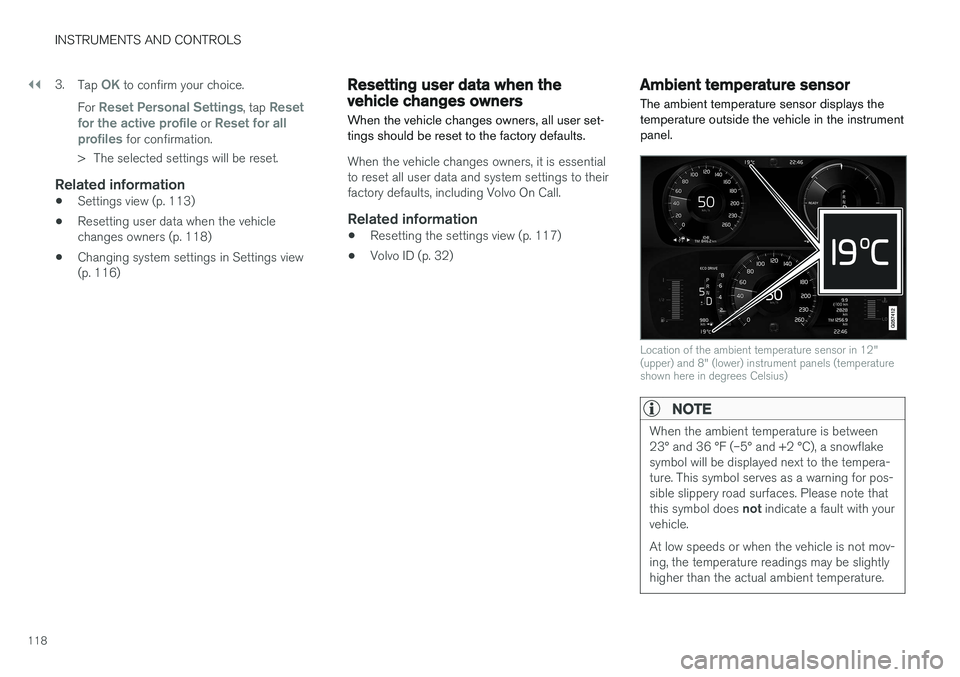
Ambient temperature sensor
The ambient temperature sensor displays the temperature outside the vehicle in the instrumentpanel.
Location of the ambient temperature sensor in 12" (upper) and 8" (lower) instrument panels (temperatureshown here in degrees Celsius)
NOTE
When the ambient temperature is between 23° and 36 °F (–5° and +2 °C), a snowflakesymbol will be displayed next to the tempera-ture. This symbol serves as a warning for pos-sible slippery road surfaces. Please note that this symbol does not indicate a fault with your
vehicle. At low speeds or when the vehicle is not mov- ing, the temperature readings may be slightlyhigher than the actual ambient temperature.
Page 173 of 580
INSTRUMENTS AND CONTROLS
}}
* Option/accessory.171
3. Select massage settings by tapping the cen-
ter display or by moving the cursor up/down using the multifunction control's upper/lowerbuttons. Change a setting in the selectedfunction by tapping the arrows on the centerdisplay or by using the multifunction control'sfront/rear buttons.
Massage settings
The following massage settings are available:
•
On/Off.
•
Program 1-5: There are 5 preset massage
programs. Select Swell, Tread, Advanced,Lumbar or Shoulder.
•
Intensity: Select Low, Normal or High.
•
Speed: Select Slow, Normal or Fast.
Restarting the massage function
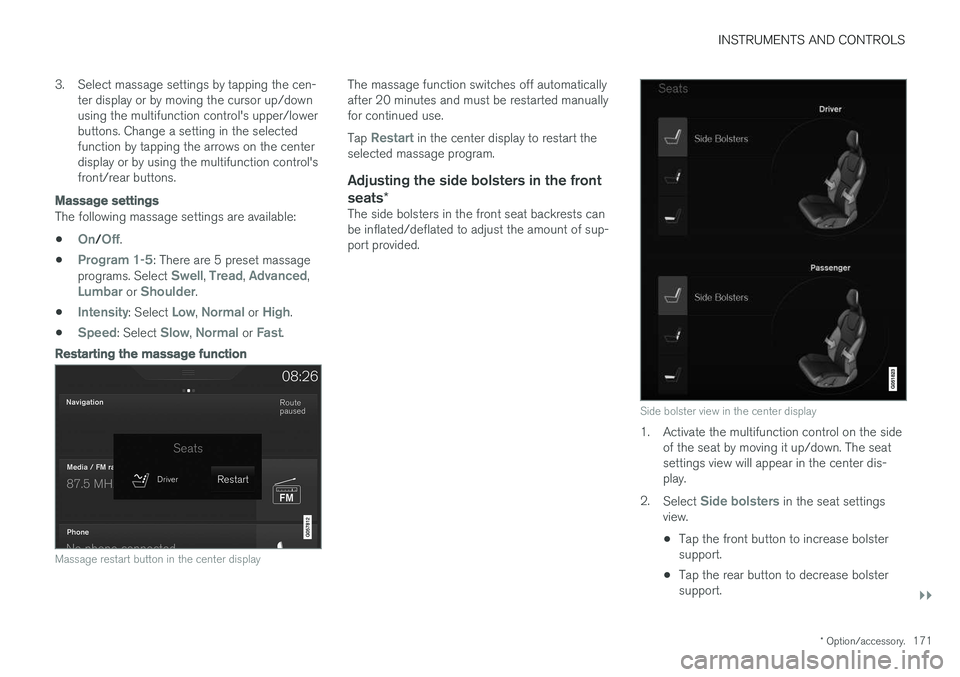
Massage restart button in the center display
The massage function switches off automatically after 20 minutes and must be restarted manuallyfor continued use. Tap
Restart in the center display to restart the
selected massage program.
Adjusting the side bolsters in the front seats *
The side bolsters in the front seat backrests can be inflated/deflated to adjust the amount of sup-port provided.
Side bolster view in the center display
1. Activate the multifunction control on the side
of the seat by moving it up/down. The seat settings view will appear in the center dis-play.
2. Select
Side bolsters in the seat settings
view.
• Tap the front button to increase bolster support.
• Tap the rear button to decrease bolstersupport.
Page 183 of 580
INSTRUMENTS AND CONTROLS
}}
181
3.
Save the changes by tapping
Back/Close.
> The name has now been changed.
Resetting driver profile changesSettings that have been changed and saved in one or more driver profiles can be reset.
NOTE
Factory Reset is only possible when the
vehicle is stationary.
1. Tap Settings in the center display's Top
view.
2. Select
SystemFactory ResetReset
Personal Settings.
3. Select one of the following:
Reset for the
active profile, Reset for all profiles orCancel.
Related information
• Driver profiles (p. 179)
• Resetting the settings view (p. 117)
• Using the center display keyboard (p. 36)
• Using the center display (p. 49)
• Selecting a driver profile (p. 180)
Linking a remote key to a driver profile A remote key can be linked to a driver profile, which means that all of the settings stored in thedriver profile will apply each time that particularremote key is used with the vehicle.
A remote key is not initially linked to a specific driver profile. When the key is used to unlock thevehicle/start the engine for the first time, the
Guest profile will be used.
A driver profile can be selected manually each time the vehicle is unlocked/started without aremote key being linked to that profile. When thevehicle is started, the most recently selecteddriver profile will be activated. If the key has previ-ously been linked to a driver profile, it is not nec-essary to manually select a profile when that par-ticular key is used.
Linking a remote key to a driver profile for the first time
Select a profile to link to the remote key (if that profile is not already active).
1. Pull down the center display's Top view and tap
Settings.
2. Tap
SystemDriver Profiles.
3. Tap the profile to be linked to the remote key. The
Guest profile cannot be linked to a
remote key. 4. Open Top view in the center display and tap
SettingsSystemDriver ProfilesEdit Profile.
5. Select
Connect key to link the selected pro-
file to the remote key currently being used. A profile can only be linked to the remote keythat is currently being used. If there are sev-eral keys in the vehicle at the same time,
More than one key is found, put the key you want to connect on backup reader
will be displayed.
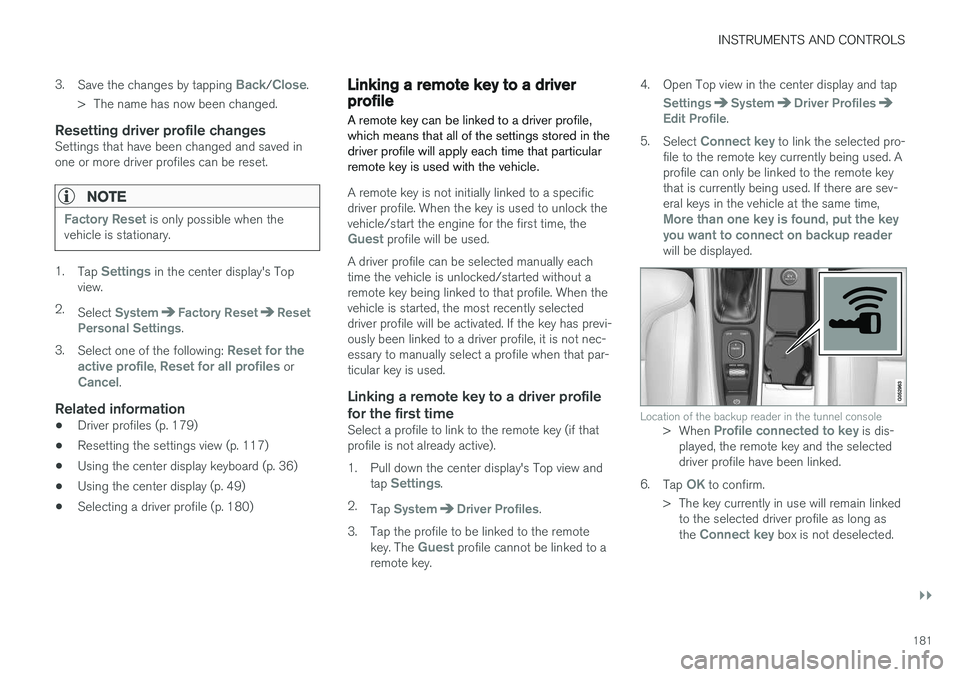
Location of the backup reader in the tunnel console> When Profile connected to key is dis-
played, the remote key and the selected driver profile have been linked.
6. Tap
OK to confirm.
> The key currently in use will remain linked to the selected driver profile as long as the
Connect key box is not deselected.
Page 192 of 580
CLIMATE
190
NOTE
•If there is not sufficient residual engine heat available, this function cannot bestarted
• This function will be turned off if the vehi-cle is locked from the outside in order toavoid using residual engine heat unnec-essarily. This function is primarilyintended for use when the engine is notrunning but someone remains in the vehi-cle
Preconditioning timer
The timer can be set to start preconditioning at a predetermined time.
The timer can store up to 8 preset times for:
• A time on a particular date
• A time on one or more days of the week, with or without the repeat function.
NOTE
Full preconditioning is only possible when the vehicle's charging cable is connected. In other cases, the passenger compartment can be cooled for 3 minutes in warm weather. This function is started from the
Parking
climate tab in the center display's Climate
view.
Related information
• Parking climate (preconditioning) (p. 187)
Setting the parking climate (preconditioning) timer
The parking climate (preconditioning) timer can be activated or deactivated at any time. How-
ever, the vehicle's changing cable must beconnected.
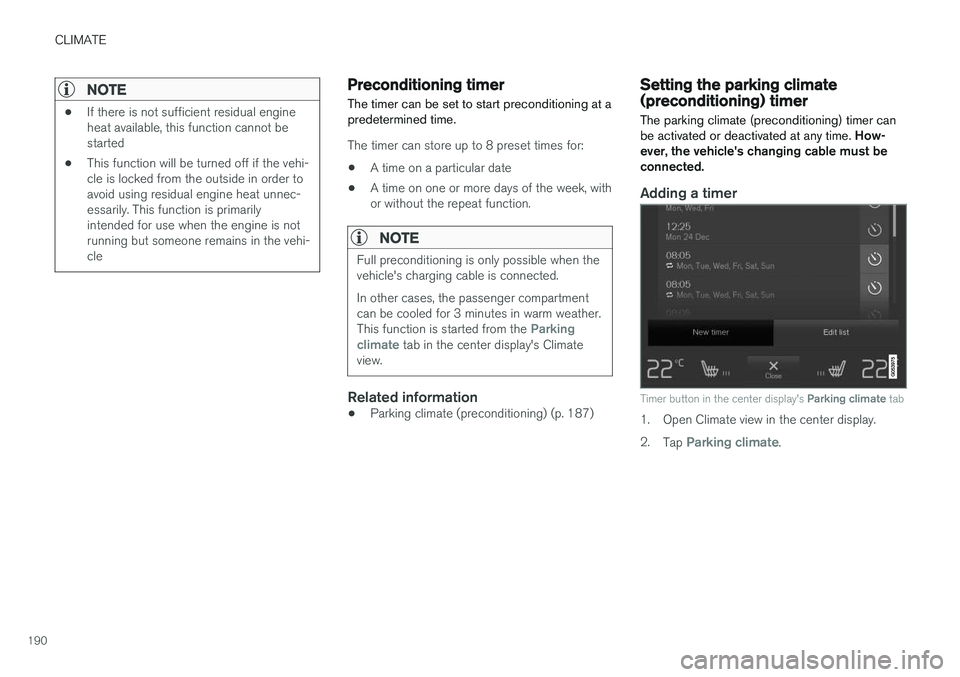
Adding a timer
Timer button in the center display's Parking climate tab
1. Open Climate view in the center display. 2.
Tap
Parking climate.
Page 195 of 580
CLIMATE
193
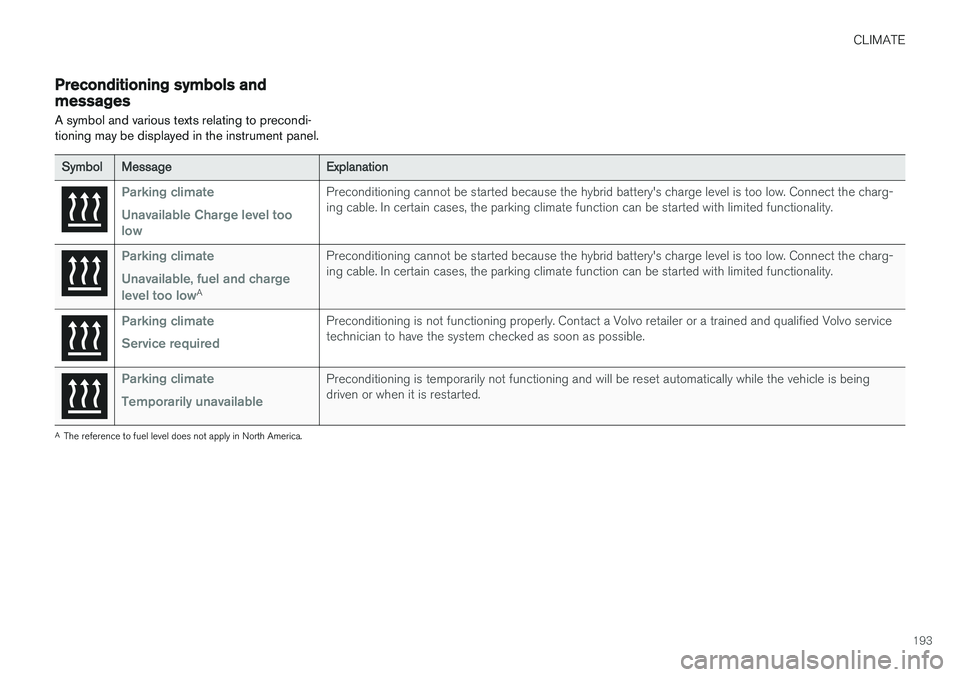
Preconditioning symbols and messages
A symbol and various texts relating to precondi- tioning may be displayed in the instrument panel.
Symbol Message Explanation
Parking climate Unavailable Charge level too lowPreconditioning cannot be started because the hybrid battery's charge level is too low. Connect the charg- ing cable. In certain cases, the parking climate function can be started with limited functionality.
Parking climate Unavailable, fuel and charge level too low
APreconditioning cannot be started because the hybrid battery's charge level is too low. Connect the charg- ing cable. In certain cases, the parking climate function can be started with limited functionality.
Parking climate Service requiredPreconditioning is not functioning properly. Contact a Volvo retailer or a trained and qualified Volvo service technician to have the system checked as soon as possible.
Parking climate Temporarily unavailablePreconditioning is temporarily not functioning and will be reset automatically while the vehicle is being driven or when it is restarted.
A
The reference to fuel level does not apply in North America.