change time VOLVO XC90 T8 2017 Owner´s Manual
[x] Cancel search | Manufacturer: VOLVO, Model Year: 2017, Model line: XC90 T8, Model: VOLVO XC90 T8 2017Pages: 580, PDF Size: 10.37 MB
Page 183 of 580
INSTRUMENTS AND CONTROLS
}}
181
3.
Save the changes by tapping
Back/Close.
> The name has now been changed.
Resetting driver profile changesSettings that have been changed and saved in one or more driver profiles can be reset.
NOTE
Factory Reset is only possible when the
vehicle is stationary.
1. Tap Settings in the center display's Top
view.
2. Select
SystemFactory ResetReset
Personal Settings.
3. Select one of the following:
Reset for the
active profile, Reset for all profiles orCancel.
Related information
• Driver profiles (p. 179)
• Resetting the settings view (p. 117)
• Using the center display keyboard (p. 36)
• Using the center display (p. 49)
• Selecting a driver profile (p. 180)
Linking a remote key to a driver profile A remote key can be linked to a driver profile, which means that all of the settings stored in thedriver profile will apply each time that particularremote key is used with the vehicle.
A remote key is not initially linked to a specific driver profile. When the key is used to unlock thevehicle/start the engine for the first time, the
Guest profile will be used.
A driver profile can be selected manually each time the vehicle is unlocked/started without aremote key being linked to that profile. When thevehicle is started, the most recently selecteddriver profile will be activated. If the key has previ-ously been linked to a driver profile, it is not nec-essary to manually select a profile when that par-ticular key is used.
Linking a remote key to a driver profile for the first time
Select a profile to link to the remote key (if that profile is not already active).
1. Pull down the center display's Top view and tap
Settings.
2. Tap
SystemDriver Profiles.
3. Tap the profile to be linked to the remote key. The
Guest profile cannot be linked to a
remote key. 4. Open Top view in the center display and tap
SettingsSystemDriver ProfilesEdit Profile.
5. Select
Connect key to link the selected pro-
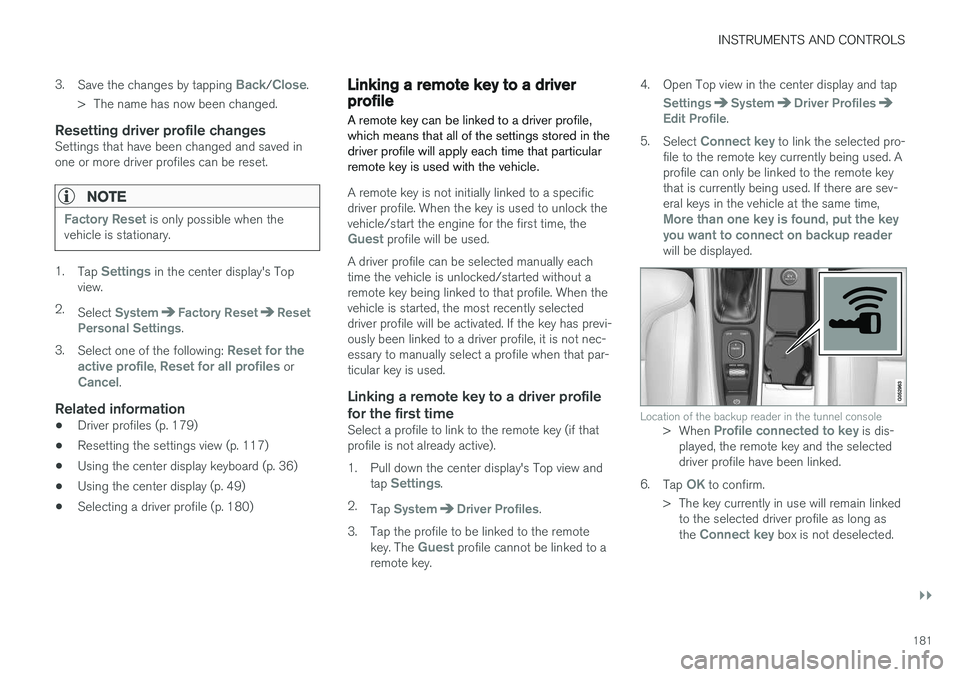
file to the remote key currently being used. A profile can only be linked to the remote keythat is currently being used. If there are sev-eral keys in the vehicle at the same time,
More than one key is found, put the key you want to connect on backup reader
will be displayed.
Location of the backup reader in the tunnel console> When Profile connected to key is dis-
played, the remote key and the selected driver profile have been linked.
6. Tap
OK to confirm.
> The key currently in use will remain linked to the selected driver profile as long as the
Connect key box is not deselected.
Page 193 of 580
CLIMATE
191
3.
Tap
Add timer.
> A pop-up window will open.
NOTE
A new timer setting cannot be made if there are already 8 timers set. Delete one of theexisting timer settings in order to add a newone.
4. Tap Date to set a specific date for the timer
setting. Tap
Days to set a timer for one or more days
of the week. For
Days: activate/deactivate the repeat
function by selecting/deselecting the
Repeat weekly box.
5. For
Date: Select a date for preconditioning
by scrolling in the date list using the arrow keys. For
Days: Select days of the week for pre-
conditioning by tapping the days' buttons.
6. Set the time at which preconditioning should be completed by scrolling with the arrows in the clock.
7. Tap
Confirm to add the timer setting.
> The timer settings will be added to the list and activated.
Editing a timer setting1. Open Climate view in the center display. 2. Tap the
Parking climate tab.
3. Tap the timer setting to be changed. > A pop-up window will open.
4. Change the setting as described in the sec- tion "Adding a timer setting" above.
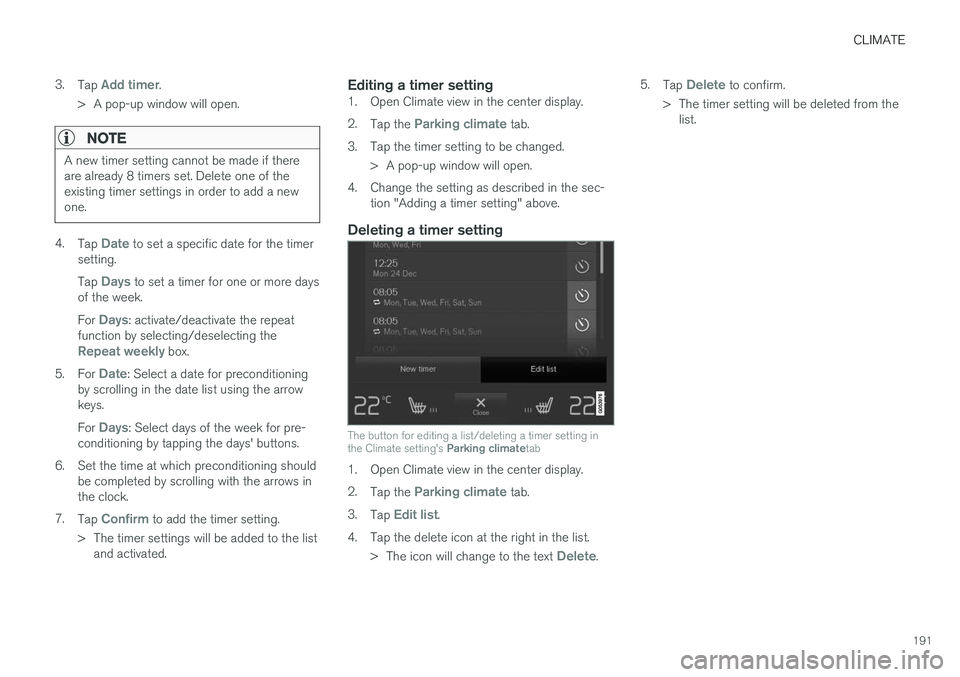
Deleting a timer setting
The button for editing a list/deleting a timer setting in the Climate setting's Parking climatetab
1. Open Climate view in the center display. 2.
Tap the
Parking climate tab.
3. Tap
Edit list.
4. Tap the delete icon at the right in the list. >The icon will change to the text
Delete. 5.
Tap
Delete to confirm.
> The timer setting will be deleted from the list.
Page 197 of 580
CLIMATE
* Option/accessory.195
Clean Zone Interior Package (CZIP)*
The Clean Zone Interior Package includes a number of features that help further reduce aller-genic substances in the passenger compart-ment.
CZIP includes the following:
• An enhanced blower function that starts the blower when the vehicle is unlocked with theremote key to fill the passenger compart-ment with fresh air. This function starts auto-matically when required and shuts off auto-matically after a short period or if one thedoors is opened. The time for which theblower operates decreases gradually due toreduced need until the vehicle is four yearsold.
• The Interior Air Quality System (IAQS).
Related information
•
Air quality (p. 194)
• Interior Air Quality System (IAQS)
* (p. 195)
Interior Air Quality System (IAQS) *
The Interior Air Quality System uses a multifilter and an air quality sensor to remove gases, parti-cles and other contaminants from the air enter-ing the passenger compartment.
The IAQS air quality sensor monitors increased levels of contaminants in the outside air and ifcontaminants are detected, the air intake closesand the air inside the passenger compartment isrecirculated, i.e., no outside air enters the vehicle.The filter also cleans recirculated passengercompartment air.
NOTE
• The air quality sensor should always be engaged in order to obtain the best air inthe passenger compartment.
• Recirculation is limited in cold weather toavoid fogging.
• If the insides of the windows start fog-ging, disengage the air quality sensor.Use the defroster function to increaseairflow to the front, side, and rear win-dows.
Activating/deactivating IAQSTo change the setting for IAQS activation/deacti- vation:
1. In the center display's Settings view, go to
Climate. 2. Activate/deactivate IAQS by selecting/dese-
lecting the
Air Quality Sensor box.
Related information
• Air quality (p. 194)
• Passenger compartment air filter (p. 196)
• Clean Zone Interior Package (CZIP)
*
(p. 195)
• Turning recirculation on and off (p. 203)
Page 243 of 580
LOCKS AND ALARM
}}
* Option/accessory.241
Interrupting opening/closing
–Move your foot slowly forward in a kicking motion while the tailgate is opening/closingto stop its movement.
No remote keys need to be within range in orderto interrupt movement of the tailgate.
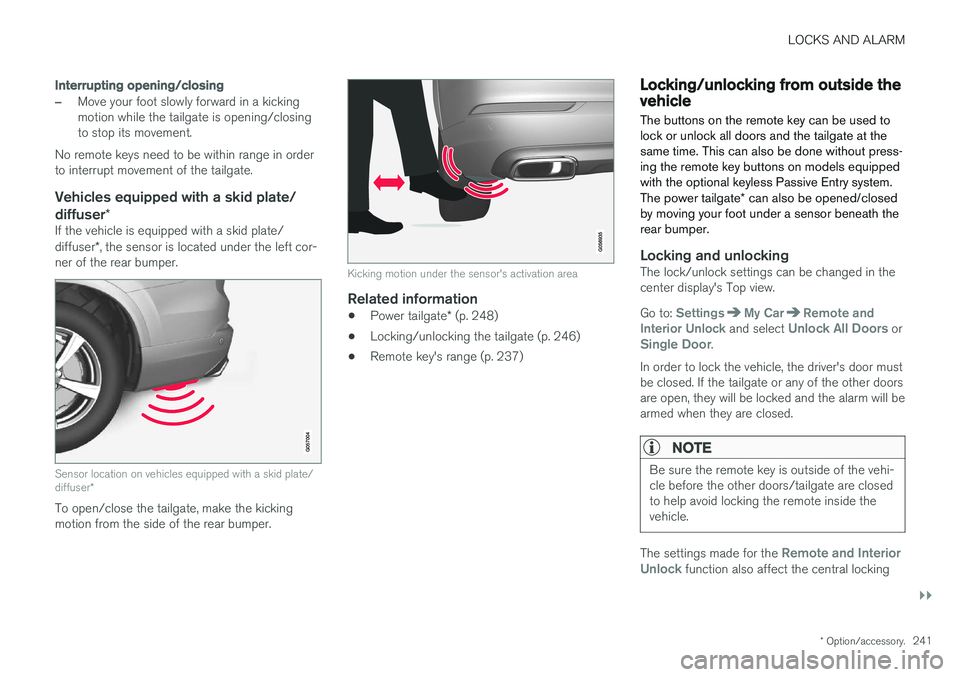
Vehicles equipped with a skid plate/ diffuser *
If the vehicle is equipped with a skid plate/ diffuser*, the sensor is located under the left cor-
ner of the rear bumper.
Sensor location on vehicles equipped with a skid plate/ diffuser *
To open/close the tailgate, make the kicking motion from the side of the rear bumper.
Kicking motion under the sensor's activation area
Related information
•Power tailgate
* (p. 248)
• Locking/unlocking the tailgate (p. 246)
• Remote key's range (p. 237)
Locking/unlocking from outside the vehicle The buttons on the remote key can be used to lock or unlock all doors and the tailgate at thesame time. This can also be done without press-ing the remote key buttons on models equippedwith the optional keyless Passive Entry system. The power tailgate
* can also be opened/closed
by moving your foot under a sensor beneath the rear bumper.
Locking and unlockingThe lock/unlock settings can be changed in the center display's Top view. Go to:
SettingsMy CarRemote and
Interior Unlock and select Unlock All Doors orSingle Door.
In order to lock the vehicle, the driver's door must be closed. If the tailgate or any of the other doorsare open, they will be locked and the alarm will bearmed when they are closed.
NOTE
Be sure the remote key is outside of the vehi- cle before the other doors/tailgate are closedto help avoid locking the remote inside thevehicle.
The settings made for the Remote and Interior
Unlock function also affect the central locking
Page 245 of 580
LOCKS AND ALARM
}}
* Option/accessory.243
Unlocking
Pull a door handle to unlock and open the door or press the rubberized button under the tailgateopening control. The lock indicator light on thedashboard will go out to show that the vehicle isunlocked and the alarm has been disarmed. The lock/unlock settings can be changed in the center display's Top view: Go to:
SettingsMy CarKeyless Unlockand select All Doors or Single Door.
Automatic relockingIf no door or the tailgate is opened within two minutes after being unlocked, the vehicle willautomatically relock.
Remote door unlockThe vehicle can be unlocked using the Volvo OnCall app.
Related information
•Remote key (p. 235)
• Remote key's range (p. 237)
• Detachable key blade (p. 239)
• Alarm (p. 253)
• Locking/unlocking from inside the vehicle(p. 243)
• Foot movement tailgate operation
* (p. 240)
• Locking/unlocking the tailgate (p. 246)
Locking/unlocking from inside the vehicle The lock buttons on either of the front doors can be used to lock or unlock all doors and the tail-gate at the same time. The rear doors can be locked using their respective lock buttons
*.
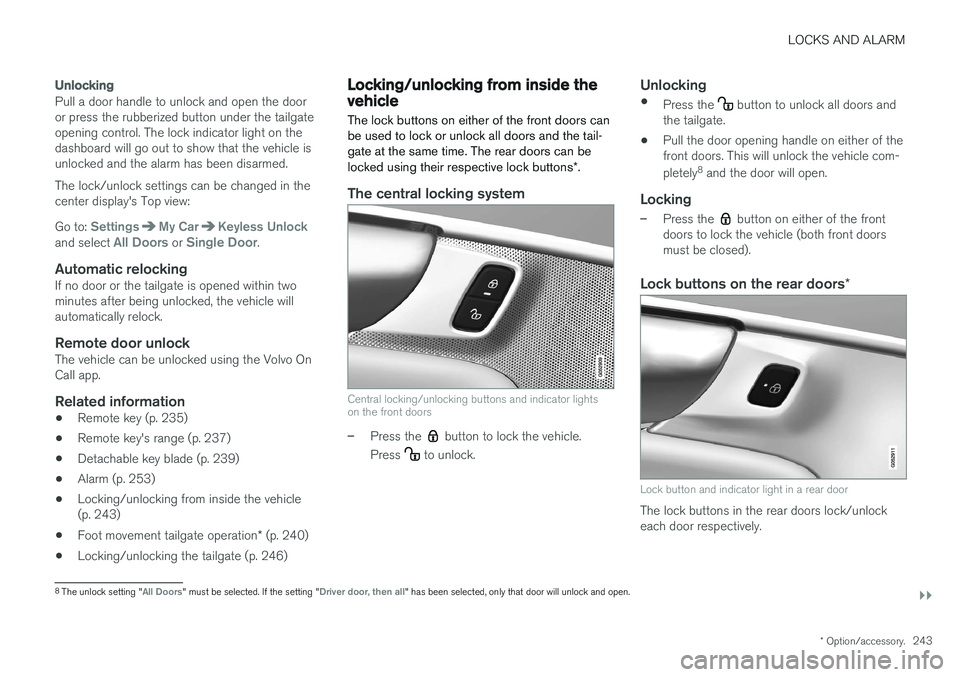
The central locking system
Central locking/unlocking buttons and indicator lights on the front doors
–Press the button to lock the vehicle.
Press
to unlock.
Unlocking
• Press the button to unlock all doors and
the tailgate.
• Pull the door opening handle on either of the front doors. This will unlock the vehicle com- pletely 8
and the door will open.
Locking
–Press the button on either of the front
doors to lock the vehicle (both front doors must be closed).
Lock buttons on the rear doors *
Lock button and indicator light in a rear door
The lock buttons in the rear doors lock/unlock each door respectively.
8
The unlock setting "All Doors" must be selected. If the setting "Driver door, then all" has been selected, only that door will unlock and open.
Page 267 of 580
DRIVER SUPPORT
}}
* Option/accessory.265
Changing a Speed Limiter (SL) *
maximum speed
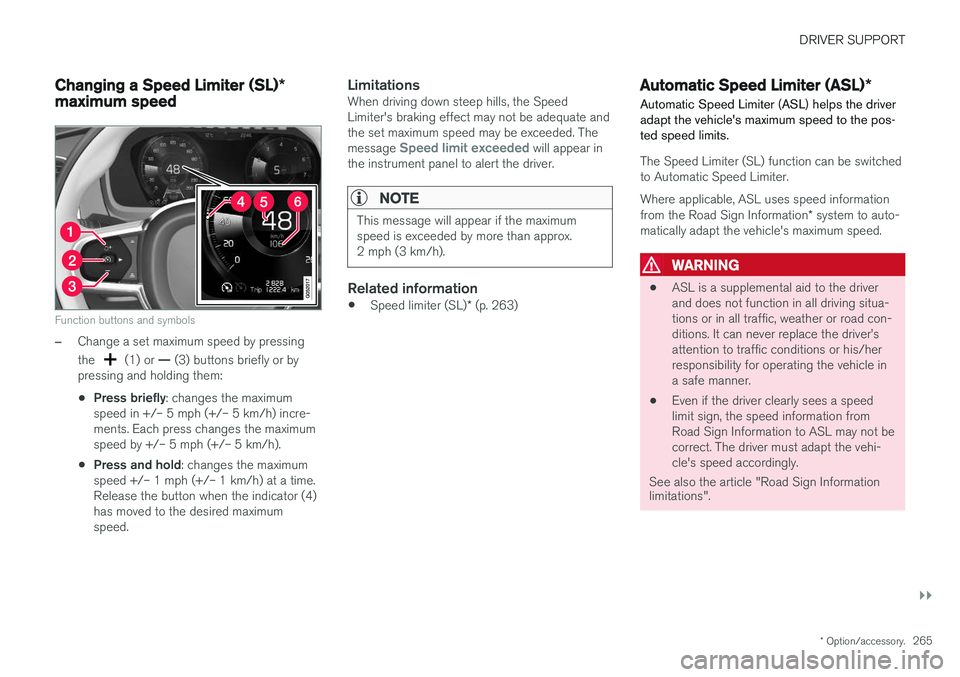
Function buttons and symbols
–Change a set maximum speed by pressing the
(1) or — (3) buttons briefly or by
pressing and holding them: • Press briefly
: changes the maximum
speed in +/– 5 mph (+/– 5 km/h) incre- ments. Each press changes the maximumspeed by +/– 5 mph (+/– 5 km/h).
• Press and hold
: changes the maximum
speed +/– 1 mph (+/– 1 km/h) at a time.Release the button when the indicator (4)has moved to the desired maximumspeed.
LimitationsWhen driving down steep hills, the SpeedLimiter's braking effect may not be adequate andthe set maximum speed may be exceeded. The message
Speed limit exceeded will appear in
the instrument panel to alert the driver.
NOTE
This message will appear if the maximum speed is exceeded by more than approx.2 mph (3 km/h).
Related information
• Speed limiter (SL)
* (p. 263)
Automatic Speed Limiter (ASL) *
Automatic Speed Limiter (ASL) helps the driver adapt the vehicle's maximum speed to the pos-ted speed limits.
The Speed Limiter (SL) function can be switched to Automatic Speed Limiter.
Where applicable, ASL uses speed information from the Road Sign Information * system to auto-
matically adapt the vehicle's maximum speed.
WARNING
• ASL is a supplemental aid to the driver and does not function in all driving situa-tions or in all traffic, weather or road con-ditions. It can never replace the driver
Page 273 of 580
DRIVER SUPPORT
* Option/accessory.271
NOTE
Before CC can be activated, the vehicle's speed must be at least 20 mph (30 km/h).This is also the lowest speed that can be set.
Activating CC (putting it in active mode and setting a speed)
–With the symbol displayed (CC is in
standby mode), press the
button (2) on
the left-side steering wheel keypad.
> This puts CC in active mode and will maintain the vehicle's current speed.
Related information
• Cruise Control (CC) (p. 270)
• Switching between Cruise Control and Adaptive Cruise Control
* (p. 274)
• Deactivating/resuming Cruise Control (CC) (p. 272)
• Turning Cruise Control off (p. 273)
Changing Cruise Control speed
Changing a set speed
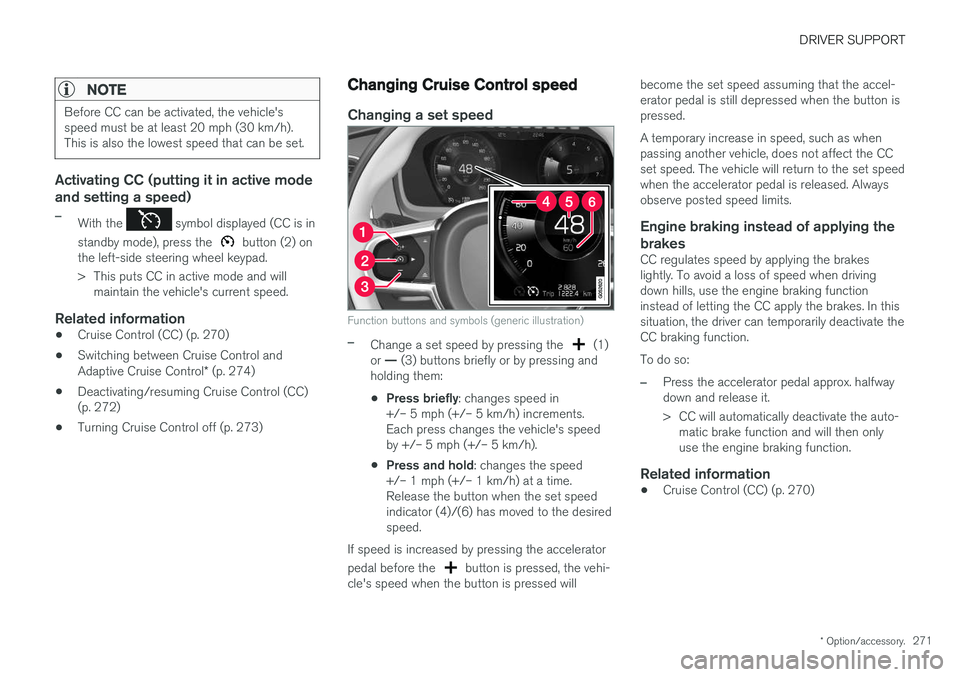
Function buttons and symbols (generic illustration)
–Change a set speed by pressing the (1)
or — (3) buttons briefly or by pressing and
holding them:
• Press briefly
: changes speed in
+/– 5 mph (+/– 5 km/h) increments. Each press changes the vehicle's speedby +/– 5 mph (+/– 5 km/h).
• Press and hold
: changes the speed
+/– 1 mph (+/– 1 km/h) at a time.Release the button when the set speedindicator (4)/(6) has moved to the desiredspeed.
If speed is increased by pressing the accelerator pedal before the
button is pressed, the vehi-
cle's speed when the button is pressed will become the set speed assuming that the accel- erator pedal is still depressed when the button ispressed. A temporary increase in speed, such as when passing another vehicle, does not affect the CCset speed. The vehicle will return to the set speedwhen the accelerator pedal is released. Alwaysobserve posted speed limits.
Engine braking instead of applying the
brakes
CC regulates speed by applying the brakeslightly. To avoid a loss of speed when drivingdown hills, use the engine braking functioninstead of letting the CC apply the brakes. In thissituation, the driver can temporarily deactivate theCC braking function. To do so:
–Press the accelerator pedal approx. halfway down and release it.
> CC will automatically deactivate the auto- matic brake function and will then only use the engine braking function.
Related information
• Cruise Control (CC) (p. 270)
Page 276 of 580
DRIVER SUPPORT
* Option/accessory.
274
Switching between Cruise Control and Adaptive Cruise Control *
In models equipped with the optional ACC, the driver can toggle between CC and ACC.
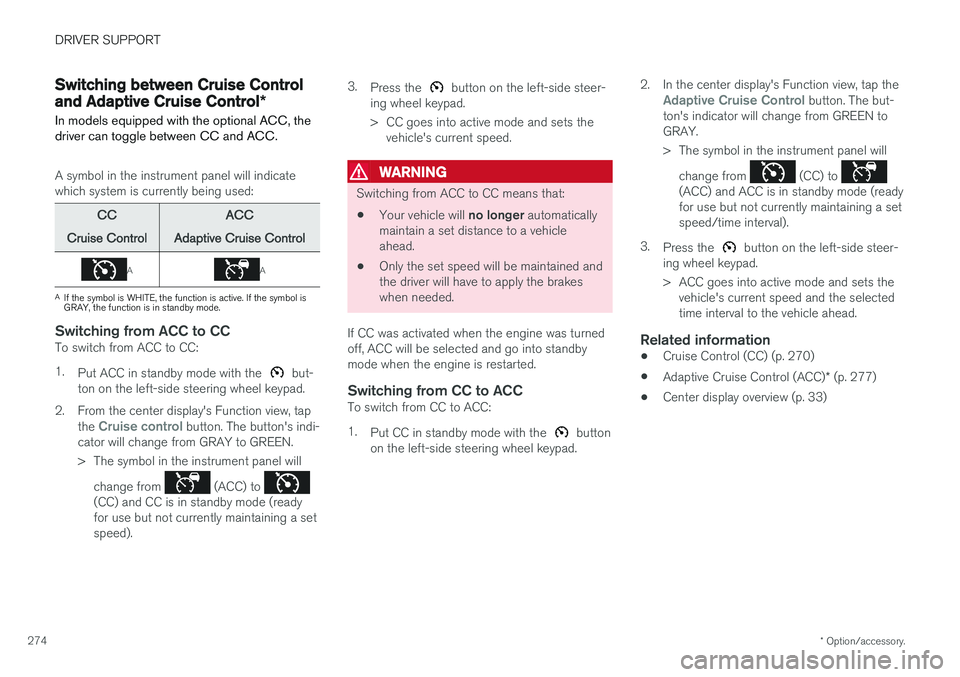
A symbol in the instrument panel will indicate which system is currently being used:
CC
Cruise Control ACC
Adaptive Cruise Control
AA
A If the symbol is WHITE, the function is active. If the symbol is GRAY, the function is in standby mode.
Switching from ACC to CCTo switch from ACC to CC: 1. Put ACC in standby mode with the
but-
ton on the left-side steering wheel keypad.
2. From the center display's Function view, tap the
Cruise control button. The button's indi-
cator will change from GRAY to GREEN.
> The symbol in the instrument panel will
change from
(ACC) to (CC) and CC is in standby mode (ready for use but not currently maintaining a setspeed). 3.
Press the
button on the left-side steer-
ing wheel keypad.
> CC goes into active mode and sets the vehicle's current speed.
WARNING
Switching from ACC to CC means that:
• Your vehicle will
no longer automatically
maintain a set distance to a vehicle ahead.
• Only the set speed will be maintained andthe driver will have to apply the brakeswhen needed.
If CC was activated when the engine was turnedoff, ACC will be selected and go into standbymode when the engine is restarted.
Switching from CC to ACCTo switch from CC to ACC: 1. Put CC in standby mode with the
button
on the left-side steering wheel keypad. 2. In the center display's Function view, tap the
Adaptive Cruise Control button. The but-
ton's indicator will change from GREEN to GRAY.
> The symbol in the instrument panel will
change from
(CC) to (ACC) and ACC is in standby mode (ready for use but not currently maintaining a setspeed/time interval).
3. Press the
button on the left-side steer-
ing wheel keypad.
> ACC goes into active mode and sets the vehicle's current speed and the selected time interval to the vehicle ahead.
Related information
• Cruise Control (CC) (p. 270)
• Adaptive Cruise Control (ACC)
* (p. 277)
• Center display overview (p. 33)
Page 283 of 580
DRIVER SUPPORT
}}
* Option/accessory.281
Activating ACC (putting it in active mode and setting a speed)
Before ACC can be put in active mode:
• The driver's seat belt must be buckled and the driver's door must be closed.
• There must be a vehicle ahead (a target vehi-cle) within a reasonable distance or yourvehicle's current speed must be at least9 mph (15 km/h).
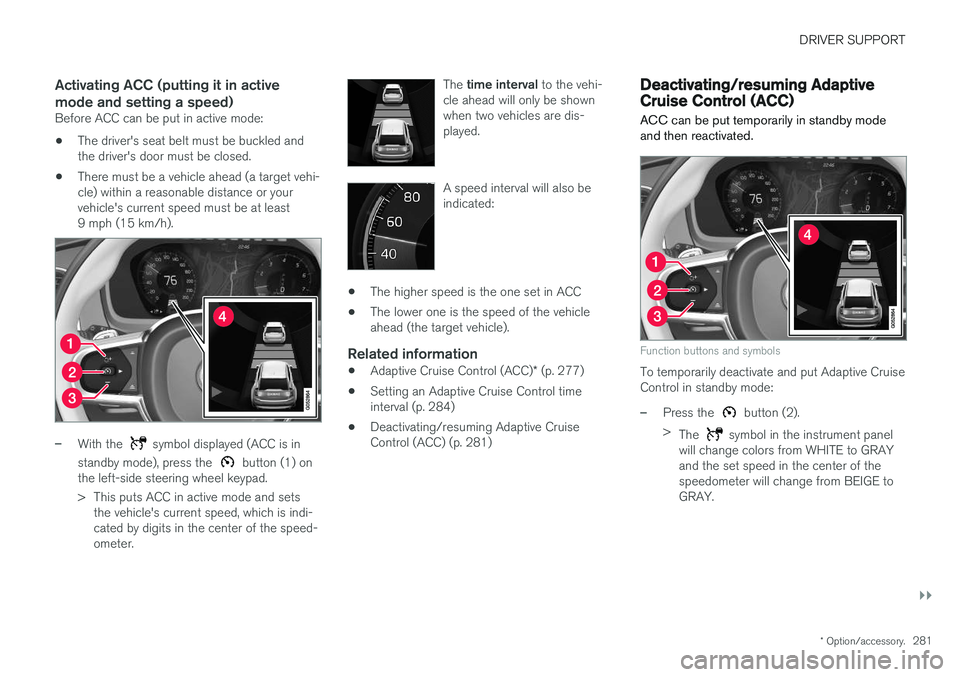
–With the symbol displayed (ACC is in
standby mode), press the
button (1) on
the left-side steering wheel keypad.
> This puts ACC in active mode and sets the vehicle's current speed, which is indi- cated by digits in the center of the speed-ometer. The
time interval to the vehi-
cle ahead will only be shownwhen two vehicles are dis-played.
A speed interval will also be indicated:
• The higher speed is the one set in ACC
• The lower one is the speed of the vehicle ahead (the target vehicle).
Related information
•
Adaptive Cruise Control (ACC)
* (p. 277)
• Setting an Adaptive Cruise Control timeinterval (p. 284)
• Deactivating/resuming Adaptive CruiseControl (ACC) (p. 281)
Deactivating/resuming Adaptive Cruise Control (ACC)
ACC can be put temporarily in standby mode and then reactivated.
Function buttons and symbols
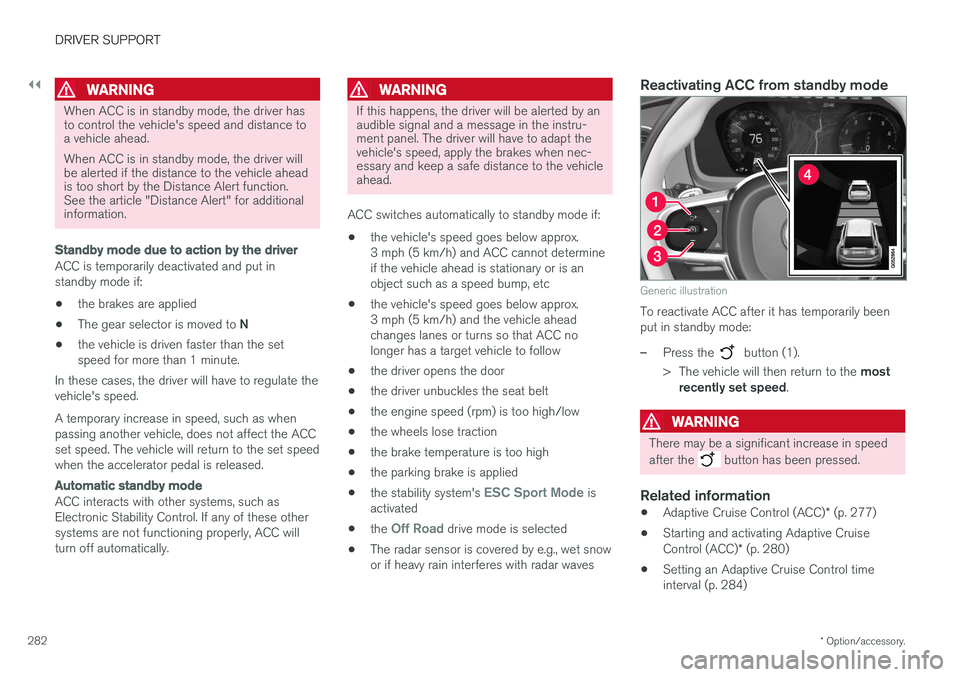
To temporarily deactivate and put Adaptive Cruise Control in standby mode:
–Press the button (2).
> The
symbol in the instrument panel
will change colors from WHITE to GRAY and the set speed in the center of thespeedometer will change from BEIGE toGRAY.
Page 284 of 580
||
DRIVER SUPPORT
* Option/accessory.
282
WARNING
When ACC is in standby mode, the driver has to control the vehicle's speed and distance toa vehicle ahead. When ACC is in standby mode, the driver will be alerted if the distance to the vehicle aheadis too short by the Distance Alert function.See the article "Distance Alert" for additionalinformation.
Standby mode due to action by the driver
ACC is temporarily deactivated and put in standby mode if:
• the brakes are applied
• The gear selector is moved to
N
• the vehicle is driven faster than the setspeed for more than 1 minute.
In these cases, the driver will have to regulate thevehicle's speed. A temporary increase in speed, such as when passing another vehicle, does not affect the ACCset speed. The vehicle will return to the set speedwhen the accelerator pedal is released.
Automatic standby mode
ACC interacts with other systems, such as Electronic Stability Control. If any of these othersystems are not functioning properly, ACC willturn off automatically.
WARNING
If this happens, the driver will be alerted by an audible signal and a message in the instru-ment panel. The driver will have to adapt thevehicle's speed, apply the brakes when nec-essary and keep a safe distance to the vehicleahead.
ACC switches automatically to standby mode if: • the vehicle's speed goes below approx. 3 mph (5 km/h) and ACC cannot determineif the vehicle ahead is stationary or is anobject such as a speed bump, etc
• the vehicle's speed goes below approx.3 mph (5 km/h) and the vehicle aheadchanges lanes or turns so that ACC nolonger has a target vehicle to follow
• the driver opens the door
• the driver unbuckles the seat belt
• the engine speed (rpm) is too high/low
• the wheels lose traction
• the brake temperature is too high
• the parking brake is applied
• the stability system's
ESC Sport Mode is
activated
• the
Off Road drive mode is selected
• The radar sensor is covered by e.g., wet snow or if heavy rain interferes with radar waves
Reactivating ACC from standby mode
Generic illustration
To reactivate ACC after it has temporarily been put in standby mode:
–Press the button (1).
> The vehicle will then return to the most
recently set speed .
WARNING
There may be a significant increase in speed after the
button has been pressed.
Related information
•Adaptive Cruise Control (ACC)
* (p. 277)
• Starting and activating Adaptive Cruise Control (ACC)
* (p. 280)
• Setting an Adaptive Cruise Control time interval (p. 284)