change time VOLVO XC90 T8 2017 Owner´s Manual
[x] Cancel search | Manufacturer: VOLVO, Model Year: 2017, Model line: XC90 T8, Model: VOLVO XC90 T8 2017Pages: 580, PDF Size: 10.37 MB
Page 461 of 580
INFOTAINMENT
}}
459
Connecting to the Internet
Connect the vehicle to the Internet using
Bluetooth, Wi-Fi or via the vehicle's integratedmodem.
The cell phone and the network service provider must support Internet sharing (tethering) and thesubscription must included data transfer. See the terms and confidentiality information at support.volvocars.com before connecting to theInternet.
NOTE
When using Apple CarPlay or Android Auto, an Internet connection can only be estab-lished by using Wi-Fi or the vehicle's inte-grated modem.
Connect using BluetoothSee the article "Pairing a cell phone."
Connect using Wi-Fi
1. Activate tethering/personal hotspot in the cell phone. 2.
Tap
Settings in the center display's Top
view.
3. Tap
CommunicationWi-Fi.
4. Tap Wi-Fi to activate/deactivate.
5. Tap the name of the network to be used.
6. Enter the network password.
7. If a different connection was used previously, confirm the connection change.
> The vehicle will connect to the network.
Please be aware that certain cell phones disable tethering when the connection to the vehicle hasbeen broken, e.g., when the phone has beenremoved from the vehicle. In such cases, thephone's tethering function will have to be reacti-vated the next time the phone is used to connectto the Internet. When a phone is connected to the vehicle, it is saved for future use. When a max. number of 50have been saved, the first one connected will bedeleted. To show the list of saved networks or to manually delete a network, tap
SettingsWi-Fi
Saved networks.
See the article "Wi-Fi technology and security" for network connection requirements.
Connect using the vehicle's integrated modem
When the vehicle is connected using the modem, Volvo On Call services will use the connection.
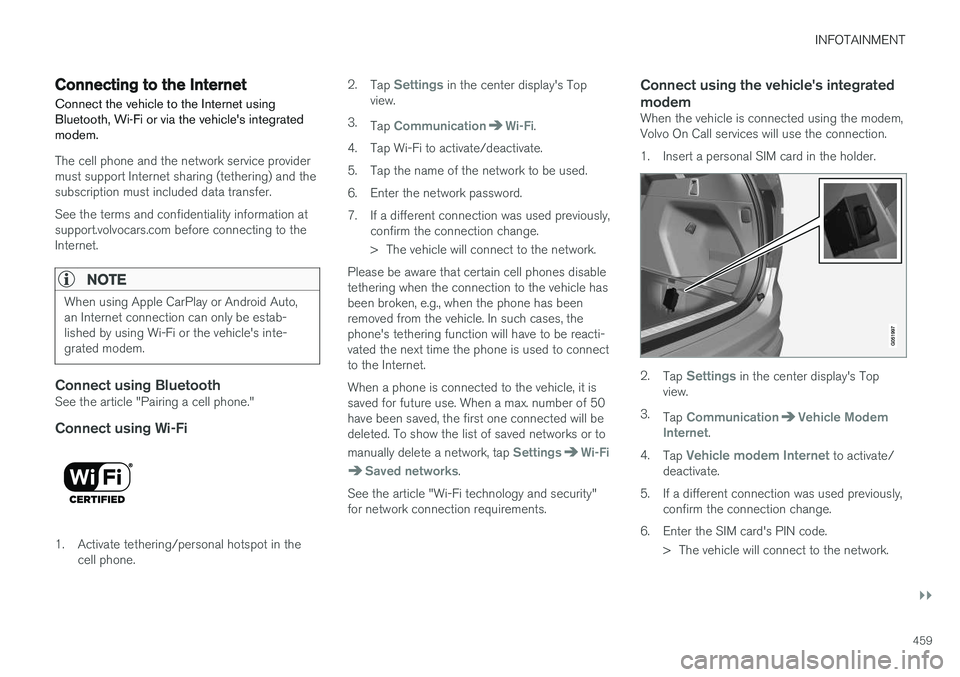
1. Insert a personal SIM card in the holder.
2. Tap Settings in the center display's Top
view.
3. Tap
CommunicationVehicle Modem
Internet.
4. Tap
Vehicle modem Internet to activate/
deactivate.
5. If a different connection was used previously, confirm the connection change.
6. Enter the SIM card's PIN code. > The vehicle will connect to the network.
Page 465 of 580
INFOTAINMENT
463
2.
Tap
SettingsCommunicationVehicle Wi-Fi Hotspot.
3. Tap
Network name and assign a name to
the hotspot.
4. Tap
Password and create a password to be
used by devices trying to connect (tether) to the hotspot.
5. Tap
Frequency band and select a fre-
quency that the hotspot will use to transmit data. This may not be possible in all markets.
6. Activate/deactivate by tapping the
Vehicle
Wi-Fi Hotspot box.
7. If another connection has been used previ- ously, confirm the change of connections.
> It is now possible for external devices toconnect to the vehicle's Wi-Fi hotspot.
Connection status will be indicated in a symbol in the center display's status bar. Tap
Connected devices to see a list of con-
nected devices.
Related information
• Internet connected vehicle (p. 458)
• Wi-Fi technology and security (p. 463)
• Symbols in the center display status bar (p. 48)
• Internet connection troubleshooting (p. 462)
Deleting Wi-Fi networks
Networks that are not used can be deleted.
1. Tap Settings in the center display's Top
view.
2. Tap
Wi-FiSaved networks.
3. Tap
Forget to remove the network.
4. Confirm the selection. > The vehicle will no longer connect to thedeleted network.
Deleting all networksAll networks can be deleted at the same time by returning (resetting) to factory settings. If this is done, all user data and settings will be reset to their default settings.
Related information
• Internet connected vehicle (p. 458)
• Connecting to the Internet (p. 459)
Wi-Fi technology and security
The following are types of networks can be con- nect to.
It is possible to connect to the following types of networks:
• Frequency: 2.4 or 5 GHz 8
.
• Standards: 802.11 a/b/g/n.
• Security type: WPA2-AES-CCMP.
The vehicle's Wi-Fi system is designed to man-age Wi-Fi devices in the vehicle. If several devices are using a frequency at the same time, this may result in poorer performance.
Related information
• Internet connected vehicle (p. 458)
• Connecting to the Internet (p. 459)
• Tethering (Wi-Fi sharing) (p. 462)
• Internet connection troubleshooting (p. 462)
8
Selecting a frequency is not possible in all markets.
Page 468 of 580
||
INFOTAINMENT
466without knowing anything about who you are. For more information, see the web page for theGracenote Privacy Policy for the Gracenote serv-ice. The Gracenote Software and each item of Grace- note Data are licensed to you “AS IS.” Gracenotemakes no representations or warranties, expressor implied, regarding the accuracy of any Grace-note Data from in the Gracenote Servers. Grace-note reserves the right to delete data from theGracenote Servers or to change data categoriesfor any cause that Gracenote deems sufficient.No warranty is made that the Gracenote Softwareor Gracenote Servers are error-free or that func-tioning of Gracenote Software or GracenoteServers will be uninterrupted. Gracenote is notobligated to provide you with new enhanced oradditional data types or categories that Grace-note may provide in the future and is free to dis-continue its services at any time. GRACENOTE DISCLAIMS ALL WARRANTIES EXPRESS OR IMPLIED, INCLUDING, BUT NOTLIMITED TO, IMPLIED WARRANTIES OF MER-CHANTABILITY, FITNESS FOR A PARTICULARPURPOSE, TITLE, AND NON-INFRINGEMENT.GRACENOTE DOES NOT WARRANT THERESULTS THAT WILL BE OBTAINED BY YOURUSE OF THE GRACENOTE SOFTWARE ORANY GRACENOTE SERVER. IN NO CASE WILLGRACENOTE BE LIABLE FOR ANY CONSE-QUENTIAL OR INCIDENTAL DAMAGES ORFOR ANY LOST PROFITS OR LOST REVENUES.
©
Gracenote, Inc. 2009
Sensus software
This software uses parts of sources from clib2and Prex Embedded Real-time OS - Source (Copyright ©) 1982, 1986, 1991, 1993, 1994),
and Quercus Robusta (Copyright ©) 1990,
1993), The Regents of the University of California. All or some portions are derived frommaterial licensed to the University of California byAmerican Telephone and Telegraph Co. or UnixSystem Laboratories, Inc. and are reproducedherein with the permission of UNIX SystemLaboratories, Inc. Redistribution and use insource and binary forms, with or withoutmodification, are permitted provided that thefollowing conditions are met: Redistributions ofsource code must retain the above copyrightnotice, this list of conditions and the followingdisclaimer. Redistributions in binary form mustreproduce the above copyright notice, this list ofconditions and the following disclaimer in thedocumentation and/or other materials providedwith the distribution. Neither the name of the
©) 1991-2000 Silicon
Graphics, Inc. Copyright in any portions created by third parties is as indicated elsewhere herein. All Rights Reserved. Copyright ©) [1991-2000]
Silicon Graphics, Inc. All Rights Reserved. Permission is hereby granted, free of charge, toany person obtaining a copy of this software andassociated documentation files (the "Software"),to deal in the Software without restriction,
Page 491 of 580
WHEELS AND TIRES
489
Calibrating the Tire Pressure Monitoring System (TPMS)In order for the Tire Pressure Monitoring System to work properly, tire pressure reference valuesmust be set correctly. This must be done eachtime wheels are changed or tire pressures aremodified.
Calibrating TPMSTo calibrate the system:
1. Switch off the engine.
2. Re-inflate the tire(s) to the correct pressure. Consult the tire pressure decal located on the driver's side B-pillar (the structural mem-ber at the side of the vehicle, at the rear ofthe driver's door opening) or the inflationpressure table in your printed owner's man-ual supplement.
3. Start the engine. 4. Open the
Car status app in the center dis-
play's App view.
5. Tap Status to access Tire Pressure
Monitoring System. 6. Tap the calibration button. 7.
Tap
OK after the tire pressure in all four tires
has been checked and adjusted.
8. Drive the vehicle. > The calibration process will be completedwhile driving and will be interrupted if the vehicle is parked and the engine isswitched off. Calibration continues auto-matically when driving resumes.
When enough data has been collected to detecta low tire pressure situation, the tires' color in thecenter display will change to green. The systemwill not give any text confirmation when calibra-tion is finished although it will state if calibrationfails. When driving with heavy loads or at sus-tained highway speeds, the tire pressure shouldbe adjusted to the recommended inflation pres-sures. After adjusting inflation pressure, repeat steps 1-8.
NOTE
Always remember to calibrate the Tire Pres- sure Monitoring System when the wheelshave been changed or the tire inflation pres-sure has been corrected according to the tirepressure decal or tire inflation pressure table. If correct reference values have not been set, the system cannot issue low tire pressurealerts correctly. The vehicle must be parked with the engine running to access the calibration button andto start the calibration process.
WARNING
The exhaust gases contain carbon monoxide, which is invisible and odorless but very poi-sonous. For this reason, always perform thecalibration procedure outdoors or in a work-shop with exhaust gas evacuation equipment.
Related information
• Tire Pressure Monitoring System (TPMS) (p. 485)
Page 504 of 580
MAINTENANCE AND SERVICING
502
Booking service and repairs Connected Service Booking (CSB) makes it possible to use the vehicle's Internet connectionto set up a time for service, maintenance and/orrepairs.
The information is handled through the Car
status app, which can be opened from the cen-
ter display's App view. Information about your vehicle is sent to your retailer and you can book your workshop appoint-ment directly in your retailer's workshop planningsystem using the Volvo On-Line Service Schedu-ler with your smart phone. The system will alsosend a reminder as the appointment approachesand the Sensus Navigation system will providedirections to the workshop if necessary. This feature makes it convenient to book a work- shop appointment directly from your vehicle.Vehicle-related information is sent to yourretailer, who prepares your visit to the workshop.After you have requested a workshop appoint-ment, your retailer will send you an email includ-ing a link enabling you to connect directly to yourretailer's booking system, where you can bookthe appointment at a convenient time. Informationabout your retailer is also available in the vehicleso that you can contact the retailer/workshop at any time using the
Call my retailer menu option.
NOTE
My Volvo can be found by going to www.vol- vocars.com and selecting the United States orCanada.
Before the service can be used
Volvo ID
• The owner (primary driver) must create or have a Volvo ID (see the article "Volvo ID").
• You must enter your Volvo ID (your emailaddress) in the vehicle as explained in thearticle "Volvo ID". If you have already regis-tered a Volvo ID, use the same email addressthat you used to create the Volvo ID.
Changing a
Volvo ID email address
If you would like to register a different email address, open the Volvo ID app in the center dis- play's App view and tap
Change Volvo ID. Fol-
low the instructions provided. See also the article "Volvo ID" for additional information.
Selecting a Volvo retailer on the My Volvo
website
By default, the retailer where you purchased your vehicle will be your preferred retailer/Volvoauthorized workshop who will perform serviceand repairs on your vehicle. To change the pre-ferred retailer, go to your personalized My Volvowebsite.
Prerequisites for booking service from the vehicle
In order to request an appointment from the vehi- cle:
• The engine must be running
• The vehicle must be connected to the Inter-net (see the article "Internet connected vehi-cle")
Using the serviceWhen it is time for service or in certain cases ifrepairs are necessary, a message will appear inthe instrument panel and in the center display.This message is triggered by: • the amount of time that has elapsed since the last service
• the number of hours the engine has runsince the last service
• mileage since the last service.
• Specific alerts or fault codes in the vehicle
Booking service or repairs
Submit a booking request whenever you need a workshop appointment or when a messageregarding the need for service or repairs hasbeen displayed in the instrument panel and in thecenter display. This can be done directly from thevehicle as follows or alternatively by using the MyVolvo personal website booking tab.
Page 505 of 580
MAINTENANCE AND SERVICING
}}
503
Sending an appointment request
1.Open the Car status app in the center dis-
play's App view.
2. Tap
Appointments.
3. Under
Appointments, tap Request
appoint..
4. Check that your
Volvo ID is correct.
5. Check that the correct preferred retailer is listed. If you prefer, simply tap the button to initiate a call to the retailer.
6. Tap
Send appointment request. Your
request and vehicle data will be sent to your retailer through the vehicle's Internet con-nection.
> Volvo will send a booking invitation to your email address with a link to your preferred workshop's On-Line Service Scheduler.
7. Open the email and click the link to book your workshop appointment at a convenienttime with your preferred service advisor. Addany additional preferences and free text toyour booking. 8. When you have submitted your workshop
booking, your appointment will be confirmedonline directly by email. The booking informa- tion will also appear in the
Car status app in
the center display after a period of time as well as in your My Volvo personal website,where you can make changes to yourappointment at any time.
9. Several days prior to your appointment, you will receive a reminder via email from yourretailer. A notification will also appear on thecenter display one day prior to the appoint-ment. You can set the interval for otherreminders (e.g., two days, three days) at yourMy Volvo personal website.
10. On the day of your appointment, a reminder will appear again on the center display andthe retailer's address can be set in your navi-gation system if you require directions to theworkshop.
Sending vehicle-related information
Information about the vehicle can be sent at any time using its Internet connection. Using this function does not send a workshop
appointment request to your retailer ; only
vehicle data will be transmitted to Volvo. This vehicle data can be accessed by any retailer ifyou call the retailer and provide your VehicleIdentification Number (VIN).
1. Open the Car status app in the center dis-
play's App view.
2. Tap
Appointments.
3. Under
Appointments, tap Send vehicle
data.
> A message confirming that vehicle infor- mation has been sent via the Internet connection will appear on the center dis-play. Transmission of the vehicle informa-tion can be cancelled at any time by tap-ping the X in the activity indicator.
Page 539 of 580
MAINTENANCE AND SERVICING
}}
537
The oil level should be checked at regular inter- vals, particularly during the period up to the firstscheduled maintenance service. If the oil level sensor indicates that the level is too low, using the correct oil, top up with theamount of oil indicated as soon as possible.
NOTE
•
The system cannot detect changes in the oil level immediately. The vehicle must bedriven approximately 20 miles (30 km) orhave been parked on level ground withthe engine off for 5 minutes before theoil level reading will be correct.
• If the necessary conditions are not metfor checking the oil level electronically(time interval after the engine wasswitched off, if the vehicle is parked on an incline, etc.),
No values available will
be displayed. This does not indicate a
problem with the oil level sensor.
Related information
• Engine oil (p. 535)
• Ignition modes (p. 389)
• Engine oil specifications and volume (p. 562)
Windshield wipers in the service position
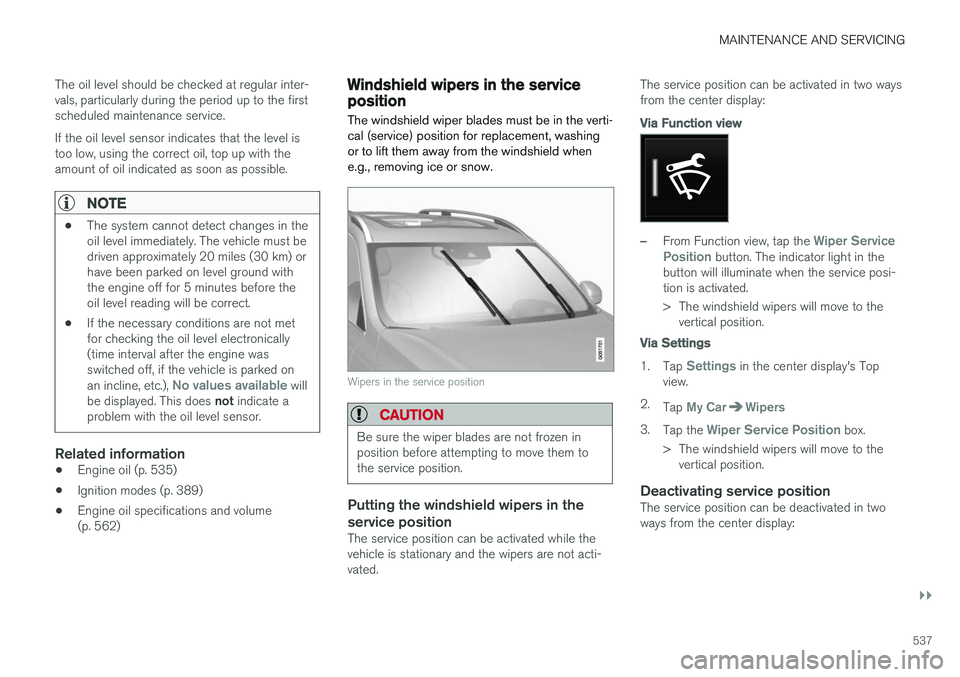
The windshield wiper blades must be in the verti- cal (service) position for replacement, washingor to lift them away from the windshield whene.g., removing ice or snow.
Wipers in the service position
CAUTION
Be sure the wiper blades are not frozen in position before attempting to move them tothe service position.
Putting the windshield wipers in the service position
The service position can be activated while the vehicle is stationary and the wipers are not acti-vated. The service position can be activated in two waysfrom the center display:
Via Function view
–From Function view, tap the Wiper Service
Position button. The indicator light in the
button will illuminate when the service posi- tion is activated.
> The windshield wipers will move to the vertical position.
Via Settings
1. Tap Settings in the center display's Top
view.
2. Tap
My CarWipers
3.Tap the Wiper Service Position box.
> The windshield wipers will move to the vertical position.
Deactivating service positionThe service position can be deactivated in two ways from the center display: