phone VOLVO XC90 T8 2017 Owner´s Manual
[x] Cancel search | Manufacturer: VOLVO, Model Year: 2017, Model line: XC90 T8, Model: VOLVO XC90 T8 2017Pages: 580, PDF Size: 10.37 MB
Page 126 of 580
![VOLVO XC90 T8 2017 Owner´s Manual ||
INSTRUMENTS AND CONTROLS
124
Voice command examples
Press , say "Call"-"[First-name] "-"[Last-
name] "-"[number category] " to call a contact
in your phonebook if th](/img/45/36380/w960_36380-125.png "VOLVO XC90 T8 2017 Owner´s Manual ||
INSTRUMENTS AND CONTROLS
124
Voice command examples
Press , say \"Call\"-\"[First-name] \"-\"[Last-
name] \"-\"[number category] \" to call a contact
in your phonebook if th")
||
INSTRUMENTS AND CONTROLS
124
Voice command examples
Press , say "Call"-"[First-name] "-"[Last-
name] "-"[number category] " to call a contact
in your phonebook if the person has more than one phone number listed (i.e., home, mobile, work,etc.). For example, press
and say
" Call "-"Robin "-"Smith "-"mobile ".
Commands/phrasesThe following commands can always be used: •
Repeat: the system will repeat the most
recent voice instruction.
•
Cancel: cancel the dialog.
•
Help: Initiates a help dialog. The system will
provide several alternative commands that can be used in a given situation.
The commands for specific situations are descri-bed in the respective articles such as "Cell phonecommands", etc.
Numbers
Numbers can be spoken in different ways depending on the context and function beingused:
• Phone numbers and zip codes
should be
spoken individually, number by number, e.g.,five five five one two three four (5551234).
• Addresses (house numbers)
can be spo-
ken individually or as a group, e.g., two two ortwenty-two (22). It is also possible to say a sequence of numbers, e.g., twenty-twotwenty-two (22 22) and "double" or "triple"can also be used, e.g., double zero (00) or tri-ple zero (000). Numbers in the range0-2300 can be used.
• Frequencies
can be spoken ninety-eight
point eight (98.8), one hundred four pointtwo (104.2) or hundred four point two(104.2).
Related information
• Voice control (p. 123)
Voice control for cell phones Voice commands can be used to control many of the most common functions in a Bluetooth ®
-
connected cell phone.
To specify a phone book contact, the voice com- mand has to include the contact's informationthat is in the phone book. For example, if a con- tact such as
John Smith has several phone
numbers, a number category such as home ormobile can be specified. To call, say: "Call John
Smith mobile".
To use the voice control system, press the
on the right-side steering wheel keypad and say one of the following commands after the tone:
• "
Call [contact]": call a contact from your
phone book.
• "
Call [phone number]": call a phone num-
ber.
• "
Recent calls": displays the list of recent
calls.
• "
Read message": reads a message aloud.
If there are several messages, select the one to be read.
• "
Message to [contact]": an empty mes-
sage to the selected contact will open and is ready for dictation to begin.
Page 131 of 580
INSTRUMENTS AND CONTROLS
129
Center
•Indicator and warning symbols
• Ambient temperature sensor
• Clock
• Messages (in certain cases also graphics)
• Door and seat belt status
• Hybrid battery charge information
• Media player
• Navigation system map
• Cell phone
• Voice control
• Compass
Right side
•Tachometer (depending on current driving mode)
• Hybrid gauge (depending on current drivingmode)
• Gear indicator
• Current driving mode (Hybrid, Off Road, Pure,Power and AWD)
• Fuel gauge
• Hybrid battery's charge level
• Driving distance to empty fuel tank
• Driving distance to discharged hybrid battery
• Current fuel consumption
• App menu (activated using the right-sidesteering wheel keypad)
Position for variable symbols
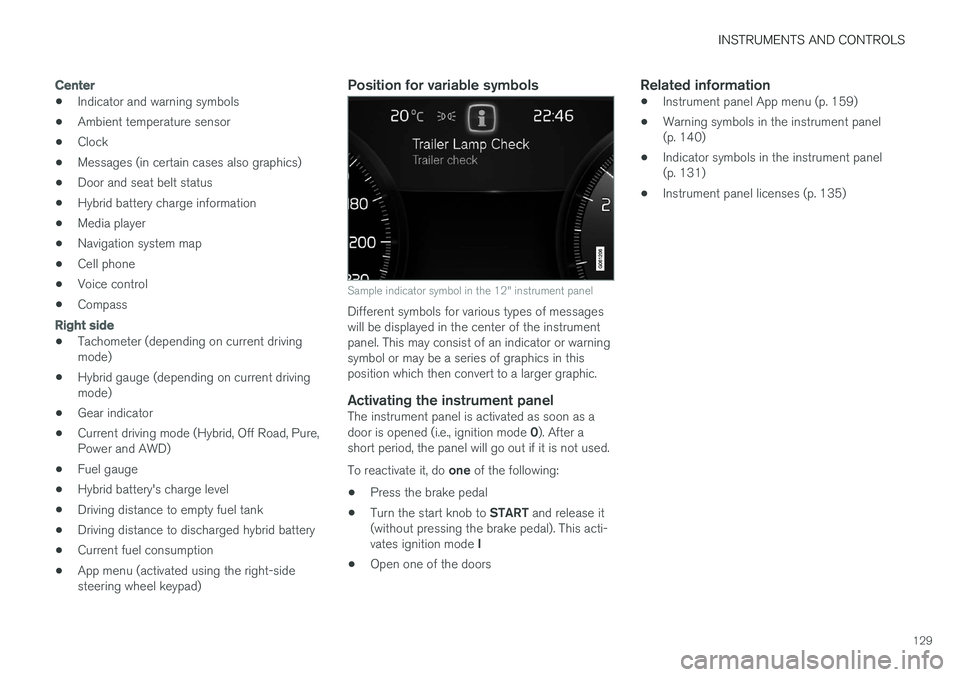
Sample indicator symbol in the 12" instrument panel
Different symbols for various types of messages will be displayed in the center of the instrumentpanel. This may consist of an indicator or warningsymbol or may be a series of graphics in thisposition which then convert to a larger graphic.
Activating the instrument panelThe instrument panel is activated as soon as a door is opened (i.e., ignition mode
0). After a
short period, the panel will go out if it is not used. To reactivate it, do one of the following:
• Press the brake pedal
• Turn the start knob to
START and release it
(without pressing the brake pedal). This acti- vates ignition mode I
• Open one of the doors
Related information
• Instrument panel App menu (p. 159)
• Warning symbols in the instrument panel (p. 140)
• Indicator symbols in the instrument panel(p. 131)
• Instrument panel licenses (p. 135)
Page 132 of 580
INSTRUMENTS AND CONTROLS
130
Instrument panel settings
Instrument panel settings can be made from its app menu and under
Settings in the center dis-
play.
App menu settingsSettings can be made in the instrument panel's app menu to determine the information to be dis-played from:
• the trip computer
• the media player
• a cell phone
• the navigation system.
The instrument panel's app menu is opened andsettings are made using the right-side keypad onthe steering wheel.
Making settings from the center display
Selecting types of information
1. Tap Settings in the center display's Top
view.
2. Tap
My CarDisplaysDriver Display
Information. 3. Select the information to be displayed in the
background:
•
Show no information in the background
•Show information for current playing media
•Show navigation even if no route is set.
Selecting themes
1. Tap Settings in the center display's Top
view.
2. Tap
My CarDisplaysDisplay
Themes
3. Select a theme (appearance) for the instru- ment panel:
•
Glass
•Minimalistic
•Performance
•Chrome Rings.
Selecting a language
1. Tap Settings in the center display's Top
view. 2.
To select a language, tap
SystemChoose system language.
> Changing languages affects all of the vehicle's displays. Changing to a language that you do not understand may make itdifficult to change back to the original lan-guage.
Related information
• Instrument panel App menu (p. 159)
• Instrument panel (p. 128)
• Settings view (p. 113)
Page 160 of 580
||
INSTRUMENTS AND CONTROLS
158
Reading saved messages
Reading a saved message immediately:
–Tap the button to the right of the messageCar message stored in Car Status application in the center display.
> The saved message will be displayed in the
Car status app.
Reading a saved message at a later time: 1. Open the
Car status app in the center dis-
play's App view.
> The app will open in Home view's lowest sub-view.
2. Select the
Messages tab in the app.
> A list of saved messages will be displayed.
3. Tap the arrow to the right to expand/mini- mize the message.
> More information about the message willappear in the list and the image to the left in the app will show information about themessage in graphic form.
Handling a saved message
In expanded form, some messages have two but- tons for booking service or reading the owner'smanual. Booking service:
–With the message in expanded form, tapRequest appoint./Call to make
Appointment14 to book a service/repair
appointment. >
Request appoint.: the Appointmentstab will open in the app and create a request for a service/repair appointment.
Call to make Appointment: the phone
app will start and initiate a call to your pre- ferred retailer to make a service/repairappointment.
Reading the owner's manual:
–With the message in expanded form, tapOwner's manual to read the section of the
owner's manual related to the message.
> The owner's manual will open in the cen- ter display and provide information related to the message.
Messages stored in the app will be erased auto-matically each time the engine is started.
Messages saved from the center display
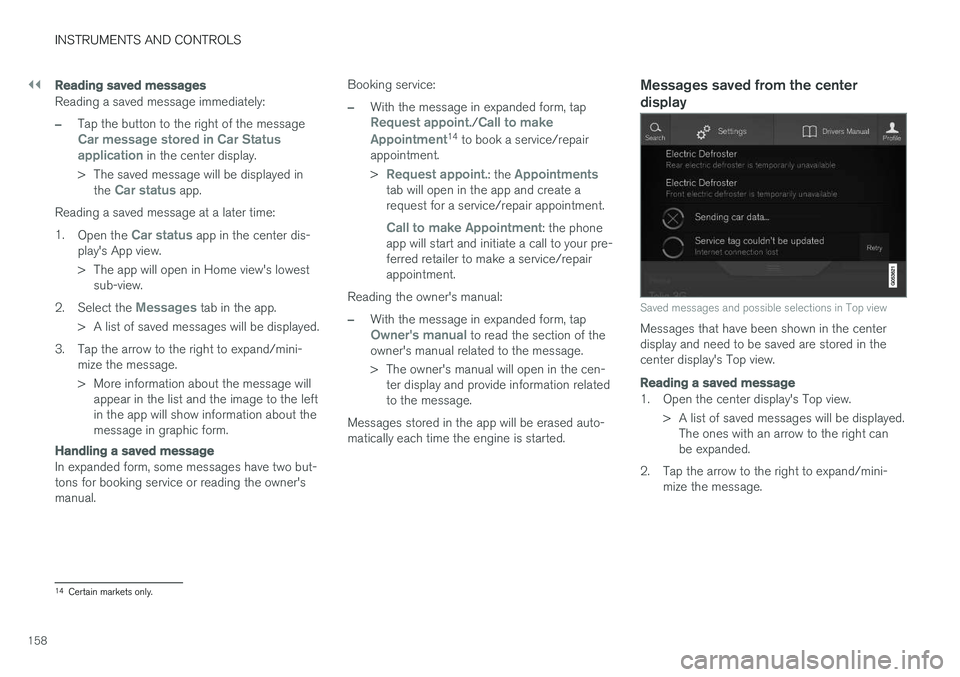
Saved messages and possible selections in Top view
Messages that have been shown in the center display and need to be saved are stored in thecenter display's Top view.
Reading a saved message
1. Open the center display's Top view. > A list of saved messages will be displayed.The ones with an arrow to the right can be expanded.
2. Tap the arrow to the right to expand/mini- mize the message.
14Certain markets only.
Page 161 of 580
INSTRUMENTS AND CONTROLS
159
Handling a saved message
Some messages have a button to e.g., activate/ deactivate a function related to the message.
–Tap the button to carry out the action.
Messages saved in Top view are erased automat- ically when the engine is switched off.
Related information
• Handling messages in the instrument paneland center display (p. 156)
Instrument panel App menu The App (application) menu in the instrument panel provides quick access to commonly usedfunctions in certain apps.
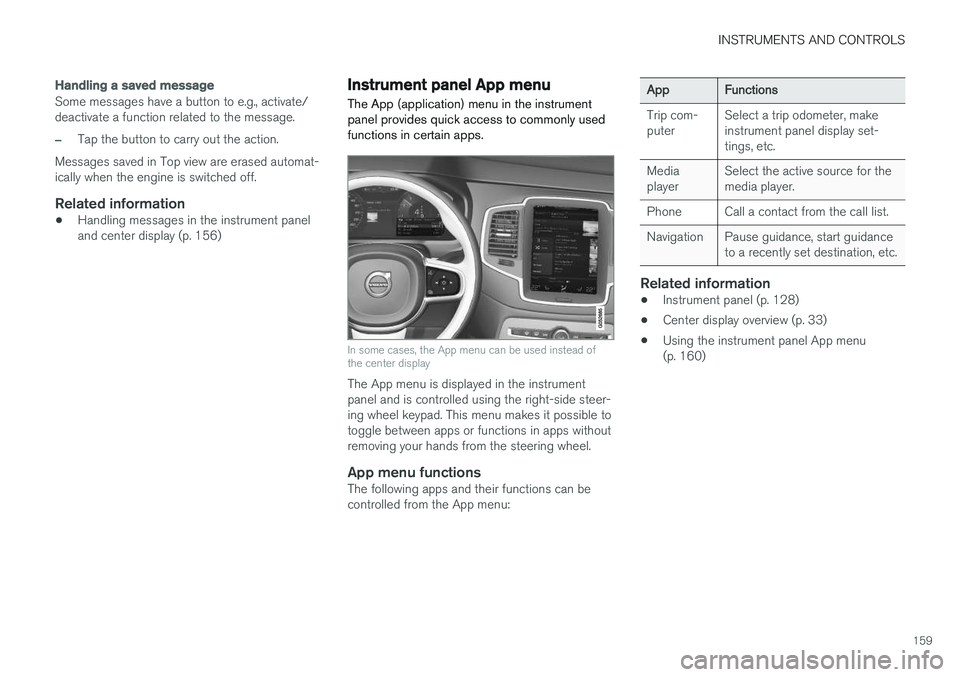
In some cases, the App menu can be used instead of the center display
The App menu is displayed in the instrument panel and is controlled using the right-side steer-ing wheel keypad. This menu makes it possible totoggle between apps or functions in apps withoutremoving your hands from the steering wheel.
App menu functionsThe following apps and their functions can becontrolled from the App menu:
App
Functions
Trip com- puter Select a trip odometer, makeinstrument panel display set-tings, etc.
Mediaplayer Select the active source for themedia player.
Phone Call a contact from the call list.
Navigation Pause guidance, start guidance to a recently set destination, etc.
Related information
•Instrument panel (p. 128)
• Center display overview (p. 33)
• Using the instrument panel App menu (p. 160)
Page 166 of 580
INSTRUMENTS AND CONTROLS
* Option/accessory.
164
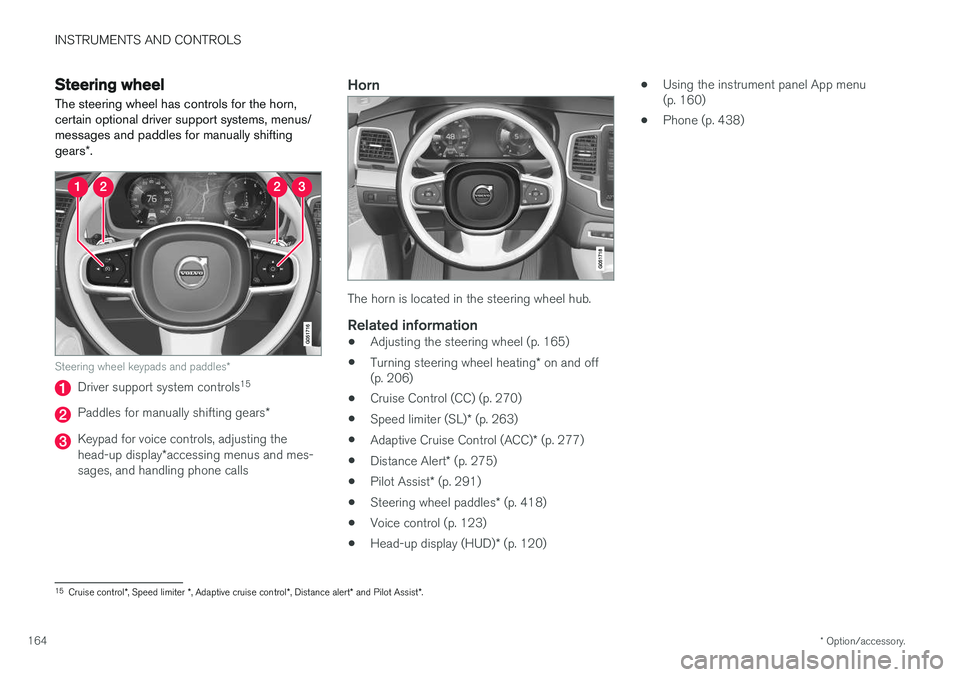
Steering wheel The steering wheel has controls for the horn, certain optional driver support systems, menus/messages and paddles for manually shifting gears *.
Steering wheel keypads and paddles *
Driver support system controls15
Paddles for manually shifting gears
*
Keypad for voice controls, adjusting the head-up display*accessing menus and mes-
sages, and handling phone calls
Horn
The horn is located in the steering wheel hub.
Related information
• Adjusting the steering wheel (p. 165)
• Turning steering wheel heating
* on and off
(p. 206)
• Cruise Control (CC) (p. 270)
• Speed limiter (SL)
* (p. 263)
• Adaptive Cruise Control (ACC)
* (p. 277)
• Distance Alert
* (p. 275)
• Pilot Assist
* (p. 291)
• Steering wheel paddles
* (p. 418)
• Voice control (p. 123)
• Head-up display (HUD)
* (p. 120) •
Using the instrument panel App menu (p. 160)
• Phone (p. 438)
15
Cruise control *, Speed limiter *, Adaptive cruise control *, Distance alert * and Pilot Assist *.
Page 194 of 580
CLIMATE
* Option/accessory.
192
Starting and stopping preconditioning
Preconditioning heats/cools the passenger com- partment prior to driving. Please note that thecharging cable must be connected.
Starting/stopping from the centerdisplay
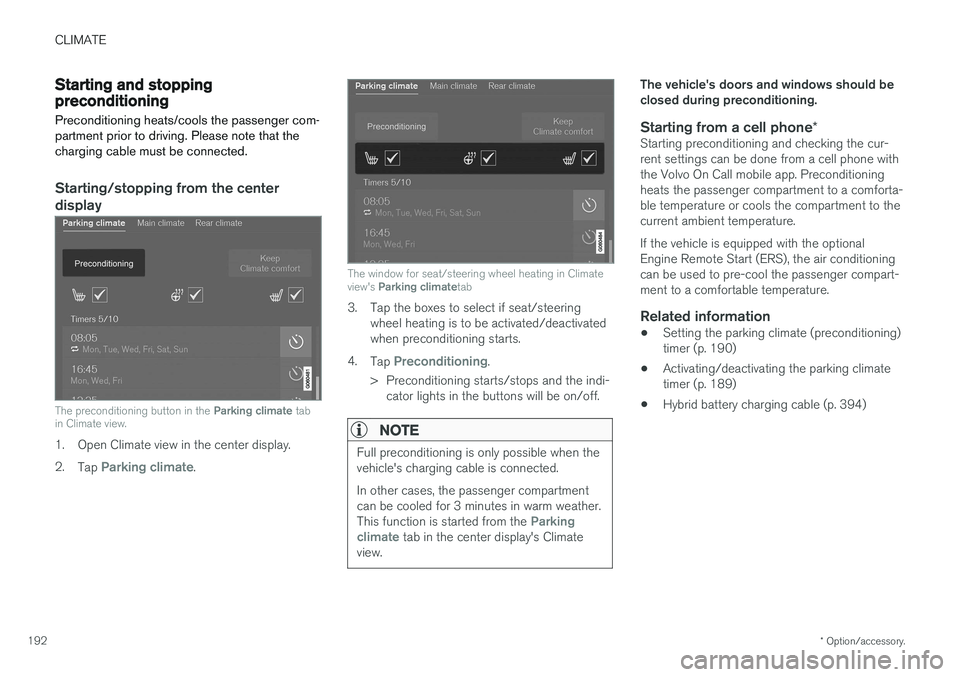
The preconditioning button in the Parking climate tab
in Climate view.
1. Open Climate view in the center display. 2. Tap
Parking climate.
The window for seat/steering wheel heating in Climate view's Parking climate tab
3. Tap the boxes to select if seat/steering
wheel heating is to be activated/deactivated when preconditioning starts.
4. Tap
Preconditioning.
> Preconditioning starts/stops and the indi- cator lights in the buttons will be on/off.
NOTE
Full preconditioning is only possible when the vehicle's charging cable is connected. In other cases, the passenger compartment can be cooled for 3 minutes in warm weather. This function is started from the
Parking
climate tab in the center display's Climate
view.
The vehicle's doors and windows should be closed during preconditioning.
Starting from a cell phone *Starting preconditioning and checking the cur-rent settings can be done from a cell phone withthe Volvo On Call mobile app. Preconditioningheats the passenger compartment to a comforta-ble temperature or cools the compartment to thecurrent ambient temperature. If the vehicle is equipped with the optional Engine Remote Start (ERS), the air conditioningcan be used to pre-cool the passenger compart-ment to a comfortable temperature.
Related information
•Setting the parking climate (preconditioning)timer (p. 190)
• Activating/deactivating the parking climatetimer (p. 189)
• Hybrid battery charging cable (p. 394)
Page 221 of 580
LOADING AND STORAGE
}}
219
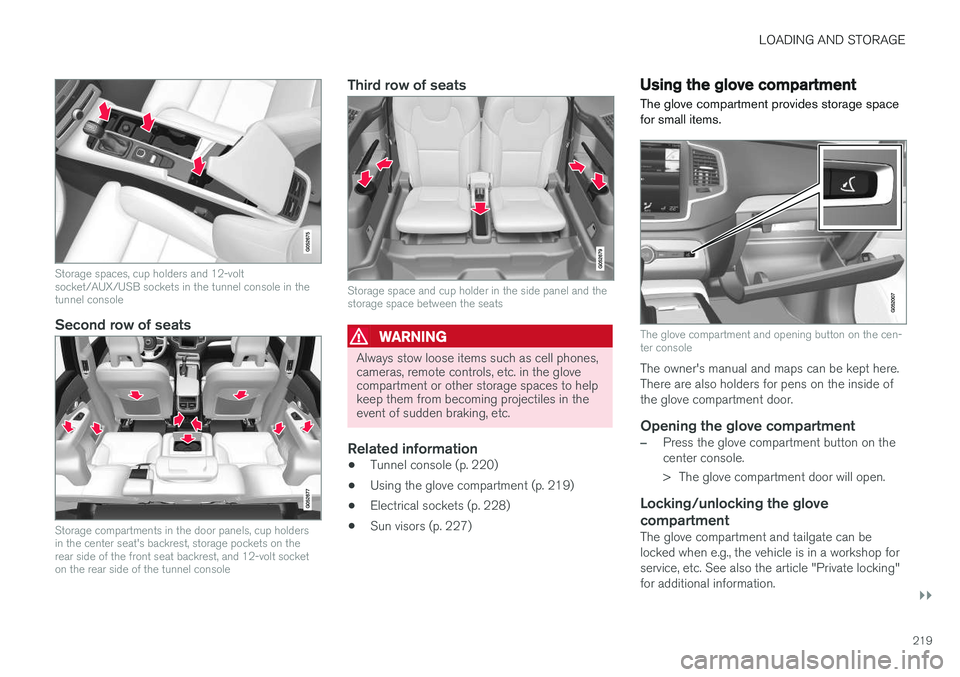
Storage spaces, cup holders and 12-volt socket/AUX/USB sockets in the tunnel console in thetunnel console
Second row of seats
Storage compartments in the door panels, cup holders in the center seat's backrest, storage pockets on therear side of the front seat backrest, and 12-volt socketon the rear side of the tunnel console
Third row of seats
Storage space and cup holder in the side panel and the storage space between the seats
WARNING
Always stow loose items such as cell phones, cameras, remote controls, etc. in the glovecompartment or other storage spaces to helpkeep them from becoming projectiles in theevent of sudden braking, etc.
Related information
•Tunnel console (p. 220)
• Using the glove compartment (p. 219)
• Electrical sockets (p. 228)
• Sun visors (p. 227)
Using the glove compartment
The glove compartment provides storage space for small items.
The glove compartment and opening button on the cen- ter console
The owner's manual and maps can be kept here. There are also holders for pens on the inside ofthe glove compartment door.
Opening the glove compartment
–Press the glove compartment button on the center console.
> The glove compartment door will open.
Locking/unlocking the glove compartment
The glove compartment and tailgate can be locked when e.g., the vehicle is in a workshop forservice, etc. See also the article "Private locking"for additional information.
Page 232 of 580
||
LOADING AND STORAGE
230
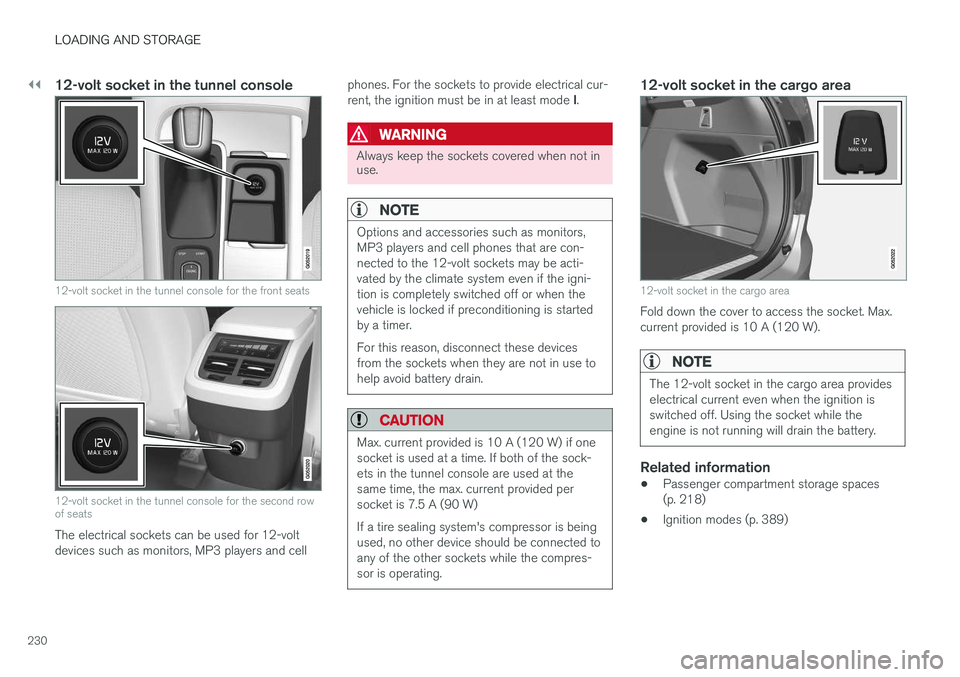
12-volt socket in the tunnel console
12-volt socket in the tunnel console for the front seats
12-volt socket in the tunnel console for the second row of seats
The electrical sockets can be used for 12-volt devices such as monitors, MP3 players and cellphones. For the sockets to provide electrical cur- rent, the ignition must be in at least mode
I.
WARNING
Always keep the sockets covered when not in use.
NOTE
Options and accessories such as monitors, MP3 players and cell phones that are con-nected to the 12-volt sockets may be acti-vated by the climate system even if the igni-tion is completely switched off or when thevehicle is locked if preconditioning is startedby a timer. For this reason, disconnect these devices from the sockets when they are not in use tohelp avoid battery drain.
CAUTION
Max. current provided is 10 A (120 W) if one socket is used at a time. If both of the sock-ets in the tunnel console are used at thesame time, the max. current provided persocket is 7.5 A (90 W) If a tire sealing system's compressor is being used, no other device should be connected toany of the other sockets while the compres-sor is operating.
12-volt socket in the cargo area
12-volt socket in the cargo area
Fold down the cover to access the socket. Max. current provided is 10 A (120 W).
NOTE
The 12-volt socket in the cargo area provides electrical current even when the ignition isswitched off. Using the socket while theengine is not running will drain the battery.
Related information
• Passenger compartment storage spaces (p. 218)
• Ignition modes (p. 389)
Page 238 of 580
||
LOCKS AND ALARM
* Option/accessory.
236 Each of the remote keys provided with the vehicle can be linked to a driver profile containing uniquepersonal settings that will be applied when thatparticular key is used. See also the article "Driverprofile" for additional information.
NOTE
Avoid placing the remote key closer than approx. (4-6 in.) (10-15 cm) to any metallicobjects or electronic devices such as cellphones, tablets, laptops or chargers.
If interference persists, unlock the vehicle with the detachable key blade and place the remotekey in the backup key reader in the tunnel con-sole cup holder to disarm the alarm.
WARNING
Always remove the remote key from the pas- senger compartment when leaving the vehicle and ensure that the ignition in mode
0, espe-
cially if there are children in the vehicle.
Key TagIn addition to the two remote keys provided, a smaller third key, called a Key Tag, is also provi-ded for vehicles equipped with the optionalPassive Entry system. This key functions in the same way as a standardremote key but does not have a detachable keyblade and its battery cannot be replaced; a newKey Tag has to be ordered.
Ordering new keysTwo remote keys are provided with the vehicle (a Key Tag
2
is also included for vehicles equipped
with the optional Passive Entry system). Addi- tional keys (a total of 12) can be ordered andused with the vehicle.
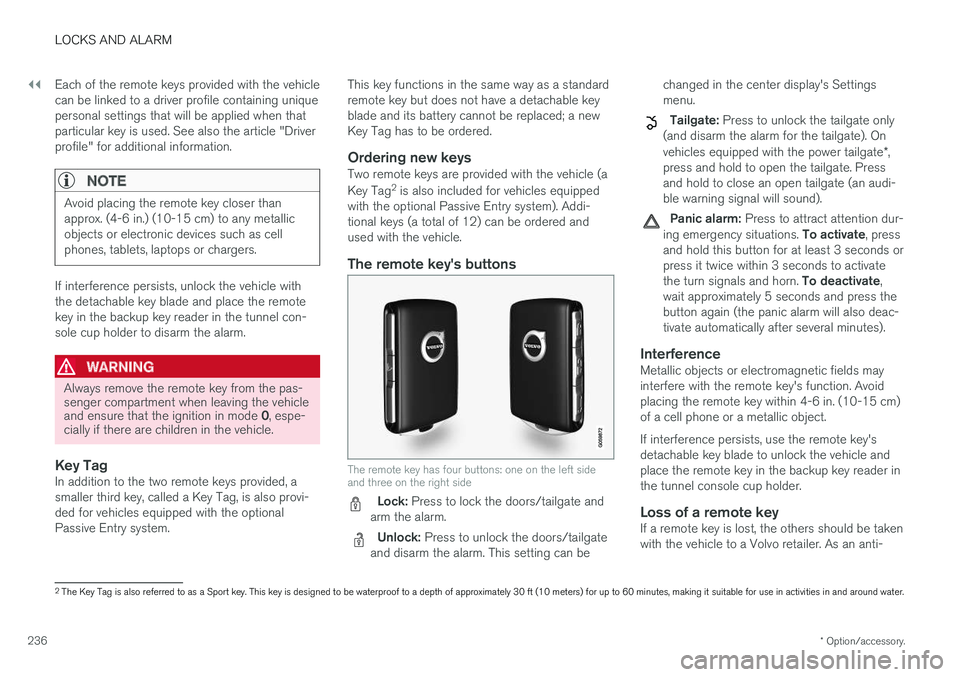
The remote key's buttons
The remote key has four buttons: one on the left side and three on the right side
Lock: Press to lock the doors/tailgate and
arm the alarm.
Unlock: Press to unlock the doors/tailgate
and disarm the alarm. This setting can be changed in the center display's Settings menu.
Tailgate: Press to unlock the tailgate only
(and disarm the alarm for the tailgate). On vehicles equipped with the power tailgate *,
press and hold to open the tailgate. Press and hold to close an open tailgate (an audi-ble warning signal will sound).
Panic alarm: Press to attract attention dur-
ing emergency situations. To activate, press
and hold this button for at least 3 seconds or press it twice within 3 seconds to activate the turn signals and horn. To deactivate,
wait approximately 5 seconds and press the button again (the panic alarm will also deac-tivate automatically after several minutes).
InterferenceMetallic objects or electromagnetic fields mayinterfere with the remote key's function. Avoidplacing the remote key within 4-6 in. (10-15 cm)of a cell phone or a metallic object. If interference persists, use the remote key's detachable key blade to unlock the vehicle andplace the remote key in the backup key reader inthe tunnel console cup holder.
Loss of a remote keyIf a remote key is lost, the others should be takenwith the vehicle to a Volvo retailer. As an anti-
2 The Key Tag is also referred to as a Sport key. This key is designed to be waterproof to a depth of approximately 30 ft (10 meters) for up to 60 minutes, making it suitable for use in activities in and around water.