phone VOLVO XC90 T8 2017 Owner´s Manual
[x] Cancel search | Manufacturer: VOLVO, Model Year: 2017, Model line: XC90 T8, Model: VOLVO XC90 T8 2017Pages: 580, PDF Size: 10.37 MB
Page 452 of 580
||
INFOTAINMENT
* Option/accessory.
450
NOTE
• Please be aware that Volvo has no con- trol over the content of the Android Autoapp.
• If a cell phone or a media player is con-nected via Bluetooth, it will not be acces-sible while Android Auto is activebecause Bluetooth will be disabled. Toconnect the vehicle to the Internet, useWi-Fi or the vehicle's integrated modem.
If navigation guidance is being provided by Android Auto, this will only be shown on the cen- ter display (not on the head-up display
* or the
instrument panel). The Android Auto apps can be controlled from the center display or voice-controlled (the sameas for a cell phone). Certain functions can also becontrolled from the right-side steering wheel key- pad. Press and hold the
button to activate
voice control. Press briefly to deactivate.
By using Android Auto, you acknowledge the following: Android Auto is a serviceprovided by Google Inc. under its terms andconditions. Volvo Cars is not responsible forAndroid Auto or its features or applications.When you use Android Auto, your cartransfers certain information (including itslocation) to your connected Android phone. You are fully responsible for your and anyother person
Page 453 of 580
INFOTAINMENT
* Option/accessory.451
Android Auto * settings
The following settings can be made for Android Auto.
Automatic start1. Tap Settings in the center display's Top
view.
2. Tap
CommunicationAndroid Auto and
select the following settings:
• Select the Android Auto box for automatic start when the device's USB cable is con-nected.
• Deselect the Android Auto box to
disable
automatic start when the device's USBcable is connected.
A maximum of 20 Android devices can be storedin the list. When the list is full, the first (oldest)device stored will be deleted. To erase the entire list, a factory reset has to be performed. See the article "Resetting the set-tings view."
System volume levels1. Tap Settings in the center display's Top
view. 2.
Tap
SoundSystem Volumes and select
the following settings: •
Voice Control
•Navi Voice Guidance
•Phone Ringtone
Related information
• Android auto
* (p. 449)
• Resetting the settings view (p. 117)
CD (media) player
*
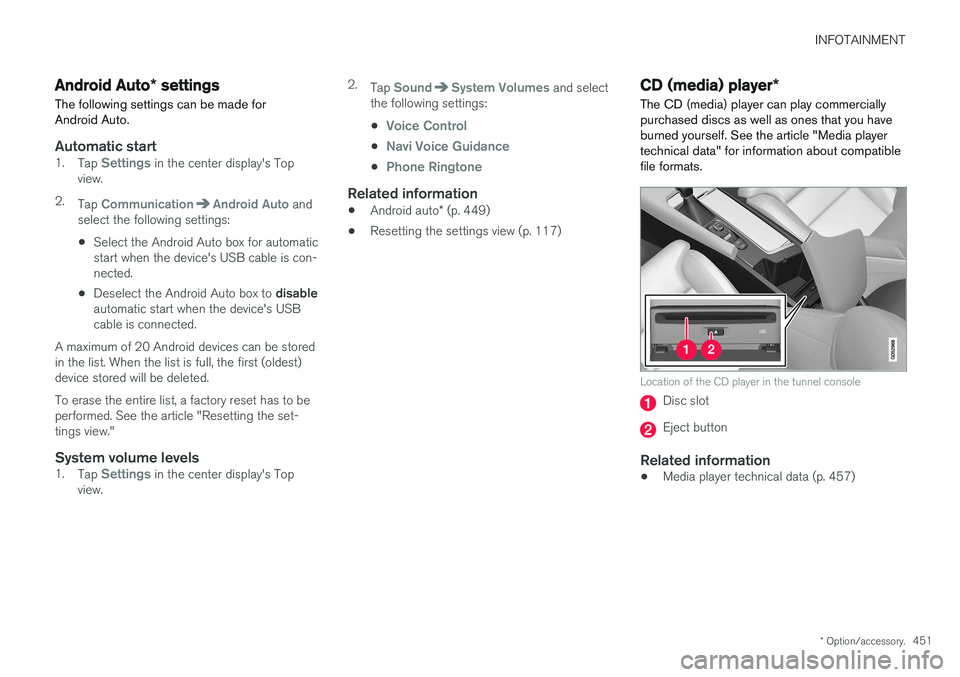
The CD (media) player can play commercially purchased discs as well as ones that you haveburned yourself. See the article "Media playertechnical data" for information about compatiblefile formats.
Location of the CD player in the tunnel console
Disc slot
Eject button
Related information
• Media player technical data (p. 457)
Page 461 of 580
INFOTAINMENT
}}
459
Connecting to the Internet
Connect the vehicle to the Internet using
Bluetooth, Wi-Fi or via the vehicle's integratedmodem.
The cell phone and the network service provider must support Internet sharing (tethering) and thesubscription must included data transfer. See the terms and confidentiality information at support.volvocars.com before connecting to theInternet.
NOTE
When using Apple CarPlay or Android Auto, an Internet connection can only be estab-lished by using Wi-Fi or the vehicle's inte-grated modem.
Connect using BluetoothSee the article "Pairing a cell phone."
Connect using Wi-Fi
1. Activate tethering/personal hotspot in the cell phone. 2.
Tap
Settings in the center display's Top
view.
3. Tap
CommunicationWi-Fi.
4. Tap Wi-Fi to activate/deactivate.
5. Tap the name of the network to be used.
6. Enter the network password.
7. If a different connection was used previously, confirm the connection change.
> The vehicle will connect to the network.
Please be aware that certain cell phones disable tethering when the connection to the vehicle hasbeen broken, e.g., when the phone has beenremoved from the vehicle. In such cases, thephone's tethering function will have to be reacti-vated the next time the phone is used to connectto the Internet. When a phone is connected to the vehicle, it is saved for future use. When a max. number of 50have been saved, the first one connected will bedeleted. To show the list of saved networks or to manually delete a network, tap
SettingsWi-Fi
Saved networks.
See the article "Wi-Fi technology and security" for network connection requirements.
Connect using the vehicle's integrated modem
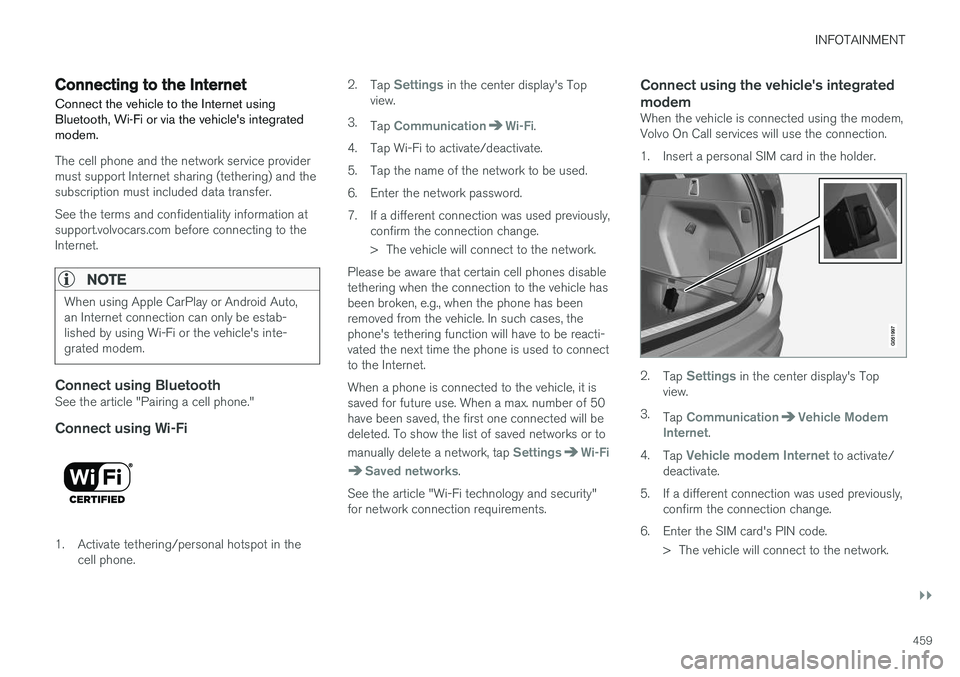
When the vehicle is connected using the modem, Volvo On Call services will use the connection.
1. Insert a personal SIM card in the holder.
2. Tap Settings in the center display's Top
view.
3. Tap
CommunicationVehicle Modem
Internet.
4. Tap
Vehicle modem Internet to activate/
deactivate.
5. If a different connection was used previously, confirm the connection change.
6. Enter the SIM card's PIN code. > The vehicle will connect to the network.
Page 462 of 580
||
INFOTAINMENT
460
Related information
•Pairing a cell phone (p. 439)
• Connecting/disconnecting a cell phone (p. 440)
• Connecting a device via the AUX/USBsocket (p. 446)
• Wi-Fi technology and security (p. 463)
• Apple CarPlay (p. 447)
Bluetooth settings
The following settings apply to a Bluetooth-con- nected cell phone or other device.
Bluetooth1. Tap Settings in the center display's Top
view.
2. Tap
CommunicationBluetooth
Devices and select among the following set-
tings:
•
Previously paired devices: lists the
devices that are paired and connected to the vehicle.
•
Internet connection: select to connect
to the Internet using the device's Bluetooth connection.
•
Add device: begin the procedure to pair
a new device.
•
Remove device: remove a paired device.
•
Allowed services for this device: select
what the device will be used for: make calls, send/receive messages, streammedia, Internet connection.
Bluetooth complianceUnited States FCC CAUTION Changes or modifications not expressly approved by the party responsible for compliance couldvoid the user's authority to operate the equip- ment. This transmitter must not be co-located oroperated in conjunction with any other antennaor transmitter. Canada This device complies with Industry Canada licence-exempt RSS standard(s). Operation issubject to the following two conditions: (1) this device may not cause interference, and(2) this device must accept any interference, including interference that may cause undesiredoperation of the device.
Related information
•
Internet connected vehicle (p. 458)
• Pairing a cell phone (p. 439)
• Phone (p. 438)
• Media player (p. 446)
• Connecting/disconnecting a cell phone(p. 440)
Page 464 of 580
INFOTAINMENT
462
Internet connection troubleshooting The following are factors that may affect the vehicle's Internet connection.
The amount of data being transmitted depends on the services or apps that are currently in use.For example, streaming audio requires a greatdeal of data to be transmitted, which requires agood connection and a strong signal.
Cell phone to the vehicleConnection speed may vary depending on thelocation of the cell phone in the vehicle. Move thephone closer to the center display to increasesignal strength. Be sure that there are noobstructing/screening objects between thephone and the screen.
Cell phone to the network operatorThe speed of the mobile network may varydepending on coverage/reception in the vehicle'slocation. Reception is generally poorer in tunnels,in mountainous areas, in deep valleys or indoors.Connection speed may also depend on the typeof subscription that you have with the serviceprovider. Contact your service provider in the event of data transmission problems.
Restarting the phone
If you experience problems making a connection, it may to help to restart the phone.
Related information
•Internet connected vehicle (p. 458)
• Connecting to the Internet (p. 459)
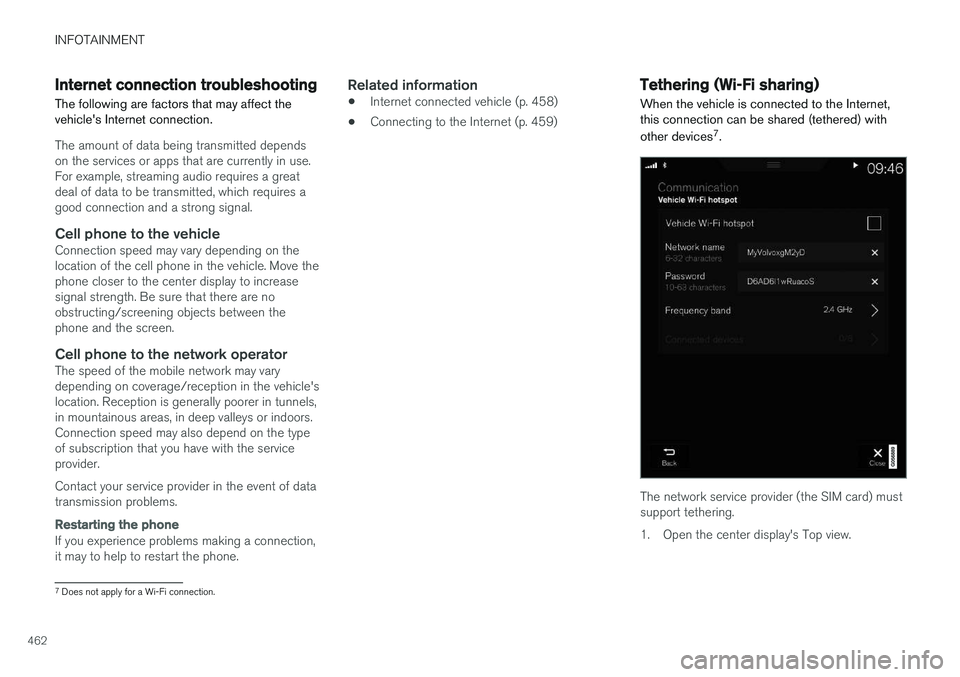
Tethering (Wi-Fi sharing)
When the vehicle is connected to the Internet, this connection can be shared (tethered) with other devices 7
.
The network service provider (the SIM card) must support tethering.
1. Open the center display's Top view.
7 Does not apply for a Wi-Fi connection.
Page 468 of 580
||
INFOTAINMENT
466without knowing anything about who you are. For more information, see the web page for theGracenote Privacy Policy for the Gracenote serv-ice. The Gracenote Software and each item of Grace- note Data are licensed to you “AS IS.” Gracenotemakes no representations or warranties, expressor implied, regarding the accuracy of any Grace-note Data from in the Gracenote Servers. Grace-note reserves the right to delete data from theGracenote Servers or to change data categoriesfor any cause that Gracenote deems sufficient.No warranty is made that the Gracenote Softwareor Gracenote Servers are error-free or that func-tioning of Gracenote Software or GracenoteServers will be uninterrupted. Gracenote is notobligated to provide you with new enhanced oradditional data types or categories that Grace-note may provide in the future and is free to dis-continue its services at any time. GRACENOTE DISCLAIMS ALL WARRANTIES EXPRESS OR IMPLIED, INCLUDING, BUT NOTLIMITED TO, IMPLIED WARRANTIES OF MER-CHANTABILITY, FITNESS FOR A PARTICULARPURPOSE, TITLE, AND NON-INFRINGEMENT.GRACENOTE DOES NOT WARRANT THERESULTS THAT WILL BE OBTAINED BY YOURUSE OF THE GRACENOTE SOFTWARE ORANY GRACENOTE SERVER. IN NO CASE WILLGRACENOTE BE LIABLE FOR ANY CONSE-QUENTIAL OR INCIDENTAL DAMAGES ORFOR ANY LOST PROFITS OR LOST REVENUES.
©
Gracenote, Inc. 2009
Sensus software
This software uses parts of sources from clib2and Prex Embedded Real-time OS - Source (Copyright ©) 1982, 1986, 1991, 1993, 1994),
and Quercus Robusta (Copyright ©) 1990,
1993), The Regents of the University of California. All or some portions are derived frommaterial licensed to the University of California byAmerican Telephone and Telegraph Co. or UnixSystem Laboratories, Inc. and are reproducedherein with the permission of UNIX SystemLaboratories, Inc. Redistribution and use insource and binary forms, with or withoutmodification, are permitted provided that thefollowing conditions are met: Redistributions ofsource code must retain the above copyrightnotice, this list of conditions and the followingdisclaimer. Redistributions in binary form mustreproduce the above copyright notice, this list ofconditions and the following disclaimer in thedocumentation and/or other materials providedwith the distribution. Neither the name of the
©) 1991-2000 Silicon
Graphics, Inc. Copyright in any portions created by third parties is as indicated elsewhere herein. All Rights Reserved. Copyright ©) [1991-2000]
Silicon Graphics, Inc. All Rights Reserved. Permission is hereby granted, free of charge, toany person obtaining a copy of this software andassociated documentation files (the "Software"),to deal in the Software without restriction,
Page 469 of 580
INFOTAINMENT
}}
467
including without limitation the rights to use, copy, modify, merge, publish, distribute,sublicense, and/or sell copies of the Software,and to permit persons to whom the Software isfurnished to do so, subject to the followingconditions: The above copyright notice includingthe dates of first publication and either thispermission notice or a reference to http://oss.sgi.com/projects/FreeB/ shall be included inall copies or substantial portions of the Software.THE SOFTWARE IS PROVIDED "AS IS",WITHOUT WARRANTY OF ANY KIND,EXPRESS OR IMPLIED, INCLUDING BUT NOTLIMITED TO THE WARRANTIES OFMERCHANTABILITY, FITNESS FOR APARTICULAR PURPOSE ANDNONINFRINGEMENT. IN NO EVENT SHALLSILICON GRAPHICS, INC. BE LIABLE FOR ANYCLAIM, DAMAGES OR OTHER LIABILITY,WHETHER IN AN ACTION OF CONTRACT,TORT OR OTHERWISE, ARISING FROM, OUTOF OR IN CONNECTION WITH THE SOFTWAREOR THE USE OR OTHER DEALINGS IN THESOFTWARE. Except as contained in this notice,the name of Silicon Graphics, Inc. shall not beused in advertising or otherwise to promote thesale, use or other dealings in this Softwarewithout prior written authorization from SiliconGraphics, Inc. This software is based in parts on the work of the FreeType Team.
This software uses parts of SSLeay Library: Copyright
©) 1995-1998 Eric Young
([email protected]). All rights reserved
Linux software
This product contains software licensed under GNU General Public License (GPL) or GNULesser General Public License (LGPL), etc. You have the right of acquisition, modification, and distribution of the source code of the GPL/LGPL software. You may download Source Code from the following website at no charge: http://www.embedded-carmultimedia.jp/linux/oss/download/TVM_8351_013 The website provides the Source Code "As Is" and without warranty of any kind. By downloading Source Code, you expressly assume all risk and liability associated withdownloading and using the Source Code andcomplying with the user agreements thataccompany each Source Code. Please note that we cannot respond to any inquiries regarding the source code.
camellia:1.2.0
Copyright ©) 2006, 2007
NTT (Nippon Telegraph and TelephoneCorporation). All rights reserved. Redistribution and use in source and binaryforms, with or without modification, are permittedprovided that the following conditions are met:
1. Redistributions of source code must retain
the above copyright notice, this list of conditions and the following disclaimer asthe first lines of this file unmodified.
2. Redistributions in binary form must reproduce the above copyright notice, this listof conditions and the following disclaimer inthe documentation and/or other materialsprovided with the distribution.
THIS SOFTWARE IS PROVIDED BY NTT ``ASIS'' AND ANY EXPRESS OR IMPLIEDWARRANTIES, INCLUDING, BUT NOT LIMITEDTO, THE IMPLIED WARRANTIES OFMERCHANTABILITY AND FITNESS FOR APARTICULAR PURPOSE ARE DISCLAIMED. INNO EVENT SHALL NTT BE LIABLE FOR ANYDIRECT, INDIRECT, INCIDENTAL, SPECIAL,EXEMPLARY, OR CONSEQUENTIAL DAMAGES(INCLUDING, BUT NOT LIMITED TO,PROCUREMENT OF SUBSTITUTE GOODS ORSERVICES; LOSS OF USE, DATA, OR PROFITS;OR BUSINESS INTERRUPTION) HOWEVERCAUSED AND ON ANY THEORY OF LIABILITY,WHETHER IN CONTRACT, STRICT LIABILITY,OR TORT (INCLUDING NEGLIGENCE OROTHERWISE) ARISING IN ANY WAY OUT OFTHE USE OF THIS SOFTWARE, EVEN IFADVISED OF THE POSSIBILITY OF SUCHDAMAGE.
Page 504 of 580
MAINTENANCE AND SERVICING
502
Booking service and repairs Connected Service Booking (CSB) makes it possible to use the vehicle's Internet connectionto set up a time for service, maintenance and/orrepairs.
The information is handled through the Car
status app, which can be opened from the cen-
ter display's App view. Information about your vehicle is sent to your retailer and you can book your workshop appoint-ment directly in your retailer's workshop planningsystem using the Volvo On-Line Service Schedu-ler with your smart phone. The system will alsosend a reminder as the appointment approachesand the Sensus Navigation system will providedirections to the workshop if necessary. This feature makes it convenient to book a work- shop appointment directly from your vehicle.Vehicle-related information is sent to yourretailer, who prepares your visit to the workshop.After you have requested a workshop appoint-ment, your retailer will send you an email includ-ing a link enabling you to connect directly to yourretailer's booking system, where you can bookthe appointment at a convenient time. Informationabout your retailer is also available in the vehicleso that you can contact the retailer/workshop at any time using the
Call my retailer menu option.
NOTE
My Volvo can be found by going to www.vol- vocars.com and selecting the United States orCanada.
Before the service can be used
Volvo ID
• The owner (primary driver) must create or have a Volvo ID (see the article "Volvo ID").
• You must enter your Volvo ID (your emailaddress) in the vehicle as explained in thearticle "Volvo ID". If you have already regis-tered a Volvo ID, use the same email addressthat you used to create the Volvo ID.
Changing a
Volvo ID email address
If you would like to register a different email address, open the Volvo ID app in the center dis- play's App view and tap
Change Volvo ID. Fol-
low the instructions provided. See also the article "Volvo ID" for additional information.
Selecting a Volvo retailer on the My Volvo
website
By default, the retailer where you purchased your vehicle will be your preferred retailer/Volvoauthorized workshop who will perform serviceand repairs on your vehicle. To change the pre-ferred retailer, go to your personalized My Volvowebsite.
Prerequisites for booking service from the vehicle
In order to request an appointment from the vehi- cle:
• The engine must be running
• The vehicle must be connected to the Inter-net (see the article "Internet connected vehi-cle")
Using the serviceWhen it is time for service or in certain cases ifrepairs are necessary, a message will appear inthe instrument panel and in the center display.This message is triggered by: • the amount of time that has elapsed since the last service
• the number of hours the engine has runsince the last service
• mileage since the last service.
• Specific alerts or fault codes in the vehicle
Booking service or repairs
Submit a booking request whenever you need a workshop appointment or when a messageregarding the need for service or repairs hasbeen displayed in the instrument panel and in thecenter display. This can be done directly from thevehicle as follows or alternatively by using the MyVolvo personal website booking tab.
Page 568 of 580
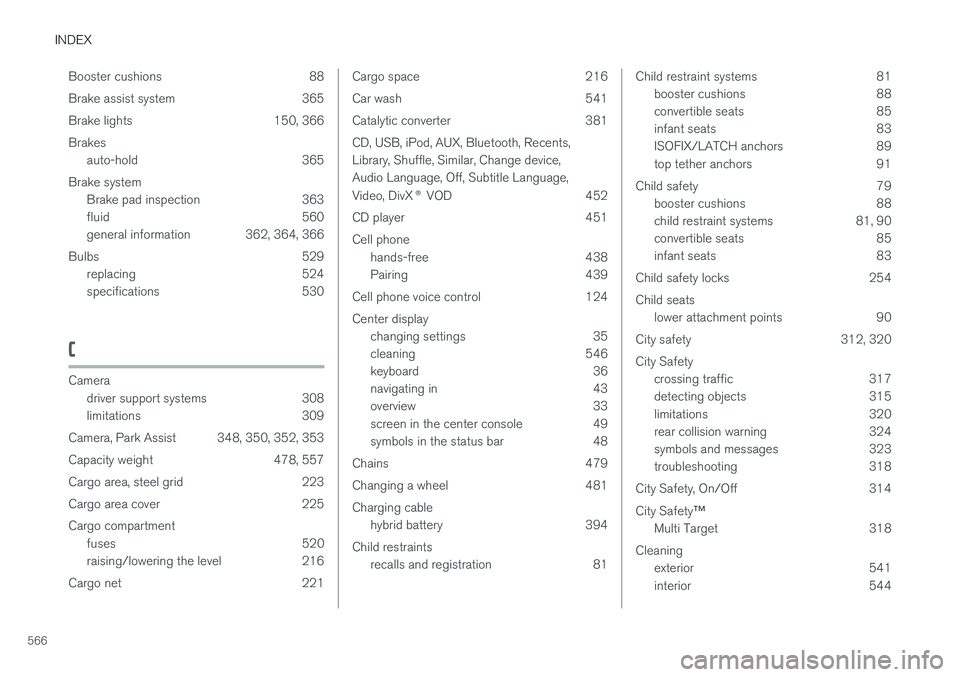
INDEX
566Booster cushions 88
Brake assist system 365
Brake lights 150, 366Brakes
auto-hold 365
Brake system Brake pad inspection 363
fluid 560
general information 362, 364, 366
Bulbs 529 replacing 524
specifications 530
C
Cameradriver support systems 308
limitations 309
Camera, Park Assist 348, 350, 352, 353
Capacity weight 478, 557
Cargo area, steel grid 223
Cargo area cover 225Cargo compartment fuses 520
raising/lowering the level 216
Cargo net 221
Cargo space 216
Car wash 541
Catalytic converter 381CD, USB, iPod, AUX, Bluetooth, Recents, Library, Shuffle, Similar, Change device,Audio Language, Off, Subtitle Language, Video, DivX ® VOD 452
CD player 451 Cell phone hands-free 438
Pairing 439
Cell phone voice control 124 Center display changing settings 35
cleaning 546
keyboard 36
navigating in 43
overview 33
screen in the center console 49
symbols in the status bar 48
Chains 479
Changing a wheel 481Charging cable hybrid battery 394
Child restraints recalls and registration 81Child restraint systems 81booster cushions 88
convertible seats 85
infant seats 83
ISOFIX/LATCH anchors 89
top tether anchors 91
Child safety 79 booster cushions 88
child restraint systems 81, 90
convertible seats 85
infant seats 83
Child safety locks 254 Child seats lower attachment points 90
City safety 312, 320City Safety crossing traffic 317
detecting objects 315
limitations 320
rear collision warning 324
symbols and messages 323
troubleshooting 318
City Safety, On/Off 314 City Safety ™
Multi Target 318
Cleaning exterior 541
interior 544
Page 571 of 580
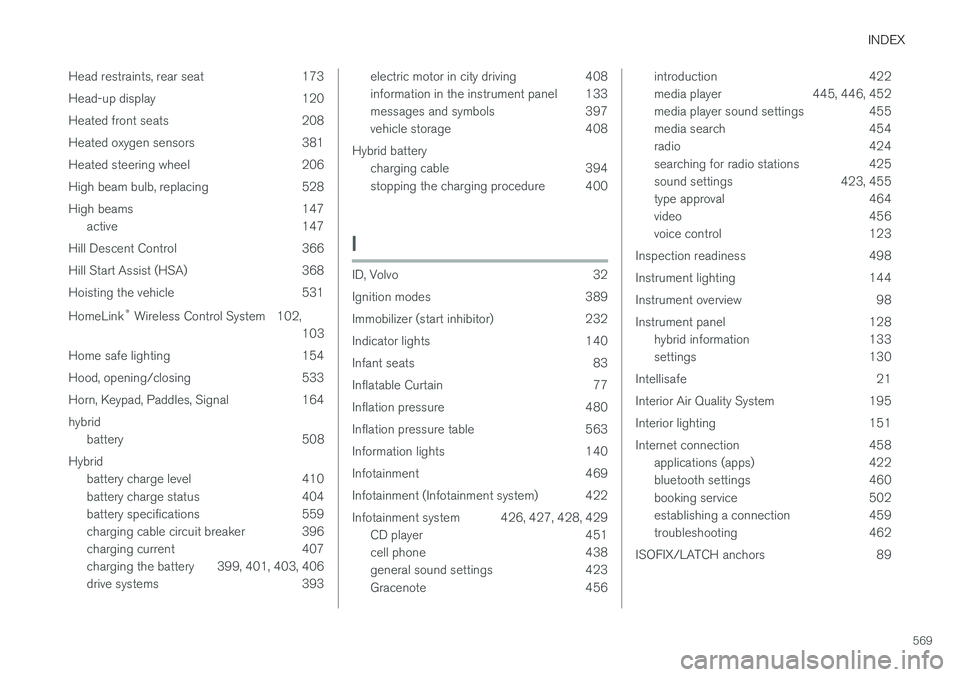
INDEX
569
Head restraints, rear seat 173
Head-up display 120
Heated front seats 208
Heated oxygen sensors 381
Heated steering wheel 206
High beam bulb, replacing 528
High beams 147
active 147
Hill Descent Control 366
Hill Start Assist (HSA) 368
Hoisting the vehicle 531 HomeLink ®
Wireless Control System 102,
103
Home safe lighting 154
Hood, opening/closing 533
Horn, Keypad, Paddles, Signal 164hybrid battery 508
Hybrid battery charge level 410
battery charge status 404
battery specifications 559
charging cable circuit breaker 396
charging current 407
charging the battery 399, 401, 403, 406
drive systems 393
electric motor in city driving 408
information in the instrument panel 133
messages and symbols 397
vehicle storage 408
Hybrid battery charging cable 394
stopping the charging procedure 400
I
ID, Volvo 32
Ignition modes 389
Immobilizer (start inhibitor) 232
Indicator lights 140
Infant seats 83
Inflatable Curtain 77
Inflation pressure 480
Inflation pressure table 563
Information lights 140
Infotainment 469
Infotainment (Infotainment system) 422
Infotainment system 426, 427, 428, 429CD player 451
cell phone 438
general sound settings 423
Gracenote 456
introduction 422
media player 445, 446, 452
media player sound settings 455
media search 454
radio 424
searching for radio stations 425
sound settings 423, 455
type approval 464
video 456
voice control 123
Inspection readiness 498
Instrument lighting 144
Instrument overview 98
Instrument panel 128 hybrid information 133
settings 130
Intellisafe 21
Interior Air Quality System 195
Interior lighting 151
Internet connection 458 applications (apps) 422
bluetooth settings 460
booking service 502
establishing a connection 459
troubleshooting 462
ISOFIX/LATCH anchors 89