service indicator VOLVO XC90 T8 2017 Owner´s Manual
[x] Cancel search | Manufacturer: VOLVO, Model Year: 2017, Model line: XC90 T8, Model: VOLVO XC90 T8 2017Pages: 580, PDF Size: 10.37 MB
Page 502 of 580
||
MAINTENANCE AND SERVICING
500
Related information
•Climate system service (p. 505)
System updates
Updates are available for infotainment-related services and Internet connections. If system soft-ware updates are available, they can be to bedownloaded all at once or separately.
System (software) updates are handled through the
Download Center app in the
center display's App view. Tap once to start a download app inHome view's lower sub-view. Ifno search for updates has
been performed since the last time the infotain-ment system was started, a search will be initi-ated. No search will begin if a software download is underway. An icon in the
System updates button indicates
the number of updates that are currently availa- ble. Tap the button to display a list of updatesthat can be installed in the vehicle. For additional information and answers to com- monly asked questions pertaining to the functionand downloading system updates, go to sup-port.volvocars.com. Background searches for software updates is activated by default when the vehicle isdelivered from the factory.
NOTE
Downloading data may affect other system features that share the Internet connection. Adownload can be cancelled at any time or theother features can be temporarily turned offwhile the software download is underway.
NOTE
An update may be interrupted when the igni- tion is switched off. However, an update does not have to be completed when the ignition is switched off; itwill resume automatically when the ignition isswitched on again.
Updating all system software
–Select Install all at the bottom of the list.
To avoid displaying a list, select
Install all by theSystem updates button.
Updating individual programs
–Select Install to choose the software to be
downloaded.
Cancelling a download
–Tap the activity indicator that replaced theInstall button on the screen when the down-
load began.
Page 505 of 580
MAINTENANCE AND SERVICING
}}
503
Sending an appointment request
1.Open the Car status app in the center dis-
play's App view.
2. Tap
Appointments.
3. Under
Appointments, tap Request
appoint..
4. Check that your
Volvo ID is correct.
5. Check that the correct preferred retailer is listed. If you prefer, simply tap the button to initiate a call to the retailer.
6. Tap
Send appointment request. Your
request and vehicle data will be sent to your retailer through the vehicle's Internet con-nection.
> Volvo will send a booking invitation to your email address with a link to your preferred workshop's On-Line Service Scheduler.
7. Open the email and click the link to book your workshop appointment at a convenienttime with your preferred service advisor. Addany additional preferences and free text toyour booking. 8. When you have submitted your workshop
booking, your appointment will be confirmedonline directly by email. The booking informa- tion will also appear in the
Car status app in
the center display after a period of time as well as in your My Volvo personal website,where you can make changes to yourappointment at any time.
9. Several days prior to your appointment, you will receive a reminder via email from yourretailer. A notification will also appear on thecenter display one day prior to the appoint-ment. You can set the interval for otherreminders (e.g., two days, three days) at yourMy Volvo personal website.
10. On the day of your appointment, a reminder will appear again on the center display andthe retailer's address can be set in your navi-gation system if you require directions to theworkshop.
Sending vehicle-related information
Information about the vehicle can be sent at any time using its Internet connection. Using this function does not send a workshop
appointment request to your retailer ; only
vehicle data will be transmitted to Volvo. This vehicle data can be accessed by any retailer ifyou call the retailer and provide your VehicleIdentification Number (VIN).
1. Open the Car status app in the center dis-
play's App view.
2. Tap
Appointments.
3. Under
Appointments, tap Send vehicle
data.
> A message confirming that vehicle infor- mation has been sent via the Internet connection will appear on the center dis-play. Transmission of the vehicle informa-tion can be cancelled at any time by tap-ping the X in the activity indicator.
Page 520 of 580

||
MAINTENANCE AND SERVICING
* Option/accessory.
518
Positions
• Fuses 1, 3–21, 23–36, 39–53 and 55–59 are called "Micro".
• Fuses 2, 22, 37–38 and 54 are called"MCase" and should only be replaced by atrained and qualified Volvo service technician.
Function
A
– –
– –
– –
Alarm system movement sensorA
5
Media player 5
Instrument panel 5
Center console buttons 5
Sun sensor 5
– –
– –
Steering wheel module 5
Module for start knob and parking brake 5
Heated steering wheel
* module 15
Function
A
– –
– –
– –
– –
Climate system control module 10
– –
On-board diagnostics (OBDII) 10
Center display 5
Climate system blower module (front)40
– –
Instrument lighting; Courtesy light- ing; Auto-dim rearview mirror; Rainand light sensor; Rear tunnel con- sole keypad
*B
; Power front seats *;
Power rear seats C
; Display for rear
seat convenience functions *; Rear
seat massage function *; Rear door
control panels 7.5
Control module for driver support functions
5
Function
A
Panorama roof and sun shade*20
Head-up display
* 5
Courtesy lighting 5
– –
Ceiling console display (seat belt reminder, front passenger side air-bag indicator) 5
– –
Humidity sensor 5
Rear passenger-side door module 20
Fuses in the cargo compartment 10
Internet connection control module; Volvo On Call control module
5
Rear driver-side door module 20
Infotainment control module (amplifier)40
Climate system blower module (rear)
* 40
Multi-band antenna module 5
Front seat massage function 5
Page 539 of 580
MAINTENANCE AND SERVICING
}}
537
The oil level should be checked at regular inter- vals, particularly during the period up to the firstscheduled maintenance service. If the oil level sensor indicates that the level is too low, using the correct oil, top up with theamount of oil indicated as soon as possible.
NOTE
•
The system cannot detect changes in the oil level immediately. The vehicle must bedriven approximately 20 miles (30 km) orhave been parked on level ground withthe engine off for 5 minutes before theoil level reading will be correct.
• If the necessary conditions are not metfor checking the oil level electronically(time interval after the engine wasswitched off, if the vehicle is parked on an incline, etc.),
No values available will
be displayed. This does not indicate a
problem with the oil level sensor.
Related information
• Engine oil (p. 535)
• Ignition modes (p. 389)
• Engine oil specifications and volume (p. 562)
Windshield wipers in the service position
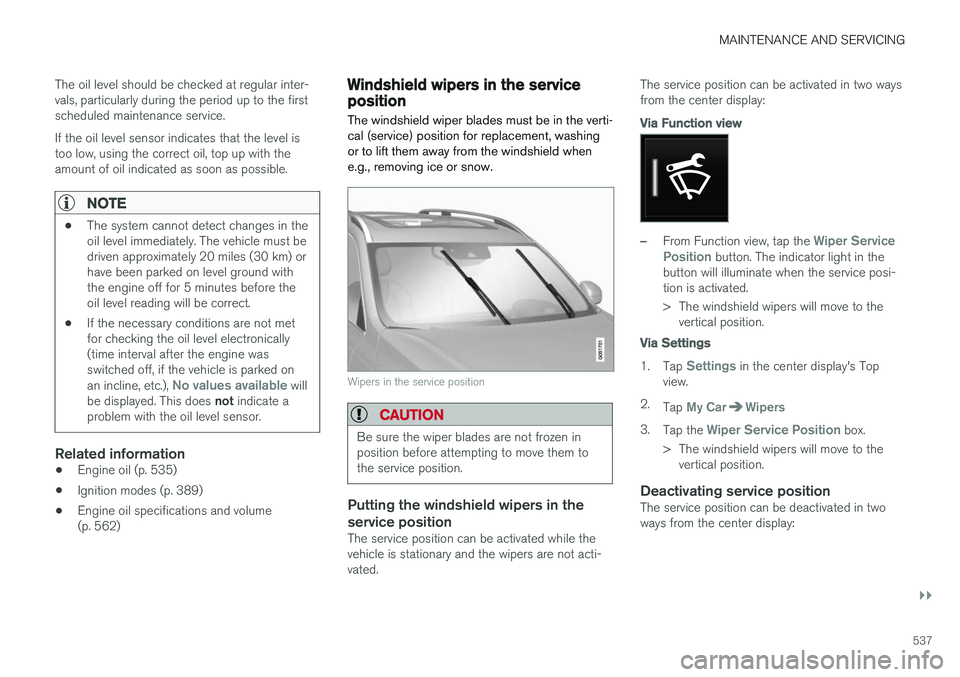
The windshield wiper blades must be in the verti- cal (service) position for replacement, washingor to lift them away from the windshield whene.g., removing ice or snow.
Wipers in the service position
CAUTION
Be sure the wiper blades are not frozen in position before attempting to move them tothe service position.
Putting the windshield wipers in the service position
The service position can be activated while the vehicle is stationary and the wipers are not acti-vated. The service position can be activated in two waysfrom the center display:
Via Function view
–From Function view, tap the Wiper Service
Position button. The indicator light in the
button will illuminate when the service posi- tion is activated.
> The windshield wipers will move to the vertical position.
Via Settings
1. Tap Settings in the center display's Top
view.
2. Tap
My CarWipers
3.Tap the Wiper Service Position box.
> The windshield wipers will move to the vertical position.
Deactivating service positionThe service position can be deactivated in two ways from the center display:
Page 540 of 580
||
MAINTENANCE AND SERVICING
538
Via Function view
–From Function view, tap the Wiper Service
Position button. The indicator light in the
button will go out when the service position is deactivated.
Via Settings
1. Tap Settings in the center display's Top
view.
2.
My CarWipers
3. Tap the Wiper Service Position to deselect
the box.
The wipers will also leave the service position if:
• The wipers are activated.
• The windshield washers are activated.
• The rain sensor is activated.
CAUTION
If the wiper arms have been folded out from the windshield while in the service position,fold them back against the windshield beforereturning the wipers to the normal position tohelp avoid scratching the paint on the hood.
Related information
•Replacing wiper blades (p. 538)
• Using the windshield wipers (p. 160)
Replacing wiper blades
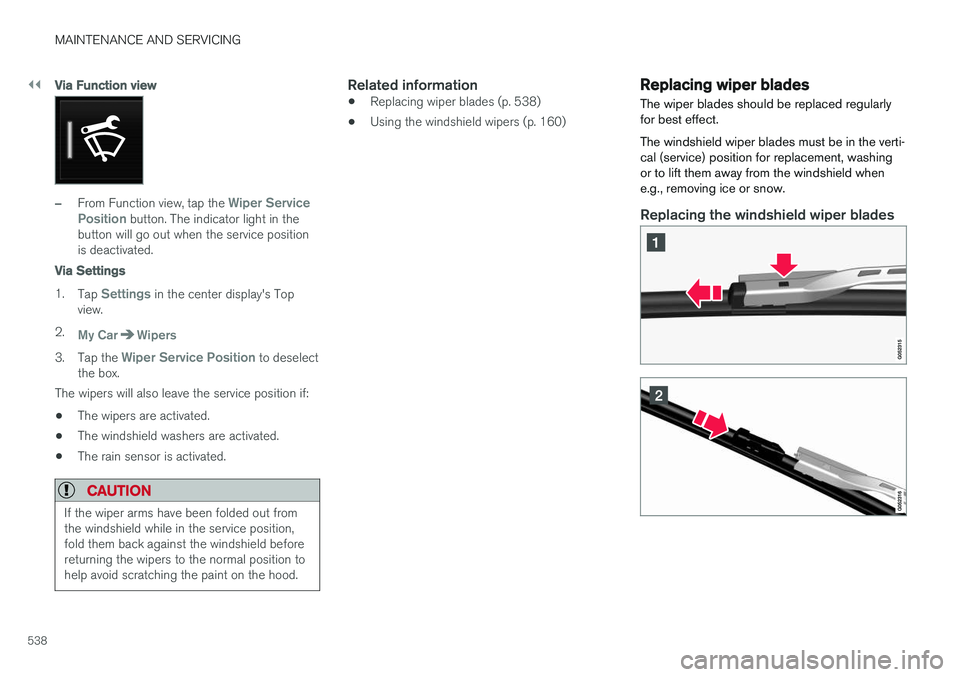
The wiper blades should be replaced regularly for best effect. The windshield wiper blades must be in the verti- cal (service) position for replacement, washingor to lift them away from the windshield whene.g., removing ice or snow.
Replacing the windshield wiper blades
Page 571 of 580
INDEX
569
Head restraints, rear seat 173
Head-up display 120
Heated front seats 208
Heated oxygen sensors 381
Heated steering wheel 206
High beam bulb, replacing 528
High beams 147
active 147
Hill Descent Control 366
Hill Start Assist (HSA) 368
Hoisting the vehicle 531 HomeLink ®
Wireless Control System 102,
103
Home safe lighting 154
Hood, opening/closing 533
Horn, Keypad, Paddles, Signal 164hybrid battery 508
Hybrid battery charge level 410
battery charge status 404
battery specifications 559
charging cable circuit breaker 396
charging current 407
charging the battery 399, 401, 403, 406
drive systems 393
electric motor in city driving 408
information in the instrument panel 133
messages and symbols 397
vehicle storage 408
Hybrid battery charging cable 394
stopping the charging procedure 400
I
ID, Volvo 32
Ignition modes 389
Immobilizer (start inhibitor) 232
Indicator lights 140
Infant seats 83
Inflatable Curtain 77
Inflation pressure 480
Inflation pressure table 563
Information lights 140
Infotainment 469
Infotainment (Infotainment system) 422
Infotainment system 426, 427, 428, 429CD player 451
cell phone 438
general sound settings 423
Gracenote 456
introduction 422
media player 445, 446, 452
media player sound settings 455
media search 454
radio 424
searching for radio stations 425
sound settings 423, 455
type approval 464
video 456
voice control 123
Inspection readiness 498
Instrument lighting 144
Instrument overview 98
Instrument panel 128 hybrid information 133
settings 130
Intellisafe 21
Interior Air Quality System 195
Interior lighting 151
Internet connection 458 applications (apps) 422
bluetooth settings 460
booking service 502
establishing a connection 459
troubleshooting 462
ISOFIX/LATCH anchors 89