center console VOLVO XC90 T8 2017 Owner´s Manual
[x] Cancel search | Manufacturer: VOLVO, Model Year: 2017, Model line: XC90 T8, Model: VOLVO XC90 T8 2017Pages: 580, PDF Size: 10.37 MB
Page 391 of 580
STARTING AND DRIVING
}}
* Option/accessory.389
Ignition modes
The vehicle's ignition can be put in various modes (levels) to make different functions availa-ble.
The vehicle's ignition has 3 modes: 0, I, and II
that can be used to operate various functions without starting the engine. The following tableshows examples of which functions are availablein the respective modes.
Mode Functions available
0 •The odometer, clock and tem- perature gauge are illuminated
• Power seats
* can be adjusted
• The power windows can be oper-ated
• The 12-volt socket in the cargocompartment can be used
• The center display is activatedand can be used
• The infotainment system can beused for a limited time
In this mode, certain functions canonly be used for a limited time to helpminimize battery drain
I •The laminated panoramic roof
*,
power seats */windows,12-volt
sockets in the passenger com-partment, Bluetooth, navigation system *, climate system blower,
windshield wipers can be oper- ated
• The infotainment system will start(if it was started when the ignitionwas switched off)
Using electrical current will drainthe start battery in this mode.Mode Functions available
II •The headlights illuminate
• Warning/indicator lights illumi- nate for 5 seconds
• A number of other functions willalso be activated. However, the heated seats
* and heated rear
window functions can only be activated when the engine is run-ning.
This mode should only be used forvery short periods to help avoiddraining the battery.
Selecting an ignition mode
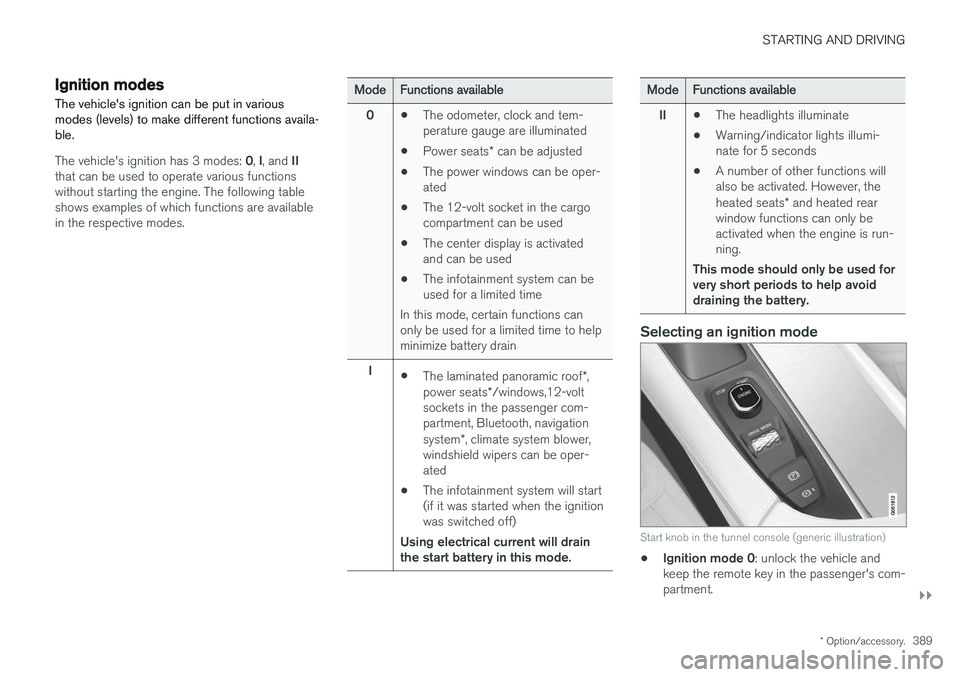
Start knob in the tunnel console (generic illustration)
• Ignition mode 0
: unlock the vehicle and
keep the remote key in the passenger's com- partment.
Page 413 of 580
STARTING AND DRIVING
}}
* Option/accessory.411
Drive modes
Selecting a drive mode affects the vehicle's driv- ing characteristics to help make driving moreenjoyable or easier in certain types of situations.
The following systems are adapted to help pro- vide the best vehicle performance in the respec-tive drive modes: • Steering
• Engine/transmission/All Wheel Drive
*
• Brakes
• Pneumatic suspensionSuspension control
• Instrument panel
• Climate system settings
Select the drive mode best suited to the current driving conditions. Please be aware that not all modes can be selected in all driving situations. The selectedmode will be displayed in the instrument panel.
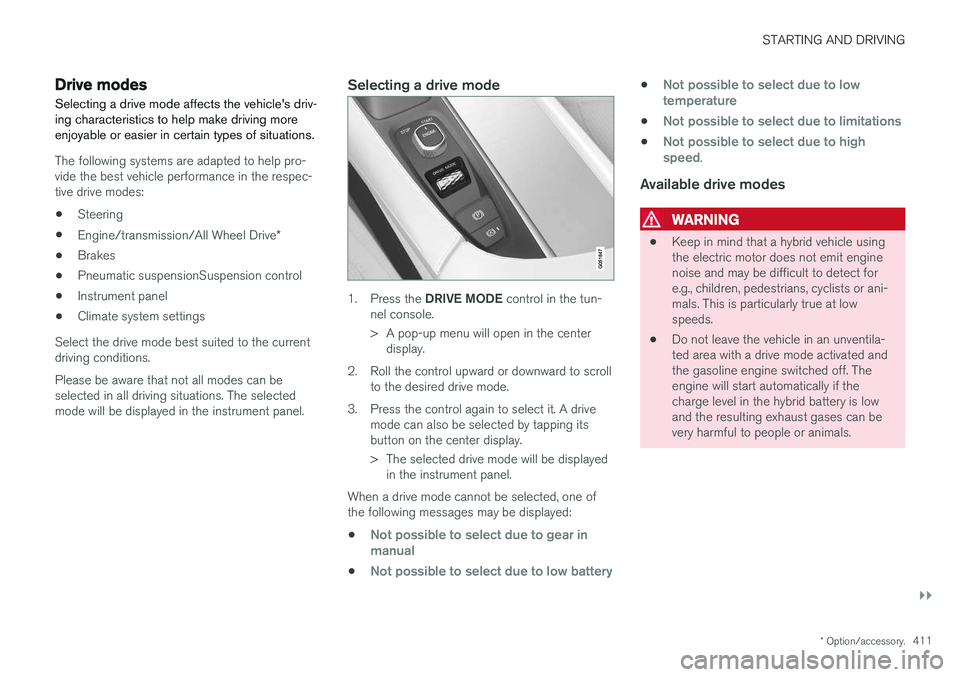
Selecting a drive mode
1. Press the DRIVE MODE control in the tun-
nel console.
> A pop-up menu will open in the center display.
2. Roll the control upward or downward to scroll to the desired drive mode.
3. Press the control again to select it. A drive mode can also be selected by tapping its button on the center display.
> The selected drive mode will be displayedin the instrument panel.
When a drive mode cannot be selected, one of the following messages may be displayed:
•
Not possible to select due to gear in manual
•Not possible to select due to low battery
•Not possible to select due to low temperature
•Not possible to select due to limitations
•Not possible to select due to high speed.
Available drive modes
WARNING
• Keep in mind that a hybrid vehicle using the electric motor does not emit enginenoise and may be difficult to detect fore.g., children, pedestrians, cyclists or ani-mals. This is particularly true at lowspeeds.
• Do not leave the vehicle in an unventila-ted area with a drive mode activated andthe gasoline engine switched off. Theengine will start automatically if thecharge level in the hybrid battery is lowand the resulting exhaust gases can bevery harmful to people or animals.
Page 433 of 580
INFOTAINMENT
* Option/accessory.431
Search
Tap the magnifying glass to display a screen where you can enter text using the center dis-play's keyboard or by writing in the free-text fieldto search for e.g., a station number, an artist,song title, etc.
Channels
Tap to display a complete list of the channels included in your subscription. Tap a channelname to listen. If a subscription to a channel hasexpired, its name will be grayed-out on thescreen. For quick access to a channel that you often lis- ten to, tap the star to the right of the channel'sname to add it to the list of favorites.
Favorites
Tap to display the channels that you have added to this list. Tap a channel name to listen.
Categories/Genres
Tap to display the categories available. Tap a cat- egory or genre name to display the channels thatit contains and then tap a channel to listen. If an alert has been set (see the section "Alerts" below) and an alert is active for an artist, song orteam, virtual categories will also be temporarycreated and displayed. The channels currentlybroadcasting the song, artist or broadcasting aprogram with the selected team will be listed in avirtual category.
EPG (Electronic Program Guide)On the center display's Home screen, tap EPGfor information about e.g., when a program is being broadcast and its name, description, artist, etc. If no information is currently available,
No
information will be displayed.
AlertsIf this feature has been selected under SiriusXM
Settings, the Alerts button will be displayed on
the Home screen. To add e.g., an artist's name, song title or a sports team to the list of alerts:
1. Tune to any channel that is broadcasting a song, game, etc., of your choice.
2. Press the
Alerts button.
3. A pop-up window will be displayed showing a list of alerts (nothing will be displayed if the selected channel does not support the alertfunction).
4. Select one of the alternatives in list (only one can be selected at a time).
5. The song/artist/team will now be added to the list of alerts. Favorite sports teams canalso be added to the list using the "GameAlert" setting as described in the article "Sir-iusXM satellite radio settings."
> When your choice is being broadcast on achannel, you will be informed by a pop-up.
iTunes taggingFrom the center display's Top view, tapSiriusXM
Settings. Tap theiTunes Tagging menu. Tap
the iTunes Tagging box to activate/deactivate
this function and tap Close to return to Home
view. Tap Tags List to display a list of all tagged
songs. If the function is activated, the
iTunes tag button
will be displayed in Home view. If a song is played that you would like to buy in the iTunes store, tapthis button while the song is playing to tag it. If a song with
iTunes Tagging information is availa-
ble, the button will be selectable. Tap the button to tag the song. If you would like to buy a taggedsong via iTunes, Tap the iTunes tag button. To buy a song in iTunes, begin by connecting an iPhone/iPod/iPad to the USB socket in the tun-nel console. The iTunes tagging list will automati-cally be transferred to the device and removedfrom the list in the vehicle. If the device is con-nected when a song is tagged, the data will auto-matically be saved in the device. To purchase thesong, consult the iTunes support page.
Related information
• SiriusXM ®
Satellite radio * (p. 429)
• Using the center display keyboard (p. 36)
• SiriusXM ®
Satellite radio * settings (p. 432)
• Connecting a device via the AUX/USBsocket (p. 446)
Page 448 of 580
INFOTAINMENT
* Option/accessory.
446
Connecting a device via the AUX/USB socket
External audio sources such as an iPod ®
or mp3
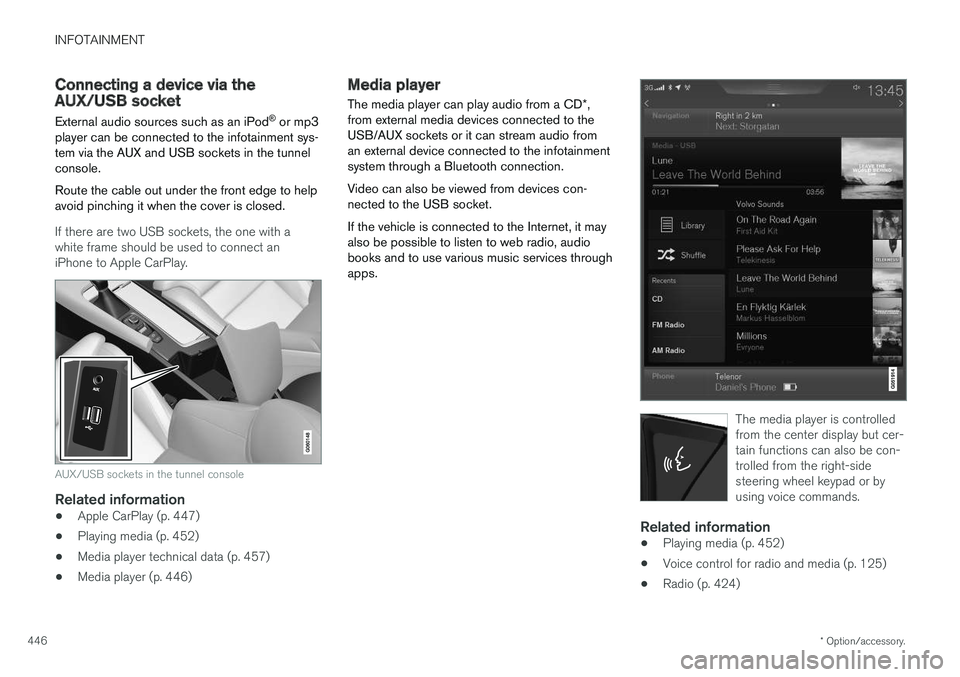
player can be connected to the infotainment sys- tem via the AUX and USB sockets in the tunnelconsole. Route the cable out under the front edge to help avoid pinching it when the cover is closed.
If there are two USB sockets, the one with a white frame should be used to connect aniPhone to Apple CarPlay.
AUX/USB sockets in the tunnel console
Related information
• Apple CarPlay (p. 447)
• Playing media (p. 452)
• Media player technical data (p. 457)
• Media player (p. 446)
Media player
The media player can play audio from a CD *,
from external media devices connected to the USB/AUX sockets or it can stream audio froman external device connected to the infotainmentsystem through a Bluetooth connection. Video can also be viewed from devices con- nected to the USB socket. If the vehicle is connected to the Internet, it may also be possible to listen to web radio, audiobooks and to use various music services throughapps.
The media player is controlled from the center display but cer-tain functions can also be con-trolled from the right-sidesteering wheel keypad or byusing voice commands.
Related information
• Playing media (p. 452)
• Voice control for radio and media (p. 125)
• Radio (p. 424)
Page 453 of 580
INFOTAINMENT
* Option/accessory.451
Android Auto * settings
The following settings can be made for Android Auto.
Automatic start1. Tap Settings in the center display's Top
view.
2. Tap
CommunicationAndroid Auto and
select the following settings:
• Select the Android Auto box for automatic start when the device's USB cable is con-nected.
• Deselect the Android Auto box to
disable
automatic start when the device's USBcable is connected.
A maximum of 20 Android devices can be storedin the list. When the list is full, the first (oldest)device stored will be deleted. To erase the entire list, a factory reset has to be performed. See the article "Resetting the set-tings view."
System volume levels1. Tap Settings in the center display's Top
view. 2.
Tap
SoundSystem Volumes and select
the following settings: •
Voice Control
•Navi Voice Guidance
•Phone Ringtone
Related information
• Android auto
* (p. 449)
• Resetting the settings view (p. 117)
CD (media) player
*
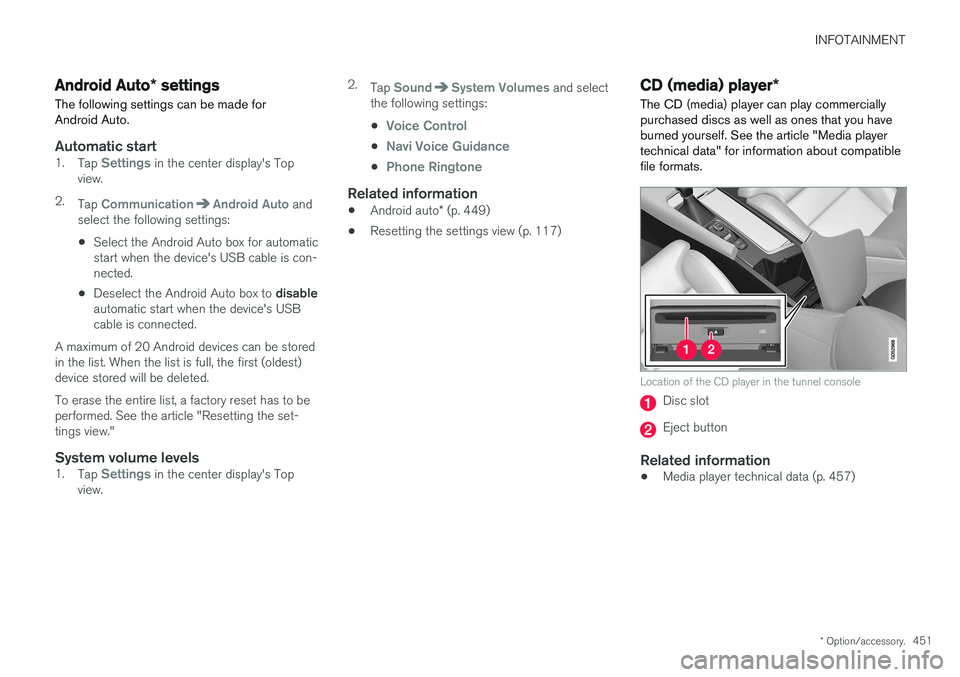
The CD (media) player can play commercially purchased discs as well as ones that you haveburned yourself. See the article "Media playertechnical data" for information about compatiblefile formats.
Location of the CD player in the tunnel console
Disc slot
Eject button
Related information
• Media player technical data (p. 457)
Page 520 of 580

||
MAINTENANCE AND SERVICING
* Option/accessory.
518
Positions
• Fuses 1, 3–21, 23–36, 39–53 and 55–59 are called "Micro".
• Fuses 2, 22, 37–38 and 54 are called"MCase" and should only be replaced by atrained and qualified Volvo service technician.
Function
A
– –
– –
– –
Alarm system movement sensorA
5
Media player 5
Instrument panel 5
Center console buttons 5
Sun sensor 5
– –
– –
Steering wheel module 5
Module for start knob and parking brake 5
Heated steering wheel
* module 15
Function
A
– –
– –
– –
– –
Climate system control module 10
– –
On-board diagnostics (OBDII) 10
Center display 5
Climate system blower module (front)40
– –
Instrument lighting; Courtesy light- ing; Auto-dim rearview mirror; Rainand light sensor; Rear tunnel con- sole keypad
*B
; Power front seats *;
Power rear seats C
; Display for rear
seat convenience functions *; Rear
seat massage function *; Rear door
control panels 7.5
Control module for driver support functions
5
Function
A
Panorama roof and sun shade*20
Head-up display
* 5
Courtesy lighting 5
– –
Ceiling console display (seat belt reminder, front passenger side air-bag indicator) 5
– –
Humidity sensor 5
Rear passenger-side door module 20
Fuses in the cargo compartment 10
Internet connection control module; Volvo On Call control module
5
Rear driver-side door module 20
Infotainment control module (amplifier)40
Climate system blower module (rear)
* 40
Multi-band antenna module 5
Front seat massage function 5
Page 545 of 580
MAINTENANCE AND SERVICING
}}
* Option/accessory.543
CAUTION
When using an automatic car wash in which the vehicle has to be able to roll freely, theauto-hold brake function must be deactivated.If this is not done, the brakes will automati-cally be applied when the vehicle is stationary. To deactivate this function:
1. Drive the vehicle into the car wash
2. Turn off the auto-hold function using the
control on the center console
3. Turn off the parking brake's automatic function in the center display's Top view (tap
Settings, tap My CarParking
Brake and Suspension and deselectAuto Activate Parking Brake)
4. Put the gear selector in N
5. Switch off the ignition by turning the start knob to STOP and holding it in this posi-
tion for at least 4 seconds
The vehicle will then be able to roll freely.
CAUTION
• Before driving into an automatic car wash, turn off the optional rain sensor toavoid damaging the windshield wipers.
• Make sure that side view mirrors, auxiliarylamps, etc, are secure, and that anyantenna(s) are retracted or removed. Oth-erwise there is risk of the machine dis-lodging them.
• Chromed wheels:
Clean chrome-plated
wheels using the same detergents usedfor the body of the vehicle. Aggressivewheel-cleaning agents can permanentlystain chrome-plated wheels.
WARNING
• When the vehicle is driven immediately after being washed, apply the brakes,including the parking brake, several timesin order to remove any moisture from thebrake linings.
• Engine cleaning agents should not beused when the engine is warm. This con-stitutes a fire risk.
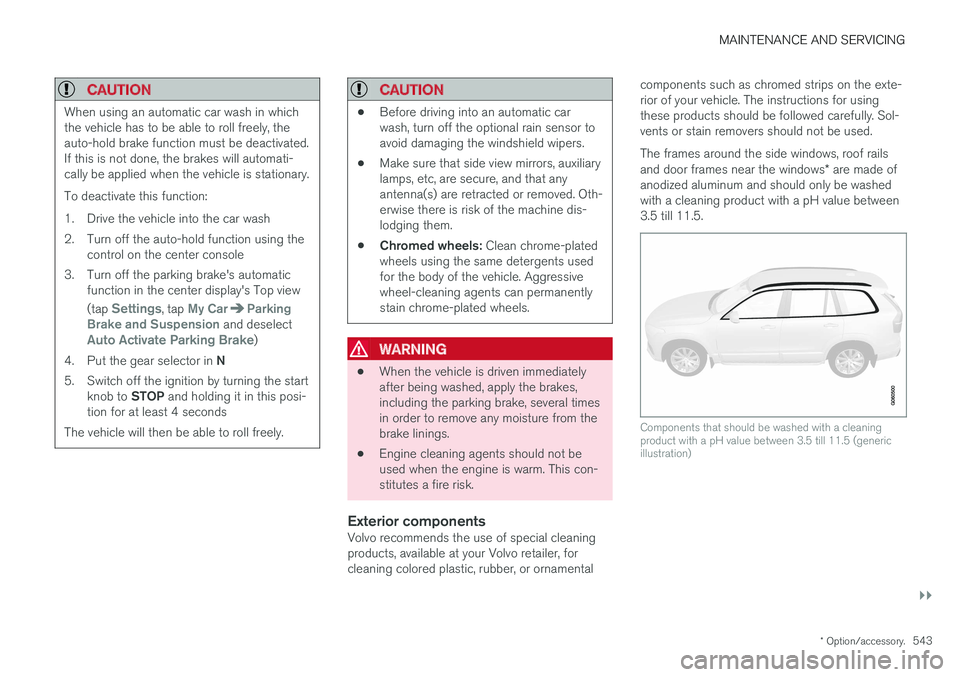
Exterior componentsVolvo recommends the use of special cleaningproducts, available at your Volvo retailer, forcleaning colored plastic, rubber, or ornamental components such as chromed strips on the exte-rior of your vehicle. The instructions for usingthese products should be followed carefully. Sol-vents or stain removers should not be used. The frames around the side windows, roof rails and door frames near the windows
* are made of
anodized aluminum and should only be washed with a cleaning product with a pH value between3.5 till 11.5.
Components that should be washed with a cleaning product with a pH value between 3.5 till 11.5 (genericillustration)
Page 568 of 580
INDEX
566Booster cushions 88
Brake assist system 365
Brake lights 150, 366Brakes
auto-hold 365
Brake system Brake pad inspection 363
fluid 560
general information 362, 364, 366
Bulbs 529 replacing 524
specifications 530
C
Cameradriver support systems 308
limitations 309
Camera, Park Assist 348, 350, 352, 353
Capacity weight 478, 557
Cargo area, steel grid 223
Cargo area cover 225Cargo compartment fuses 520
raising/lowering the level 216
Cargo net 221
Cargo space 216
Car wash 541
Catalytic converter 381CD, USB, iPod, AUX, Bluetooth, Recents, Library, Shuffle, Similar, Change device,Audio Language, Off, Subtitle Language, Video, DivX ® VOD 452
CD player 451 Cell phone hands-free 438
Pairing 439
Cell phone voice control 124 Center display changing settings 35
cleaning 546
keyboard 36
navigating in 43
overview 33
screen in the center console 49
symbols in the status bar 48
Chains 479
Changing a wheel 481Charging cable hybrid battery 394
Child restraints recalls and registration 81Child restraint systems 81booster cushions 88
convertible seats 85
infant seats 83
ISOFIX/LATCH anchors 89
top tether anchors 91
Child safety 79 booster cushions 88
child restraint systems 81, 90
convertible seats 85
infant seats 83
Child safety locks 254 Child seats lower attachment points 90
City safety 312, 320City Safety crossing traffic 317
detecting objects 315
limitations 320
rear collision warning 324
symbols and messages 323
troubleshooting 318
City Safety, On/Off 314 City Safety ™
Multi Target 318
Cleaning exterior 541
interior 544