ignition VOLVO XC90 T8 2017 Owner´s Manual
[x] Cancel search | Manufacturer: VOLVO, Model Year: 2017, Model line: XC90 T8, Model: VOLVO XC90 T8 2017Pages: 580, PDF Size: 10.37 MB
Page 404 of 580
||
STARTING AND DRIVING
402
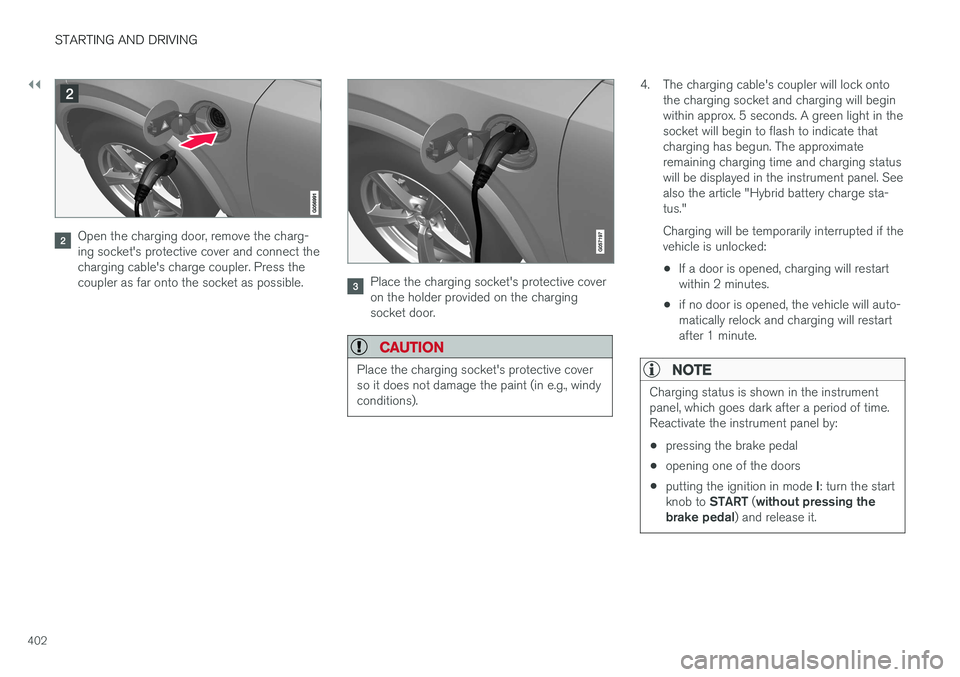
Open the charging door, remove the charg- ing socket's protective cover and connect thecharging cable's charge coupler. Press thecoupler as far onto the socket as possible.
Place the charging socket's protective cover on the holder provided on the chargingsocket door.
CAUTION
Place the charging socket's protective cover so it does not damage the paint (in e.g., windyconditions).
4. The charging cable's coupler will lock ontothe charging socket and charging will begin within approx. 5 seconds. A green light in thesocket will begin to flash to indicate thatcharging has begun. The approximateremaining charging time and charging statuswill be displayed in the instrument panel. Seealso the article "Hybrid battery charge sta-tus." Charging will be temporarily interrupted if the vehicle is unlocked: •If a door is opened, charging will restart within 2 minutes.
• if no door is opened, the vehicle will auto-matically relock and charging will restartafter 1 minute.
NOTE
Charging status is shown in the instrument panel, which goes dark after a period of time.Reactivate the instrument panel by: •
pressing the brake pedal
• opening one of the doors
• putting the ignition in mode
I: turn the start
knob to START (without pressing the
brake pedal ) and release it.
Page 407 of 580
STARTING AND DRIVING
405
LEDindica- tor light'scolorExplanation
White Courtesy light
Yellow Standby mode (e.g., after a door has been opened or if the charger coupling is not lockedin position in the chargingsocket): waiting for charging tobegin
Flashinggreen Charging is in progress (theslower the light flashes, thecloser the battery is to beingfully charged)
Green Charging completed (the light will go out after a short time)
Red A fault has occurred
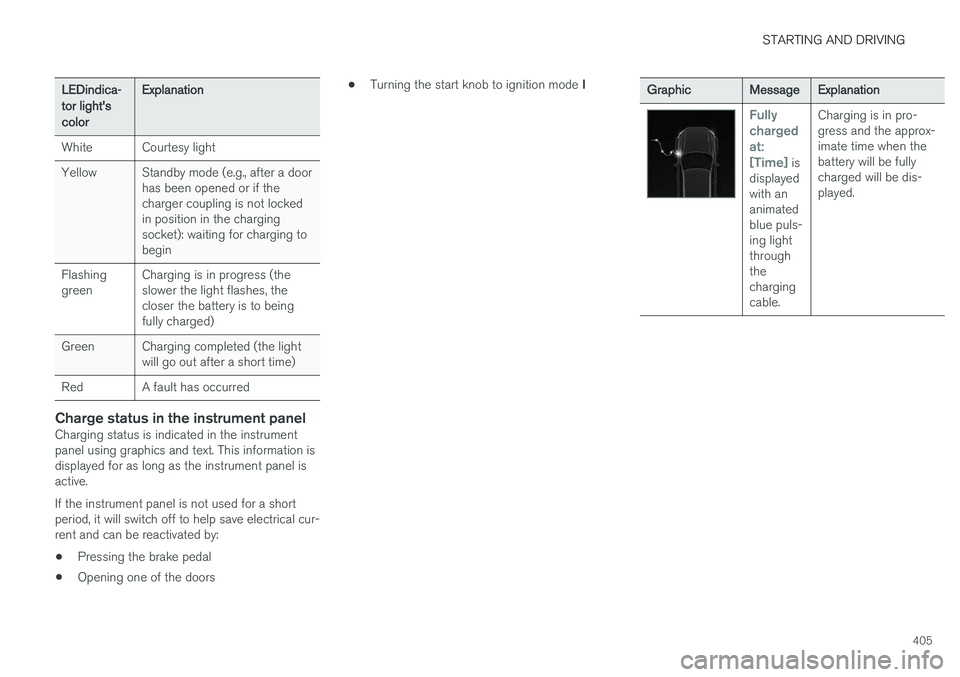
Charge status in the instrument panelCharging status is indicated in the instrument panel using graphics and text. This information isdisplayed for as long as the instrument panel isactive. If the instrument panel is not used for a short period, it will switch off to help save electrical cur-rent and can be reactivated by:
• Pressing the brake pedal
• Opening one of the doors •
Turning the start knob to ignition mode
I
GraphicMessageExplanation
Fully chargedat:[Time]
is
displayed with ananimatedblue puls-ing lightthroughthechargingcable. Charging is in pro-gress and the approx-imate time when thebattery will be fullycharged will be dis-played.
Page 417 of 580
STARTING AND DRIVING
* Option/accessory.415
Related information
•Gear selector positions (p. 416)
• Gear shift indicator (p. 415)
• Shiftlock (p. 415)
• Steering wheel paddles
* (p. 418)
• All Wheel Drive (AWD) (p. 419)
Shiftlock The automatic transmission's shiftlock feature helps prevent inadvertently moving the gearselector between different positions.
Automatic shiftlock
From Park –
P
In order to move the gear selector from the P
position, the brake pedal must be depressed and the ignition must be in mode II.
From neutral – N
If the gear selector is in N and the vehicle has
been stationary for more than 3 seconds (regard- less of whether or not the engine is running), theshiftlock feature will lock the gear selector in thisposition. In order to move the gear selector from the N
position, the brake pedal must be depressed and the ignition must be in mode II.
Messages in the instrument panelIf the gear selector is locked in position, a mes- sage such as: Gear lever Press brake pedal
to activate gear lever will be displayed.
There is no mechanical shiftlock function.
Related information
• Gear selector positions (p. 416)
• Automatic transmission (p. 414)
Gear shift indicator
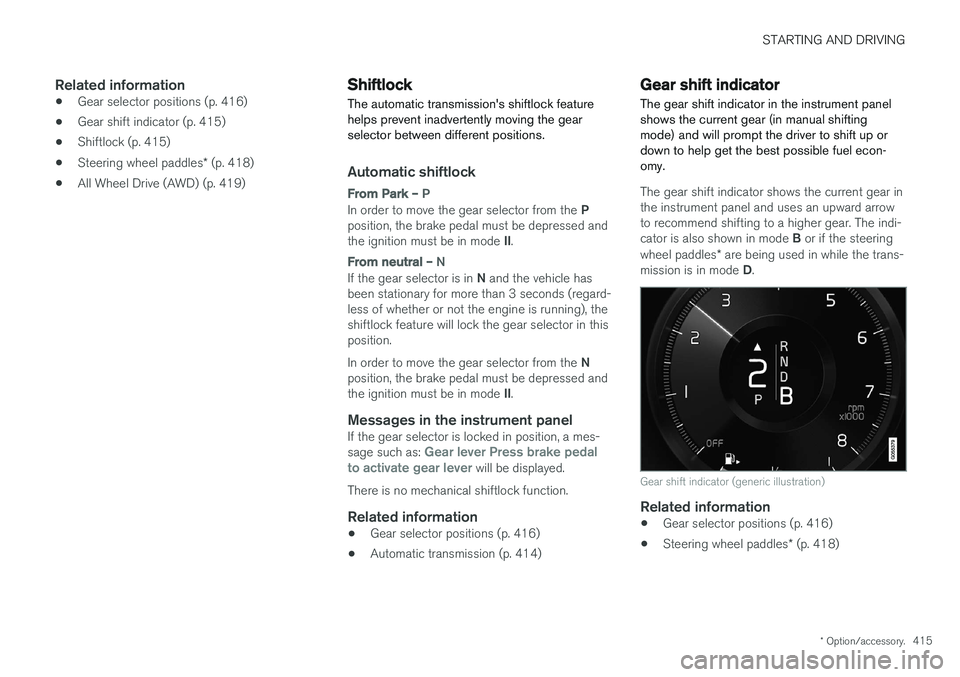
The gear shift indicator in the instrument panel shows the current gear (in manual shiftingmode) and will prompt the driver to shift up ordown to help get the best possible fuel econ-omy.
The gear shift indicator shows the current gear in the instrument panel and uses an upward arrowto recommend shifting to a higher gear. The indi- cator is also shown in mode B or if the steering
wheel paddles * are being used in while the trans-
mission is in mode D.
Gear shift indicator (generic illustration)
Related information
• Gear selector positions (p. 416)
• Steering wheel paddles
* (p. 418)
Page 418 of 580
STARTING AND DRIVING
416
Gear selector positions
The shift-by-wire gear transmission shifts gears electronically instead of mechanically for fasterand more distinct gear shifting.
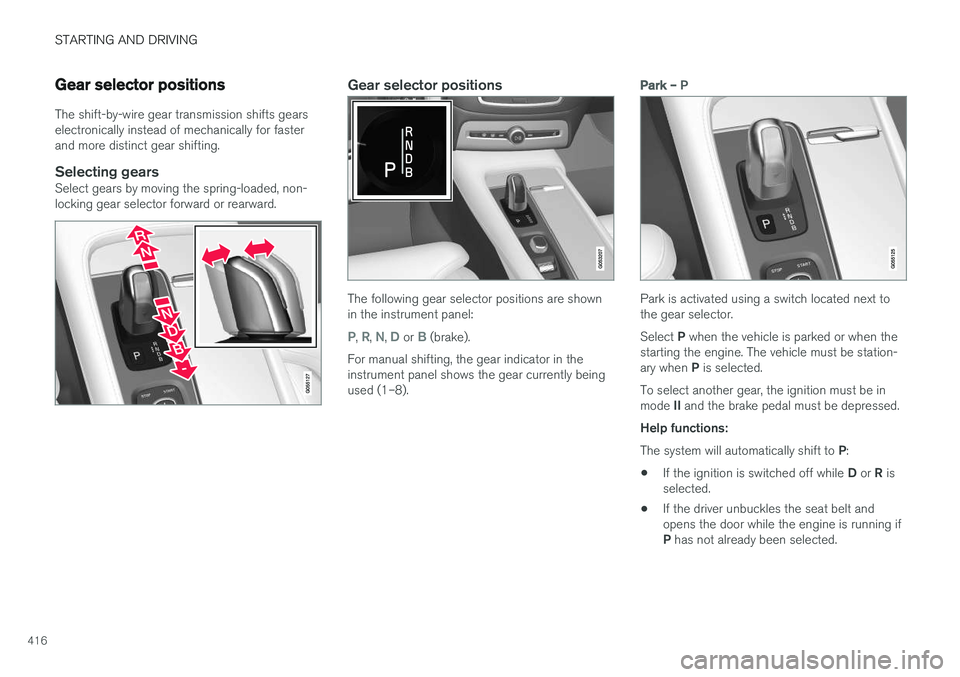
Selecting gearsSelect gears by moving the spring-loaded, non-locking gear selector forward or rearward.
Gear selector positions
The following gear selector positions are shown in the instrument panel:
P, R, N, D or B (brake).
For manual shifting, the gear indicator in the instrument panel shows the gear currently beingused (1–8).
Park – P
Park is activated using a switch located next to the gear selector. Select P when the vehicle is parked or when the
starting the engine. The vehicle must be station- ary when P is selected.
To select another gear, the ignition must be inmode II and the brake pedal must be depressed.
Help functions: The system will automatically shift to P:
• If the ignition is switched off while
D or R is
selected.
• If the driver unbuckles the seat belt and opens the door while the engine is running if P
has not already been selected.
Page 419 of 580
STARTING AND DRIVING
* Option/accessory.417
In position
P, the transmission is mechanically
locked. Always apply the parking brake when the vehicle is parked.
NOTE
The gear selector must be in the P position
before the vehicle can be locked and the alarm set.
WARNING
Always apply the parking brake when the vehicle is parked, particularly when parking on a hill. The transmission's P mode may not be
able to keep the vehicle stationary if it is parked on an incline.
Reverse – R
The vehicle must be stationary before R can be
selected.
Neutral – N
No gear is selected and the engine can be started. Always apply the parking brake if thevehicle is not moving and the gear selector is in the N position.
The ignition must be in mode II and the brake
pedal must be depressed before the gear selec-tor can be moved from N.
Drive – D
D is the normal driving position and gear shifting
is fully automatic. The vehicle must be stationary when the gear selector is moved from R to D.
Brake – B
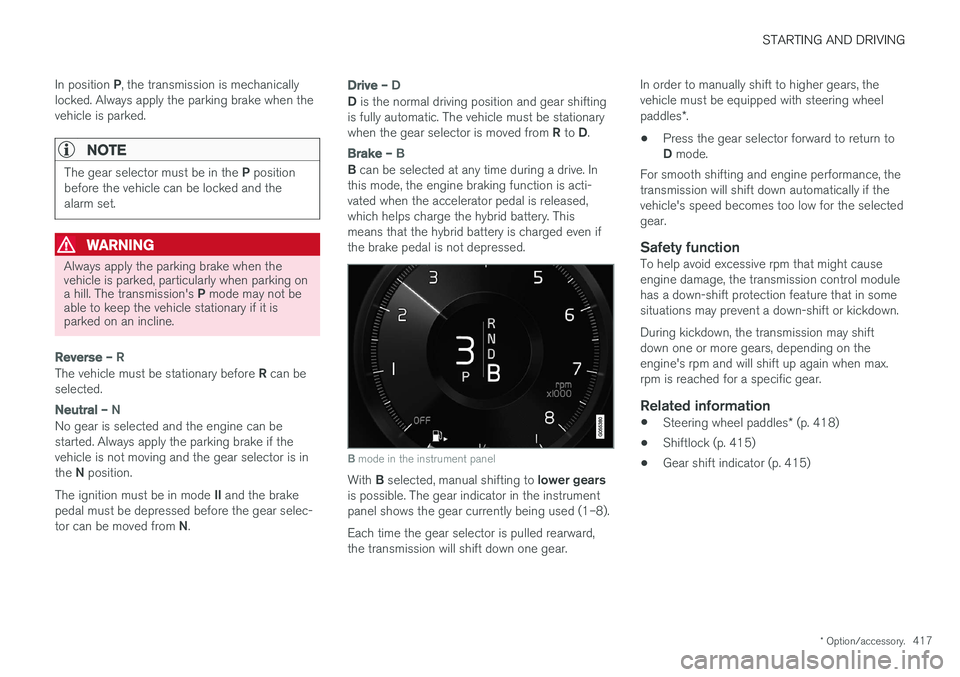
B can be selected at any time during a drive. In
this mode, the engine braking function is acti- vated when the accelerator pedal is released,which helps charge the hybrid battery. Thismeans that the hybrid battery is charged even ifthe brake pedal is not depressed.
B mode in the instrument panel
With B selected, manual shifting to lower gears
is possible. The gear indicator in the instrument panel shows the gear currently being used (1–8). Each time the gear selector is pulled rearward, the transmission will shift down one gear. In order to manually shift to higher gears, thevehicle must be equipped with steering wheel paddles
*.
• Press the gear selector forward to return to D
mode.
For smooth shifting and engine performance, the transmission will shift down automatically if thevehicle's speed becomes too low for the selectedgear.
Safety functionTo help avoid excessive rpm that might causeengine damage, the transmission control modulehas a down-shift protection feature that in somesituations may prevent a down-shift or kickdown. During kickdown, the transmission may shift down one or more gears, depending on theengine's rpm and will shift up again when max.rpm is reached for a specific gear.
Related information
• Steering wheel paddles
* (p. 418)
• Shiftlock (p. 415)
• Gear shift indicator (p. 415)
Page 424 of 580
INFOTAINMENT
422
The infotainment system
The infotainment system consists of a radio, media player and has the capacity to communi-cate with a Bluetooth-connected cell phone. It isalso possible to connect to the Internet to e.g.,stream audio content via apps. The system's functions can be controlled from the right-side steering wheel keypad, the centerdisplay or by using voice commands.
Infotainment overview
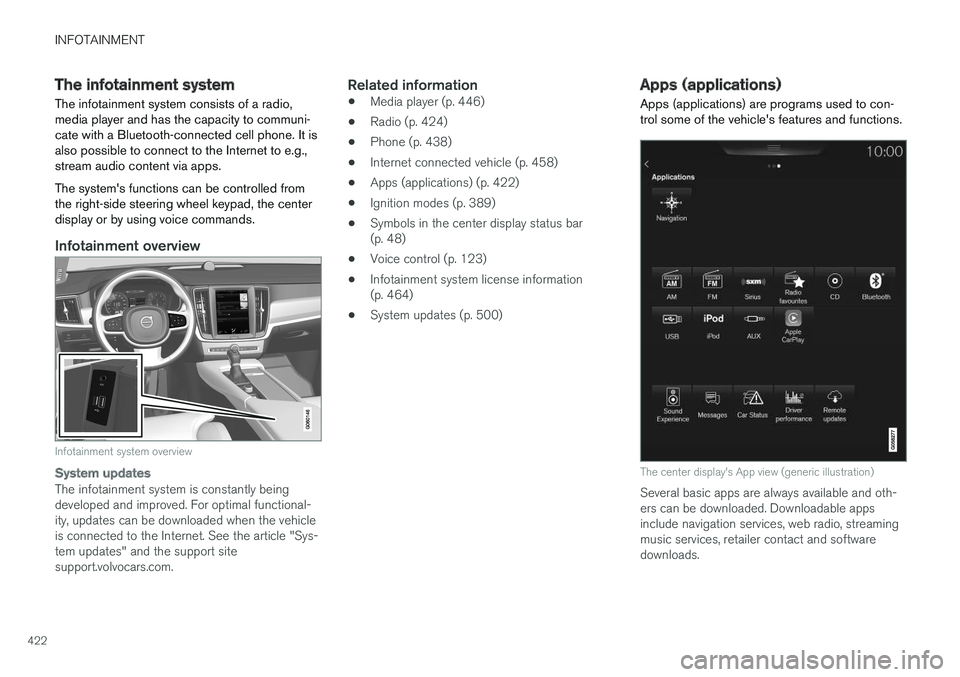
Infotainment system overview
System updates
The infotainment system is constantly being developed and improved. For optimal functional-ity, updates can be downloaded when the vehicleis connected to the Internet. See the article "Sys-tem updates" and the support sitesupport.volvocars.com.
Related information
• Media player (p. 446)
• Radio (p. 424)
• Phone (p. 438)
• Internet connected vehicle (p. 458)
• Apps (applications) (p. 422)
• Ignition modes (p. 389)
• Symbols in the center display status bar(p. 48)
• Voice control (p. 123)
• Infotainment system license information(p. 464)
• System updates (p. 500)
Apps (applications)
Apps (applications) are programs used to con- trol some of the vehicle's features and functions.
The center display's App view (generic illustration)
Several basic apps are always available and oth- ers can be downloaded. Downloadable appsinclude navigation services, web radio, streamingmusic services, retailer contact and softwaredownloads.
Page 442 of 580
||
INFOTAINMENT
4405. For the phone selected, accept or cancel the
alternatives for the phone book (list of con- tacts), text messages, etc. Full functionalitymay not be available in all cell phones.
6. To connect the vehicle to the Internet via the phone's Bluetooth function, activate thephone's function for tethering/personal hot-spot, etc.
Alternative 2: searching for the vehicle from the phone
1. Open the center display's Phone view.
•If no phones have been paired to the vehi- cle, tap
Add phoneMake vehicle
discoverable.
• If a phone has previously been paired to the vehicle, tap
Change and tap Add
phone
Make vehicle discoverable in
the pop-up window.
2. Activate the phone's Bluetooth function.
3. Search in the phone for Bluetooth devices. > A list of Bluetooth devices will be dis-played.
4. Select the vehicle's name in the list.
5. Check that the code displayed in the phone is the same as the one in the vehicle. Con- firm in both places. 6. For the phone selected, accept or cancel the
alternatives for the phone book (list of con-tacts), text messages, etc. Full functionalitymay not be available in all cell phones.
7. To connect the vehicle to the Internet via the phone's Bluetooth function, activate thephone's function for tethering/personal hot-spot, etc.
NOTE
If your cell phone's operating system is upda- ted, this may break the connection betweenthe phone and the vehicle. If this happens,delete the phone from the list of pairedphones and repeat the pairing proceduredescribed in this article.
Compatible cell phonesMany of the cell phones available today have Bluetooth functionality but not all of them arefully compatible with the vehicle. Go towww.volvocars.com for a list of compatiblephones or contact your Volvo retailer.
Related information
• Connecting/disconnecting a cell phone(p. 440)
• Handling phone calls (p. 441)
• Handling text messages (p. 444)
• Phone settings (p. 445)
• Bluetooth settings (p. 460)
Connecting/disconnecting a cell phone
Once a cell phone or other Bluetooth device has been paired to the infotainment system, it can beconnected, disconnected or removed from thelist of available devices.
Connecting automaticallyOnly the 2 most recently connected cell phones can be connected automatically.
1. Before switching on the vehicle's ignition, be sure that the phone's Bluetooth function is activated. To connect to the Internet, the phone's per- sonal hotspot (tethering) function must alsobe activated.
2. Switch on the ignition. > The phone will be connected to the sys-tem and can be used wirelessly.
Connecting manually1. Be sure that the phone's Bluetooth and per- sonal hotspot (tethering) functions are acti-vated.
2. In the center display, open Phone view and tap
Change phone.
> A list of available Bluetooth devices (ones that have already been paired to the info- tainment system) will be displayed.
Page 456 of 580
INFOTAINMENT
454
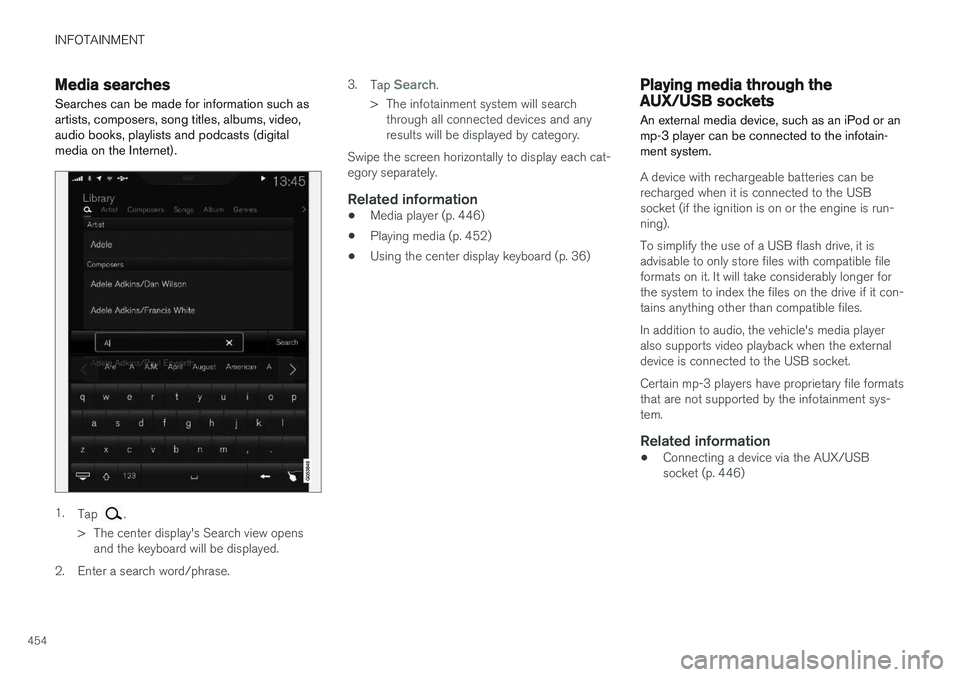
Media searchesSearches can be made for information such as artists, composers, song titles, albums, video,audio books, playlists and podcasts (digitalmedia on the Internet).
1. Tap .
> The center display's Search view opens and the keyboard will be displayed.
2. Enter a search word/phrase. 3.
Tap
Search.
> The infotainment system will search through all connected devices and any results will be displayed by category.
Swipe the screen horizontally to display each cat-egory separately.
Related information
• Media player (p. 446)
• Playing media (p. 452)
• Using the center display keyboard (p. 36)
Playing media through the AUX/USB sockets
An external media device, such as an iPod or an mp-3 player can be connected to the infotain-ment system.
A device with rechargeable batteries can be recharged when it is connected to the USBsocket (if the ignition is on or the engine is run-ning). To simplify the use of a USB flash drive, it is advisable to only store files with compatible fileformats on it. It will take considerably longer forthe system to index the files on the drive if it con-tains anything other than compatible files. In addition to audio, the vehicle's media player also supports video playback when the externaldevice is connected to the USB socket. Certain mp-3 players have proprietary file formats that are not supported by the infotainment sys-tem.
Related information
• Connecting a device via the AUX/USBsocket (p. 446)
Page 457 of 580
INFOTAINMENT
* Option/accessory.455
Streaming media through a Bluetooth connection The media player is equipped with Bluetooth ®
for streaming audio files from external Bluetooth ®
-enabled devices.
Related information
• Connecting a Bluetooth ®
device (p. 445)
• Playing media (p. 452)
• Voice control for radio and media (p. 125)
• Media player (p. 446)
• Ignition modes (p. 389)
• Media player technical data (p. 457)
Media sound settings
Sound settings for the media player can be per- sonalized.
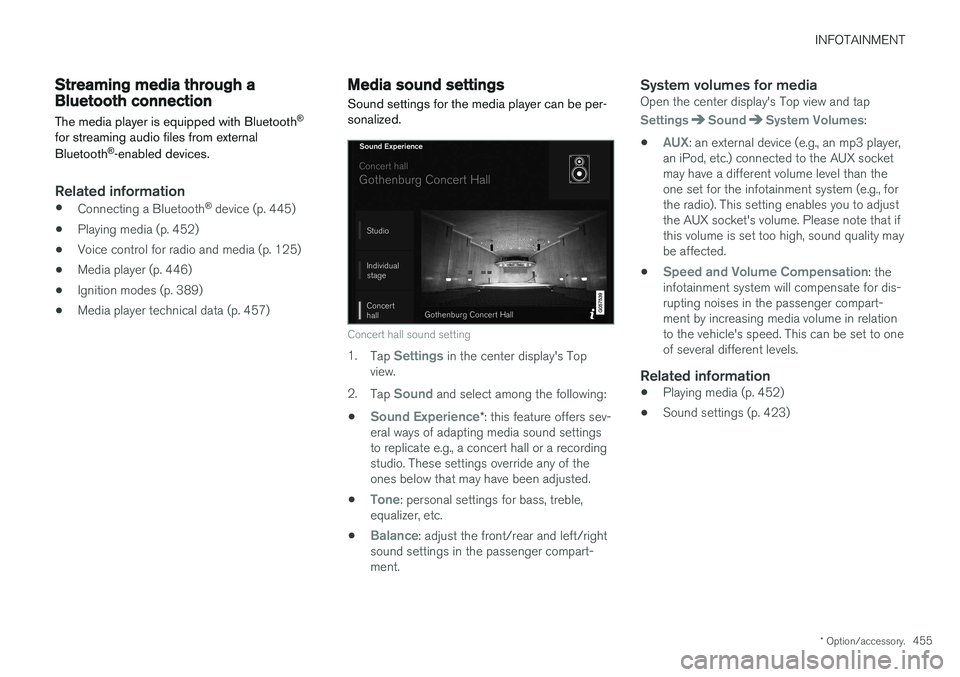
Concert hall sound setting
1. Tap Settings in the center display's Top
view.
2. Tap
Sound and select among the following:
•
Sound Experience* : this feature offers sev-
eral ways of adapting media sound settings to replicate e.g., a concert hall or a recordingstudio. These settings override any of theones below that may have been adjusted.
•
Tone: personal settings for bass, treble,
equalizer, etc.
•
Balance: adjust the front/rear and left/right
sound settings in the passenger compart- ment.
System volumes for mediaOpen the center display's Top view and tap
SettingsSoundSystem Volumes:
•
AUX: an external device (e.g., an mp3 player,
an iPod, etc.) connected to the AUX socket may have a different volume level than theone set for the infotainment system (e.g., forthe radio). This setting enables you to adjustthe AUX socket's volume. Please note that ifthis volume is set too high, sound quality maybe affected.
•
Speed and Volume Compensation: the
infotainment system will compensate for dis- rupting noises in the passenger compart-ment by increasing media volume in relationto the vehicle's speed. This can be set to oneof several different levels.
Related information
• Playing media (p. 452)
• Sound settings (p. 423)
Page 488 of 580
||
WHEELS AND TIRES
486the inflation pressure recommended by the vehi- cle manufacturer on the vehicle placard or tireinflation pressure label. (If your vehicle has tiresof a different size than the size indicated on thevehicle placard or tire inflation pressure label, youshould determine the proper tire inflation pres-sure for those tires.) As an added safety feature, your vehicle has been equipped with a tire pressure monitoringsystem (TPMS) that illuminates a low tire pres-sure telltale when one or more of your tires issignificantly under-inflated. Accordingly, when thelow tire pressure telltale illuminates, you shouldstop and check your tires as soon as possible,and inflate them to the proper pressure. Driving on a significantly under-inflated tire cau- ses the tire to overheat and can lead to tire fail-ure. Under-inflation also reduces fuel efficiencyand tire tread life, and may affect the vehicle'shandling and stopping ability. Please note thatthe TPMS is not a substitute for proper tire main-tenance, and it is the driver's responsibility tomaintain correct tire pressure, even if under-infla-tion has not reached the level to trigger illumina-tion of the TPMS low tire pressure telltale. Your vehicle has also been equipped with a TPMS malfunction indicator to indicate when thesystem is not operating properly. The TPMS mal-function indicator is combined with the low tirepressure telltale.
When the system detects a malfunction, the tell-tale will flash for approximately one minute andthen remain continuously illuminated. Thissequence will continue upon subsequent vehiclestart-ups as long as the malfunction exists. Whenthe malfunction indicator is illuminated, the sys-tem may not be able to detect or signal low tirepressure as intended. TPMS malfunctions may occur for a variety of reasons, including the installation of replacementor alternate tires or wheels on the vehicle thatprevent the TPMS from functioning properly.Always check the TPMS malfunction telltale afterreplacing one or more tires or wheels on yourvehicle to ensure that the replacement or alter-nate tires and wheels allow the TPMS to con-tinue to function properly.
Messages in the instrument panel
When the TPMS symbol illuminates, the following text messages may also be displayed:
•
Tire pressure low
•Tire pressure system Temporarily
unavailable
•Tire pressure system Service required
If TPMS cannot determine which tire(s) have low inflation pressure:
• All four tires will be shown as affected in thecenter display After changing wheels, always calibrate the sys-tem to avoid false warnings. TPMS does not replace the need for regular tire inspection and maintenance.
NOTE
If you change to tires with a different dimen- sion than the factory-installed ones, theTPMS system must be calibrated for thesetires. TPMS cannot be turned off.
WARNING
Incorrect inflation pressure could lead to tire failure, resulting in a loss of control of thevehicle.
Related information
•
Checking tire inflation pressure (p. 487)
• Reinflating tires equipped with the Tire Pressure Monitoring System (TPMS)(p. 488)
• Ignition modes (p. 389)