ESP VOLVO XC90 T8 2017 Owner´s Manual
[x] Cancel search | Manufacturer: VOLVO, Model Year: 2017, Model line: XC90 T8, Model: VOLVO XC90 T8 2017Pages: 580, PDF Size: 10.37 MB
Page 427 of 580
INFOTAINMENT
}}
425
Changing and searching for radio stations The radio automatically compiles a list of the strongest stations that it is currently receiving.
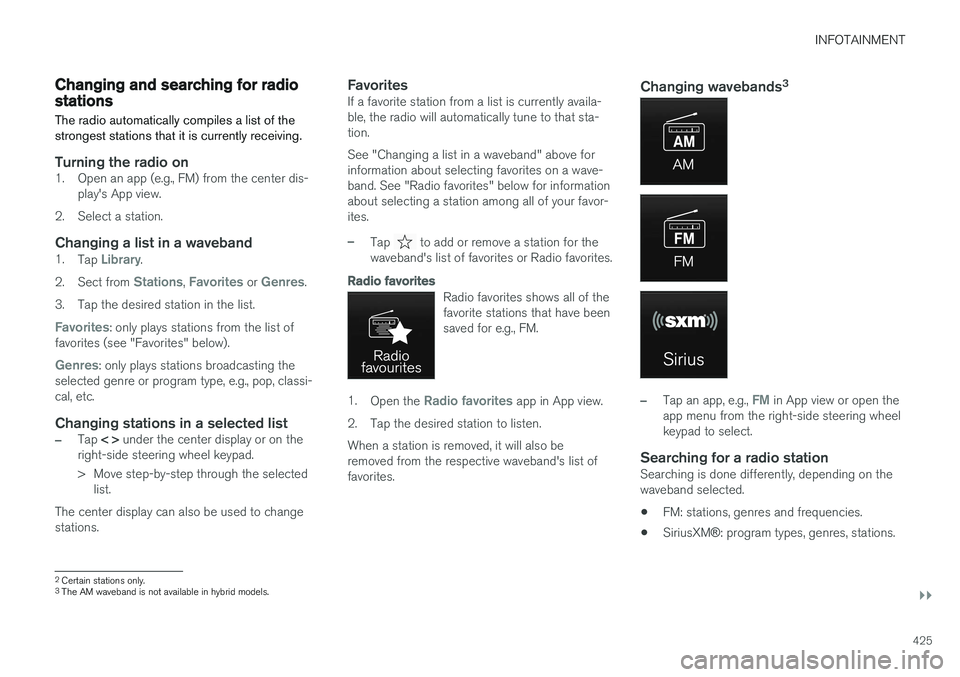
Turning the radio on1. Open an app (e.g., FM) from the center dis-play's App view.
2. Select a station.
Changing a list in a waveband1. Tap Library.
2. Sect from
Stations, Favorites or Genres.
3. Tap the desired station in the list.
Favorites: only plays stations from the list of
favorites (see "Favorites" below).
Genres: only plays stations broadcasting the
selected genre or program type, e.g., pop, classi- cal, etc.
Changing stations in a selected list
–Tap < > under the center display or on the
right-side steering wheel keypad.
> Move step-by-step through the selected list.
The center display can also be used to change stations.
FavoritesIf a favorite station from a list is currently availa-ble, the radio will automatically tune to that sta-tion. See "Changing a list in a waveband" above for information about selecting favorites on a wave-band. See "Radio favorites" below for informationabout selecting a station among all of your favor-ites.
–Tap to add or remove a station for the
waveband's list of favorites or Radio favorites.
Radio favorites
Radio favorites shows all of the favorite stations that have beensaved for e.g., FM.
1. Open the Radio favorites app in App view.
2. Tap the desired station to listen. When a station is removed, it will also be removed from the respective waveband's list offavorites.
Changing wavebands 3
–Tap an app, e.g., FM in App view or open the
app menu from the right-side steering wheel keypad to select.
Searching for a radio stationSearching is done differently, depending on thewaveband selected.
• FM: stations, genres and frequencies.
• SiriusXM
®: program types, genres, stations.
2
Certain stations only.3
The AM waveband is not available in hybrid models.
Page 436 of 580
INFOTAINMENT
434•
Navigating in the center display's views (p. 43)
• SiriusXM Travel Link - Weather (p. 434)
• SiriusXM Travel Link - Sports (p. 437)
• SiriusXM Travel Link - Alerts (p. 435)
• SiriusXM Travel Link - Fuel (p. 436)
SiriusXM Travel Link - Weather
This SiriusXM Travel Link service provides weather-related information near the vehicle, at alocal ski resort, etc.
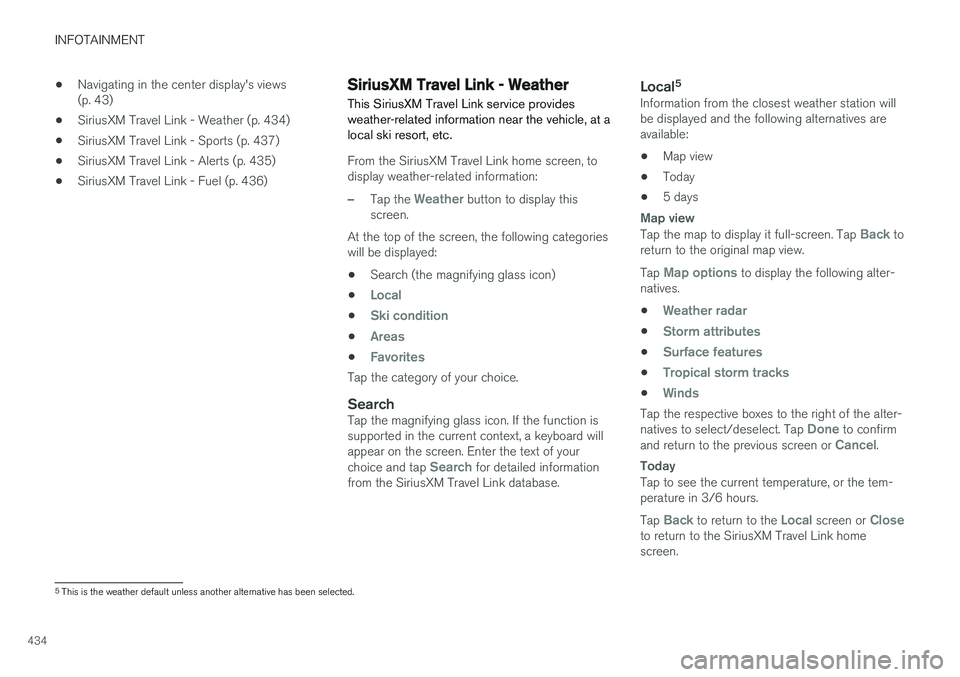
From the SiriusXM Travel Link home screen, to display weather-related information:
–Tap the Weather button to display this
screen.
At the top of the screen, the following categories will be displayed:
• Search (the magnifying glass icon)
•
Local
•Ski condition
•Areas
•Favorites
Tap the category of your choice.
SearchTap the magnifying glass icon. If the function is supported in the current context, a keyboard willappear on the screen. Enter the text of your choice and tap
Search for detailed information
from the SiriusXM Travel Link database.
Local 5Information from the closest weather station will be displayed and the following alternatives areavailable:
• Map view
• Today
• 5 days
Map view
Tap the map to display it full-screen. Tap Back to
return to the original map view. Tap
Map options to display the following alter-
natives. •
Weather radar
•Storm attributes
•Surface features
•Tropical storm tracks
•Winds
Tap the respective boxes to the right of the alter- natives to select/deselect. Tap Done to confirm
and return to the previous screen or Cancel.
Today
Tap to see the current temperature, or the tem- perature in 3/6 hours. Tap
Back to return to the Local screen or Closeto return to the SiriusXM Travel Link home screen.
5 This is the weather default unless another alternative has been selected.
Page 437 of 580
INFOTAINMENT
}}
* Option/accessory.435
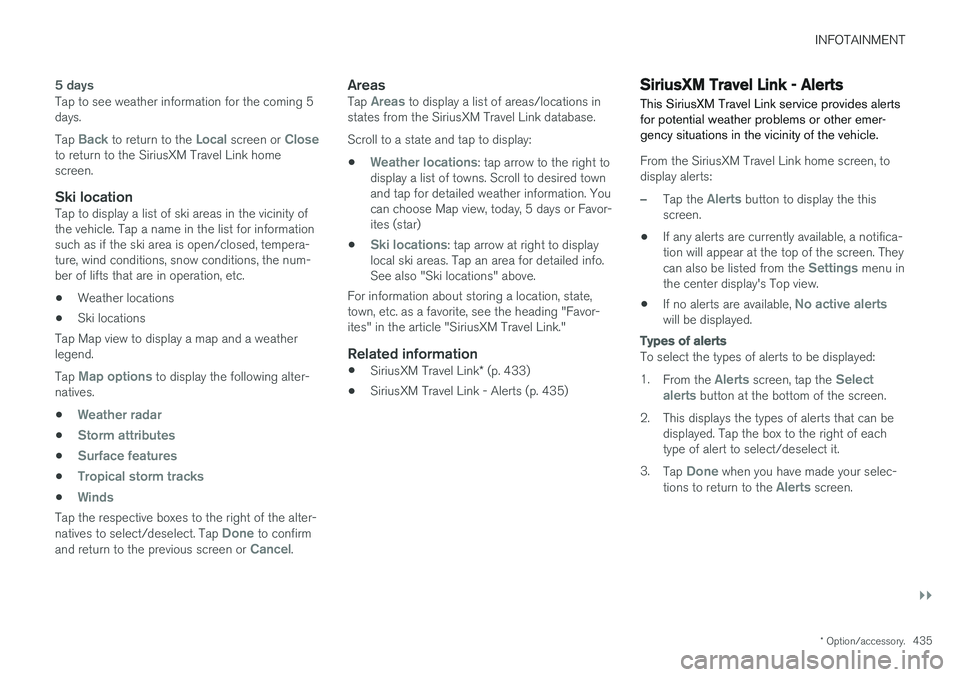
5 days
Tap to see weather information for the coming 5 days. Tap
Back to return to the Local screen or Closeto return to the SiriusXM Travel Link home screen.
Ski locationTap to display a list of ski areas in the vicinity ofthe vehicle. Tap a name in the list for informationsuch as if the ski area is open/closed, tempera-ture, wind conditions, snow conditions, the num-ber of lifts that are in operation, etc.
• Weather locations
• Ski locations
Tap Map view to display a map and a weatherlegend. Tap
Map options to display the following alter-
natives. •
Weather radar
•Storm attributes
•Surface features
•Tropical storm tracks
•Winds
Tap the respective boxes to the right of the alter- natives to select/deselect. Tap Done to confirm
and return to the previous screen or Cancel.
AreasTap Areas to display a list of areas/locations in
states from the SiriusXM Travel Link database. Scroll to a state and tap to display:
•
Weather locations: tap arrow to the right to
display a list of towns. Scroll to desired town and tap for detailed weather information. Youcan choose Map view, today, 5 days or Favor-ites (star)
•
Ski locations: tap arrow at right to display
local ski areas. Tap an area for detailed info. See also "Ski locations" above.
For information about storing a location, state,town, etc. as a favorite, see the heading "Favor-ites" in the article "SiriusXM Travel Link."
Related information
• SiriusXM Travel Link
* (p. 433)
• SiriusXM Travel Link - Alerts (p. 435)
SiriusXM Travel Link - Alerts This SiriusXM Travel Link service provides alerts for potential weather problems or other emer-gency situations in the vicinity of the vehicle.
From the SiriusXM Travel Link home screen, to display alerts:
–Tap the Alerts button to display the this
screen.
• If any alerts are currently available, a notifica- tion will appear at the top of the screen. They can also be listed from the
Settings menu in
the center display's Top view.
• If no alerts are available,
No active alertswill be displayed.
Types of alerts
To select the types of alerts to be displayed: 1.
From the
Alerts screen, tap the Select
alerts button at the bottom of the screen.
2. This displays the types of alerts that can be displayed. Tap the box to the right of each type of alert to select/deselect it.
3. Tap
Done when you have made your selec-
tions to return to the Alerts screen.
Page 441 of 580
INFOTAINMENT
}}
439
•
Phone settings (p. 445)
• Text message settings (p. 445)
Pairing a cell phone
A Bluetooth ®
-enabled cell phone or other device
can be paired and wirelessly connected to the infotainment system.
When a cell phone or other device is connected, audio can be streamed to the infotainment sys-tem. Toggle between the devices by pressing the TEL and MEDIA buttons to access the respective
sources' functions. Before a Bluetooth device can be used with the infotainment system, it has to be paired("registered"). This procedure only needs to be done once for each device (a maximum of 20 Bluetooth devicescan be paired to the system). Once a device hasbeen paired and its Bluetooth function is acti-vated, it can then be selected for use (wirelesslyconnected) to the vehicle's infotainment system. Two Bluetooth devices can be connected at the same time. However, if two cell phones are con-nected, only the most recently connected onecan be used as a phone. The other one can beused to e.g., to stream audio or video. To changewhat the phone will be used for, see the article"Bluetooth settings." A paired and connected cell phone can also be used to connect the vehicle to the Internet. To doso, its tethering/personal hotspot function mustbe activated. There are two ways of pairing a Bluetooth deviceto the infotainment system:
• Searching for the phone (or other device)from the vehicle
• Searching for the vehicle from the phone (orother device)
The following instructions assume that a cellphone is to be paired to the infotainment systembut the procedure is the same for any Bluetoothdevice.
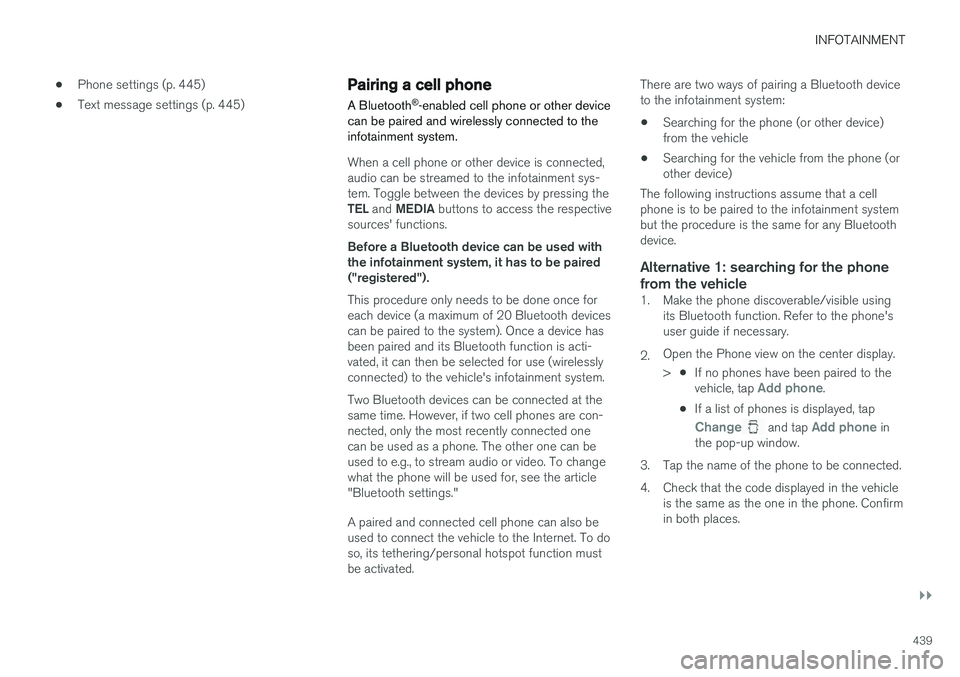
Alternative 1: searching for the phone
from the vehicle
1. Make the phone discoverable/visible using its Bluetooth function. Refer to the phone'suser guide if necessary.
2. Open the Phone view on the center display. >
•If no phones have been paired to the vehicle, tap
Add phone.
• If a list of phones is displayed, tap
Change and tap Add phone in
the pop-up window.
3. Tap the name of the phone to be connected.
4. Check that the code displayed in the vehicle is the same as the one in the phone. Confirm in both places.
Page 450 of 580
||
INFOTAINMENT
448
provided by Apple Inc. under its terms and conditions. Volvo Cars is thus notresponsible for Apple CarPlay or itsfeatures/applications. When using AppleCarPlay, certain information from your car(including its position) is transferred to youriPhone. In relation to Volvo Cars, you arefully responsible for your and any othersperson
Page 452 of 580
||
INFOTAINMENT
* Option/accessory.
450
NOTE
• Please be aware that Volvo has no con- trol over the content of the Android Autoapp.
• If a cell phone or a media player is con-nected via Bluetooth, it will not be acces-sible while Android Auto is activebecause Bluetooth will be disabled. Toconnect the vehicle to the Internet, useWi-Fi or the vehicle's integrated modem.
If navigation guidance is being provided by Android Auto, this will only be shown on the cen- ter display (not on the head-up display
* or the
instrument panel). The Android Auto apps can be controlled from the center display or voice-controlled (the sameas for a cell phone). Certain functions can also becontrolled from the right-side steering wheel key- pad. Press and hold the
button to activate
voice control. Press briefly to deactivate.
By using Android Auto, you acknowledge the following: Android Auto is a serviceprovided by Google Inc. under its terms andconditions. Volvo Cars is not responsible forAndroid Auto or its features or applications.When you use Android Auto, your cartransfers certain information (including itslocation) to your connected Android phone. You are fully responsible for your and anyother person
Page 462 of 580
||
INFOTAINMENT
460
Related information
•Pairing a cell phone (p. 439)
• Connecting/disconnecting a cell phone (p. 440)
• Connecting a device via the AUX/USBsocket (p. 446)
• Wi-Fi technology and security (p. 463)
• Apple CarPlay (p. 447)
Bluetooth settings
The following settings apply to a Bluetooth-con- nected cell phone or other device.
Bluetooth1. Tap Settings in the center display's Top
view.
2. Tap
CommunicationBluetooth
Devices and select among the following set-
tings:
•
Previously paired devices: lists the
devices that are paired and connected to the vehicle.
•
Internet connection: select to connect
to the Internet using the device's Bluetooth connection.
•
Add device: begin the procedure to pair
a new device.
•
Remove device: remove a paired device.
•
Allowed services for this device: select
what the device will be used for: make calls, send/receive messages, streammedia, Internet connection.
Bluetooth complianceUnited States FCC CAUTION Changes or modifications not expressly approved by the party responsible for compliance couldvoid the user's authority to operate the equip- ment. This transmitter must not be co-located oroperated in conjunction with any other antennaor transmitter. Canada This device complies with Industry Canada licence-exempt RSS standard(s). Operation issubject to the following two conditions: (1) this device may not cause interference, and(2) this device must accept any interference, including interference that may cause undesiredoperation of the device.
Related information
•
Internet connected vehicle (p. 458)
• Pairing a cell phone (p. 439)
• Phone (p. 438)
• Media player (p. 446)
• Connecting/disconnecting a cell phone(p. 440)
Page 469 of 580
INFOTAINMENT
}}
467
including without limitation the rights to use, copy, modify, merge, publish, distribute,sublicense, and/or sell copies of the Software,and to permit persons to whom the Software isfurnished to do so, subject to the followingconditions: The above copyright notice includingthe dates of first publication and either thispermission notice or a reference to http://oss.sgi.com/projects/FreeB/ shall be included inall copies or substantial portions of the Software.THE SOFTWARE IS PROVIDED "AS IS",WITHOUT WARRANTY OF ANY KIND,EXPRESS OR IMPLIED, INCLUDING BUT NOTLIMITED TO THE WARRANTIES OFMERCHANTABILITY, FITNESS FOR APARTICULAR PURPOSE ANDNONINFRINGEMENT. IN NO EVENT SHALLSILICON GRAPHICS, INC. BE LIABLE FOR ANYCLAIM, DAMAGES OR OTHER LIABILITY,WHETHER IN AN ACTION OF CONTRACT,TORT OR OTHERWISE, ARISING FROM, OUTOF OR IN CONNECTION WITH THE SOFTWAREOR THE USE OR OTHER DEALINGS IN THESOFTWARE. Except as contained in this notice,the name of Silicon Graphics, Inc. shall not beused in advertising or otherwise to promote thesale, use or other dealings in this Softwarewithout prior written authorization from SiliconGraphics, Inc. This software is based in parts on the work of the FreeType Team.
This software uses parts of SSLeay Library: Copyright
©) 1995-1998 Eric Young
([email protected]). All rights reserved
Linux software
This product contains software licensed under GNU General Public License (GPL) or GNULesser General Public License (LGPL), etc. You have the right of acquisition, modification, and distribution of the source code of the GPL/LGPL software. You may download Source Code from the following website at no charge: http://www.embedded-carmultimedia.jp/linux/oss/download/TVM_8351_013 The website provides the Source Code "As Is" and without warranty of any kind. By downloading Source Code, you expressly assume all risk and liability associated withdownloading and using the Source Code andcomplying with the user agreements thataccompany each Source Code. Please note that we cannot respond to any inquiries regarding the source code.
camellia:1.2.0
Copyright ©) 2006, 2007
NTT (Nippon Telegraph and TelephoneCorporation). All rights reserved. Redistribution and use in source and binaryforms, with or without modification, are permittedprovided that the following conditions are met:
1. Redistributions of source code must retain
the above copyright notice, this list of conditions and the following disclaimer asthe first lines of this file unmodified.
2. Redistributions in binary form must reproduce the above copyright notice, this listof conditions and the following disclaimer inthe documentation and/or other materialsprovided with the distribution.
THIS SOFTWARE IS PROVIDED BY NTT ``ASIS'' AND ANY EXPRESS OR IMPLIEDWARRANTIES, INCLUDING, BUT NOT LIMITEDTO, THE IMPLIED WARRANTIES OFMERCHANTABILITY AND FITNESS FOR APARTICULAR PURPOSE ARE DISCLAIMED. INNO EVENT SHALL NTT BE LIABLE FOR ANYDIRECT, INDIRECT, INCIDENTAL, SPECIAL,EXEMPLARY, OR CONSEQUENTIAL DAMAGES(INCLUDING, BUT NOT LIMITED TO,PROCUREMENT OF SUBSTITUTE GOODS ORSERVICES; LOSS OF USE, DATA, OR PROFITS;OR BUSINESS INTERRUPTION) HOWEVERCAUSED AND ON ANY THEORY OF LIABILITY,WHETHER IN CONTRACT, STRICT LIABILITY,OR TORT (INCLUDING NEGLIGENCE OROTHERWISE) ARISING IN ANY WAY OUT OFTHE USE OF THIS SOFTWARE, EVEN IFADVISED OF THE POSSIBILITY OF SUCHDAMAGE.
Page 470 of 580
||
INFOTAINMENT
468
Unicode: 5.1.0COPYRIGHT AND PERMISSION NOTICE Copyright c 1991-2013 Unicode, Inc. All rights reserved. Distributed under the Terms of Use inhttp://www.unicode.org/copyright.html. Permission is hereby granted, free of charge, to any person obtaining a copy of the Unicode datafiles and any associated documentation (the"Data Files") or Unicode software and anyassociated documentation (the "Software") todeal in the Data Files or Software withoutrestriction, including without limitation the rightsto use, copy, modify, merge, publish, distribute,and/or sell copies of the Data Files or Software,and to permit persons to whom the Data Files orSoftware are furnished to do so, provided that (a)the above copyright notice(s) and this permissionnotice appear with all copies of the Data Files orSoftware, (b) both the above copyright notice(s)and this permission notice appear in associated documentation, and ©) there is clear notice in
each modified Data File or in the Software as well as in the documentation associated with theData File(s) or Software that the data or softwarehas been modified. THE DATA FILES AND SOFTWARE ARE PROVIDED "AS IS", WITHOUT WARRANTY OFANY KIND, EXPRESS OR IMPLIED, INCLUDINGBUT NOT LIMITED TO THE WARRANTIES OFMERCHANTABILITY, FITNESS FOR APARTICULAR PURPOSE AND NONINFRINGEMENT OF THIRD PARTYRIGHTS. IN NO EVENT SHALL THECOPYRIGHT HOLDER OR HOLDERSINCLUDED IN THIS NOTICE BE LIABLE FORANY CLAIM, OR ANY SPECIAL INDIRECT ORCONSEQUENTIAL DAMAGES, OR ANYDAMAGES WHATSOEVER RESULTING FROMLOSS OF USE, DATA OR PROFITS, WHETHERIN AN ACTION OF CONTRACT, NEGLIGENCEOR OTHER TORTIOUS ACTION, ARISING OUTOF OR IN CONNECTION WITH THE USE ORPERFORMANCE OF THE DATA FILES ORSOFTWARE. Except as contained in this notice, the name of a copyright holder shall not be used in advertisingor otherwise to promote the sale, use or otherdealings in these Data Files or Software withoutprior written authorization of the copyright holder.
Bluetooth
®
declaration of conformityUnited States FCC CAUTION Changes or modifications not expressly approved by the party responsible for compliance couldvoid the user's authority to operate the equip-ment. This transmitter must not be co-located oroperated in conjunction with any other antennaor transmitter. CanadaThis device complies with Industry Canada licence-exempt RSS standard(s). Operation is subject to the following two conditions: (1) thisdevice may not cause interference, and (2) thisdevice must accept any interference, includinginterference that may cause undesired operationof the device.
Page 475 of 580
WHEELS AND TIRES
473
sidewall (see the illustration). A tire with e.g., visi- ble cracks or discoloration should be replacedimmediately.
Tire economy
•
Maintain correct tire pressure.
• Avoid fast starts, hard braking and tirescreeching.
• Tire wear increases with speed.
• Correct front wheel alignment is very impor-tant.
• Unbalanced wheels impair tire economy anddriving comfort.
• Tires must maintain the same direction ofrotation throughout their lifetime.
• When replacing tires, the tires with the mosttread should be mounted on the rear wheelsto reduce the chance of oversteer duringhard braking.
• Hitting curbs or potholes can damage thetires and/or wheels permanently.
Tire rotationYour vehicle has no required tire rotation. Tirewear is affected by a number of factors such astire inflation, ambient temperature, driving style,etc.
NOTE
•If the tires are rotated, they should only be moved from front to rear or vice versa.They should never be rotated left toright/right to left.
• Ideally, tire rotation should be done thefirst time after approximately 3,000 miles(5,000 km) and thereafter at 6,000-mile(10,000-km) intervals. Some customersfind that tire rotation may help to getextra mileage from tire life.
• Tire rotation should only be performed iffront/rear tire wear is fairly even andtread height is above 1/16" (1.6 mm).
Storing wheels and tiresWhen storing complete wheels (tires mounted on rims), they should be suspended off the floor orplaced on their sides on the floor. Tires not mounted on rims should be stored on their sides or standing upright, but should not besuspended.
CAUTION
Tires should preferably be stored in a cool, dry, dark place, and should never be stored inclose proximity to solvents, gasoline, oils, etc.
WARNING
• The wheel and tire sizes for your Volvo are specified to meet stringent stabilityand handling requirements. Unapprovedwheel/tire size combinations can nega-tively affect your vehicle's stability andhandling.
• Any damage caused by installation ofunapproved wheel/tire size combinationswill not be covered by your new vehiclewarranty. Volvo assumes no responsibilityfor death, injury, or expenses that mayresult from such installations.
Related information
•Checking tire inflation pressure (p. 480)
• Tread wear indicator (p. 477)