USB port VOLVO XC90 T8 2017 Owner´s Manual
[x] Cancel search | Manufacturer: VOLVO, Model Year: 2017, Model line: XC90 T8, Model: VOLVO XC90 T8 2017Pages: 580, PDF Size: 10.37 MB
Page 6 of 580
4
Using turn signals150
Passenger compartment lighting 151
Home safe lighting 154
Approach lighting 154
Messages in the instrument panel and center display 154
Handling messages in the instru-ment panel and center display 156
Handling messages stored from theinstrument panel and center display 157
Instrument panel App menu 159
Using the instrument panel App menu 160
Using the windshield wipers 160
Activating/deactivating the rain sensor 161
Windshield and headlight washers 162
Tailgate window wiper and washer 163
Steering wheel 164
Adjusting the steering wheel 165
Seats 165
Manually operated front seats 166
Power front seats *
167
Adjusting power front seats *
167
Adjusting the passenger's seat from the driver's seat * 168
Using the power seat memory function *
168
Multifunctional front seats *
169
Adjusting function settings in the multifunctional front seats *170
Rear seats 173
Adjusting the second row head restraints 173
Moving the second row seats for- ward/rearward 175
Adjusting the second row backrest tilt 175
Folding the second row backrests 176
Getting into and out of the third rowof seats 178
Folding the third row backrests 178
Driver profiles 179
Selecting a driver profile 180
Editing a driver profile 180
Linking a remote key to a driver profile 181
Importing/exporting a driver profilefrom/to a USB flash drive 182
CLIMATE
Climate control system
186
Perceived temperature 186
Climate system sensors 187
Parking climate (preconditioning) 187
Activating/deactivating the parking climate timer 189
Activating/deactivating the climate comfort retaining function *189
Preconditioning timer 190
Setting the parking climate (precon- ditioning) timer 190
Starting and stopping preconditioning 192
Preconditioning symbols and messages 193
Air quality 194
Clean Zone Interior Package (CZIP) *
195
Interior Air Quality System (IAQS) *
195
Passenger compartment air filter 196
Automatic climate control 196
Climate system controls 197
Climate system controls in the centerdisplay 197
Rear climate system controls on thetunnel console 199
Setting the blower speed 199
Setting the temperature 201
Turning recirculation on and off 203
Page 11 of 580
9
INFOTAINMENT
The infotainment system422
Apps (applications) 422
Sound settings 423
Radio 424
Radio settings 424
RBDS radio 424
Changing and searching for radio stations 425
HD Radio ™reception
426
Switching HD Radio on and off 427
HD Radio sub-channels 428
HD Radio limitations 429
SiriusXM ®
Satellite radio * 429
Using SiriusXM ®
Satellite radio *430
SiriusXM ®
Satellite radio * settings 432
SiriusXM Travel Link *
433
SiriusXM Travel Link - Weather 434
SiriusXM Travel Link - Alerts 435
SiriusXM Travel Link - Fuel 436
SiriusXM Travel Link - Sports 437
Phone 438
Pairing a cell phone 439
Connecting/disconnecting a cell phone 440
Handling phone calls 441
Managing the phone book443
Handling text messages 444
Phone settings 445
Text message settings 445
Connecting a Bluetooth ®
device 445
Connecting a device via the AUX/USB socket 446
Media player 446
Apple CarPlay 447
Apple CarPlay settings 449
Android auto *
449
Android Auto * settings
451
CD (media) player *
451
Playing media 452
Media searches 454
Playing media through theAUX/USB sockets 454
Streaming media through a Blue-tooth connection 455
Media sound settings 455
Gracenote 456
Video 456
Media player technical data 457
Internet connected vehicle 458
Connecting to the Internet 459
Bluetooth settings460
Downloading, updating and uninstal- ling apps 461
Internet connection troubleshooting 462
Tethering (Wi-Fi sharing) 462
Deleting Wi-Fi networks 463
Wi-Fi technology and security 463
Vehicle modem settings 464
Infotainment system license information 464
Terms, conditions and confidentiality 469
Page 184 of 580
||
INSTRUMENTS AND CONTROLS
182
Related information
•Driver profiles (p. 179)
• Editing a driver profile (p. 180)
• Remote key (p. 235)
Importing/exporting a driver profile from/to a USB flash drive The personal settings stored in a driver profile can be imported or exported to another vehicleusing a USB flash drive.
The following steps describe the procedure for importing or exporting personal settings saved ina driver profile to a USB flash drive: 1.
Tap
Settings in the center display's Top
view.
2. Tap
SystemDriver Profiles.
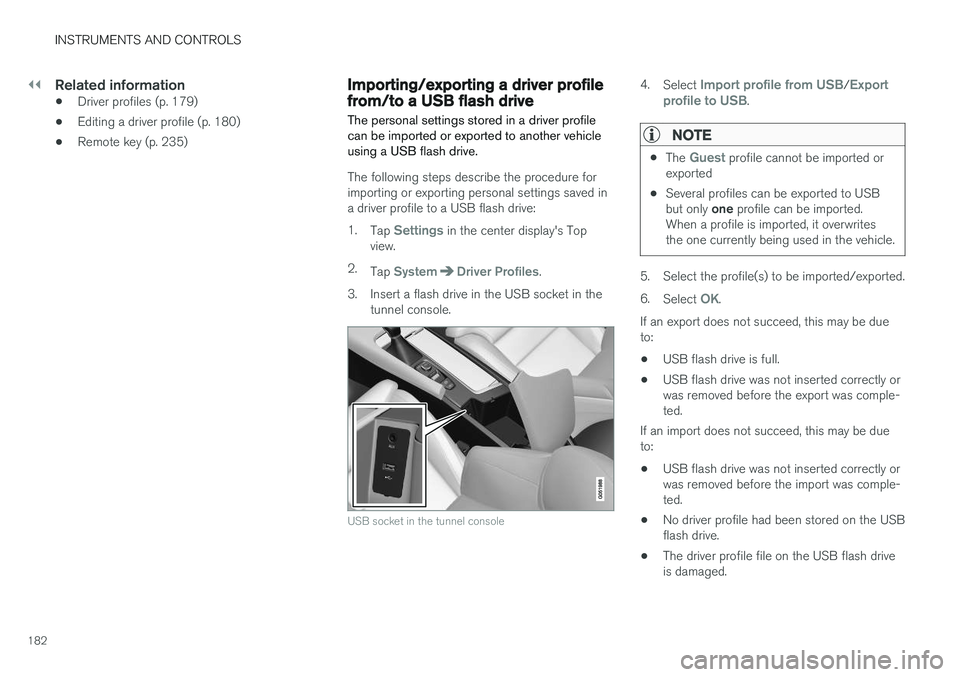
3. Insert a flash drive in the USB socket in the tunnel console.
USB socket in the tunnel console
4. Select Import profile from USB/Export
profile to USB.
NOTE
• The Guest profile cannot be imported or
exported
• Several profiles can be exported to USB but only
one profile can be imported.
When a profile is imported, it overwrites the one currently being used in the vehicle.
5. Select the profile(s) to be imported/exported. 6. Select
OK.
If an export does not succeed, this may be due to:
• USB flash drive is full.
• USB flash drive was not inserted correctly orwas removed before the export was comple-ted.
If an import does not succeed, this may be dueto:
• USB flash drive was not inserted correctly orwas removed before the import was comple-ted.
• No driver profile had been stored on the USBflash drive.
• The driver profile file on the USB flash driveis damaged.
Page 433 of 580
INFOTAINMENT
* Option/accessory.431
Search
Tap the magnifying glass to display a screen where you can enter text using the center dis-play's keyboard or by writing in the free-text fieldto search for e.g., a station number, an artist,song title, etc.
Channels
Tap to display a complete list of the channels included in your subscription. Tap a channelname to listen. If a subscription to a channel hasexpired, its name will be grayed-out on thescreen. For quick access to a channel that you often lis- ten to, tap the star to the right of the channel'sname to add it to the list of favorites.
Favorites
Tap to display the channels that you have added to this list. Tap a channel name to listen.
Categories/Genres
Tap to display the categories available. Tap a cat- egory or genre name to display the channels thatit contains and then tap a channel to listen. If an alert has been set (see the section "Alerts" below) and an alert is active for an artist, song orteam, virtual categories will also be temporarycreated and displayed. The channels currentlybroadcasting the song, artist or broadcasting aprogram with the selected team will be listed in avirtual category.
EPG (Electronic Program Guide)On the center display's Home screen, tap EPGfor information about e.g., when a program is being broadcast and its name, description, artist, etc. If no information is currently available,
No
information will be displayed.
AlertsIf this feature has been selected under SiriusXM
Settings, the Alerts button will be displayed on
the Home screen. To add e.g., an artist's name, song title or a sports team to the list of alerts:
1. Tune to any channel that is broadcasting a song, game, etc., of your choice.
2. Press the
Alerts button.
3. A pop-up window will be displayed showing a list of alerts (nothing will be displayed if the selected channel does not support the alertfunction).
4. Select one of the alternatives in list (only one can be selected at a time).
5. The song/artist/team will now be added to the list of alerts. Favorite sports teams canalso be added to the list using the "GameAlert" setting as described in the article "Sir-iusXM satellite radio settings."
> When your choice is being broadcast on achannel, you will be informed by a pop-up.
iTunes taggingFrom the center display's Top view, tapSiriusXM
Settings. Tap theiTunes Tagging menu. Tap
the iTunes Tagging box to activate/deactivate
this function and tap Close to return to Home
view. Tap Tags List to display a list of all tagged
songs. If the function is activated, the
iTunes tag button
will be displayed in Home view. If a song is played that you would like to buy in the iTunes store, tapthis button while the song is playing to tag it. If a song with
iTunes Tagging information is availa-
ble, the button will be selectable. Tap the button to tag the song. If you would like to buy a taggedsong via iTunes, Tap the iTunes tag button. To buy a song in iTunes, begin by connecting an iPhone/iPod/iPad to the USB socket in the tun-nel console. The iTunes tagging list will automati-cally be transferred to the device and removedfrom the list in the vehicle. If the device is con-nected when a song is tagged, the data will auto-matically be saved in the device. To purchase thesong, consult the iTunes support page.
Related information
• SiriusXM ®
Satellite radio * (p. 429)
• Using the center display keyboard (p. 36)
• SiriusXM ®
Satellite radio * settings (p. 432)
• Connecting a device via the AUX/USBsocket (p. 446)
Page 449 of 580
INFOTAINMENT
}}
* Option/accessory.447
•
Apps (applications) (p. 422)
• CD (media) player
* (p. 451)
• Playing media through the AUX/USB sock- ets (p. 454)
Apple CarPlay
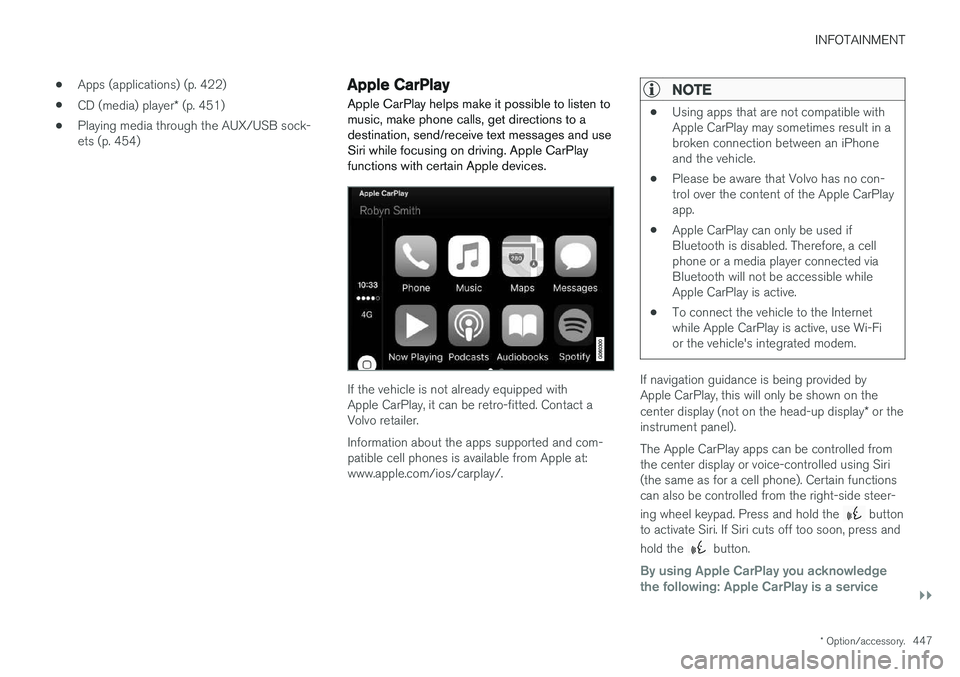
Apple CarPlay helps make it possible to listen to music, make phone calls, get directions to adestination, send/receive text messages and useSiri while focusing on driving. Apple CarPlayfunctions with certain Apple devices.
If the vehicle is not already equipped with Apple CarPlay, it can be retro-fitted. Contact aVolvo retailer. Information about the apps supported and com- patible cell phones is available from Apple at:www.apple.com/ios/carplay/.
NOTE
• Using apps that are not compatible with Apple CarPlay may sometimes result in abroken connection between an iPhoneand the vehicle.
• Please be aware that Volvo has no con-trol over the content of the Apple CarPlayapp.
• Apple CarPlay can only be used ifBluetooth is disabled. Therefore, a cellphone or a media player connected viaBluetooth will not be accessible whileApple CarPlay is active.
• To connect the vehicle to the Internetwhile Apple CarPlay is active, use Wi-Fior the vehicle's integrated modem.
If navigation guidance is being provided by Apple CarPlay, this will only be shown on the center display (not on the head-up display
* or the
instrument panel). The Apple CarPlay apps can be controlled from the center display or voice-controlled using Siri(the same as for a cell phone). Certain functionscan also be controlled from the right-side steer- ing wheel keypad. Press and hold the
button
to activate Siri. If Siri cuts off too soon, press and hold the
button.
By using Apple CarPlay you acknowledge the following: Apple CarPlay is a service
Page 451 of 580
INFOTAINMENT
}}
* Option/accessory.449
Apple CarPlay settings This article explains settings for a cell phone connected through Apple CarPlay.
Automatic start1.
Tap Settings in the center display's Top
view.
2. Tap
CommunicationApple CarPlay and
select the following settings:
• Select the Apple CarPlay box for auto- matic start when the device's USB cableis connected.
• Deselect the Apple CarPlay box to
disa-
ble automatic start when the device's
USB cable is connected.
A maximum of 20 Apple devices can be stored inthe list. When the list is full, the first (oldest)device stored will be deleted. To erase the entire list, a factory reset has to be performed. See the article "Resetting the set-tings view."
System volume levels1. Tap Settings in the center display's Top
view. 2.
Tap
SoundSystem Volumes and select
the following settings: •
Voice Control
•Navi Voice Guidance
•Phone Ringtone
Related information
• Apple CarPlay (p. 447)
• Resetting the settings view (p. 117)
Android auto
*
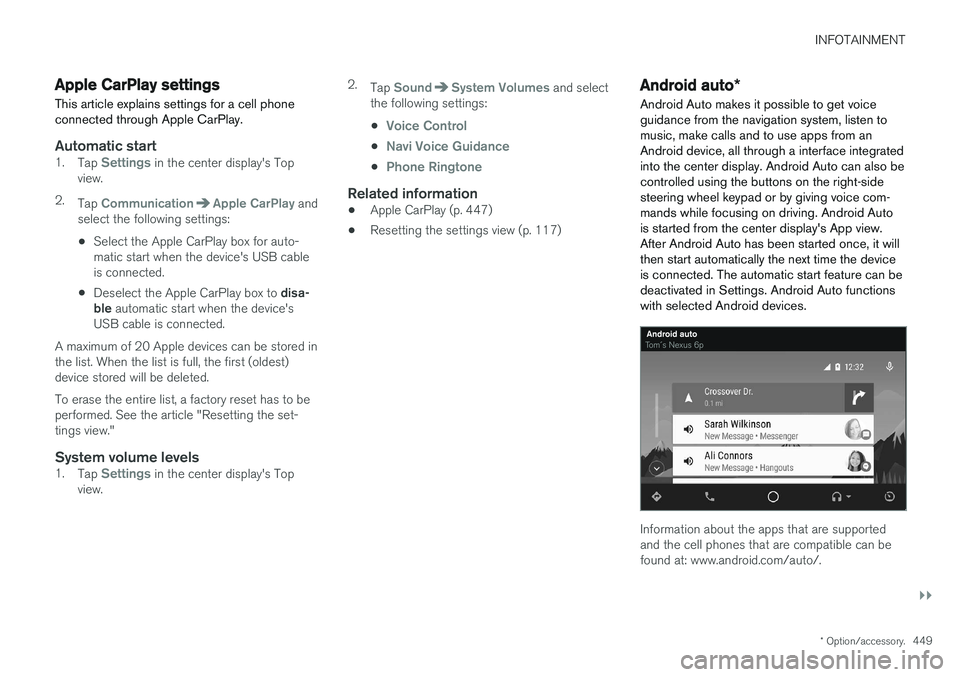
Android Auto makes it possible to get voice guidance from the navigation system, listen tomusic, make calls and to use apps from anAndroid device, all through a interface integratedinto the center display. Android Auto can also becontrolled using the buttons on the right-sidesteering wheel keypad or by giving voice com-mands while focusing on driving. Android Autois started from the center display's App view.After Android Auto has been started once, it willthen start automatically the next time the deviceis connected. The automatic start feature can bedeactivated in Settings. Android Auto functionswith selected Android devices.
Information about the apps that are supported and the cell phones that are compatible can befound at: www.android.com/auto/.
Page 456 of 580
INFOTAINMENT
454
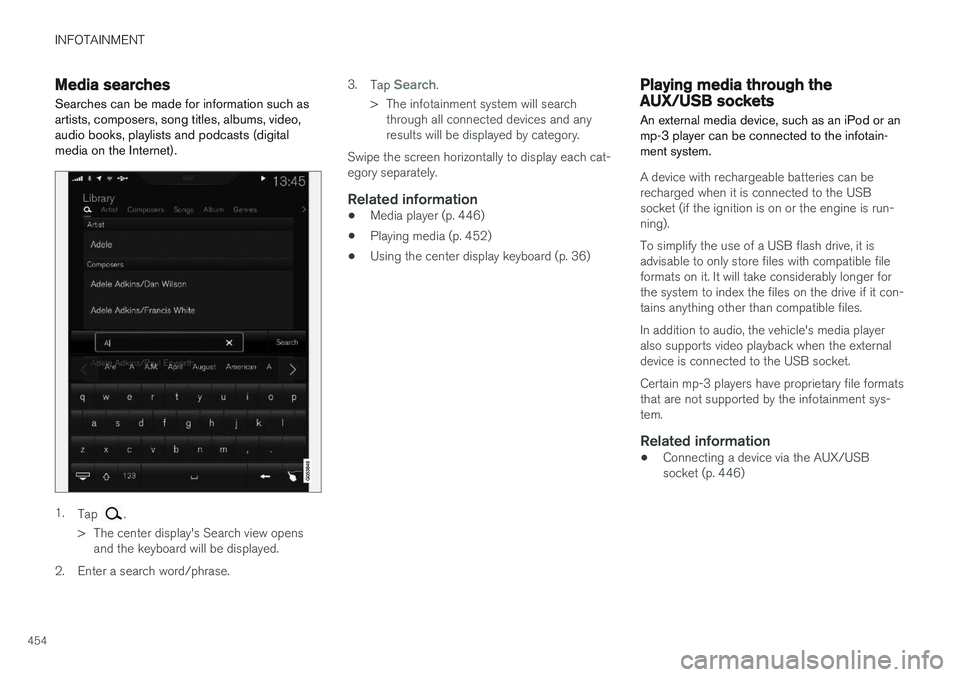
Media searchesSearches can be made for information such as artists, composers, song titles, albums, video,audio books, playlists and podcasts (digitalmedia on the Internet).
1. Tap .
> The center display's Search view opens and the keyboard will be displayed.
2. Enter a search word/phrase. 3.
Tap
Search.
> The infotainment system will search through all connected devices and any results will be displayed by category.
Swipe the screen horizontally to display each cat-egory separately.
Related information
• Media player (p. 446)
• Playing media (p. 452)
• Using the center display keyboard (p. 36)
Playing media through the AUX/USB sockets
An external media device, such as an iPod or an mp-3 player can be connected to the infotain-ment system.
A device with rechargeable batteries can be recharged when it is connected to the USBsocket (if the ignition is on or the engine is run-ning). To simplify the use of a USB flash drive, it is advisable to only store files with compatible fileformats on it. It will take considerably longer forthe system to index the files on the drive if it con-tains anything other than compatible files. In addition to audio, the vehicle's media player also supports video playback when the externaldevice is connected to the USB socket. Certain mp-3 players have proprietary file formats that are not supported by the infotainment sys-tem.
Related information
• Connecting a device via the AUX/USBsocket (p. 446)
Page 458 of 580
INFOTAINMENT
456
GracenoteGracenote identifies artists, albums, tracks and any associated images that can be displayedduring playback.
Gracenote MusicID ®
is a standard for music rec-
ognition.
Activating/deactivating GracenoteWhen activated, Gracenote data will replace origi- nal data. 1. Tap
Settings in the center display's Top
view.
2. Tap
MediaGracenote ®.
3. Activate/deactivate Gracenote by tapping the
Gracenote ® box.
4. Select among the following Gracenote alter- natives:
•
Gracenote ® Online Search: Gracenote
will search through its online database for information about the currently playingmedia.
•
Gracenote ® Multiple Results: select how
Gracenote data is to be displayed if there are several search results.
1: the file's original data will be used. 2: Gracenote data will be used.3: Gracenote or original data can be selected. •
None: no results will be shown.
Updating GracenoteGracenote's contents are updated continuously. For optimal functionality, always use the latestversion. See support.volvocars.com for informa-tion and downloads.
Related information
•
Infotainment system license information(p. 464)
• Playing media (p. 452)
Video
The media player can play video from USB-con- nected devices.
No video will be available when the vehicle is moving. Video will resume playing when the vehi-cle is stationary. See the article "Media player technical data" for a list of video formats supported by the mediaplayer.
Related information
• Playing media (p. 452)
• Media player (p. 446)
• Media player technical data (p. 457)
Page 568 of 580
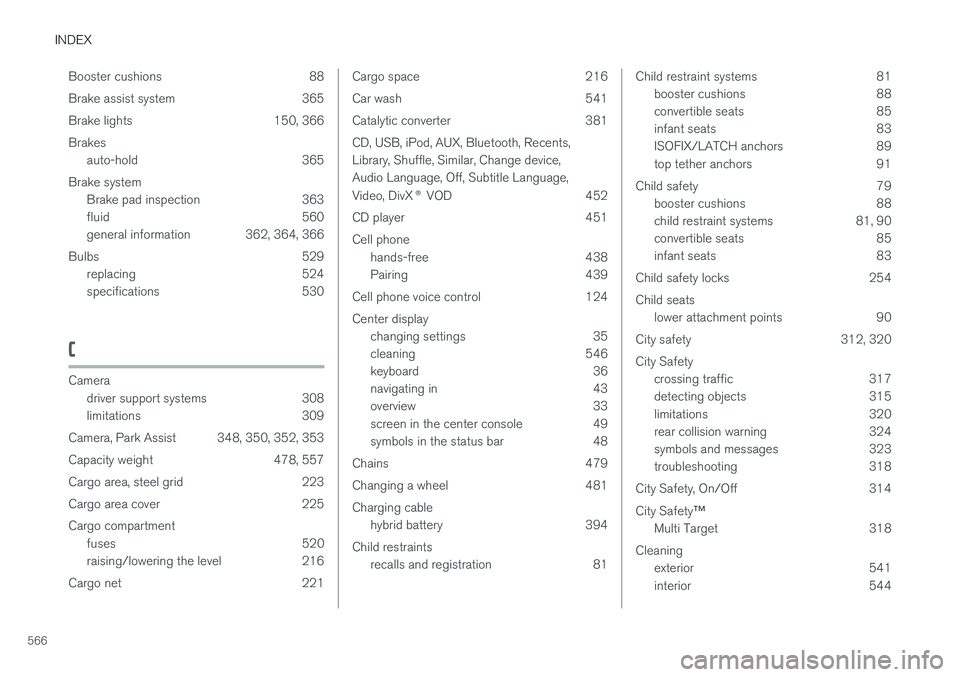
INDEX
566Booster cushions 88
Brake assist system 365
Brake lights 150, 366Brakes
auto-hold 365
Brake system Brake pad inspection 363
fluid 560
general information 362, 364, 366
Bulbs 529 replacing 524
specifications 530
C
Cameradriver support systems 308
limitations 309
Camera, Park Assist 348, 350, 352, 353
Capacity weight 478, 557
Cargo area, steel grid 223
Cargo area cover 225Cargo compartment fuses 520
raising/lowering the level 216
Cargo net 221
Cargo space 216
Car wash 541
Catalytic converter 381CD, USB, iPod, AUX, Bluetooth, Recents, Library, Shuffle, Similar, Change device,Audio Language, Off, Subtitle Language, Video, DivX ® VOD 452
CD player 451 Cell phone hands-free 438
Pairing 439
Cell phone voice control 124 Center display changing settings 35
cleaning 546
keyboard 36
navigating in 43
overview 33
screen in the center console 49
symbols in the status bar 48
Chains 479
Changing a wheel 481Charging cable hybrid battery 394
Child restraints recalls and registration 81Child restraint systems 81booster cushions 88
convertible seats 85
infant seats 83
ISOFIX/LATCH anchors 89
top tether anchors 91
Child safety 79 booster cushions 88
child restraint systems 81, 90
convertible seats 85
infant seats 83
Child safety locks 254 Child seats lower attachment points 90
City safety 312, 320City Safety crossing traffic 317
detecting objects 315
limitations 320
rear collision warning 324
symbols and messages 323
troubleshooting 318
City Safety, On/Off 314 City Safety ™
Multi Target 318
Cleaning exterior 541
interior 544
Page 576 of 580
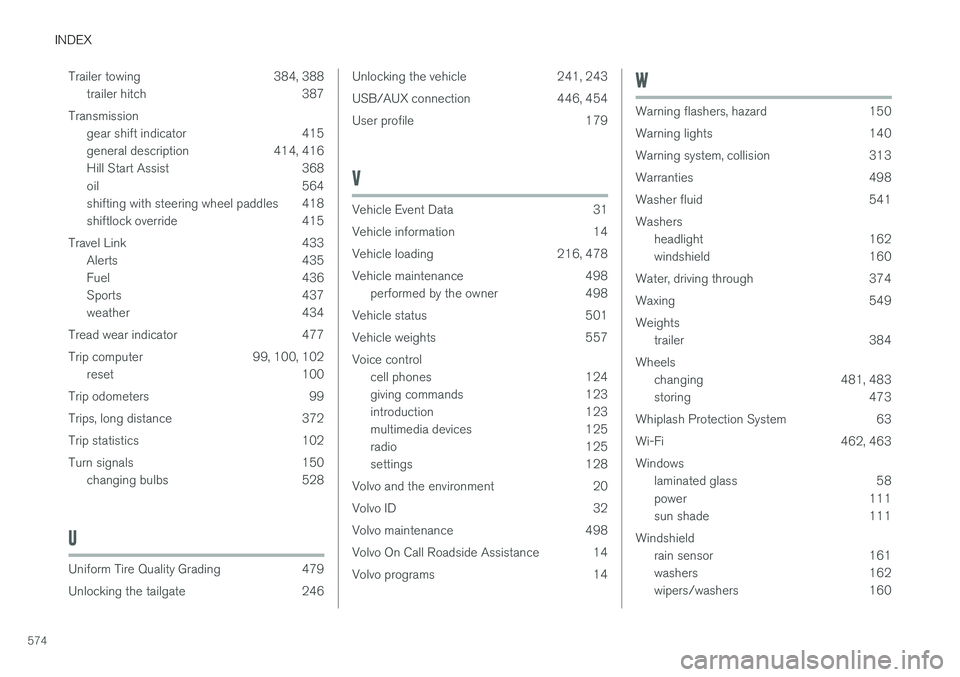
INDEX
574Trailer towing 384, 388
trailer hitch 387
Transmission gear shift indicator 415
general description 414, 416
Hill Start Assist 368
oil 564
shifting with steering wheel paddles 418
shiftlock override 415
Travel Link 433 Alerts 435
Fuel 436
Sports 437
weather 434
Tread wear indicator 477
Trip computer 99, 100, 102 reset 100
Trip odometers 99
Trips, long distance 372
Trip statistics 102
Turn signals 150 changing bulbs 528
U
Uniform Tire Quality Grading 479
Unlocking the tailgate 246
Unlocking the vehicle 241, 243
USB/AUX connection 446, 454
User profile 179
V
Vehicle Event Data 31
Vehicle information 14
Vehicle loading 216, 478
Vehicle maintenance 498performed by the owner 498
Vehicle status 501
Vehicle weights 557Voice control cell phones 124
giving commands 123
introduction 123
multimedia devices 125
radio 125
settings 128
Volvo and the environment 20
Volvo ID 32
Volvo maintenance 498
Volvo On Call Roadside Assistance 14
Volvo programs 14
W
Warning flashers, hazard 150
Warning lights 140
Warning system, collision 313
Warranties 498
Washer fluid 541Washers headlight 162
windshield 160
Water, driving through 374
Waxing 549Weights trailer 384
Wheels changing 481, 483
storing 473
Whiplash Protection System 63
Wi-Fi 462, 463Windows laminated glass 58
power 111
sun shade 111
Windshield rain sensor 161
washers 162
wipers/washers 160