audio VOLVO XC90 TWIN ENGINE 2018 Repair Manual
[x] Cancel search | Manufacturer: VOLVO, Model Year: 2018, Model line: XC90 TWIN ENGINE, Model: VOLVO XC90 TWIN ENGINE 2018Pages: 686, PDF Size: 17 MB
Page 533 of 686

AUDIO, MEDIA AND INTERNET
}}
* Option/accessory. 531
Connecting the car to the Internet
via a mobile device (Bluetooth)
Establish an Internet connection using Bluetooth
and tethering from a phone and get access to
multiple connected services in your vehicle. The phone and the network service provider must
support Internet sharing (tethering) and the sub-
scription must include data transfer.
1.
To connect the vehicle to the Internet via a
Bluetooth-connected phone, the phone must
first be paired with the vehicle via Bluetooth.
Ensure that the personal hotspot (portable/
personal hotspot) is activated in your phone.
2. If the phone has been connected via Blue- tooth previously, tap Settings in the center
display's Top view.
3. In the center display: Tap CommunicationBluetooth Devices
.
4. Mark the window for Bluetooth Internet
connection under the heading Internet
connection.
>
Your vehicle is now connected to the
Internet via your Bluetooth-connected
phone.
NOTE When using Apple CarPlay, it is only possible
to connect the vehicle to the Internet using
Wi-Fi or the vehicle's modem.
Related information
•
Internet-connected vehicle* (p. 529)
• Connect the car to the Internet via car
modem (SIM card) (p. 532)
• Connecting a phone to the car via Bluetooth
for the first time (p. 521)
• Connecting the car to the Internet via a
mobile device (Wi-Fi) (p. 531)
• Apple ®
CarPlay ®
* (p. 515)
• No or poor Internet connection (p. 534)
• Settings for Bluetooth devices (p. 529) Connecting the car to the Internet
via a mobile device (Wi-Fi)
Establish an Internet connection via Wi-Fi tether-
ing from a phone and get access to multiple
connected services in your vehicle.
The phone and the network service provider must
support Internet sharing (tethering) and the sub-
scription must include data transfer. 1. Activate Internet sharing (personal hotspot)
in the phone.
2. Tap Settings in the Top view.
3.
Proceed to Communication Wi-Fi
.
4. Activate/deactivate by tapping to check/ uncheck the Wi-Fi box.
5. Tap the name of the network you would like to connect.
6. Enter the network password.
7. If a different connection was used previously, confirm the connection change.
> The vehicle will connect to the network.
Please note that certain cellular phones will disa-
ble Internet sharing (tethering) when the connec-
Page 534 of 686

||AUDIO, MEDIA AND INTERNET
* Option/accessory.
532 tion to the vehicle has been broken, e.g. when the
phone has been removed from the vehicle. The
phone's tethering function will then need to be
reactivated the next time the phone's hotspot is
used to connect to the Internet.
When a phone is connected to the vehicle, it will
be saved for future use. When the maximum
number of 50 connected phones has been
reached, the first will be deleted. To display a list
of saved networks or to manually delete saved
networks, tap
Settings Communication
Wi-Fi Saved networks.
Technical and security requirements for Wi-Fi
connection are described in a separate section.
Related information
• Internet-connected vehicle* (p. 529)
• Deleting Wi-Fi networks (p. 535)
• No or poor Internet connection (p. 534)
• Wi-Fi technology and security (p. 535) Connect the car to the Internet via
car modem (SIM card)
For vehicles equipped with Volvo On Call, it is
possible to establish an Internet connection via
the vehicle modem and a personal SIM card (P-
SIM).
When the vehicle is connected using the inte-
grated modem, the Volvo On Call services will
use this connection.
1.
Insert a personal SIM card in the holder.
2. Tap Settings in the Top view.
3.
Tap Communication Vehicle Modem
Internet .
4.
Activate/deactivate by tapping to check/
uncheck the Vehicle modem Internet box. 5.
If a different connection was used previously,
confirm the connection change.
6. Enter the SIM card's PIN code. > The vehicle will connect to the network.
Related information
• Internet-connected vehicle* (p. 529)
• No or poor Internet connection (p. 534)
• Vehicle modem settings (p. 533)
Page 535 of 686

AUDIO, MEDIA AND INTERNET
}}
533
Vehicle modem settings
Your vehicle is equipped with a modem that can
be used to connect the vehicle to the Internet. It
is also possible to share this Internet connection
over Wi-Fi.
1. Tap Settings in the Top view.
2.
Tap Communication Vehicle Modem
Internet and select settings:
• Vehicle modem Internet
- select this to
use the vehicle's modem to connect to the
Internet.
• Data usage - tap Reset to reset the coun-
ter for the amount of data received and sent.
• Network
Select carrier - select a service provider
manually or automatically.
Data roaming - if the box is checked, the vehicle modem will attempt to connect to the
Internet when the vehicle is outside its home
network (e.g. if you are in another country).
Please note that this could entail additional
charges. Consult with your service provider
for data roaming terms under your contract.
• SIM card PIN
Change PIN - a maximum of 4 digits can be
entered.
Disable PIN - select whether a PIN code will be required to access the SIM card. •
Send request code - used to e.g. download
or check the balance remaining on a prepaid
phone card. This function is specific to your
service provider.
Related information
• Connect the car to the Internet via car
modem (SIM card) (p. 532)
• No or poor Internet connection (p. 534) Sharing Internet from the vehicle via
Wi-Fi hotspot (tethering)
When the vehicle is connected to the Internet,
other devices may share the vehicle's Internet
connection 12
. The network service provider (SIM card) must
support Internet sharing (tethering).
1.
Tap Settings in the Top view.
Page 536 of 686

||AUDIO, MEDIA AND INTERNET
* Option/accessory.
534 2. Tap
Communication Vehicle Wi-Fi
Hotspot .
3. Tap Network name to assign a name to the
hotspot.
4. Tap Password and create a password. This
password can then be used to connect other
devices to this hotspot.
5. Tap Frequency band and select a fre-
quency for the hotspot to use to transmit
data. Please note that selecting a frequency
is not possible on all markets.
6.
Activate/deactivate by tapping to check/
uncheck the Vehicle Wi-Fi Hotspot box.
7.
If Wi-Fi was previously used to connect to
the Internet, confirm the change of connec-
tions.
> It is now possible for external devices to connect to the vehicle's Wi-Fi hotspot.
NOTE Activation of Wi-Fi hotspot can cause addi-
tional charges from your network operator.
Contact your network operator about data
traffic costs.
The connection status is shown by a symbol in
the center display's status bar. Tap
Connected devices to see a list of cur-
rently connected devices.
Related information
• Symbols in the center display status bar
(p. 124)
• Internet-connected vehicle* (p. 529)
• No or poor Internet connection (p. 534) No or poor Internet connection
Factors affecting the Internet connection.
The amount of data transmitted depends on the
services or apps currently in use in the vehicle.
Streaming music, for example, involves the trans-
mission of a large amount of data, and this
requires a good connection and a strong signal.
Phone to vehicleInternet connection speed may vary depending
on the location of the cellular phone in the vehi-
cle. Move the phone closer to the center display
to increase signal strength. Make sure that noth-
ing is between the phone and center display that
could be blocking the signal.
Phone to network operatorThe speed of the mobile network varies depend-
ing on the coverage in the vehicle's current loca-
tion. Coverage may be poorer in e.g. tunnels,
mountainous areas, deep valleys or indoors. Con-
nection speed is also dependent on the subscrip-
tion you have with your service provider.
NOTE If you experience any problems with data traf-
fic, contact your network service provider.
12
This does not apply when the vehicle is connected to the Internet via Wi\
-Fi.
Page 537 of 686

AUDIO, MEDIA AND INTERNET
* Option/accessory.535
Restarting the phoneIf you experience any Internet connection prob-
lems, it may help to restart your phone.
Related information
•Internet-connected vehicle* (p. 529)
• Wi-Fi technology and security (p. 535) Deleting Wi-Fi networks
Networks that are not needed can be deleted.
1. Tap Settings in the Top view.
2.
Proceed to Communication Wi-Fi
Saved networks
.
3. Tap Forget to delete the network.
4.
Confirm the selection.
> The vehicle will no longer connect to the deleted network.
Deleting all networksAll networks can be deleted at once by perform-
ing a factory reset. Please note that all user data
and system settings will be restored to original
default factory settings.
Related information
• Internet-connected vehicle* (p. 529)
• No or poor Internet connection (p. 534)
• Resetting center display settings (p. 135)
• Connecting the car to the Internet via a
mobile device (Wi-Fi) (p. 531) Wi-Fi technology and security
Networks must meet certain criteria in order for
the vehicle to connect.
It is possible to connect to the following types of
networks:
• Frequency - 2.4 or 5 GHz 13
.
• Standards - 802.11 a/b/g/n.
• Security type - WPA2-AES-CCMP.
The vehicle's Wi-Fi system is designed to handle
Wi-Fi devices inside the vehicle.
Performance may be impaired if multiple devices
are using a frequency at the same time.
Related information
• Internet-connected vehicle* (p. 529) 13
Selecting a frequency is not possible on all markets.
Page 538 of 686

AUDIO, MEDIA AND INTERNET
536Terms of use and data sharing
The first time certain services and apps are
started, a pop-up window with the heading
Terms and conditions and Data sharing may open.
The aim is to inform the user about Volvo's terms
of use and data sharing policy. By accepting data
sharing, the user accepts that certain information
will be sent from the vehicle. This is required for
certain services and apps to work with full func-
tionality.
Data sharing can be set from the center display's
Settings menu.
Related information
• Activating and deactivating data sharing
(p. 536) Activating and deactivating data
sharing
Data sharing for relevant services and apps can
be set via the Settings menu in the center dis-
play. 1. Tap Settings in the Top view in the center
display.
2.
Tap System Privacy and data
.
3. Select Data sharing to enable or disable
data sharing.
4.
When data sharing is enabled, settings for
individual services and apps in the list below
can be changed.
When data sharing is disabled, the previous set-
tings for individual services and apps are saved
and restored when data sharing is enabled again.
Related information
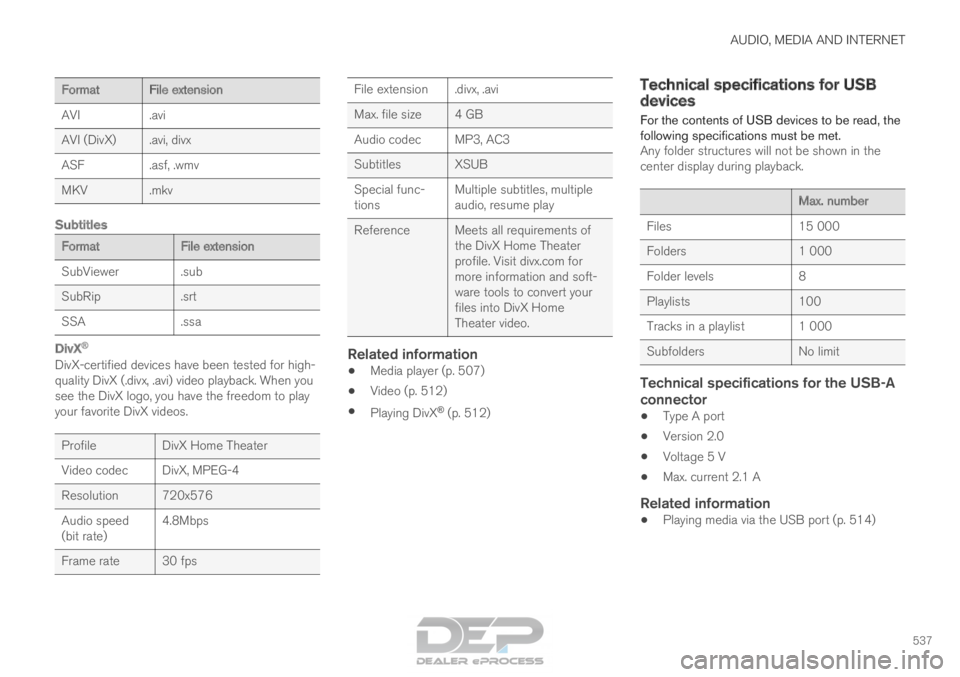
• Terms of use and data sharing (p. 536) Compatible file formats for media
In order to play media, the following file formats
must be used.
Audio files For-
mat
File extension
Codec
MP3
.mp3 MPEG1 Layer III,
MPEG2 Layer III,
MP3 Pro (mp3
compatible),
MP3 HD (mp3
compatible)
AAC .m4a, .m4b, .aac AAC LC (MPEG-4 part III Audio),
HE-AAC (aacPlus
v1/v2)
WMA .wma WMA8/9,
WMA9/10 Pro
WAV .wav LPCM
FLAC .flac FLAC
Video files Format
File extension
MP4
.mp4, m4v
MPEG-PS .mpg, .mp2, .mpeg, .m1v
Page 539 of 686
AUDIO, MEDIA AND INTERNET
537Format
File extension
AVI
.avi
AVI (DivX) .avi, divx
ASF .asf, .wmv
MKV .mkv
Subtitles Format
File extension
SubViewer
.sub
SubRip .srt
SSA .ssa
DivX®
DivX-certified devices have been tested for high-
quality DivX (.divx, .avi) video playback. When you
see the DivX logo, you have the freedom to play
your favorite DivX videos. Profile
DivX Home Theater
Video codec
DivX, MPEG-4
Resolution 720x576
Audio speed
(bit rate) 4.8Mbps
Frame rate 30 fps File extension .divx, .avi
Max. file size
4 GB
Audio codec MP3, AC3
Subtitles XSUB
Special func-
tions Multiple subtitles, multiple
audio, resume play
Reference Meets all requirements of the DivX Home Theater
profile. Visit divx.com for
more information and soft-
ware tools to convert your
files into DivX Home
Theater video.
Related information
•Media player (p. 507)
• Video (p. 512)
• Playing DivX ®
(p. 512) Technical specifications for USB
devices
For the contents of USB devices to be read, the
following specifications must be met.
Any folder structures will not be shown in the
center display during playback. Max. number
Files
15 000
Folders 1 000
Folder levels 8
Playlists 100
Tracks in a playlist 1 000
Subfolders No limit
Technical specifications for the USB-A
connector
•Type A port
• Version 2.0
• Voltage 5 V
• Max. current 2.1 A
Related information
•Playing media via the USB port (p. 514)
Page 540 of 686

AUDIO, MEDIA AND INTERNET
538Hard disk storage space
It is possible to view how much space is remain-
ing on the vehicle's hard disk. Storage information for the vehicle's hard disk
can be shown, including total capacity, available
capacity and how much space is used for instal-
led apps. The information is found under
Settings System System Information
Storage.
Related information
•
Apps (p. 487)
Page 541 of 686

AUDIO, MEDIA AND INTERNET
}}
539
License agreement for audio and
media
A license is an agreement on the right to con-
duct a certain activity or the right to use some-
one else's right according to terms and condi-
tions specified in the agreement. The following
texts are Volvo's agreements with manufactur-
ers/developers.
Bowers & Wilkins Bowers & Wilkins and B&W are trademarks of
the B&W Group Ltd. Nautilus is a trademark of
B&W Group Ltd. Kevlar is a registered trademark
of DuPont.
Dirac Unison
® Dirac Unison co-optimizes the loudspeakers in
frequency, time and space for the best possible
bass integration and clarity. It enables a faithful
reproduction of the acoustic characteristics of
specific performance venues. Using advanced
algorithms, Dirac Unison controls all loudspeak-
ers digitally based on acoustic high-precision
measurements. Like a conductor of an orchestra,
it guarantees that the loudspeakers perform in
perfect unison.
DivX
® DivX
®
, DivX Certified ®
and associated logos are
trademarks of DivX, LLC and are used under
license.
This DivX Certified ®
device can play DivX® Home
Theater Home Theater video files up to 576p
(including .avi, .divx). Download free software at
www.divx.com to create, play and stream digital
video.
ABOUT DIVX VIDEO-ON-DEMAND: This DivX
Certified ®
device must be registered in order to
play purchased DivX Video-on-Demand (VOD)
movies. To obtain your registration code, locate
the DivX VOD section in your device setup menu.
Go to vod.divx.com for more information on com-
pleting the registration process.
Patent number
Covered by one or more of the following patents
in the US: 7,295,673; 7,460,668; 7,515,710;
8,656,183; 8,731,369; RE45,052.
Gracenote ®
Page 542 of 686

||AUDIO, MEDIA AND INTERNET
540
Portions of the content are copyright © of
Gracenote or its providers.
Gracenote, the Gracenote logo and logotype,
"Powered by Gracenote" and Gracenote MusicID
are either registered trademarks of Gracenote,
Inc. in the United States and/or other countries.
Gracenote ®
End User License Agreement
This application or device contains software from
Gracenote, Inc. in Emeryville, California, United
States ("Gracenote"). The software from Grace-
note (the “Gracenote Software”) enables this
application to perform disc and/or file identifica-
tion and obtain music-related information, includ-
ing name, artist, track, and title information
(“Gracenote Data”) from online servers or embed-
ded databases (collectively “Gracenote Servers”)
and to perform other functions. You may use
Gracenote Data only by means of the intended
End-User functions of this application or device.
You agree that you will use Gracenote Data, the
Gracenote Software, and Gracenote Servers for
your own personal non-commercial use only. You
agree not to assign, copy, transfer or transmit the
Gracenote Software or any Gracenote Data to
any third party. YOU AGREE NOT TO USE OR
EXPLOIT GRACENOTE DATA, THE GRACE-
NOTE SOFTWARE, OR GRACENOTE SERVERS,
EXCEPT AS EXPRESSLY PERMITTED HEREIN.
You agree that your non-exclusive license to use
the Gracenote Data, the Gracenote Software, and
Gracenote Servers will terminate if you violate these restrictions. If your license terminates, you
agree to cease any and all use of the Gracenote
Data, the Gracenote Software, and Gracenote
Servers. Gracenote reserves all rights in all
Gracenote Data, all Gracenote Software, and all
Gracenote Servers, including all ownership rights.
Under no circumstances will Gracenote become
liable for any payment to you for any information
that you provide. You agree that Gracenote, Inc.
may enforce its rights under this Agreement
against you directly in its own name.
The Gracenote service uses a unique identifier to
track queries for statistical purposes. The pur-
pose of a randomly assigned numeric identifier is
to allow the Gracenote service to count queries
without knowing anything about who you are. For
more information, see the web page for the
Gracenote Privacy Policy for the Gracenote serv-
ice.
The Gracenote Software and each item of Grace-
note Data are licensed to you “AS IS.” Gracenote
makes no representations or warranties, express
or implied, regarding the accuracy of any Grace-
note Data from in the Gracenote Servers. Grace-
note reserves the right to delete data from the
Gracenote Servers or to change data categories
for any cause that Gracenote deems sufficient.
No warranty is made that the Gracenote Software
or Gracenote Servers are error-free or that func-
tioning of Gracenote Software or Gracenote
Servers will be uninterrupted. Gracenote is not
obligated to provide you with new enhanced or
additional data types or categories that Grace-
note may provide in the future and is free to dis-
continue its services at any time.
GRACENOTE DISCLAIMS ALL WARRANTIES
EXPRESS OR IMPLIED, INCLUDING, BUT NOT
LIMITED TO, IMPLIED WARRANTIES OF MER-
CHANTABILITY, FITNESS FOR A PARTICULAR
PURPOSE, TITLE, AND NON-INFRINGEMENT.
GRACENOTE DOES NOT WARRANT THE
RESULTS THAT WILL BE OBTAINED BY YOUR
USE OF THE GRACENOTE SOFTWARE OR
ANY GRACENOTE SERVER. IN NO CASE WILL
GRACENOTE BE LIABLE FOR ANY CONSE-
QUENTIAL OR INCIDENTAL DAMAGES OR
FOR ANY LOST PROFITS OR LOST REVENUES.
© Gracenote, Inc. 2009
Sensus software
This software uses parts of sources from clib2
and Prex Embedded Real-time OS - Source
(Copyright (c) 1982, 1986, 1991, 1993, 1994),
and Quercus Robusta (Copyright (c) 1990,
1993), The Regents of the University of
California. All or some portions are derived from
material licensed to the University of California by
American Telephone and Telegraph Co. or Unix
System Laboratories, Inc. and are reproduced
herein with the permission of UNIX System
Laboratories, Inc. Redistribution and use in
source and binary forms, with or without
modification, are permitted provided that the
following conditions are met: Redistributions of