key VOLVO XC90 TWIN ENGINE 2019 Owners Manual
[x] Cancel search | Manufacturer: VOLVO, Model Year: 2019, Model line: XC90 TWIN ENGINE, Model: VOLVO XC90 TWIN ENGINE 2019Pages: 697, PDF Size: 10.33 MB
Page 5 of 697
3
Top tether anchors72
Lower child seat attachment points74
ISOFIX/LATCH lower anchors74
Integrated booster cushion*76
Folding up the integrated boostercushion*77
Folding down the integrated boostercushion*78
DISPLAYS AND VOICE CONTROL
Instruments and controls in left-handdrive vehicles82
Instrument panel84
Instrument panel settings86
Fuel gauge87
Hybrid gauge87
Hybrid gauge88
Trip computer89
Displaying trip data in the instrumentpanel91
Resetting the trip odometer92
Displaying trip statistics in the centerdisplay92
Trip statistics settings93
Date and time93
Ambient temperature sensor94
Indicator symbols in the instrument panel94
Warning symbols in the instrument panel97
Instrument panel licenses98
App menu in instrument panel103
Handling the App menu in the instru-ment panel104
Messages in the instrument panel105
Handling messages in the instru-ment panel106
Handling messages saved from theinstrument panel107
Center display overview109
Handling the center display112
Activating and deactivating the cen-ter display115
Navigating in the center display's views115
Handling tiles in the center display119
Function view in the center display122
Moving apps and buttons in the cen-ter display124
Symbols in the center display status bar124
Using the center display keyboard126
Changing keyboard language in thecenter display129
Entering characters, letters andwords by hand in the center display129
Changing the appearance of thecenter display131
Turning off and adjusting the volumeof the center display system sounds131
Changing system units of measurement132
Changing system language132
Changing settings in the center dis-play's Top view132
Opening contextual setting in thecenter display133
Page 6 of 697
4
Resetting user data when the vehiclechanges owners134
Resetting center display settings134
Table of settings in the center display135
Driver profiles136
Selecting a driver profile137
Changing a driver profile's name137
Protecting a driver profile138
Linking a remote key to a driver profile138
Resetting driver profile settings139
Messages in the center display140
Handling messages in the center display140
Handling messages saved from thecenter display141
Head-up display*142
Activating and deactivating the head-up display*143
Head-up display settings*144
Voice control145
Using voice commands146
Voice control for cellular phones147
Voice control for radio and media148
Voice control settings148
LIGHTING
Lighting panel and controls152
Adjusting light functions via the cen-ter display153
Parking lights154
Daytime running lights154
Low beams155
Using high beam156
Active high beam157
Using turn signals158
Active Bending Lights*159
Rear fog light159
Brake lights160
Emergency brake lights160
Hazard warning flashers161
Using home safe lighting161
Welcome Light161
Interior Lighting162
Adjusting interior lighting164
WINDOWS, GLASS AND MIRRORS
Windows, glass and mirrors166
Pinch protection for windows andsun curtains166
Reset procedure for pinch protection167
Power windows167
Operating the power windows168
Using sun curtains*169
Rearview/door mirrors169
Adjusting the rearview mirror dim-ming function170
Adjusting the door mirrors171
Panoramic roof*172
Operating the panoramic roof*173
Auto closing the panoramic roof* suncurtain175
Wiper blades and washer fluid176
Using the windshield wipers176
Using the rain sensor177
Using the rain sensor's memory function178
Using the windshield and headlightwashers179
Using the rear window wiper/washer180
Using automatic rear window wipingwhen backing up181
Page 8 of 697

6
Activating and deactivating climatecontrol for the third-row seats*231
Parking climate231
Preconditioning232
Starting and stopping preconditioning233
Preconditioning timer234
Adding and editing timer settings forpreconditioning234
Activating and deactivating precondi-tioning timer235
Deleting preconditioning timer settings236
Climate comfort retaining function237
Starting and switching off the cli-mate retaining function when parking237
Parking climate symbols and messages238
Heater239
Parking heater239
Additional heater239
Activating and deactivating the auxili-ary heater240
KEY, LOCKS AND ALARM
Lock indication242
Lock confirmation settings243
Remote key243
Locking and unlocking using theremote key246
Settings for remote and inside doorunlock247
Unlocking the tailgate using theremote key247
Remote key range248
Replacing the remote key's battery249
Ordering additional remote keys252
Red Key - restricted remote key*253
Red Key* settings253
Detachable key blade254
Locking and unlocking with detacha-ble key blade255
Electronic immobilizer257
Start and lock system type designations257
Keyless and touch-sensitive surfaces*258
Keyless locking and unlocking*259
Keyless unlock settings*261
Keyless tailgate unlock*261
Antenna locations for the start andlock system262
Locking and unlocking from insidethe vehicle262
Unlocking the tailgate from insidethe vehicle264
Activating and deactivating childsafety locks264
Automatic locking when driving266
Opening and closing the power tailgate*266
Setting a maximum height for thepower tailgate*269
Foot movement tailgate operation*270
Private Locking271
Activating and deactivating privatelocking272
Alarm273
Arming and disarming the alarm274
Page 22 of 697
||
OWNER'S INFORMATION
20
Information
Tap the symbol for informationabout the current version of theOwner's Manual in your vehicleand other useful information.
Using the search function in the Top
menu
1.Tap in the Owner's Manual upper menu.A keyboard will appear at the bottom of thescreen.
2.Enter a search word, e.g. "seat belt".
> Suggested articles and categories will bedisplayed as characters are entered.
3. Tap the article or category to read it.
Related information
Owner's Manual in the center display (p. 17)
Using the center display keyboard (p. 126)
Using the Owner's Manual (p. 21)
Owner's manual in mobile devices
The Owner's Manual is available as a mobile
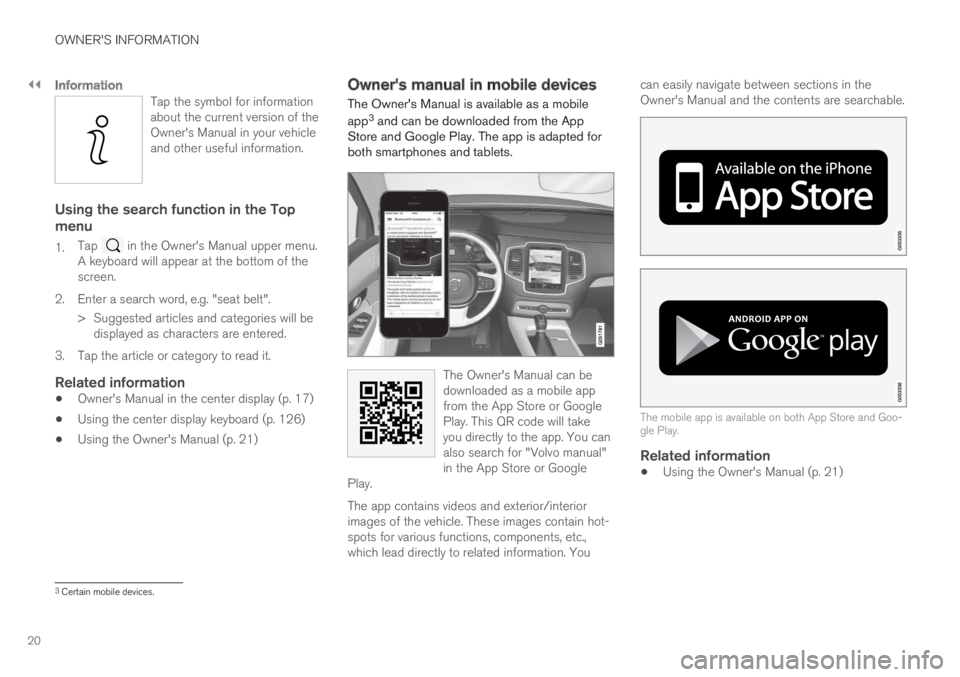
app3 and can be downloaded from the AppStore and Google Play. The app is adapted forboth smartphones and tablets.
The Owner's Manual can bedownloaded as a mobile appfrom the App Store or GooglePlay. This QR code will takeyou directly to the app. You canalso search for "Volvo manual"in the App Store or GooglePlay.
The app contains videos and exterior/interiorimages of the vehicle. These images contain hot-spots for various functions, components, etc.,which lead directly to related information. You
can easily navigate between sections in theOwner's Manual and the contents are searchable.
The mobile app is available on both App Store and Goo-gle Play.
Related information
Using the Owner's Manual (p. 21)
3Certain mobile devices.
Page 33 of 697
YOUR VOLVO
}}
* Option/accessory.31
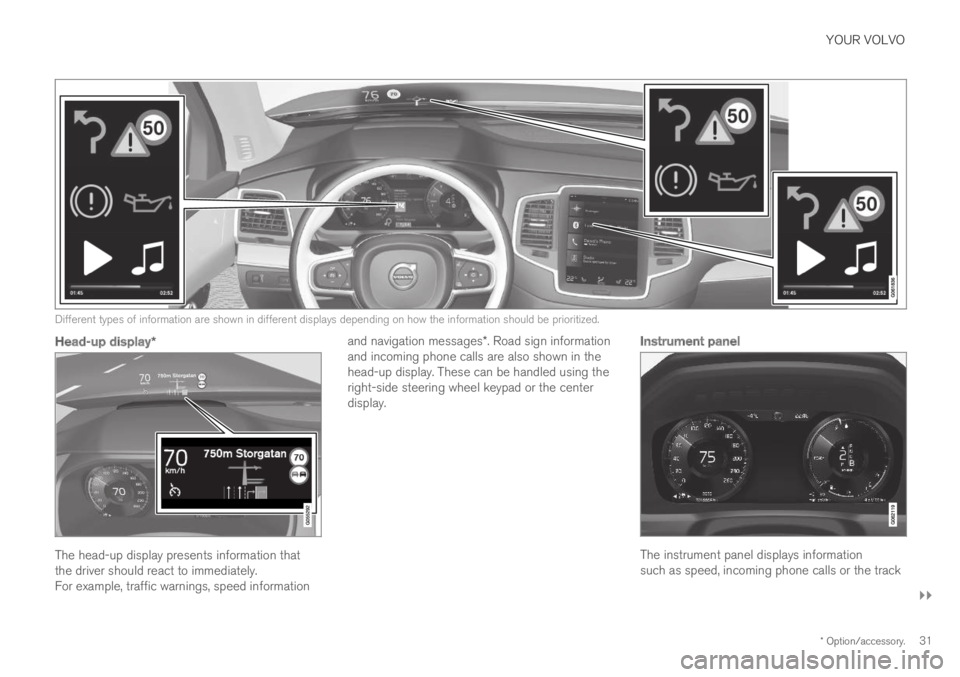
Different types of information are shown in different displays depending on how the information should be prioritized.
Head-up display *
The head-up display presents information thatthe driver should react to immediately.For example, traffic warnings, speed information
and navigation messages*. Road sign informationand incoming phone calls are also shown in thehead-up display. These can be handled using theright-side steering wheel keypad or the centerdisplay.
Instrument panel
The instrument panel displays informationsuch as speed, incoming phone calls or the track
Page 34 of 697
||
YOUR VOLVO
* Option/accessory.32
currently playing. It is controlled using the steer-ing wheel keypads.
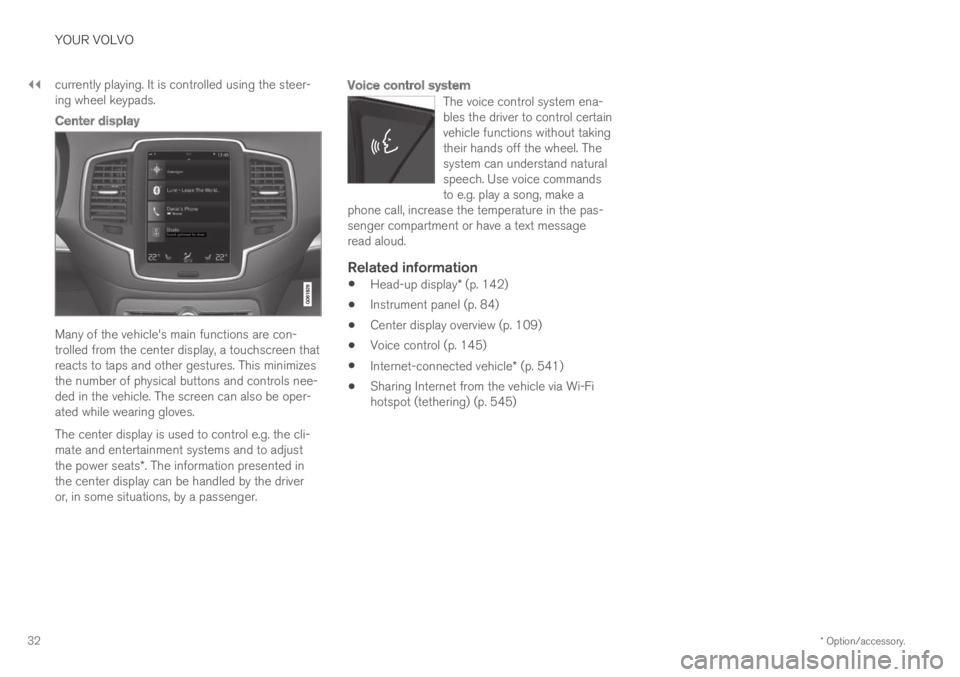
Center display
Many of the vehicle's main functions are con-trolled from the center display, a touchscreen thatreacts to taps and other gestures. This minimizesthe number of physical buttons and controls nee-ded in the vehicle. The screen can also be oper-ated while wearing gloves.
The center display is used to control e.g. the cli-mate and entertainment systems and to adjustthe power seats*. The information presented inthe center display can be handled by the driveror, in some situations, by a passenger.
Voice control system
The voice control system ena-bles the driver to control certainvehicle functions without takingtheir hands off the wheel. Thesystem can understand naturalspeech. Use voice commandsto e.g. play a song, make aphone call, increase the temperature in the pas-senger compartment or have a text messageread aloud.
Related information
Head-up display* (p. 142)
Instrument panel (p. 84)
Center display overview (p. 109)
Voice control (p. 145)
Internet-connected vehicle* (p. 541)
Sharing Internet from the vehicle via Wi-Fihotspot (tethering) (p. 545)
Page 53 of 697
SAFETY
}}
51
When a critical situation has passed, the seat beltand the electric seat belt tensioner are resetautomatically. However, they can also be resetmanually.
WARNING
Never attempt to alter or repair the seat belton your own. Volvo recommends contactingan authorized Volvo workshop.
If the seat belt has been exposed to extremeforces, e.g. in conjunction with a collision, theentire seat belt must be replaced. Even if theseat belt appears undamaged, some of itsprotective properties may have been lost. Alsoreplace the seat belt if it is worn or damaged.The new seat belt must be type approved andintended for the same seating position as thereplaced seat belt.
Related information
Seat belts (p. 47)
Buckling and unbuckling seat belts (p. 48)
Resetting the electric seat belt tensioners(p. 51)
City Safety™ (p. 341)
Rear Collision Warning (p. 354)
Resetting the electric seat belttensioners
The electric seat belt tensioners are designed tobe reset automatically, but if the seat beltremains taut it can be reset manually.
1. Stop the vehicle in a safe location.
2.Unbuckle the seat belt and then rebuckle it.
> The seat belt and the electric seat belttensioner will be reset.
WARNING
Never attempt to alter or repair the seat belton your own. Volvo recommends contactingan authorized Volvo workshop.
If the seat belt has been exposed to extremeforces, e.g. in conjunction with a collision, theentire seat belt must be replaced. Even if theseat belt appears undamaged, some of itsprotective properties may have been lost. Alsoreplace the seat belt if it is worn or damaged.The new seat belt must be type approved andintended for the same seating position as thereplaced seat belt.
Related information
Seat belt tensioners (p. 50)
Seat belts (p. 47)
Door and seat belt reminders
This system is intended to remind occupants tobuckle their seat belts and to alert the driver if adoor, hood or other opening (trunk, sunroof,etc.) is open.
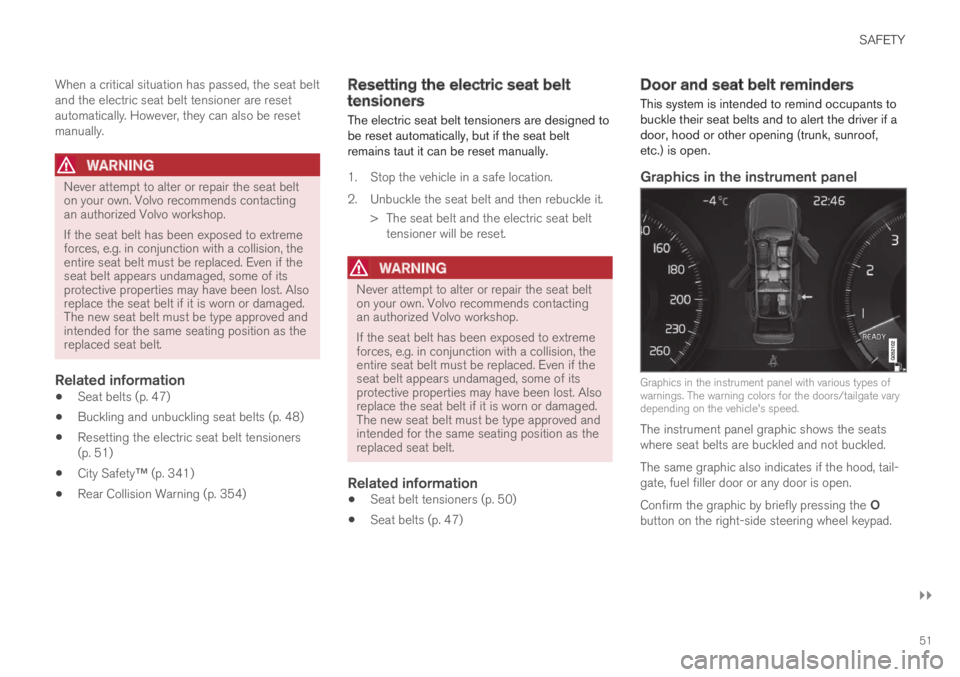
Graphics in the instrument panel
Graphics in the instrument panel with various types ofwarnings. The warning colors for the doors/tailgate varydepending on the vehicle's speed.
The instrument panel graphic shows the seatswhere seat belts are buckled and not buckled.
The same graphic also indicates if the hood, tail-gate, fuel filler door or any door is open.
Confirm the graphic by briefly pressing the Obutton on the right-side steering wheel keypad.
Page 84 of 697
DISPLAYS AND VOICE CONTROL
* Option/accessory.
82 Instruments and controls in left-
hand drive vehicles
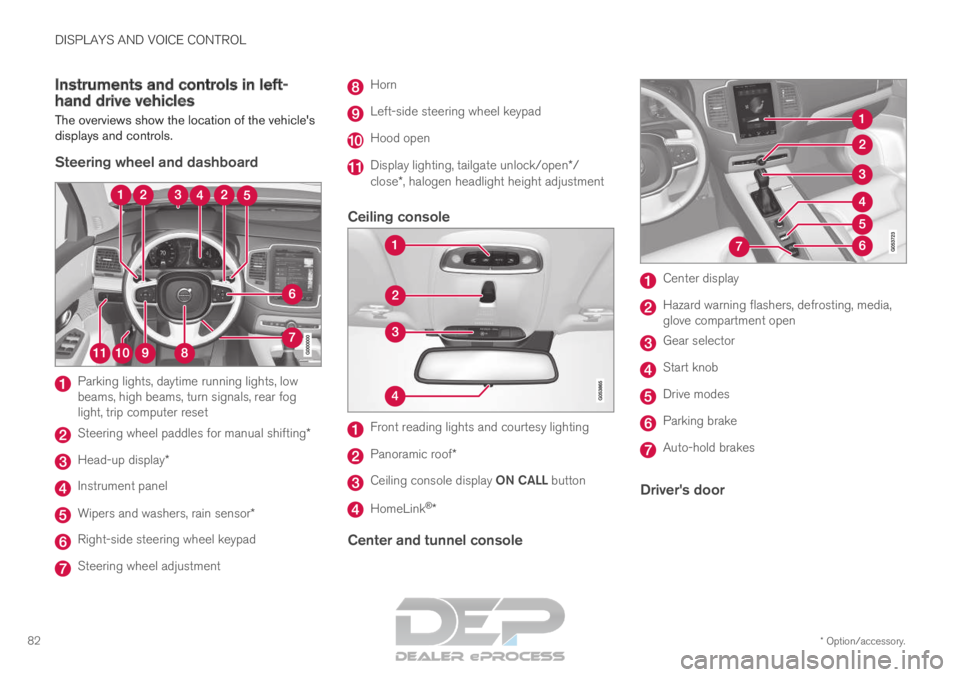
The overviews show the location of the vehicle's
displays and controls.
Steering wheel and dashboard Parking lights, daytime running lights, low
beams, high beams, turn signals, rear fog
light, trip computer reset
Steering wheel paddles for manual shifting*
Head-up display*
Instrument panel
Wipers and washers, rain sensor*
Right-side steering wheel keypad
Steering wheel adjustment Horn
Left-side steering wheel keypad
Hood open
Display lighting, tailgate unlock/open*/
close*, halogen headlight height adjustment
Ceiling console Front reading lights and courtesy lighting
Panoramic roof*
Ceiling console display ON CALL button
HomeLink
®
*
Center and tunnel console Center display
Hazard warning flashers, defrosting, media,
glove compartment open
Gear selector
Start knob
Drive modes
Parking brake
Auto-hold brakes
Driver's door
Page 87 of 697
DISPLAYS AND VOICE CONTROL
85Left side
In the centerRight side
– Media player
Distance to discharged battery
– Navigation system mapCurrent fuel consumption
– PhoneApp menu (activated using steering wheel keypad)
– Voice Control–
– CompassA
–A
Depends on selected drive mode.
B Total distance.
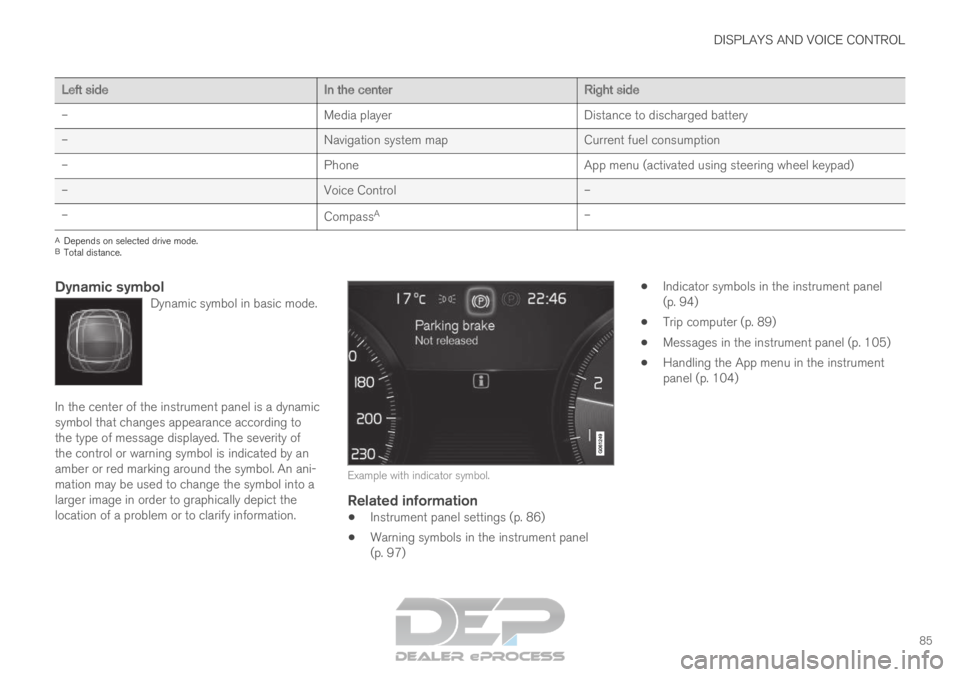
Dynamic symbolDynamic symbol in basic mode. In the center of the instrument panel is a dynamic
symbol that changes appearance according to
the type of message displayed. The severity of
the control or warning symbol is indicated by an
amber or red marking around the symbol. An ani-
mation may be used to change the symbol into a
larger image in order to graphically depict the
location of a problem or to clarify information.
Example with indicator symbol.
Related information
Instrument panel settings (p. 86)
Warning symbols in the instrument panel
(p. 97)
Indicator symbols in the instrument panel
(p. 94)
Trip computer (p. 89)
Messages in the instrument panel (p. 105)
Handling the App menu in the instrument
panel (p. 104)
Page 88 of 697
DISPLAYS AND VOICE CONTROL
86Instrument panel settings
Display settings for the instrument panel can be
set via the instrument panel's app menu and via
the center display's Settings menu.
Settings via instrument panel's app
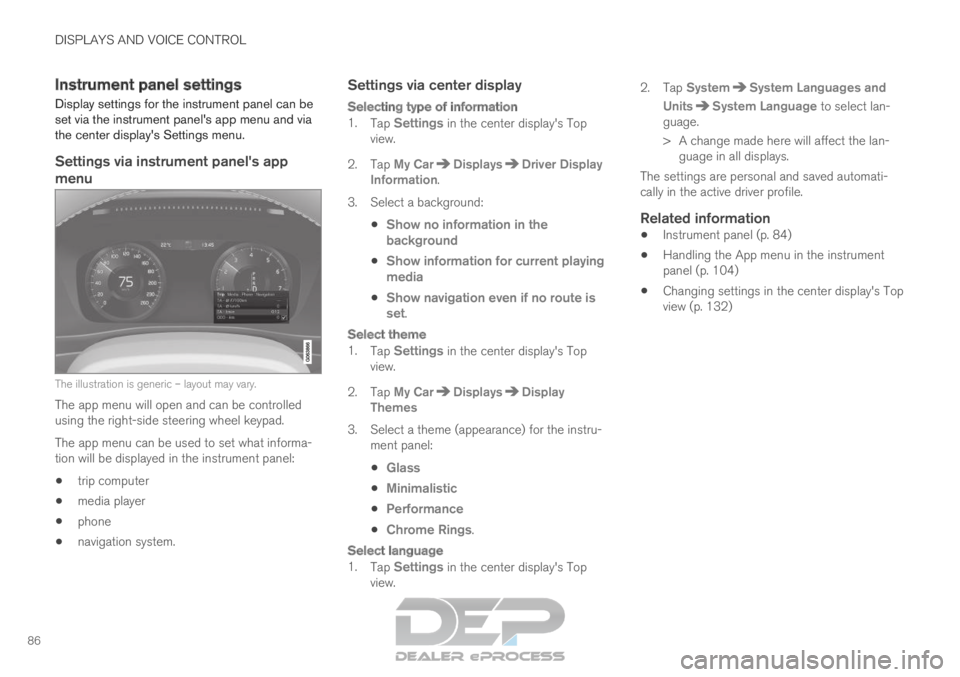
menu The illustration is generic – layout may vary.
The app menu will open and can be controlled
using the right-side steering wheel keypad.
The app menu can be used to set what informa-
tion will be displayed in the instrument panel:
trip computer
media player
phone
navigation system.
Settings via center display
Selecting type of information
1.
Tap Settings in the center display's Top
view.
2.
Tap My Car Displays Driver Display
Information .
3.
Select a background:
Show no information in the
background
Show information for current playing
media
Show navigation even if no route is
set.
Select theme
1.
Tap Settings in the center display's Top
view.
2.
Tap My Car Displays Display
Themes
3. Select a theme (appearance) for the instru- ment panel:
Glass
Minimalistic
Performance
Chrome Rings.
Select language
1.
Tap Settings in the center display's Top
view. 2.
Tap
System System Languages and
Units System Language
to select lan-
guage.
> A change made here will affect the lan- guage in all displays.
The settings are personal and saved automati-
cally in the active driver profile.
Related information
Instrument panel (p. 84)
Handling the App menu in the instrument
panel (p. 104)
Changing settings in the center display's Top
view (p. 132)