USB VOLVO XC90 TWIN ENGINE 2019 User Guide
[x] Cancel search | Manufacturer: VOLVO, Model Year: 2019, Model line: XC90 TWIN ENGINE, Model: VOLVO XC90 TWIN ENGINE 2019Pages: 697, PDF Size: 10.33 MB
Page 525 of 697
AUDIO, MEDIA AND INTERNET
523
Playing video
The USB app in App view is used to play videos.
1. Connecting media source (USB device).
2. Open the USB app from App view.
3.
Tap the title you would like to play.
> Playback will begin.
Related information
Video (p. 522)
Playing DivX ®
(p. 523)
Video settings (p. 523)
Compatible file formats for media (p. 526) Playing DivX
®
The DivX Certified ®
device must be registered to
play purchased DivX video-on-demand (VOD)
movies.
1. Tap Settings in the Top view.
2.
Tap Video DivX® VOD to get a registra-
tion code.
3.
Go to vod.divx.com for more information and
to complete the registration process.
Related information
Video (p. 522)
Playing video (p. 523)
Video settings (p. 523)
Compatible file formats for media (p. 526) Video settings
Some video playback settings can be adjusted,
e.g. language.
The following can be adjusted by opening Top
view and tapping Settings Video
or with the
video player in full-screen mode: Audio
Language, Off and Subtitle Language.
Related information
Video (p. 522)
Page 526 of 697
AUDIO, MEDIA AND INTERNET
* Option/accessory.
524 Streaming media via Bluetooth
®
The vehicle's media player is equipped with
Bluetooth and can play audio files from
Bluetooth-enabled external devices such as cel-
lular phones and tablets.
In order for the media player to be able to wire-
lessly play audio files from an external device, the
device must be connected to the vehicle via
Bluetooth.
Related information
Connecting a device via Bluetooth ®
(p. 524)
Connecting a phone to the car via Bluetooth
for the first time (p. 533)
Playing media (p. 518)
Compatible file formats for media (p. 526) Connecting a device via Bluetooth
®
Connect a Bluetooth ®
device to the vehicle to
wirelessly play media and give the vehicle an
Internet connection if it is available.
Many cellular phones on the market currently
offer wireless Bluetooth ®
technology, but not all
phones are fully compatible with the vehicle. For
additional information on compatibility, see
support.volvocars.com.
The procedure for connecting a media device is
the same as for connecting a cellular phone to
the vehicle via Bluetooth ®
.
Related information
Streaming media via Bluetooth ®
(p. 524)
Connecting a phone to the car via Bluetooth
for the first time (p. 533)
Playing media (p. 518) Playing media via the USB port
External audio sources, such as an iPod® or
MP3 player, can be connected to the audio sys-
tem via the vehicle's USB port.
Devices with rechargeable batteries can be
charged when they are connected via the USB
port and the ignition is in mode I, II or the engine
is running.
The content on the external source can be read
faster if it only contains data of a compatible for-
mat. Video files can also be played via the USB
port.
Some MP3 players have their own file system
that the vehicle has support for.Related information
Connecting a device via the USB port
(p. 525)
Playing media (p. 518)
Video (p. 522)
Ignition modes (p. 437)
Technical specifications for USB devices
(p. 525)
Apple ®
CarPlay ®
* (p. 527)
Android Auto* (p. 530)
Page 527 of 697
AUDIO, MEDIA AND INTERNET
* Option/accessory.525
Connecting a device via the USB
port
External audio sources, such as an iPod ®
or
MP3 player, can be connected to the audio sys-
tem via any of the vehicle's USB ports.
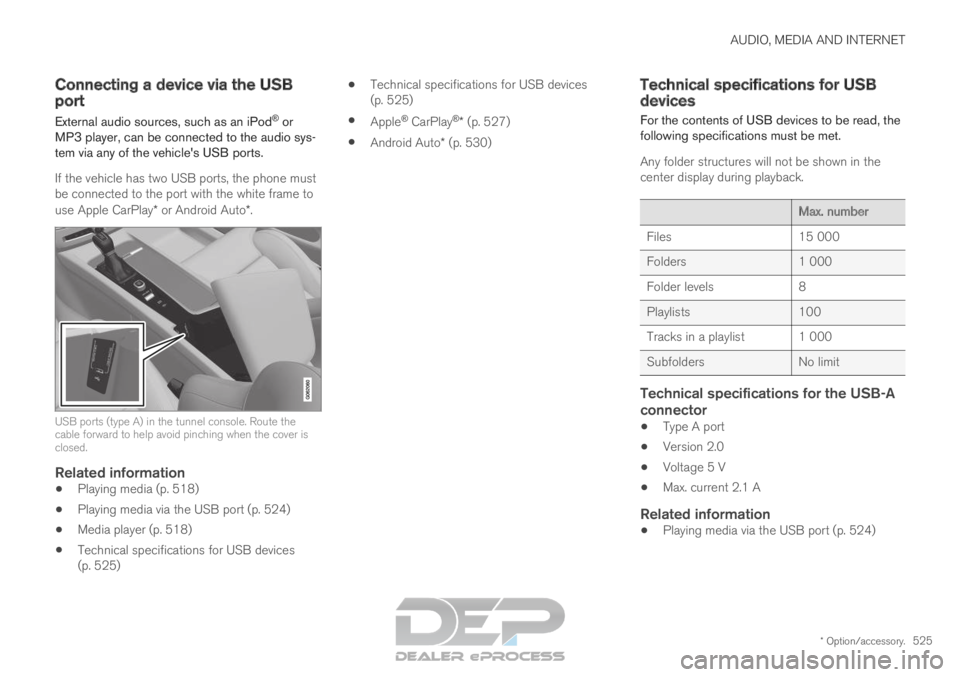
If the vehicle has two USB ports, the phone must
be connected to the port with the white frame to
use Apple CarPlay* or Android Auto*. USB ports (type A) in the tunnel console. Route the
cable forward to help avoid pinching when the cover is
closed.
Related information
Playing media (p. 518)
Playing media via the USB port (p. 524)
Media player (p. 518)
Technical specifications for USB devices
(p. 525)
Technical specifications for USB devices
(p. 525)
Apple ®
CarPlay ®
* (p. 527)
Android Auto* (p. 530) Technical specifications for USB
devices
For the contents of USB devices to be read, the
following specifications must be met.
Any folder structures will not be shown in the
center display during playback. Max. number
Files
15 000
Folders 1 000
Folder levels 8
Playlists 100
Tracks in a playlist 1 000
Subfolders No limit
Technical specifications for the USB-A
connector
Type A port
Version 2.0
Voltage 5 V
Max. current 2.1 A
Related information
Playing media via the USB port (p. 524)
Page 530 of 697
||AUDIO, MEDIA AND INTERNET
* Option/accessory.
528 5. Tap the desired app.
> The app will start up.
Starting CarPlay
CarPlay can be started as follows after an iPhone
is connected.
1. Connect an iPhone to the USB port. If thereare two USB ports, use the one with the
white frame.
>If the auto start setting is selected -
the name of the phone will be displayed.
2. Tap the name of the phone - the CarPlay tile will open and compatible apps will be dis-
played.
3. If the CarPlay tile does not open, tap Apple
CarPlay in App view.
>
The CarPlay tile will open and compatible
apps will be displayed.
4. Tap the desired app. > The app will start up.
CarPlay will run in the background if another app
is started in the same tile. To display CarPlay in
the tile, tap the CarPlay icon in App view.
Switching connection between CarPlay and iPod
CarPlay to iPod
1. Tap Settings in the Top view. 2.Proceed to
Communication Apple
CarPlay .
3.
Uncheck the box for the Apple device that
should no longer start CarPlay automatically
when the USB cable is connected.
4. Remove and then reinsert the Apple device into the USB port.
5. Open the iPod app from App view.
iPod to CarPlay
1.
Tap Apple CarPlay in App view.
2.
Read the information in the pop-up window
and then tap OK.
3.
Remove and then reinsert the Apple device
into the USB port.
> The Apple CarPlay tile will open and com-
patible apps will be displayed 7
.
Related information
Connecting a device via the USB port
(p. 525)
Apple ®
CarPlay ®
* (p. 527)
Settings for Apple ®
CarPlay ®
* (p. 528)
Connecting the vehicle to the Internet via a
phone (Wi-Fi) (p. 543)
Connecting the vehicle to the Internet via
vehicle modem (SIM card) (p. 544)
Voice control (p. 145) Settings for Apple
®
CarPlay ®
*
Settings for an
Apple device connected through
CarPlay 8
.
Automatic start1. Tap Settings in the Top view.
2.
Tap Communication Apple CarPlay
and
select the desired setting:
Check the box - CarPlay will start auto-
matically when the USB cable is con-
nected.
Uncheck the box - CarPlay will not start
automatically when the USB cable is con-
nected.
A maximum of 20 Apple devices can be stored in
the list. When the list is full and a new device is
connected, the oldest one will be deleted.
To delete the list, the settings must be rest in the
center display (factory reset).
System Volumes1. Tap Settings in the Top view.
2.
Tap Sound System Volumes
to change
the settings for the following:
Voice Control
Navi Voice Guidance
Phone Ringtone 7
Apple, CarPlay, iPhone and iPod are registered trademarks of Apple Inc.
Page 531 of 697
AUDIO, MEDIA AND INTERNET
* Option/accessory.529
Related information
Apple ®
CarPlay ®
* (p. 527)
Using Apple ®
CarPlay ®
* (p. 527)
Resetting center display settings (p. 134) Tips for using Apple
®
CarPlay ®
*
Here are some useful tips for when you use
CarPlay ®
.
Update your iPhone with the latest version of
iOS operating system and ensure that the
apps have been updated.
In the event of a problem with CarPlay, dis-
connect the phone from the USB port and
reconnect. Otherwise, try to close the app on
the phone that is not working and then
restart the app, or try closing all apps and
restart your phone.
If the apps do not appear when CarPlay
starts (black screen), try minimizing and
expanding the tile for CarPlay.
Using apps that are not compatible with
CarPlay may sometimes mean that the con-
nection between the phone and the car is
broken. Information about supported apps
and compatible phone models can be found
on Apple's website. You can also search for
CarPlay in the App Store to find information
about apps that are compatible with CarPlay
in your market.
CarPlay only works with iPhone 9
.NOTE Availability and functionality can vary depend-
ing on market.
Related information
Apple ®
CarPlay ®
* (p. 527) 8
Apple and CarPlay are registered trademarks of Apple Inc..
9 Apple, CarPlay and iPhone are registered trademarks owned by Apple Inc.
Page 533 of 697
AUDIO, MEDIA AND INTERNET
* Option/accessory.531
From a previously connected Android device
1. Connect the device to the USB port.
>If the auto start setting is selected -
the name of the phone will be displayed.
2. Tap the name of the phone - the Android Auto tile will open and compatible
apps will be displayed.
3. If the automatic start setting is not acti-
vated - open the Android Auto app from
App view.
>
The Android Auto tile will open and com-
patible apps will be displayed.
4. Tap the desired app. > The app will start up.
Android Auto will run in the background if
another app is started in the same tile. To display
Android Auto in the tile, tap the Android Auto
icon in App view.
Related information
Android Auto* (p. 530)
Settings for Android Auto* (p. 531)
Connecting a device via the USB port
(p. 525)
Voice control (p. 145) Settings for Android Auto*
Settings for phones initially connected with
Android Auto.
Automatic start1. Tap Settings in the Top view.
2.
Tap Communication Android Auto
and
select setting:
Check the box - Android Auto will start
automatically when the USB cable is con-
nected.
Uncheck the box - Android Auto will not
start automatically when the USB cable is
connected.
A maximum of 20 Android devices can be stored
in the list. When the list is full and a new device is
connected, the oldest one will be deleted.
A factory reset must be performed to delete the
list.
System Volumes1. Tap Settings in the Top view.
2.
Tap Sound System Volumes
to change
the settings for the following:
Voice Control
Navi Voice Guidance
Phone Ringtone
Related information
Android Auto* (p. 530)
Using Android Auto* (p. 530)
Resetting center display settings (p. 134)
Page 534 of 697
AUDIO, MEDIA AND INTERNET
* Option/accessory.
532 Tips for using Android Auto*
Here are some useful tips for when you use
Android Auto.
Ensure that your apps are updated.
When starting the car, wait until the center
display has started, connect the phone and
then open Android Auto from the app view.
In the event of problems with Android Auto,
disconnect your Android phone from the
USB port and then reconnect via USB. Oth-
erwise, try closing the app on the phone and
then restarting the app.
When a phone is connected to Android Auto
it is still possible to playback media via
Bluetooth to another media player. The
Bluetooth function is on when Android Auto
is used.
Related information
Android Auto* (p. 530) Phone
A phone equipped with Bluetooth can be wire-
lessly connected to the vehicle's integrated
hands-free system.
The audio and media system offers hands-free
functionality for remotely controlling a number of
the phone's features. The phone's integrated
controls can also be used, even when it is con-
nected to the vehicle.
When the phone has been paired and connected
to the vehicle, it can be used as an Internet con-
nection or to make or receive calls, send or
receive text messages or wirelessly play music.
The phone is controlled from the center display,
and the App menu (accessed using the right-side
steering wheel keypad) and voice commands can
also be used to control certain functions.
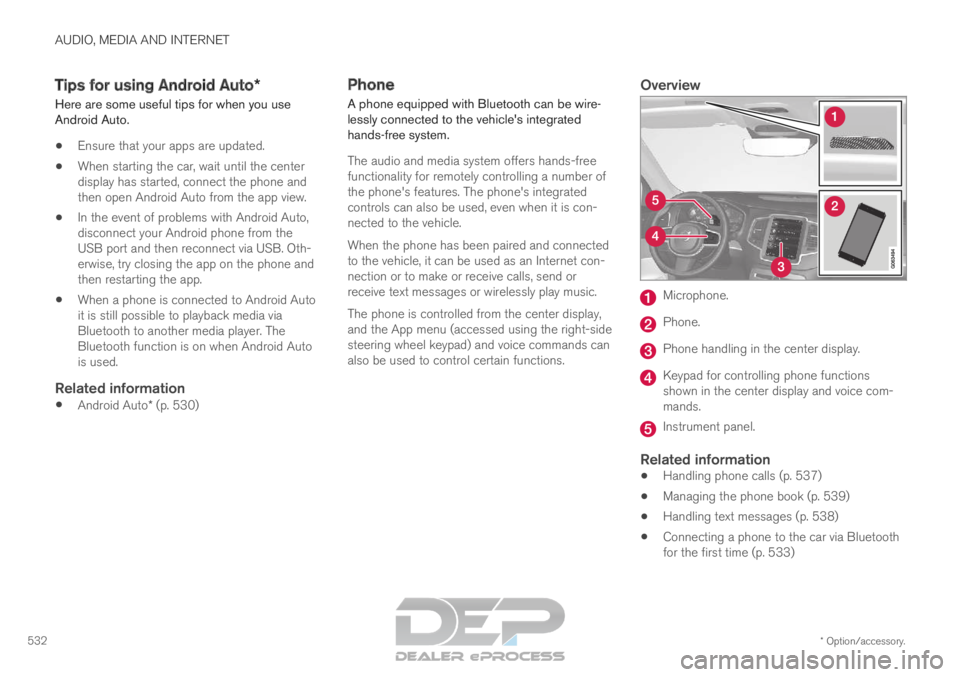
Overview Microphone.
Phone.
Phone handling in the center display.
Keypad for controlling phone functions
shown in the center display and voice com-
mands.
Instrument panel.
Related information
Handling phone calls (p. 537)
Managing the phone book (p. 539)
Handling text messages (p. 538)
Connecting a phone to the car via Bluetooth
for the first time (p. 533)
Page 594 of 697
LOADING, STORAGE AND PASSENGER COMPARTMENT
* Option/accessory.
592 Passenger compartment interior
Overview of the passenger compartment interior
and storage spaces.
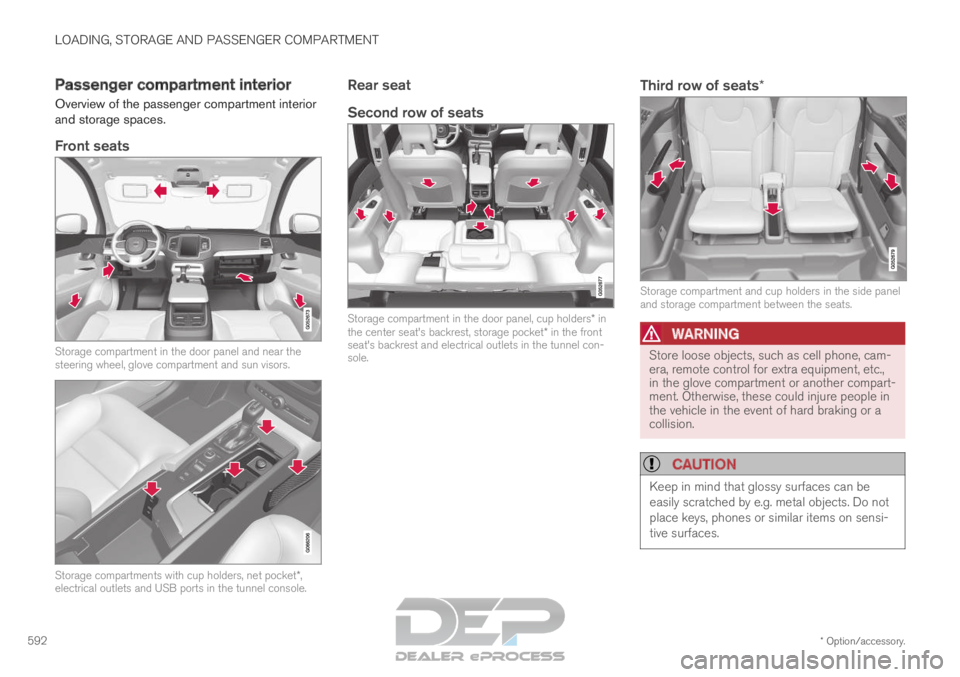
Front seats Storage compartment in the door panel and near the
steering wheel, glove compartment and sun visors.
Storage compartments with cup holders, net pocket*,
electrical outlets and USB ports in the tunnel console.
Rear seat
Second row of seats Storage compartment in the door panel, cup holders* in
the center seat's backrest, storage pocket* in the front
seat's backrest and electrical outlets in the tunnel con-
sole.Third row of seats* Storage compartment and cup holders in the side panel
and storage compartment between the seats.
WARNING
Store loose objects, such as cell phone, cam-
era, remote control for extra equipment, etc.,
in the glove compartment or another compart-
ment. Otherwise, these could injure people in
the vehicle in the event of hard braking or a
collision.
CAUTION
Keep in mind that glossy surfaces can be
easily scratched by e.g. metal objects. Do not
place keys, phones or similar items on sensi-
tive surfaces.
Page 595 of 697

LOADING, STORAGE AND PASSENGER COMPARTMENT
* Option/accessory.593
Related information
Electrical outlets (p. 594)
Using the glove compartment (p. 597)
Sun visors (p. 598)
Tunnel console (p. 593)
Connecting a device via the USB port
(p. 525) Tunnel console
The tunnel console is located between the front
seats. Storage compartment with cover*. The cover
can be opened/closed by pressing the han-
dle. Storage compartment with cup holder and
12 V socket.
Storage compartment and USB port under
the armrest.
Climate control panel for the rear seats* or
storage compartment.WARNING Store loose objects, such as cell phone, cam-
era, remote control for extra equipment, etc.,
in the glove compartment or another compart-
ment. Otherwise, these could injure people in
the vehicle in the event of hard braking or a
collision.
NOTE
One of the sensors for the alarm* is located
under the cup holder in the center console.
Avoid placing coins, keys and other metal
objects in the cup holder as this could trigger
the alarm.
CAUTION Keep in mind that glossy surfaces can be
easily scratched by e.g. metal objects. Do not
place keys, phones or similar items on sensi-
tive surfaces.
Related information
Passenger compartment interior (p. 592)
Electrical outlets (p. 594)
Climate system controls (p. 215)
Page 637 of 697
MAINTENANCE AND SERVICE
}}
635
Fuse pliers are provided on the inside of the fuse
box cover to assist in removing and inserting
fuses.
There are also spaces for several extra fuses in
the fusebox.
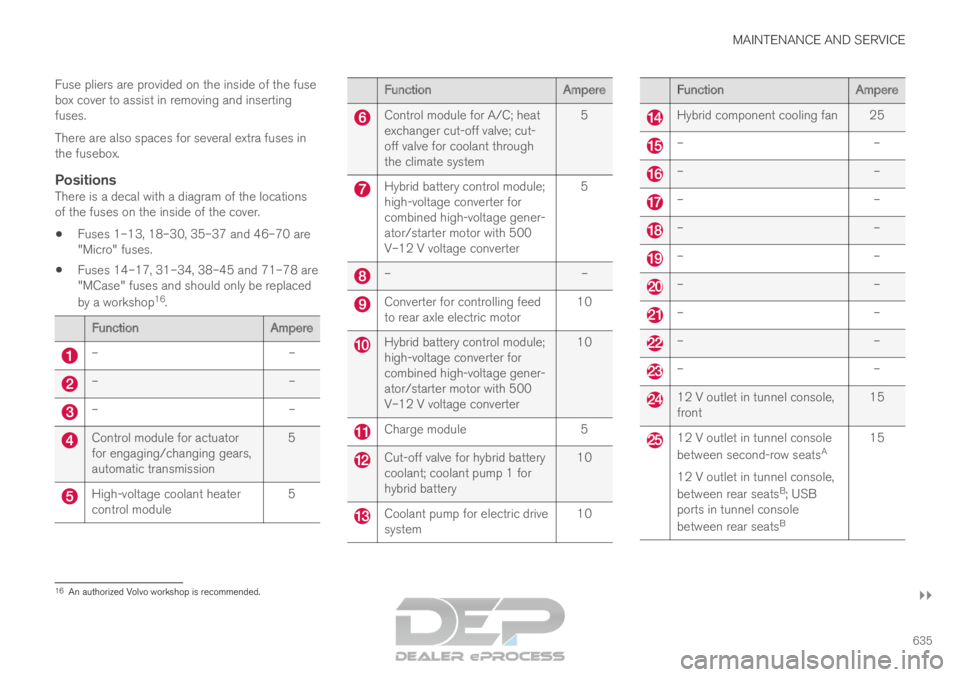
PositionsThere is a decal with a diagram of the locations
of the fuses on the inside of the cover.
Fuses 1–13, 18–30, 35–37 and 46–70 are
"Micro" fuses.
Fuses 14–17, 31–34, 38–45 and 71–78 are
"MCase" fuses and should only be replaced
by a workshop 16
. Function
Ampere–
––
––
–Control module for actuator
for engaging/changing gears,
automatic transmission
5High-voltage coolant heater
control module
5 Function
Ampere Control module for A/C; heat
exchanger cut-off valve; cut-
off valve for coolant through
the climate system
5 Hybrid battery control module;
high-voltage converter for
combined high-voltage gener-
ator/starter motor with 500
V–12 V voltage converter
5 –
– Converter for controlling feed
to rear axle electric motor
10 Hybrid battery control module;
high-voltage converter for
combined high-voltage gener-
ator/starter motor with 500
V–12 V voltage converter
10 Charge module
5 Cut-off valve for hybrid battery
coolant; coolant pump 1 for
hybrid battery
10 Coolant pump for electric drive
system
10 Function
Ampere Hybrid component cooling fan 25
–
– –
– –
– –
– –
– –
– –
– –
– –
– 12 V outlet in tunnel console,
front
15 12 V outlet in tunnel console
between second-row seats
A
12 V outlet in tunnel console,
between rear seats B
; USB
ports in tunnel console
between rear seats B15
16
An authorized Volvo workshop is recommended.