change VOLVO XC90 TWIN ENGINE 2019 User Guide
[x] Cancel search | Manufacturer: VOLVO, Model Year: 2019, Model line: XC90 TWIN ENGINE, Model: VOLVO XC90 TWIN ENGINE 2019Pages: 697, PDF Size: 10.33 MB
Page 92 of 697
||DISPLAYS AND VOICE CONTROL
90
This calculation is based on average fuel con-
sumption during the last 30 km (20 miles) and
the amount of fuel remaining in the tank.
When the gauge displays "----", there is not
enough fuel remaining to calculate the remaining
mileage. Refuel as soon as possible.
NOTE
This may vary if your driving style changes.
An economical driving style will generally
increase how far you can drive on a certain
amount of fuel.
Distance to discharged batteryThe gauge shows the approximate dis-
tance that can be driven with the
remaining current in the hybrid battery.
When the gauge displays "----", there is little
charge remaining in the battery and distance
cannot be reliably calculated.
This calculation is based on average consump-
tion with a normally loaded vehicle in normal driv-
ing conditions, and takes into account whether
the air conditioning is on or off. Changing drive
modes from
Hybrid to Pure may increase the
calculated distance because Pure mode has
reduced climate control settings (ECO Climate).
NOTE This may vary if your driving style changes.
An economical driving style will generally
increase how far you can drive on a certain
amount of fuel.
Starting values for fully charged hybrid
battery
Because it is difficult to predict driving style and
other factors that affect the range of electric
motors, Volvo uses a starting value when the
vehicle is fully charged. This starting value pro-
vides an "up to" amount instead of a prediction
on the range of the electric current in the motor.
The difference in starting value between
Hybrid
and
Pure is because the vehicle is permitted to
use more current from the hybrid battery in Pure
mode, and because the vehicle switches to ECO
Climate.
Mileage when using electric motor
To achieve the longest possible mileage when
using the electric motor, the driver of an electric
vehicle also needs to think about conserving
electricity. The more electricity consumers
(stereo, heated windows/mirrors/seats, very cold
air from climate control system, etc.) that are
active, the shorter the potential mileage.
NOTE In addition to high electrical consumption in
the passenger compartment, rapid accelera-
tion, sudden braking, high speeds, heavy
loads, low ambient temperatures and driving
up hills can reduce possible driving distance.
Tourist - alternative speedometerThe alternative digital speedometer makes it eas-
ier to drive in countries where speed limit signs
are shown in a different measurement unit than
the one shown in the vehicle's gauges.
When used, the digital speed is displayed in the
opposite unit to that shown in the analog speed-
ometer. If mph is used in the analog speedome-
ter, the equivalent speed in km/h will be shown
in the digital speedometer.
Related information
Displaying trip data in the instrument panel
(p. 91)
Resetting the trip odometer (p. 92)
Displaying trip statistics in the center display
(p. 92)
Instrument panel (p. 84)
Changing system units of measurement
(p. 132)
Page 93 of 697
DISPLAYS AND VOICE CONTROL
91
Displaying trip data in the
instrument panel
Data recorded and calculated by the trip com-
puter can be displayed on the instrument panel.
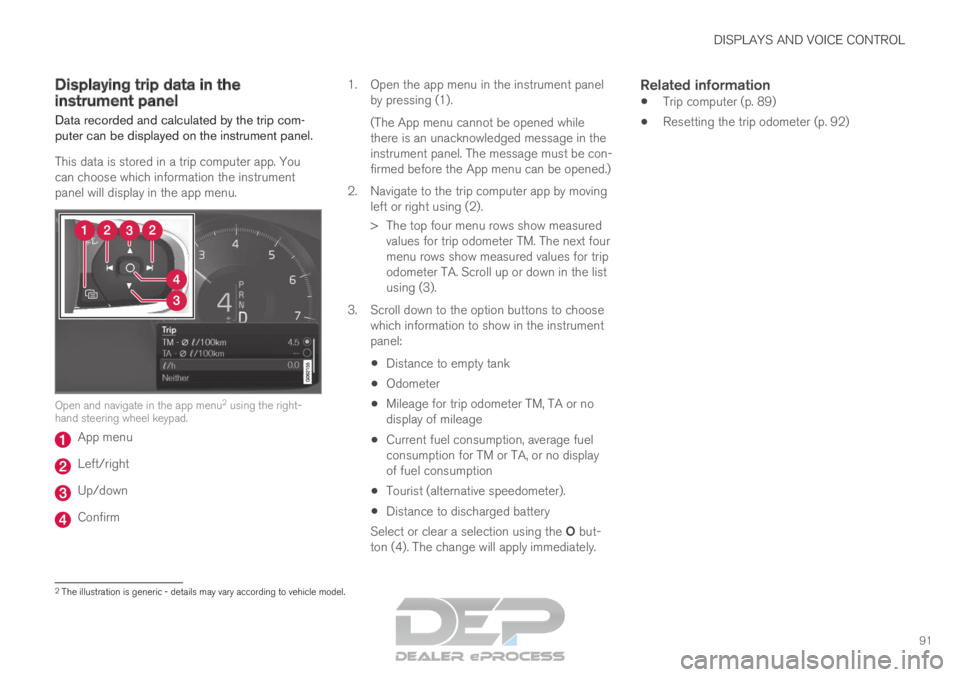
This data is stored in a trip computer app. You
can choose which information the instrument
panel will display in the app menu. Open and navigate in the app menu
2
using the right-
hand steering wheel keypad. App menu
Left/right
Up/down
Confirm 1.
Open the app menu in the instrument panel
by pressing (1).
(The App menu cannot be opened while
there is an unacknowledged message in the
instrument panel. The message must be con-
firmed before the App menu can be opened.)
2. Navigate to the trip computer app by moving left or right using (2).
> The top four menu rows show measuredvalues for trip odometer TM. The next four
menu rows show measured values for trip
odometer TA. Scroll up or down in the list
using (3).
3. Scroll down to the option buttons to choose which information to show in the instrument
panel:
Distance to empty tank
Odometer
Mileage for trip odometer TM, TA or no
display of mileage
Current fuel consumption, average fuel
consumption for TM or TA, or no display
of fuel consumption
Tourist (alternative speedometer).
Distance to discharged battery
Select or clear a selection using the O but-
ton (4). The change will apply immediately.
Related information
Trip computer (p. 89)
Resetting the trip odometer (p. 92) 2
The illustration is generic - details may vary according to vehicle mode\
l.
Page 95 of 697
DISPLAYS AND VOICE CONTROL
93
Trip statistics settings
Trip statistics settings can be reset or adjusted.
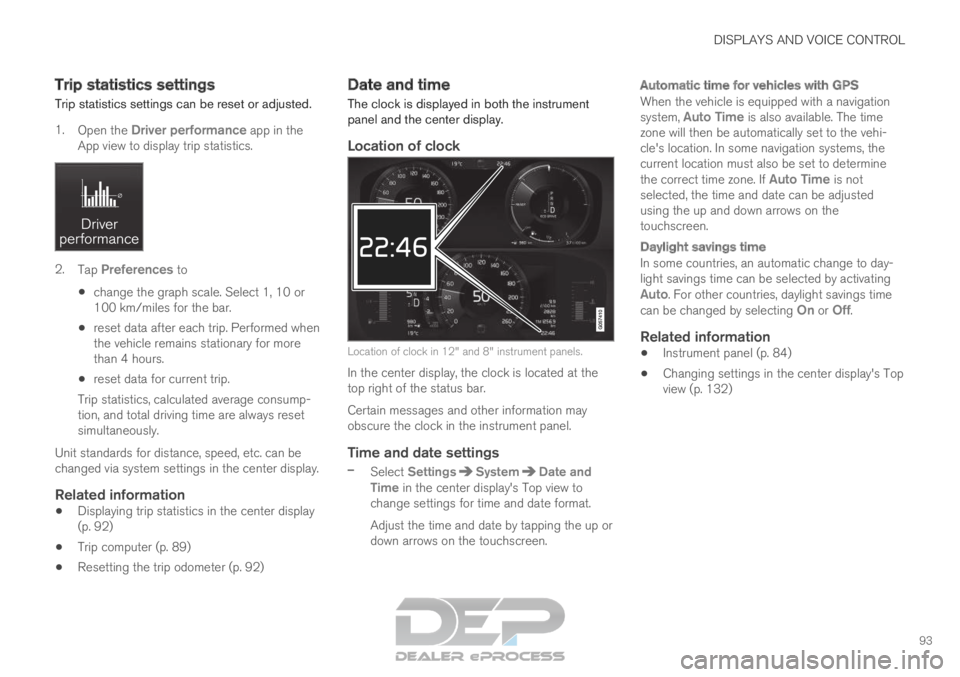
1. Open the Driver performance app in the
App view to display trip statistics. 2.
Tap Preferences to
change the graph scale. Select 1, 10 or
100 km/miles for the bar.
reset data after each trip. Performed when
the vehicle remains stationary for more
than 4 hours.
reset data for current trip.
Trip statistics, calculated average consump-
tion, and total driving time are always reset
simultaneously.
Unit standards for distance, speed, etc. can be
changed via system settings in the center display.
Related information
Displaying trip statistics in the center display
(p. 92)
Trip computer (p. 89)
Resetting the trip odometer (p. 92) Date and time
The clock is displayed in both the instrument
panel and the center display.
Location of clock Location of clock in 12" and 8" instrument panels.
In the center display, the clock is located at the
top right of the status bar.
Certain messages and other information may
obscure the clock in the instrument panel.
Time and date settings
– Select Settings System Date and
Time in the center display's Top view to
change settings for time and date format.
Adjust the time and date by tapping the up or
down arrows on the touchscreen.
Automatic time for vehicles with GPS
When the vehicle is equipped with a navigation
system, Auto Time is also available. The time
zone will then be automatically set to the vehi-
cle's location. In some navigation systems, the
current location must also be set to determine
the correct time zone. If Auto Time is not selected, the time and date can be adjusted
using the up and down arrows on the
touchscreen.
Daylight savings time
In some countries, an automatic change to day-
light savings time can be selected by activating
Auto. For other countries, daylight savings time
can be changed by selecting On or
Off.
Related information
Instrument panel (p. 84)
Changing settings in the center display's Top
view (p. 132)
Page 96 of 697
DISPLAYS AND VOICE CONTROL
94Ambient temperature sensor
The ambient temperature is shown in the instru-
ment panel.
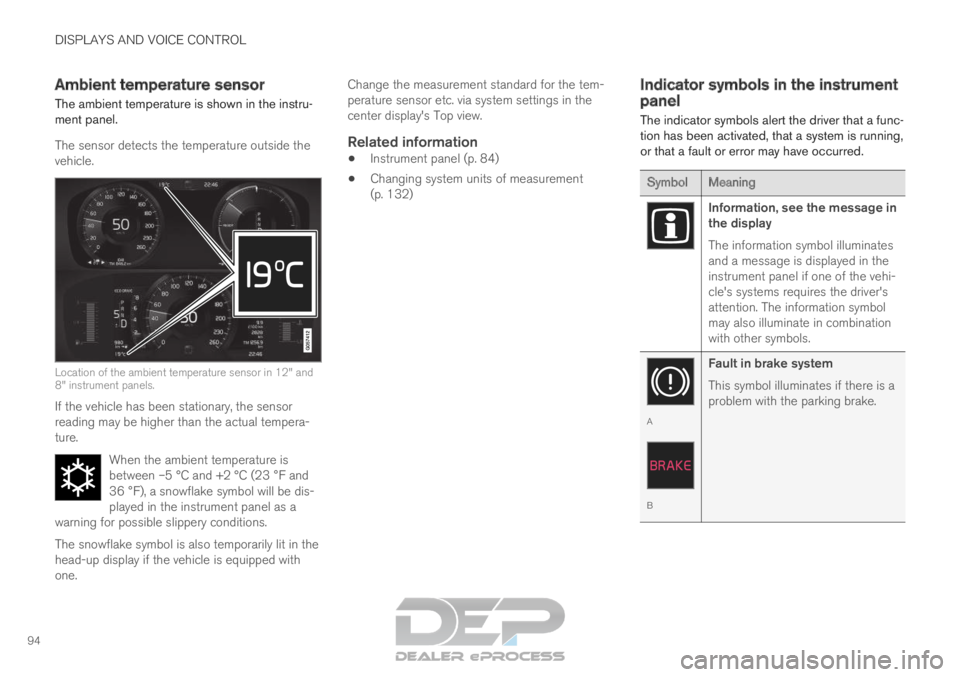
The sensor detects the temperature outside the
vehicle. Location of the ambient temperature sensor in 12" and
8" instrument panels.
If the vehicle has been stationary, the sensor
reading may be higher than the actual tempera-
ture.
When the ambient temperature is
between –5 °C and +2 °C (23 °F and
36 °F), a snowflake symbol will be dis-
played in the instrument panel as a
warning for possible slippery conditions. The snowflake symbol is also temporarily lit in the
head-up display if the vehicle is equipped with
one. Change the measurement standard for the tem-
perature sensor etc. via system settings in the
center display's Top view.
Related information
Instrument panel (p. 84)
Changing system units of measurement
(p. 132) Indicator symbols in the instrument
panel
The indicator symbols alert the driver that a func-
tion has been activated, that a system is running,
or that a fault or error may have occurred. Symbol
Meaning Information, see the message in
the display
The information symbol illuminates
and a message is displayed in the
instrument panel if one of the vehi-
cle's systems requires the driver's
attention. The information symbol
may also illuminate in combination
with other symbols.
A
B
Fault in brake system
This symbol illuminates if there is a
problem with the parking brake.
Page 102 of 697

||DISPLAYS AND VOICE CONTROL
100
FreeType Project License
1. 1 Copyright 1996-1999 by David Turner,
Robert Wilhelm, and Werner Lemberg
Introduction The FreeType Project is
distributed in several archive packages; some
of them may contain, in addition to the
FreeType font engine, various tools and
contributions which rely on, or relate to, the
FreeType Project. This license applies to all
files found in such packages, and which do
not fall under their own explicit license. The
license affects thus the FreeType font
engine, the test programs, documentation
and makefiles, at the very least. This license
was inspired by the BSD, Artistic, and IJG
(Independent JPEG Group) licenses, which
all encourage inclusion and use of free
software in commercial and freeware
products alike. As a consequence, its main
points are that: o We don't promise that this
software works. However, we are be
interested in any kind of bug reports. (`as is'
distribution) o You can use this software for
whatever you want, in parts or full form,
without having to pay us. (`royalty-free'
usage) o You may not pretend that you wrote
this software. If you use it, or only parts of it,
in a program, you must acknowledge
somewhere in your documentation that
you've used the FreeType code. (`credits')
We specifically permit and encourage the
inclusion of this software, with or without
modifications, in commercial products, provided that all warranty or liability claims
are assumed by the product vendor. Legal
Terms 0. Definitions Throughout this license,
the terms `package', `FreeType Project', and
`FreeType archive' refer to the set of files
originally distributed by the authors (David
Turner, Robert Wilhelm, and Werner
Lemberg) as the `FreeType project', be they
named as alpha, beta or final release. `You'
refers to the licensee, or person using the
project, where `using' is a generic term
including compiling the project's source code
as well as linking it to form a `program' or
`executable'. This program is referred to as `a
program using the FreeType engine'. This
license applies to all files distributed in the
original FreeType archive, including all source
code, binaries and documentation, unless
otherwise stated in the file in its original,
unmodified form as distributed in the original
archive. If you are unsure whether or not a
particular file is covered by this license, you
must contact us to verify this. The FreeType
project is copyright (C) 1996-1999 by David
Turner, Robert Wilhelm, and Werner
Lemberg. All rights reserved except as
specified below. 1. No Warranty THE
FREETYPE ARCHIVE IS PROVIDED `AS IS'
WITHOUT WARRANTY OF ANY KIND,
EITHER EXPRESSED OR IMPLIED,
INCLUDING, BUT NOT LIMITED TO,
WARRANTIES OF MERCHANTABILITY AND
FITNESS FOR A PARTICULAR PURPOSE.
IN NO EVENT WILL ANY OF THE
AUTHORS OR COPYRIGHT HOLDERS BE
LIABLE FOR ANY DAMAGES CAUSED BY
THE USE OR THE INABILITY TO USE, OF
THE FREETYPE PROJECT. As you have not
signed this license, you are not required to
accept it. However, as the FreeType project
is copyrighted material, only this license, or
another one contracted with the authors,
grants you the right to use, distribute, and
modify it. Therefore, by using, distributing, or
modifying the FreeType project, you indicate
that you understand and accept all the terms
of this license.
2. Redistribution Redistribution and use in source and binary forms, with or without
modification, are permitted provided that the
following conditions are met: o Redistribution
of source code must retain this license file
(`licence.txt') unaltered; any additions,
deletions or changes to the original files
must be clearly indicated in accompanying
documentation. The copyright notices of the
unaltered, original files must be preserved in
all copies of source files. o Redistribution in
binary form must provide a disclaimer that
states that the software is based in part of
the work of the FreeType Team, in the
distribution documentation. We also
encourage you to put an URL to the
FreeType web page in your documentation,
though this isn't mandatory. These conditions
apply to any software derived from or based
Page 106 of 697
||DISPLAYS AND VOICE CONTROL
104
App
Functions
Trip com-
puter Select a trip odometer, change
instrument panel display set-
tings, etc.
Media player
Select active source for media
player.
Phone Call a contact from the call list.
Navigation Guide to destination, etc.
Related information
Instrument panel (p. 84)
Center display overview (p. 109)
Handling the App menu in the instrument
panel (p. 104) Handling the App menu in the
instrument panel
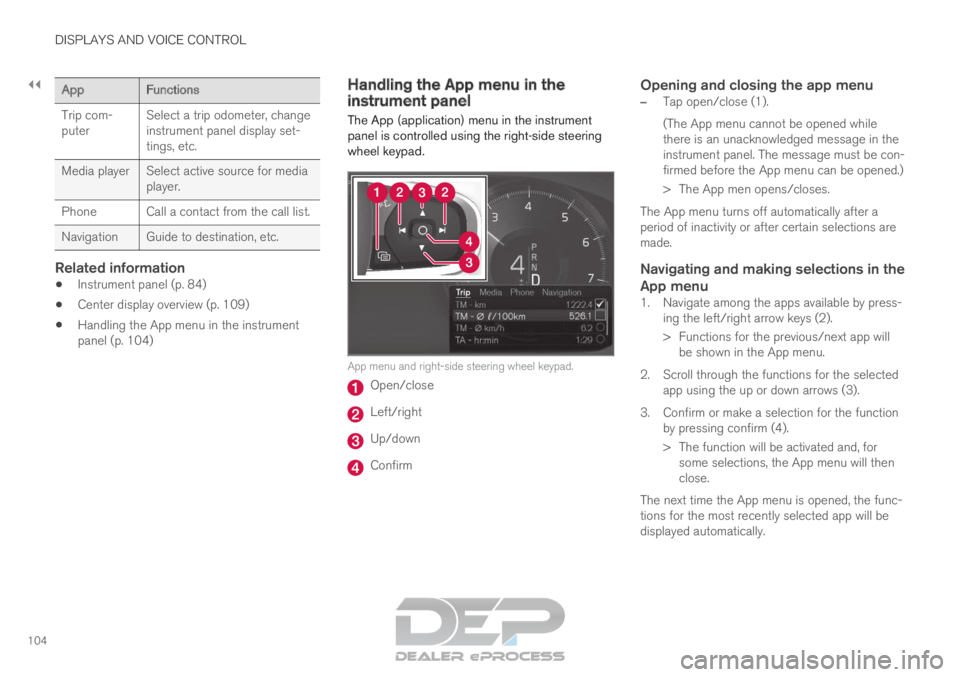
The App (application) menu in the instrument
panel is controlled using the right-side steering
wheel keypad. App menu and right-side steering wheel keypad.
Open/close
Left/right
Up/down
Confirm
Opening and closing the app menu
–
Tap open/close (1).
(The App menu cannot be opened while
there is an unacknowledged message in the
instrument panel. The message must be con-
firmed before the App menu can be opened.)
>
The App men opens/closes.
The App menu turns off automatically after a
period of inactivity or after certain selections are
made.
Navigating and making selections in the
App menu
1. Navigate among the apps available by press- ing the left/right arrow keys (2).
> Functions for the previous/next app willbe shown in the App menu.
2. Scroll through the functions for the selected app using the up or down arrows (3).
3. Confirm or make a selection for the function by pressing confirm (4).
> The function will be activated and, forsome selections, the App menu will then
close.
The next time the App menu is opened, the func-
tions for the most recently selected app will be
displayed automatically.
Page 118 of 697
||DISPLAYS AND VOICE CONTROL
* Option/accessory.
116
NOTE In Home view's standard mode – short press
on the Home button. An animation describing
access to the various views is shown on the
screen.
NOTE
When the vehicle is moving:
Certain functions (e.g. using the center
display's keyboard) may be deactivated.
Certain texts (e.g. those generated by
apps) will be shortened to three rows.
Tap the
Read out button to have the
entire message read aloud.
The message will be shortened to one
row. Tap the
Read out button to have
the entire message read aloud.
Status barCurrent vehicle activities are shown at the top of
the screen in the status bar. Network and con-
nection information is shown to the left of the
status bar. Media-related information, the clock
and information about background activities are
shown to the right.
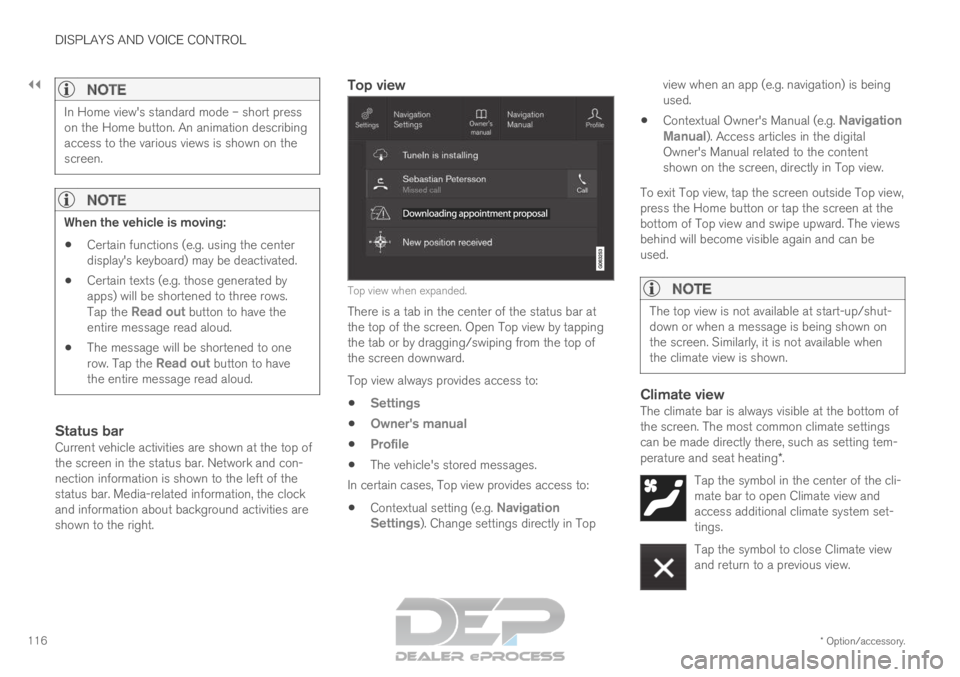
Top view Top view when expanded.
There is a tab in the center of the status bar at
the top of the screen. Open Top view by tapping
the tab or by dragging/swiping from the top of
the screen downward.
Top view always provides access to:
Settings
Owner's manual
Profile
The vehicle's stored messages.
In certain cases, Top view provides access to:
Contextual setting (e.g. Navigation
Settings ). Change settings directly in Top view when an app (e.g. navigation) is being
used.
Contextual Owner's Manual (e.g.
Navigation
Manual). Access articles in the digital
Owner's Manual related to the content
shown on the screen, directly in Top view.
To exit Top view, tap the screen outside Top view,
press the Home button or tap the screen at the
bottom of Top view and swipe upward. The views
behind will become visible again and can be
used.
NOTE The top view is not available at start-up/shut-
down or when a message is being shown on
the screen. Similarly, it is not available when
the climate view is shown.
Climate viewThe climate bar is always visible at the bottom of
the screen. The most common climate settings
can be made directly there, such as setting tem-
perature and seat heating*.
Tap the symbol in the center of the cli-
mate bar to open Climate view and
access additional climate system set-
tings. Tap the symbol to close Climate view
and return to a previous view.
Page 124 of 697
DISPLAYS AND VOICE CONTROL
122Function view in the center display
Function view, which is one of the center dis-
play's basic views, contains all of the vehicle's
function buttons. From the Home view, navigate to Function view by swiping from left to right
over the screen
8
.
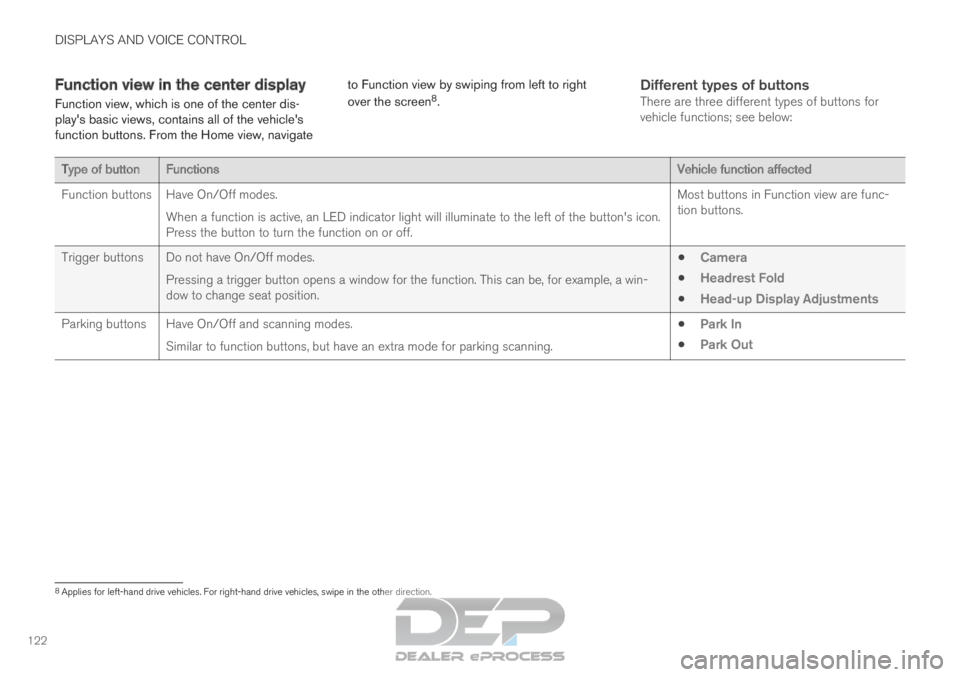
Different types of buttonsThere are three different types of buttons for
vehicle functions; see below: Type of button
Functions Vehicle function affected
Function buttons
Have On/Off modes.
When a function is active, an LED indicator light will illuminate to the\
left of the button's icon.
Press the button to turn the function on or off. Most buttons in Function view are func-
tion buttons.
Trigger buttons Do not have On/Off modes. Pressing a trigger button opens a window for the function. This can be, \
for example, a win-
dow to change seat position.
Camera
Headrest Fold
Head-up Display Adjustments
Parking buttons Have On/Off and scanning modes. Similar to function buttons, but have an extra mode for parking scanning\
.
Park In
Park Out 8
Applies for left-hand drive vehicles. For right-hand drive vehicles, swi\
pe in the other direction.
Page 126 of 697
DISPLAYS AND VOICE CONTROL
124Moving apps and buttons in the
center display
The apps and buttons for vehicle functions can
be moved and organized in the App and Func-
tion views.
1. Swipe from right to left 9
to access App view
or swipe from left to right 9
to access Func-
tion view.
2.
Press and hold an app or button.
> The app or button will change size and become slightly transparent. It can then
be moved.
3. Drag the app or button to an available posi- tion in the view.
A maximum of 48 rows can be used to position
apps or buttons. To move an app or button out-
side the visible view, drag it to the bottom of the
view. New rows will be added and the app or but-
ton can be placed in one of these.
Apps or buttons placed below the view's normal
display will not be visible on the screen.
Swipe the screen to scroll up or down in the view
to display information outside the view.
NOTE Hide the apps that are rarely or never used by
moving them far down, outside of the visible
view. This makes it easier to find the apps
used more frequently.
NOTE
Apps and vehicle function buttons cannot be
situated at spots already in use.
Related information
Function view in the center display (p. 122)
Apps (p. 498)
Handling the center display (p. 112) Symbols in the center display status
bar
Overview of symbols displayed in the center dis-
play status bar.
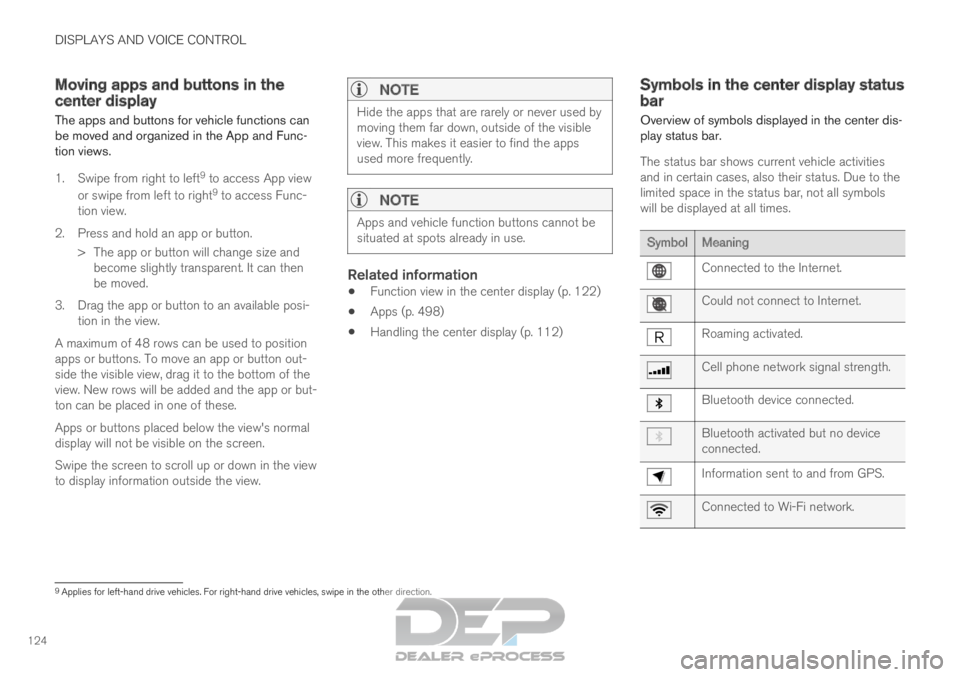
The status bar shows current vehicle activities
and in certain cases, also their status. Due to the
limited space in the status bar, not all symbols
will be displayed at all times. Symbol
Meaning Connected to the Internet.
Could not connect to Internet.
Roaming activated.
Cell phone network signal strength.
Bluetooth device connected.
Bluetooth activated but no device
connected.
Information sent to and from GPS.
Connected to Wi-Fi network.
9
Applies for left-hand drive vehicles. For right-hand drive vehicles, swi\
pe in the other direction.
Page 130 of 697
||DISPLAYS AND VOICE CONTROL
128 Row showing suggestions for words or char-
acters
10
. The suggested words change as
new letters are entered. Scroll through the
list of suggested words by tapping the right
or left arrows. Tap a suggestion to select it.
Please note that this function is not available
in all languages. When unavailable, this row
will not be shown on the keyboard. Available characters are adapted to the lan-
guage selected for the keyboard (see num-
ber 7 below). Tap a character to enter it.
Different buttons are displayed here depend-
ing on the context in which the keyboard is
used, e.g. @ to enter an email address or the
return key to start a new line. This button hides the keyboard. In cases
where this is not possible, the button will not
be displayed.
Used to enter uppercase letters. Tap once to
enter one uppercase letter and then con-
tinue with lowercase letters. Tap twice for
caps lock (all text will be entered in upper-
case letters). Tap again to return the key-
board to lowercase letters. In this mode, the
first letter after a period, exclamation point or
question mark will be automatically entered
in uppercase form. The first letter entered in
text fields will also be uppercase. In text
fields intended for names or addresses, each
word will be automatically started with an uppercase letter. In text fields intended for
passwords, website addresses or email
addresses, all letters will automatically be
lowercase unless uppercase is selected. Used to enter numbers. The number key-
board (2) will then be displayed. Tap
,
which is shown instead of in number
mode, to return to the keyboard with letters,
or to display the keyboard with special
characters. Used to change the keyboard language, e.g.
EN
. The available characters and word sug-
gestions (1) vary depending on the selected
language. In order to toggle between key-
board languages, the languages must first be
added under Settings. Space bar.
Delete. Tap to delete characters one at a
time. Press and hold to delete multiple char-
acters quickly.
Used to change to handwriting mode.
Tap the confirm button over the keyboard (not
shown in illustration) once to confirm the text that
has been entered. The button's appearance dif-
fers depending on the context.
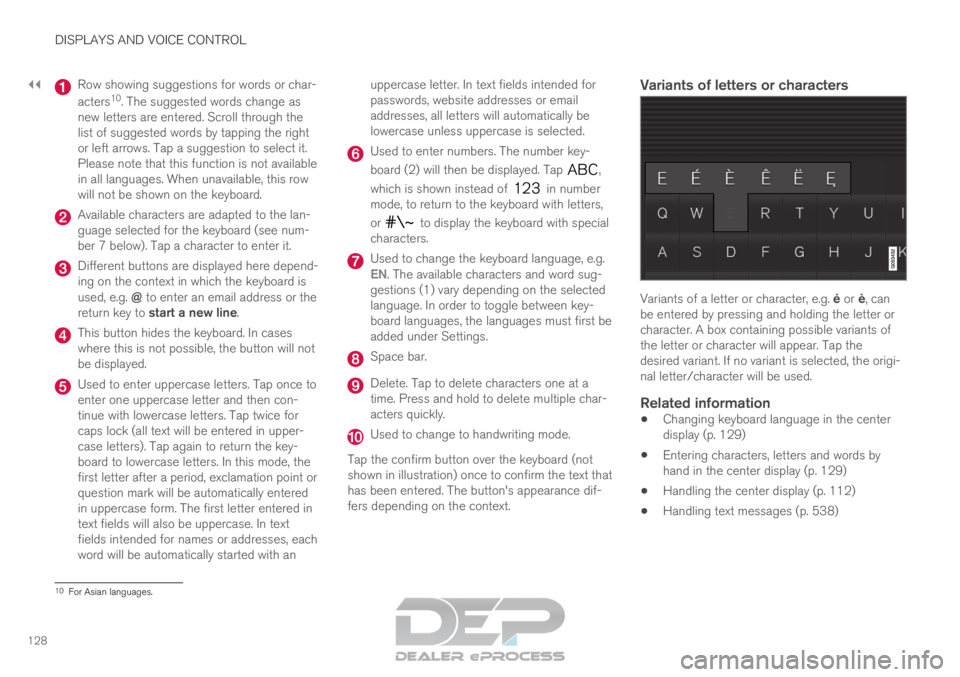
Variants of letters or characters Variants of a letter or character, e.g. é or è, can
be entered by pressing and holding the letter or
character. A box containing possible variants of
the letter or character will appear. Tap the
desired variant. If no variant is selected, the origi-
nal letter/character will be used.
Related information
Changing keyboard language in the center
display (p. 129)
Entering characters, letters and words by
hand in the center display (p. 129)
Handling the center display (p. 112)
Handling text messages (p. 538) 10
For Asian languages.