change time VOLVO XC90 TWIN ENGINE 2019 User Guide
[x] Cancel search | Manufacturer: VOLVO, Model Year: 2019, Model line: XC90 TWIN ENGINE, Model: VOLVO XC90 TWIN ENGINE 2019Pages: 697, PDF Size: 10.33 MB
Page 140 of 697
DISPLAYS AND VOICE CONTROL
138Protecting a driver profile
It may not always be desirable to store settings
made in the vehicle to the active driver profile. In
these instances, the driver profile can be protec-
ted.
NOTE Protecting a driver profile is only possible
when the vehicle is stationary.
To protect a driver profile:
1.
Tap Settings in the Top view in the center
display.
2.
Tap System Driver Profiles
.
3. Select Edit Profile.
>
A menu will open in which the driver pro-
file can be changed.
4. Tap Protect Profile to protect the profile.
5.
Confirm your selection to protect the profile
by tapping Back/Close.
>
When the profile is protected, settings
made in the vehicle will not be automati-
cally stored to the profile. The changes
must instead be saved manually by tap-
ping Save current settings to the profile. If the profile is not protected, the
settings will be automatically stored to the
profile.
Related information
Driver profiles (p. 136) Linking a remote key to a driver
profile
A remote key can be linked to a driver profile.
This driver profile and all of its settings will then
automatically be selected every time the vehicle
is used with that particular remote key.
The first time the remote key is used, it is not
linked to any specific driver profile. The
Guest
profile is automatically activated when the ignition
is switched on.
A driver profile can also be selected manually
without linking it to any key. When the vehicle is
unlocked, the last active driver profile will be acti-
vated. If the key has ever been linked to a driver
profile, it is not necessary to manually select a
driver profile when using that particular key.
Linking a remote key to a specific driver
profile
NOTE A remote key can only be connected to a
driver profile when the vehicle is stationary.
First select the profile you would like to link to
the key (if that profile is not already active). The
active profile can then be linked to the key.
1.
Tap Settings in the Top view in the center
display.
Page 172 of 697
WINDOWS, GLASS AND MIRRORS
* Option/accessory.
170
Storing positions for seats, mirrors and head-
up display* (p. 186)
Activating and deactivating the heated rear
window and door mirrors (p. 225) Adjusting the rearview mirror
dimming function
Bright light entering the vehicle from behind, e.g.
from the headlights of following vehicles, could
reflect in the rearview mirror and door mirrors
and cause a glare. Use the dimming function
when light from behind is distracting.
Auto-dimIf bright light enters the vehicle from behind, the
door mirrors will automatically dim. Auto-dim is
always active when the engine is running, except
when reverse gear is engaged.
NOTE Adjustments to the sensitivity level will not be
noticeable immediately but will instead take
effect after a short period of time.
The sensitivity level for dimming will affect both
the rearview mirror and door mirrors.
To change the dimming sensitivity level:
1.
Tap Settings in the Top view in the center
display.
2.
Tap My Car Mirrors and Convenience
.
3. Under Rearview Mirror Auto Dimming ,
select
Normal, Dark or Light.
The rearview mirror instead has two sensors -
one pointing forward and one pointing rearward - which work together to identify and eliminate
glare. The forward-pointing sensor monitors
ambient light, while the rearward-pointing sensor
monitors light from the headlights of following
vehicles.
For the door mirrors to be equipped with auto-
dim, the rearview mirror must also be equipped
with auto-dim.
NOTE
If the sensors are obstructed by e.g. a parking
permit, transponder, sunshade or objects on
the seats or in the cargo compartment in a
way that prevents light from reaching the sen-
sors, the auto-dim function in the door and
rearview mirrors will be reduced.
Related information
Rearview/door mirrors (p. 169)
Adjusting the door mirrors (p. 171)
Page 188 of 697
||SEATS AND STEERING WHEEL
* Option/accessory.
186 Raise/lower the seat by moving the control
up/down.
Move the seat forward/rearward by moving
the control forward/rearward.
Change the backrest tilt by moving the con-
trol forward/backward.
Only one movement (forward/rearward/up/
down) can be performed at a time.
The front seat backrests cannot be folded down
completely.
Related information
Manual front seats (p. 184)
Power* front seats (p. 185)
Storing positions for seats, mirrors and head-
up display* (p. 186)
Using stored positions for seats, mirrors and
head-up display* (p. 187)
Adjusting front seat massage settings*
(p. 189)
Adjusting* front seat cushion length (p. 189)
Front seat massage* settings (p. 188)
Adjusting front seat side bolster settings*
(p. 190)
Adjusting front seat lumbar support* (p. 191)
Adjusting the passenger seat from the driv-
er's seat* (p. 192) Storing positions for seats, mirrors
and head-up display*
Adjustment settings for the power* seat, door
mirrors and head-up display* can be stored in
the memory buttons.
Three different positions for the power* seat,
door mirrors and head-up display* can be stored
using the memory buttons. The buttons are
located on the inside of either one or both* front
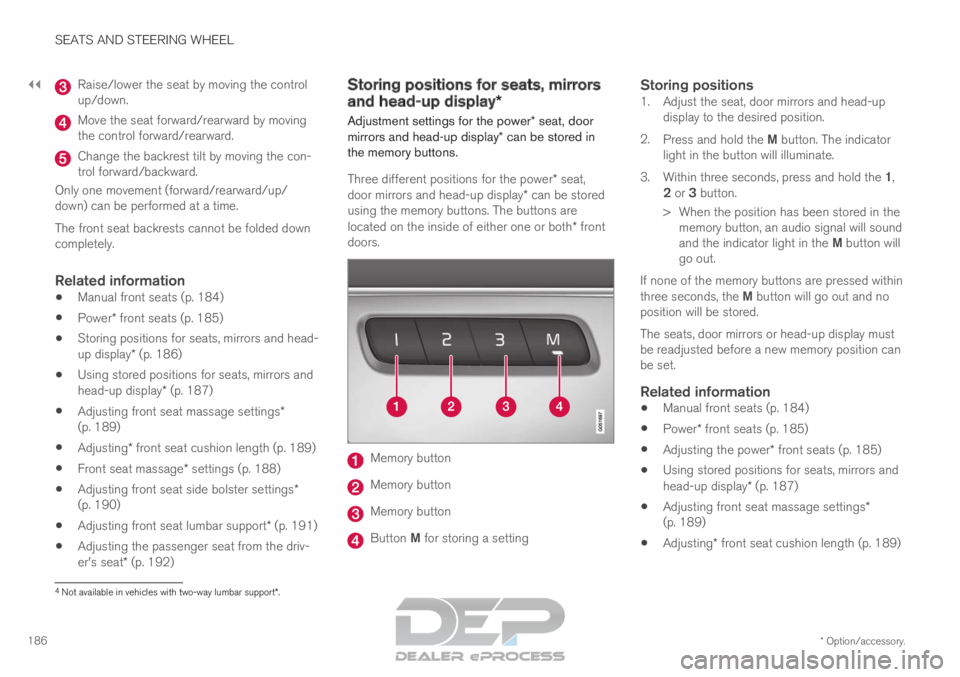
doors. Memory button
Memory button
Memory button
Button M for storing a setting
Storing positions1. Adjust the seat, door mirrors and head-up
display to the desired position.
2. Press and hold the M button. The indicator
light in the button will illuminate.
3. Within three seconds, press and hold the 1,
2 or 3 button.
> When the position has been stored in the memory button, an audio signal will sound
and the indicator light in the M button will
go out.
If none of the memory buttons are pressed within
three seconds, the M button will go out and no
position will be stored.
The seats, door mirrors or head-up display must
be readjusted before a new memory position can
be set.
Related information
Manual front seats (p. 184)
Power* front seats (p. 185)
Adjusting the power* front seats (p. 185)
Using stored positions for seats, mirrors and
head-up display* (p. 187)
Adjusting front seat massage settings*
(p. 189)
Adjusting* front seat cushion length (p. 189) 4
Not available in vehicles with two-way lumbar support*.
Page 223 of 697
CLIMATE CONTROL
221
2.
Tap or press and hold AUTO.
Tap - air recirculation, air conditioning and
air distribution are controlled automati-
cally.
Press and hold - air recirculation, air con-
ditioning and air distribution are controlled
automatically. Temperature and blower
speed are changed to standard settings:
22 °C (72 °F) and speed
3 (speed 2 in
the rear seat).
>
Auto climate mode is activated and the
button lights up.
NOTE It is possible to change the temperature and
blower speed without deactivating automatic
climate control. Automatic climate control is
deactivated when the air distribution is
changed manually or when the max defroster
is activated.
Related information
Climate system controls (p. 215) Activating and deactivating
recirculation
The climate system's recirculation function helps
shut out smog, smoke, exhaust fumes, etc. by
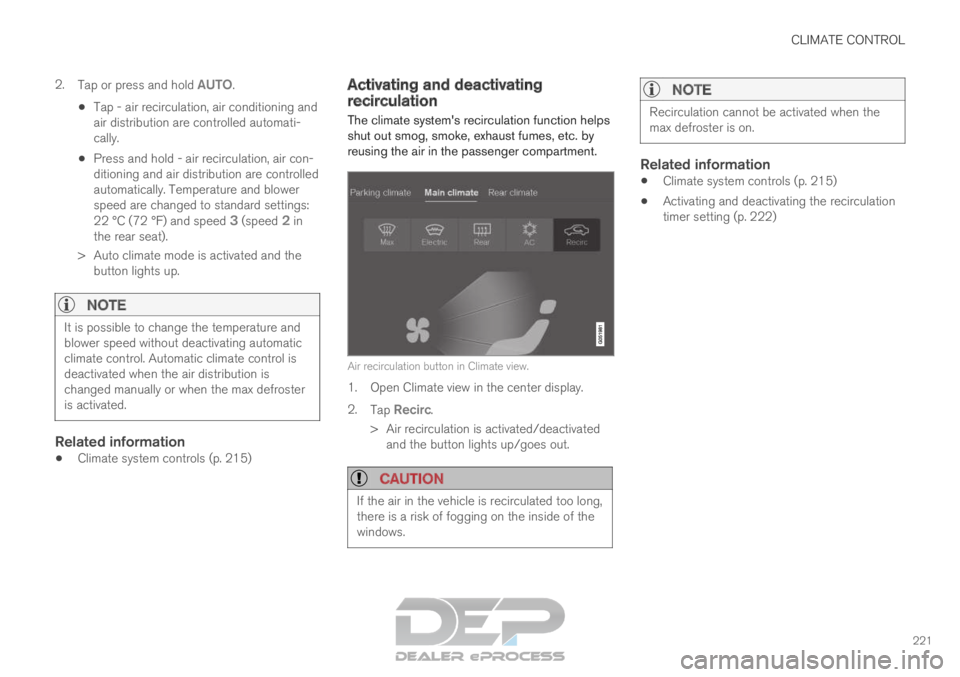
reusing the air in the passenger compartment. Air recirculation button in Climate view.
1. Open Climate view in the center display.
2.
Tap Recirc.
>
Air recirculation is activated/deactivated
and the button lights up/goes out.
CAUTION If the air in the vehicle is recirculated too long,
there is a risk of fogging on the inside of the
windows.
NOTE Recirculation cannot be activated when the
max defroster is on.
Related information
Climate system controls (p. 215)
Activating and deactivating the recirculation
timer setting (p. 222)
Page 237 of 697
CLIMATE CONTROL
}}
235
4.
Tap Date to set a time for a specific date.
Tap Days to set a time for one or more days
of the week.
With Days: Activate/deactivate the repeat
function by selecting/deselecting the
Repeat weekly checkbox.
5. With Date: Select a date for preconditioning
by scrolling in the date list using the arrows.
With Days: Select days of the week for pre-
conditioning by tapping the buttons for the
days.
6.
Set the time at which preconditioning should
be completed by scrolling using the arrows in
the clock.
7. Tap Confirm to add a timer setting.
>
The timer setting will be added to the list
and activated.
Editing a timer setting1. Open Climate view in the center display.
2. Select the Parking climate tab.
3.
Tap the timer setting you would like to
change.
> A pop-up window will appear.
4. To edit a timer setting, follow the procedures described under the heading "Adding a timer
setting" above.
Related information
Preconditioning (p. 232)
Preconditioning timer (p. 234)
Activating and deactivating preconditioning
timer (p. 235)
Deleting preconditioning timer settings
(p. 236) Activating and deactivating
preconditioning timer
Timer settings in the preconditioning timer can
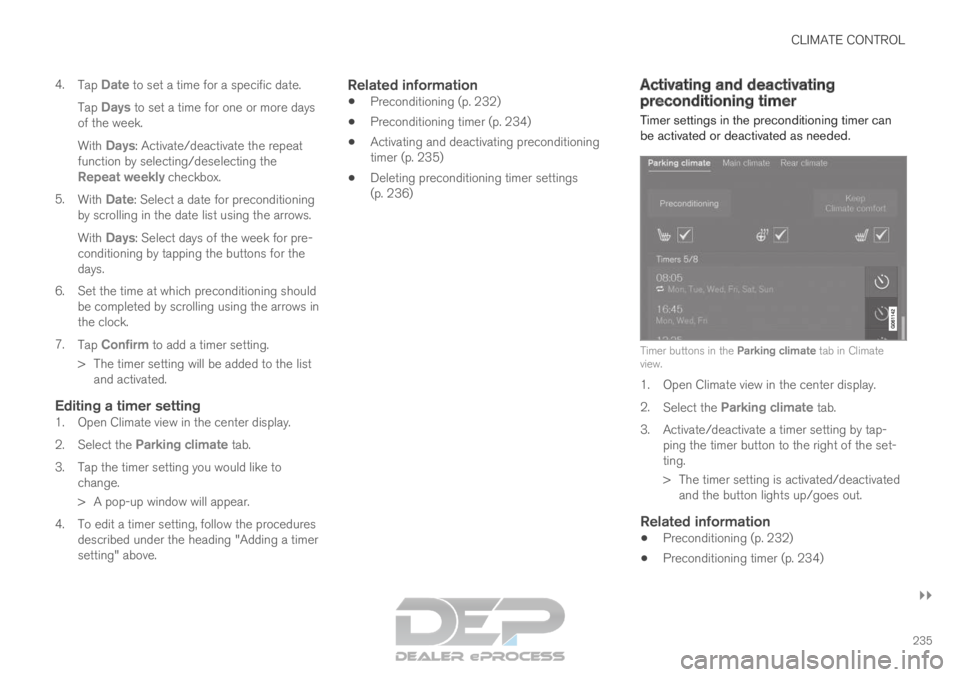
be activated or deactivated as needed. Timer buttons in the Parking climate tab in Climate
view.
1. Open Climate view in the center display.
2.
Select the Parking climate tab.
3.
Activate/deactivate a timer setting by tap-
ping the timer button to the right of the set-
ting.
> The timer setting is activated/deactivated and the button lights up/goes out.
Related information
Preconditioning (p. 232)
Preconditioning timer (p. 234)
Page 238 of 697

CLIMATE CONTROL
236
Adding and editing timer settings for precon-
ditioning (p. 234)
Deleting preconditioning timer settings
(p. 236) Deleting preconditioning timer
settings
A preconditioning timer setting that is no longer
needed can be deleted. The button for editing a list/deleting a timer setting in
the Parking climate tab in Climate view.
1. Open Climate view in the center display.
2.
Select the Parking climate tab.
3. Tap Edit list.
4.
Tap the editing icon to the right in the list.
> The icon will change to the text Delete.
5. Tap Delete to confirm.
>
The timer setting will be deleted from the
list.
Related information
Preconditioning (p. 232)
Preconditioning timer (p. 234)
Adding and editing timer settings for precon-
ditioning (p. 234)
Activating and deactivating preconditioning
timer (p. 235)
Page 255 of 697
KEY, LOCKS AND ALARM
}}
* Option/accessory. 253
Red Key - restricted remote key*
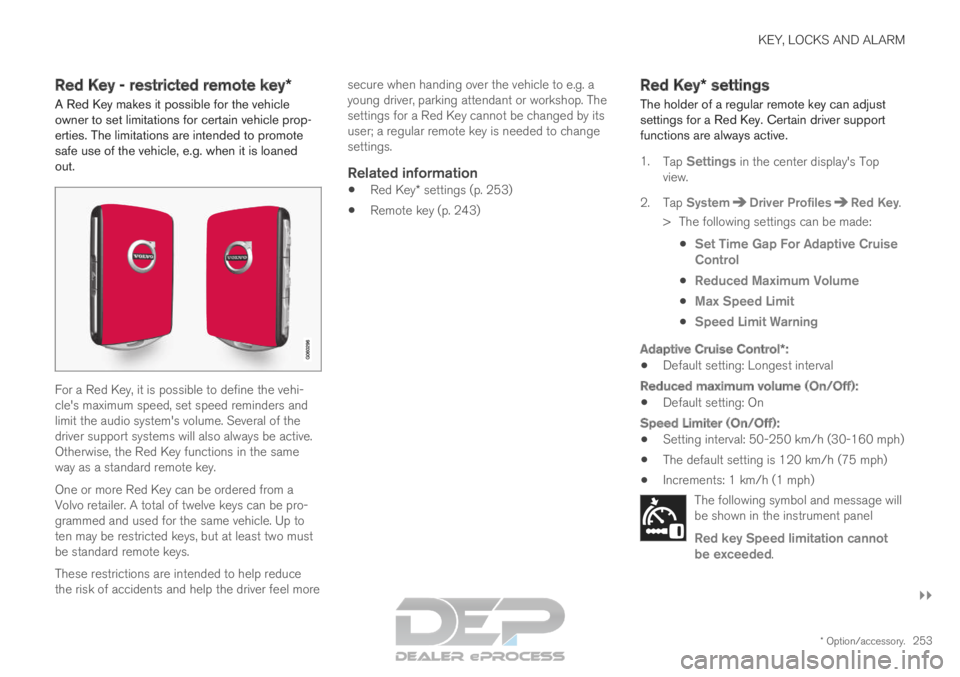
A Red Key makes it possible for the vehicle
owner to set limitations for certain vehicle prop-
erties. The limitations are intended to promote
safe use of the vehicle, e.g. when it is loaned
out. For a Red Key, it is possible to define the vehi-
cle's maximum speed, set speed reminders and
limit the audio system's volume. Several of the
driver support systems will also always be active.
Otherwise, the Red Key functions in the same
way as a standard remote key.
One or more Red Key can be ordered from a
Volvo retailer. A total of twelve keys can be pro-
grammed and used for the same vehicle. Up to
ten may be restricted keys, but at least two must
be standard remote keys.
These restrictions are intended to help reduce
the risk of accidents and help the driver feel more secure when handing over the vehicle to e.g. a
young driver, parking attendant or workshop. The
settings for a Red Key cannot be changed by its
user; a regular remote key is needed to change
settings.
Related information
Red Key* settings (p. 253)
Remote key (p. 243) Red Key*
settings
The holder of a regular remote key can adjust
settings for a Red Key. Certain driver support
functions are always active.
1. Tap Settings in the center display's Top
view.
2.
Tap System Driver Profiles Red Key
.
> The following settings can be made:
Set Time Gap For Adaptive Cruise
Control
Reduced Maximum Volume
Max Speed Limit
Speed Limit Warning
Adaptive Cruise Control*:
Default setting: Longest interval
Reduced maximum volume (On/Off):
Default setting: On
Speed Limiter (On/Off):
Setting interval: 50-250 km/h (30-160 mph)
The default setting is 120 km/h (75 mph)
Increments: 1 km/h (1 mph)
The following symbol and message will
be shown in the instrument panel
Red key Speed limitation cannot
be exceeded.
Page 296 of 697
||DRIVER SUPPORT
294
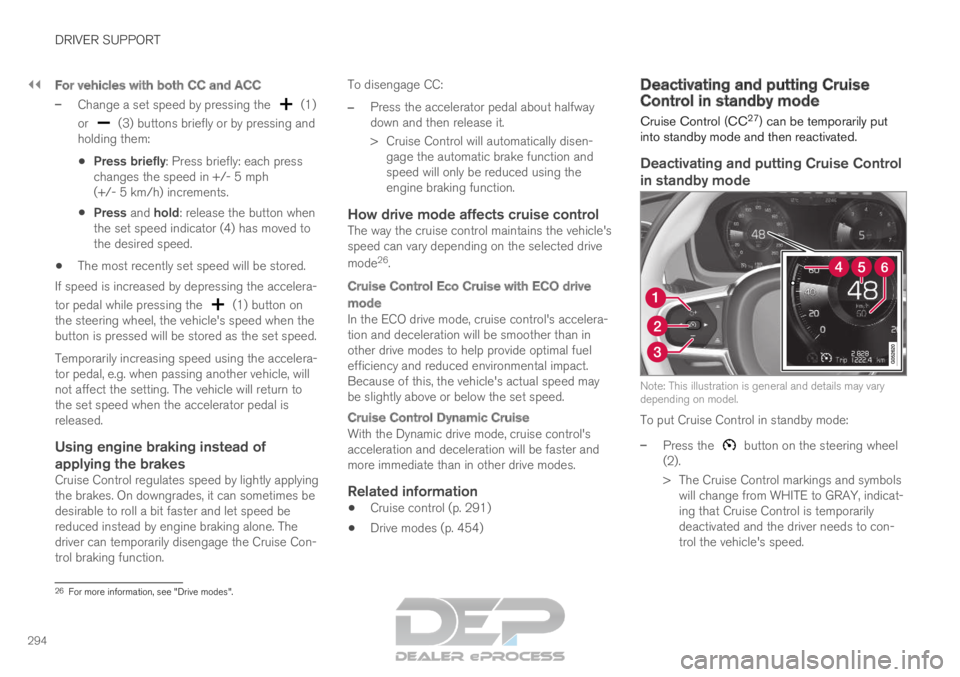
For vehicles with both CC and ACC
–
Change a set speed by pressing the (1)
or (3) buttons briefly or by pressing and
holding them:
Press briefly: Press briefly: each press
changes the speed in +/- 5 mph
(+/- 5 km/h) increments.
Press and hold: release the button when
the set speed indicator (4) has moved to
the desired speed.
The most recently set speed will be stored.
If speed is increased by depressing the accelera-
tor pedal while pressing the (1) button on
the steering wheel, the vehicle's speed when the
button is pressed will be stored as the set speed.
Temporarily increasing speed using the accelera-
tor pedal, e.g. when passing another vehicle, will
not affect the setting. The vehicle will return to
the set speed when the accelerator pedal is
released.
Using engine braking instead of
applying the brakes
Cruise Control regulates speed by lightly applying
the brakes. On downgrades, it can sometimes be
desirable to roll a bit faster and let speed be
reduced instead by engine braking alone. The
driver can temporarily disengage the Cruise Con-
trol braking function. To disengage CC:
– Press the accelerator pedal about halfway
down and then release it.
>
Cruise Control will automatically disen-
gage the automatic brake function and
speed will only be reduced using the
engine braking function.
How drive mode affects cruise controlThe way the cruise control maintains the vehicle's
speed can vary depending on the selected drive
mode 26
.
Cruise Control Eco Cruise with ECO drive
mode
In the ECO drive mode, cruise control's accelera-
tion and deceleration will be smoother than in
other drive modes to help provide optimal fuel
efficiency and reduced environmental impact.
Because of this, the vehicle's actual speed may
be slightly above or below the set speed.
Cruise Control Dynamic Cruise
With the Dynamic drive mode, cruise control's
acceleration and deceleration will be faster and
more immediate than in other drive modes.
Related information
Cruise control (p. 291)
Drive modes (p. 454) Deactivating and putting Cruise
Control in standby mode
Cruise Control (CC 27
) can be temporarily put
into standby mode and then reactivated.
Deactivating and putting Cruise Control
in standby mode Note: This illustration is general and details may vary
depending on model.
To put Cruise Control in standby mode:
–
Press the button on the steering wheel
(2).
>
The Cruise Control markings and symbols
will change from WHITE to GRAY, indicat-
ing that Cruise Control is temporarily
deactivated and the driver needs to con-
trol the vehicle's speed. 26
For more information, see "Drive modes".
Page 307 of 697

DRIVER SUPPORT
}}
* Option/accessory. 305
ACC will only regulate the time
interval to the vehicle ahead
when the distance symbol
shows two vehicles.
A speed interval will be marked
at the same time.
The higher speed is the set
speed for your vehicle and the
lower speed is the speed of the
vehicle ahead (target vehicle).
Related information
Adaptive Cruise Control* (p. 300) Managing Adaptive Cruise Control
speed
Adaptive Cruise Control (ACC 43
) can be set to
various speeds.
Setting/changing set speed Note: This illustration is general and details may vary
depending on model and market.
: Increases the set speed.
: Reduces the set speed.
Set speed.–
Change a set speed by pressing the (1)
or (2) buttons briefly or by pressing and
holding them:
Press briefly: Press briefly: each press
changes the speed in +/- 5 mph
(+/- 5 km/h) increments.
Press and hold: release the button when
the set speed indicator (3) has moved to
the desired speed.
The most recently set speed will be stored.
If speed is increased by depressing the accelera-
tor pedal while pressing the (1) button on
the steering wheel, the vehicle's speed when the
button is pressed will be stored as the set speed.
Temporarily increasing speed using the accelera-
tor pedal, e.g. when passing another vehicle, will
not affect the setting. The vehicle will return to
the set speed when the accelerator pedal is
released. 42
Adaptive Cruise Control
43 Adaptive Cruise Control
Page 312 of 697
DRIVER SUPPORT
* Option/accessory.
310 Starting passing assistance with
Adaptive Cruise Control
Several conditions must be met for passing
assistance to be possible.
Requirements for passing assistanceIn order to activate passing assistance:
your vehicle must be following a vehicle
ahead (target vehicle)
your vehicle's current speed must be
at least 70 km/h (43 mph)
the set speed for ACC must be high
enough to safely pass another vehicle.
Starting parking assistanceTo start passing assistance:
–
Turn on the left turn signal.
>
Passing assistance will start.
Related information
Adaptive Cruise Control* (p. 300)
Passing assistance with Adaptive Cruise
Control (p. 309) Limitations of passing assistance
with Adaptive Cruise Control
Passing assistance functionality may be reduced
in certain situations.
WARNING The driver should be aware that if conditions
suddenly change when using Parking Assis-
tance, the function may implement an unde-
sired acceleration in certain conditions.
Some situations should be avoided, e.g. if:
the vehicle is approaching an exit in the
same direction as passing would normally
occur
the vehicle ahead slows before your vehi-
cle has had time to switch to the passing
lane
traffic in the passing lane slows down
a vehicle for right-hand traffic is driven in
a country with left-hand traffic (or vice
versa).
Situations of this type can be avoided by tempo-
rarily putting ACC 50
in standby mode.
Related information
Adaptive Cruise Control* (p. 300)
Passing assistance with Adaptive Cruise
Control (p. 309) Switching target vehicles with
Adaptive Cruise Control
At certain speeds, models with automatic trans-
missions and Adaptive Cruise Control (ACC 51
)
can switch target vehicles.
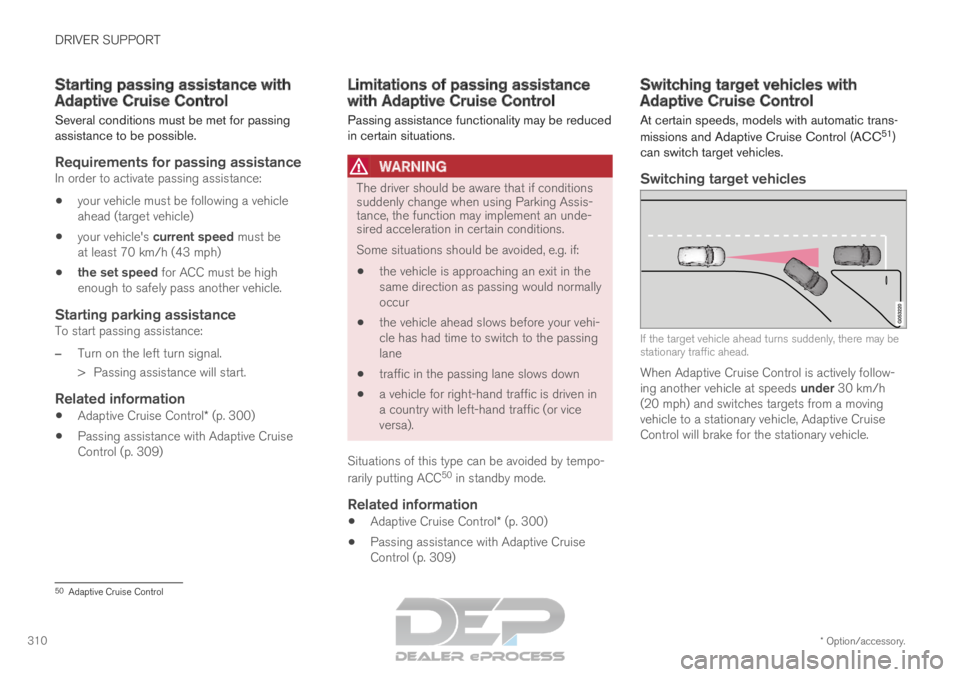
Switching target vehicles If the target vehicle ahead turns suddenly, there may be
stationary traffic ahead.
When Adaptive Cruise Control is actively follow-
ing another vehicle at speeds under 30 km/h
(20 mph) and switches targets from a moving
vehicle to a stationary vehicle, Adaptive Cruise
Control will brake for the stationary vehicle. 50
Adaptive Cruise Control