light VOLVO XC90 TWIN ENGINE 2019 User Guide
[x] Cancel search | Manufacturer: VOLVO, Model Year: 2019, Model line: XC90 TWIN ENGINE, Model: VOLVO XC90 TWIN ENGINE 2019Pages: 697, PDF Size: 10.33 MB
Page 84 of 697
DISPLAYS AND VOICE CONTROL
* Option/accessory.
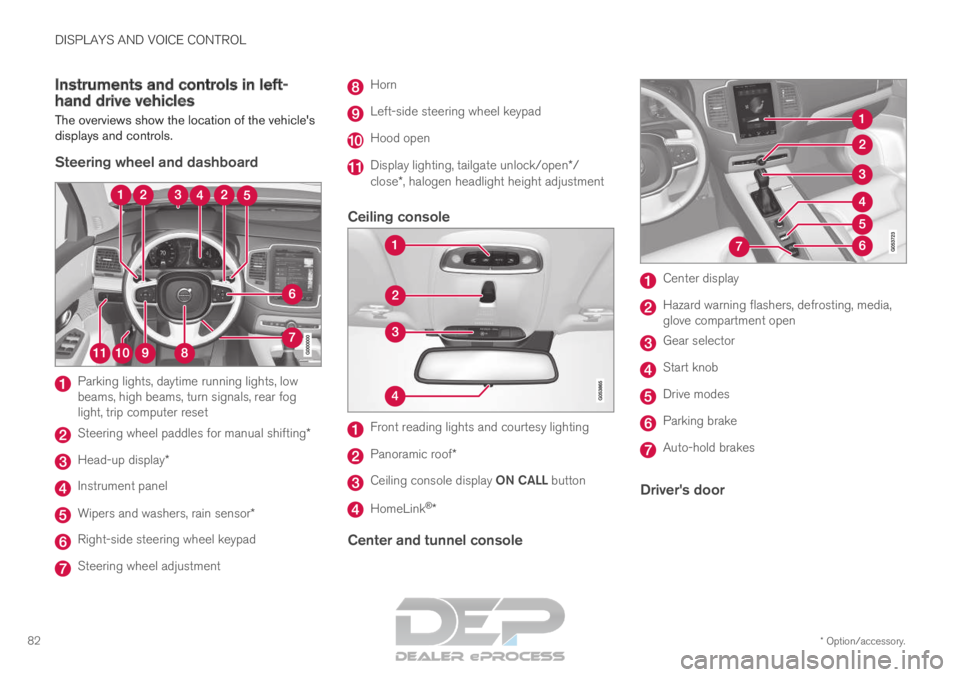
82 Instruments and controls in left-
hand drive vehicles
The overviews show the location of the vehicle's
displays and controls.
Steering wheel and dashboard Parking lights, daytime running lights, low
beams, high beams, turn signals, rear fog
light, trip computer reset
Steering wheel paddles for manual shifting*
Head-up display*
Instrument panel
Wipers and washers, rain sensor*
Right-side steering wheel keypad
Steering wheel adjustment Horn
Left-side steering wheel keypad
Hood open
Display lighting, tailgate unlock/open*/
close*, halogen headlight height adjustment
Ceiling console Front reading lights and courtesy lighting
Panoramic roof*
Ceiling console display ON CALL button
HomeLink
®
*
Center and tunnel console Center display
Hazard warning flashers, defrosting, media,
glove compartment open
Gear selector
Start knob
Drive modes
Parking brake
Auto-hold brakes
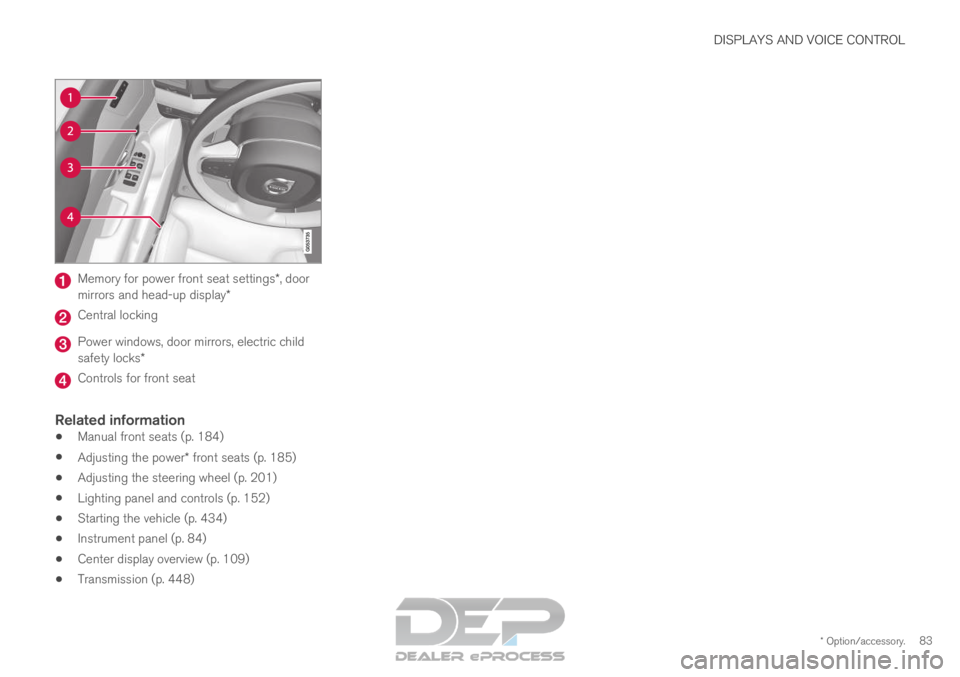
Driver's door
Page 85 of 697
DISPLAYS AND VOICE CONTROL
* Option/accessory.83Memory for power front seat settings*, door
mirrors and head-up display* Central locking
Power windows, door mirrors, electric child
safety locks*
Controls for front seat
Related information
Manual front seats (p. 184)
Adjusting the power* front seats (p. 185)
Adjusting the steering wheel (p. 201)
Lighting panel and controls (p. 152)
Starting the vehicle (p. 434)
Instrument panel (p. 84)
Center display overview (p. 109)
Transmission (p. 448)
Page 89 of 697
DISPLAYS AND VOICE CONTROL
}}87
Fuel gauge
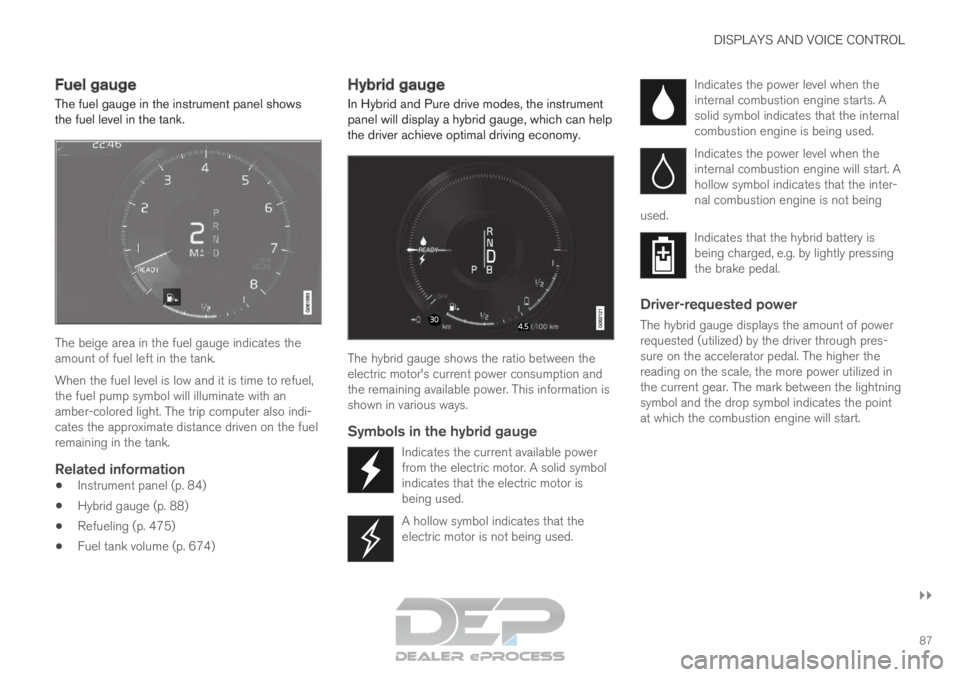
The fuel gauge in the instrument panel shows
the fuel level in the tank. The beige area in the fuel gauge indicates the
amount of fuel left in the tank.
When the fuel level is low and it is time to refuel,
the fuel pump symbol will illuminate with an
amber-colored light. The trip computer also indi-
cates the approximate distance driven on the fuel
remaining in the tank.
Related information
Instrument panel (p. 84)
Hybrid gauge (p. 88)
Refueling (p. 475)
Fuel tank volume (p. 674) Hybrid gauge
In Hybrid and Pure drive modes, the instrument panel will display a hybrid gauge, which can help
the driver achieve optimal driving economy. The hybrid gauge shows the ratio between the
electric motor's current power consumption and
the remaining available power. This information is
shown in various ways.
Symbols in the hybrid gauge
Indicates the current available power
from the electric motor. A solid symbol
indicates that the electric motor is
being used.
A hollow symbol indicates that the
electric motor is not being used. Indicates the power level when the
internal combustion engine starts. A
solid symbol indicates that the internal
combustion engine is being used.
Indicates the power level when the
internal combustion engine will start. A
hollow symbol indicates that the inter-
nal combustion engine is not being
used. Indicates that the hybrid battery is
being charged, e.g. by lightly pressing
the brake pedal.
Driver-requested power
The hybrid gauge displays the amount of power
requested (utilized) by the driver through pres-
sure on the accelerator pedal. The higher the
reading on the scale, the more power utilized in
the current gear. The mark between the lightning
symbol and the drop symbol indicates the point
at which the combustion engine will start.
Page 90 of 697
||DISPLAYS AND VOICE CONTROL
88
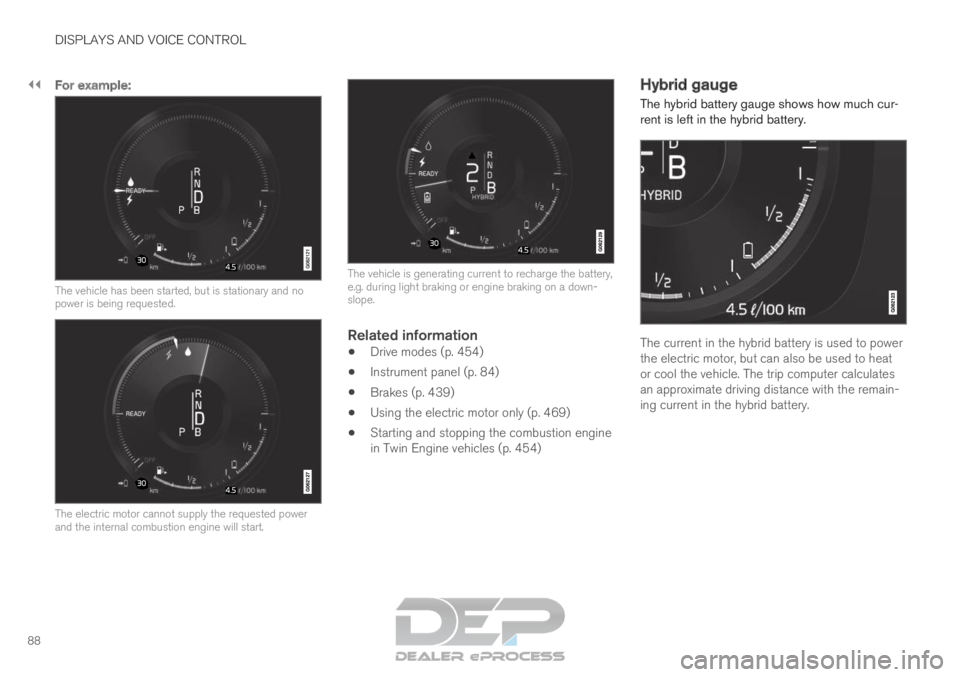
For example:
The vehicle has been started, but is stationary and no
power is being requested.
The electric motor cannot supply the requested power
and the internal combustion engine will start. The vehicle is generating current to recharge the battery,
e.g. during light braking or engine braking on a down-
slope.
Related information
Drive modes (p. 454)
Instrument panel (p. 84)
Brakes (p. 439)
Using the electric motor only (p. 469)
Starting and stopping the combustion engine
in Twin Engine vehicles (p. 454) Hybrid gauge
The hybrid battery gauge shows how much cur-
rent is left in the hybrid battery. The current in the hybrid battery is used to power
the electric motor, but can also be used to heat
or cool the vehicle. The trip computer calculates
an approximate driving distance with the remain-
ing current in the hybrid battery.
Page 95 of 697
DISPLAYS AND VOICE CONTROL
93
Trip statistics settings
Trip statistics settings can be reset or adjusted.
1. Open the Driver performance app in the
App view to display trip statistics. 2.
Tap Preferences to
change the graph scale. Select 1, 10 or
100 km/miles for the bar.
reset data after each trip. Performed when
the vehicle remains stationary for more
than 4 hours.
reset data for current trip.
Trip statistics, calculated average consump-
tion, and total driving time are always reset
simultaneously.
Unit standards for distance, speed, etc. can be
changed via system settings in the center display.
Related information
Displaying trip statistics in the center display
(p. 92)
Trip computer (p. 89)
Resetting the trip odometer (p. 92) Date and time
The clock is displayed in both the instrument
panel and the center display.
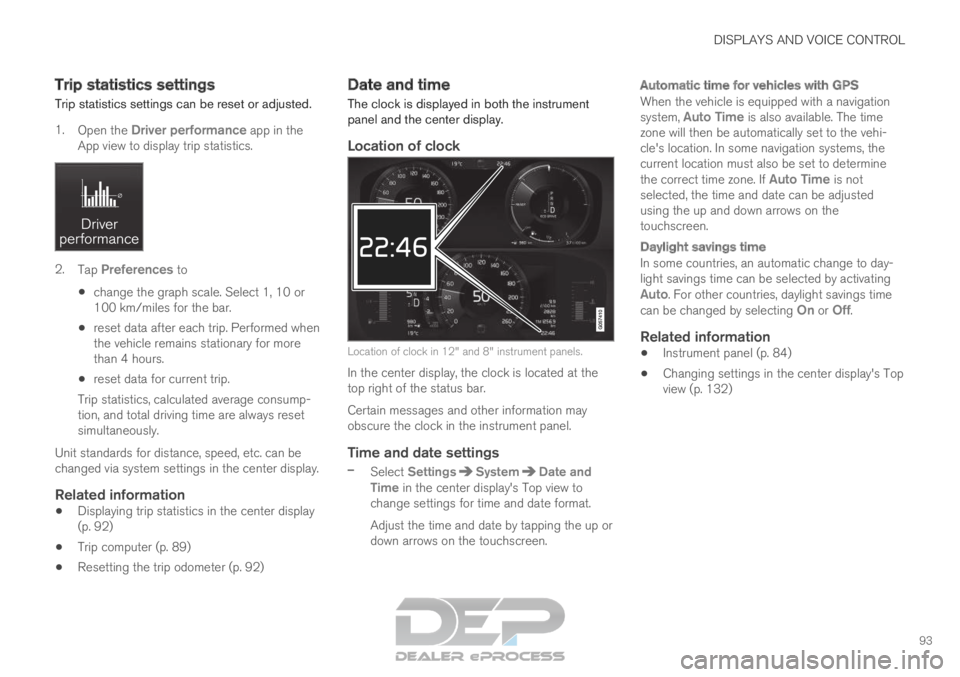
Location of clock Location of clock in 12" and 8" instrument panels.
In the center display, the clock is located at the
top right of the status bar.
Certain messages and other information may
obscure the clock in the instrument panel.
Time and date settings
– Select Settings System Date and
Time in the center display's Top view to
change settings for time and date format.
Adjust the time and date by tapping the up or
down arrows on the touchscreen.
Automatic time for vehicles with GPS
When the vehicle is equipped with a navigation
system, Auto Time is also available. The time
zone will then be automatically set to the vehi-
cle's location. In some navigation systems, the
current location must also be set to determine
the correct time zone. If Auto Time is not selected, the time and date can be adjusted
using the up and down arrows on the
touchscreen.
Daylight savings time
In some countries, an automatic change to day-
light savings time can be selected by activating
Auto. For other countries, daylight savings time
can be changed by selecting On or
Off.
Related information
Instrument panel (p. 84)
Changing settings in the center display's Top
view (p. 132)
Page 97 of 697
DISPLAYS AND VOICE CONTROL
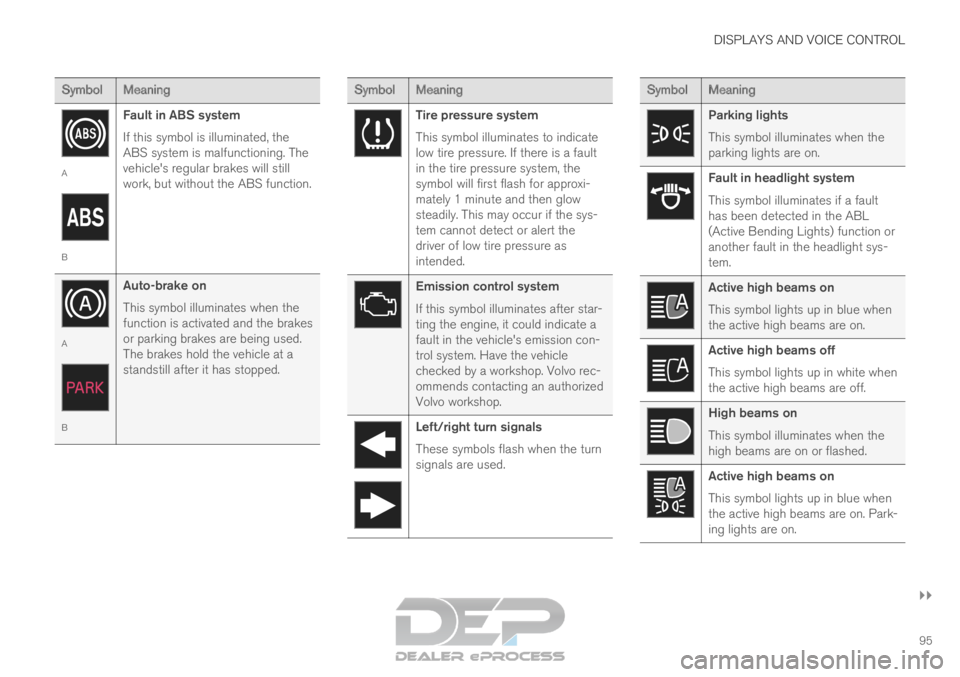
}}95 Symbol
Meaning A
B
Fault in ABS system
If this symbol is illuminated, the
ABS system is malfunctioning. The
vehicle's regular brakes will still
work, but without the ABS function. A
B
Auto-brake on
This symbol illuminates when the
function is activated and the brakes
or parking brakes are being used.
The brakes hold the vehicle at a
standstill after it has stopped. Symbol
Meaning Tire pressure system
This symbol illuminates to indicate
low tire pressure. If there is a fault
in the tire pressure system, the
symbol will first flash for approxi-
mately 1 minute and then glow
steadily. This may occur if the sys-
tem cannot detect or alert the
driver of low tire pressure as
intended.
Emission control system
If this symbol illuminates after star-
ting the engine, it could indicate a
fault in the vehicle's emission con-
trol system. Have the vehicle
checked by a workshop. Volvo rec-
ommends contacting an authorized
Volvo workshop.
Left/right turn signals
These symbols flash when the turn
signals are used. Symbol
Meaning Parking lights
This symbol illuminates when the
parking lights are on.
Fault in headlight system
This symbol illuminates if a fault
has been detected in the ABL
(Active Bending Lights) function or
another fault in the headlight sys-
tem.
Active high beams on
This symbol lights up in blue when
the active high beams are on.
Active high beams off
This symbol lights up in white when
the active high beams are off.
High beams on
This symbol illuminates when the
high beams are on or flashed.
Active high beams on
This symbol lights up in blue when
the active high beams are on. Park-
ing lights are on.
Page 98 of 697
||DISPLAYS AND VOICE CONTROL
96
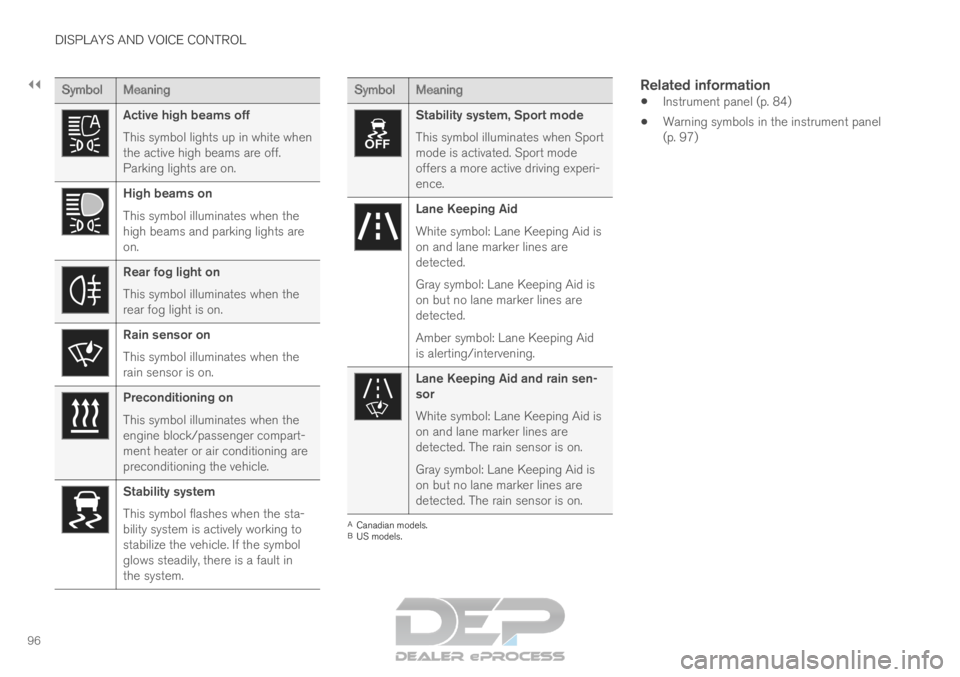
Symbol
Meaning Active high beams off
This symbol lights up in white when
the active high beams are off.
Parking lights are on.
High beams on
This symbol illuminates when the
high beams and parking lights are
on.
Rear fog light on
This symbol illuminates when the
rear fog light is on.
Rain sensor on
This symbol illuminates when the
rain sensor is on.
Preconditioning on
This symbol illuminates when the
engine block/passenger compart-
ment heater or air conditioning are
preconditioning the vehicle.
Stability system
This symbol flashes when the sta-
bility system is actively working to
stabilize the vehicle. If the symbol
glows steadily, there is a fault in
the system. Symbol
Meaning Stability system, Sport mode
This symbol illuminates when Sport
mode is activated. Sport mode
offers a more active driving experi-
ence.
Lane Keeping Aid
White symbol: Lane Keeping Aid is
on and lane marker lines are
detected.
Gray symbol: Lane Keeping Aid is
on but no lane marker lines are
detected.
Amber symbol: Lane Keeping Aid
is alerting/intervening.
Lane Keeping Aid and rain sen-
sor
White symbol: Lane Keeping Aid is
on and lane marker lines are
detected. The rain sensor is on.
Gray symbol: Lane Keeping Aid is
on but no lane marker lines are
detected. The rain sensor is on.
A
Canadian models.
B US models.
Related information
Instrument panel (p. 84)
Warning symbols in the instrument panel
(p. 97)
Page 114 of 697
DISPLAYS AND VOICE CONTROL
112Handling the center display
Many of the vehicle's functions and features can
be controlled and adjusted from the center dis-
play. The center display is a touchscreen that
reacts to taps and other gestures.
Using the center display's touchscreenThe touchscreen reacts differently depending on
whether the user taps, drags or swipes the
screen. It is possible to e.g. move between differ- ent views, mark objects, scroll in a list and move
apps by touching the screen in various ways.
An infrared light curtain just above the surface of
the screen enables the screen to detect when a
finger is directly in front of the screen. This tech-
nology makes it possible to use the screen even
while wearing gloves.
Two people can interact with the screen at the
same time, e.g. to adjust climate system settings
for both the driver and passenger sides.
CAUTION Do not use sharp objects on the screen as
this could cause scratches.
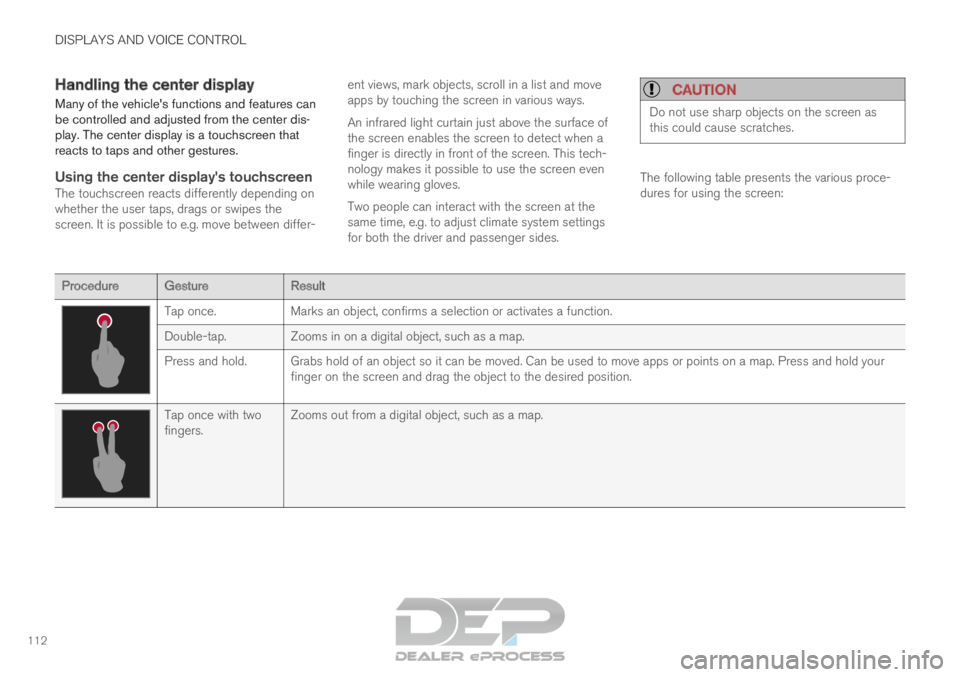
The following table presents the various proce-
dures for using the screen:
Procedure
Gesture Result Tap once.
Marks an object, confirms a selection or activates a function.
Double-tap.
Zooms in on a digital object, such as a map.
Press and hold. Grabs hold of an object so it can be moved. Can be used to move apps or \
points on a map. Press and hold your finger on the screen and drag the object to the desired position. Tap once with two
fingers.
Zooms out from a digital object, such as a map.
Page 124 of 697
DISPLAYS AND VOICE CONTROL
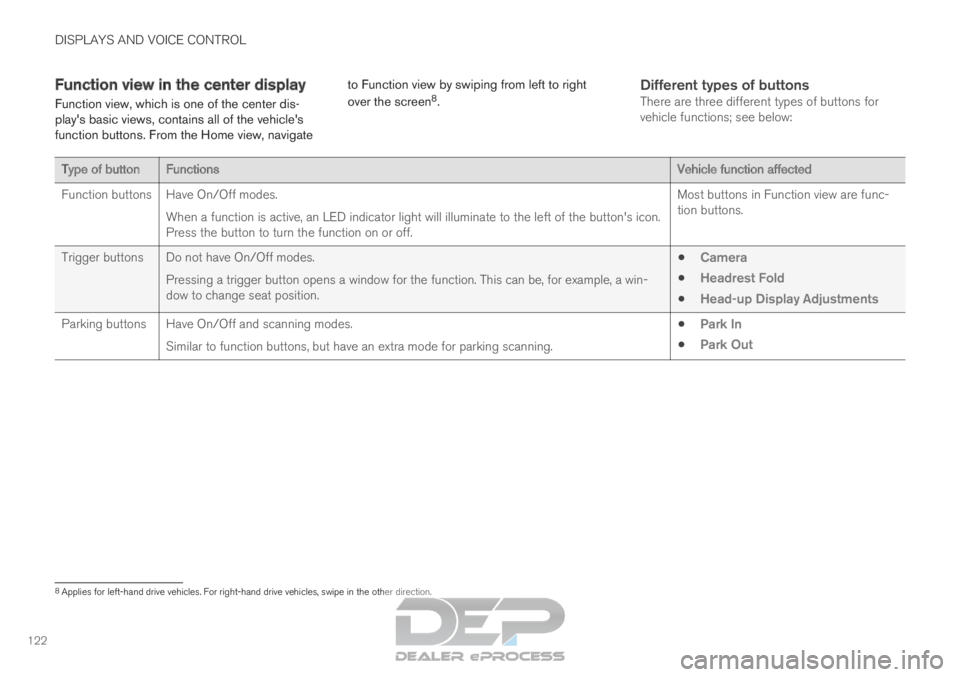
122Function view in the center display
Function view, which is one of the center dis-
play's basic views, contains all of the vehicle's
function buttons. From the Home view, navigate to Function view by swiping from left to right
over the screen
8
.
Different types of buttonsThere are three different types of buttons for
vehicle functions; see below: Type of button
Functions Vehicle function affected
Function buttons
Have On/Off modes.
When a function is active, an LED indicator light will illuminate to the\
left of the button's icon.
Press the button to turn the function on or off. Most buttons in Function view are func-
tion buttons.
Trigger buttons Do not have On/Off modes. Pressing a trigger button opens a window for the function. This can be, \
for example, a win-
dow to change seat position.
Camera
Headrest Fold
Head-up Display Adjustments
Parking buttons Have On/Off and scanning modes. Similar to function buttons, but have an extra mode for parking scanning\
.
Park In
Park Out 8
Applies for left-hand drive vehicles. For right-hand drive vehicles, swi\
pe in the other direction.
Page 125 of 697
DISPLAYS AND VOICE CONTROL
123
Button modes
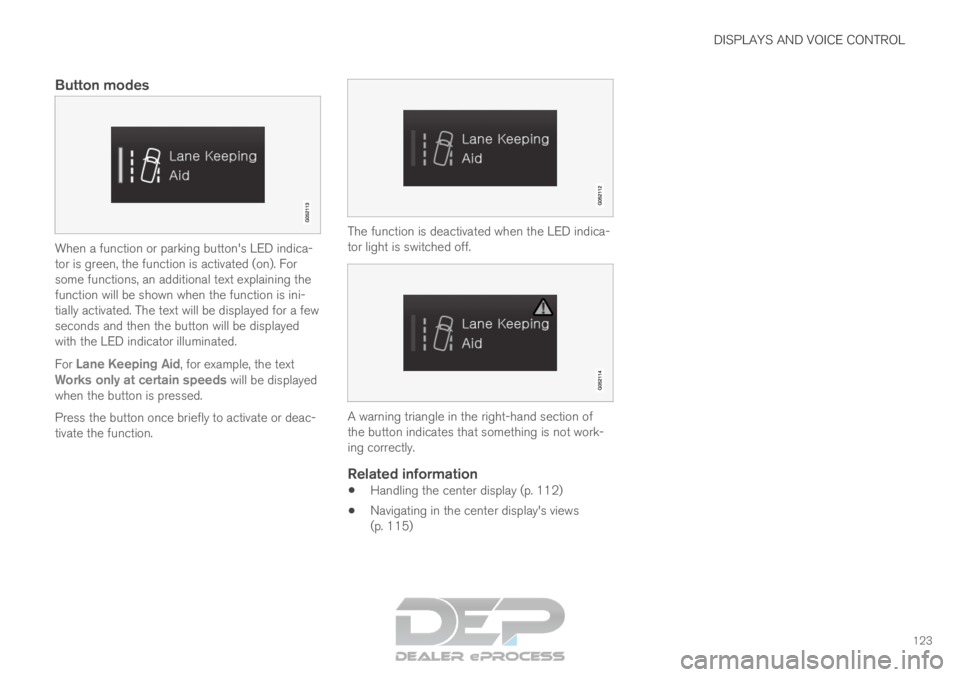
When a function or parking button's LED indica-
tor is green, the function is activated (on). For
some functions, an additional text explaining the
function will be shown when the function is ini-
tially activated. The text will be displayed for a few
seconds and then the button will be displayed
with the LED indicator illuminated.
For Lane Keeping Aid, for example, the text
Works only at certain speeds will be displayed when the button is pressed.
Press the button once briefly to activate or deac-
tivate the function. The function is deactivated when the LED indica-
tor light is switched off.
A warning triangle in the right-hand section of
the button indicates that something is not work-
ing correctly.
Related information
Handling the center display (p. 112)
Navigating in the center display's views
(p. 115)