radio VOLVO XC90 TWIN ENGINE 2019 User Guide
[x] Cancel search | Manufacturer: VOLVO, Model Year: 2019, Model line: XC90 TWIN ENGINE, Model: VOLVO XC90 TWIN ENGINE 2019Pages: 697, PDF Size: 10.33 MB
Page 149 of 697
DISPLAYS AND VOICE CONTROL
* Option/accessory.147
Numbers
Number commands can be given in different
ways depending on the function to be controlled:
Phone numbers and zip codes should be
given by stating each number individually, e.g.
zero three one two two four four three
(03122443).
Addresses can be given by stating each
number individually or in a group, e.g. two two
or twenty-two (22). For English and Dutch
language settings, groups of numbers can
also be said in sequence, e.g. twenty-two
twenty-two (22 22). For English, double or
triple digits can also be used, e.g. double
zero (00). Numbers in the range 0-2300 can
be used.
Frequencies can be given as ninety-eight
point eight (98.8), one hundred four point
two, or hundred four point two (104.2).
Related information
Voice control (p. 145)
Voice control for cellular phones (p. 147)
Voice control for radio and media (p. 148)
Climate control system voice commands
(p. 205)
Voice control settings (p. 148) Voice control for cellular phones
17
Call a contact in the phone book, have a text
message read aloud or dictate short messages
using voice commands to a Bluetooth-con-
nected phone.
To access a contact in the phone book, the voice
command must contain the contact information
entered in the phone book. If a contact, e.g.
Robyn Smith, has several phone numbers listed
in the phone book, a number category such as
home or cellular can also be specified, i.e. "Call
Robyn Smith cellular".
Tap and say one of the following commands:
"Call [contact]" - call the selected contact
from the phone book.
"Call [phone number]" - call a phone num-
ber.
"
Recent calls" - display the list of recent
calls.
"
Read message" - read a text message
aloud. If there are several messages, select
the message to read aloud.
"Message to [contact]" - the user is
prompted to dictate a short message. The
message will then be read aloud and the
user can choose to send 18
or re-dictate the message. The vehicle must be connected to
the Internet to access this function.
Related information
Voice control (p. 145)
Using voice commands (p. 146)
Voice control for radio and media (p. 148)
Climate control system voice commands
(p. 205)
Voice control settings (p. 148)
Internet-connected vehicle* (p. 541) 17
Certain markets only.
18 Only certain phones can send messages via the vehicle. For additional in\
formation on compatibility, see support.volvocars.com.
Page 150 of 697
DISPLAYS AND VOICE CONTROL
* Option/accessory.
148 Voice control for radio and media
19
Voice commands for the radio and media play-
ers are shown below.
Tap and say one of the following commands:
"Media" - initiates a dialog for media and
radio and displays examples of commands.
"
Play [artist]" - plays music by the selected
artist.
"
Play [song title]" - plays the selected
song.
"
Play [song title] from [album]" - plays
the selected song from the selected album.
"Play [radio station]" - starts the selected
radio station.
"
Tune to [frequency]" - tunes to the
selected radio frequency in the currently
active waveband. If no radio source is active,
the FM band will be started as default.
"
Tune to [frequency] [waveband]" - tunes
to the selected radio frequency on the
selected waveband.
"Radio" - starts FM radio.
"
Radio FM" - starts FM radio.
"
SiriusXM" - starts SiriusXM radio*
"
CD" - starts playback from CD*.
"
USB" - starts playback from USB.
"iPod" - starts playback from iPod.
"
Bluetooth" - starts playback from a Blue-
tooth-connected media source.
"
Similar music" - plays music from a USB-
connected device with music similar to that
currently playing.
Related information
Voice control (p. 145)
Using voice commands (p. 146)
Voice control for cellular phones (p. 147)
Climate control system voice commands
(p. 205)
Voice control settings (p. 148) Voice control settings
20
Settings for the voice control system are made
here.
Settings System Voice Control
Settings can be personalized in the following
areas:
Repeat Voice Command
Gender
Speech Rate
Sound settingsSelect sound settings under:
Settings Sound System Volumes
Voice Control
Language settingsThe voice control system is not available for all
languages. The languages available for voice
commands are indicated by the
icon in the
list of languages.
Changing the language here will also change the
language in the menus, messages and help texts.
Settings System System Languages
and Units System Language
19
Certain markets only.
Page 151 of 697

DISPLAYS AND VOICE CONTROL
149
Related information
Voice control (p. 145)
Using voice commands (p. 146)
Voice control for cellular phones (p. 147)
Climate control system voice commands
(p. 205)
Voice control for radio and media (p. 148)
Sound settings (p. 496)
Changing system language (p. 132) 20
Certain markets only.
Page 250 of 697
||KEY, LOCKS AND ALARM
* Option/accessory.
248 1.
Press the button on the remote key.
>
The lock and alarm indicator on the dash-
board will go out to indicate that the vehi-
cle is no longer fully armed.
The tailgate will be unlocked but remain
closed. However, the side doors will
remain locked and armed.
Press lightly on the rubberized pressure
plate under the tailgate handle to open
the tailgate.
If the tailgate is not opened within
2 minutes, it will be relocked and the
alarm armed.
2. With the optional power tailgate* -
Hold and press (about 1.5 seconds) the button on the remote key
>
The tailgate will unlock and open. How-
ever, the side doors will remain locked and
armed.
Related information
Locking and unlocking using the remote key
(p. 246)
Opening and closing the power tailgate*
(p. 266) Remote key range
In order to function correctly, the remote key
must be within a certain distance from the vehi-
cle.
Manual useThe remote key's functions for e.g. locking and
unlocking, which are activated by pressing or
, have a range of approx. 20 meters (65 feet)
from the vehicle.
If the vehicle's locks do not react, move closer
and try again.
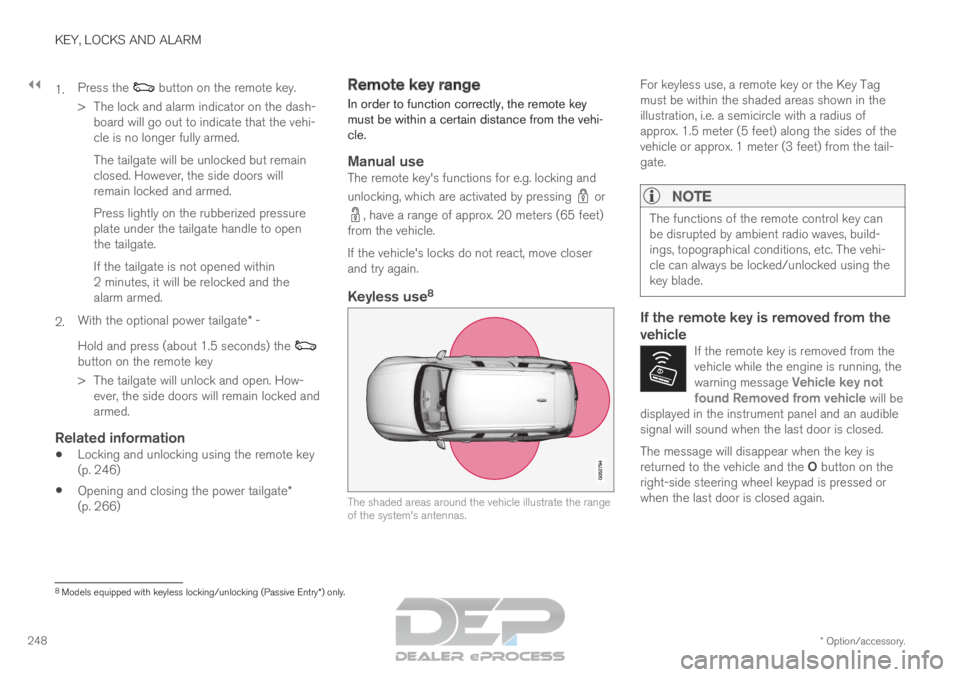
Keyless use 8 The shaded areas around the vehicle illustrate the range
of the system's antennas.For keyless use, a remote key or the Key Tag
must be within the shaded areas shown in the
illustration, i.e. a semicircle with a radius of
approx. 1.5 meter (5 feet) along the sides of the
vehicle or approx. 1 meter (3 feet) from the tail-
gate.
NOTE The functions of the remote control key can
be disrupted by ambient radio waves, build-
ings, topographical conditions, etc. The vehi-
cle can always be locked/unlocked using the
key blade.
If the remote key is removed from the
vehicle
If the remote key is removed from the
vehicle while the engine is running, the
warning message
Vehicle key not
found Removed from vehicle will be
displayed in the instrument panel and an audible
signal will sound when the last door is closed. The message will disappear when the key is
returned to the vehicle and the O button on the
right-side steering wheel keypad is pressed or
when the last door is closed again.
8 Models equipped with keyless locking/unlocking (Passive Entry*) only.
Page 492 of 697
||STARTING AND DRIVING
* Option/accessory.
490 programmable buttons and an indicator light in
the mirror.
For more information about HomeLink
®
, please
visit www.HomeLink.com, www.youtube.com/
HomeLinkGentex or call 1-800-355-3515.
Save the original remote controls for future pro-
gramming (e.g. for use in another vehicle). It is
also advisable to delete the button programming
if the vehicle is sold.
Related information
Using HomeLink ®
* (p. 491)
Programming HomeLink ®
* (p. 490)
Type approval for HomeLink ®
* (p. 492) Programming HomeLink
®
*12
Follow these instructions to program
HomeLink ®
, reset all programming, or program
individual buttons.
NOTE In some vehicles, the ignition must be on or in
the "accessory position" before HomeLink
®
can be programmed or used. It can be a good
idea to put new batteries in the remote con-
trol being replaced by HomeLink ®
for faster
programming and better radio signal trans-
mission. The HomeLink ®
buttons should be
reset before programming.
WARNING While HomeLink
®
is being programmed, the
garage door or gate being programmed may
be activated. Make sure that no one is near
the door or gate during programming. When
programming a garage door opener, it is
advised to park outside of the garage. 1.
Point the remote control at the HomeLink ®
button to be programmed and hold it about
2-8 cm (1-3 inches) from the button. Do not
obstruct the HomeLink ®
indicator light.
Note: Some remote controls are more effec-
tive at programming HomeLink ®
from a dis-
tance of about 15-20 cm (6-12 inches). Try
moving the remote control closer or further
away if you are experiencing any difficulties
programming.
2.
Press and hold both the remote control but-
ton and the HomeLink ®
button to be pro-
grammed.
3. Do not release the buttons until the indicator light has stopped flashing slowly (about once
a second) and either flashes quickly (about
10 times a second) or glows steadily.
>Steady glow: Indication that program-
ming is complete. Press the programmed
button twice to activate.
Flashing quickly: The device being pro-
grammed with HomeLink ®
may have a
security function that requires an extra
step. Try pressing the programmed button
twice to see whether the programming
works. Otherwise, continue with the fol-
lowing steps. 10
Certain markets only.
11 HomeLink and the HomeLink house symbol are registered trademarks of Gent\
ex Corporation.
12 Certain markets only.
Page 494 of 697
||STARTING AND DRIVING
* Option/accessory.
492
WARNING
If you use HomeLink ®
to open a garage
door or gate, be sure no one is near the
gate or door while it is in motion.
Do not use HomeLink ®
with any garage
door opener that lacks safety stop and
reverse features as required by US fed-
eral safety standards (this includes any
garage door opener model manufactured
before April 1, 1982). A garage door that
cannot detect an object - signaling the
door to stop and reverse - does not meet
current U.S. federal safety standards. For
more information, contact HomeLink at:
www.homelink.com.
Related information
HomeLink ®
* (p. 489)
Programming HomeLink ®
* (p. 490)
Type approval for HomeLink ®
* (p. 492) Type approval for HomeLink
®
*15
FCC (USA) and IC (Canada)This device complies with FCC rules part 15 and
Industry Canada RSS-210. Operation is subject
to the following two conditions: (1) This device
may not cause harmful interference, and (2) This
device must accept any interference that may be
received including interference that may cause
undesired operation.
WARNING The transmitter has been tested and complies
with FCC and IC rules. Changes or modifica-
tions not expressly approved by the party
responsible for compliance could void the
user's authority to operate the device.
16
Type approval for EUGentex Corporation hereby declares that
HomeLink®
Model UAHL5 complies with the
Radio equipment directive 2014/53/EU.
Wavelengths within which the radio equipment
operates:
433.05MHz-434.79MHz <10mW E.R.P.
868.00MHz-868.60MHz <25mW E.R.P.
868.70MHz-868.20MHz <25mW E.R.P.
869.40MHz-869.65MHz <25mW E.R.P.
869.70MHz-870.00MHz <25mW E.R.P.
Certificate holder address: Gentex Corporation,
600 North Centennial Street, Zeeland MI 49464,
USA
For more information, see support.volvocars.com.
Related information
HomeLink ®
* (p. 489) 14
Certain markets only.
15 Certain markets only.
16 The term "IC:" before the certification/registration number only signifi\
es that Industry Canada technical specifications were met.
Page 498 of 697
AUDIO, MEDIA AND INTERNET
* Option/accessory.
496 Audio, media and Internet
The audio and media system consists of a media
player and a radio. A cellular phone can also be
connected through Bluetooth to use hands-free
functions or play music in the vehicle. When the
vehicle is connected to the Internet, it is also
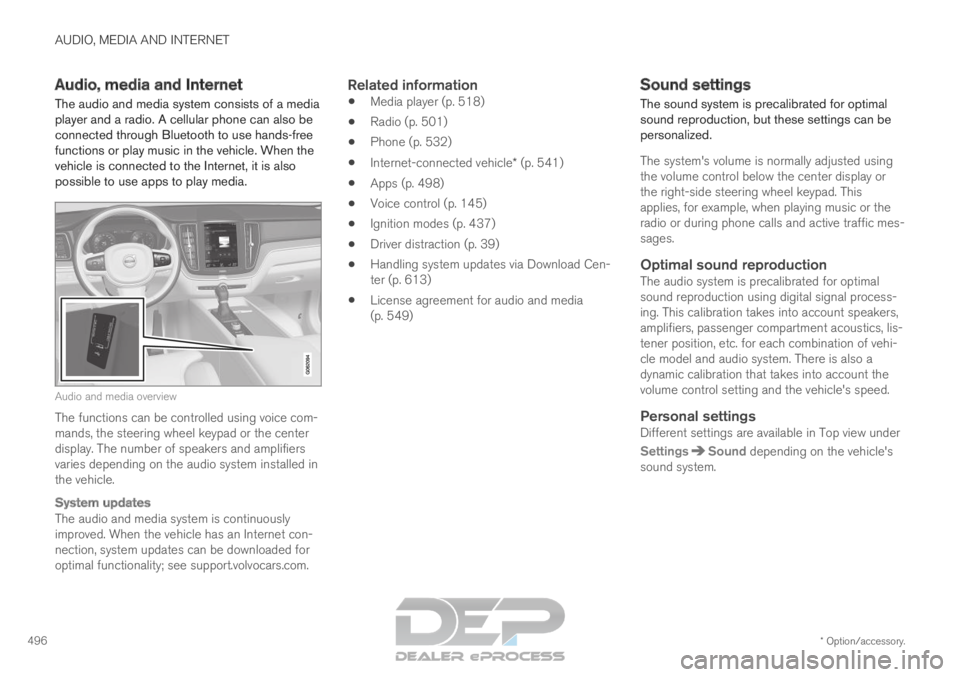
possible to use apps to play media. Audio and media overview
The functions can be controlled using voice com-
mands, the steering wheel keypad or the center
display. The number of speakers and amplifiers
varies depending on the audio system installed in
the vehicle.
System updates
The audio and media system is continuously
improved. When the vehicle has an Internet con-
nection, system updates can be downloaded for
optimal functionality; see support.volvocars.com.
Related information
Media player (p. 518)
Radio (p. 501)
Phone (p. 532)
Internet-connected vehicle* (p. 541)
Apps (p. 498)
Voice control (p. 145)
Ignition modes (p. 437)
Driver distraction (p. 39)
Handling system updates via Download Cen-
ter (p. 613)
License agreement for audio and media
(p. 549) Sound settings
The sound system is precalibrated for optimal
sound reproduction, but these settings can be
personalized.
The system's volume is normally adjusted using
the volume control below the center display or
the right-side steering wheel keypad. This
applies, for example, when playing music or the
radio or during phone calls and active traffic mes-
sages.
Optimal sound reproductionThe audio system is precalibrated for optimal
sound reproduction using digital signal process-
ing. This calibration takes into account speakers,
amplifiers, passenger compartment acoustics, lis-
tener position, etc. for each combination of vehi-
cle model and audio system. There is also a
dynamic calibration that takes into account the
volume control setting and the vehicle's speed.
Personal settingsDifferent settings are available in Top view under
Settings Sound
depending on the vehicle's
sound system.
Page 500 of 697
||AUDIO, MEDIA AND INTERNET
* Option/accessory.
498
High Performance Pro* (Harman
Kardon)
Seat Optimization - the sound can be opti-
mized for Driver, All and Rear.
Surround - surround sound mode with level
settings.
Tone - setting for e.g. bass, treble, equalizer,
etc.
Related information
Sound settings (p. 496)
Navigating in the center display's views
(p. 115) Apps
The App view contains applications (apps) that
provide access to certain vehicle services.
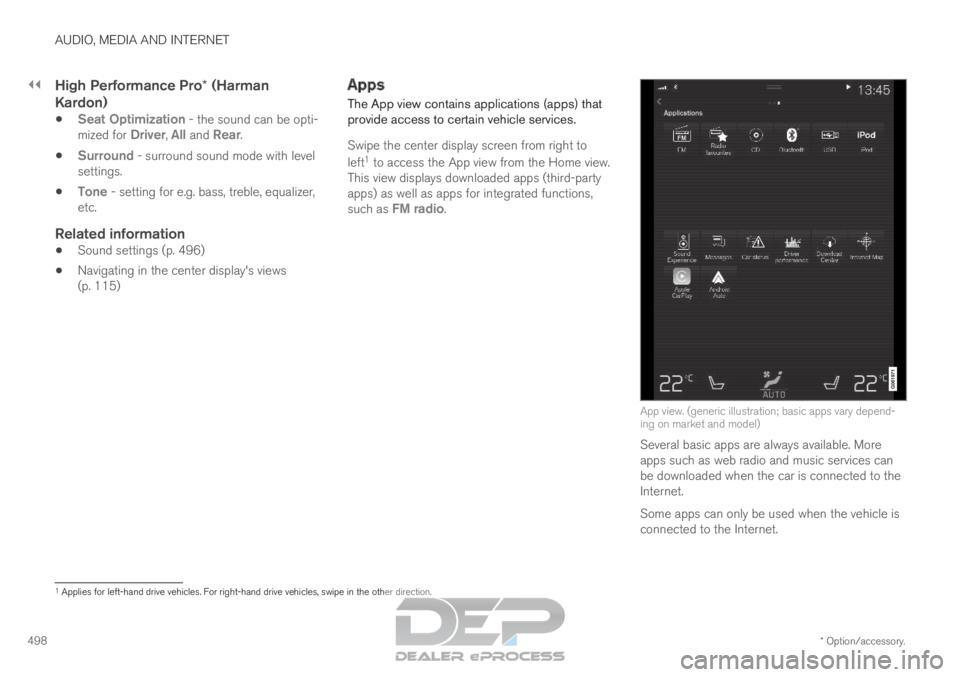
Swipe the center display screen from right to
left 1
to access the App view from the Home view.
This view displays downloaded apps (third-party
apps) as well as apps for integrated functions,
such as FM radio. App view. (generic illustration; basic apps vary depend-
ing on market and model)
Several basic apps are always available. More
apps such as web radio and music services can
be downloaded when the car is connected to the
Internet.
Some apps can only be used when the vehicle is
connected to the Internet. 1
Applies for left-hand drive vehicles. For right-hand drive vehicles, swi\
pe in the other direction.
Page 501 of 697
AUDIO, MEDIA AND INTERNET
* Option/accessory.499
Start an app by pressing the app in the center
display's app view.
Related information
Download apps (p. 499)
Updating apps (p. 500)
Deleting apps (p. 500)
Apple ®
CarPlay ®
* (p. 527)
Android Auto* (p. 530)
Internet-connected vehicle* (p. 541)
Hard disk storage space (p. 548)
Terms of use and data sharing (p. 548) Download apps
New apps can be downloaded when the vehicle
is connected to the Internet.NOTE Data downloading can affect other services
such as transfer data, e.g. web radio. If the
affect on other services is experienced as
problematic, the download can be interrupted.
Alternatively, it may be appropriate to switch
off or cancel other services.
NOTE
When downloading using a phone, pay extra
attention to the data traffic costs.
1.
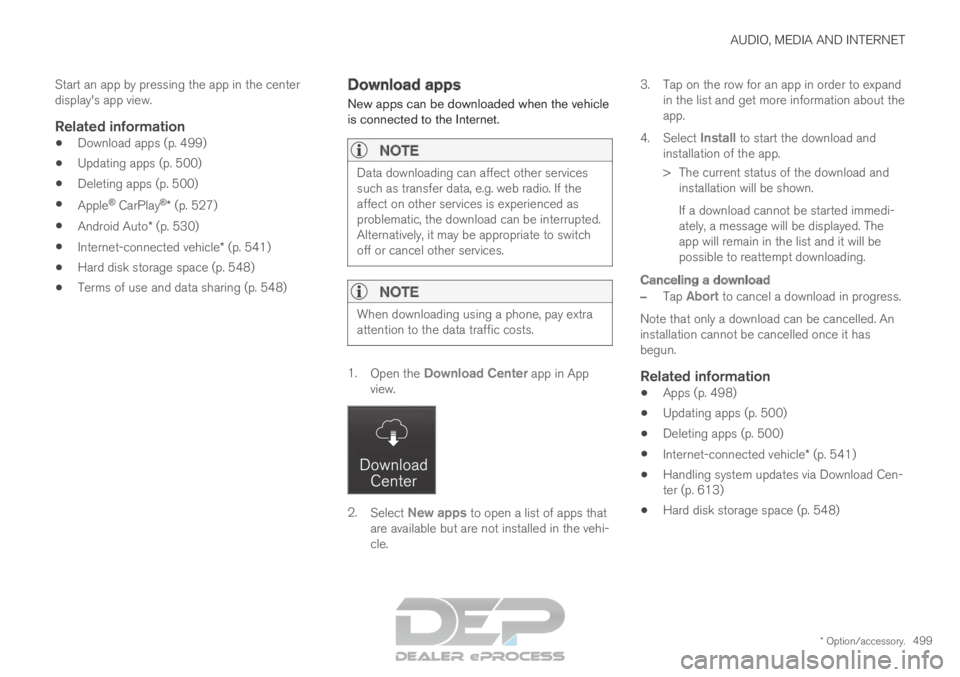
Open the Download Center app in App
view. 2.
Select New apps to open a list of apps that
are available but are not installed in the vehi-
cle. 3.
Tap on the row for an app in order to expand
in the list and get more information about the
app.
4. Select Install to start the download and
installation of the app.
>
The current status of the download and
installation will be shown.
If a download cannot be started immedi-
ately, a message will be displayed. The
app will remain in the list and it will be
possible to reattempt downloading.
Canceling a download
– Tap Abort to cancel a download in progress.
Note that only a download can be cancelled. An
installation cannot be cancelled once it has
begun.
Related information
Apps (p. 498)
Updating apps (p. 500)
Deleting apps (p. 500)
Internet-connected vehicle* (p. 541)
Handling system updates via Download Cen-
ter (p. 613)
Hard disk storage space (p. 548)
Page 502 of 697
AUDIO, MEDIA AND INTERNET
* Option/accessory.
500 Updating apps
Apps can be updated when the vehicle is con-
nected to the Internet.
NOTE Data downloading can affect other services
such as transfer data, e.g. web radio. If the
affect on other services is experienced as
problematic, the download can be interrupted.
Alternatively, it may be appropriate to switch
off or cancel other services.
NOTE
When downloading using a phone, pay extra
attention to the data traffic costs.
If an app is being used while an update is in pro-
gress, it will be restarted to complete the update.
Update all
1.
Open the Download Center app in App
view. 2.
Select Install all.
>
The update will begin.
Update certain apps
1. Open the Download Center app in App
view.
2. Select Application updates to open a list
of all available updates.
3. Find the desired app and select Install.
>
The update will begin.
Related information
Apps (p. 498)
Download apps (p. 499)
Deleting apps (p. 500)
Handling system updates via Download Cen-
ter (p. 613)
Internet-connected vehicle* (p. 541) Deleting apps
When the vehicle is connected to the Internet, it
is possible to uninstall apps.
If the app is being used, it must be closed before
it can be uninstalled.
1. Open the Download Center app in App
view. 2.
Select Application updates to open a list
of all installed apps.
3. Find the desired app and select Uninstall to
begin uninstalling the app.
>
When the app has been uninstalled, it will
be removed from the list.
Related information
Apps (p. 498)
Download apps (p. 499)
Updating apps (p. 500)
Handling system updates via Download Cen-
ter (p. 613)
Internet-connected vehicle* (p. 541)