phone VOLVO XC90 TWIN ENGINE 2019 Service Manual
[x] Cancel search | Manufacturer: VOLVO, Model Year: 2019, Model line: XC90 TWIN ENGINE, Model: VOLVO XC90 TWIN ENGINE 2019Pages: 697, PDF Size: 10.33 MB
Page 499 of 697
AUDIO, MEDIA AND INTERNET
}}
* Option/accessory. 497
Premium Sound* (Bowers & Wilkins)
Tone - setting for e.g. bass, treble, equalizer,
etc.
Balance - balance between right/left and
front/rear speakers.
System Volumes – adjusts volume in the
various systems of the car, e.g.
Voice
Control, Park Assist and Phone Ringtone.
High Performance Pro* (Harman
Kardon)
Equalizer - setting of equalizer.
Balance - balance between right/left and
front/rear speakers.
System Volumes – adjusts volume in the
various systems of the car, e.g. Voice
Control, Park Assist and Phone Ringtone.
High Performance
Tone - setting for e.g. bass, treble, equalizer,
etc.
Balance - balance between right/left and
front/rear speakers.
System Volumes – adjusts volume in the
various systems of the car, e.g.
Voice
Control, Park Assist and Phone Ringtone.
Related information
Sound experience* (p. 497)
Media player (p. 518)
Voice control settings (p. 148)
Phone settings (p. 540)
Audio, media and Internet (p. 496)
Internet-connected vehicle* (p. 541) Sound experience*
Sound experience is an app that provides
access to additional sound settings.
Open
Sound Experience from the center dis-
play's App view. Depending on the sound system
installed in the vehicle, the following settings are
possible:
Premium Sound* (Bowers & Wilkins)
Studio - the sound can be optimized for
Driver, All and Rear.
Individual stage - surround sound mode
with settings for intensity and enclosure.
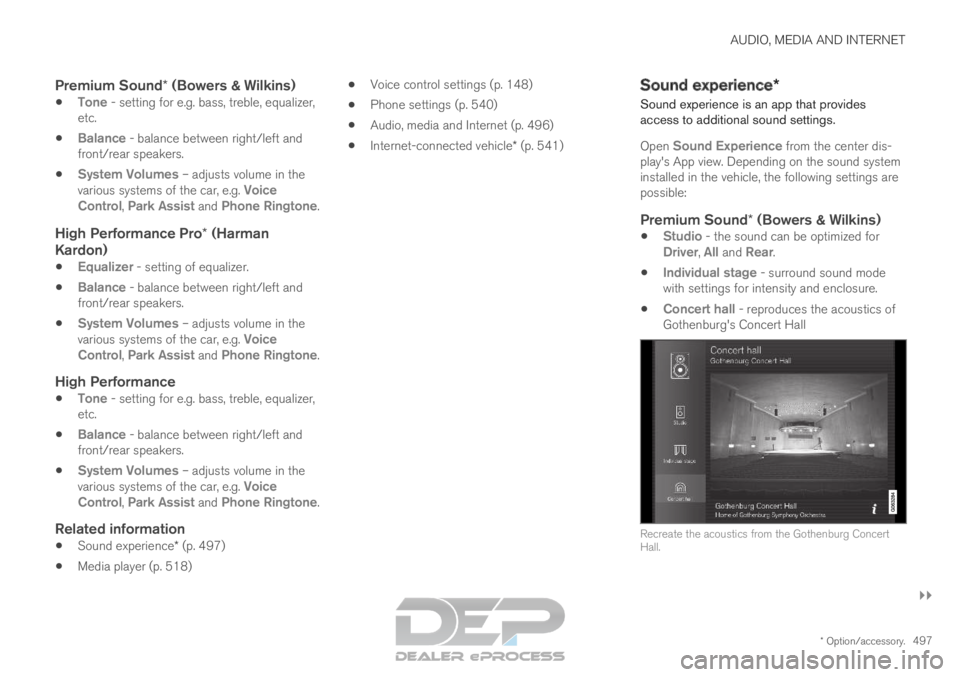
Concert hall - reproduces the acoustics of
Gothenburg's Concert Hall Recreate the acoustics from the Gothenburg Concert
Hall.
Page 501 of 697
AUDIO, MEDIA AND INTERNET
* Option/accessory.499
Start an app by pressing the app in the center
display's app view.
Related information
Download apps (p. 499)
Updating apps (p. 500)
Deleting apps (p. 500)
Apple ®
CarPlay ®
* (p. 527)
Android Auto* (p. 530)
Internet-connected vehicle* (p. 541)
Hard disk storage space (p. 548)
Terms of use and data sharing (p. 548) Download apps
New apps can be downloaded when the vehicle
is connected to the Internet.NOTE Data downloading can affect other services
such as transfer data, e.g. web radio. If the
affect on other services is experienced as
problematic, the download can be interrupted.
Alternatively, it may be appropriate to switch
off or cancel other services.
NOTE
When downloading using a phone, pay extra
attention to the data traffic costs.
1.
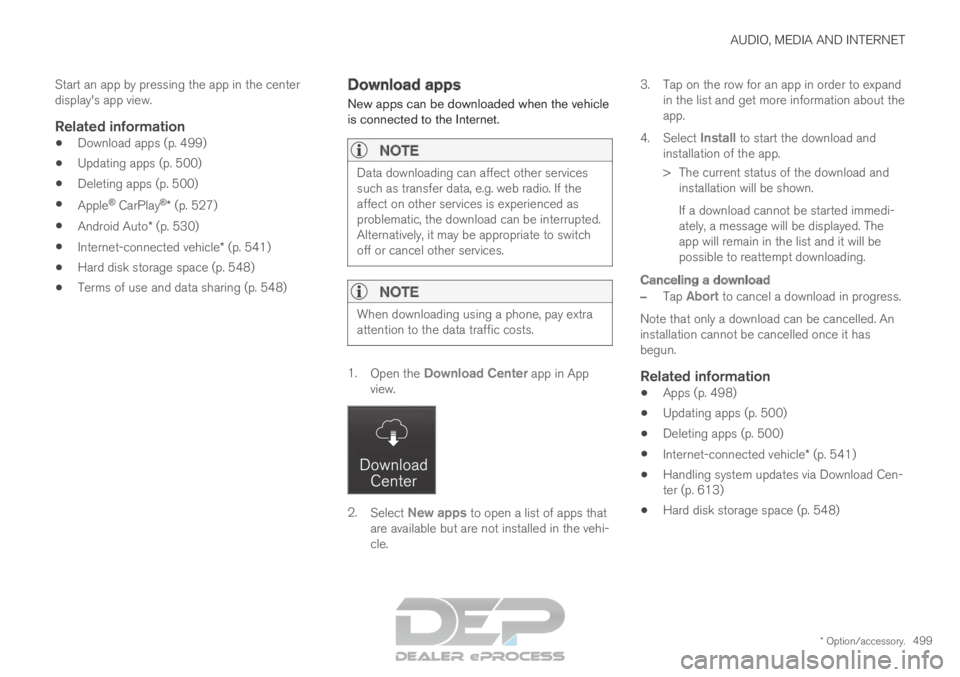
Open the Download Center app in App
view. 2.
Select New apps to open a list of apps that
are available but are not installed in the vehi-
cle. 3.
Tap on the row for an app in order to expand
in the list and get more information about the
app.
4. Select Install to start the download and
installation of the app.
>
The current status of the download and
installation will be shown.
If a download cannot be started immedi-
ately, a message will be displayed. The
app will remain in the list and it will be
possible to reattempt downloading.
Canceling a download
– Tap Abort to cancel a download in progress.
Note that only a download can be cancelled. An
installation cannot be cancelled once it has
begun.
Related information
Apps (p. 498)
Updating apps (p. 500)
Deleting apps (p. 500)
Internet-connected vehicle* (p. 541)
Handling system updates via Download Cen-
ter (p. 613)
Hard disk storage space (p. 548)
Page 502 of 697
AUDIO, MEDIA AND INTERNET
* Option/accessory.
500 Updating apps
Apps can be updated when the vehicle is con-
nected to the Internet.
NOTE Data downloading can affect other services
such as transfer data, e.g. web radio. If the
affect on other services is experienced as
problematic, the download can be interrupted.
Alternatively, it may be appropriate to switch
off or cancel other services.
NOTE
When downloading using a phone, pay extra
attention to the data traffic costs.
If an app is being used while an update is in pro-
gress, it will be restarted to complete the update.
Update all
1.
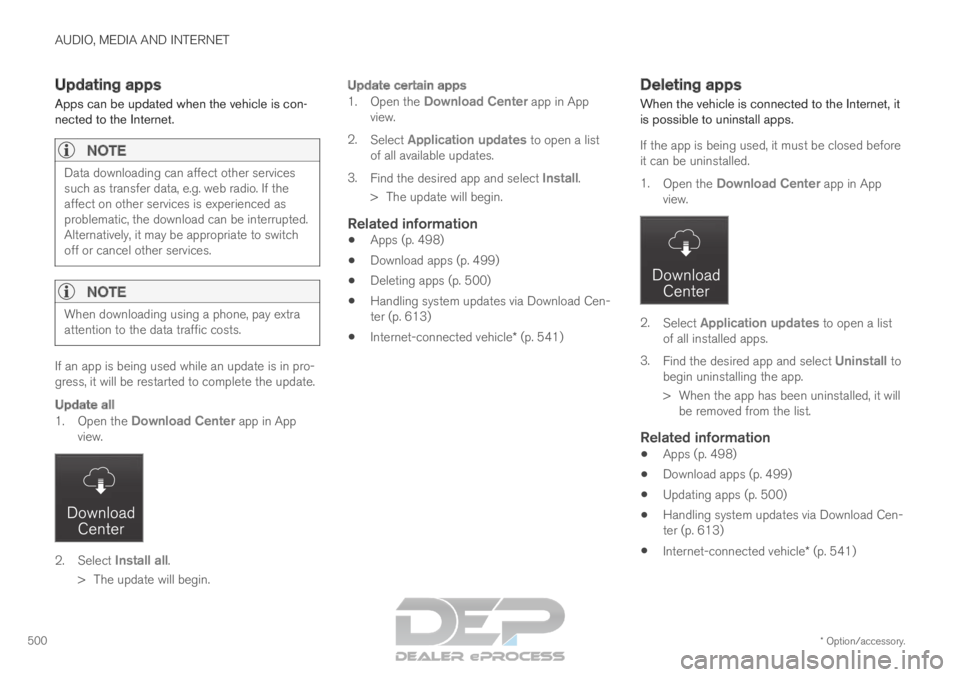
Open the Download Center app in App
view. 2.
Select Install all.
>
The update will begin.
Update certain apps
1. Open the Download Center app in App
view.
2. Select Application updates to open a list
of all available updates.
3. Find the desired app and select Install.
>
The update will begin.
Related information
Apps (p. 498)
Download apps (p. 499)
Deleting apps (p. 500)
Handling system updates via Download Cen-
ter (p. 613)
Internet-connected vehicle* (p. 541) Deleting apps
When the vehicle is connected to the Internet, it
is possible to uninstall apps.
If the app is being used, it must be closed before
it can be uninstalled.
1. Open the Download Center app in App
view. 2.
Select Application updates to open a list
of all installed apps.
3. Find the desired app and select Uninstall to
begin uninstalling the app.
>
When the app has been uninstalled, it will
be removed from the list.
Related information
Apps (p. 498)
Download apps (p. 499)
Updating apps (p. 500)
Handling system updates via Download Cen-
ter (p. 613)
Internet-connected vehicle* (p. 541)
Page 511 of 697
AUDIO, MEDIA AND INTERNET
}}
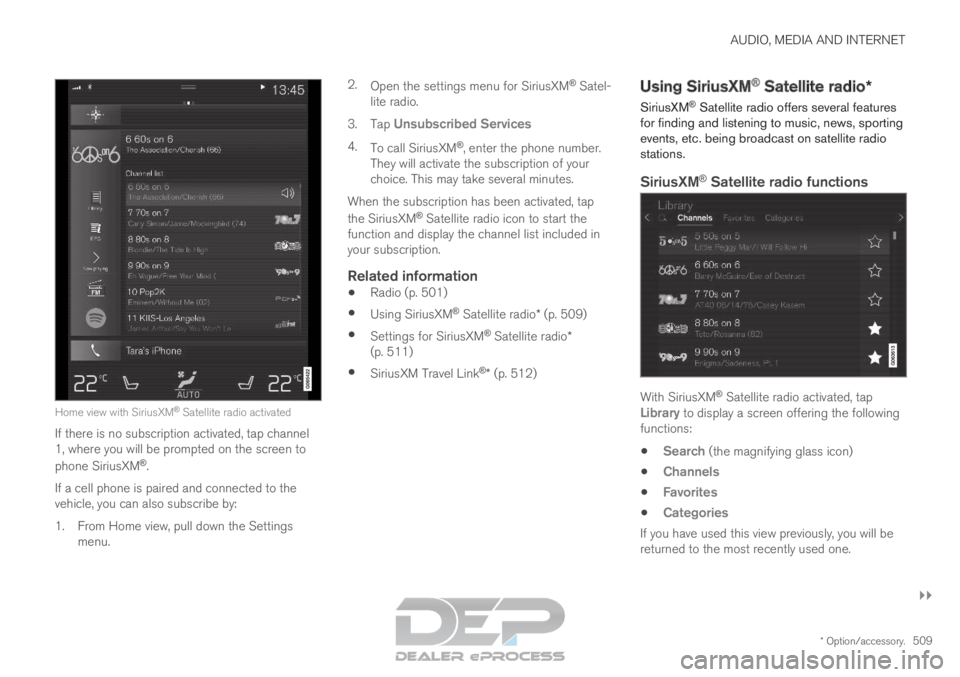
* Option/accessory. 509Home view with SiriusXM
®
Satellite radio activated
If there is no subscription activated, tap channel
1, where you will be prompted on the screen to
phone SiriusXM ®
.
If a cell phone is paired and connected to the
vehicle, you can also subscribe by:
1.
From Home view, pull down the Settings
menu. 2.
Open the settings menu for SiriusXM ®
Satel-
lite radio.
3. Tap Unsubscribed Services
4. To call SiriusXM ®
, enter the phone number.
They will activate the subscription of your
choice. This may take several minutes.
When the subscription has been activated, tap
the SiriusXM ®
Satellite radio icon to start the
function and display the channel list included in
your subscription.
Related information
Radio (p. 501)
Using SiriusXM ®
Satellite radio* (p. 509)
Settings for SiriusXM ®
Satellite radio*
(p. 511)
SiriusXM Travel Link ®
* (p. 512) Using SiriusXM
®
Satellite radio*
SiriusXM ®
Satellite radio offers several features
for finding and listening to music, news, sporting
events, etc. being broadcast on satellite radio
stations.
SiriusXM ®
Satellite radio functions With SiriusXM
®
Satellite radio activated, tap
Library to display a screen offering the following
functions:
Search (the magnifying glass icon)
Channels
Favorites
Categories
If you have used this view previously, you will be
returned to the most recently used one.
Page 512 of 697
||AUDIO, MEDIA AND INTERNET
* Option/accessory.
510
Search
Tap the magnifying glass to display a screen
where you can enter text using the center dis-
play's keyboard or by writing in the free-text field
to search for e.g., a station number, an artist,
song title, etc.
Channels
Tap to display a complete list of the channels
included in your subscription. Tap a channel
name to listen. If a subscription to a channel has
expired, its name will be grayed-out on the
screen.
For quick access to a channel that you often lis-
ten to, tap the star to the right of the channel's
name. It will then be added to your list of favor-
ites.
Favorites
Tap to display the channels that you have added
to this list. Tap a channel name to listen.
Categories/Genres
Tap to display the categories available. Tap a cat-
egory or genre name to display the channels that
it contains and then tap a channel to listen.
If you have activated alerts (see the “Alerts” sec-
tion below) and an alert is activated for an artist,
song or team, temporary virtual categories will
also be created and displayed. The channels cur-
rently broadcasting the song, artist or broadcast-
ing a program with the selected team will be lis-
ted in a virtual category.
EPG (Electronic Program Guide)On the center display's Home view, tap EPG for
information about e.g., when a program is being
broadcast and its name, description, artist, etc. If
no information is currently available,
No
information will be displayed.
AlertsIf this feature has been selected under SiriusXM
Settings, the Alerts button will be displayed on
the Home view.
To add e.g. an artist's name, song title or a sports
team to the list of alerts:
1.
Tune to a channel that is broadcasting a
song, game, etc., of your choice.
2. Tap the Alerts button.
3.
A pop-up window will be displayed showing a
list of alerts (nothing will be displayed if the
selected channel does not support the alert
function).
4. Select one of the alternatives in list (only one can be selected at a time).
5. The song/artist/team will now be added to the list of alerts. Favorite sports teams can
also be added to the list using “Game Alert”
in the SiriusXM satellite radio settings.
> When your choice is being broadcast on achannel, you will be informed by a pop-up.
iTunes taggingFrom the center display's Top view, tap SiriusXM
Settings. Tap the iTunes Tagging menu. Tap
the
iTunes Tagging box to activate/deactivate
this function and tap Close to return to Home
view. Tap Tags List to display a list of all tagged
songs.
If the function is activated, the iTunes tag button will be displayed in Home view. If a song is played
that you would like to buy in the iTunes store, tap
this button while the song is playing to tag it. If a
song with
iTunes Tagging information is availa-
ble, the button will be selectable. Tap the button
to tag the song. If you would like to buy a tagged
song via iTunes, Tap the iTunes tag button.
To buy a song in iTunes, begin by connecting an
iPhone/iPod/iPad to the USB port in the tunnel
console. The iTunes tagging list will automatically
be transferred to the device and removed from
the list in the vehicle. If the device is connected
when a song is tagged, the data will automatically
be saved in the device. To purchase the song,
consult the iTunes support page.
Related information
SiriusXM ®
Satellite radio* (p. 508)
Entering characters, letters and words by
hand in the center display (p. 129)
Settings for SiriusXM ®
Satellite radio*
(p. 511)
Page 514 of 697
||AUDIO, MEDIA AND INTERNET
* Option/accessory.
512
Game Alerts
Tap to display a list of sports.
Tap a sport to display a list of teams and tap a
box on the right side of the screen to select a
team as a favorite. An alert will then be provided
when information about the team is being broad-
cast.
Tap Confirm below the list to return to the list of
sports.
Tap Back to return to the list of settings or
Close to return to the main screen.
Unsubscribed Services
If you have a SiriusXM ®
Satellite radio subscrip-
tion, any channels not included in the subscrip-
tion will be listed here. Call SiriusXM™ to sub-
scribe. The phone number will be shown on the
screen. If a cell phone is paired and connected to
the vehicle, tap the phone number to make the
call.
Skipped Stations
Tap to display a list of channels that you would
like to skip (hide). Hide channels from the chan-
nel list by tapping the boxes to the right of the
screen. Skipped (hidden) channels will not be
shown in the channel list. However, a channel
previously selected as a favorite will still be dis-
played in the list of favorites, even it has been
added to the skip list.
Skipped Categories
Tap to display a list of categories. Tap a category
to skip (hide) it. It will not be displayed in the list
of categories.
Related information
SiriusXM ®
Satellite radio* (p. 508)
Using SiriusXM ®
Satellite radio* (p. 509) SiriusXM Travel Link
®
*
SiriusXM Travel Link is a feature offered by
SiriusXM ®
Satellite radio* that can provide infor-
mation about e.g., weather forecasts, weather
alerts, service stations, sports, etc. in the vicinity
of the vehicle.
Starting SiriusXM Travel Link
NOTE SiriusXM Travel Link services are only availa-
ble in vehicles equipped with the Sensus
Navigation system.
From the center display's App view, tap Travel
Link to activate the feature. A disclaimer text will
be displayed. Tap
OK to display a list of SiriusXM
Travel Link services:
Alerts
Fuel
Sports
Weather
Favorites
In order to use one or more of these services, the
user has to subscribe to the ones desired.
To subscribe to a SiriusXM Travel Link service:
1.
Open the center display's Top view.
2. Tap Settings.
Page 515 of 697
AUDIO, MEDIA AND INTERNET
* Option/accessory.513
3.
Press SiriusXM Travel Link and
Subscription Status.
>
To subscribe, call the phone number listed
on the screen.
Any services not subscribed will be grayed out
and contain the text Service not subscribed.
When the services have been activated (subscri-
bed), tap the one of your choice to start it.
The following applies for all of the SiriusXM
Travel Link services:
Pressing the
Back button will take you back
to the previous screen
Pressing the
Close button will take you to
the SiriusXM Travel Link home screen.NOTE If the Close button is used to return to the
SiriusXM Travel Link home screen, the fol-
lowing applies (the Weather service is used here as an example):
If you have already used the Weather
function, tapping
Weather again in the
SiriusXM Travel Link home screen
before using any other SiriusXM
Travel Link service will return you to the point where you left the Weather service.
If another
SiriusXM Travel Link service
is used (e.g.,
Fuel, Sports, etc.) before
you return to the Weather service, you
will be returned to the default Weather view (in this case,
Local).
The same principle applies to all of the
SiriusXM Travel Link services.
FavoritesMany SiriusXM Travel Link selections can be
saved for easy access as favorites by tapping the
"star" icon next to the selection where applicable.
To display a list of your favorites, tap the Favorites application in the SiriusXM Travel Link
home screen.
Related information
SiriusXM ®
Satellite radio* (p. 508)
SiriusXM Travel Link ®
* - Fuel (p. 516)
SiriusXM Travel Link ®
* - Sports (p. 517)
SiriusXM Travel Link ®
* - Weather (p. 514)
SiriusXM Travel Link ®
* - Notifications
(p. 515)
Page 517 of 697
AUDIO, MEDIA AND INTERNET
* Option/accessory.515
AreasTap Areas to display a list of areas/locations in
states from the SiriusXM Travel Link database.
Scroll to a state and tap to display:
Weather locations: tap arrow to the right to
display a list of towns. Scroll to desired town
and tap for detailed weather information. You
can choose Map view, today, 5 days or Favor-
ites (star)
Ski locations: tap arrow at right to display
local ski areas. Tap an area for detailed info.
For information about storing a location, state,
town, etc. as a favorite, see the heading "Favor-
ites" in the article "SiriusXM Travel Link."
Related information
SiriusXM Travel Link ®
* (p. 512)
SiriusXM Travel Link ®
* - Fuel (p. 516)
SiriusXM Travel Link ®
* - Sports (p. 517)
SiriusXM Travel Link ®
* - Notifications
(p. 515) SiriusXM Travel Link
®
* -
Notifications
This SiriusXM Travel Link service provides notifi-
cations of potential weather problems or other
emergency situations in the vicinity of the vehi-
cle.
From the SiriusXM Travel Link home screen, to
show notifications:
– Tap the
Alerts button to display this screen.
If any notifications are currently available, a
message will appear at the top of the screen.
They can also be listed from the
Settings
menu in the center display's Top view.
If no notifications are available, No active
alerts will be displayed.
Types of notifications
To select the types of notifications to be dis-
played:
1. From the Alerts screen, tap the Select
alerts button at the bottom of the screen.
2.
This displays the types of notifications that
can be displayed. Tap the box to the right of
each type of notification to select/deselect it.
3. Tap Done when you have made your selec-
tions. You will return to the Alerts screen.
Information about a notification
If any notifications have been displayed on the
screen, tap one for more detailed information (i.e., the location of the weather problem on a map
and a description of the situation).
If a phone number is available in a notification, a
Call button will be displayed. Tap this button for additional information.
Related information
SiriusXM Travel Link ®
* (p. 512)
SiriusXM Travel Link ®
* - Fuel (p. 516)
SiriusXM Travel Link ®
* - Sports (p. 517)
SiriusXM Travel Link ®
* - Weather (p. 514)
Page 526 of 697

AUDIO, MEDIA AND INTERNET
* Option/accessory.
524 Streaming media via Bluetooth
®
The vehicle's media player is equipped with
Bluetooth and can play audio files from
Bluetooth-enabled external devices such as cel-
lular phones and tablets.
In order for the media player to be able to wire-
lessly play audio files from an external device, the
device must be connected to the vehicle via
Bluetooth.
Related information
Connecting a device via Bluetooth ®
(p. 524)
Connecting a phone to the car via Bluetooth
for the first time (p. 533)
Playing media (p. 518)
Compatible file formats for media (p. 526) Connecting a device via Bluetooth
®
Connect a Bluetooth ®
device to the vehicle to
wirelessly play media and give the vehicle an
Internet connection if it is available.
Many cellular phones on the market currently
offer wireless Bluetooth ®
technology, but not all
phones are fully compatible with the vehicle. For
additional information on compatibility, see
support.volvocars.com.
The procedure for connecting a media device is
the same as for connecting a cellular phone to
the vehicle via Bluetooth ®
.
Related information
Streaming media via Bluetooth ®
(p. 524)
Connecting a phone to the car via Bluetooth
for the first time (p. 533)
Playing media (p. 518) Playing media via the USB port
External audio sources, such as an iPod® or
MP3 player, can be connected to the audio sys-
tem via the vehicle's USB port.
Devices with rechargeable batteries can be
charged when they are connected via the USB
port and the ignition is in mode I, II or the engine
is running.
The content on the external source can be read
faster if it only contains data of a compatible for-
mat. Video files can also be played via the USB
port.
Some MP3 players have their own file system
that the vehicle has support for.Related information
Connecting a device via the USB port
(p. 525)
Playing media (p. 518)
Video (p. 522)
Ignition modes (p. 437)
Technical specifications for USB devices
(p. 525)
Apple ®
CarPlay ®
* (p. 527)
Android Auto* (p. 530)
Page 527 of 697
AUDIO, MEDIA AND INTERNET
* Option/accessory.525
Connecting a device via the USB
port
External audio sources, such as an iPod ®
or
MP3 player, can be connected to the audio sys-
tem via any of the vehicle's USB ports.
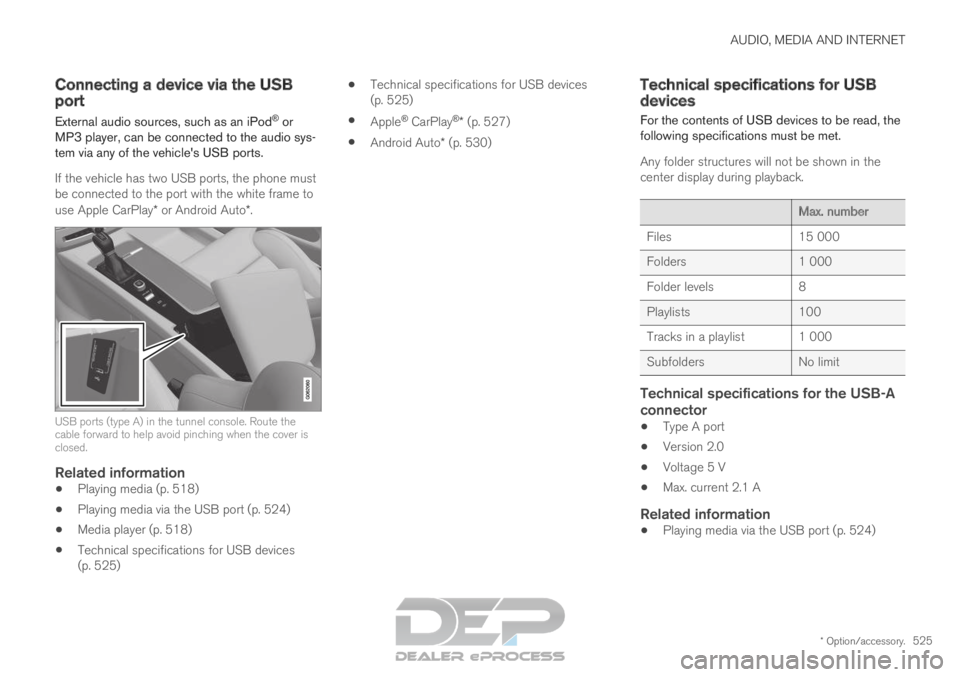
If the vehicle has two USB ports, the phone must
be connected to the port with the white frame to
use Apple CarPlay* or Android Auto*. USB ports (type A) in the tunnel console. Route the
cable forward to help avoid pinching when the cover is
closed.
Related information
Playing media (p. 518)
Playing media via the USB port (p. 524)
Media player (p. 518)
Technical specifications for USB devices
(p. 525)
Technical specifications for USB devices
(p. 525)
Apple ®
CarPlay ®
* (p. 527)
Android Auto* (p. 530) Technical specifications for USB
devices
For the contents of USB devices to be read, the
following specifications must be met.
Any folder structures will not be shown in the
center display during playback. Max. number
Files
15 000
Folders 1 000
Folder levels 8
Playlists 100
Tracks in a playlist 1 000
Subfolders No limit
Technical specifications for the USB-A
connector
Type A port
Version 2.0
Voltage 5 V
Max. current 2.1 A
Related information
Playing media via the USB port (p. 524)