ECO mode VOLVO XC90 TWIN ENGINE HYBRID 2017 Owners Manual
[x] Cancel search | Manufacturer: VOLVO, Model Year: 2017, Model line: XC90 TWIN ENGINE HYBRID, Model: VOLVO XC90 TWIN ENGINE HYBRID 2017Pages: 584, PDF Size: 14.2 MB
Page 8 of 584
6
Start and lock system type designations259
DRIVER SUPPORT
Driver support systems262
Adjustable steering force262
Electronic Stability Control (ESC)263
Electronic Stability Control (ESC)sport mode264
Electronic Stability Control (ESC)symbols and messages265
Roll stability control (RSC)267
Speed limiter (SL)*267
Starting and activating the SpeedLimiter (SL)*268
Changing a Speed Limiter (SL)*maximum speed269
Automatic Speed Limiter (ASL)*269
Activating/deactivating theAutomatic Speed Limiter (ASL)*271
Changing tolerance for theAutomatic Speed Limiter271
Deactivating/reactivating the SpeedLimiter*272
Turning the Speed Limiter* off273
Cruise Control (CC)274
Starting and activating Cruise Control274
Changing Cruise Control speed275
Deactivating/resuming CruiseControl (CC)276
Turning Cruise Control off277
Switching between Cruise Controland Adaptive Cruise Control*278
Distance Alert*279
Using Distance Alert*280
Distance Alert* limitations281
Adaptive Cruise Control (ACC)*281
Starting and activating AdaptiveCruise Control (ACC)*284
Deactivating/resuming AdaptiveCruise Control (ACC)285
Changing Adaptive Cruise Control(ACC) speed287
Setting an Adaptive Cruise Controltime interval288
Passing Assistance with AdaptiveCruise Control or Pilot Assist-2289
Changing target vehicles and auto-matic braking with Adaptive CruiseControl (ACC)
289
Adaptive Cruise Control (ACC) -troubleshooting291
Adaptive Cruise Control (ACC) - limi-tations292
Adaptive Cruise Control (ACC) sym-bols and messages293
Pilot Assist*295
Pilot Assist-1*295
Starting and activating Pilot Assist-1*298
Page 10 of 584
8
STARTING AND DRIVING
Starting and driving376
Brakes376
Brake functions378
Auto-hold brake function379
Brake assist system379
Braking effect after a collision380
Emergency brake lights380
Hill Descent Control (HDC)380
Hill Start Assist381
Parking brake382
Using the parking brake382
Parking brake malfunctions384
Before a long distance trip385
Driving economically385
Driving through standing water387
Overheating the engine and transmission387
Winter driving388
Towing eyelet389
Towing recommendations389
Fuel391
Octane rating392
Opening/closing the fuel filler door393
Emission controls394
Jump starting395
Driving with a trailer397
Detachable trailer hitch398
Trailer Stability Assist (TSA)399
Ignition modes400
Battery drain402
Starting the engine402
Turning the engine off404
Driving systems405
Hybrid battery charging cable405
Hybrid charging cable circuit breaker407
Hybrid-related symbols and messages408
Preparations for charging the hybridbattery410
Stopping hybrid battery charging411
Initiating hybrid battery charging412
Charging the hybrid battery413
Hybrid battery charge status415
Charger status indicators417
Hybrid battery charging current417
Long-term storage of a vehicle witha hybrid battery418
Using the electric motor in city driving419
Maintaining/increasing the hybridbattery's charge while driving420
Drive modes420
Automatic transmission424
Shiftlock424
Gear shift indicator425
Gear selector positions425
Steering wheel paddles*427
Low Speed Control (LSC)428
All Wheel Drive (AWD)429
Suspension and leveling control*429
Page 20 of 584
||
INTRODUCTION
18
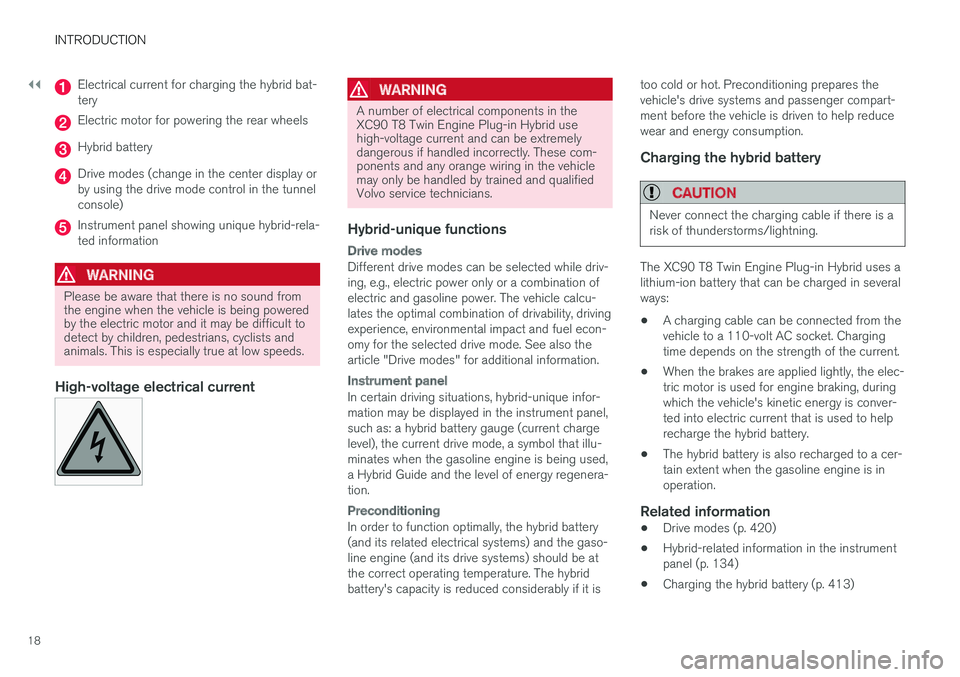
Electrical current for charging the hybrid bat-tery
Electric motor for powering the rear wheels
Hybrid battery
Drive modes (change in the center display orby using the drive mode control in the tunnelconsole)
Instrument panel showing unique hybrid-rela-ted information
WARNING
Please be aware that there is no sound fromthe engine when the vehicle is being poweredby the electric motor and it may be difficult todetect by children, pedestrians, cyclists andanimals. This is especially true at low speeds.
High-voltage electrical current WARNING
A number of electrical components in theXC90 T8 Twin Engine Plug-in Hybrid usehigh-voltage current and can be extremelydangerous if handled incorrectly. These com-ponents and any orange wiring in the vehiclemay only be handled by trained and qualifiedVolvo service technicians.
Hybrid-unique functions
Drive modes
Different drive modes can be selected while driv-ing, e.g., electric power only or a combination ofelectric and gasoline power. The vehicle calcu-lates the optimal combination of drivability, drivingexperience, environmental impact and fuel econ-omy for the selected drive mode. See also thearticle "Drive modes" for additional information.
Instrument panel
In certain driving situations, hybrid-unique infor-mation may be displayed in the instrument panel,such as: a hybrid battery gauge (current chargelevel), the current drive mode, a symbol that illu-minates when the gasoline engine is being used,a Hybrid Guide and the level of energy regenera-tion.
Preconditioning
In order to function optimally, the hybrid battery(and its related electrical systems) and the gaso-line engine (and its drive systems) should be atthe correct operating temperature. The hybridbattery's capacity is reduced considerably if it is
too cold or hot. Preconditioning prepares thevehicle's drive systems and passenger compart-ment before the vehicle is driven to help reducewear and energy consumption.
Charging the hybrid battery
CAUTION
Never connect the charging cable if there is arisk of thunderstorms/lightning.
The XC90 T8 Twin Engine Plug-in Hybrid uses alithium-ion battery that can be charged in severalways:
•A charging cable can be connected from thevehicle to a 110-volt AC socket. Chargingtime depends on the strength of the current.
•When the brakes are applied lightly, the elec-tric motor is used for engine braking, duringwhich the vehicle's kinetic energy is conver-ted into electric current that is used to helprecharge the hybrid battery.
•The hybrid battery is also recharged to a cer-tain extent when the gasoline engine is inoperation.
Related information
•Drive modes (p. 420)
•Hybrid-related information in the instrumentpanel (p. 134)
•Charging the hybrid battery (p. 413)
Page 22 of 584
INTRODUCTION
20
Volvo and the environment
Volvo is committed to the well-being of its cus-tomers. As a natural part of this commitment, wecare about the environment in which we all live.Concern for the environment means an everydayinvolvement in reducing our environmentalimpact.
Volvo's environmental activities are based on aholistic view, which means we consider the over-all environmental impact of a product throughoutits complete life cycle. In this context, design, pro-duction, product use, and recycling are all impor-tant considerations. In production, Volvo haspartly or completely phased out several chemicalsincluding CFCs, lead chromates, asbestos, andcadmium; and reduced the number of chemicalsused in our plants 50% since 1991.
Volvo was the first in the world to introduce intoproduction a three-way catalytic converter with aLambda sond, now called the heated oxygen sen-sor, in 1976. The current version of this highlyefficient system reduces emissions of harmfulsubstances (CO, HC, NOx) from the exhaust pipeby approximately 95 – 99% and the search toeliminate the remaining emissions continues.Volvo is the only automobile manufacturer tooffer CFC-free retrofit kits for the air conditioningsystem of all models as far back as the 1975model 240. Advanced electronic engine controlsand cleaner fuels are bringing us closer to ourgoal. In addition to continuous environmental
refinement of conventional gasoline-poweredinternal combustion engines, Volvo is activelylooking at advanced technology alternative-fuelvehicles.
When you drive a Volvo, you become our partnerin the work to lessen the car's impact on theenvironment. To reduce your vehicle's environ-mental impact, you can:
•Maintain proper air pressure in your tires.Tests have shown decreased fuel economywith improperly inflated tires.
•Follow the recommended maintenanceschedule in your Warranty and ServiceRecords Information booklet.
•Drive at a constant speed whenever possible.
•See a trained and qualified Volvo servicetechnician as soon as possible for inspectionif the check engine (malfunction indicator)light illuminates, or stays on after the vehiclehas started.
•Properly dispose of any vehicle-related wastesuch as used motor oil, used batteries, brakepads, etc.
•When cleaning your vehicle, please use gen-uine Volvo car care products. All Volvo carcare products are formulated to be environ-mentally friendly.
Volvo XC90 T8 Twin Engine Plug-in
Hybrid
•If possible, precondition the vehicle with thecharging cable before driving.
•If preconditioning is not possible in coldweather, use the seat and steering wheelheating primarily. Avoid heating the entirepassenger compartment, which reduces thehybrid battery's charge level.
•Choose the Pure drive mode to help mini-mize electric power consumption.
•In hilly terrain, put the gear selector in modeB to utilize the electric motor's braking func-tion when the accelerator pedal is released.This helps charge the hybrid battery.
Related information
•Driving economically (p. 385)
Page 28 of 584
INTRODUCTION
26
Options, accessories and the On-board Diagnostic (OBDII) socket
We strongly recommend that Volvo ownersinstall only genuine, Volvo-approved accesso-ries, and that accessory installations be per-formed only by a trained and qualified Volvoservice technician.
Optional or accessory equipment described inthis manual is indicated by an asterisk.
Optional or accessory equipment may not beavailable in all countries or markets. Please notethat some vehicles may be equipped differently,depending on special legal requirements.
Contact your Volvo retailer for additional informa-tion.
NOTE
•Do not export your Volvo to anothercountry before investigating that coun-try's applicable safety and exhaust emis-sion requirements. In some cases it maybe difficult or impossible to comply withthese requirements. Modifications to theemission control system(s) may renderyour Volvo not certifiable for legal opera-tion in the U.S., Canada and other coun-tries.
•All information, illustrations and specifica-tions contained in this manual are basedon the latest product information availa-ble at the time of publication. Please notethat some vehicles may be equipped dif-ferently, depending on market-specificadaptations or special legal requirements.Optional equipment described in thismanual may not be available in all mar-kets.
•Some of the illustrations shown aregeneric and are intended as examplesonly, and may not depict the exact modelfor which this owner's information isintended.
•Volvo reserves the right to make modeland product changes at any time, or tochange specifications or design withoutnotice and without incurring obligation.
WARNING
If your vehicle is involved in an accident,unseen damage may affect its drivability andsafety.
WARNING
CALIFORNIA proposition 65
Engine exhaust, some of its constituents, andcertain vehicle components contain or emitchemicals known to the state of California tocause cancer, and birth defects or otherreproductive harm. In addition, certain fluidscontained in vehicles and certain products ofcomponent wear contain or emit chemicalsknown to the State of California to cause can-cer, and birth defects or other reproductiveharm.
WARNING
Certain components of this vehicle such as airbag modules, seat belt pretensioners, adap-tive steering columns, and button cell batter-ies may contain Perchlorate material. Specialhandling may apply for service or vehicle endof life disposal.
See www.dtsc.ca.gov/hazardouswaste/perchlorate.
•Genuine Volvo accessories are tested toensure compatibility with the performance,safety, and emission systems in your vehicle.
Page 43 of 584
INTRODUCTION
}}
41
Function view buttons
The Function view, which is one of the centerdisplay's basic views, contains all of the vehicle's
on-screen function buttons. From the Homeview, swipe from left to right on the screen tocome to the Function view.
Different types of buttons
There are three different types of vehicle functionbuttons as listed in the following table.
Type of buttonFunctionsVehicle function affected
Function buttonsHave On/Off modes.
An LED indicator light to the left of the button's icon will illuminate when a function isactive. Press the button to turn the function on or off.
Most of the buttons in the function view arefunction buttons.
Start buttonsDo not have On/Off modes.
Pressing a start button opens a function's window, e.g., a window for adjusting thedriver's seat.
•Camera.
•Headrest fold.
•Functions for folding down a seat.
•Head-up display adjustments.
Parking buttonsHave On/Off and scanning modes.
Similar to function buttons but have an additional parking scanning mode.
•Park In.
•Park Out.
Button modes
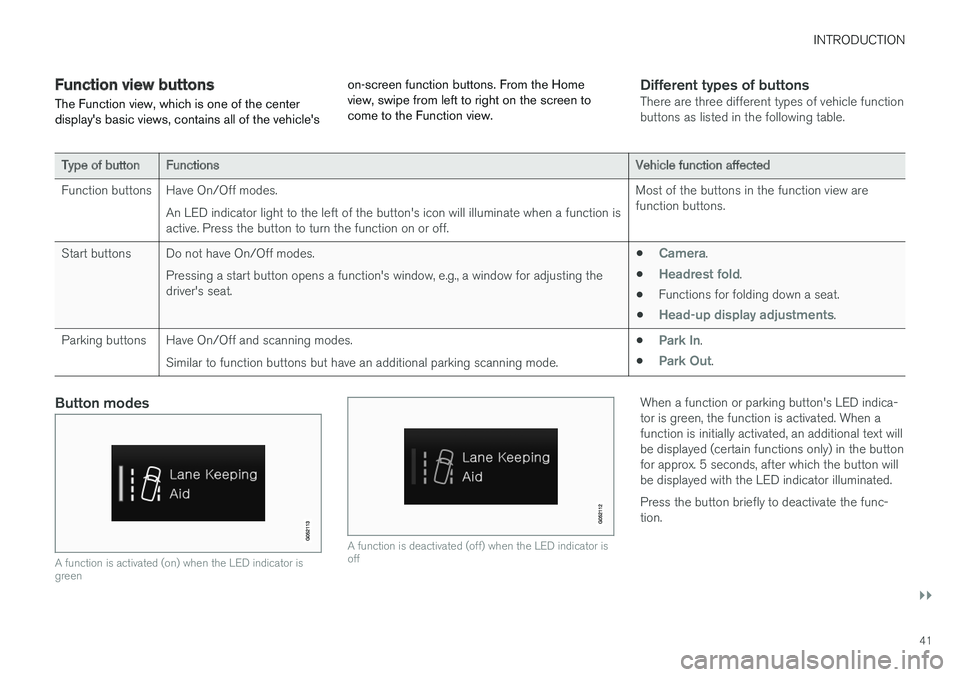
A function is activated (on) when the LED indicator isgreen
A function is deactivated (off) when the LED indicator isoff
When a function or parking button's LED indica-tor is green, the function is activated. When afunction is initially activated, an additional text willbe displayed (certain functions only) in the buttonfor approx. 5 seconds, after which the button willbe displayed with the LED indicator illuminated.
Press the button briefly to deactivate the func-tion.
Page 47 of 584
INTRODUCTION
}}
45
tive app's basic functions. When a sub-viewis expanded, the Home view's fourth sub-view will temporarily not be displayed.
•To minimize a sub-view, tap anywhere on thescreen.
Opening/closing a sub-view in full-screen
mode
The extra sub-view and the Navigation sub-viewcan be opened in full-screen mode to show addi-tional information and possible settings.
In expanded mode, open theapp in full-screen mode by tap-ping the symbol.
Tap on the symbol or the Homebutton below the screen toreturn to the expanded view.
It is always possible to return to Home view bypressing the Home button. Press the Home but-ton twice to return to Home view's standard viewfrom full-screen.
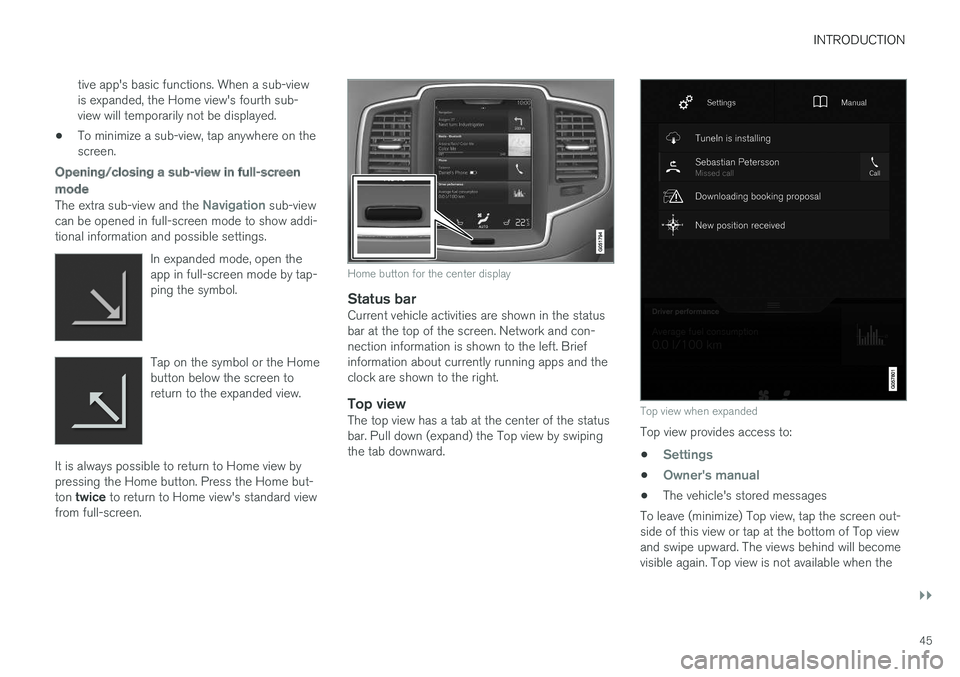
Home button for the center display
Status bar
Current vehicle activities are shown in the statusbar at the top of the screen. Network and con-nection information is shown to the left. Briefinformation about currently running apps and theclock are shown to the right.
Top view
The top view has a tab at the center of the statusbar. Pull down (expand) the Top view by swipingthe tab downward.
Top view when expanded
Top view provides access to:
•Settings
•Owner's manual
•The vehicle's stored messages
To leave (minimize) Top view, tap the screen out-side of this view or tap at the bottom of Top viewand swipe upward. The views behind will becomevisible again. Top view is not available when the
Page 49 of 584
INTRODUCTION
47
Swipe the screen from left to right to accessFunction view from Home view. From Functionview, you can activate/deactivate various vehiclefunctions such as Drive Modes, Speed limitadaptation and Park Assist.
When applicable, swipe upward to scroll in the listof functions (depending on the number of func-tions).
Activate/deactivate a function by tapping its but-ton. Certain functions will open in their own win-dows.
To move a function button, press and hold it. Itwill become slightly smaller and transparent andcan then be dragged to the desired position andreleased.
Related information
•Using the center display (p. 50)
•Center display overview (p. 33)
•Function view buttons (p. 41)
•Symbols in the center display status bar(p. 48)
•Changing settings in different types of apps(p. 49)
•Climate system controls (p. 199)
Page 50 of 584
INTRODUCTION
48
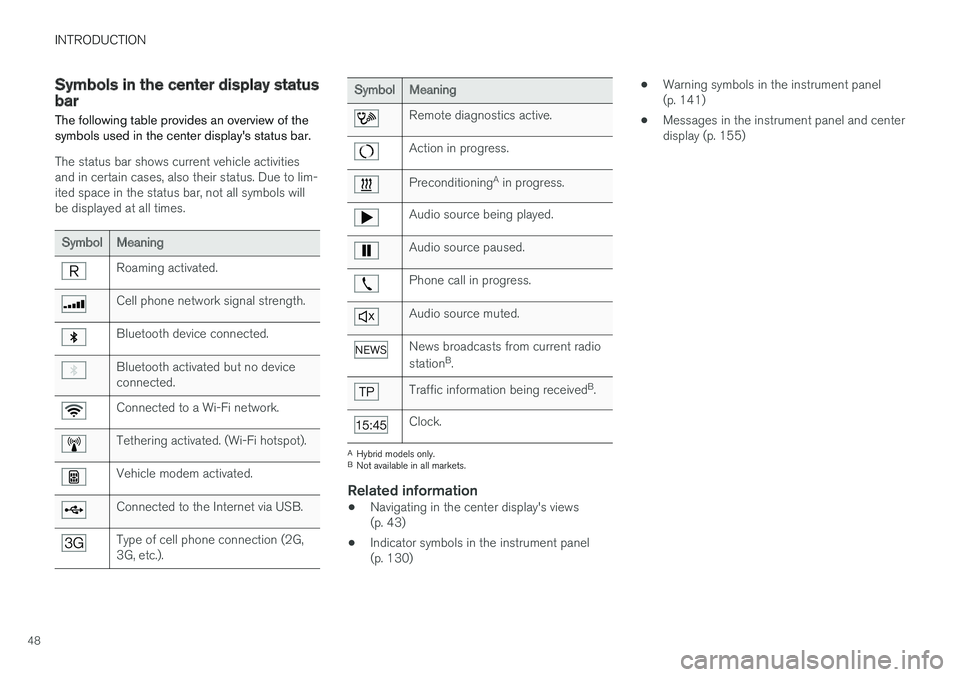
Symbols in the center display statusbar
The following table provides an overview of thesymbols used in the center display's status bar.
The status bar shows current vehicle activitiesand in certain cases, also their status. Due to lim-ited space in the status bar, not all symbols willbe displayed at all times.
SymbolMeaning
Roaming activated.
Cell phone network signal strength.
Bluetooth device connected.
Bluetooth activated but no deviceconnected.
Connected to a Wi-Fi network.
Tethering activated. (Wi-Fi hotspot).
Vehicle modem activated.
Connected to the Internet via USB.
Type of cell phone connection (2G,3G, etc.).
SymbolMeaning
Remote diagnostics active.
Action in progress.
PreconditioningA in progress.
Audio source being played.
Audio source paused.
Phone call in progress.
Audio source muted.
News broadcasts from current radio
stationB.
Traffic information being receivedB.
Clock.
AHybrid models only.BNot available in all markets.
Related information
•Navigating in the center display's views(p. 43)
•Indicator symbols in the instrument panel(p. 130)
•Warning symbols in the instrument panel(p. 141)
•Messages in the instrument panel and centerdisplay (p. 155)
Page 54 of 584
||
INTRODUCTION
52
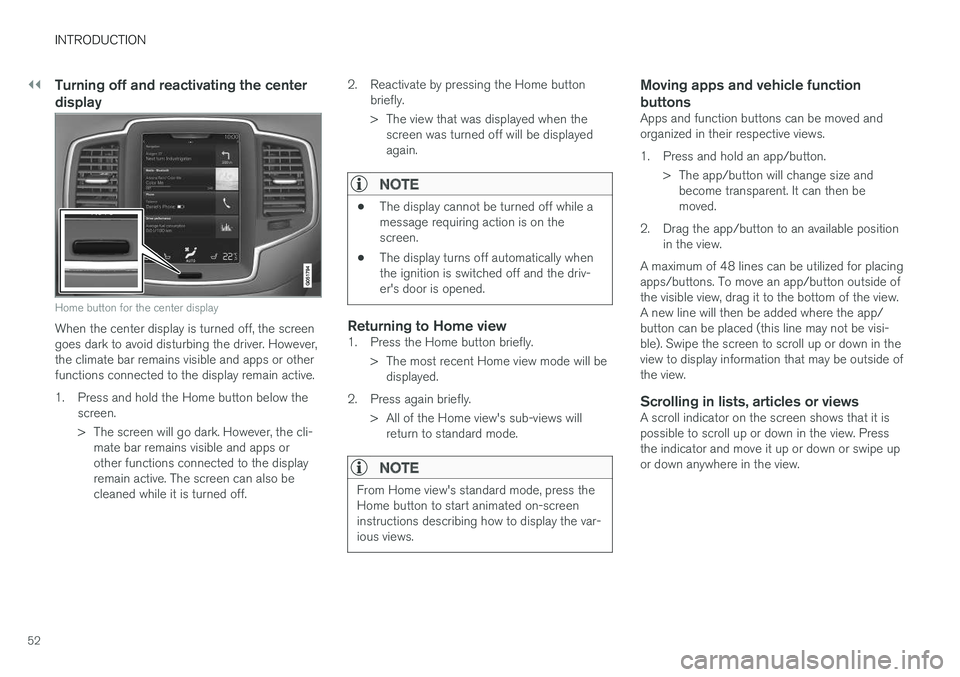
Turning off and reactivating the center
display
Home button for the center display
When the center display is turned off, the screengoes dark to avoid disturbing the driver. However,the climate bar remains visible and apps or otherfunctions connected to the display remain active.
1.Press and hold the Home button below thescreen.
> The screen will go dark. However, the cli-mate bar remains visible and apps orother functions connected to the displayremain active. The screen can also becleaned while it is turned off.
2. Reactivate by pressing the Home buttonbriefly.
> The view that was displayed when thescreen was turned off will be displayedagain.
NOTE
•The display cannot be turned off while amessage requiring action is on thescreen.
•The display turns off automatically whenthe ignition is switched off and the driv-er's door is opened.
Returning to Home view
1. Press the Home button briefly.
> The most recent Home view mode will bedisplayed.
2. Press again briefly.
> All of the Home view's sub-views willreturn to standard mode.
NOTE
From Home view's standard mode, press theHome button to start animated on-screeninstructions describing how to display the var-ious views.
Moving apps and vehicle function
buttons
Apps and function buttons can be moved andorganized in their respective views.
1. Press and hold an app/button.
> The app/button will change size andbecome transparent. It can then bemoved.
2. Drag the app/button to an available positionin the view.
A maximum of 48 lines can be utilized for placingapps/buttons. To move an app/button outside ofthe visible view, drag it to the bottom of the view.A new line will then be added where the app/button can be placed (this line may not be visi-ble). Swipe the screen to scroll up or down in theview to display information that may be outside ofthe view.
Scrolling in lists, articles or views
A scroll indicator on the screen shows that it ispossible to scroll up or down in the view. Pressthe indicator and move it up or down or swipe upor down anywhere in the view.