infotainment VOLVO XC90 TWIN ENGINE HYBRID 2017 Owners Manual
[x] Cancel search | Manufacturer: VOLVO, Model Year: 2017, Model line: XC90 TWIN ENGINE HYBRID, Model: VOLVO XC90 TWIN ENGINE HYBRID 2017Pages: 584, PDF Size: 14.2 MB
Page 11 of 584
9
INFOTAINMENT
The infotainment system432
Apps (applications)432
Sound settings433
Radio434
Radio settings434
RBDS radio434
Changing and searching for radiostations435
HD Radio™reception436
Switching HD Radio on and off437
HD Radio sub-channels438
HD Radio limitations439
SiriusXM® Satellite radio*439
Using SiriusXM® Satellite radio radio*440
SiriusXM® Satellite radio* settings442
SiriusXM Travel Link*443
SiriusXM Travel Link - Weather444
SiriusXM Travel Link - Alerts446
SiriusXM Travel Link - Fuel446
SiriusXM Travel Link - Sports448
Phone448
Pairing a cell phone449
Connecting/disconnecting a cell phone451
Handling phone calls452
Handling text messages453
Phone settings454
Text message settings454
Connecting a Bluetooth® device455
Connecting a device via theAUX/USB socket455
Media player455
Apple CarPlay456
Apple CarPlay settings458
CD (media) player*459
Playing media459
Media searches461
Playing media through theAUX/USB sockets462
Streaming media through a Blue-tooth connection462
Media sound settings463
Gracenote463
Video464
Media player technical data464
Internet connected vehicle466
Connecting to the Internet466
Bluetooth settings468
Downloading, updating and uninstal-ling apps468
Internet connection troubleshooting469
Tethering (Wi-Fi sharing)470
Deleting Wi-Fi networks471
Wi-Fi technology and security471
Vehicle modem settings471
Infotainment system license information472
Terms, conditions and confidentiality476
Page 26 of 584
||
INTRODUCTION
* Option/accessory, for more information, see Introduction.24
that is currently playing. It is controlled using bothsteering wheel keypads.
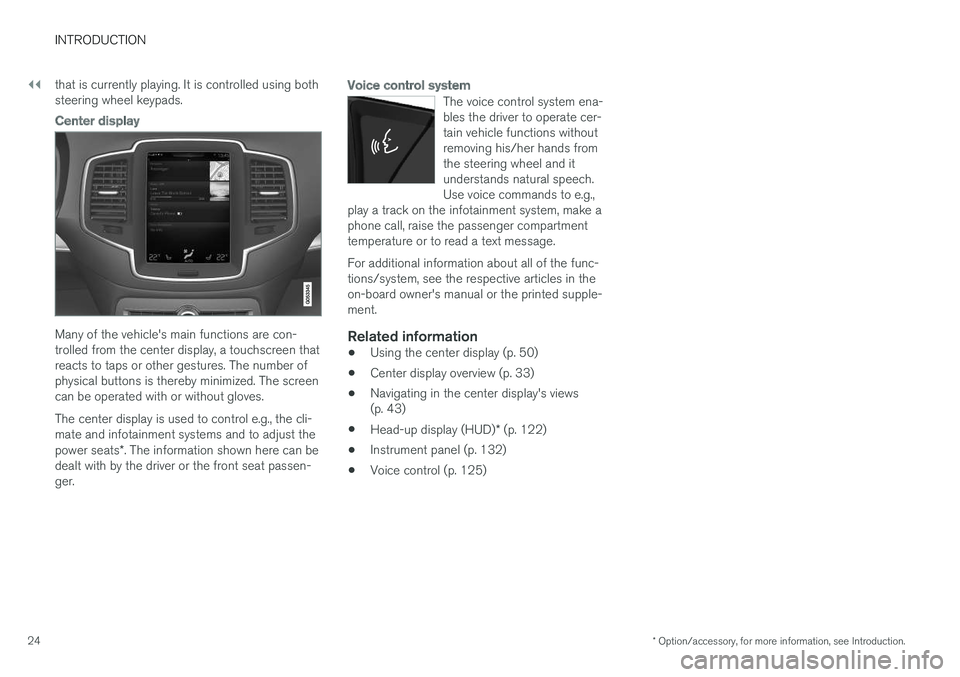
Center display
Many of the vehicle's main functions are con-trolled from the center display, a touchscreen thatreacts to taps or other gestures. The number ofphysical buttons is thereby minimized. The screencan be operated with or without gloves.
The center display is used to control e.g., the cli-mate and infotainment systems and to adjust thepower seats*. The information shown here can bedealt with by the driver or the front seat passen-ger.
Voice control system
The voice control system ena-bles the driver to operate cer-tain vehicle functions withoutremoving his/her hands fromthe steering wheel and itunderstands natural speech.Use voice commands to e.g.,play a track on the infotainment system, make aphone call, raise the passenger compartmenttemperature or to read a text message.
For additional information about all of the func-tions/system, see the respective articles in theon-board owner's manual or the printed supple-ment.
Related information
•Using the center display (p. 50)
•Center display overview (p. 33)
•Navigating in the center display's views(p. 43)
•Head-up display (HUD)* (p. 122)
•Instrument panel (p. 132)
•Voice control (p. 125)
Page 127 of 584
INSTRUMENTS AND CONTROLS
}}
* Option/accessory, for more information, see Introduction.125
Voice control
Voice commands make it possible for the driverto voice-control certain functions in the mediaplayer, a Bluetooth-connected cell phone, cli-mate system and the Volvo navigation system*.
Voice control offers convenience and enables thedriver to keep his/her hands on the steeringwheel and concentrate on driving and the trafficsituation around the vehicle.
WARNING
As the driver, you have full responsibility foroperating the vehicle safely and adhering toall applicable traffic regulations.
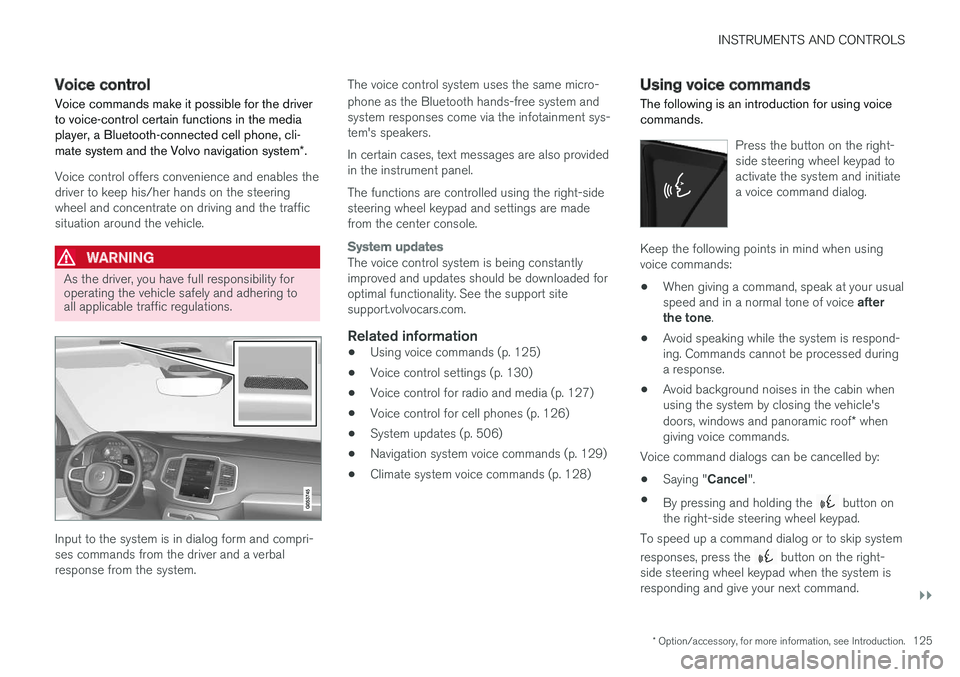
Input to the system is in dialog form and compri-ses commands from the driver and a verbalresponse from the system.
The voice control system uses the same micro-
phone as the Bluetooth hands-free system andsystem responses come via the infotainment sys-tem's speakers.
In certain cases, text messages are also providedin the instrument panel.
The functions are controlled using the right-sidesteering wheel keypad and settings are madefrom the center console.
System updates
The voice control system is being constantlyimproved and updates should be downloaded foroptimal functionality. See the support sitesupport.volvocars.com.
Related information
•Using voice commands (p. 125)
•Voice control settings (p. 130)
•Voice control for radio and media (p. 127)
•Voice control for cell phones (p. 126)
•System updates (p. 506)
•Navigation system voice commands (p. 129)
•Climate system voice commands (p. 128)
Using voice commands
The following is an introduction for using voicecommands.
Press the button on the right-side steering wheel keypad toactivate the system and initiatea voice command dialog.
Keep the following points in mind when usingvoice commands:
•When giving a command, speak at your usualspeed and in a normal tone of voice afterthe tone.
•Avoid speaking while the system is respond-ing. Commands cannot be processed duringa response.
•Avoid background noises in the cabin whenusing the system by closing the vehicle'sdoors, windows and panoramic roof* whengiving voice commands.
Voice command dialogs can be cancelled by:
•Saying "Cancel".
•By pressing and holding the button onthe right-side steering wheel keypad.
To speed up a command dialog or to skip system
responses, press the button on the right-side steering wheel keypad when the system isresponding and give your next command.
Page 344 of 584
||
DRIVER SUPPORT
* Option/accessory, for more information, see Introduction.342
•An audible signal indicates that CTA hasdetected something that is approaching fromthe side. The signal will come from either theleft or right infotainment system speakers,depending on which the side of your vehiclethe approaching vehicle/ object has beendetected.
•A warning is indicated using the Park Assist*system's graphic in the instrument panel.
•An icon is also shown in the Park AssistCamera's* Top view.
Related information
•Activating/deactivating Cross Traffic Alert(CTA)* (p. 342)
•Blind Spot Information (BLIS)* with CrossTraffic Alert (CTA)* symbols and messages(p. 345)
•Cross Traffic Alert (CTA)* limitations (p. 343)
Activating/deactivating Cross Traffic
Alert (CTA)*
Cross Traffic Alert (CTA) can be activated/deac-tivated separately from Blind Spot Information(BLIS).
CTA is activated/deactivated inthe center display's Functionview.
–Tap Cross Traffic Alert in Function view.
>CTA activates/deactivates.
•Green indicator light: CTA is activated
•Grey indicator light: CTA is deactivated
CTA is activated when the engine is started.
WARNING
•BLIS and CTA are information systems,NOT warning or safety systems and donot function in all situations.
•BLIS and CTA do not eliminate the needfor you to visually confirm the conditionsaround you, and the need for you to turnyour head and shoulders to make surethat you can safely change lanes or backup.
•As the driver, you have full responsibilityfor changing lanes/backing up in a safemanner.
Related information
•Cross Traffic Alert (CTA)* (p. 341)
•Blind Spot Information (BLIS)* On/Off(p. 340)
Page 360 of 584

DRIVER SUPPORT
* Option/accessory, for more information, see Introduction.358
Park Assist*
The Park Assist system is designed to assist youwhen driving into parking spaces, garages, etc.An audible signal and symbols in the instrumentpanel and center display indicate the distance tothe object.
Display view showing object zones and sensor sectors
The center display shows an overview of the vehi-cle in relation to objects that have been detected.
The highlighted sector shows which of the sen-sors has detected the object. The closer thehighlighted sector is to the vehicle symbol, thecloser the actual object is to your vehicle.
The Park Assist system uses an intermittent tonethat pulses faster as you come closer to anobject. Sound from the infotainment system willbe temporarily turned down.
The audible signals for objects in front of and tothe sides are active while the vehicle is movingand will stop after the vehicle has been stoppedfor approx. 2 seconds. The audible signals forobjects behind the vehicle are active even whenthe vehicle has stopped moving.
The audible signal becomes constant when youare within approximately 1 ft (30 cm) of an objectand the highlighted sensor field is filled in.
While an audible signal is being given, its volumelevel can be raised/lowered using the >II controlin the center console or can be adjusted in thecenter displays Top view under Settings.
NOTE
Audible alerts will only be provided for objectsthat are directly in the vehicle's path.
WARNING
Park Assist is an information system, NOT asafety system. This system is designed to bea supplementary aid when parking the vehicle.It is not, however, intended to replace the driv-er's attention and judgement.
Rear park assist
The system's rear sensors are activated automat-ically when the engine is started and are active ifthe vehicle rolls rearward with the gear selectorin N or if R has been selected.
The distance monitored behind the vehicle isapproximately 5 ft (1.5 m). The audible signalcomes from the rear speakers.
The rear sensors will be deactivated automaticallywhen towing a trailer if Volvo genuine trailer wir-ing is used. If a non-Volvo trailer hitch is beingused, it may be necessary to switch off the sys-tem manually.
Page 403 of 584
STARTING AND DRIVING
* Option/accessory, for more information, see Introduction.401
ModeFunctions available
0•The odometer, clock and tem-perature gauge are illuminated
•Power seats* can be adjusted
•The power windows can be oper-ated
•The 12-volt socket in the cargocompartment can be used
•The center display is activatedand can be used
•The infotainment system can beused for a limited time
In this mode, certain functions canonly be used for a limited time to helpminimize battery drain
I•The laminated panoramic roof*,power seats*/windows,12-voltsockets in the passenger com-partment, Bluetooth, navigationsystem*, climate system blower,windshield wipers can be oper-ated
•The infotainment system will start(if it was started when the ignitionwas switched off)
Using electrical current will drainthe start battery in this mode.
ModeFunctions available
II•The headlights illuminate
•Warning/indicator lights illumi-nate for 5 seconds
•A number of other functions willalso be activated. However, theheated seats* and heated rearwindow functions can only beactivated when the engine is run-ning.
This mode should only be used forvery short periods to help avoiddraining the battery.
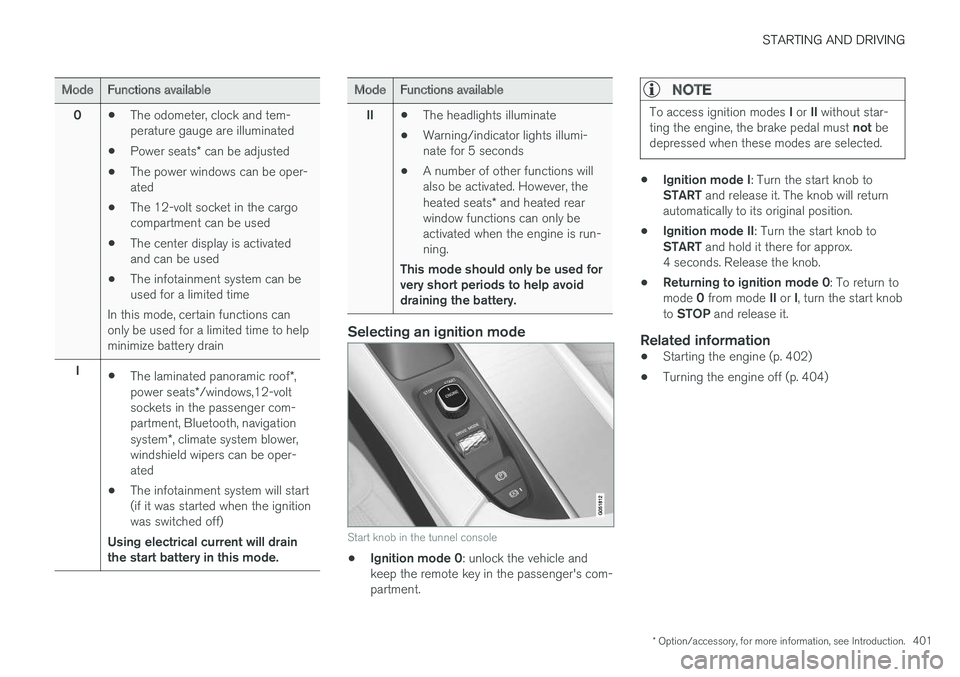
Selecting an ignition mode
Start knob in the tunnel console
•Ignition mode 0: unlock the vehicle andkeep the remote key in the passenger's com-partment.
NOTE
To access ignition modes I or II without star-ting the engine, the brake pedal must not bedepressed when these modes are selected.
•Ignition mode I: Turn the start knob toSTART and release it. The knob will returnautomatically to its original position.
•Ignition mode II: Turn the start knob toSTART and hold it there for approx.4 seconds. Release the knob.
•Returning to ignition mode 0: To return tomode 0 from mode II or I, turn the start knobto STOP and release it.
Related information
•Starting the engine (p. 402)
•Turning the engine off (p. 404)
Page 404 of 584
STARTING AND DRIVING
402
Battery drain
Your vehicle's electrical functions drain the bat-tery to varying extents.
Avoid using ignition mode II as much as posssi-ble, or electrical functions that require a greatdeal of electrical current when the engine is notrunning.
Using ignition mode I whenever possible con-sumes less electrical current.
Functions that require a great deal of electricalcurrent include:
•the climate system blower
•headlights
•wipers
•infotainment system (especially at high vol-ume).
If the battery's charge level is low, a text messagewill appear in the instrument panel. The vehicle'senergy-saving function will then turn off orreduce certain functions that are currently con-suming electrical current.
If the battery needs to be recharged, start theengine and let it idle for at least 15 minutes ordrive the vehicle (driving charges the batteryfaster than letting the engine idle).
Related information
•Ignition modes (p. 400)
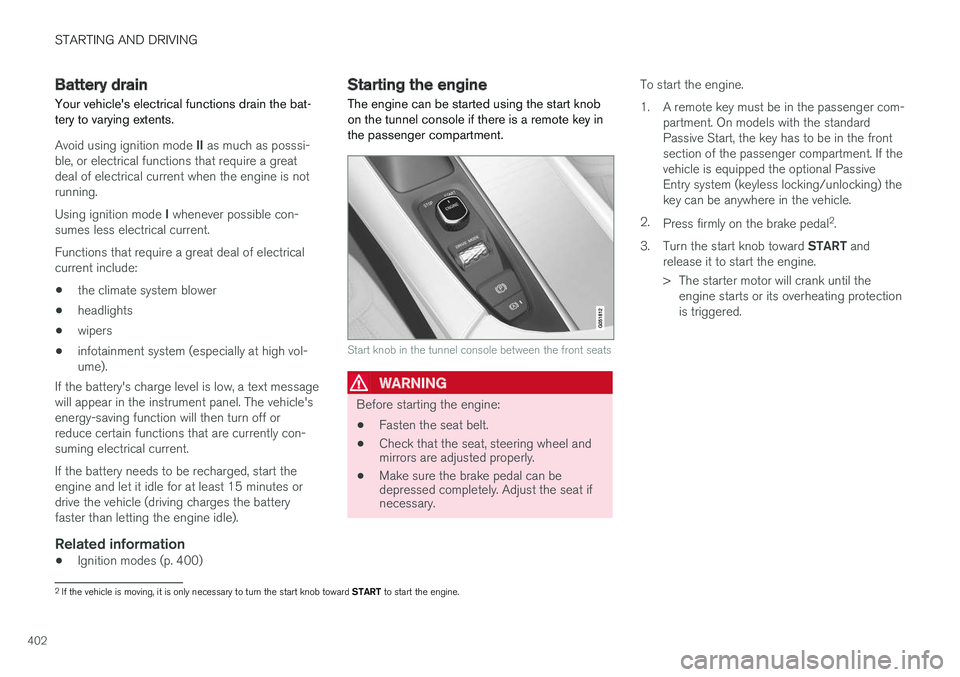
Starting the engine
The engine can be started using the start knobon the tunnel console if there is a remote key inthe passenger compartment.
Start knob in the tunnel console between the front seats
WARNING
Before starting the engine:
•Fasten the seat belt.
•Check that the seat, steering wheel andmirrors are adjusted properly.
•Make sure the brake pedal can bedepressed completely. Adjust the seat ifnecessary.
To start the engine.
1.A remote key must be in the passenger com-partment. On models with the standardPassive Start, the key has to be in the frontsection of the passenger compartment. If thevehicle is equipped the optional PassiveEntry system (keyless locking/unlocking) thekey can be anywhere in the vehicle.
2.Press firmly on the brake pedal2.
3.Turn the start knob toward START andrelease it to start the engine.
> The starter motor will crank until theengine starts or its overheating protectionis triggered.
2If the vehicle is moving, it is only necessary to turn the start knob toward START to start the engine.
Page 434 of 584
INFOTAINMENT
432
The infotainment system
The infotainment system consists of a radio,media player and has the capacity to communi-cate with a Bluetooth-connected cell phone. It isalso possible to connect to the Internet to e.g.,stream audio content via apps.
The system's functions can be controlled fromthe right-side steering wheel keypad, the centerdisplay or by using voice commands.
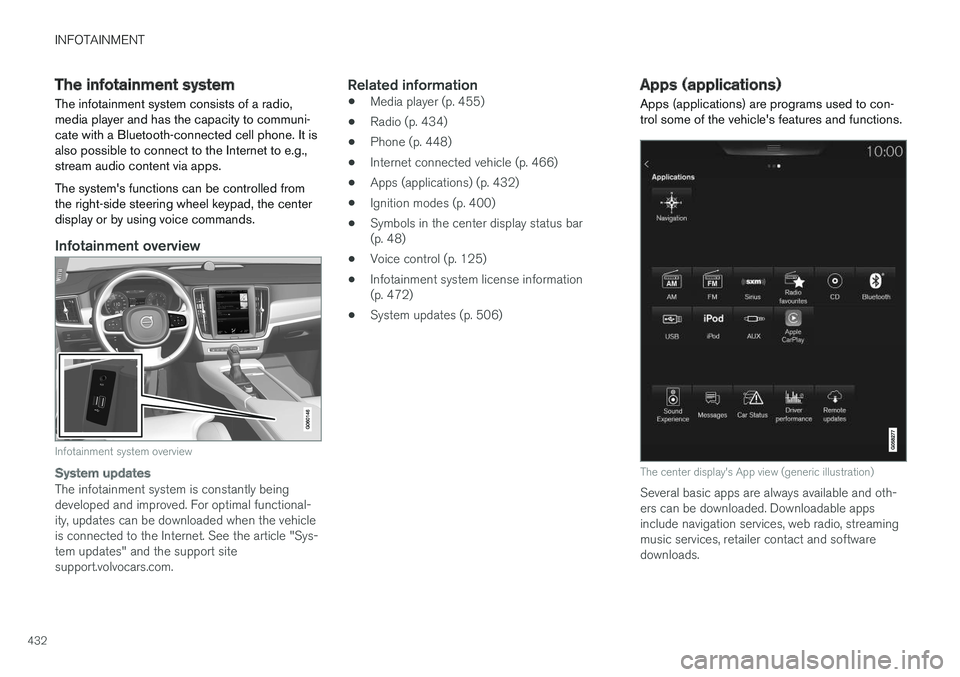
Infotainment overview
Infotainment system overview
System updates
The infotainment system is constantly beingdeveloped and improved. For optimal functional-ity, updates can be downloaded when the vehicleis connected to the Internet. See the article "Sys-tem updates" and the support sitesupport.volvocars.com.
Related information
•Media player (p. 455)
•Radio (p. 434)
•Phone (p. 448)
•Internet connected vehicle (p. 466)
•Apps (applications) (p. 432)
•Ignition modes (p. 400)
•Symbols in the center display status bar(p. 48)
•Voice control (p. 125)
•Infotainment system license information(p. 472)
•System updates (p. 506)
Apps (applications)
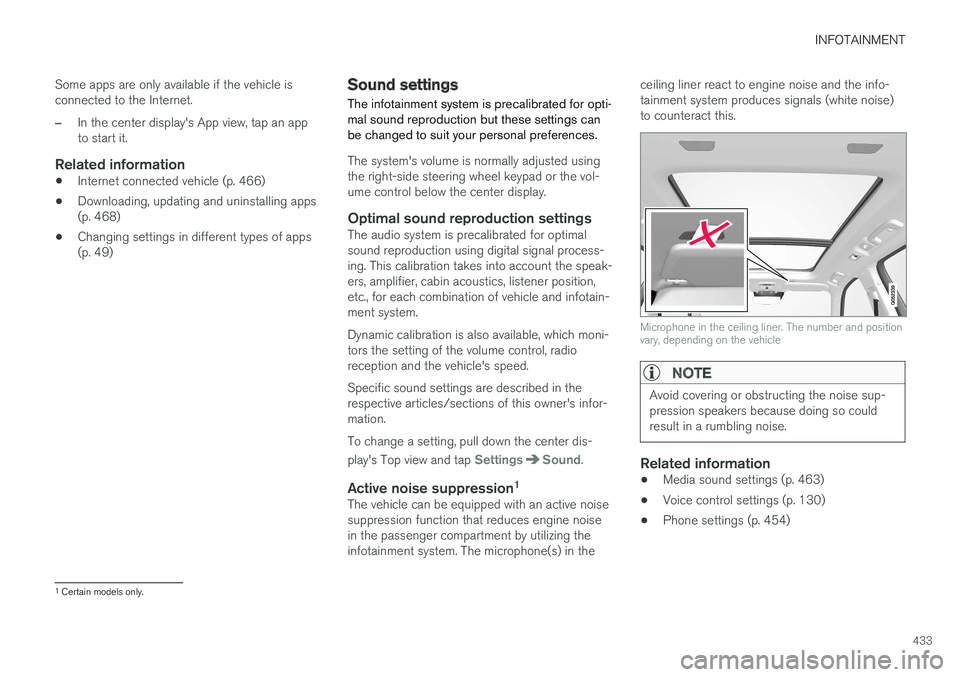
Apps (applications) are programs used to con-trol some of the vehicle's features and functions.
The center display's App view (generic illustration)
Several basic apps are always available and oth-ers can be downloaded. Downloadable appsinclude navigation services, web radio, streamingmusic services, retailer contact and softwaredownloads.
Page 435 of 584
INFOTAINMENT
433
Some apps are only available if the vehicle isconnected to the Internet.
–In the center display's App view, tap an appto start it.
Related information
•Internet connected vehicle (p. 466)
•Downloading, updating and uninstalling apps(p. 468)
•Changing settings in different types of apps(p. 49)
Sound settings
The infotainment system is precalibrated for opti-mal sound reproduction but these settings canbe changed to suit your personal preferences.
The system's volume is normally adjusted usingthe right-side steering wheel keypad or the vol-ume control below the center display.
Optimal sound reproduction settings
The audio system is precalibrated for optimalsound reproduction using digital signal process-ing. This calibration takes into account the speak-ers, amplifier, cabin acoustics, listener position,etc., for each combination of vehicle and infotain-ment system.
Dynamic calibration is also available, which moni-tors the setting of the volume control, radioreception and the vehicle's speed.
Specific sound settings are described in therespective articles/sections of this owner's infor-mation.
To change a setting, pull down the center dis-
play's Top view and tap SettingsSound.
Active noise suppression 1
The vehicle can be equipped with an active noisesuppression function that reduces engine noisein the passenger compartment by utilizing theinfotainment system. The microphone(s) in the
ceiling liner react to engine noise and the info-tainment system produces signals (white noise)to counteract this.
Microphone in the ceiling liner. The number and positionvary, depending on the vehicle
NOTE
Avoid covering or obstructing the noise sup-pression speakers because doing so couldresult in a rumbling noise.
Related information
•Media sound settings (p. 463)
•Voice control settings (p. 130)
•Phone settings (p. 454)
1
Certain models only.
Page 436 of 584
INFOTAINMENT
* Option/accessory, for more information, see Introduction.434
Radio
Your vehicle's radio offers FM with HD Radio ™
Technology and SiriusXM® Satellite radio*.
The radio can be controlledusing the right-side steeringwheel keypad, the center dis-play or by using voice com-mands.
Related information
•Changing and searching for radio stations(p. 435)
•Radio settings (p. 434)
•SiriusXM® Satellite radio* (p. 439)
•HD Radio™reception (p. 436)
•Changing and searching for radio stations(p. 435)
Radio settings
The following information lists the settings thatcan be made for the various wavebands.
Pull down the center display's Top view and
select SettingsMedia for the desired wave-band. Tap to activate/deactivate.
FM
•Show Radio Text: displays informationabout program content, artists, etc.
•Freeze Program Service Name: select tostop excessive scrolling to freeze after20 seconds.
•FM HD Radio: - Enables HD Radio ™Technology for audio comparable to CDquality. See the article "HD Radio" fordetailed information.
SiriusXM ® Satellite radio
With SiriusXM® Satellite radio activated, pulldown the center display's Top view and tapSiriusXM Settings to display a list of availablealternatives. See the article "SiriusXM Satelliteradio settings" for detailed information.
Related information
•SiriusXM® Satellite radio* settings (p. 442)
•SiriusXM® Satellite radio* (p. 439)
•Radio (p. 434)
•HD Radio™reception (p. 436)
RBDS radio
RBDS radio
RBDS (Radio Data Broadcast System) enables
certain functionality2, such as:
•Searches for program types or new broad-casts
•Text information about currently broadcastprograms
For example, if news is broadcast, the currentlyplaying sound source will be interrupted so thatthe news can be heard. The infotainment systemwill return to the previous sound source when thenews broadcast has been completed.
To cancel the announcement, press the but-ton on the right-side steering wheel keypad ortap Cancel on the center display. This functioncan be activated/deactivated in the center dis-play's Settings menu.
Related information
•Radio (p. 434)
•Radio settings (p. 434)