radio Abarth 500 2017 Owner handbook (in English)
[x] Cancel search | Manufacturer: ABARTH, Model Year: 2017, Model line: 500, Model: Abarth 500 2017Pages: 192, PDF Size: 6.46 MB
Page 165 of 192
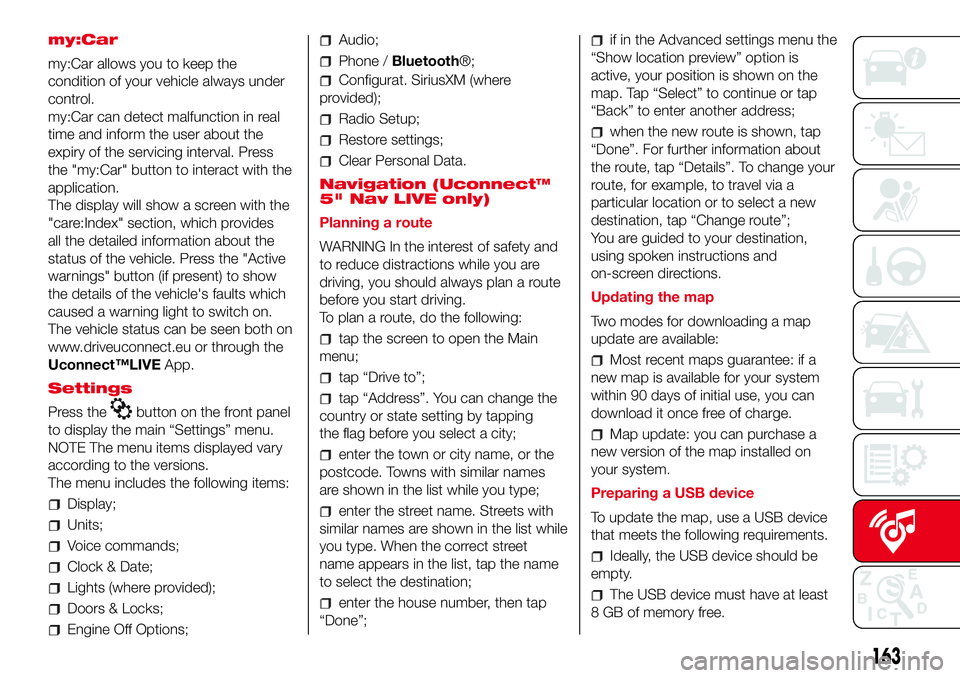
my:Car
my:Car allows you to keep the
condition of your vehicle always under
control.
my:Car can detect malfunction in real
time and inform the user about the
expiry of the servicing interval. Press
the "my:Car" button to interact with the
application.
The display will show a screen with the
"care:Index" section, which provides
all the detailed information about the
status of the vehicle. Press the "Active
warnings" button (if present) to show
the details of the vehicle's faults which
caused a warning light to switch on.
The vehicle status can be seen both on
www.driveuconnect.eu or through the
Uconnect™LIVEApp.
Settings
Press the
button on the front panel
to display the main “Settings” menu.
NOTE The menu items displayed vary
according to the versions.
The menu includes the following items:
Display;
Units;
Voice commands;
Clock & Date;
Lights (where provided);
Doors & Locks;
Engine Off Options;
Audio;
Phone /Bluetooth®;
Configurat. SiriusXM (where
provided);
Radio Setup;
Restore settings;
Clear Personal Data.
Navigation (Uconnect™
5" Nav LIVE only)
Planning a route
WARNING In the interest of safety and
to reduce distractions while you are
driving, you should always plan a route
before you start driving.
To plan a route, do the following:
tap the screen to open the Main
menu;
tap “Drive to”;
tap “Address”. You can change the
country or state setting by tapping
the flag before you select a city;
enter the town or city name, or the
postcode. Towns with similar names
are shown in the list while you type;
enter the street name. Streets with
similar names are shown in the list while
you type. When the correct street
name appears in the list, tap the name
to select the destination;
enter the house number, then tap
“Done”;
if in the Advanced settings menu the
“Show location preview” option is
active, your position is shown on the
map. Tap “Select” to continue or tap
“Back” to enter another address;
when the new route is shown, tap
“Done”. For further information about
the route, tap “Details”. To change your
route, for example, to travel via a
particular location or to select a new
destination, tap “Change route”;
You are guided to your destination,
using spoken instructions and
on-screen directions.
Updating the map
Two modes for downloading a map
update are available:
Most recent maps guarantee: if a
new map is available for your system
within 90 days of initial use, you can
download it once free of charge.
Map update: you can purchase a
new version of the map installed on
your system.
Preparing a USB device
To update the map, use a USB device
that meets the following requirements.
Ideally, the USB device should be
empty.
The USB device must have at least
8 GB of memory free.
163
Page 167 of 192
NOTE Don’t disconnect the USB device
from the computer while map
downloading and copying is in
progress.
The map can now be installed on the
system.
Installing the map
After downloading a map to your USB
device, it can be installed on your
system.
IMPORTANT The map update MUST
be made with the vehicle engine
running and may require more than 30
minutes.
IMPORTANT Do not disconnect the
USB device during the map installation
process, otherwise installation will be
interrupted.
Insert the USB device containing the
new map in theUconnect™system.
The system detects a new map on
the USB device.
Select “Start”.
Keep the device inserted. Before
updating the map, the system indicates
that this process may take several
minutes. Select “OK”.
NOTE Do not remove the USB device
and do not disconnect the system’s
power supply before the update is
complete. The system cannot be used
until the update is completed correctly.If the update is interrupted, the system
update is started again.
Once the map has been updated, the
following message is displayed.
Click on “Close”.
The new map is now available on the
system.
Troubleshooting
The following problems may occur
during the update:
The map on the USB device is not
valid. In this case, download the map to
the USB device again, using TomTom
HOME. It may be necessary to prepare
the USB device again.
The version of the map on the USB
device is the same as or is a previous
version of the one already on the
system. In this case, download the map
to the USB device again, using
TomTom HOME. It may be necessary to
prepare the USB device again.
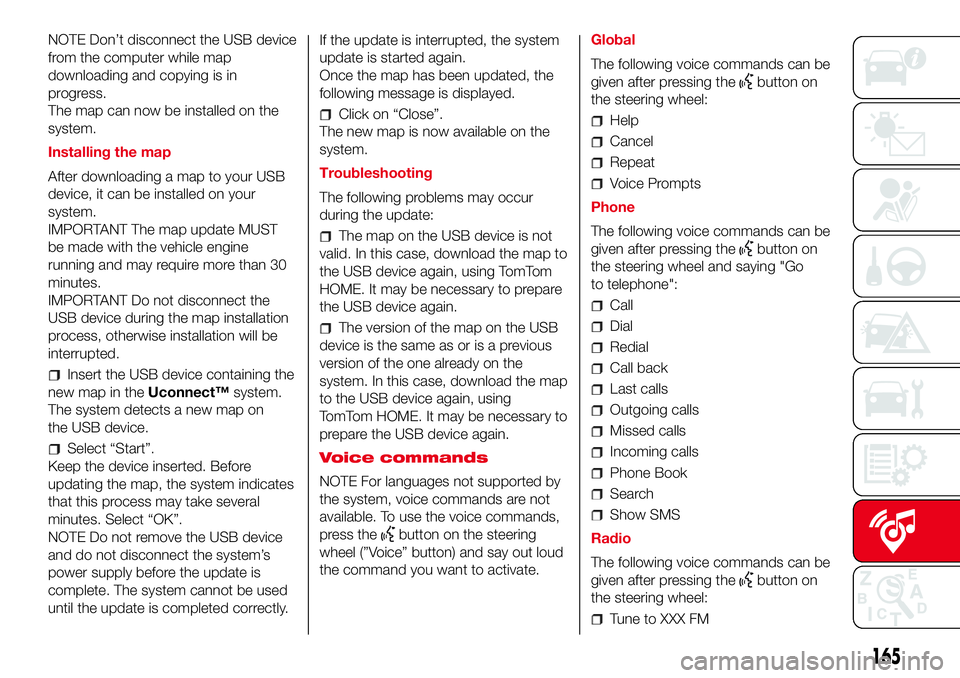
Voice commands
NOTE For languages not supported by
the system, voice commands are not
available. To use the voice commands,
press the
button on the steering
wheel (”Voice” button) and say out loud
the command you want to activate.Global
The following voice commands can be
given after pressing the
button on
the steering wheel:
Help
Cancel
Repeat
Voice Prompts
Phone
The following voice commands can be
given after pressing the
button on
the steering wheel and saying "Go
to telephone":
Call
Dial
Redial
Call back
Last calls
Outgoing calls
Missed calls
Incoming calls
Phone Book
Search
Show SMS
Radio
The following voice commands can be
given after pressing the
button on
the steering wheel:
Tune to XXX FM
165
Page 168 of 192
Tune to XXX AM
Tune to Radio XXX
Tune to DAB channel
Media
The following voice commands can be
given after pressing the
button on
the steering wheel:
Play song...
Play album…
Play artist…
Play genre…
Play playlist…
Play podcast…
Play audiobook…
Select the source
View
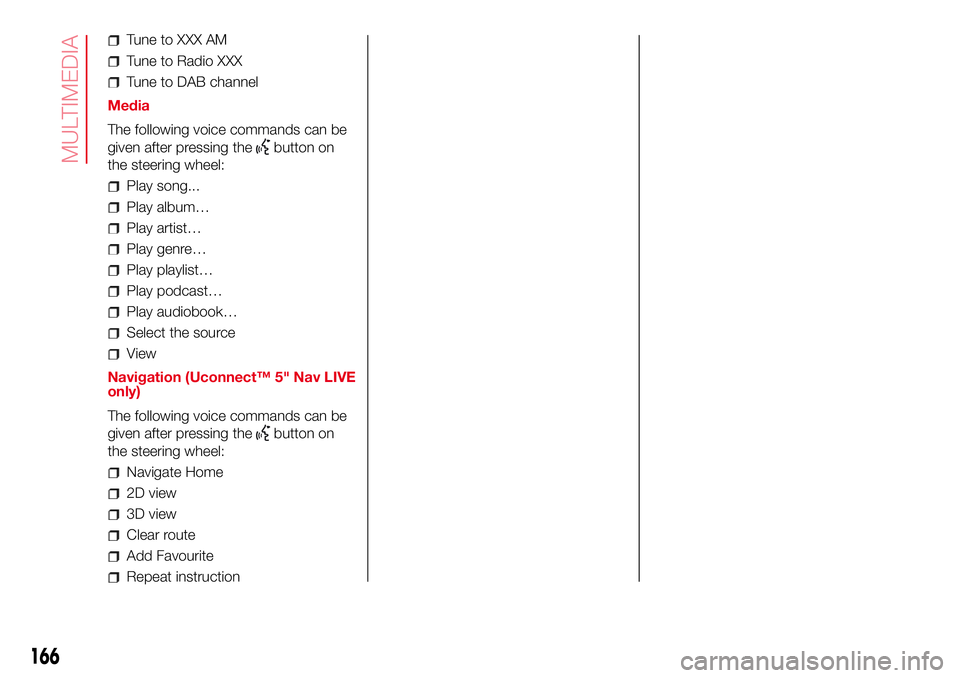
Navigation (Uconnect™ 5" Nav LIVE
only)
The following voice commands can be
given after pressing the
button on
the steering wheel:
2D view
3D view
Clear route
Add Favourite
Repeat instruction
166
MULTIMEDIA
Navigate Home
Page 170 of 192
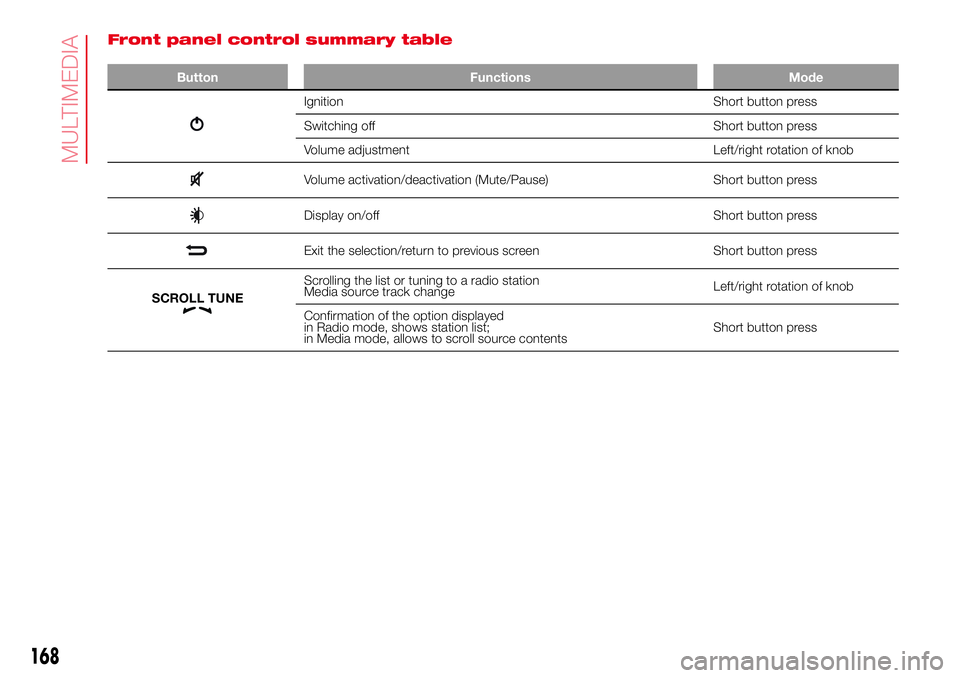
Front panel control summary table
Button Functions Mode
Ignition Short button press
Switching off Short button press
Volume adjustment Left/right rotation of knob
Volume activation/deactivation (Mute/Pause) Short button press
Display on/off Short button press
Exit the selection/return to previous screen Short button press
Scrolling the list or tuning to a radio station
Media source track changeLeft/right rotation of knob
Confirmation of the option displayed
in Radio mode, shows station list;
in Media mode, allows to scroll source contentsShort button press
168
MULTIMEDIA
SCROLL TUNE
Page 171 of 192
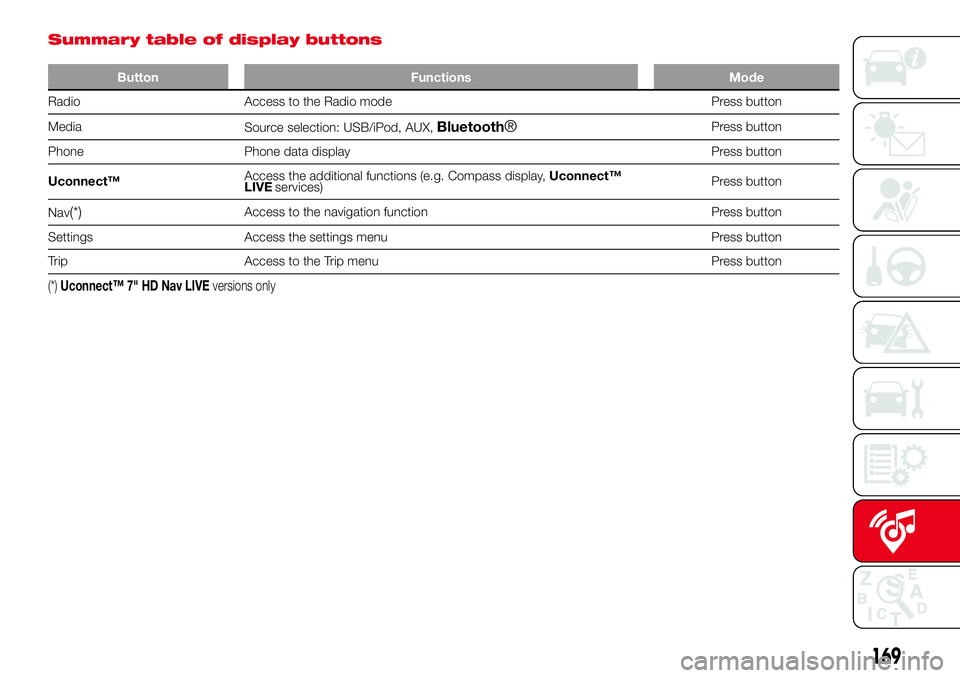
Summary table of display buttons
Button Functions Mode
Radio Access to the Radio mode Press button
Media
Source selection: USB/iPod, AUX,
Bluetooth®Press button
Phone Phone data display Press button
Uconnect™Access the additional functions (e.g. Compass display,Uconnect™
LIVEPress button
Nav
(*)Access to the navigation function Press button
Settings Access the settings menu Press button
Trip Access to the Trip menu Press button
(*)Uconnect™ 7" HD Nav LIVEversions only
169
services)
Page 173 of 192
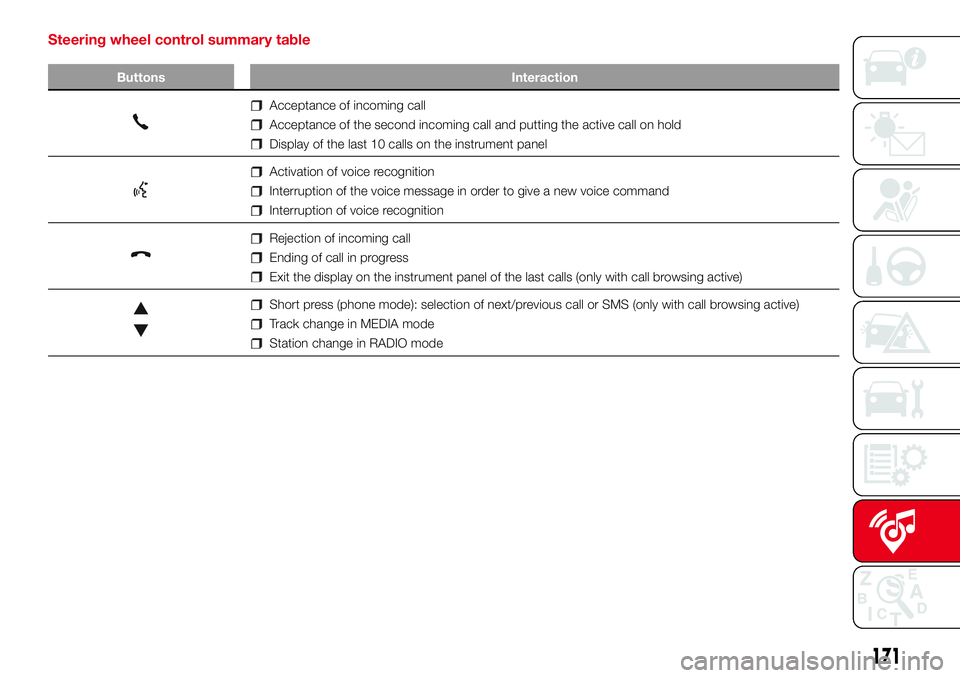
Steering wheel control summary table
Buttons Interaction
Acceptance of incoming call
Acceptance of the second incoming call and putting the active call on hold
Display of the last 10 calls on the instrument panel
Activation of voice recognition
Interruption of the voice message in order to give a new voice command
Interruption of voice recognition
Rejection of incoming call
Ending of call in progress
Exit the display on the instrument panel of the last calls (only with call browsing active)
Short press (phone mode): selection of next/previous call or SMS (only with call browsing active)
Track change in MEDIA mode
Station change in RADIO mode
171
Page 174 of 192
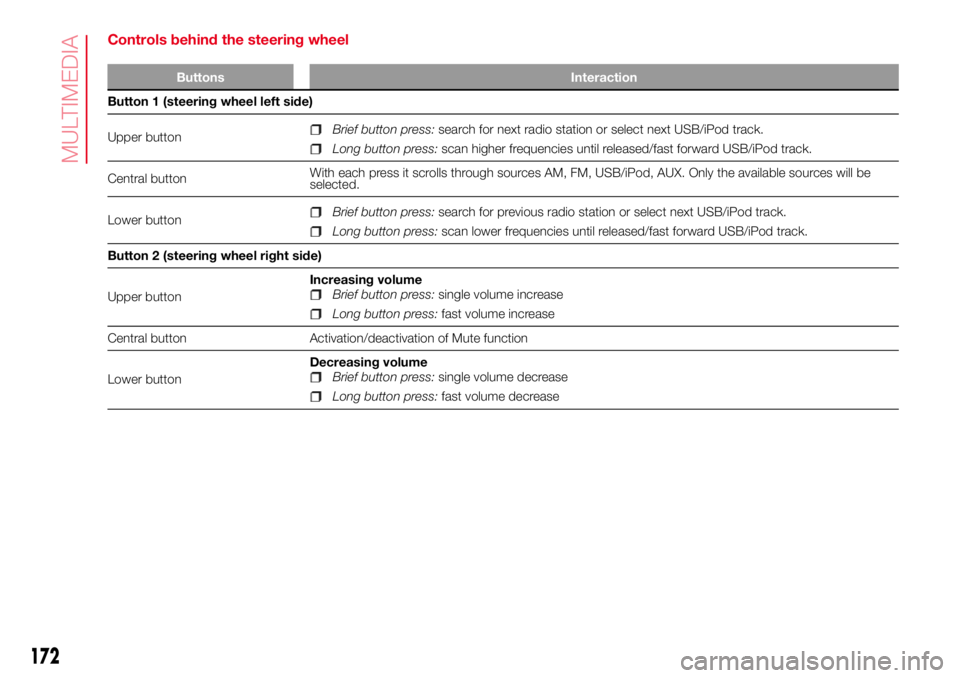
Controls behind the steering wheel
Buttons Interaction
Button 1 (steering wheel left side)
Upper button
Brief button press:search for next radio station or select next USB/iPod track.
Long button press:scan higher frequencies until released/fast forward USB/iPod track.
Central buttonWith each press it scrolls through sources AM, FM, USB/iPod, AUX. Only the available sources will be
selected.
Lower button
Brief button press:search for previous radio station or select next USB/iPod track.
Long button press:scan lower frequencies until released/fast forward USB/iPod track.
Button 2 (steering wheel right side)
Upper buttonIncreasing volume
Brief button press:single volume increase
Long button press:fast volume increase
Central button Activation/deactivation of Mute function
Lower buttonDecreasing volume
Brief button press:single volume decrease
Long button press:fast volume decrease
172
MULTIMEDIA
Page 175 of 192
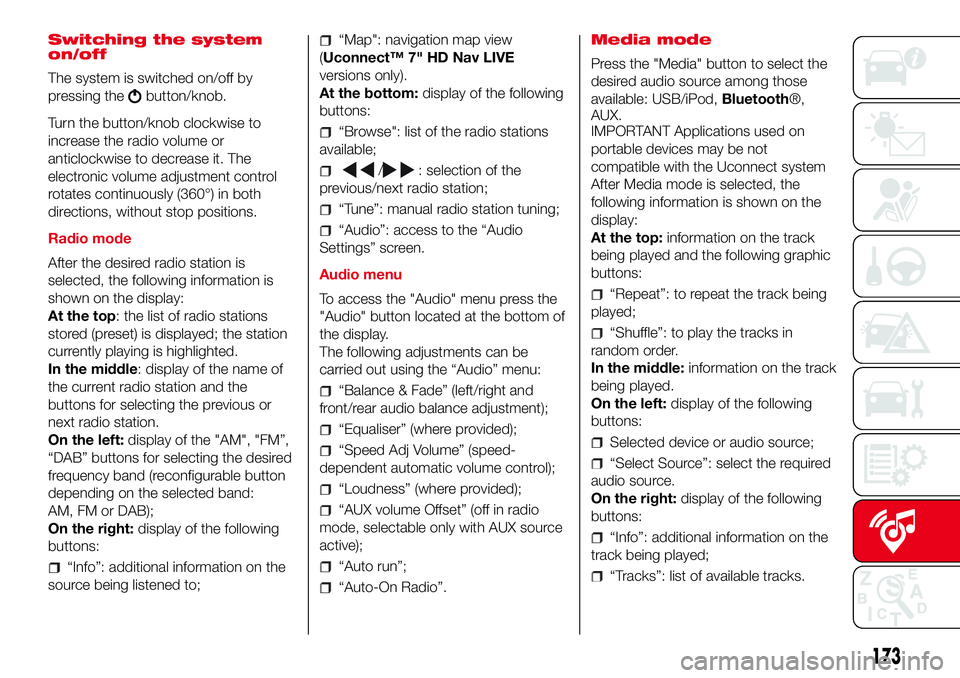
Switching the system
on/off
The system is switched on/off by
pressing the
button/knob.
Turn the button/knob clockwise to
increase the radio volume or
anticlockwise to decrease it. The
electronic volume adjustment control
rotates continuously (360°) in both
directions, without stop positions.
Radio mode
After the desired radio station is
selected, the following information is
shown on the display:
At the top: the list of radio stations
stored (preset) is displayed; the station
currently playing is highlighted.
In the middle: display of the name of
the current radio station and the
buttons for selecting the previous or
next radio station.
On the left:display of the "AM", "FM”,
“DAB” buttons for selecting the desired
frequency band (reconfigurable button
depending on the selected band:
AM, FM or DAB);
On the right:display of the following
buttons:
“Info”: additional information on the
source being listened to;
“Map": navigation map view
(Uconnect™ 7" HD Nav LIVE
versions only).
At the bottom:display of the following
buttons:
“Browse": list of the radio stations
available;
/: selection of the
previous/next radio station;
“Tune”: manual radio station tuning;
“Audio”: access to the “Audio
Settings” screen.
Audio menu
To access the "Audio" menu press the
"Audio" button located at the bottom of
the display.
The following adjustments can be
carried out using the “Audio” menu:
“Balance & Fade” (left/right and
front/rear audio balance adjustment);
“Equaliser” (where provided);
“Speed Adj Volume” (speed-
dependent automatic volume control);
“Loudness” (where provided);
“AUX volume Offset” (off in radio
mode, selectable only with AUX source
active);
“Auto run”;
“Auto-On Radio”.Media mode
Press the "Media" button to select the
desired audio source among those
available: USB/iPod,Bluetooth®,
AUX.
IMPORTANT Applications used on
portable devices may be not
compatible with the Uconnect system
After Media mode is selected, the
following information is shown on the
display:
At the top:information on the track
being played and the following graphic
buttons:
“Repeat”: to repeat the track being
played;
“Shuffle”: to play the tracks in
random order.
In the middle:information on the track
being played.
On the left:display of the following
buttons:
Selected device or audio source;
“Select Source”: select the required
audio source.
On the right:display of the following
buttons:
“Info”: additional information on the
track being played;
“Tracks”: list of available tracks.
173
Page 176 of 192
“Map": navigation map view
(Uconnect 7" HD Nav LIVE versions
only).
At the bottom:information on the
track being played and the following
graphic buttons:
Active device or audio source;
/: select previous/next
track;
: pause track being played;
“Audio”: access to the “Audio
Settings” screen.
Track selection (Browse)
Use this function to scroll through and
select the tracks on the active device.
The choices available depend on the
device connected. For example, on
a USB/iPod device you can also scroll
through the list of artists, genres and
albums available on the device
depending on the information present
on the tracks using the SCROLL
TUNE button/knob.
Within each list, the “ABC” button
allows the user to skip to the desired
letter in the list.
NOTE This button might be disabled for
someApple®devices.
NOTE The RO T E button
does not allow any operation on an
AUX device.Track search (Search)
This functions allows a dynamic search
within a list of tracks.
Bluetooth® SOURCE
This mode is activated by pairing aBlu-
etooth® device containing music
tracks with the system.
PAIRING A Bluetooth® AUDIO
DEVICE
To pair aBluetooth® audio device,
proceed as follows:
activate theBluetooth® function on
the device;
press the “Media” button on the
display;
press the "Select Source" button;
select theBluetooth® Media
source;
press the "Add device" button;
search for Uconnect on theBlu-
etooth® audio device (during the pair-
ing stage a screen is displayed showing
the progress of the operation);
when requested by the audio
device, enter the PIN code shown on
the system display or confirm on the
device the PIN displayed;
if the pairing procedure is completed
successfully, a screen is displayed.
Answer "Yes" to the question to pair the
Bluetooth® audio device as favourite
(the device will have priority over all
other devices to be paired subse-
quently). If "No" is selected, the priority
is determined according to the order of
connection. The last device connected
will have the highest priority;
an audio device can also be paired
by pressing the "Phone" graphic button
on the display and by selecting
"Settings" or selecting "Phone/
Bluetooth®” from the "Settings"
menu.
WARNING If theBluetooth® connec-
tion between mobile phone and system
is lost, consult the mobile phone hand-
book.
NOTE The Radio may change the track
being played by modifying the
name-device in the Bluetooth settings
of the phone (where provided), if the
device is connected via USB after the
Bluetooth® connection.
USB/iPod SOURCE
To activate the USB/iPod mode insert
the corresponding device (USB or iPod)
in the USB port located in the central
console.
If a USB/iPod device is inserted with
the system on, this starts playing the
tracks present on the device.
174
MULTIMEDIA
SC LL UN
Page 177 of 192
AUX SOURCE
To activate AUX mode, insert an
appropriate device in the AUX socket
on the vehicle.
When a device is inserted using the
AUX output socket the system starts
reproducing the AUX source
connected, if it is already being played.
Adjust the volume using the
button/
knob on the front panel or using the
volume adjustment control on the
connected device.
The "AUX volume Offset" function can
be selected in Radio mode only when
the AUX source is active.
IMPORTANT The functions of the
device connected with the AUX socket
are directly managed by the device
itself: it is not possible to change
track/folder/playlist or control playing
start/end/pause with the controls on
the front panel or on the steering wheel.
Do not leave the cable of your portable
player connected to the AUX socket
after disconnection, to avoid possible
hiss from the speakers.PHONE MODE
PHONE MODE ACTIVATION
Press the “Phone” button on the
display to activate the Phone mode.
NOTE To consult the list of mobile
phones and supported functions, visit
the www.DriveUconnect.eu website.
Use the buttons on the display to:dial the phone number (using the
graphic keypad on the display);
display and call the contacts in the
mobile phone phonebook;
display and call contacts from the
registers of previous calls;
pair up to 10 phones/audio devices
to make access and connection easier
and quicker;
transfer calls from the system to the
mobile phone and vice versa and
deactivate the microphone audio for
private conversations.
The mobile phone audio is transmitted
through the vehicle’s audio system;
the system automatically mutes the
radio when the Phone function is used.
PAIRING A MOBILE PHONE
IMPORTANT Only perform this
operation with the vehicle stationary
and in safe conditions; this function is
deactivated when the vehicle is moving.The pairing procedure for a mobile
phone is described below: always
consult the handbook for the mobile
phone in any case.
To pair the mobile phone, proceed as
follows:
activate theBluetooth® function on
the mobile phone;
press the “Phone” button on the
display;
if no phone is paired with the system
yet, the display shows a dedicated
screen;
select "Yes" to start the pairing
procedure, then search for the
Uconnect device on the mobile phone
(if "No" is selected, the Phone main
screen is displayed);
when prompted by the mobile
phone, use its keypad to enter the PIN
code shown on the system display
or confirm on the mobile phone the PIN
displayed;
from the "Phone" screen you can
always pair a mobile phone by pressing
the "Settings" button: press the "Add
device" button and proceed as
described above;
during the pairing stage a screen is
displayed showing the progress of
the operation;
175