Connect phone Acura ILX 2016 User Guide
[x] Cancel search | Manufacturer: ACURA, Model Year: 2016, Model line: ILX, Model: Acura ILX 2016Pages: 521, PDF Size: 24.09 MB
Page 226 of 521
225
uuAudio System Basic Operation uPlaying Internet Radio
Continued
Features
Playing Internet Radio
Connect a compatible phone through Bluetooth®.
You can also connect the phone using your USB connector to the USB port.
Select Audio Source to select Pandora or Aha mode.
Compatible phones only
1Playing Internet Radio
Pandora ®, the Pandora logo, and the Pandora trade
dress are trademarks or registered trademarks of
Pandora Media, Inc., used with permission. Pandora
is currently available exclusively in the United States.
U.S. models
iPhone
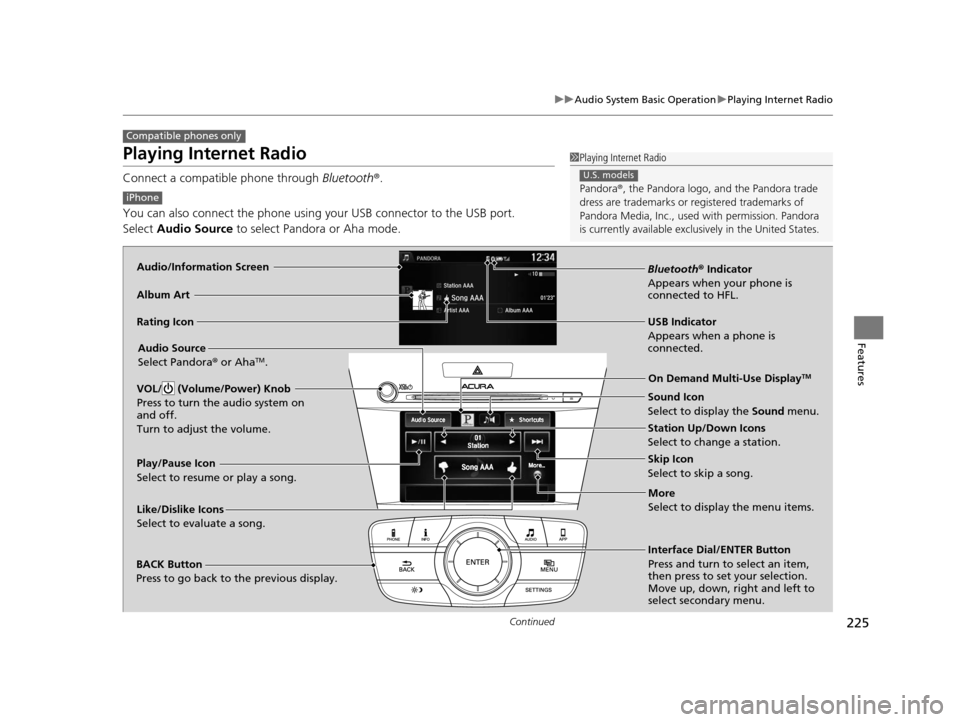
Audio/Information Screen
Album Art
USB Indicator
Appears when a phone is
connected.Rating Icon
BACK Button
Press to go back to the previous display.
Skip Icon
Select to skip a song.
More
Select to display the menu items.
Station Up/Down Icons
Select to change a station.
Audio Source
Select Pandora
® or Aha
TM.
Play/Pause Icon
Select to resume or play a song.
Like/Dislike Icons
Select to evaluate a song. Interface Dial/ENTER Button
Press and turn to select an item,
then press to set your selection.
Move up, down, right and left to
select secondary menu.On Demand Multi-Use Display
TM
Bluetooth
® Indicator
Appears when your phone is
connected to HFL.
VOL/ (Volume/Power) Knob
Press to turn the audio system on
and off.
Turn to adjust the volume.
Sound Icon
Select to display the Sound menu.
16 ACURA ILX-31TX66300.book 225 ページ 2014年12月22日 月曜日 午後10時15分
Page 232 of 521
231
uuAudio System Basic Operation uPlaying Bluetooth ® Audio
Continued
Features
Playing Bluetooth ® Audio
Your audio system allows you to listen to music from your Bluetooth-compatible
phone.
This function is available when the phone is paired an d connected to the vehicle’s
Bluetooth ® HandsFreeLink ® (HFL) system.
2Phone Setup P. 304
1Playing Bluetooth ® Audio
Not all Bluetooth -enabled phones with streaming
audio capabilities are compatible with the system.
For a list of compatible phones:
•U.S.: Visit www.acura.com/handsfreelink , or call 1-
888-528-7876.
•Canada: Visit www.handsfreelink.ca , or call 1-888-
528-7876.
In some states, it may be il legal to perform some data
device functions while driving.
If more than one phone is paired to the HFL system,
there will be a delay before the system begins to play.
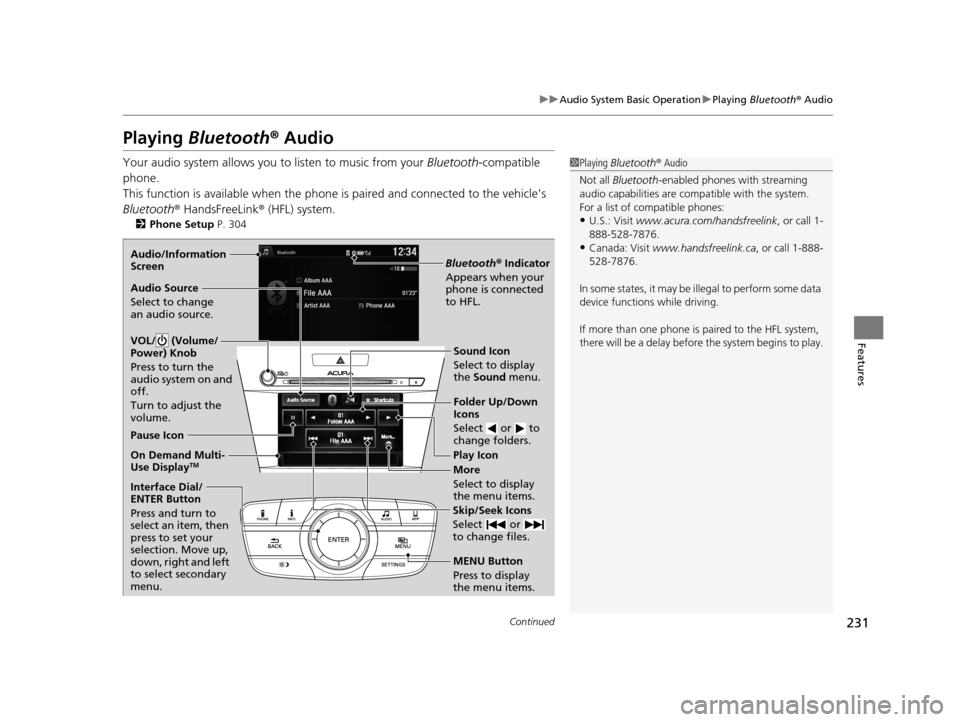
Bluetooth® Indicator
Appears when your
phone is connected
to HFL.
Play Icon
Pause Icon
More
Select to display
the menu items.
Audio Source
Select to change
an audio source.
Interface Dial/
ENTER Button
Press and turn to
select an item, then
press to set your
selection. Move up,
down, right and left
to select secondary
menu.
Skip/Seek Icons
Select or
to change files.
MENU Button
Press to display
the menu items.
Folder Up/Down
Icons
Select or to
change folders.
On Demand Multi-
Use DisplayTM
Audio/Information
Screen
VOL/ (Volume/
Power) Knob
Press to turn the
audio system on and
off.
Turn to adjust the
volume.Sound Icon
Select to display
the Sound menu.
16 ACURA ILX-31TX66300.book 231 ページ 2014年12月22日 月曜日 午後10時15分
Page 233 of 521
uuAudio System Basic Operation uPlaying Bluetooth ® Audio
232
Features
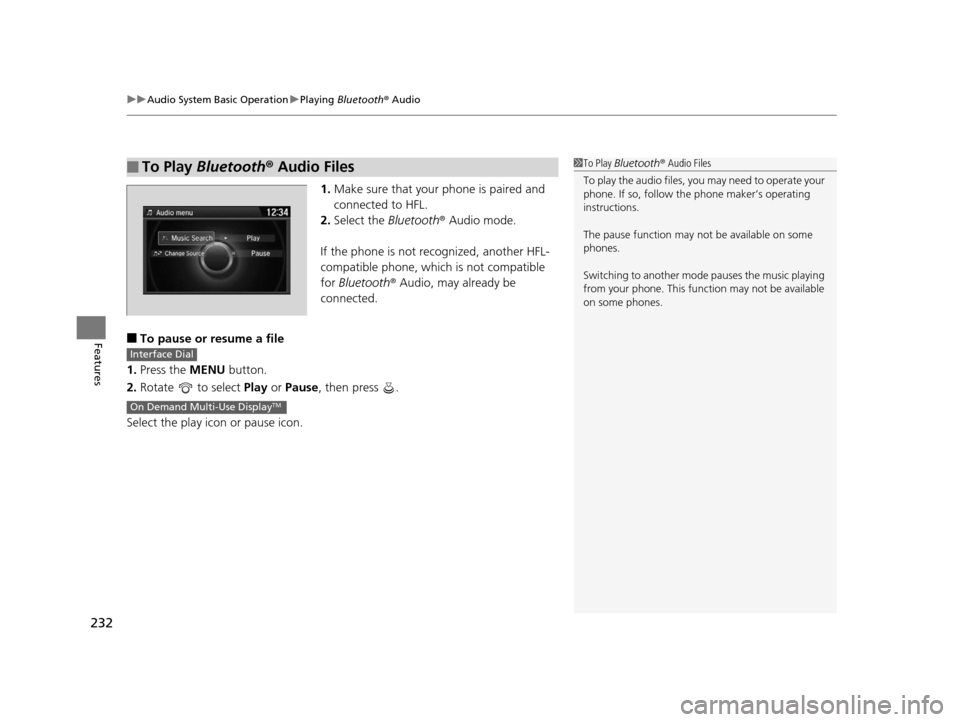
1. Make sure that your phone is paired and
connected to HFL.
2. Select the Bluetooth® Audio mode.
If the phone is not recognized, another HFL-
compatible phone, which is not compatible
for Bluetooth ® Audio, may already be
connected.
■To pause or resume a file
1. Press the MENU button.
2. Rotate to select Play or Pause , then press .
Select the play icon or pause icon.
■To Play Bluetooth® Audio Files1To Play Bluetooth ® Audio Files
To play the audio files, y ou may need to operate your
phone. If so, follow the phone maker’s operating
instructions.
The pause function may no t be available on some
phones.
Switching to another mode pauses the music playing
from your phone. This functi on may not be available
on some phones.
Interface Dial
On Demand Multi-Use DisplayTM
16 ACURA ILX-31TX66300.book 232 ページ 2014年12月22日 月曜日 午後10時15分
Page 234 of 521
233
uuAudio System Basic Operation uSmartphone Navi Apps
Features
Smartphone Navi Apps
You can connect an iPhone to the syst em to enable integration between the
AcuraLink navigation app on your phone and the vehicle. This allows you to see the
app on the vehicle display. Use the interface dial and buttons to control the app
when connected to the vehicle.
For more information on the AcuraLink navi gation app, its features and operation,
phone compatibility, connection requ irements, and downloading, visit
acuralink.acura.com .1Smartphone Navi Apps
You must purchase the AcuraLink navigation app.
The required cable kit is so ld separately. See your
dealer for more information.
Not all phones and apps ar e compatible with the
system. The system does not display all the available
apps on smartphone, and so me apps need to be
preinstalled. See your dealer for details.
You need to switch the Bluetooth® connection to
your smartphone if another electronic device is
connected. 2 To pair a cell phone (when a phone has
already been paired to the system) P. 305
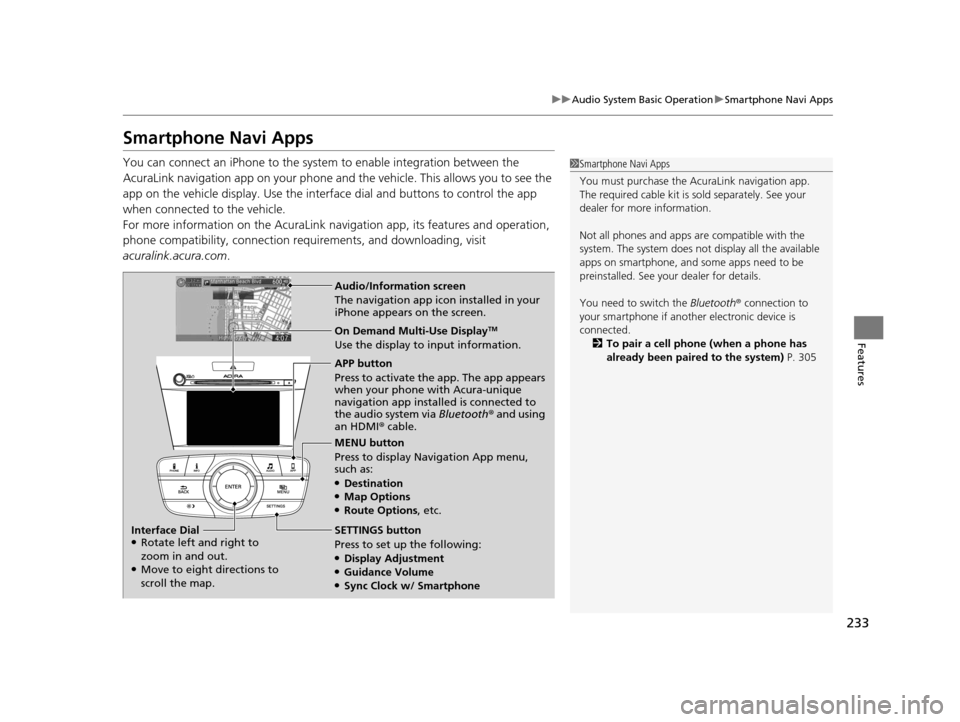
Audio/Information screen
The navigation app icon installed in your
iPhone appears on the screen.
On Demand Multi-Use DisplayTM
Use the display to input information.
APP button
Press to activate the app. The app appears
when your phone with Acura-unique
navigation app installed is connected to
the audio system via Bluetooth® and using
an HDMI® cable.
MENU button
Press to display Navigation App menu,
such as:
●Destination●Map Options●Route Options , etc.
SETTINGS button
Press to set up the following:
●Display Adjustment●Guidance Volume●Sync Clock w/ Smartphone
Interface Dial
●Rotate left and right to
zoom in and out.
●Move to eight directions to
scroll the map.
16 ACURA ILX-31TX66300.book 233 ページ 2014年12月22日 月曜日 午後10時15分
Page 250 of 521
249
uuCustomized Features*u
Continued
Features
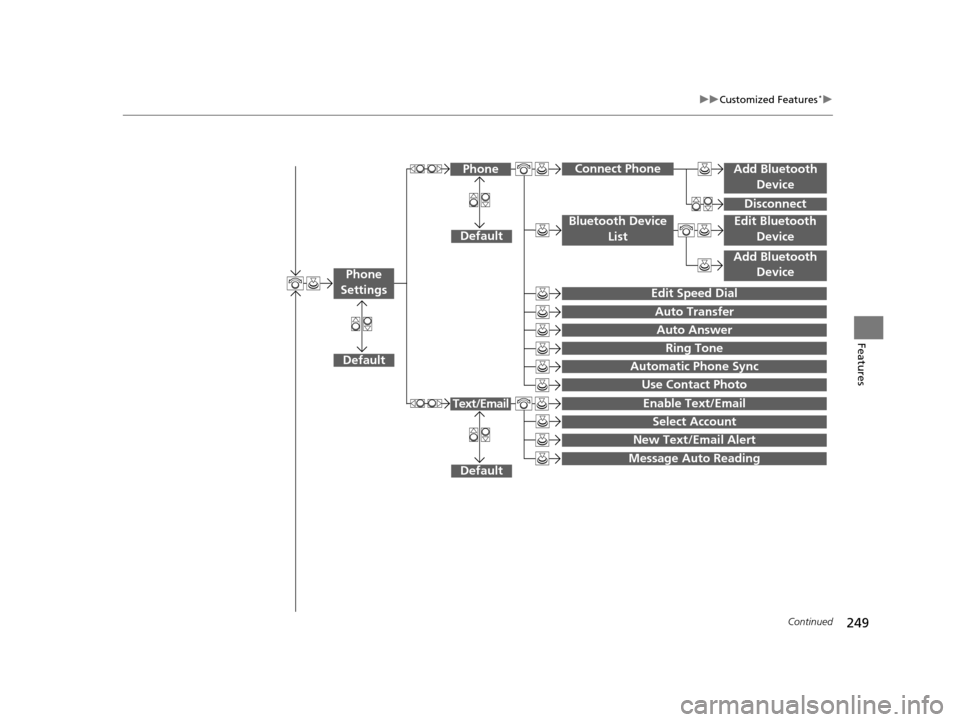
Add Bluetooth
Device
Disconnect
Default
PhoneConnect Phone
Edit Bluetooth Device
Add Bluetooth Device
Bluetooth Device
List
Edit Speed Dial
Auto Transfer
Auto Answer
Ring Tone
Automatic Phone Sync
Use Contact Photo
Default
Default
Enable Text/Email
Select Account
New Text/Email Alert
Text/Email
Phone
Settings
Message Auto Reading
16 ACURA ILX-31TX66300.book 249 ページ 2014年12月22日 月曜日 午後10時15分
Page 262 of 521
261
uuCustomized Features*u
Continued
Features
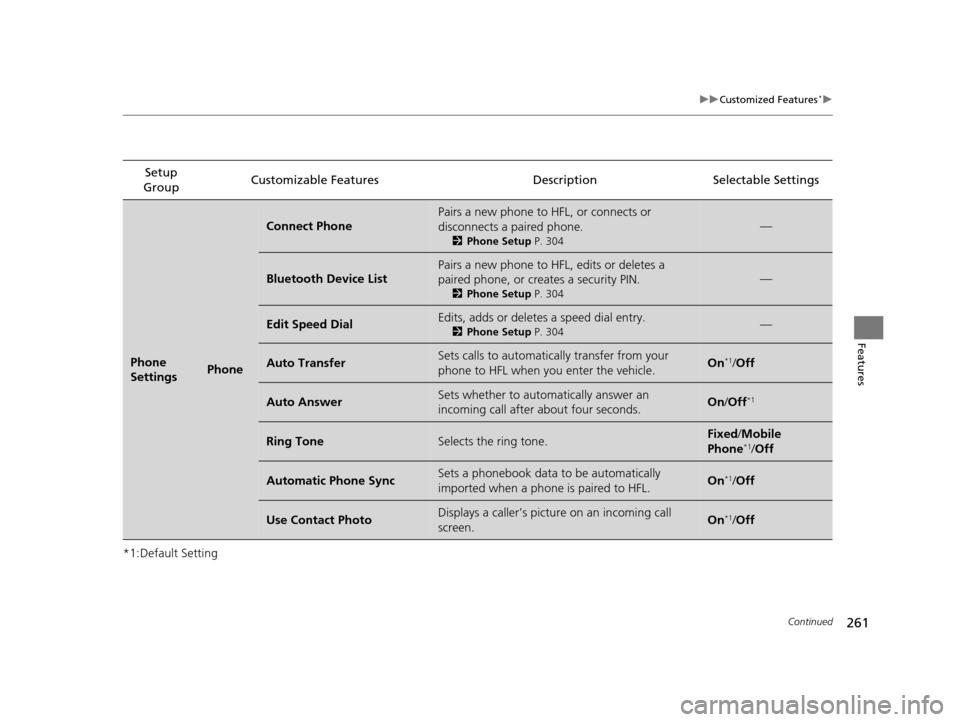
*1:Default SettingSetup
Group Customizable Features Description Selectable Settings
Phone
SettingsPhone
Connect Phone
Pairs a new phone to HFL, or connects or
disconnects a paired phone.
2
Phone Setup P. 304
—
Bluetooth Device List
Pairs a new phone to HFL, edits or deletes a
paired phone, or creates a security PIN.
2Phone Setup P. 304
—
Edit Speed DialEdits, adds or deletes a speed dial entry.
2Phone Setup P. 304—
Auto TransferSets calls to automatically transfer from your
phone to HFL when you enter the vehicle.On*1/Off
Auto AnswerSets whether to automatically answer an
incoming call after about four seconds.On /Off*1
Ring ToneSelects the ring tone.Fixed /Mobile
Phone*1/ Off
Automatic Phone SyncSets a phonebook data to be automatically
imported when a phone is paired to HFL.On*1/Off
Use Contact PhotoDisplays a caller’s picture on an incoming call
screen.On*1/Off
16 ACURA ILX-31TX66300.book 261 ページ 2014年12月22日 月曜日 午後10時15分
Page 265 of 521

264
uuCustomized Features*u
Features
*1:Default SettingSetup
Group Customizable Features Descri
ption Selectable Settings
App
SettingsDisplay Adjustment Brightness
Changes the brightness of the audio/information
screen. —
Contrast Changes the contrast of the audio/information
screen.
—
Black Level Changes the black level of the audio/information
screen. —
Color Changes the color of the audio/information
screen. —
Tint Changes the tint of the audio/information screen. —
Guidance Volume Adjusts the guidance volume level with
navigation app.
0
~ 9
*1 ~ 11
Sync Clock w/ Smartphone Selects whether the clock links to the device you
connect. On
/Off
*1
Default Cancels/Resets all cust
omized items in the App
Settings group as default. Default
/OK
16 ACURA ILX-31TX66300.book 264 ページ 2014年12月22日 月曜日 午後10時15分
Page 270 of 521
269
uuBluetooth ® HandsFreeLink ®u Using HFL
Features
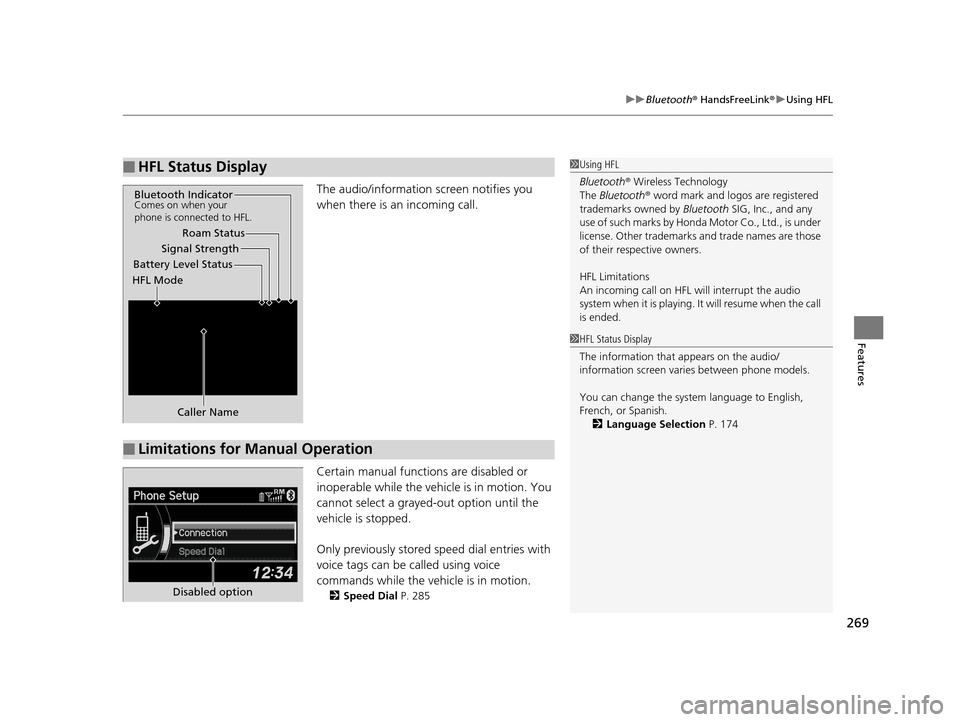
The audio/information screen notifies you
when there is an incoming call.
Certain manual functions are disabled or
inoperable while the vehicle is in motion. You
cannot select a grayed-out option until the
vehicle is stopped.
Only previously stored speed dial entries with
voice tags can be called using voice
commands while the vehicle is in motion.
2 Speed Dial P. 285
■HFL Status Display1Using HFL
Bluetooth ® Wireless Technology
The Bluetooth ® word mark and logos are registered
trademarks owned by Bluetooth SIG, Inc., and any
use of such marks by Honda Motor Co., Ltd., is under
license. Other trademarks and trade names are those
of their respective owners.
HFL Limitations
An incoming call on HFL will interrupt the audio
system when it is playing. It will resume when the call
is ended.
Signal Strength
HFL Mode Battery Level Status Roam Status
Caller Name
Bluetooth IndicatorComes on when your
phone is connected to HFL.
■Limitations for Manual Operation
1 HFL Status Display
The information that appears on the audio/
information screen vari es between phone models.
You can change the system language to English,
French, or Spanish. 2 Language Selection P. 174
Disabled option
16 ACURA ILX-31TX66300.book 269 ページ 2014年12月22日 月曜日 午後10時15分
Page 271 of 521
270
uuBluetooth ® HandsFreeLink ®u HFL Menus
Features
HFL Menus
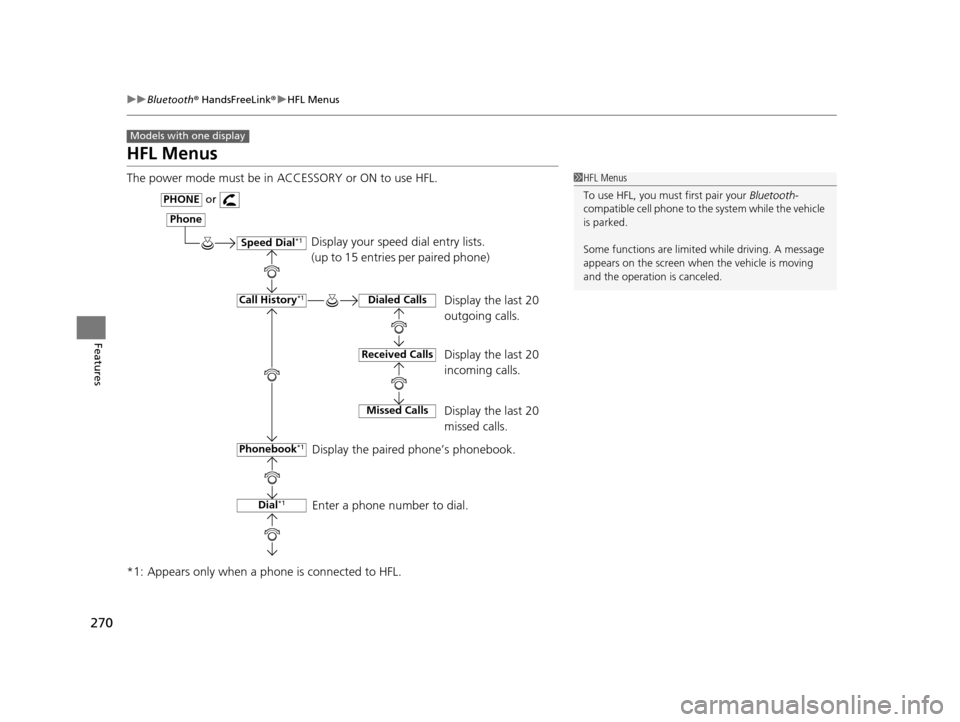
The power mode must be in ACCESSORY or ON to use HFL.
*1: Appears only when a phone is connected to HFL.
Models with one display
1HFL Menus
To use HFL, you must first pair your Bluetooth-
compatible cell phone to th e system while the vehicle
is parked.
Some functions are limited while driving. A message
appears on the screen when the vehicle is moving
and the operation is canceled.
Display your speed dial entry lists.
(up to 15 entries per paired phone)
Display the last 20
outgoing calls.
Display the last 20
incoming calls.
Display the last 20
missed calls.
Display the paired phone’s phonebook.
Enter a phone number to dial.
Phone
Speed Dial*1
Call History*1
PHONEor
Phonebook
*1
Dial*1
Dialed Calls
Received Calls
Missed Calls
16 ACURA ILX-31TX66300.book 270 ページ 2014年12月22日 月曜日 午後10時15分
Page 272 of 521
271
uuBluetooth ® HandsFreeLink ®u HFL Menus
Continued
Features
*1: Appears only when a phone is connected to HFL.
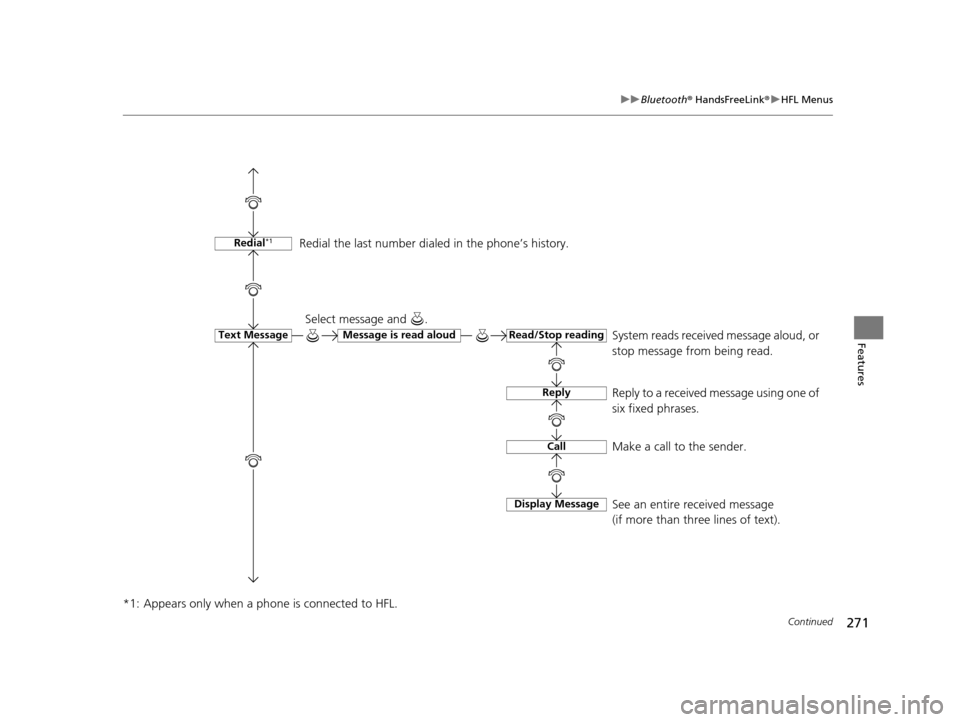
Redial*1
Text MessageRead/Stop readingMessage is read aloud
Reply
Call
Display Message
System reads received message aloud, or
stop message from being read.
Select message and .
Reply to a received message using one of
six fixed phrases.
Make a call to the sender.
See an entire received message
(if more than three lines of text).
Redial the last number dialed in the phone’s history.
16 ACURA ILX-31TX66300.book 271 ページ 2014年12月22日 月曜日 午後10時15分