Connect phone Acura ILX 2016 Owner's Guide
[x] Cancel search | Manufacturer: ACURA, Model Year: 2016, Model line: ILX, Model: Acura ILX 2016Pages: 521, PDF Size: 24.09 MB
Page 300 of 521
299
uuBluetooth ® HandsFreeLink ®u HFL Menus
Continued
Features
HFL Menus
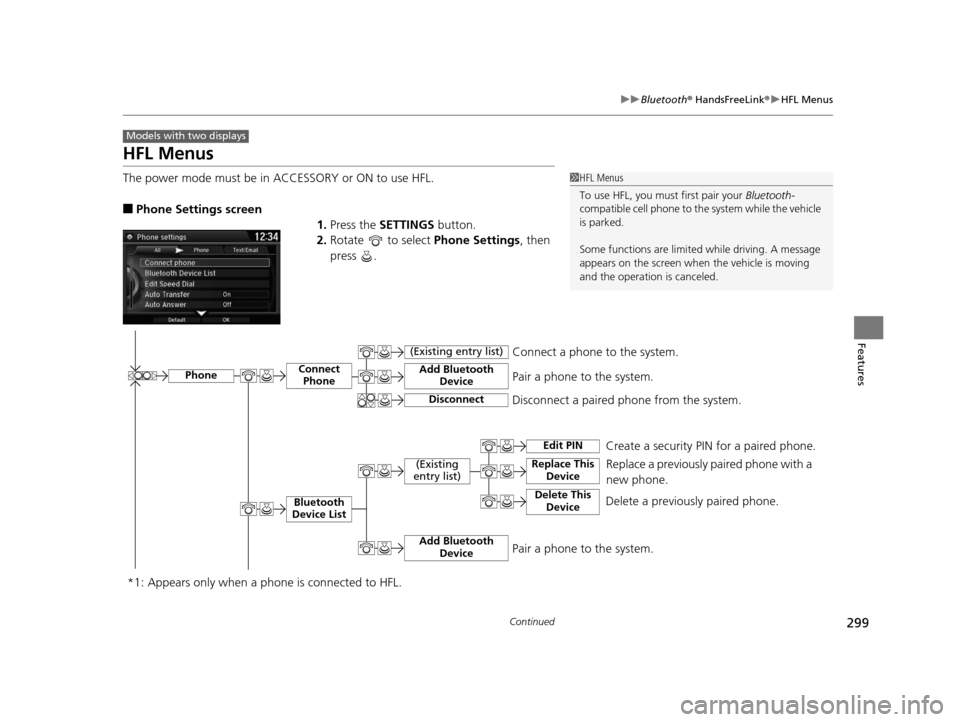
The power mode must be in ACCESSORY or ON to use HFL.
■Phone Settings screen
1.Press the SETTINGS button.
2. Rotate to select Phone Settings, then
press .
Models with two displays
1 HFL Menus
To use HFL, you must first pair your Bluetooth-
compatible cell phone to th e system while the vehicle
is parked.
Some functions are limited while driving. A message
appears on the screen when the vehicle is moving
and the operation is canceled.
PhoneConnect Phone
Bluetooth
Device List
(Existing
entry list)Replace This Device
Add Bluetooth Device
Disconnect a paired phone from the system.Connect a phone to the system.
*1: Appears only when a p hone is connected to HFL.Disconnect
(Existing entry list)
Pair a phone to the system.
Edit PIN Create a security PIN for a paired phone.
Replace a previously paired phone with a
new phone.
Delete This DeviceDelete a previously paired phone.
Add Bluetooth DevicePair a phone to the system.
16 ACURA ILX-31TX66300.book 299 ページ 2014年12月22日 月曜日 午後10時15分
Page 303 of 521
302
uuBluetooth ® HandsFreeLink ®u HFL Menus
Features
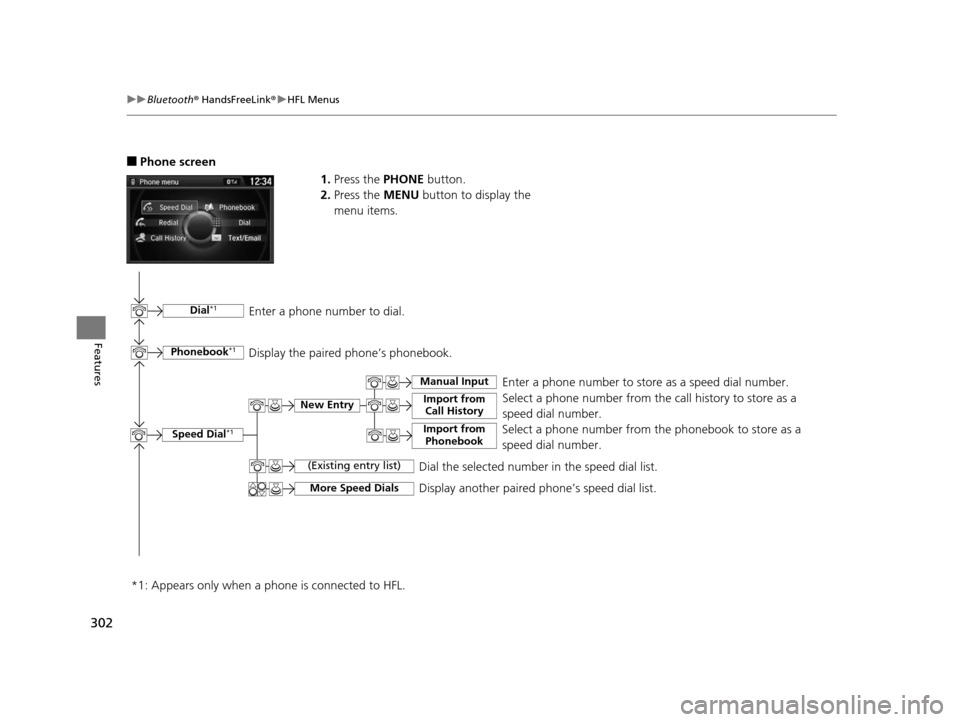
■Phone screen
1.Press the PHONE button.
2. Press the MENU button to display the
menu items.
Select a phone number from the call history to store as a
speed dial number.
Speed Dial*1
Manual Input
New Entry Import from Call History
Import from PhonebookSelect a phone number from the phonebook to store as a
speed dial number.Enter a phone number to store as a speed dial number.
More Speed DialsDisplay another paired phone’s speed dial list.
*1: Appears only when a pho ne is connected to HFL.
(Existing entry list)Dial the selected number in the speed dial list.
Phonebook*1
Dial*1
Display the paired phone’s phonebook. Enter a phone number to dial.
16 ACURA ILX-31TX66300.book 302 ページ 2014年12月22日 月曜日 午後10時15分
Page 304 of 521
303
uuBluetooth ® HandsFreeLink ®u HFL Menus
Continued
Features
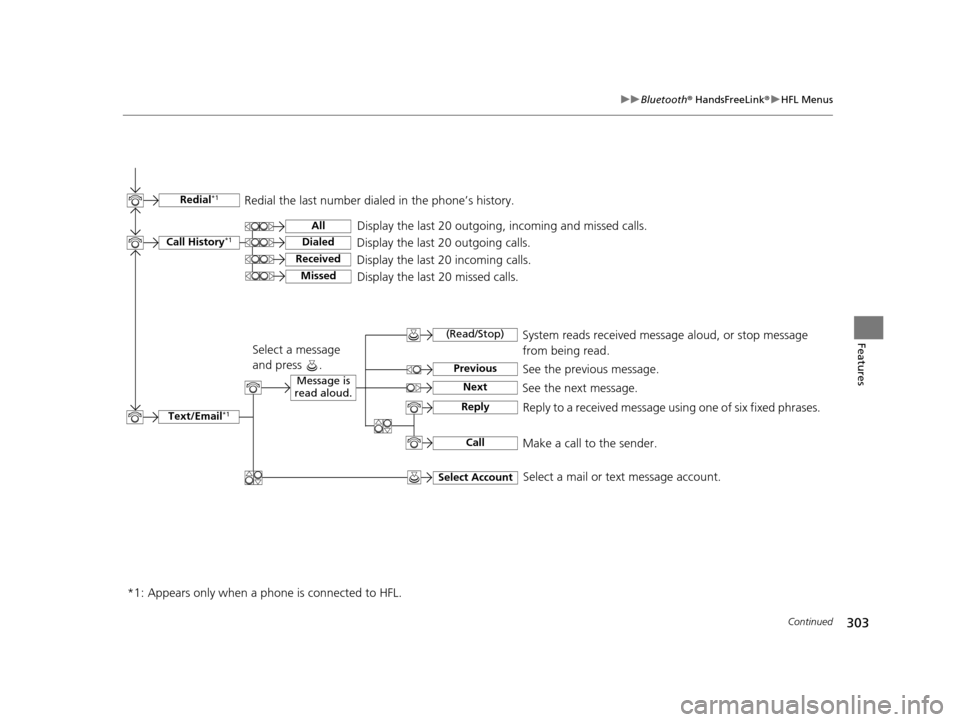
Text/Email*1
Message is
read aloud.See the previous message.
(Read/Stop)
Previous
NextSee the next message. System reads received messag
e aloud, or stop message
from being read.
Reply
Call
Reply to a received message using one of six fixed phrases.
Make a call to the sender.
Select Account
Select a message
and press .
Select a mail or text message account.
Redial*1Redial the last number dialed in the phone’s history.
Display the last 20 outgoing, incoming and missed calls.
Call History*1All
Dialed
Received
Display the last 20 outgoing calls.
Display the last 20 incoming calls.
MissedDisplay the last 20 missed calls.
*1: Appears only when a p hone is connected to HFL.
16 ACURA ILX-31TX66300.book 303 ページ 2014年12月22日 月曜日 午後10時15分
Page 305 of 521

uuBluetooth ® HandsFreeLink ®u HFL Menus
304
Features
■To pair a cell phone (when there is no
phone paired to the system)
1. Press the PHONE button.
2. Rotate to select Yes, then press .
3. Make sure your phone is search or
discoverable mode, then press .
u HFL automatically searches for a
Bluetooth device.
4. When your phone appears on the list, select
it by pressing .
u If your phone does not appear, you can
select Refresh to search again.
u If your phone still does not appear, move
to select Device Not Found? and
search for Bluetooth devices using your
phone. From your phone, select
HandsFreeLink .
5. HFL gives you a pairing code on the audio/
information screen.
u Confirm if the pairing code on the screen
and your phone match.
This may vary by phone.
6. A notification appears on the screen if
pairing is successful.
■Phone Setup1Phone Setup
Your Bluetooth -compatible phone must be paired to
HFL before you can make and receive hands-free
calls.
Phone Pairing Tips:
•You cannot pair your phone while the vehicle is
moving.
•Up to six phones can be paired.
•Your phone’s battery may dr ain faster when it is
connected to HFL.
•If your phone is not ready for pairing or not found
by the system within three minutes, the system will
time out and returns to idle.
Once you have paired a phone, you can see it
displayed on the screen with one or two icons on the
right side.
These icons indicate the following: : The phone can be used with HFL.
: The phone is compatible with Bluetooth ® Audio.
When pairing is completed, an Automatic Phone
Sync prompt appears. Select On if you want your call
history and phonebook au tomatically imported to
HFL. 2 Changing the Automatic Phone Sync
setting P. 314
16 ACURA ILX-31TX66300.book 304 ページ 2014年12月22日 月曜日 午後10時15分
Page 306 of 521
305
uuBluetooth ® HandsFreeLink ®u HFL Menus
Continued
Features
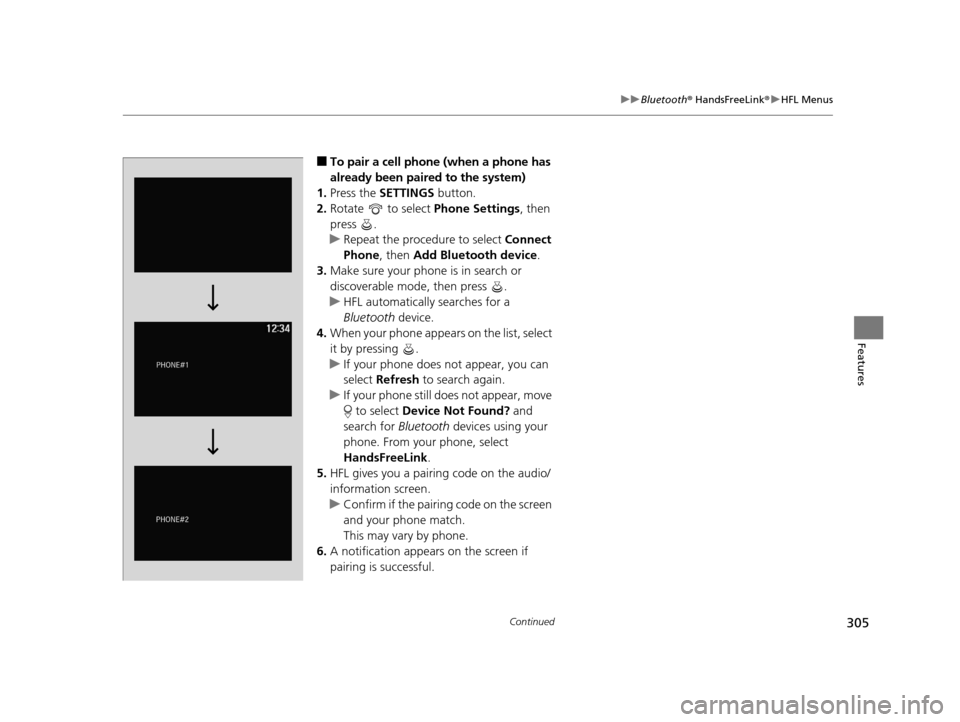
■To pair a cell phone (when a phone has
already been paired to the system)
1. Press the SETTINGS button.
2. Rotate to select Phone Settings, then
press .
u Repeat the procedure to select Connect
Phone , then Add Bluetooth device .
3. Make sure your phone is in search or
discoverable mode, then press .
u HFL automatically searches for a
Bluetooth device.
4. When your phone appears on the list, select
it by pressing .
u If your phone does not appear, you can
select Refresh to search again.
u If your phone still does not appear, move
to select Device Not Found? and
search for Bluetooth devices using your
phone. From your phone, select
HandsFreeLink .
5. HFL gives you a pairing code on the audio/
information screen.
u Confirm if the pairing code on the screen
and your phone match.
This may vary by phone.
6. A notification appears on the screen if
pairing is successful.
16 ACURA ILX-31TX66300.book 305 ページ 2014年12月22日 月曜日 午後10時15分
Page 314 of 521
Continued313
uuBluetooth ® HandsFreeLink ®u HFL Menus
Features
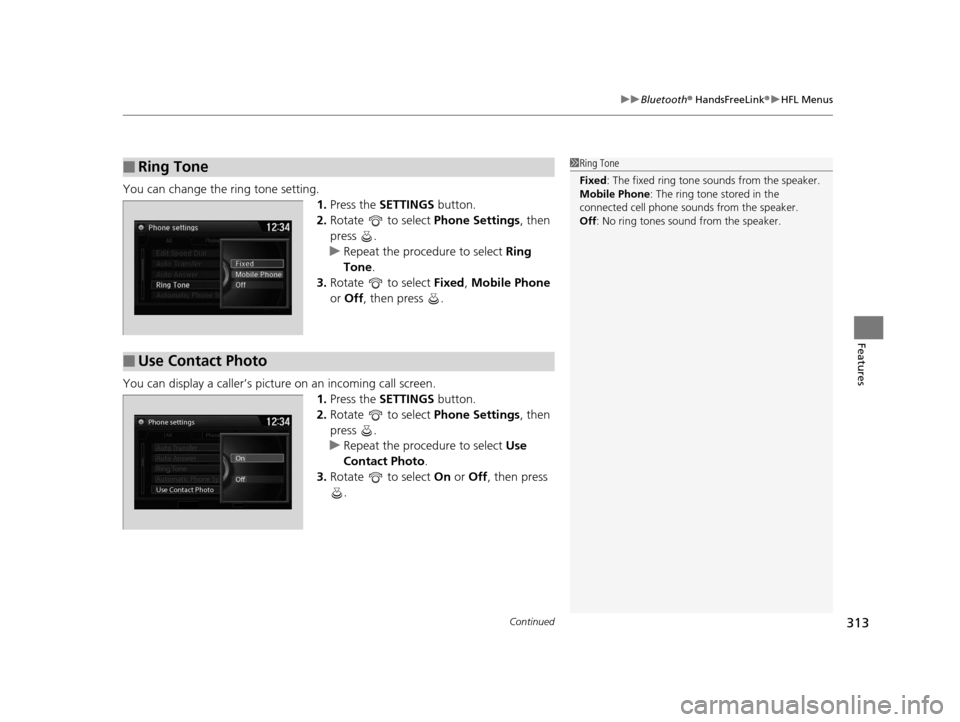
You can change the ring tone setting.
1.Press the SETTINGS button.
2. Rotate to select Phone Settings, then
press .
u Repeat the procedure to select Ring
Tone .
3. Rotate to select Fixed, Mobile Phone
or Off , then press .
You can display a caller’s picture on an incoming call screen. 1.Press the SETTINGS button.
2. Rotate to select Phone Settings, then
press .
u Repeat the procedure to select Use
Contact Photo .
3. Rotate to select On or Off , then press
.
■Ring Tone1 Ring Tone
Fixed: The fixed ring tone sounds from the speaker.
Mobile Phone: The ring tone stored in the
connected cell phone sounds from the speaker.
Off : No ring tones sound from the speaker.
■Use Contact Photo
Phone settingsAll PhoneAuto Transfer
Auto Answer
Ring Tone
Automatic Phone Sy
Use Contact Photo On
Off
Default
16 ACURA ILX-31TX66300.book 313 ページ 2014年12月22日 月曜日 午後10時15分
Page 315 of 521
uuBluetooth ® HandsFreeLink ®u HFL Menus
314
Features
■When Automatic Phone Sync is set to
On:
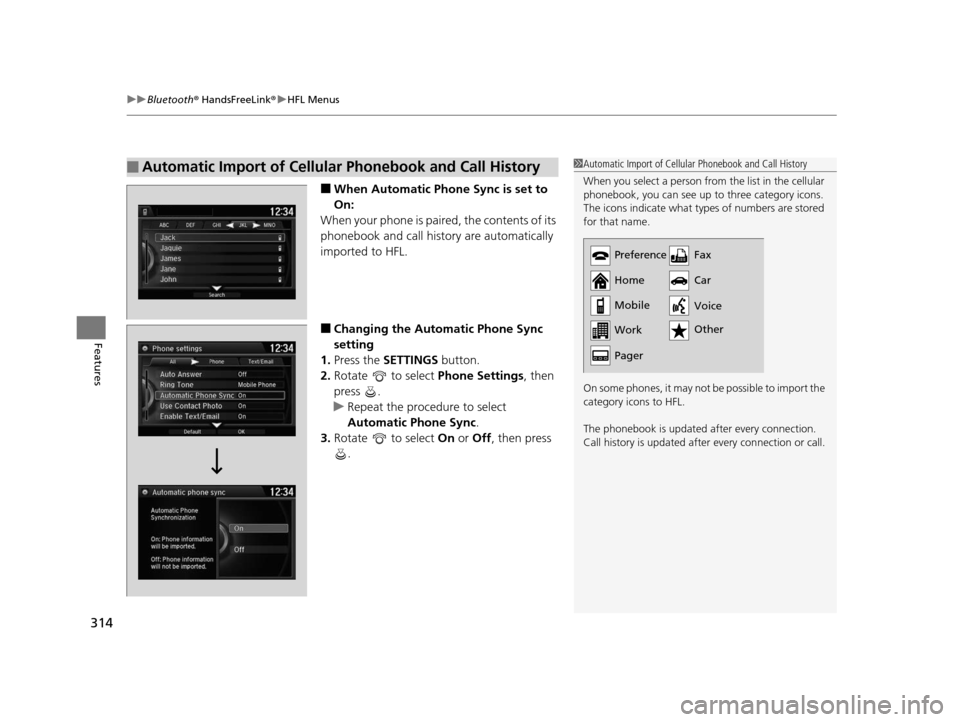
When your phone is paired, the contents of its
phonebook and call hist ory are automatically
imported to HFL.
■Changing the Automatic Phone Sync
setting
1. Press the SETTINGS button.
2. Rotate to select Phone Settings, then
press .
u Repeat the procedure to select
Automatic Phone Sync .
3. Rotate to select On or Off , then press
.
■Automatic Import of Cellular Phonebook and Call History1 Automatic Import of Cellular Phonebook and Call History
When you select a person from the list in the cellular
phonebook, you can see up to three category icons.
The icons indicate what types of numbers are stored
for that name.
On some phones, it may not be possible to import the
category icons to HFL.
The phonebook is updated after every connection.
Call history is updated after every connection or call.
Preference
Home
Mobile
Work
PagerFax
Car
Other Voice
16 ACURA ILX-31TX66300.book 314 ページ 2014年12月22日 月曜日 午後10時15分
Page 319 of 521
uuBluetooth ® HandsFreeLink ®u HFL Menus
318
Features
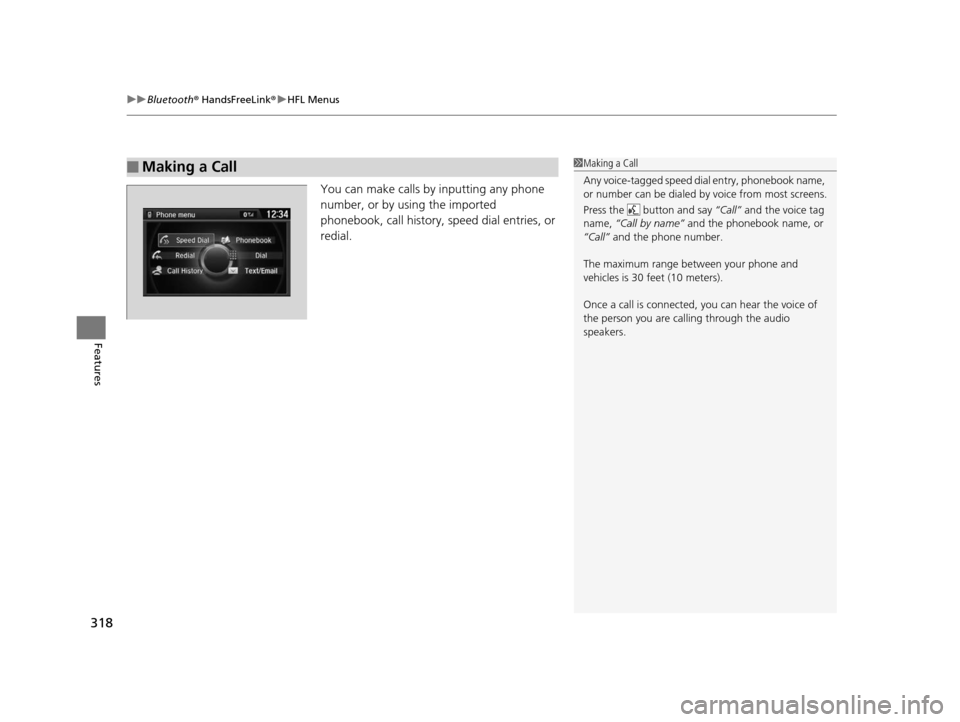
You can make calls by inputting any phone
number, or by using the imported
phonebook, call history, speed dial entries, or
redial.
■Making a Call1 Making a Call
Any voice-tagged speed di al entry, phonebook name,
or number can be dialed by voice from most screens.
Press the button and say “Call” and the voice tag
name, “Call by name” and the phonebook name, or
“Call” and the phone number.
The maximum range be tween your phone and
vehicles is 30 fe et (10 meters).
Once a call is connected, you can hear the voice of
the person you are call ing through the audio
speakers.
16 ACURA ILX-31TX66300.book 318 ページ 2014年12月22日 月曜日 午後10時15分
Page 322 of 521
Continued321
uuBluetooth ® HandsFreeLink ®u HFL Menus
Features
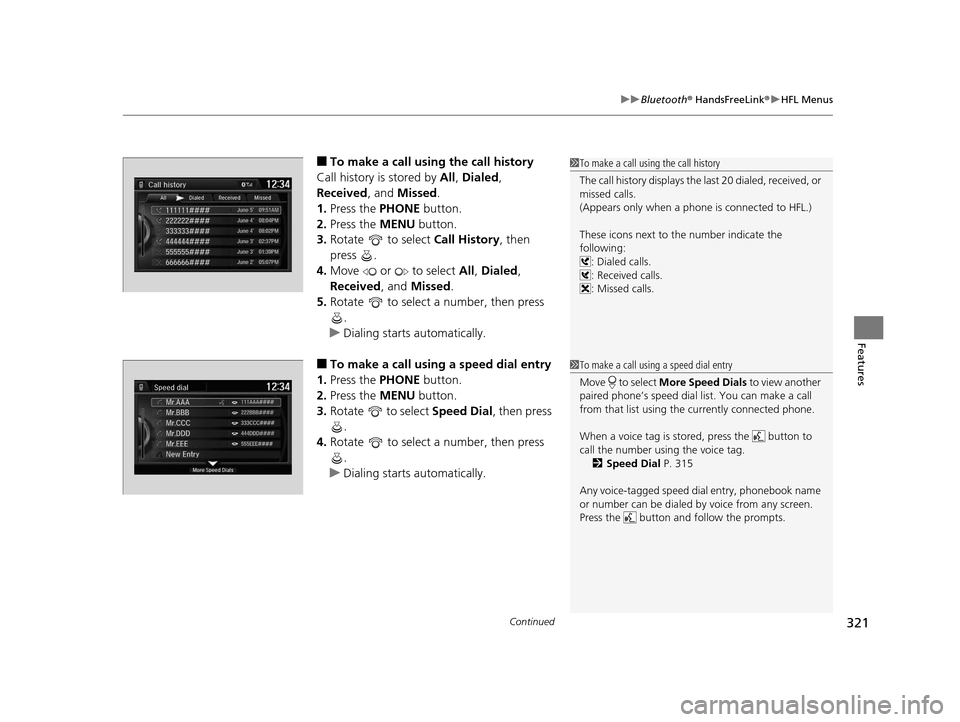
■To make a call usin g the call history
Call history is stored by All, Dialed ,
Received , and Missed .
1. Press the PHONE button.
2. Press the MENU button.
3. Rotate to select Call History, then
press .
4. Move or to select All, Dialed ,
Received , and Missed .
5. Rotate to select a number, then press
.
u Dialing starts automatically.
■To make a call using a speed dial entry
1. Press the PHONE button.
2. Press the MENU button.
3. Rotate to select Speed Dial, then press
.
4. Rotate to select a number, then press
.
u Dialing starts automatically.
1To make a call using the call history
The call history disp lays the last 20 dialed, received, or
missed calls.
(Appears only when a phone is connected to HFL.)
These icons next to the number indicate the
following:
: Dialed calls.
: Received calls.
: Missed calls.
1To make a call using a speed dial entry
Move to select More Speed Dials to view another
paired phone’s speed dial list. You can make a call
from that list using th e currently connected phone.
When a voice tag is stored, press the button to
call the number using the voice tag. 2 Speed Dial P. 315
Any voice-tagged speed di al entry, phonebook name
or number can be dialed by voice from any screen.
Press the button and follow the prompts.
16 ACURA ILX-31TX66300.book 321 ページ 2014年12月22日 月曜日 午後10時15分
Page 512 of 521
511
uuClient Service Information u
Information
Requirements to access Pandora ®
• Latest version of the Pandora app
installed on your Android, Blackberry, or
iPhone.
• Registered Pandora account (you can
create a free account at
www.pandora.com
smartphone)
• Connection to the in ternet via WiFi or
cellular data network.
■Disclaimer of Pandora ®
16 ACURA ILX-31TX66300.book 511 ページ 2014年12月22日 月曜日 午後10時15分